Working with AutoComplete Widget

To see how to work with Kendo UI widgets, let us see how to work with widget AutoComplete

Very first you write HTML as below,

image

Then you initialize HTML to provide Kendo UI functionality as below,

image

Now if you want to add event to AutoComplete then you can do in either ways,

image

Or you can add event in other way also. First get the AutoComplete widget

image

And then using bind method attach event as below,

image

You will get below codes on putting all the codes together for AutoComplete widget


<html >

<!--In the header of your page, paste the following for Kendo UI Web styles-->
<!--Then paste the following for Kendo UI Web scripts-->
<script type="text/javascript" src="Scripts/jquery.min.js"></script><script type="text/javascript" src="Scripts/kendo.all.min.js"></script>
<script type="text/javascript" src="Scripts/Test.js"></script>My Kendo UI Demo</pre>
<h1>Kendo UI Demo</h1>
<pre>
<input id="FruitsAutoComplete" type="text" /><script type="text/javascript">// <![CDATA[
var data = ["Mango",
"Banana",
"Apple",
"Grapes",
"Guava",
"Orange"];

$("#FruitsAutoComplete").kendoAutoComplete({
dataSource: data
});

var autoComplete = $("#FruitsAutoComplete").data("kendoAutoComplete");
autoComplete.bind("change", onChangeEvent);
function onChangeEvent() {
alert('Change event occurs');
}
// ]]></script>

On running you will get AutoComplete widget as below and on the change event an alert message.

image

In above sample, I have bound local data source to AutoCompleteBox. You can very much get data from external data source as well. You can create data source from ODATA service as below,

image

Above we are fetching Title of the movies from ODATA feed of NetFlix. In type we are specifying that service is retuning ODATA and at one time we are asking service to return 10 records.

Next you can set it as data source of AutoComplete as below,

image

For AutoComplete widget we are setting minimum length to get a suggestion is 3 and Name filed of data source will be used.

Putting all the codes together


<html >

<!--In the header of your page, paste the following for Kendo UI Web styles-->
<!--Then paste the following for Kendo UI Web scripts-->
<script type="text/javascript" src="Scripts/jquery.min.js"></script><script type="text/javascript" src="Scripts/kendo.all.min.js"></script>
<script type="text/javascript" src="Scripts/Test.js"></script>My Kendo UI Demo</pre>
<h1>Kendo UI Demo</h1>
<pre>
<input id="FruitsAutoComplete" type="text" /><script type="text/javascript">// <![CDATA[
var data = new kendo.data.DataSource({
type: "odata", // specifies data protocol
pageSize: 10, // limits result set
transport: {
read: "http://odata.netflix.com/Catalog/Titles"
}
});

$("#FruitsAutoComplete").kendoAutoComplete({
minLength: 3,
dataTextField: "Name",
dataSource: data
});
// ]]></script>

On running you should be getting AutoComplete widget as below,

image

In this way you can work with AutoComplete widget. I hope this post is useful. Thanks for reading.

Working with Calendar Widget

In this post we will explore Calendar Widget. This widget gives a graphical calendar as below,

image

This widget gives option to

  • Configure maximum date
  • Configure minimum date
  • Configure start view
  • Configure custom template for Month View.

You can create a Calendar widget as below,

First define a div in HTML with Id

clip_image001

And then in jQuery you need to convert HTML div in Kendo UI Calendar widget as below,

clip_image002

You can configure Calendar Behavior like maximum date and minimum date as below,

clip_image003

You can configure the start option with start JSON attribute as below,

clip_image004

You will get calendar widget in output as below,

clip_image005

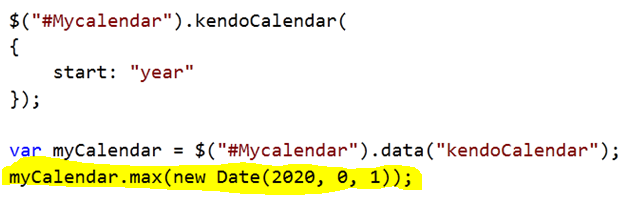
You can get reference of calendar and set maximum date as below,

clip_image006

You can specify a selected date as below,

clip_image007

The various functions on Calendar widgets are as below,

  • Max to set and get maximum date.
  • Min to set and get minimum date.
  • Navigate to desire date
  • Value to set and get current date.
  • NavigateUp to navigate up
  • NavigateDown to navigate down
  • NavigateToPast to navigate past
  • NavigateToFuture to navigate future

If you want to navigate to past you can navigate as below,

clip_image001[6]

Various events associated with Calendar widgets are as below,

  • Change event to fetch selected date
  • Navigate event fired on navigation

You can work with Change event as below,

clip_image001[8]

In this way you can work with Telerik Kendo UI Calendar Widgets. I strongly recommend you to leverage goodness of Telerik Kendo UI in your web applications.

Introduction to Telerik Kendo UI

Kendo UI is HTML 5 and Jquery based framework and it helps you to create modern Web Applications. Kendo UI helps you

  • In Data Binding
  • In Animations
  • With UI widgets like Grid and Chart
  • With Drag and Drop API
  • In Touch support.

Download kendo UI from here

Once you download you get below folders

image

Navigate to example folder for examples on various widgets.

If you want to start developing web applications using KendoUI then you need to add required file in your project.

You need to add below files in Script folder

image

And you need to add below files in Style folder.

image

Even though I have added script files and css files in Script Folder and Style folder respectively, you are free to keep them anywhere as you want. After adding these files you need to link them in header of the HTML page. You can add reference as below,

image

In later post I will go in detail of Kendo UI and play around all other aspects. However working with any widgets is very intuitive. For example if you want to work with Kendo AutoComplete , you can do that as below,

image

And using Jquery you can assign value as below,

image

Putting all code HTML and Script together full code is as below,

Test.htm


<html >
<head>
<!--In the header of your page, paste the following for Kendo UI Web styles-->
<link href="styles/kendo.common.min.css" rel="stylesheet" type="text/css" />
<link href="styles/kendo.default.min.css" rel="stylesheet" type="text/css" />
<!--Then paste the following for Kendo UI Web scripts-->
<script src="Scripts/jquery.min.js" type="text/javascript"></script>
<script src="Scripts/kendo.all.min.js" type="text/javascript"></script>
<script src="Scripts/Test.js" type="text/javascript"></script>
<title>My Kendo UI Demo</title>
</head>
<body>
<h1>Kendo UI Demo</h1>
<input id="cricketerAutoComplete" />
</body>
<script type="text/javascript">
$("#cricketerAutoComplete").kendoAutoComplete(
["Sachin",
"Dhoni",
"Saurabh",
"Rahul"]);
</script>
</html>

When you run Test.htm in browser you should be getting below output.

image

In later post I will get into detail of all widgets. I hope this post is useful. Thanks for reading.