Secure Databricks Notebook Run in Azure Data Factory with Service Principal

We recently had a case where a customer was running Azure Databricks notebook from Azure Data Factory. They mentioned that the configuration used to run the notebook was not secure as it was associated with a user account (probably a service account). The username and password was known to multitude of users and it had already caused some trouble. The concept of a “service account” has been quite prevalent since the times of on-premise applications. The service account was a user account that was used to run various applications and nothing else. In the modern world of cloud services, service accounts are obsolete and should never be used.

He wondered if there was a better way to run such notebooks in a more secure way?

In a single line, the solution to this problem is running the notebook as a service principal (and not a service account).

Here is a detailed step by step guide on how to make this work for Azure Databricks notebooks running from Azure Data Factory:

  1. Generate a new Service Principal (SP) in Azure Entra ID and create a client secret
  2. Add this Service Principal to the Databricks workspace and grant “Cluster Creation” rights
  3. Grant this Service Principal User Access to the Databricks workspace as a user
  4. Generate a Databricks PAT for this Service Principal
  5. Create a new Linked Service in ADF using Access Token credentials of the Service Principal
  6. Create a new workflow and execute it

If you followed the above instructions, your Databricks notebook will be run as a Service Principal.

One thing to understand before going over the detailed steps is the fact that when you add a Databricks notebook as an activity in Azure Data Factory, you are creating an “ephemeral job” in Databricks in the background when the ADF pipeline is run. You can control what kind of job cluster gets created and the user credentials under which the job will be run based on the linked service settings. Let’s get started:

  1. Generate a new SP with client secret
  1. Go to portal.azure.com and search for “Microsoft Entra ID” in the search tab and click it
  2. Click on Add and select “App registration”
  3. Give a meaningful name and leave the rest as-is and click “register”
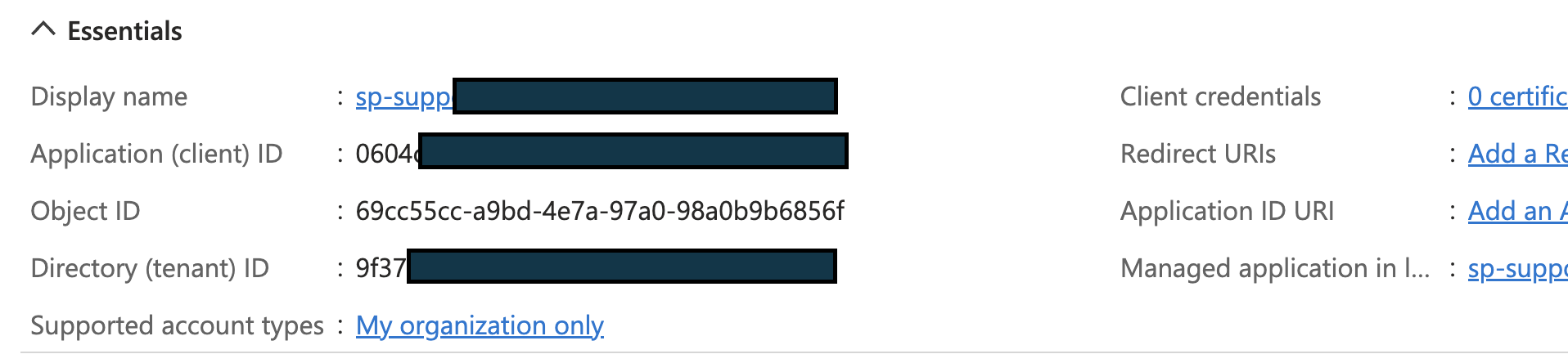
  4. You should now see something like below
  5. Now click on “Certificates & secrets” and under the “Client secrets” tab click “New client secret”
  6. Under the “Add a client secret” pop-up, give a meaningful description and choose the appropriate expiration window and click “create”. Once done you should see something like this under the “Client secrets” tab
  7. Now open a notepad and have all the information noted there.
    Host: Databricks workspace URL
    Azure_tenant_id and Azure_client_id will be what is shown in the image under point 4
    Azure_client_secret will be the value in the image under point 6

2. Add this Service Principal to the Databricks workspace and grant “Cluster Creation” rights

  1. Now go to your target workspace and click on your Name to expand the menu, click open the settings( this requires workspace admin privilege)
  2. Now click on” identity and access” and under service principals click on manage

Click on “add service principal” button
Now click on Add new
Select the “Microsoft Entra ID managed” radio button and populate with the Application ID(client id) and give the same name as shown in point 4 and click Add

Now provide “Allow cluster creation” permission to the service principal to ensure it can create a new job cluster when we run through an ADF and click “update”

Generate a Databricks PAT for this Service Principal

  1. If you are on Mac open the terminal and use the command “nano .databrickscfg” to open the databricks config file and paste the information from the notepad from point 8.
    If you are on Windows press windows + R and type “notepad
    %APPDATA%\databricks\databricks.cfg” and press enter. Now paste the information from the notepad from point 8 into the Databricks config file. You will also have to give a meaningful profile name to identify the workspace in the config file.

  2. The config file should look like below once you are done. [hdfc-dbx] is the profile name here.Save and exit.
  3. Now go to Databricks CLI and authenticate the service principal’s profile using a PAT token by typing “databricks configure”. It will prompt for the host workspace’s URL and PAT token, provide it, and press enter.
  4. Now goto databricks cli and generate a PAT token for the Service Principal using the command “databricks tokens create –lifetime-seconds 86400 -p <profile name>”. You should see a proper response like below:
  5. Now grab the “token value” and keep it in a notepad safely

Create a new Linked Service in ADF using Access Token credentials of the Service Principal

  1. Now go to ADF, click on Manage -> Linked services -> New
    Under New Linked Service popup click on “compute” and select “Azure Databricks” click continue
  2. Now provide a meaningful name to the linked service, select the proper Azure subscription, and your target workspace. Under Authentication Type leave the option as Access Token and under the access token field update the access token we generated in point 13.(This is being done as an interim solution, the best practice is to use an Azure Key Vault and pass the token through secret).
  3. Now select the cluster version as 13.3 LTS, Node type, Python version, and Worker options as relevant to current cluster configuration. You can select the UC Catalog Access Mode as “Assigned” for single user and “Shared” for shared access mode. Click on test connection to ensure everything is working as intended.

Create a new workflow and execute it

  1. Now create a pipeline select the linked service that you created and point the ADF to a notebook.
  2. Click “Debug” and the job should run successfully

If you open the job execution link, you can see the job has been run as a Service Principal under task details

This is indicated by the value against “Run as” which is that of the Service Principal.
Securing Azure Databricks ML Model Serving Endpoint with Service Principals: Step by Step

A recent customer of mine had deployed a Machine Learning Model developed using Databricks. They had correctly used MLFlow to track the experiments and deployed the final model using Serverless ML Model Serving. This was deemed extremely useful as the serverless capability allowed the compute resources to scale to zero when not in use shaving off precious costs.

Once deployed, the inferencing/ scoring can be done via an HTTP POST request that requires a Bearer authentication and payload in a specific JSON format.

curl -X POST -u token:$DATABRICKS_PAT_TOKEN $MODEL_VERSION_URI \
  -H 'Content-Type: application/json' \
  -d '{"dataframe_records": [
    {
      "sepal_length": 5.1,
      "sepal_width": 3.5,
      "petal_length": 1.4,
      "petal_width": 0.2
    }
  ]}'

This Bearer token can be generated using the logged in user dropdown -> User Settings -> Generate New Token as shown below:

Databricks Personal Access Token

In Databricks parlance, this is the Personal Access Token (PAT) and is used to authenticate any API calls that are made to Databricks. Also, note that lifetime of the token (defaults to 90 days) and is easily configured.

The customer had the Data Scientist generate the PAT and use it for calling the endpoint.

However, this is an anti-pattern for security. Since the user is a Data Scientist on the Databricks workspace, the PAT would get access to the workspace and allow a nefarious actor to achieve higher privileges. If a user’s account is decommissioned, the user loses access to all Databricks objects. This user based PAT was flagged by the security team and they were requested to replace it with a service account as is a standard practice in any in-premise system.

Since this is an Azure deployment, the customer’s first action was to create a new user account in the Azure Active Directory, add the user to the Databricks workspace and generate the PAT for this “service account”. However, this is still a security hazard given the user has interactive access to Databricks workspace.

I suggested the use of Azure Service Principal that would secure the API access with the lowest privileges. The service principal acts as a client role and uses the OAuth 2.0 client credentials flow to authorize access to Azure Databricks resources. Also, the service principal is not tied to a specific user in the workspace.

We will be using two separate portals and Azure CLI to complete these steps:

  1. Azure Portal
  2. Databricks Workspace

In this post, I am detailing the steps required to do the same (official documentation here):

  1. Generate an Azure Service Principal: Now this step is completely done in the Azure Portal (not Databricks workspace). Go to Azure Active Directory -> App Registrations -> Enter some Display Name -> Select “Accounts in this organisation only” -> Register. After the service principal is generated, you will need its Application (client) ID and Tenant ID as shown below:
  2. Generate Client Secret and Grant access to Databricks API: We will need to create Client Secret and Register Databricks access.
    To generate client secret, remain on Service Principal’s blade -> Certificates & Secrets -> New Client secret -> Enter Description and Expiry -> Add. Copy and store the Client Secret’s Value (not ID) separately. Note: The client secret Value is only displayed once.

    Further, In the API permissions -> Add a permission -> APIs my organization users tab -> AzureDatabricks -> Permissions.
  3. Add SP to the workspace: Now, Databricks has the ability to sync all identities created to the workspace if “Identity Federation” is enabled. Unfortunately, for this customer this was not enabled. Next, they needed to assign permission for this SP.
    This step in done in your Databricks workspace. Go to Your Username -> Admin Settings -> Service Principals tab -> Add service principal -> Enter Application ID from the Step 1 and a name -> No other permissions required -> Add.
  4. Get Service Principal Contributor Access: Once the service principal has been generated, you will need to get Contributor access to the subscription. You will need help of your Azure Admin for the same.
  5. Authenticate as service principal: First login into Azure CLI as the Service Principal with the command:
az login \
--service-principal \
--tenant <Tenant-ID>
--username <Client-ID> \
--password <Client-secret> \
--output table

Use the values from Step 1 (tenant ID & Client ID) and Step 2 (Client Secret) here:

  1. Generate Azure AD tokens for service principals: To generate Azure AD token you will need to use the following command:
az account get-access-token \
--resource 2ff814a6-3304-4ab8-85cb-cd0e6f879c1d \
--query "accessToken" \
--output tsv

The resource ID should be the same as shown above as it represents Azure Databricks.

This will create a Bearer token that you should preserve for the final step.

  1. Assign permissions to SP to access Model Serving: The Model Serving endpoint has its own access control that provides for following permissions: Can ViewCan Query, and Can Manage. Since we require to query the endpoint, we need to grant “Can Query” permission to the SP. This is done using the Databricks API endpoints as follows:
$ curl -n -v -X GET -H "Authorization: Bearer $ACCESS_TOKEN" https://$WORKSPACE_URL../api/2.0/serving-endpoints/$ENDPOINT_NAME 

// $ENDPOINT_ID = the uuid field from the returned object 

Replace @ACCESS_TOKEN with the bearer token generated in Step 6. The @WORKSPACE_URL should be replaced by the Databricks Workspace URL. Finally, the $ENDPOINT_NAME should be replaced by the name of the endpoint created.

This will give you the ID of the Endpoint as shown:

Next, you will need to issue the following command:

$ curl -n -v -X PATCH -H "Authorization: Bearer $ACCESS_TOKEN" -d '{"access_control_list": [{"user_name": "$SP_NAME", "permission_level": "CAN_QUERY"}]}' https://$WORKSPACE_URL../api/2.0/permissions/serving-endpoints/$ENDPOINT_ID

$ACCESS_TOKEN: From Step 6
$SP_NAME: Name of the service principal as created in Azure Portal
$WORKSPACE_URL: Workspace URL
@ENDPOINT_ID: Generated in the command above

  1. Generate Databricks PAT from Azure AAD Token: While you have the Azure AAD token now available and it can used for calling the Model Serving endpoint, the Azure AAD tokens are shortlived.
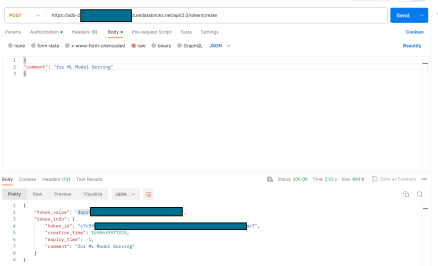
    To create a Databricks PAT, you will need to make a POST request call to the following endpoint (I am using Postman for the request): https://$WORKSPAE_URL/api/2.0/token/create
    The Azure AAD Bearer token should be passed in the Authorization header. In the body of the request, just pass in a JSON with “comment” attribute.
    The response of the POST request will contain an attribute – “token_value” that can be used as Databricks PAT.

The token_value, starting with “dapi” is the PAT that can be used for calling the Model Serving Endpoint that is in a secure configuration using the Service Principal.