Setting Development Environment in Visual Studio 2010 using NuGet for KendoUI

Read more about Kendo UI here

Read How to work with NuGet here

In this post we will walkthrough on setting up development environment in Visual Studio 2010 by installing NuGet package of KendoUI. To start with launch Visual Studio and create Web Application project.

image

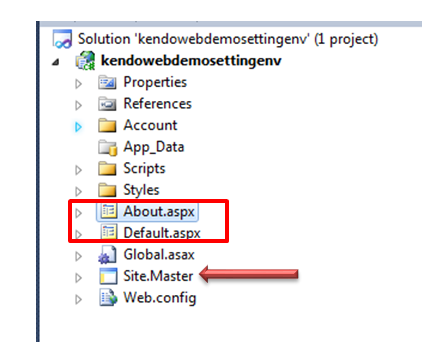
Now delete Default.aspx, About.aspx,Site.master files from the project.

image

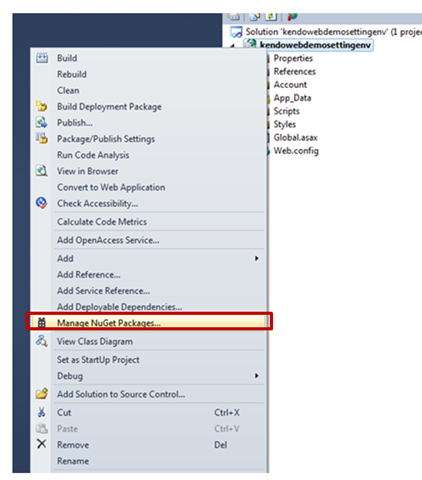
After deleting files right click on solution explorer and click on Manage NuGet Package.

image

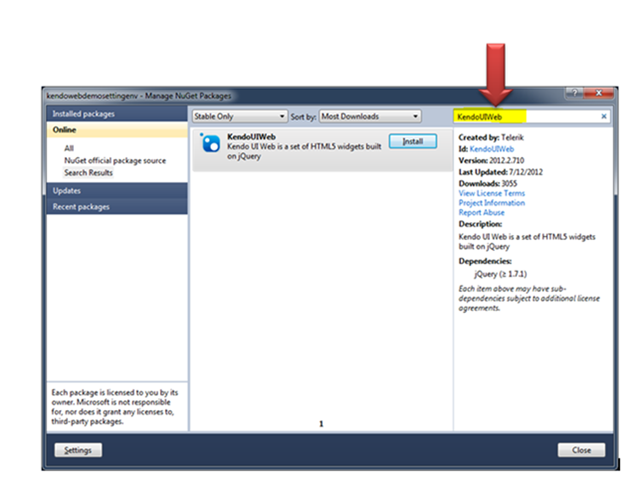
In Mange NuGet Packages windows search for KendoUIWeb. After searching once you get the package click on Install button to install all Kendo UI Web components to the project.

image

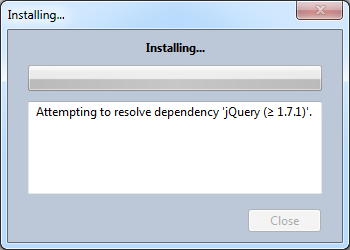
After clicking on Install, you should get Installing window as following. After successful installation close Mange NuGet Packages windows.

image

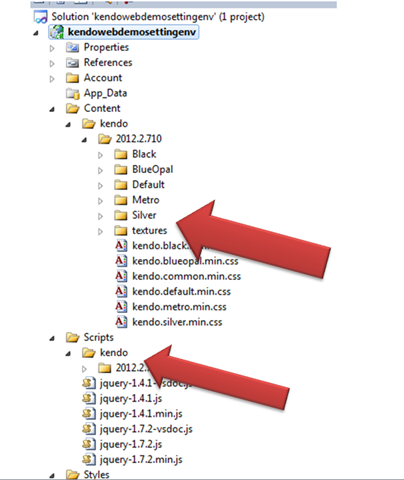
Once KendoUIWeb has been installed you will find KendoUI JS files has been added in Scripts folder and KendoUI CSS files along with images has been added to a kendo subfolder inside Content folder.

image

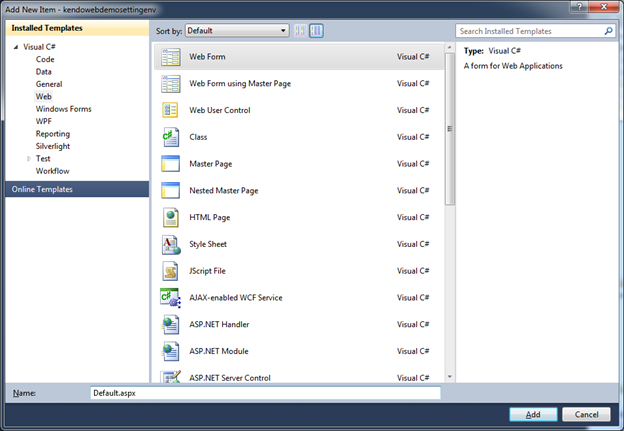
Once all the required files have been added to the project, next add a Web Form. To add a web Form right clicks on solution explorer and click on Add New Item. Choose Web Form from Web tab .

image

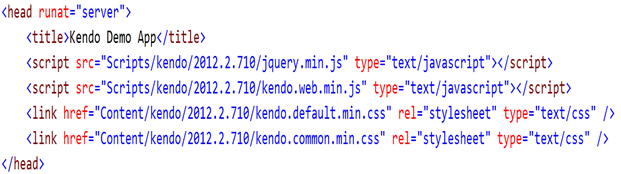
Now we need to add reference of Kendo on the Web Form. To get started with development add minimal you need to add below references on the page.

image

After adding all the references you are all set to start development using Kendo UI. Read more on Kendo UI here

Conditional statement in Kendo UI Template

While working I had a requirement to display a Total Seat of Venue in Kendo UI Mobile ListView. To display Venue Name and Number of Seats available, I created Kendo UI Template as following


<script type= "text/x-kendo-template" id="venueTemplate">
 <a href="\#toSomePage?vid=#= VenueID #" class="km-listview-link" data-role="listview-link">
 <h3>#= VenueName # </h3>
 <h5>Total Seats : <b> #=Capacity# </b> </h5>
 # }#
 </a>
 </script>

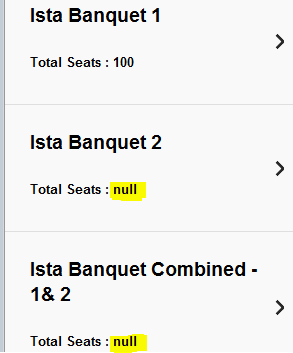
However on running the application I found that in some of the cases Capacity was retuning values as null.

image

Obviously displaying null was not a good idea. To display formatted information we can put condition in Kendo UI Template. Template can be modified with If-else statement as following


<script type= "text/x-kendo-template" id="venueTemplate">
 <a href="\#sessionsAtVenue?vid=#= VenueID #" class="km-listview-link" data-role="listview-link">

 <h3>#= VenueName # </h3>

 #if(Capacity ===null)
 {#
 <h5>Total Seats : <b> Not Available </b> </h5>

#}else{#
 <h5>Total Seats : <b> #=Capacity# </b> </h5>
 # }#
 </a>
 </script>

Now null value of capacity will get replaced by Not Available. On running output should be as following

image

We need to be bit cognizant for syntax. In below diagram you can see that line need to be executed as condition and keyword is enclosed in hash #.

image

In this way you can have if-else condition in KendoUI Template. I hope you find this post useful.

How to format DateTime type column from OData in Kendo UI Template

In this post we will look into, the way to format DateTime type columns of OData feed as string in Kendo UI Template.

For DateTime type of columns, OData returns number of seconds from January 1, 1970. Most likely you will be getting returned value as below,

image

Obviously you need to format returned date before displaying. You can format that using

kendo.toString ()

See demo of kendo.toString() on jsfiddle


StartTime: #= kendo.toString(
 new Date(
 new Date(
 parseInt(returnedTimeValue.ToTime.replace("/Date(", "").replace(")/",
 ""),
 10))),"g")#

You will get date formatted as following.

clip_image001

Explanation of code

Now let us examine that what exactly we are doing in above snippet. There are five steps being performed

  1. First replacing /Date( from returned value with empty string
  2. Next replacing )/ from returned value with empty string
  3. Parsing remaining returned value as integer
  4. Creating date using returned parsed integer
  5. Passing created date to kendo.string to format as desired.

In this way you can format a ODATA DateTime column using kendo.string. I hope you find this post useful.

Getting Started with Kendo UI Mobile : Video

Add References


    Test Application
<script type="text/javascript" src="http://code.jquery.com/jquery-1.7.1.min.js"></script>
                <!-- Kendo UI Scripts --><script type="text/javascript" src="http://cdn.kendostatic.com/2012.1.515/js/kendo.all.min.js"></script>
<script type="text/javascript" src="http://cdn.kendostatic.com/2012.1.515/js/kendo.mobile.min.js"></script>

Create View

</pre>
<div id="loginview" data-role="view">

<h1>This is Login View</h1>
</div>
<pre>

</pre>
<div id="detailview" data-role="view">

<h1>This is Detail View</h1>
</div>
<pre>

</pre>
<div id="settingview" data-role="view">

<h1>This is Setting View</h1>
</div>
<pre>

Initialize KendoUI

<script type="text/javascript">// <![CDATA[
        var app = new kendo.mobile.Application($(document.body),
            {
                initial: "loginview",
                layout: "defualtlayout"

            }
            );

// ]]></script>

Create Layout

</pre>
<div data-role="layout" data-id="defualtlayout">
<div data-role="header">
<div data-role="navbar"><a data-role="backbutton" data-align="left">
 Back
 </a>
 Test Application</div>
</div>
<div data-role="footer">
<div data-role="tabstrip"><a href="#loginview" data-icon="home">login</a>
 <a href="#detailview" data-icon="details">detail</a>
 <a href="#settingview" data-icon="settings">setting</a></div>
</div>
</div>
<pre>

Finally Full source code of Video is as following


    Test Application
<script type="text/javascript" src="http://code.jquery.com/jquery-1.7.1.min.js"></script>
                <!-- Kendo UI Scripts --><script type="text/javascript" src="http://cdn.kendostatic.com/2012.1.515/js/kendo.all.min.js"></script>
<script type="text/javascript" src="http://cdn.kendostatic.com/2012.1.515/js/kendo.mobile.min.js"></script></pre>
<div data-role="layout" data-id="defualtlayout">
<div data-role="header">
<div data-role="navbar"><a data-role="backbutton" data-align="left"> Back </a> Test Application</div>
</div>
<div data-role="footer">
<div data-role="tabstrip"><a href="#loginview" data-icon="home">login</a> <a href="#detailview" data-icon="details">detail</a> <a href="#settingview" data-icon="settings">setting</a></div>
</div>
</div>
<pre>

</pre>
<div id="loginview" data-role="view">
<h1>This is Login View</h1>
</div>
<pre>

</pre>
<div id="detailview" data-role="view">
<h1>This is Detail View</h1>
</div>
<pre>

</pre>
<div id="settingview" data-role="view">
<h1>This is Setting View</h1>
</div>
<pre>
<script>
        var app = new kendo.mobile.Application($(document.body),
            {
                initial: "loginview",
                layout: "defualtlayout"

            }
            );
</script>

Working with KendoUI Mobile Switch in Four steps

In this post we will learn how to work with KendoUI Mobile ActionSheet in four steps. You can learn more about this here

Switch is in action as following

clip_image001 clip_image002

Let us follow below steps to work with switch.

Step 1

Add all the required references to work with Kendo UI on your page .Make sure you are adding references in Head section of the page


<head>
 <title>
 Working with Switch
 </title>
 <link href="http://cdn.kendostatic.com/2012.1.515/styles/kendo.common.min.css" rel="stylesheet" />
 <link href="http://cdn.kendostatic.com/2012.1.515/styles/kendo.default.min.css" rel="stylesheet" />
 <link href="http://cdn.kendostatic.com/2012.1.515/styles/kendo.mobile.all.min.css" rel="stylesheet" />
 <script src="http://code.jquery.com/jquery-1.7.1.min.js"></script>
 <!-- Kendo UI Scripts -->
 <script src="http://cdn.kendostatic.com/2012.1.515/js/kendo.all.min.js" type="text/javascript"></script>
 <script src="http://cdn.kendostatic.com/2012.1.515/js/kendo.mobile.min.js" type="text/javascript"></script>

</head>

Step 2

Next we need to create a main view on the page and initialize the page to be used as page of mobile application. For this just above closing body tag add following script

<script>
var app = new kendo.mobile.Application($(document.body), {
initial: "mainview"
});
</script>
</body>

You will notice that we have set initial view property. So let us go ahead and create a view with the id mainview

<div data-role="view" id="mainview" >

</div>

By this step we have added all the required references and created the main view to put Switch inside that.

Step 3

Now we can put a Mobile Switch as following


<div data-role="view" id="mainview" >
<input type="checkbox" data-role="switch" />
</div>

Only you need to provide value of data-role attribute as switch of checkbox element. Suppose we want to check this on click event of a button. For that let us put a button in the maindiv . On click of button we will check whether switch is on or off.

After adding button div will be as following


<div data-role="view" id="mainview" >
<input type="checkbox" data-role="switch" id="onoffswitch" />
 <a data-role="button" data-click="checkSwitchState">Check Switch State</a>
</div>

And on click of button function checkSwitchState is being called. See the data-role property of button. Now let us write checkSwitchState function.


<script>
 function checkSwitchState() {
 var switch1 = $("#onoffswitch").data("kendoMobileSwitch");
 var checked = switch1.check();
 alert(checked);
}
</script>

You can Toggle the button as following,


<script>
 function checkSwitchState() {
 var switch1 = $("#onoffswitch").data("kendoMobileSwitch");

 switch1.toggle();

}
</script>

Now let us stop for a moment and run the page to see how it works

image

image

On click event of the button, switch will be toggled and we will get alert on the state of the switch.

image

And on clicking Ok switch will be toggled.

image

Below you can find full source code of above discussions.

<!DOCTYPE html>
<html>
<head>
 <title>
 Sharing on Social Media
 </title>
 <link href="http://cdn.kendostatic.com/2012.1.515/styles/kendo.common.min.css" rel="stylesheet" />
 <link href="http://cdn.kendostatic.com/2012.1.515/styles/kendo.default.min.css" rel="stylesheet" />
 <link href="http://cdn.kendostatic.com/2012.1.515/styles/kendo.mobile.all.min.css" rel="stylesheet" />
 <script src="http://code.jquery.com/jquery-1.7.1.min.js"></script>
 <!-- Kendo UI Scripts -->
 <script src="http://cdn.kendostatic.com/2012.1.515/js/kendo.all.min.js" type="text/javascript"></script>
 <script src="http://cdn.kendostatic.com/2012.1.515/js/kendo.mobile.min.js" type="text/javascript"></script>

</head>
<script>
 function checkSwitchState() {
 var switch1 = $("#onoffswitch").data("kendoMobileSwitch");
 var checked = switch1.check();
 alert(checked);
 switch1.toggle();
 }
</script>

<body>
<div data-role="view" id="mainview" >
<input type="checkbox" data-role="switch" id="onoffswitch" />
 <a data-role="button" data-click="checkSwitchState">Check Switch State</a>
</div>
<script>
 var app = new kendo.mobile.Application($(document.body), {
 initial: "mainview"
 });
</script>
</body>
</html>

Step 4

Sometime you may want to fire an event when user is changing state of the switch. You can do that as following


$("#onoffswitch").data("kendoMobileSwitch").bind("change", function (e) {
 console.log(e.checked); // true or false
 alert(e.checked);
 });

In this way we can work with Switch in KendoUI Mobile in four steps. I hope you find this post useful. Any comment is welcome.

Working with KendoUI Mobile ActionSheet in Four steps

In this post we will learn how to work with KendoUI Mobile ActionSheet in four steps. You can learn more about this here

ActionSheet in action as below,

image

Let us start creating it by following below steps.

Step 1

Add all the required references to work with Kendo UI on your page .Make sure you are adding references in Head section of the page


<head>
 <title>
 Sharing on Social Media
 </title>
 <link href="http://cdn.kendostatic.com/2012.1.515/styles/kendo.common.min.css" rel="stylesheet" />
 <link href="http://cdn.kendostatic.com/2012.1.515/styles/kendo.default.min.css" rel="stylesheet" />
 <link href="http://cdn.kendostatic.com/2012.1.515/styles/kendo.mobile.all.min.css" rel="stylesheet" />
 <script src="http://code.jquery.com/jquery-1.7.1.min.js"></script>
 <!-- Kendo UI Scripts -->
 <script src="http://cdn.kendostatic.com/2012.1.515/js/kendo.all.min.js" type="text/javascript"></script>
 <script src="http://cdn.kendostatic.com/2012.1.515/js/kendo.mobile.min.js" type="text/javascript"></script>

</head>

Step 2

Next we need to create a main view on the page and initialize the page to be used as page of mobile application. For this just above closing body tag add following script


<script>
 var app = new kendo.mobile.Application($(document.body), {
 initial: "mainview"
 });
</script>
</body>

You will notice that we have set initial view property. So let us go ahead and create a view with the id mainview


<div data-role="view" id="mainview" >

</div>

By this step we have added all the required references and created the main view to put Action Sheet inside that.

Step 3

Now we will add a button. On touch of this event ActionSheet will be open. Let us add button inside the view as following


<div data-role="view" id="mainview" >
 <a data-role="button" data-rel="actionsheet" href="#shareonSocialMediaActionSheet
">Share on Social Media</a>

</div>

If you notice in button attributes we are setting

clip_image002

Step 4

Now we need to add actionsheet on the page. ActionSheet can be created by setting data-role property of <ul> as actionsheet . To create actionsheet there must be at-least one <li> inside <ul>. shareOnsocialmedia actionsheet can be created as following


<ul data-role="actionsheet" id="shareonSocialMediaActionSheet">
 <li><a data-action="functionToShareOnFacebook">Facebook</a></li>
 <li><a data-action="functionToShareOnTwitter">Twitter</a></li>
 <li><a data-action="functionToShareOnLinkedin">Linkedin</a></li>
 <li><a data-action="functionToShareOnFlickr">Flickr</a></li>
</ul>

Some points about above code is as following

  • There are links <a> inside <li>. data-action attribute of <a> is set to JavaScript function we want call on the tap of the item in actionsheet
  • After execution of the function set in data-action control will returned to calling DOM element.
  • By default a cancel item will get added to the ActionSheet.

Running Application

Let us go ahead and run the application to see ActionSheet in the action.

clip_image001

On touch of this button ActionSheet will open as following

clip_image003

You can see that Cancel item has been added by the framework itself. On tap of cancel control will return to calling DOM element.

Below you can find full source code of above discussion


<!DOCTYPE html>
<html>
<head>
 <title>
 Sharing on Social Media
 </title>
 <link href="http://cdn.kendostatic.com/2012.1.515/styles/kendo.common.min.css" rel="stylesheet" />
 <link href="http://cdn.kendostatic.com/2012.1.515/styles/kendo.default.min.css" rel="stylesheet" />
 <link href="http://cdn.kendostatic.com/2012.1.515/styles/kendo.mobile.all.min.css" rel="stylesheet" />
 <script src="http://code.jquery.com/jquery-1.7.1.min.js"></script>
 <!-- Kendo UI Scripts -->
 <script src="http://cdn.kendostatic.com/2012.1.515/js/kendo.all.min.js" type="text/javascript"></script>
 <script src="http://cdn.kendostatic.com/2012.1.515/js/kendo.mobile.min.js" type="text/javascript"></script>

 <script>
 function functionToShareOnFacebook(e) {

 console.log("share on FB");
 }

function functionToShareOnTwitter(e) {
 console.log("share on Twitter");
 }
 function functionToShareOnLinkedin(e) {
 console.log("share on Linkedin");
 }

function functionToShareOnFlickr(e) {
 console.log("share on Flickr");
 }

 </script>

</head>

<body>

<div data-role="view" id="mainview" >
 <a data-role="button" data-rel="actionsheet" href="#shareonSocialMediaActionSheet">Share on Social Media</a>
<ul data-role="actionsheet" id="shareonSocialMediaActionSheet" cancel="hello" >
 <li><a data-action="functionToShareOnFacebook">Facebook</a></li>
 <li><a data-action="functionToShareOnTwitter">Twitter</a></li>
 <li><a data-action="functionToShareOnLinkedin">Linkedin</a></li>
 <li><a data-action="functionToShareOnFlickr">Flickr</a></li>
</ul>
</div>
<script>
 var app = new kendo.mobile.Application($(document.body), {
 initial: "mainview"
 });
</script>
</body>
</html>

In this way you can work with KendoUI Mobile ActionSheet in four steps. I hope you find this post useful. Thanks for reading.

Creating Netflix Movie Explorer Application using KendoUI and OData


Objective

In this post series we are going to make Netflix Movie Explorer App. We will use Kendo UI OData feed of Netflix to create application. Final application (after this post) will look like as following,

And on tapping of a movie, we will be navigated to

In order to create this application we will explore following in this post

  • Working with KendoUI Mobile ListView
  • Working with KendoUI Mobile View
  • Working with kendoUI Mobile View Layout
  • Working with Navigation between views
  • Working with creating datasource and OData.

To start with we need to add following reference on HTML page

After adding all the required references let us try to create a Mobile View. A Mobile view contains single HTML page with multiple mobile views on that. For example you can have LoginView, ShowDataView ,AboutView . All mobile views are a div element with data-role property set to view. A View can be created as following,

You can set default view of the application in Application Startup. Let us set default view of the application as LoginView. That can be set as following,

Additionally we can set layout of the mobile application as well. There are two ways we can set the layout. Either we can set on the application level or we can set on particular view level. Let us set layout on application level. This can be set as following,

We have set the layout of the application. Now we need to create application layout we set. A Layout can be created as following,

  • Create a <div> element.
  • Set data-role property as “layout”

Hence layout can be created as following,

A Layout can have a Header and Footer. We can define Header and Footer in layout as following,

Let us put a back button in the header. A back button can be put as following

image_thumb26

We have put nav bar and inside that a back button as header. A nav bar can be created as following

  • Create a <div> element.
  • Set data-role property to “navbar”

Inside the navigation bar we are putting a back button. That can be put as <a> link with setting data-role as “backbutton”

As of now we are done with navigation bar in header. Now let us create TabStrip in the footer.

image_thumb29

A TabStrip can be created as following,

  • Create a <div> element
  • Set data-role property to “tabstrip”

Inside “tabstrip” we can have buttons to navigate between the pages. We are putting three buttons to navigate. We can specify view to navigate in href property of <a>.

  • View to be navigated can be set by providing view id with hash tag as href property.
  • Data-icon can be set to provide a specific look to button.

Putting all the codes together,

<html>
 <head>
 <title>
 Test Application
 </title>
 <link href="http://cdn.kendostatic.com/2012.1.515/styles/kendo.common.min.css" rel="stylesheet" />
 <link href="http://cdn.kendostatic.com/2012.1.515/styles/kendo.default.min.css" rel="stylesheet" />
 <link href="http://cdn.kendostatic.com/2012.1.515/styles/kendo.mobile.all.min.css" rel="stylesheet" />
 <script src="js/jquery.min.js" type="text/javascript"></script>
 <!-- Kendo UI Scripts -->
 <script src="http://cdn.kendostatic.com/2012.1.515/js/kendo.all.min.js" type="text/javascript"></script>
 <script src="http://cdn.kendostatic.com/2012.1.515/js/kendo.mobile.min.js" type="text/javascript"></script>
 </head>
 <body>
 <div data-role="view">
 <div data-role="header">Header</div>
 Hello world!
 <div data-role="footer">Footer</div>
 </div>

<div data-role="view" id="LoginView" >
 <h1>This is a Login View </h1>
 </div>
 <div data-role="view" id="DataView" >
 <h1>This is a Data View </h1>
 </div>
 <div data-role="view" id="AboutView" >
 <h1>This is a About View </h1>
 </div>
 <div data-role="layout" data-id="TestAppLayout">
 <div data-role="header">
 <div data-role="navbar">
 <a data-role="backbutton" data-align="left">
 Back
 </a>
 Test Application
 </div>
 </div>
 <div data-role="footer">
 <div data-role="tabstrip">
 <a href="#LoginView" data-icon="settings">Login</a>
 <a href="#DataView" data-icon="download">Data</a>
 <a href="#AboutView" data-icon="home">About</a>
 </div>
 </div>
 </div>

<script type="text/javascript">
 var app = new kendo.mobile.Application($(document.body), {
 initial: "LoginView",
 layout: "TestAppLayout"
 }
 );
 </script>

 </body>
</html>
</html>

Now go ahead and run the application. In mobile browser you should be getting output as following

image_thumb32

As of now we have set layout at the application level. If we want we can have different layout for different view. Let us try that by giving different layout to DataView.

Create specific layout for DataView as following,
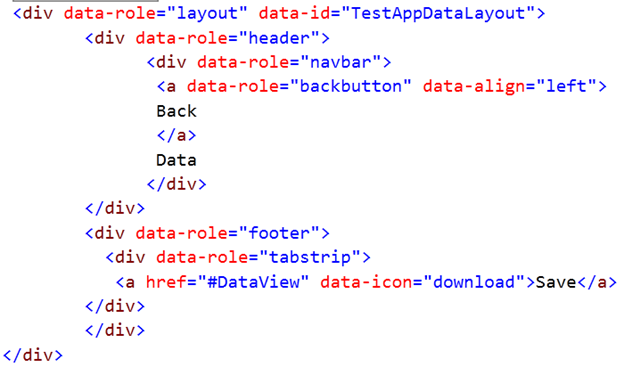
image_thumb35

We can set layout for DataView as following,

image_thumb38

If you notice here we have set layout at application level as well as view level. When layout is set at both levels then view level layout takes precedence over application level layout. After doing above modifications we should be getting following output,

image_thumb41

On clicking of Data, you should be getting below output. If you notice Back button from header is working as expected.

image_thumb44

Now let us try to show some data from service. In this case we will be displaying Movie details from OData feed of Netflix.

You can find Title of all the Movies from Netflix ODATA from below link.

http://odata.netflix.com/Catalog/Titles

Very first we need to create DataSource reading data from ODATA feed. We can create KendoUI Datasource as following

image_thumb47

  • Instance of kendo.data.DataSource being created
  • Since data being fetched from ODATA feed so type is set to odata
  • Pagesize property is set to tell server how many records need to be fetched. In this case it is 5.
  • In Trasnport property we need to provide URL of ODATA feed.

Once we created datasource we need to create Template. In template we say how we want to show data in listview. A template can be created as following

image_thumb50

In template we set property of DOM elements with the property of datasource. For example we want to display name of the movie. We are setting that with datasource property data.Name. Here data is name of the datasource and Name is property. A very important point need to be noticed is href value of <a> DOM element. We are setting that to DataDetailView. On tap user will be navigated to this view.

As of now we have created datasource and temple. Now let us create listview. To create a listview modify data div as following,

image_thumb53

A listview can be created by setting data-role property of <ul> as listview. If you notice we are setting data-init property of view as getMovieDetails. In getMovieDetails function we are fetching data from OData feed and setting the template as following. We are setting template and datasource value in the property.
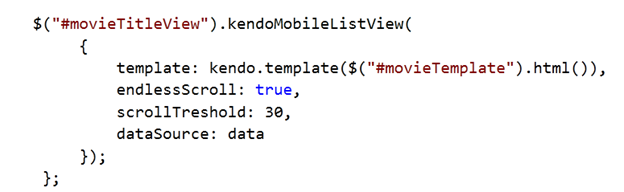
image_thumb56

Combining all the discussions together and putting all the codes together we should have following code in HTML file.

<html>
 <head>
 <title>
 Test Application
 </title>
 <link href="http://cdn.kendostatic.com/2012.1.515/styles/kendo.common.min.css" rel="stylesheet" />
 <link href="http://cdn.kendostatic.com/2012.1.515/styles/kendo.default.min.css" rel="stylesheet" />
 <link href="http://cdn.kendostatic.com/2012.1.515/styles/kendo.mobile.all.min.css" rel="stylesheet" />
 <script src="js/jquery.min.js" type="text/javascript"></script>
 <!-- Kendo UI Scripts -->
 <script src="http://cdn.kendostatic.com/2012.1.515/js/kendo.all.min.js" type="text/javascript"></script>
 <script src="http://cdn.kendostatic.com/2012.1.515/js/kendo.mobile.min.js" type="text/javascript"></script>

 </head>
 <body>
 <div data-role="view">
 <div data-role="header">Header</div>
 Hello world!
 <div data-role="footer">Footer</div>
 </div>

<div data-role="view" id="LoginView" >
 <h1>This is a Login View </h1>
 </div>

<div data-role="view" id="DataView" data-init="getMovieDetails" >
 <ul id="movieTitleView" data-role="listview"></ul>
 </div>

 <div data-role="view" id="AboutView" >
 <h1>This is a About View </h1>
 </div>
 <div data-role="layout" data-id="TestAppLayout">
 <div data-role="header">
 <div data-role="navbar">
 <a data-role="backbutton" data-align="left">
 Back
 </a>
 Test Application
 </div>
 </div>
 <div data-role="footer">
 <div data-role="tabstrip">
 <a href="#LoginView" data-icon="settings">Login</a>
 <a href="#DataView" data-icon="download">Data</a>
 <a href="#AboutView" data-icon="home">About</a>
 </div>
 </div>
 <script type="text/javascript">
 var app = new kendo.mobile.Application($(document.body), {
 initial: "LoginView",
 layout: "TestAppLayout"

 }
 );
 </script>
<script id="movieTemplate" type="text/x-kendo-template">
 <div>
 <img src=${data.BoxArt.MediumUrl} height="50" width="50" />
 <strong>${data.Name}</strong>
 <a href="\#DataDetailView?Id=#:data.Id#"" data-role="detailbutton" data-style="detaildisclose"></a>
 </div>
 </script>
<script>
 var data;
 data = new kendo.data.DataSource(
 {
 type: "odata",
 pageSize: 5,
 endlessScroll: true,
 scrollTreshold: 30,
 transport:{
 read: {
 url: "http://odata.netflix.com/Catalog/Titles",
 dataType: "jsonp",

data: {
 Accept: "application/json"
 }
 }
 }

 });
 var getMovieDetails = function () {
 $("#movieTitleView").kendoMobileListView(
 {
 template: kendo.template($("#movieTemplate").html()),
 endlessScroll: true,
 scrollTreshold: 30,
 dataSource: data
 });
 };
</script>

 </body>
</html>

On running we should be getting output as following

image_thumb59

On tap of Data button we should get below output

image_thumb62

At this point of time of you tap on the detail button you will be getting an exception because we have not created detail view yet. Let us create detail view

image_thumb65

Here we are setting different layout to DataDetailView. Let us create layout as below,

image_thumb68

This layout structure is same as we discussed previously. Now we need to write function shwDeatilsView function. In this function we will fetch selected data from the server on basis of Movie selected in first view.

image_thumb71

This function is quiet simple. First we are reading query parameter as following,

image_thumb74

After that we are making a call to server to fetch specific detail of the movie. Server call is as following. We are setting filter to fetch specific record.

image_thumb77

Once data is being fetched from the server, we need to initialize downloaded data to Movie Detail template. This template will tell how we are going to show data in movie detail page.

image_thumb80

We need to write MovieDetailtemplate as following,

image_thumb84

Combining all the discussions together and putting all the codes together we should have following code in HTML file.


<html>
 <head>
 <title>
 Test Application
 </title>
 <link href="http://cdn.kendostatic.com/2012.1.515/styles/kendo.common.min.css" rel="stylesheet" />
 <link href="http://cdn.kendostatic.com/2012.1.515/styles/kendo.default.min.css" rel="stylesheet" />
 <link href="http://cdn.kendostatic.com/2012.1.515/styles/kendo.mobile.all.min.css" rel="stylesheet" />
 <script src="js/jquery.min.js" type="text/javascript"></script>
 <!-- Kendo UI Scripts -->
 <script src="http://cdn.kendostatic.com/2012.1.515/js/kendo.all.min.js" type="text/javascript"></script>
 <script src="http://cdn.kendostatic.com/2012.1.515/js/kendo.mobile.min.js" type="text/javascript"></script>

 </head>
 <body>
 <div data-role="view">
 <div data-role="header">Header</div>
 Hello world!
 <div data-role="footer">Footer</div>
 </div>

<div data-role="view" id="LoginView" >
 <h1>This is a Login View </h1>
 </div>

<div data-role="view" id="DataView" data-init="getMovieDetails" >
 <ul id="movieTitleView" data-role="listview"></ul>
 </div>

 <div data-role="view" id="AboutView" >
 <h1>This is a About View </h1>
 </div>
 <div data-role="layout" data-id="TestAppLayout">
 <div data-role="header">
 <div data-role="navbar">
 <a data-role="backbutton" data-align="left">
 Back
 </a>
 Test Application
 </div>
 </div>
 <div data-role="footer">
 <div data-role="tabstrip">
 <a href="#LoginView" data-icon="settings">Login</a>
 <a href="#DataView" data-icon="download">Data</a>
 <a href="#AboutView" data-icon="home">About</a>
 </div>
 </div>
 </div>
 <div data-role="layout" data-id="TestAppDataLayout">
 <div data-role="header">
 <div data-role="navbar">
 <a data-role="backbutton" data-align="left">
 Back
 </a>
 Data
 </div>
 </div>
 <div data-role="footer">
 <div data-role="tabstrip">
 <a href="#DataView" data-icon="download">Save</a>
 </div>
 </div>
 </div>
 <div data-role="view" id="DataDetailView"
 data-layout="TestAppDataLayout"
 data-show="showDetailsView">
 <h1>This is a Data Detail View </h1>
 </div>

<script type="text/javascript">
 var app = new kendo.mobile.Application($(document.body), {
 initial: "LoginView",
 layout: "TestAppLayout"

 }
 );
 </script>

<script id="movieTemplate" type="text/x-kendo-template">
 <div>
 <img src=${data.BoxArt.MediumUrl} height="50" width="50" />
 <strong>${data.Name}</strong>
 <a href="\#DataDetailView?Id=#:data.Id#"" data-role="detailbutton" data-style="detaildisclose"></a>
 </div>
 </script>

<script id="movieDetailTemplate" type="text/x-kendo-template">
 <div>
 <img src=${data.BoxArt.MediumUrl} height="100" width="100"/>
 <br/>
 Movie Name : <strong>${data.Name}</strong>
 <br/>
 ${data.Synopsis}
 </div>
 </script>
 <script>
 var data;
 data = new kendo.data.DataSource(
 {
 type: "odata",
 pageSize: 5,
 endlessScroll: true,
 scrollTreshold: 30,

 transport:{
 read: {
 url: "http://odata.netflix.com/Catalog/Titles",
 dataType: "jsonp",

data: {
 Accept: "application/json"
 }
 }
 }

});

console.log(data);

 var getMovieDetails = function () {

$("#movieTitleView").kendoMobileListView(
 {
 template: kendo.template($("#movieTemplate").html()),
 endlessScroll: true,
 scrollTreshold: 30,
 dataSource: data
 });
 };
 var movieDetailTemplate = kendo.template($("#movieDetailTemplate").text());

function showDetailsView(e) {
 var view = e.view;
 console.log(view.params.Id);
 var query = view.params.Id.toString();
 var data1 = new kendo.data.DataSource(
 {
 type: "odata",
 serverPaging: true,
 serverFiltering: true,
 pageSize: 50,
 transport: {

 read: "http://odata.netflix.com/Catalog/Titles"
 },

filter: { filters: [{ field: "Id", operator: "eq", value: query}] }
 });
 data1.read();
 data1.fetch(function () {
 var item = data1.at(0);
 console.log(item);
 view.scrollerContent.html(movieDetailTemplate(item));
 kendo.mobile.init(view.content);
 });
 }

</script>

 </body>
</html>

Now let us go ahead and run application

image_thumb87

Now when we select a movie, we will go into detail of that movie

image_thumb90

Conclusion

Yes detail view is not that immersive. In second part of this post, we will make it more immersive and implement much more features. I hope you like this post. Thanks for reading.

Working with AutoComplete Widget

To see how to work with Kendo UI widgets, let us see how to work with widget AutoComplete

Very first you write HTML as below,

image

Then you initialize HTML to provide Kendo UI functionality as below,

image

Now if you want to add event to AutoComplete then you can do in either ways,

image

Or you can add event in other way also. First get the AutoComplete widget

image

And then using bind method attach event as below,

image

You will get below codes on putting all the codes together for AutoComplete widget


<html >

<!--In the header of your page, paste the following for Kendo UI Web styles-->
<!--Then paste the following for Kendo UI Web scripts-->
<script type="text/javascript" src="Scripts/jquery.min.js"></script><script type="text/javascript" src="Scripts/kendo.all.min.js"></script>
<script type="text/javascript" src="Scripts/Test.js"></script>My Kendo UI Demo</pre>
<h1>Kendo UI Demo</h1>
<pre>
<input id="FruitsAutoComplete" type="text" /><script type="text/javascript">// <![CDATA[
var data = ["Mango",
"Banana",
"Apple",
"Grapes",
"Guava",
"Orange"];

$("#FruitsAutoComplete").kendoAutoComplete({
dataSource: data
});

var autoComplete = $("#FruitsAutoComplete").data("kendoAutoComplete");
autoComplete.bind("change", onChangeEvent);
function onChangeEvent() {
alert('Change event occurs');
}
// ]]></script>

On running you will get AutoComplete widget as below and on the change event an alert message.

image

In above sample, I have bound local data source to AutoCompleteBox. You can very much get data from external data source as well. You can create data source from ODATA service as below,

image

Above we are fetching Title of the movies from ODATA feed of NetFlix. In type we are specifying that service is retuning ODATA and at one time we are asking service to return 10 records.

Next you can set it as data source of AutoComplete as below,

image

For AutoComplete widget we are setting minimum length to get a suggestion is 3 and Name filed of data source will be used.

Putting all the codes together


<html >

<!--In the header of your page, paste the following for Kendo UI Web styles-->
<!--Then paste the following for Kendo UI Web scripts-->
<script type="text/javascript" src="Scripts/jquery.min.js"></script><script type="text/javascript" src="Scripts/kendo.all.min.js"></script>
<script type="text/javascript" src="Scripts/Test.js"></script>My Kendo UI Demo</pre>
<h1>Kendo UI Demo</h1>
<pre>
<input id="FruitsAutoComplete" type="text" /><script type="text/javascript">// <![CDATA[
var data = new kendo.data.DataSource({
type: "odata", // specifies data protocol
pageSize: 10, // limits result set
transport: {
read: "http://odata.netflix.com/Catalog/Titles"
}
});

$("#FruitsAutoComplete").kendoAutoComplete({
minLength: 3,
dataTextField: "Name",
dataSource: data
});
// ]]></script>

On running you should be getting AutoComplete widget as below,

image

In this way you can work with AutoComplete widget. I hope this post is useful. Thanks for reading.

Working with Calendar Widget

In this post we will explore Calendar Widget. This widget gives a graphical calendar as below,

image

This widget gives option to

  • Configure maximum date
  • Configure minimum date
  • Configure start view
  • Configure custom template for Month View.

You can create a Calendar widget as below,

First define a div in HTML with Id

clip_image001

And then in jQuery you need to convert HTML div in Kendo UI Calendar widget as below,

clip_image002

You can configure Calendar Behavior like maximum date and minimum date as below,

clip_image003

You can configure the start option with start JSON attribute as below,

clip_image004

You will get calendar widget in output as below,

clip_image005

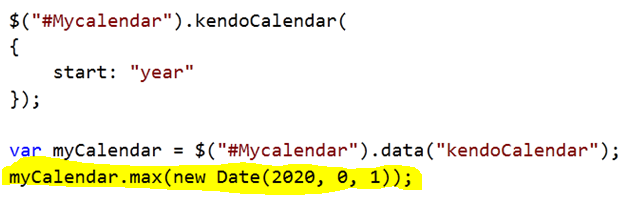
You can get reference of calendar and set maximum date as below,

clip_image006

You can specify a selected date as below,

clip_image007

The various functions on Calendar widgets are as below,

  • Max to set and get maximum date.
  • Min to set and get minimum date.
  • Navigate to desire date
  • Value to set and get current date.
  • NavigateUp to navigate up
  • NavigateDown to navigate down
  • NavigateToPast to navigate past
  • NavigateToFuture to navigate future

If you want to navigate to past you can navigate as below,

clip_image001[6]

Various events associated with Calendar widgets are as below,

  • Change event to fetch selected date
  • Navigate event fired on navigation

You can work with Change event as below,

clip_image001[8]

In this way you can work with Telerik Kendo UI Calendar Widgets. I strongly recommend you to leverage goodness of Telerik Kendo UI in your web applications.

Introduction to Telerik Kendo UI

Kendo UI is HTML 5 and Jquery based framework and it helps you to create modern Web Applications. Kendo UI helps you

  • In Data Binding
  • In Animations
  • With UI widgets like Grid and Chart
  • With Drag and Drop API
  • In Touch support.

Download kendo UI from here

Once you download you get below folders

image

Navigate to example folder for examples on various widgets.

If you want to start developing web applications using KendoUI then you need to add required file in your project.

You need to add below files in Script folder

image

And you need to add below files in Style folder.

image

Even though I have added script files and css files in Script Folder and Style folder respectively, you are free to keep them anywhere as you want. After adding these files you need to link them in header of the HTML page. You can add reference as below,

image

In later post I will go in detail of Kendo UI and play around all other aspects. However working with any widgets is very intuitive. For example if you want to work with Kendo AutoComplete , you can do that as below,

image

And using Jquery you can assign value as below,

image

Putting all code HTML and Script together full code is as below,

Test.htm


<html >
<head>
<!--In the header of your page, paste the following for Kendo UI Web styles-->
<link href="styles/kendo.common.min.css" rel="stylesheet" type="text/css" />
<link href="styles/kendo.default.min.css" rel="stylesheet" type="text/css" />
<!--Then paste the following for Kendo UI Web scripts-->
<script src="Scripts/jquery.min.js" type="text/javascript"></script>
<script src="Scripts/kendo.all.min.js" type="text/javascript"></script>
<script src="Scripts/Test.js" type="text/javascript"></script>
<title>My Kendo UI Demo</title>
</head>
<body>
<h1>Kendo UI Demo</h1>
<input id="cricketerAutoComplete" />
</body>
<script type="text/javascript">
$("#cricketerAutoComplete").kendoAutoComplete(
["Sachin",
"Dhoni",
"Saurabh",
"Rahul"]);
</script>
</html>

When you run Test.htm in browser you should be getting below output.

image

In later post I will get into detail of all widgets. I hope this post is useful. Thanks for reading.