In this post we will discuss about Telerik RadDatePicker control. You can download Telerik RadControl for Windows Phone from here
RadDatePicker control provides all the functionality of standard DatePicker control of Windows Phone 7 along with below added functionality
- Runtime validation
- Smoother animation
- Formatting of different special date in different style
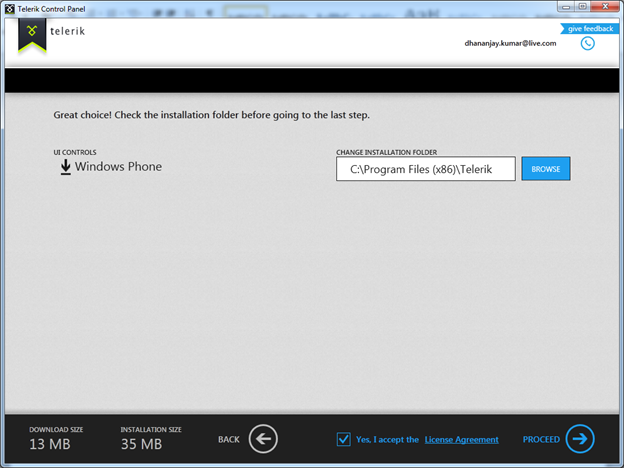
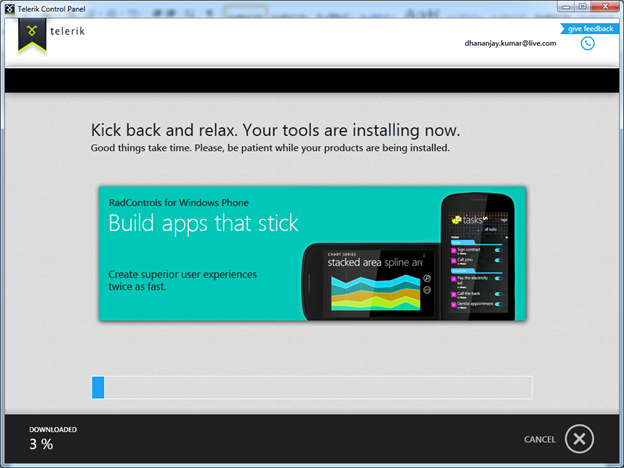
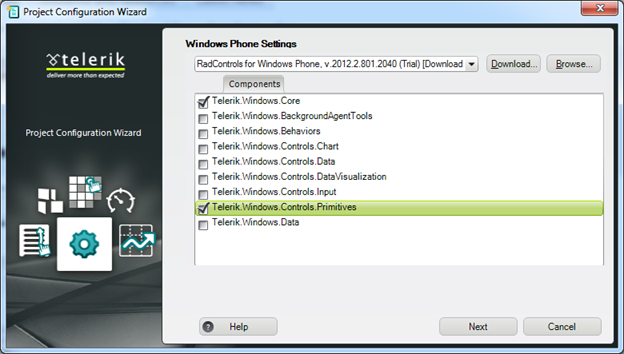
To work with RadDatePicker control below references need to be added,

Working with RadDatePicker
To work with RadDatePicker, you need to add Telerik.Windows.Controls namespace on the xaml as below,

And you can create a Date Picker as below,
![clip_image001[6]](https://dhananjay25.files.wordpress.com/2012/01/clip_image0016_thumb.png?w=518&h=27 "clip_image001[6]")
If you want to change look, display and selector of control, you can very much do that using the formatter properties. You can apply two different types of formatting on the RadDatePicker.

DisplayValueFormat property of RadDatePicker controls allows you to format the selection of the date. It takes string input to format the display of the date. You can apply DisplayValueFormat as below,

After applying formatting you should get output as below,
![clip_image003[6]](https://dhananjay25.files.wordpress.com/2012/01/clip_image0036_thumb.png?w=225&h=47 "clip_image003[6]")
SelectorFormat property of RadDatePicker control allows you to remove any of the date components from selection. For example, if you only want to show day and month only you need to remove Y from the selectorformat . You can do remove year as below,

You should get expected date selection as below,

If you want to set maximum and minimum date for the selection, you can do that by setting value for MaxValue and MinValue property of RadDatePicker control.
![clip_image002[6]](https://dhananjay25.files.wordpress.com/2012/01/clip_image0026_thumb1.jpg?w=624&h=98 "clip_image002[6]")
You can fetch selected value either as DateTime type or as String.
![clip_image003[8]](https://dhananjay25.files.wordpress.com/2012/01/clip_image0038_thumb.png?w=634&h=77 "clip_image003[8]")
RadDatePicker control comes with two buttons Ok and Cancel. By default images used in these buttons are taken from location
- /Images/DateTimePickerOK.png
- /Images/DateTimePickerCancel.png
There are three events exposed on RadDatePicker control.

By putting all together , you can use RadDatePicker control as below,
using System;
<phone:PhoneApplicationPage
x:Class="RadControlsWindowsPhoneApp3.MainPage"
xmlns="http://schemas.microsoft.com/winfx/2006/xaml/presentation"
xmlns:x="http://schemas.microsoft.com/winfx/2006/xaml"
xmlns:phone="clr-namespace:Microsoft.Phone.Controls;assembly=Microsoft.Phone"
xmlns:shell="clr-namespace:Microsoft.Phone.Shell;assembly=Microsoft.Phone"
xmlns:d="http://schemas.microsoft.com/expression/blend/2008"
xmlns:telerikcontrols="clr-namespace:Telerik.Windows.Controls;assembly=Telerik.Windows.Controls.Input"
xmlns:mc="http://schemas.openxmlformats.org/markup-compatibility/2006"
mc:Ignorable="d" d:DesignWidth="480" d:DesignHeight="768"
FontFamily="{StaticResource PhoneFontFamilyNormal}"
FontSize="{StaticResource PhoneFontSizeNormal}"
Foreground="{StaticResource PhoneForegroundBrush}"
SupportedOrientations="Portrait"  Orientation="Portrait"
shell:SystemTray.IsVisible="True">

<!--LayoutRoot is the root grid where all page content is placed-->
<Grid x:Name="LayoutRoot" Background="Transparent">
<Grid.RowDefinitions>
<RowDefinition Height="Auto"/>
<RowDefinition Height="*"/>
</Grid.RowDefinitions>

<!--TitlePanel contains the name of the application and page title-->
<StackPanel x:Name="TitlePanel" Grid.Row="0" Margin="12,17,0,28">
<TextBlock x:Name="ApplicationTitle" Text="MY APPLICATION" Style="{StaticResource PhoneTextNormalStyle}"/>
<TextBlock x:Name="PageTitle" Text="page name" Margin="9,-7,0,0" Style="{StaticResource PhoneTextTitle1Style}"/>
</StackPanel>

<!--ContentPanel - place additional content here-->
<Grid x:Name="ContentPanel" Grid.Row="1" Margin="12,0,12,0">
<telerikcontrols:RadDatePicker  x:Name="datepicker"
DisplayValueFormat="{}{0:dd, MMMM, yyyy}"
SelectorFormat="d/m"
MaxValue="01/01/2020"
MinValue="11/11/2000"/>
</Grid>
</Grid>
</phone:PhoneApplicationPage>
In this way you can work with RadDatePicker control. I hope this post is useful. Thanks for reading







![clip_image001[6]](http://dhananjay25.files.wordpress.com/2012/01/clip_image00161.png "clip_image001[6]")


![clip_image003[6]](http://dhananjay25.files.wordpress.com/2012/01/clip_image0036.png "clip_image003[6]")


![clip_image002[6]](http://dhananjay25.files.wordpress.com/2012/01/clip_image00262.jpg "clip_image002[6]")
![clip_image003[8]](http://dhananjay25.files.wordpress.com/2012/01/clip_image0038.png "clip_image003[8]")

 Helping Ninja Technologists