
What are Performance Testing and Load Testing?
See How Telerik Test Studio helps in Load Testing
See How Telerik Test Studio helps in Performance Testing

Performance Testing
Performance Testing is being performed to measure smoothness and readiness of the application. While creating an application the vital factors should be kept in mind are as follows
- Speed of the application at any given condition
- Response time of the application
- How much resources being used by the application
- How stable is the application at given time
- Throughput of the application
- For web application times spent in making HTTP calls at server and client etc.
Performance Testing is type of testing that test application on above listed criteria.
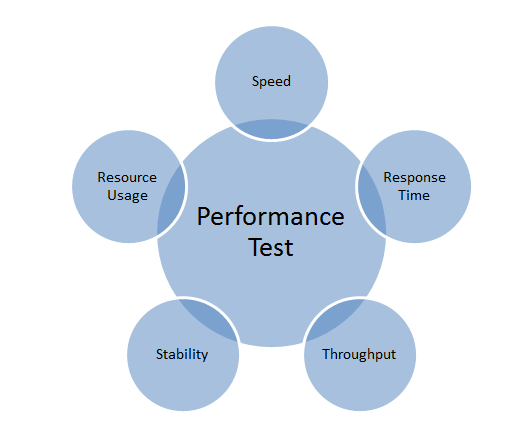
Performance Testing measures performance of the application. After measuring performance of the application it sets the base line for further testing. Performance testing is very important since cooperate prestige of the application or decision on the final release of application based on the analysis of the results produced by this test. Performance testing does not find any defect in the application. Often, we perform Performance testing on a stable system.
Performance Test finds performance issue in the
- Database access
- Network latency like time spent on the network
- Time spent on reading or writing files on the disc
- Time spent on making HTTP calls etc.
So we can summarize Performance testing

Load Testing
Load Testing determines user experience when application is under load. In Load Testing, we test application with maximum number of users or with the expected number of users in the production environment.

Load Testing determines upper limit of the application. Load testing simulates expected number of users from the production environment and tests the application with that number of users. When we exceed number of users to test the application much beyond expected number of users from production environment then we call testing as STRESS TESTING. In majority of the time we consider Stress Testing as Load Testing.
Purpose of Load Testing is to find defect in the application when application is running under maximum load. Some of the defects could be as follows
- Memory leak
- Buffer Overflow
- Server failure
- Network failure
- Input devices reading failure
- Writing on output device failure etc.
We can summarize that Load Testing tests application behavior and sustainability with the maximum number of user inputs.
Video : Testing KendoUI Window widget using Test Studio
Make sure you have enabled Test Studio Add-ons in Firefox before executing test
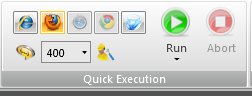
I was trying to execute a functional test in Firefox browser. For that I selected FF and clicked on Run to execute the functional test in Firefox browser.
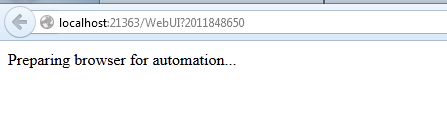
However while executing the test, I got this message and Test Studio was kept waiting for the browser to respond.
After investigation I found that in Add-ons of Firefox, Telerik Testing Framework Add-ons was not enabled.

Make sure to enable both the Add-ons and you will be able to execute the function test in Firefox.

After enabling that you should able to execute a function test in Firefox browser.
Setting up environment for Load Testing in Test Studio
In this post we will follow step by step approach to setup environment for Load Testing in Test Studio. Very first go to Program ->Telerik ->Test Execution and open Configure Load Test Services
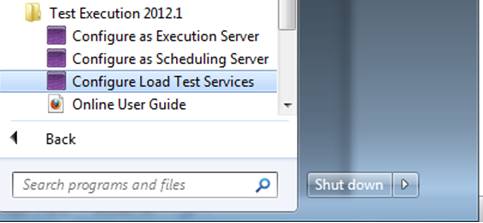
Next you will get dialog box to configure the services.
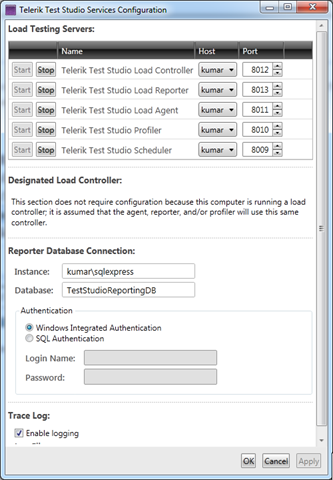
In this dialog box you need to make sure that all the services are started and most importantly make sure that you have given correct database instance name in the Reporter Database Connection setting
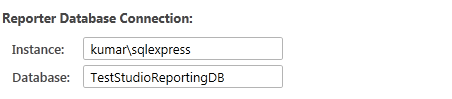
In above case kumar is the database server name running on my machine. So I provided instance name kumar\sqlexpress. You do not need to create TestStudioReportingDB database manually. Test Studio will create this database in given database server. After making sure all the information is provided correctly click on Ok to restart all the services.
Next open Test Studio and create a test of type Load Test. Very first you will get following screen
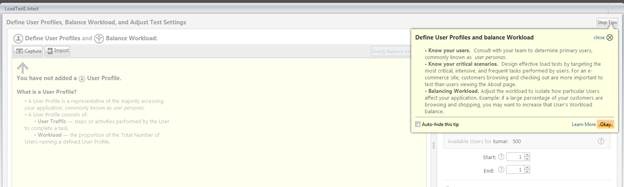
Click on Okay and from the ribbon click on Manage
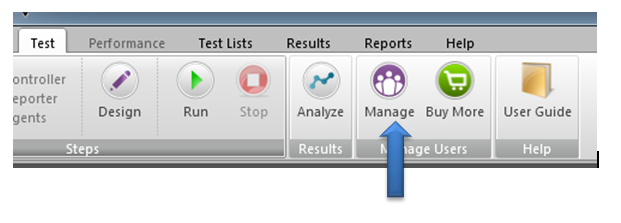
Here you got an option to Add Controller and manage the number of Virtual users. To Add Controller click on Add Controller button
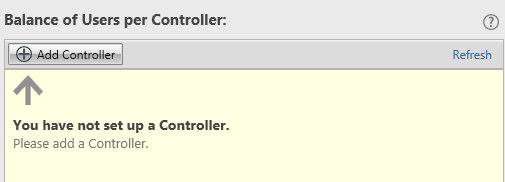
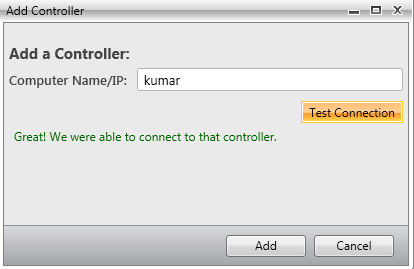
In Add Controller dialog box give the name of the computer or IP of the computer you want to set as controller and click on Test Connection. After successful connection click on the Add button to add a controller
On the successful adding of controller you need to set the number of Virtual Users for the Controller as following. We have added 258 virtual users in this controller

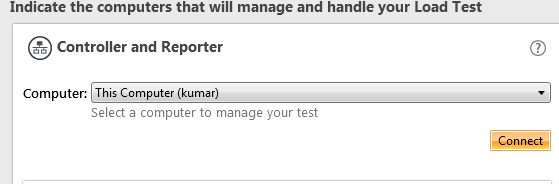
Next we need to set Controller and Reporter. Select the computer from drop down and click on the connect button.
After successful connect you can see green signals beside Controllers, Reporters and Agents.
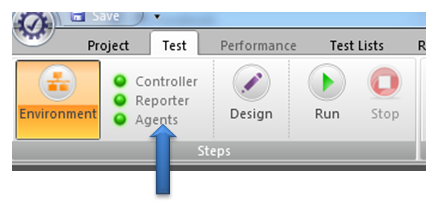
All three green signals imply that environment for load testing in Test Studio has setup successfully. Now you can go to design and create ass cases to perform Load Testing
RadHtmlChart for ASP.NET AJAX – Server Side Hierarchy
Introduction:
In previous blog post, we looked at the element structure that makes up a RadHtmlChart. Now that was more from a client side i.e. a visual structure of what makes the chart. In this blog post we will take a look at what makes up the RadHtmlChart API i.e. the server side hierarchy.

Server Side API:
Pretty much all the Telerik RadControls enable you to customize them according to your needs & wants and so does RadHtmlChart. RadHtmlChart allows you to perform detailed customizations when you use it. Being a Service Side control, it offers a large set of properties. A deep hierarchy exist among these properties and it is this hierarchy that makes it possible to organize the control.
Visual Hierarchy:
Below diagram depicts the visual hierarchy of properties that RadHtmlChart control supports. You can keep this diagram handy and keep it as a reference when you want to set a particular property in the markup.

When you want to customize something in the RadHtmlChart you should pay attention to the inner most tags and their properties. For e.g. in order to customize the Appearance of a RadHtmlChart – You will be customizing the Appearance property and specifically the FillStyle child property that Appearance contains.
Conclusion:
Knowing a controls hierarchy visually helps us to understand how it is organized. And also it becomes easy when we want to customize the control according to our needs and wants. Through this blog post I hope I was able to make you understand the RadHtmlChart control hierarchy.
Download Slides and Source Codes from Rad Controls for Windows Phone Webinar
Download Resources of the webinar from here
Thank you so much for attending Webinar: Telerik Tools for Ninja Developers: RadControls fot Windows Phone . I hope it was useful. If you have not done it yet then I strongly recommend you to download free trial and start playing around Rad Controls for Windows Phone. You will find more resources at below given links
Resources on Rad Controls for Windows Phone
Documentation on Rad Controls for Windows Phone
Forum for Rad Controls for Windows Phone
In webinar we started from downloading and installing of Rad Controls. We did walkthrough of all popular Rad Controls and discussed in detail about
- RadConversationView control
- RadCalendar control
- RadSlideView control
- RadAutoComplete control
Download Resources of the webinar from here
If you need more information and any assistance then please feel free to get connected with me at @debug_mode or send me mail on Dhananjay.kumar@telerik.com . Thanks once again for attending the webinar.
Appreciate Telerik products? Vote for us
2012 DevPro Community Choice Awards
Windows ITPro Community Choice Awards
Closing date of voting: September 28
Telerik has been working hard to help you in “DELIVERING MORE THAN EXPECTED “. Due to our work and love, we manage to create a semantic and purposeful relationship between you and us. Whether you are a developer, tester, IT pro or a manger our products help you to perform your task more effectively and quickly. We have products for all steps of development process. We are committed to make our products better in order to serve you better.
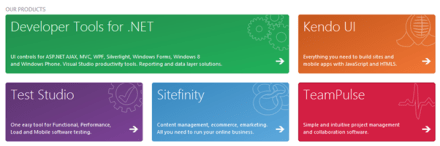
Today we have come to you with a request. If you love and appreciate our products then please vote for us. Vote for us in DevPro and ITPro community choice award. Our products are nominated in 25 different categories. Find details about award at links given below,
2012 DevPro Community Choice Awards
Windows ITPro Community Choice Awards
For DevPro our products are nominated in following categories
|
Category |
Products |
|
Best Add-In Product |
Telerik JustCode |
|
Best Charting and Graphics Tool Product |
Telerik RadChart for ASP.NET AJAX |
|
Best Component Set |
Telerik DevCraft Ultimate |
|
Best Content Management System |
Sitefinity |
|
Best e-Commerce Package |
Sitefinity Ecommerce |
|
Best Email Control Product |
Sitefinity Email Campaigns |
|
Best Forum Application |
Sitefinity Forums |
|
Best Grid Product |
Telerik RadGrid for ASP.NET AJAX |
|
Best Memory Management/Profiling Product |
Telerik JustTrace |
|
Best Navigation Control Product |
Telerik RadMenu for ASP.NET AJAX |
|
Best Online Editor |
Telerik RadEditor for ASP.NET AJAX |
|
Best Printing/Reporting Tool |
Telerik Reporting |
|
Best Project Management/Defect Tracking Product |
Telerik TeamPulse |
|
Best Scheduling/Calendar Tool |
Telerik RadScheduler for ASP.NET AJAX |
|
Best SharePoint Development Tool |
Telerik RadControls for ASP.NET AJAX |
|
Best Silverlight Product |
Telerik RadControls for Silverlight |
|
Best Testing/QA Tool |
Telerik Test Studio |
|
Best Training Product or Book |
Telerik Training |
|
Best Utility |
Telerik JustDecompile |
|
Best Free Tool |
Telerik JustDecompile |
|
Best Vendor Support |
Telerik |
For ITPro our products are nominated in following categories
|
Category |
Products |
|
Best Management Suite |
Telerik TeamPulse |
|
Best SharePoint Product |
Telerik RadControls for ASP .NET AJAX |
|
Best Free Tool |
Telerik JustDecompile |
|
Best Vendor Tech Support |
Telerik |
We appreciate your support. Looking forward for prolong relationship with you. Thanks for voting for us.
Video : Working with RadConversationView for Windows Phone

WebMatrix 2, NuGet, Kendo UI Web = Awesome combination
In this blog post, we will look at how easy it is to get started with Kendo UI Web using WebMatrix as a development tool. we will look at what is this WebMatrix in brief and how you can play with Kendo UI Web widgets within WebMatrix.


What is WebMatrix:
WebMatirx is a free and lightweight web development tool. You can create, publish and maintain your website with ease right within WebMatrix. You can know more about WebMatrix here: http://www.microsoft.com/web/webmatrix/

Installing WebMatrix:
WebMatrix can be installed by using the Web Platform Installer 4.0. Click the following button to install the WebMatrix. This will download an exe and launch the Web Platform Installer 4.0.

The Web Platform Installer will have an option to select WebMatrix 2 Release Candidate. Just select that and perform the installation.

Creating a Web Site using WebMatrix:
Once installed launch the WebMatrix from Start Menu. With WebMatrix we have 2 options to create a new web site.

We can use the Templates option to select from a pre defined 12 templates which includes ASP.NET, PHP, Node & HTML templates or we can use App gallery to download 61 open source application to start with.


For this blog post, I will be creating an empty site which can be found under Templates option. Give a name to the new site and hit Next button.

WebMatrix will go ahead and get the pre requisite for the template we have selected, install and configure the site for us.

Once configured the site dashboard will look like below:
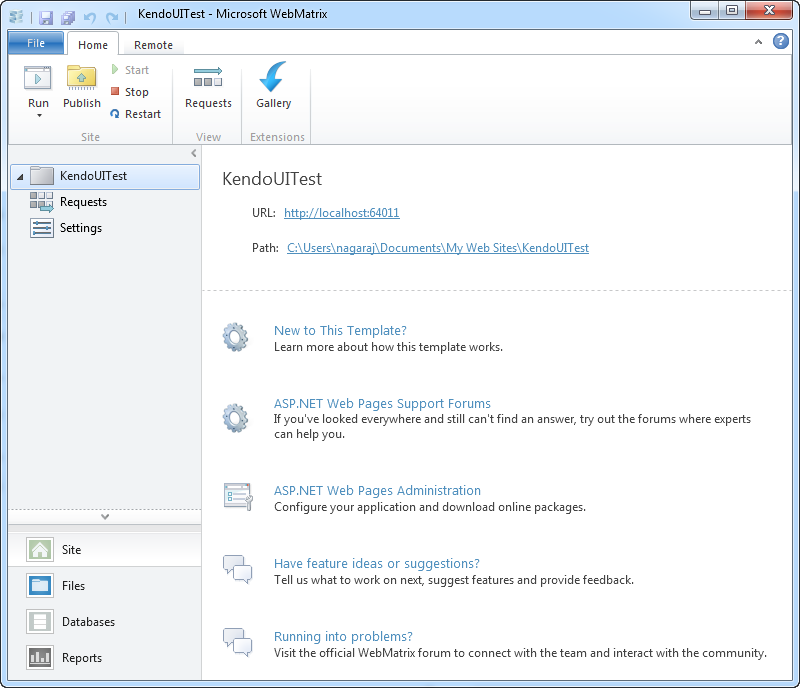
As you can see, the site is created in user’s Documents folder.
Integrating Kendo UI:
One of the new features added to WebMatrix 2 is the support of NuGet packages. From the web site dashboard, select the Files workbench located in the left hand bottom corner. This will show the file structure of the project. Also notice the change in the ribbon in this view. On the far right hand top corner you will see a familiar NuGet Package icon. Similar to the package addition experience in Visual Studio here also within WebMatrix we can perform pretty much the the same steps to get a package. So lets see how to get Kendo UI Web.

Click on the NuGet Gallery button. You will be presented with NuGet Gallery window as below:

In the search string enter “Kendouiweb” and wait for the results to come back. NuGet will find one package with that search string and show you that in the results pane. Select the package and click Install.

Next screen it will show information of the package. Click Install again on this screen.

At this point, WebMatrix will retrieve the package information from NuGet server. It will get the End User License Agreement if any and show you that. You have option to Accept or Reject the EULA. If you accept the agreement package will be installed otherwise installation will be skipped.

Note: At this moment it is important for you to know that you are downloading Kendo UI Web trial version and I urge you to read the trial license without fail. This trial download allows you a free trial of Kendo UI Web framework for 30 days. You can click on the “View License Terms” to understand the EULA. Alternatively, you can visit the licensing FAQ here http://www.kendoui.com/faq/licensing.aspx and here http://www.kendoui.com/purchase/license-agreement/kendo-ui-trial.aspx
Once you click on Accept, the package will be retrieved and installed in our application. Here is the folder structure after package installation.
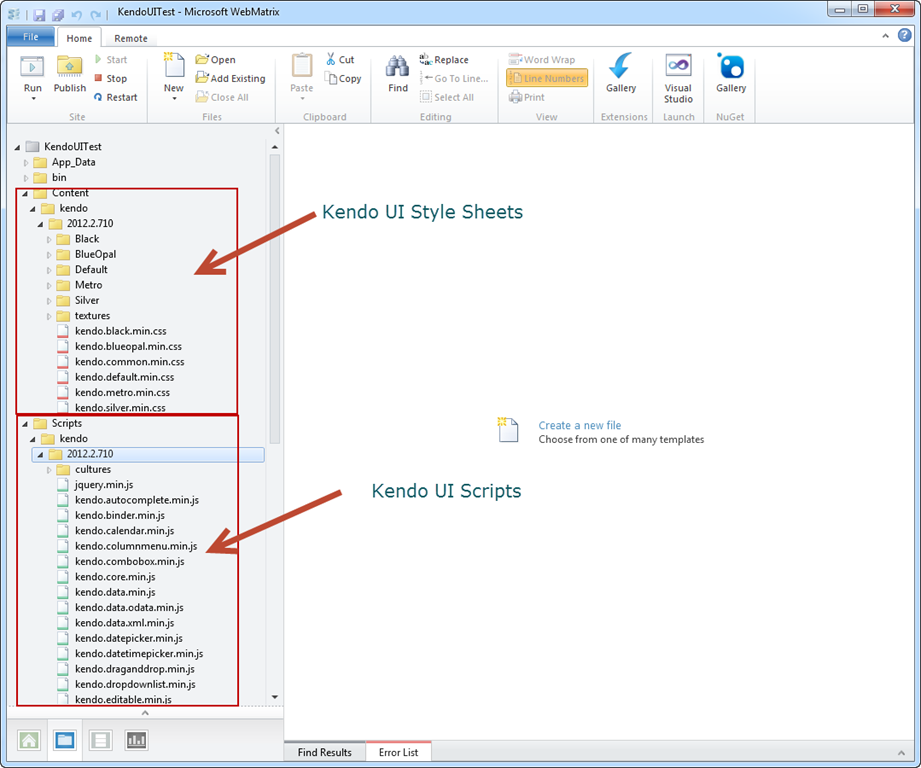
As you can see from the above screen shot, Kendo UI framework related files have been downloaded and added to our application. The stylesheet’s are placed in Content folder and java script files are placed in Scripts folder. Next we will see how to work with Kendo UI Web Widgets
Create UI with Kendo:
Working with Kendo UI Web framework is 3 steps – Stylesheet reference, JavaScript reference and defining the HTML. So we will see them one by one.
Open the Default.cshtml and start by placing reference to Kendo UI Web stylesheets. Kendo UI comes with the following themes out of the box:
-
Black
-
Blue Opal
-
Default
-
Metro
-
Silver
Apart from the above theme stylesheets, we have a common stylesheet which is required for all other theme stylesheets to work. So here is the stylesheet reference code:
<link href="/Content/kendo/2012.2.710/kendo.common.min.css"
rel="stylesheet" />
<link href="/Content/kendo/2012.2.710/kendo.default.min.css"
rel="stylesheet" />
Next, we reference the javascript required to work with Kendo UI. Here is the script tag snippet:
<script src="~/Scripts/jquery-1.7.2.min.js"></script>
<script src="~/Scripts/kendo/2012.2.710/kendo.web.min.js"></script>
Next we defined the HTML. In this example I am going to create a UI Widget called DateTimePicker i.e. a widget which allows users to select Date and as well as Time in a single control. In the body of the page declare a input tag, give it an id and set a value to any date and time value. Here is the code snippet:
<input id="datetimepicker" value="10/12/2012 01:00 PM"
style="width:200px;" />
Next, on document ready we will refer the input tag by its id and ask kendo to transform that into an DateTimePicker widget with just one line of code as below:
<script>
    $(document).ready(function() {
        // create DateTimePicker from input HTML element
        $("#datetimepicker").kendoDateTimePicker();
    });
</script>
We use JQuery to get a reference to the input tag by its id and then invoke a kendo function kendoDateTimePicker() which does the magic under the hood to transform the input tag to a date time control like below:
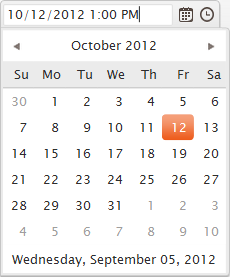

Here is the complete HTML code snippet of Default.cshtml:
<!DOCTYPE html>

<html lang="en">
    <head>
        <meta charset="utf-8" />
        <title>My Site's Title</title>
        <!-- Step 1 : StyleSheet Reference -->
        <link href="/Content/kendo/2012.2.710/kendo.common.min.css"
            rel="stylesheet" />
        <link href="/Content/kendo/2012.2.710/kendo.default.min.css"
            rel="stylesheet" />

        <!-- Step 2 : JavaScript Reference -->
        <script src="~/Scripts/jquery-1.7.2.min.js"></script>
        <script src="~/Scripts/kendo/2012.2.710/kendo.web.min.js"></script>
    </head>
    <body>
        <div id="example" class="k-content">
            <div id="to-do">
                    <input id="datetimepicker" value="10/12/2012 01:00 PM"
                    style="width:200px;" />
            </div>
        </div>
         <script>
            $(document).ready(function() {
                // create DateTimePicker from input HTML element
                $("#datetimepicker").kendoDateTimePicker();
            });
        </script>
    </body>
</html>
Here is the output of the code we just wrote:

Well that’s how easy it is to work with Kendo.
Conclusion:
WebMatrix is a great tool which is free and is best suited for lightweight web development. Through this post we have now seen the webMatrix support for NuGet packages. We saw how easy it is to get going with Kendo UI Web controls right from the step of looking at the package to installing to coding our first example with Kendo – all done within WebMatrix.
More information about Kendo UI can be seen at www.kendoui.com. You can view more demos of Kendo UI Web at the site itself. Here is a direct link to launch the demos –

You can also download Kendo UI directly from the site for a 30 day free trial. Here is the direct link for the download:

Hope this excites you to start coding with Kendo UI. Looking forward to your experiences with Kendo. Till next time – Happy Coding !.
Video : Start working with RadPhoneApplicationFrame for Windows Phone
Video : Start working with RadCalendar control for Windows Phone
Element Structure of RadHtmlChart for ASP.NET AJAX
In the blog post, we will take a look at the things which make up the RadHtmlChart pictorially. We will look at the different element which make up a chart and how they are placed visually.
Take a look at the following screenshot of a RadHtmlChart with all the elements tagged for better understanding:

As you can see above, all the elements which make up the RadHtmlChart is laid out and tagged very clearly so that you can make out what element goes where.
The elements are self explanatory in nature. I don’t think I need to explain anything more on this one 
We will see the server side control hierarchy visually in next post.
Webinar: Telerik Tools for Ninja Developers: RadControls for Windows Phone
Date: 5th Sep 2012
Time: 3:00 pm to 4:00 pm (IST)
Register here to attend the webinar
Any query mail me @ Dhananjay.kumar@telerik.com
Telerik India has started a webinar series in India time zone to create more awareness about Telerik products. So far four webinars have been conducted and large numbers of developers, designers and testers got benefited by that.
Find full schedule of the webinars here
Continuing the series, on 5th September 2012, we are conducing webinar on Rad Controls for Windows Phone to help Windows Phone developer community.
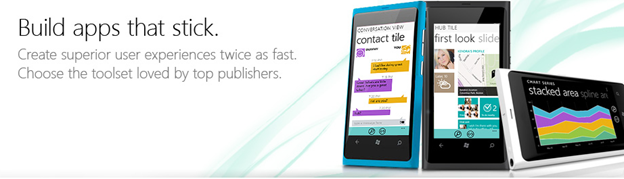
Windows Phone application development is keeping a lot of developers very busy. Developers have the envious task of creating quality Windows Phone Application in short span of time. Telerik RadControls for Windows Phone provide the set of controls that significantly speed up the Windows Phone App Development process.
Find more about RadControls for Windows Phone here
Register here to attend the webinar
In this webinar we will start with Rad Controls for Windows Phone. We will explore various Rad Controls. We will keep webinar demo oriented and we will more focus on writing and understanding codes. I strongly recommend you to download and install trial before coming to webinar.
RadControls for Windows Phone provides you 41 different controls and building blocks to cut your development time. These controls are designed to shorten your app development time. We will explore some of the controls listed below in the webinar.
- RadConversationView
- RadAutoCompleteBox
- RadTextBox
- RadToggleSwitch
- RadSlideHubTiles
- RadRating
- RadHubTiles etc .
Apart from above listed RadControls, we will explore many other controls as well. I request you to attend the webinar. Once again find the webinar details below,
Date: 5th Sep 2012
Time: 3:00 pm to 4:00 pm (IST)
Register here to attend the webinar
See you in the webinar. If you have any question or query , please feel free to send me mail at Dhananjay.kumar@telerik.com
Updating Count Value of RadHubTile in using BackGroundWorker
While working on one of the application, I came across a requirement to keep updating count value of RadHubTile in Windows Phone. I had RadHubTile declared on XAML as following
<telerikPrimitives:RadHubTile Title="News"
ImageSource="Images\news.png"
Count="11"
Message="News Update"
Width="400"
x:Name="newshubtile">
<telerikPrimitives:RadHubTile.BackContent>
<Border Background="{StaticResource PhoneAccentBrush}">
<TextBlock HorizontalAlignment="Center"
VerticalAlignment="Center"
Text="News mashup!!"/>
</Border>
</telerikPrimitives:RadHubTile.BackContent>
</telerikPrimitives:RadHubTile>
If you notice in above declaration, we have set value initial of Count Property to 11. Now we need to update value of count on different thread. We can do that using BackGroundWoker. Suppose we have function to update count value as following
private void increaseCountValue()
{

newshubtile.Count = newshubtile.Count + 2;

}
Now we need to execute this function in BackgroundWoker. In below function, we are passing two input parameters
- Function as Action
- Delay in msecond
We are creating instance of BackgroundWorker and calling the function asynchronously on different thread than UI thread.
private void UpdateUsingBackgroundWoker(Action updateMethod, int delayInMilliseconds)
{
BackgroundWorker worker = new BackgroundWorker();
worker.DoWork += (s, e) => Thread.Sleep(delayInMilliseconds);
worker.RunWorkerCompleted += (s, e) => updateMethod.Invoke();
worker.RunWorkerAsync();

}
Last but not least we need to call UpdateIUsingBackgroundEWorker as per our requirement. We can call this as following
this.UpdateUsingBackgroundWoker(() => increaseCountValue(), 1000);
This will update count value in delay of 1 second. In this way you can update count value. I hope you find this post useful. Thanks for reading!
 Helping Ninja Technologists