Test Studio Webinar on 22nd Aug 2012

image

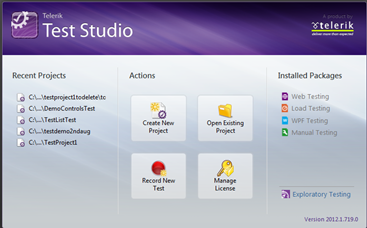
If you are enthusiastic about finding bugs in software and find solace in testing, we have a Ninja tool for you. Explore this chart buster software – Telerik Test Studio from the comfort of your seat. We are excited to invite you for a webinar on Telerik Test Studio. The details are as follows:

When: 22nd Aug 2012 at 3 pm (IST)

For Whom: Testers, Quality Professionals, Project Managers and Ninja’s

Register for Webinar here

In this webinar we will cover,

  • Automated Web Testing
  • Data Driven Testing
  • Working with Test Lists
  • Test Result Analysis and Reporting
  • Ajax Testing
  • Performance Testing

The webinar is demonstration lead and we hope to make it an interactive one with your participation.

See you all at the webinar.

You can learn more about Test Studio here and can start exploring by downloading the free trial

How to change background of View in Kendo UI Mobile

In this post I will show you how we can put a background color in Kendo UI Mobile view. Let us suppose that we got following view

clip_image001

There may be requirement when you will have to change background color of this view. You can change that using CSS as following

clip_image002

You will have to put this CSS on the page. I hope this post was useful. Thanks for reading

Toggle Button Icon and Handler in Kendo UI

While working on an application I come across a requirement to toggle the button in application layout. On clicking of the button, its icon and handler should be toggled with another icon and function. In this post we will learn how to achieve this.

Problem statement

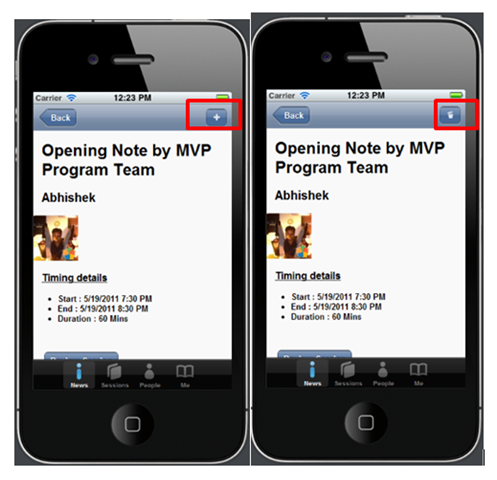
To understand the problem better let us consider following application. You can see that detail of a particular session is displayed in the view. In header there is an Add button. When user click on the Add button, this particular session should get added to Favorite Session List and Add button should get changed to Trash button. Essentially we need to toggle the button with different icon and function attached the click event.

image

Solution

We can toggle from Add to Trash as following

clip_image002

In above code

  • saveButton is id of the button.
  • fsaveDataLocally is name of the function to add Session in Favorite Session List.
  • fremoveDataLocally is name of the function to remove Session from Favorite Session List.

You can bind and unbind handler from your application as per your business requirement.

We can toggle from Trash to Add as following

image

In this way you can toggle icon on Kendo Button and can toggle handler in the run time. I hope this post is useful. Thanks for reading.


Getting Started With Rad Controls for Windows Phone

This post will help you to start working with Telerik Rad Controls for Windows Phone. You can download trial version from here

Learn more about Rad Controls for Windows Phone here

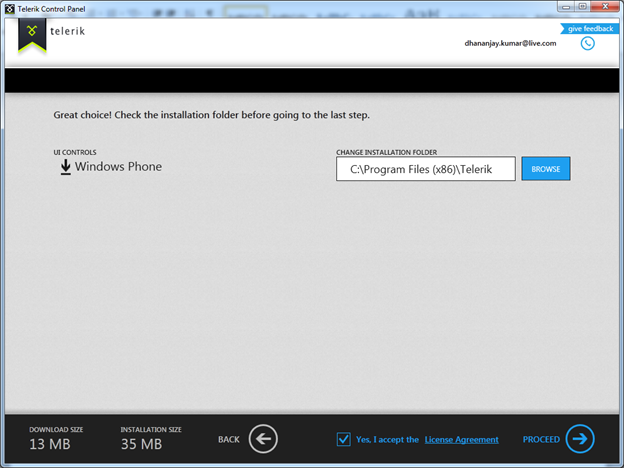
After downloading click on the exe file. You will get Telerik Control Panel as following . Select Windows Phone and click on proceed.

image

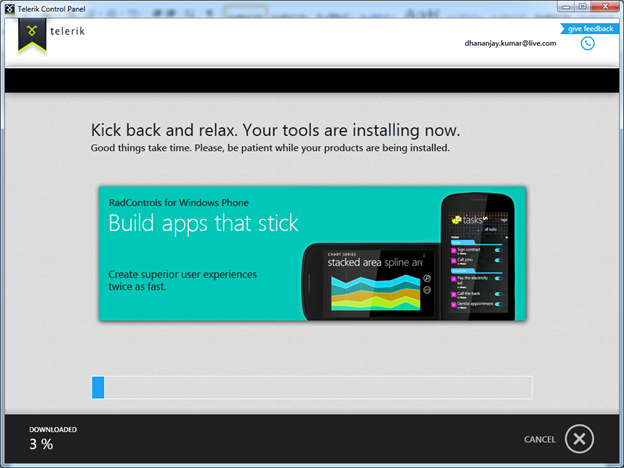
If you want you can change default installation folder on this screen or can leave the default. Accept the Terms and Conditions and click on Proceed.

image image

After successfully installation, go ahead and create new Windows Phone project in Visual Studio. In Silverlight for Windows Phone tab you will get Rad Control Windows Phone Application project template

image

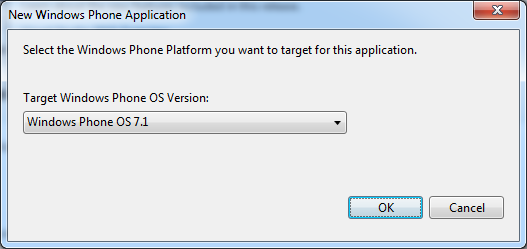
As usual choose Target version of Windows Phone operating system

image

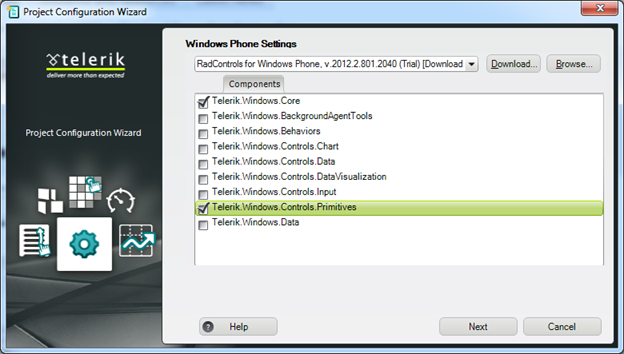
In next windows you need to select Telerik Rad Control for Windows Phone references. Select required reference for the Rad Control you are going to use in the application. I am going to use RadHubTile in the application and for that, we need following references.

image

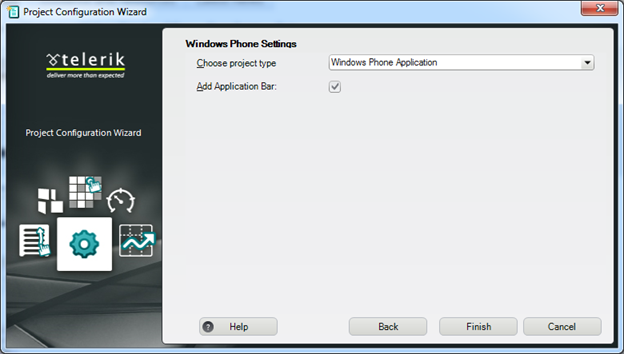
After adding references, you need to choose type of Windows Phone Application from the drop down. I am choosing simple Windows Phone Application. You can check the checkbox to add Application Bar in the application.

image

Click on Finish to create Windows Phone Application project. After creation of project to work with Rad Controls you need to add references on the XAML page.

image

After adding reference you can work with any RadControl. For example you can add RadHubTile on the application page as following

image

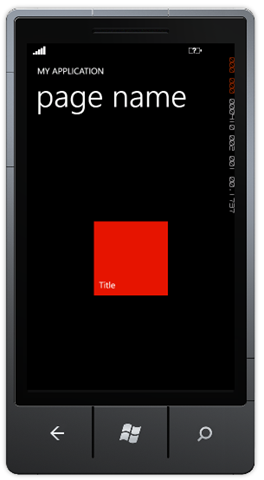
At the point if you run the application, you should be getting application with RadHubTile as following.

image

Conclusion

In this way you can set up environment to start developing Windows Phone Applications using Telerik Rad Controls for Windows Phone. In further posts we will get deeper into capabilities of all the Rad Controls.


Configure Internet Explorer for Test Studio Automation


In this post, we will go step by step to configure Internet Explorer to perform testing using Test Studio.

Very first you need to start with checking the Zoom level of Internet explorer. Make sure it is set to 100%

image 

You can find Zoom level detail in the right bottom on Internet Explorer. If Zoom level is not displayed in your browser then press ALT and from View menu navigate to Toolbars and the check Status Bar. After doing this you should have Zoom level information displayed in right bottom of the browser.

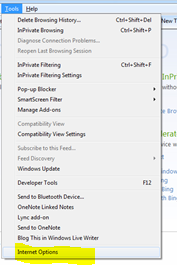
Next you need to disable the protected mode. To disable it navigate as,

Tools menu -> Internet Options

image

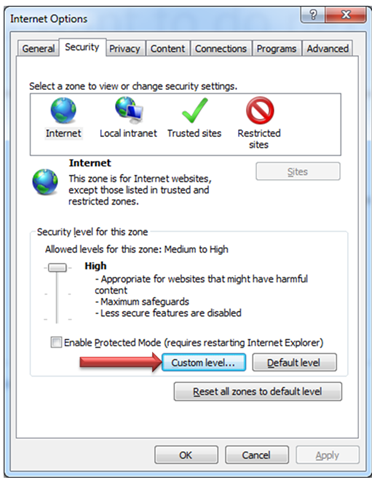
Click on Security tab and for all four zones, like Internet, Local intranet, Trusted Sites and Restricted Sites uncheck Enable Protected Mode check box.

image

You will get a warning message click on to continue

image

After disabling protected mode, you need to disable the Pop-up blocker .For that clicks on Privacy tab in Internet Option. In Pop-up Blocker section uncheck Turn on Pop-up Blocker

image

After this you need to make sure that Pop-up always open in new window. To do this goes to Internet Options and in General Tab click on Setting in Tab section.

image

In the Tabbed Browsing Settings select Always open popup in new window.

image

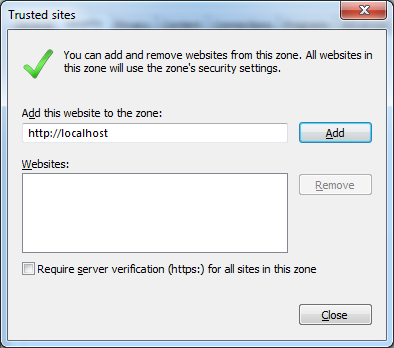
After setting Pop-ups to open in new windows, you need to add site you are going to test as trusted site. To do that, open Internet Option and then Security tab.

image

In Security tab select Trusted Sites and then click on Sites. Add site or domain of site as trusted site.

image

After performing this task, you need to make sure that JavaScript is enabling in the browser. For that open Internet Option and select Security tab. In Security tab click on the Custom Level.

image

In Security Setting window go to Scripting section and make sure that Active Scripting is enabled.

image

Then scroll to miscellaneous section and enable Display Mixed Content

image

Then scroll to download section and enable the File download

image

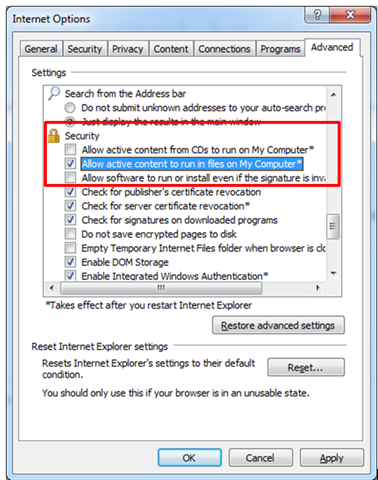
Last step is to make sure that active content can be run from the local file. To do this go to Internet Option and then select advanced tab. In Security section check the check box of Allow active content to run from local computer.

image

After performing this configuration, Internet Explorer is configured to perform testing using Test Studio.


Working with Kendo Data Model

Kendo.data.model provides the ability to define schema. Inside schema fields with various attributes and methods can be defined. It is inherited from ObservableObject

Read more about it here

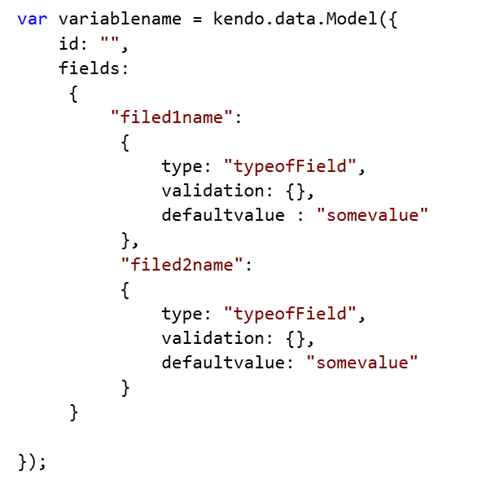
You can create Kendo UI Model as following,

image

Even though at first glance above syntax looks verbose but it is very straight forward. You can create a new model by creating a variable of type kendo.data.model

  • First we define identifier of the model. This can be any field of the model. It is defined by setting id attribute
  • Different fields of model can be created in field attribute

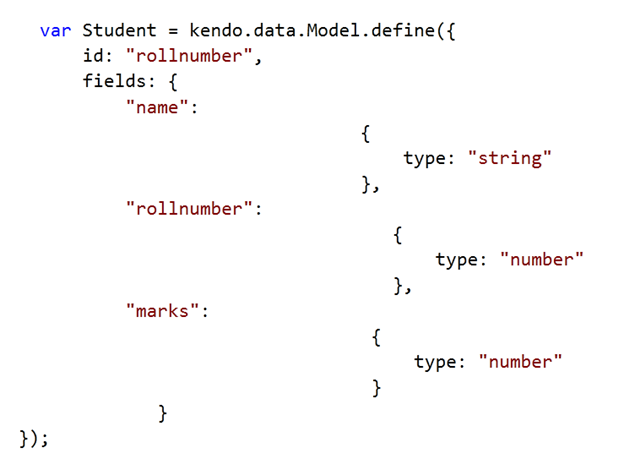
For example, if you want to create a model for Student, you can do that as following

image

In Student model

  • There are three fields name , rollnumber and marks
  • Rollnumber is set as identifier field of this model.
  • Type of the fields is set in the type attribute.

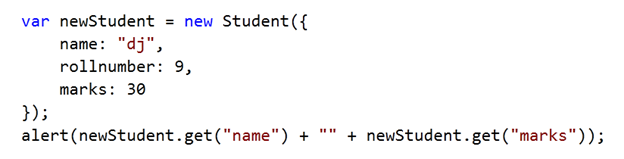
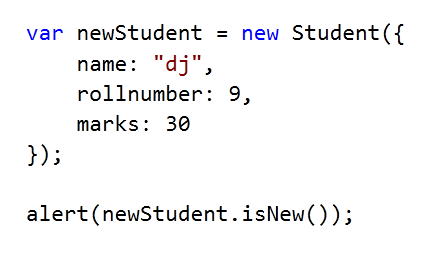
You can create object of a model as below.

image

You can controls fields behavior and can configure many details like following

  • Default value can be set
  • Editable behavior can be set
  • Null behavior can be set
  • Default parsing function for a field can be set.
  • Validation rules can be set

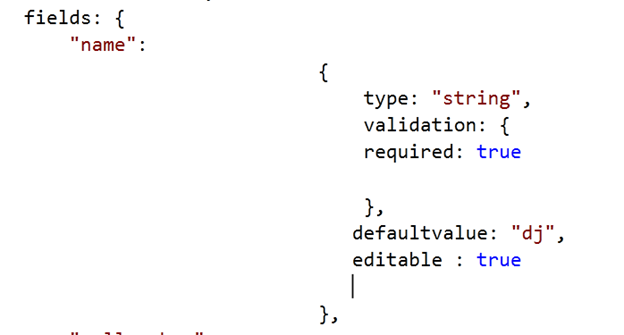
You can configure various attributes as following

image

Name filed in the model is created with different attributes. For example this name field is editable and its default value is dj.

You can determine that whether a model is new or not using isNew method. Consider below instance of Student model, you will get false as output. If model identifier is set then Kendo framework does not consider that as new

image

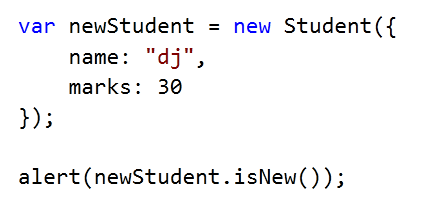
If you change above model as following, you will get true in alert since id of model is not set.

image

In this way you can work with Kendo.data.model. I hope you find this post useful. Thanks for reading.


Working with Kendo Data ObservableArray

Kendo.data.ObservableArray can be defined as below equation. It is a simple array with capability to track the changes.

image

Read more here

Kendo UI Observable String Array can be created as following

image

Array can be traversed in usual way as following. length filed returns number of elements in the array .

image

On any change in the observableArray change events gets fired. You can bind change event to array as following.

image

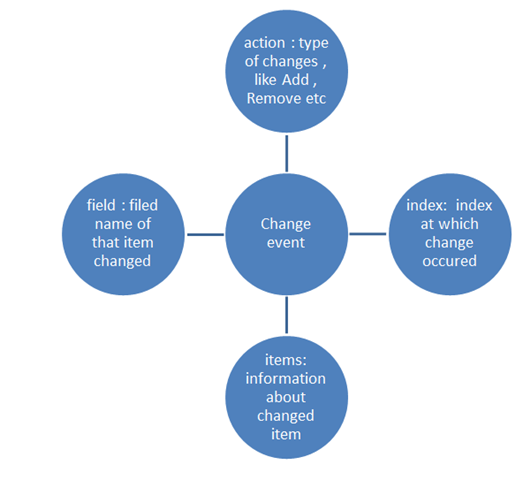
You can track finer level details of change as well. You can get following change information as shown in diagram

image

For example, let is push “John “in above array. We can do that as following

image

After that in change event you can get information like Add and John as following

image

Using Join method you can join all items of array into a string. For example, if you want to have a separator $ between all names, you can do that by calling simple join method on array as following

image

Join method takes a string input parameter.

An item can be inserted into array using the push method and can be removed using pop method. More than one item can be inserted as following

image

And item can be removed as following

image

So far we have worked with primitive type string observablearray. We can have complex type observablearray as well. We can create and traverse that as following.

image

We can insert an item in above created complex type observablearray as following

image

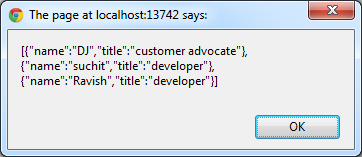
We can convert an array to JSON as following

image

You should get the output as following

image

In this way you can work with Kendo Data ObservableArray. I hope you find this post useful. Thanks for reading.


Dynamically Navigating from one View to other in Kendo UI Mobile

While creating application, a very common requirement you may come across is to dynamically navigate from one View to other on basis of some query parameter.

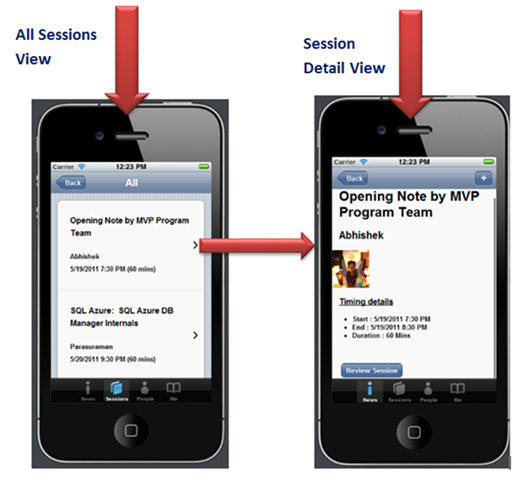
Consider a requirement from below diagram, when you click on a particular session, you need to navigate to session detail view.

image

We can list down the requirement as following

  • We need to fetch Session ID from All Session View and pass it as input parameter to Session Detail view
  • On Session Detail view fetch the data on basis of the Session Id passed from All Session View.
  • Dynamically display Session Detail of a particular Session on Session Detail View.

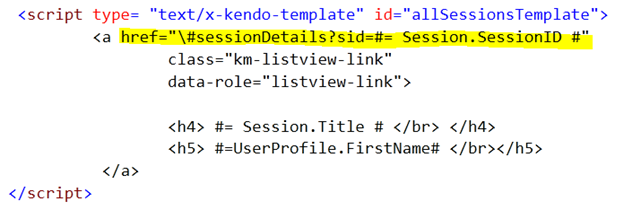
At very first we need to set the query parameter in Template of All Session View as following. If you notice we are setting Session ID as query parameter in list view link button. On click of the detail button, application will be navigated to SessionDetails view with Session ID as value in query parameter.

image

Next Session Detail View is as below. Data-Show attribute of Session Detail View is set the function sessionDetailsShow. Whenever application will navigate to this view javascript function SessionDetails will be invoked

image

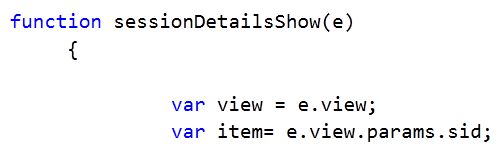
In SessionDetails function view Session ID can be read as following

image

Once you have value of Session ID passed from All Session View on Session Detail view, filter the data source on this Session ID. After fetching filtered data, data can be bind to Session Detail template as following.

image

Above code should be in SessionDetailShow function and you can define Template from Session Detail View as of your requirement

image

This is what all you need to do to do navigate from one view to other with data. I hope this post is useful. Thanks for reading.

4 Steps to Kendo UI


Overview:

In this post, we will look at the steps involved in working with Kendo UI. For those of you who are hearing about Kendo UI for the first time – I would recommend you head straight to www.KendoUI.com and spend couple of moments there to familiarize yourself with Kendo UI. In brief Kendo UI is

Kendo logo

A comprehensive, end-to-end framework, compatible with jQuery, and custom-built from the ground up for rock-solid reliability and lightning-fast performance. Includes MVVM support, a rich DataSource, several UI widgets, and everything you need to build rich JavaScript applications today.

It takes 4 steps to working with Kendo UI. So lets see the 4 steps in detail in the coming sections.


Step 1:

The simplest of all the steps :). This step involves downloading of Kendo UI. You can download Kendo UI from the download page at: http://www.kendoui.com/download.aspx.

Kendo UI comes in 3 flavors, namely:

  • Kendo UI Web – UI controls to be used in web applications
  • Kendo UI Data Viz – Data Visualization controls for both Web and Mobile platforms
  • Kendo UI Mobile – UI controls for Mobile platforms like iOS, Android and BlackBerry

Kendo UI comes with a free 30 day trial and I highly recommend downloading that. Rest of the sections will assume that you have downloaded kendo ui on to your hard disk.


Step 2:

Once you have downloaded the Kendo UI on to your hard drive next step is to start using it in a HTML page. First piece to get in place is the stylesheets required by the Kendo itself. These stylesheets are responsible for giving the look and feel of the UI controls or widgets as we call them. When you install the Kendo ui the styles folder contains all the required stylesheets. Kendo UI ships with  5 themes namely – Default, Black, Blue Opal. Metro and Silver.

We need to first reference the common stylesheet required by the Kendo framework. The link tag for this as follows:

<link href=”styles/kendo.common.min.css” … />

Here are the theme specific stylesheet which must be referenced while applying a particular theme:

  • Default theme:

<link href=”styles/kendo.black.min.css” … />

  • Black theme:

<link href=”styles/kendo.black.min.css” … />

  • Blue Opal theme:

<link href=”styles/kendo.blueopal.min.css” … />

  • Metro theme:

<link href=”styles/kendo.metro.min.css” … />

  • Silver theme

<link href=”styles/kendo.silver.min.css” … />

If you are using DataViz framework then you would need to refer DataViz stylesheet apart from the common stylesheet. Here is the link tag for that:

<link href=”styles/kendo.dataviz.min.css” … />

Here is the HTML code for step 2:

<!DOCTYPE html>
<html>
  <head>
    <title>Kendo UI</title>
    <!-- Kendo UI Web styles -->
    <link rel="stylesheet" href="styles/kendo.common.min.css" />
    <link rel="stylesheet" href="styles/kendo.default.min.css" />
  </head>
  <body>
  </body>
</html>

Step 3:

Once we have the stlesheet in place, next it to add the Javascripts which is required for the initialization of the UI controls/widgets themselves.

So for web applications, the first script to reference is the jquery. Then reference the kendo.web.min.js file from the js folder. Here is how the =script tag will look like:

<script src=”js/jquery.min.js” ..></script>
<script src=”js/kendo.web.min.js” ..></script>

If you are working with Data Visualization, then instead of the kendo.web.min.js you will need to refer kendo.dataviz.min.js file.

Here is the HTML code for step 3:

<!DOCTYPE html>
<html>
  <head>
    <title>Kendo UI</title>
    <!-- Kendo UI Web styles -->	
    <link rel="stylesheet" href="styles/kendo.common.min.css" />
    <link rel="stylesheet" href="styles/kendo.default.min.css" />

    <!-- Kendo UI Web scripts -->
    <script src="js/jquery.min.js"></script>
    <script src="js/kendo.web.min.js"></script>	

  </head>
  <body>
  </body>
</html>

Step 4:

This is the interesting step. With Step 2 and Step 3 we have set the stage for the most interesting part of the journey with Kendo UI. Stykesheets and scripts necessary to work with Kendo UI has been referenced. Now we see how to initialize the kendo UI controls or widgets. Kendo UI Web as nearly 19 widgets to work with. You can know more about this at http://demos.kendoui.com/web/overview/index.html.

For this exercise I will take a simple control like Calendar widget and show you how to initialize that. To start with, place a div in the HTML body and give it name, let’s say “kendo-calendar”. Next spin up a jquery statement for document ready and code the following:

<script>
  $(document).ready(function(){
    $("#kendo-calendar").kendoCalendar();
  })
</script>

well that’s all its there to working with kendo UI. What we have done is, we have grabbed the div which have placed it in the HTML body and used kendo framework to turn that into a pretty neat calendar. Here is the code for the Step 4:

<!DOCTYPE html>
<html>
  <head>
    <title>Kendo UI</title>
    <!-- Kendo UI Web styles -->	
    <link rel="stylesheet" href="styles/kendo.common.min.css" />
    <link rel="stylesheet" href="styles/kendo.default.min.css" />

    <!-- Kendo UI Web scripts -->
    <script src="js/jquery.min.js"></script>
    <script src="js/kendo.web.min.js"></script>	

  </head>
  <body>
	<div id="kendo-calendar"></div>
	<script>
		$(document).ready(function(){
			$("#kendo-calendar").kendoCalendar();
		});
	</script>
  </body>
</html>

Here is the live version of the same code that I have created in jsfiddle:

http://jsfiddle.net/kashyapa/CrEZb/


Summary:

In this post we saw how easy it is to work with Kendo UI. with simple 4 steps you are ready to take a ride with Kendo UI. Although we saw a simple example of calendar being initialized, pretty much all the widgets in Kendo UI can be initialized in the same mechanism. Hope you will do the step 1 and following along till step 4.

Till next time, Happy coding.

Tearch: Creating Twitter Search Application using Kendo UI Mobile

In this post, we will create Twitter Search Application using Kendo UI Mobile. In order to create this application, we will learn about

  • Kendo UI Mobile View
  • Kendo UI Mobile ListView
  • Kendo UI DataSource
  • Kendo UI Template
  • Kendo UI ModalView
  • Working with HTML5 localstorage

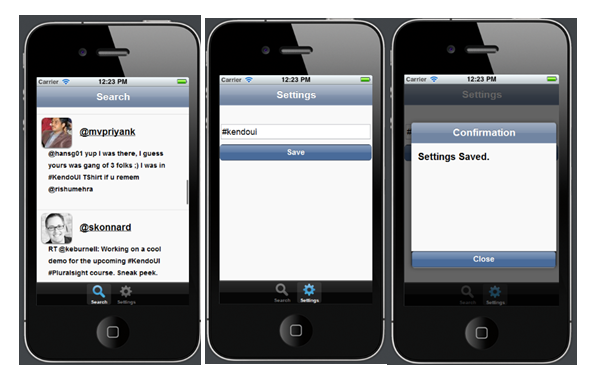
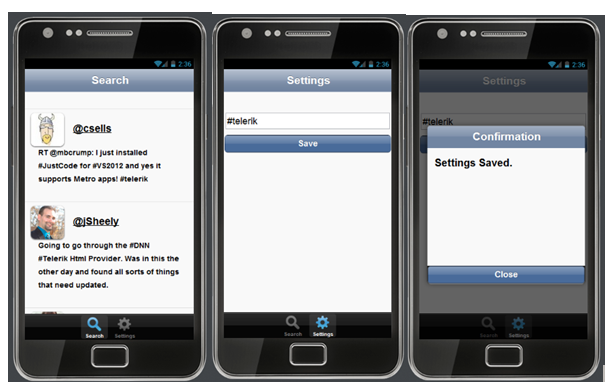
Idea behind application is that we will search tweets using Twitter API returning JSON. Application will look like as following

On iPhone

image

On Android

image

Step 1 : Add References

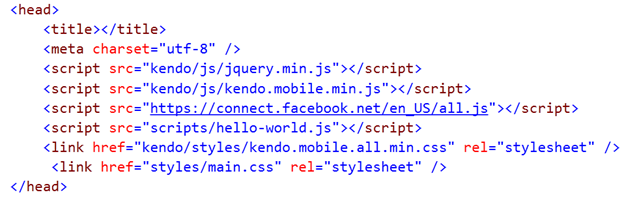
Before we start creating application, we need to add the references of required css and js files.

image

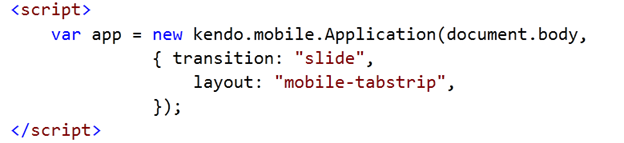
After adding references we need to initlaize the Kendo Mobile Application. Put following code just before closing body tag.

image

Step 2: Create Layout

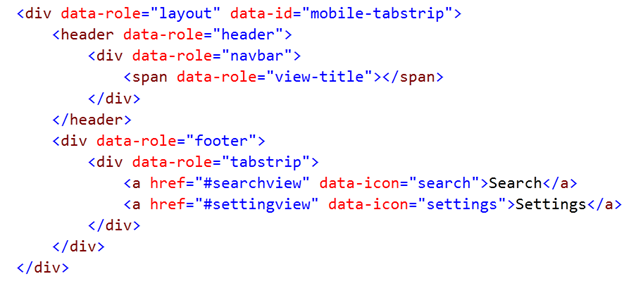
We will start with creating layout of the application. In header we want title of the application and in footer we want two buttons. Search button and Setting button. Layout can be created as following

image

Step 3: Create Setting View

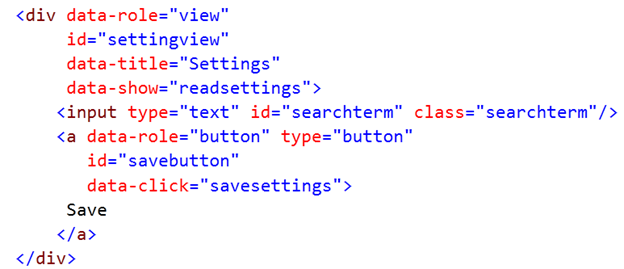
In setting view, we are going to put input box and a button.

image

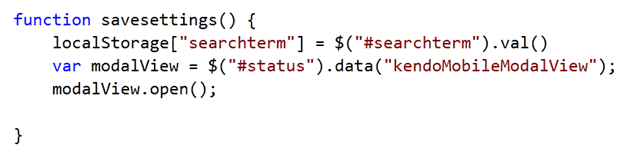
On click event of the button, text from input box will be saved in local storage. Twitter search will be performed on the text saved in local storage. We are going to use HTML5 localstorage API to save data locally. If you notice that data-click attribute of button is set to javascript function savesettings. Savesettings function is as following

image

When user will navigate to Settings view, saved search term should be displayed to user. For that we are setting data-show attribute of settings view to javascript function readsetting. Readsetting function is as following. In this function, we are checking that if there is any setting saved. If not then we are displaying default text “#KendoUI”.
image

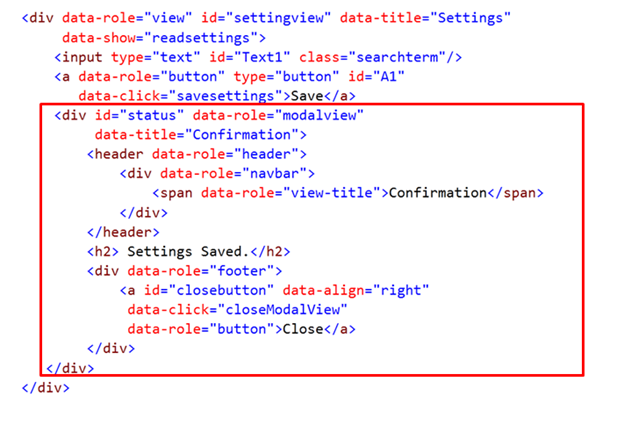
Once setting is saved successfully, we want to show a message to user. We will use kendo UI Mobile ModelView widget to display confirmation message to user. To work with Kendo UI Mobile Model View, we need to put following div inside settings view

image

After putting model view we need to open this confirmation box once data is saved successfully. We can do that by modifying savesettings function. After modification function is as following. In below function we are getting reference of Kendo UI Mobile Modal View and calling Open method of that.

image

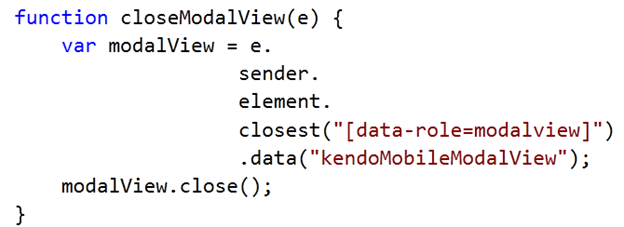
There is a close button in confirmation box. closeModalView javascript function is called on click event of this button to close the confirmation box.

image

Step 4 : Create Search View

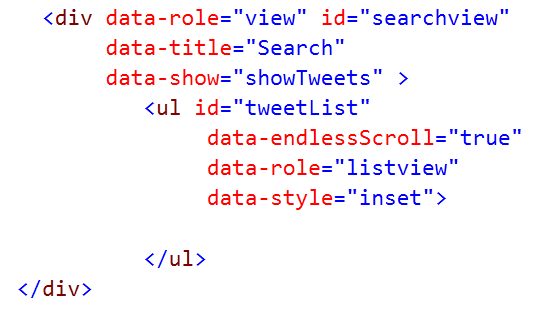
Now we need to create view in which we will show the tweets on basis of the search term. Let us create Kendo UI Mobile View and put a Kendo UI Mobile ListView inside that view. ListView is KendoUI widgets used to show data. Fetched Tweets from Twitter Server will be displayed in the ListView.

image

In above code, we are performing the following operations.

  • Creating KendoUI Mobile view by setting data-role property of HTML div element as view
  • Setting data-show attribute of view to javascript function showTweets
  • Creating ListView inside mobile view.
  • ListView is being created by setting data-role attribute of HTML ul element as listview

Data-Template defines how data should be displayed. Template can be created as following

image

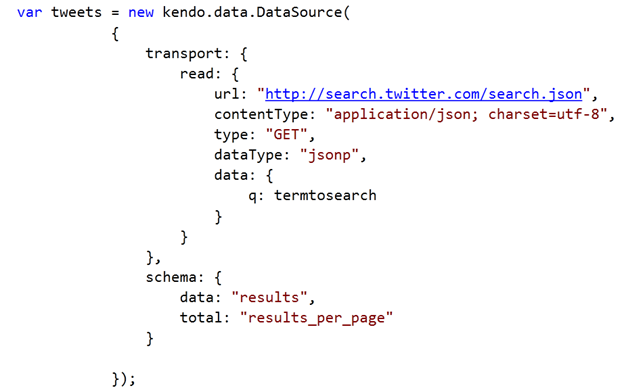
After creating Data-Template, we need to fetch tweets from Twitter on basis of search term and create Data Source. This can be done as following

image

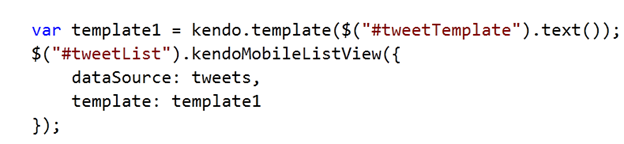
The value of q is the search criteria in while creating transport to fetch tweets. We have created Data-Source and Data-Template. Next we need to set Data-Source and Data-Template of ListView. That can be done as following

image

After setting DataSource and DataTemplate our application is ready. To make application more immersive we have put some styling. You can find those CSS in code section of the article. For your reference source code of the application is as following

Default.html


<!DOCTYPE html>
<html>
 <head>
 <title></title>
 <meta charset="utf-8" />
 <script src="kendo/js/jquery.min.js"></script>
 <script src="kendo/js/kendo.mobile.min.js"></script>
 <script src="scripts/hello-world.js"></script>
 <link href="kendo/styles/kendo.mobile.all.min.css" rel="stylesheet" />
 <link href="styles/main.css" rel="stylesheet" />
 </head>
 <body>

 <div data-role="view" id="searchview" data-title="Search" data-show="showTweets" >
 <ul id="tweetList"
 data-endlessScroll="true"
 data-role="listview"
 data-style="inset">

 </ul>
 </div>

<div data-role="view" id="settingview" data-title="Settings" data-show="readsettings">
 <input type="text" id="searchterm" class="searchterm"/>
 <a data-role="button" type="button" id="savebutton" data-click="savesettings">Save</a>
 <div id="status" data-role="modalview" data-title="Confirmation">
 <header data-role="header">
 <div data-role="navbar">
 <span data-role="view-title">Confirmation</span>
 </div>
 </header>
 <h2> Settings Saved.</h2>
 <div data-role="footer">
 <a id="closebutton" data-align="right" data-click="closeModalView" data-role="button">Close</a>
 </div>
 </div>
 </div>

 <div data-role="layout" data-id="mobile-tabstrip">
 <header data-role="header">
 <div data-role="navbar">
 <span data-role="view-title"></span>
 </div>
 </header>
 <div data-role="footer">
 <div data-role="tabstrip">
 <a href="#searchview" data-icon="search">Search</a>
 <a href="#settingview" data-icon="settings">Settings</a>
 </div>
 </div>
 </div>

 <script id="tweetTemplate" type="text/x-kendo-template">
 <img class="profileImage" src=#= profile_image_url# />
 <h4><a href="http://twitter.com/${from_user}">@#=data.from_user#</a></h4>
 <h5>#=text#</h5>
 </script>

 <script>
 var app = new kendo.mobile.Application(document.body,
 { transition: "slide",
 layout: "mobile-tabstrip",
 initial : "searchview"});

 </script>
 </body>
</html>


<pre> <style scoped>
 #searchterm {
 height:25px;
 width: 310px;
 margin-left: 03px;
 margin-top: 40px;
 margin-right: 03px;

 }
 #savebutton{
 display: block;
 text-align: center;
 margin: .7em .12em 0;
 font-size: 1.2em;
 }
 #closebutton{
 display: block;
 text-align: center;
 margin: .7em .12em 0;
 font-size: 1.2em;
 }

 #searchview
 h4 {
 display: inline-block;
 font-size: 1.2em;
 margin: 0.9em;
 }
 h5 {
 display: inline-block;
 font-size: 0.9em;
 margin-left: 5px;
 margin-top:0px
 }

 #searchview
 img {
 float: left;
 width: 4em;
 height: 4em;
 margin: 0;
 -webkit-box-shadow: 0 1px 3px #333;
 box-shadow: 0 1px 3px #333;
 -webkit-border-radius: 8px;
 border-radius: 8px;
 }

 </style></pre>

HelloWord.js


// JavaScript Document

// Wait for PhoneGap to load
document.addEventListener("deviceready", onDeviceReady, false);

// PhoneGap is ready
var termtosearch="#kendoui";
function onDeviceReady() {

}

function savesettings()
{
 localStorage["searchterm"]= $("#searchterm").val()
 var modalView = $("#status").data("kendoMobileModalView");
 modalView.open();

}

function readsettings()
{
 if(localStorage.searchterm)
 {
 $('#searchterm').val(localStorage["searchterm"]);
 termtosearch = localStorage["searchterm"];
 //console.log(termtosearch);
 }
 else
 {
 $('#searchterm').val("#kendoui");
 termtosearch = "#kendoui";
 //console.log(termtosearch);
 }
}

function closeModalView(e) {
 // find the closest modal view, relative to the button element.
 var modalView = e.sender.element.closest("[data-role=modalview]").data("kendoMobileModalView");
 modalView.close();
 }

&nbsp;
function showTweets(e) {

 if(localStorage.searchterm)
 {
 $('#searchterm').val(localStorage["searchterm"]);
 termtosearch = localStorage["searchterm"];
 //console.log(termtosearch);
 }
 else
 {
 $('#searchterm').val("#kendoui");
 termtosearch = "#kendoui";
 //console.log(termtosearch);
 }

var tweets = new kendo.data.DataSource(
 {

transport: {
 read: {
 url: "http://search.twitter.com/search.json",
 contentType: "application/json; charset=utf-8",
 type: "GET",
 dataType: "jsonp",
 data: {
 q: termtosearch
 }
 }
 },
 schema: {
 data: "results",
 total: "results_per_page"
 }

});

 tweets.fetch();
 var template1 = kendo.template($("#tweetTemplate").text());
 $("#tweetList").kendoMobileListView({
 dataSource: tweets,
 template:template1

 });

}

I hope you find this post useful. Thanks for reading

Slides and Source Codes to the “Webinar on Creating HTML5/JS Mobile & Web Apps with Kendo UI” available to download

Hi Everyone,

image

Thank you so much for attending Kendo UI webinar yesterday. We had exciting time and hope you found webinar useful. As promised we are making all the resources of webinar available to download.

Download Slides and Source Codes from here

If you missed the webinar then you can start learning about Kendo UI from here . We strongly recommend you to go ahead and download trial version of Kendo UI from here. If you find any difficulties , throw your questions in comment or can directly send mail to us.


In this webinar we covered

  • Introduction to Kendo UI
  • Getting started with Kendo UI Web
  • Understanding and using different Kendo UI Web widgets
  • Getting started with Kendo UI Data VIZ
  • Kendo UI widgets on SharePoint web parts
  • Introduction to Kendo UI Mobile
  • Creating Hybrid Mobile application “Movie Explorer”

You can find some resources here to start exploring Kendo UI and can read Kendo UI documents here

If you need any assistance to start with Kendo UI please writes to us. See you soon in next webinar.