Complex object in RadAutoCompleteBox control for Windows Phone

Read documentation here

RadAutoCompleteBox control provides suggestion to user. It provides suggestion on basis of set criteria filtering data from a SuggestionSource. SuggestionSource is nothing but a Data Source.

RadAutoCompleteBox control gives you immersive experience as following. It can be bind to data source as simple as collection of strings or collection of complex objects. In below RadAutoCompleteBox SuggestionSource is of complex objects.
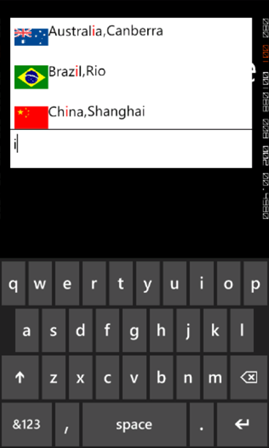
image

To start working with RadAutoCompleteBox first you need to add following namespace on the XAML page.

clip_image002

You can create a simple RadAutoCompleteBox as following

image

There are many properties exposed to configure RadAutoCompleteBox. You can set values of those properties as per your requirement. Two important properties are AutoCompleteMode and AutoCompletePopupDisplayMode. AutoCompleteMode property defines the way filtering should be done. Filtering criteria will be can be set to two values.
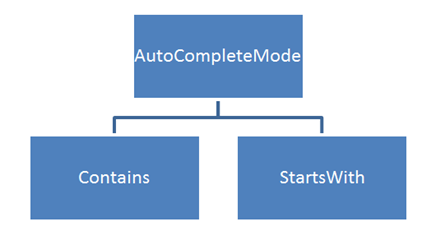
image

AutoCompletePopupDisplayMode defines the place of popup windows to open. This property can be set to four values. Those four values are as following
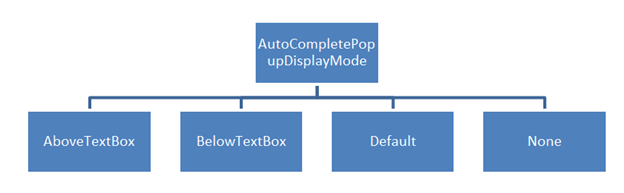
image

SuggestionSource can be created as following. It is a function returning List of Strings.
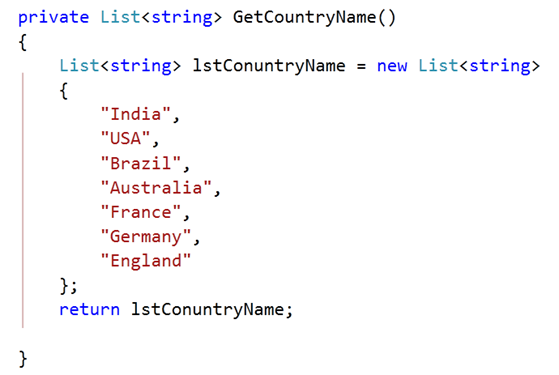
image

After creating SuggestionSource you can set that in code behind as given below.

image

At this point on running the application, you should get experience of RadAutoCompleteBox as given in below image,
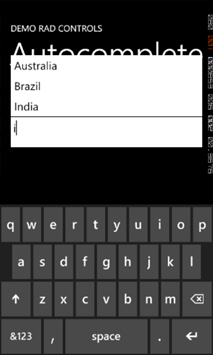
image

Now let us see how we can work with a complex object. For that go ahead and create a class called CountryData. There are three properties in the class.


public class CountryData
{

public string CountryName { get; set; }
public string  CountryCapital { get; set; }
public ImageSource CountryFlag { get; set; }

}

Next you need to create data source or suggestion source. For that I have created a function returning List of CountryData. I have put images in the Images folder. In below function using collection initializer we are creating List of object of CountryData and returning that.


private List<CountryData> GetCountryDetails()
{
List<CountryData> lstCountryData = new List<CountryData>
{
new CountryData
{
CountryName = "India" , CountryCapital ="New Delhi " , CountryFlag= GetImageSource("/Images/indiaflag.jpg")
},
new CountryData
{
CountryName = "USA" , CountryCapital ="Washington" , CountryFlag= GetImageSource("/Images/usaflag.jpg")
},
new CountryData
{
CountryName = "France" , CountryCapital ="Paris" , CountryFlag= GetImageSource("/Images/franceflag.jpg")
},
new CountryData
{
CountryName = "England" , CountryCapital ="London" , CountryFlag= GetImageSource("/Images/englandflag.jpg")
},
new CountryData
{
CountryName = "Germany" , CountryCapital ="Berlin" , CountryFlag= GetImageSource("/Images/germanyflag.jpg")
},
new CountryData
{
CountryName = "China" , CountryCapital ="Shanghai" , CountryFlag= GetImageSource("/Images/chinaflag.jpg")
},
new CountryData
{
CountryName = "Japan" , CountryCapital ="Tokyo" , CountryFlag= GetImageSource("/Images/japanflag.jpg")
},
new CountryData
{
CountryName = "Australia" , CountryCapital ="Canberra" , CountryFlag= GetImageSource("/Images/ausflag.jpg")
},
new CountryData
{
CountryName = "Brazil" , CountryCapital ="Rio" , CountryFlag= GetImageSource("/Images/brazilflag.jpg")
},

};
return lstCountryData;
}

GetImageSource function is defined as following. This function is taking image path as string and converting that to ImageSource such that directly can be bind to Image control.


private ImageSource GetImageSource(string fileName)
{
return new BitmapImage(new Uri(fileName, UriKind.Relative));
}

Finally you need to set SuggestionSource of radAutoCompleteBox. You can set that in page constructor as given below,


public MainPage()
{
InitializeComponent();
this.radAutoCompleteBox.SuggestionsSource = GetCountryDetails();

}

Now you need to put radAutoCompleteBox on xaml. We are filtering on a SuggestionSource consist of complex objects so you need to set the value of property FilterKeyPath. You can set value of this property to any property of the object. In this case we are filtering on CountryName. SuggestionSelected event gets fired when user selects an item from the popup.

image

By now you have created radAutoCompleteBox and bind to a SuggestionSource of complex objects. Next we need to create SuggestionTemplate. SuggetionTemplate defines the way data from complex object bind as SuggestionSource will be displayed in the suggestion popup. Since there are three properties in the object and one of them is an image. So simply we have put a StackPanel with horizontal orientation and binding properties value in controls inside the StackPanel.
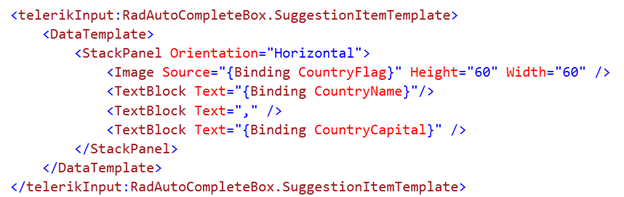
image

Last but not least we want items highlighting on filtering. We want to highlight item on property set as FilterKeyPath. We set CountryName as FilterKeyPath. You can highlight item on filtering as following. You can set highlight style on background or foreground.

image

Consolidating codes from above discussion you will have XAML as following. There is one StackPanel in second row of Grid. On selection of an item, that item will get displayed in controls inside StackPanel.


<phone:PhoneApplicationPage
x:Class="Demo.MainPage"
xmlns="http://schemas.microsoft.com/winfx/2006/xaml/presentation"
xmlns:x="http://schemas.microsoft.com/winfx/2006/xaml"
xmlns:phone="clr-namespace:Microsoft.Phone.Controls;assembly=Microsoft.Phone"
xmlns:shell="clr-namespace:Microsoft.Phone.Shell;assembly=Microsoft.Phone"
xmlns:d="http://schemas.microsoft.com/expression/blend/2008"
xmlns:mc="http://schemas.openxmlformats.org/markup-compatibility/2006"
xmlns:telerikPrimitives="clr-namespace:Telerik.Windows.Controls;assembly=Telerik.Windows.Controls.Primitives"
xmlns:telerikData="clr-namespace:Telerik.Windows.Controls;assembly=Telerik.Windows.Controls.Data"
xmlns:telerikInput="clr-namespace:Telerik.Windows.Controls;assembly=Telerik.Windows.Controls.Input"
mc:Ignorable="d" d:DesignWidth="480" d:DesignHeight="768"
FontFamily="{StaticResource PhoneFontFamilyNormal}"
FontSize="{StaticResource PhoneFontSizeNormal}"
Foreground="{StaticResource PhoneForegroundBrush}"
SupportedOrientations="Portrait"  Orientation="Portrait"
shell:SystemTray.IsVisible="True">

<!--LayoutRoot is the root grid where all page content is placed-->
<Grid x:Name="LayoutRoot" Background="Transparent">
<Grid.RowDefinitions>
<RowDefinition Height="Auto"/>
<RowDefinition Height="*"/>
</Grid.RowDefinitions>

<!--TitlePanel contains the name of the application and page title-->
<StackPanel x:Name="TitlePanel" Grid.Row="0" Margin="12,17,0,28">
<TextBlock x:Name="ApplicationTitle" Text="DEMO RAD CONTROLS" Style="{StaticResource PhoneTextNormalStyle}"/>
<TextBlock x:Name="PageTitle" Text="Autocomplete" Margin="9,-7,0,0" Style="{StaticResource PhoneTextTitle1Style}"/>
</StackPanel>

<!--ContentPanel - place additional content here-->
<Grid x:Name="ContentPanel" Grid.Row="1" Margin="12,0,12,0">

<Grid.RowDefinitions>
<RowDefinition Height="*" />

</Grid.RowDefinitions>

<telerikInput:RadAutoCompleteBox x:Name="radAutoCompleteBox"
Height="100"
AutoCompleteMode="Contains"
FilterKeyPath="CountryName"
SuggestionSelected="radAutoCompleteBox_SuggestionSelected"
Margin="-6,19,6,185">

<telerikInput:RadAutoCompleteBox.SuggestionItemTemplate>
<DataTemplate>
<StackPanel Orientation="Horizontal">
<Image Source="{Binding CountryFlag}" Height="60" Width="60" />
<TextBlock Text="{Binding CountryName}"
telerikInput:RadAutoCompleteBox.IsElementHighlighted="True">
<telerikInput:RadAutoCompleteBox.HighlightStyle>
<telerikInput:HighlightStyle Foreground="Red" FontSize="26"/>
</telerikInput:RadAutoCompleteBox.HighlightStyle>
</TextBlock>
<TextBlock Text="," />
<TextBlock Text="{Binding CountryCapital}" />
</StackPanel>
</DataTemplate>
</telerikInput:RadAutoCompleteBox.SuggestionItemTemplate>

</telerikInput:RadAutoCompleteBox>

<StackPanel Grid.Row="1" Orientation="Vertical">
<Image x:Name="imgMessage" Height="250" Width="200" />
<TextBlock  x:Name="txtMessage"  FontSize="40" Style="{StaticResource PhoneTextAccentStyle }"/>
</StackPanel>

</Grid>
</Grid>

</phone:PhoneApplicationPage>

Last but not least you need to handle SuggestionSelected event. In this event we will bind selected item in controls inside StackPanel.


private void radAutoCompleteBox_SuggestionSelected(object sender, SuggestionSelectedEventArgs e)
{

CountryData data  = e.SelectedSuggestion as CountryData;
radAutoCompleteBox.Text = data.CountryName + "," + data.CountryCapital;
txtMessage.Text = "You selected " + data.CountryName;
imgMessage.Source = data.CountryFlag;
}

Now if you go ahead and run the application you should get experience of radAutoCompleteBox as following
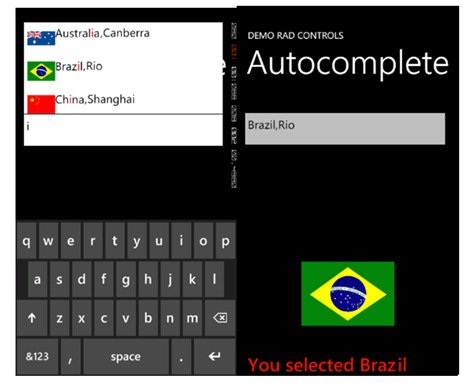
image

In this way you can work with radAutoCompleteBox. I hope you find this post useful. Thanks for reading.

Working with RadConversationView Control for Windows Phone

In this post we will learn to work with control for Windows Phone. This control allows you to get exact immersive experience of native Messaging Application in your own application.

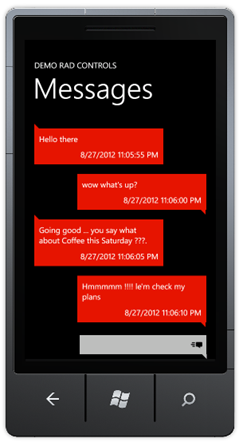
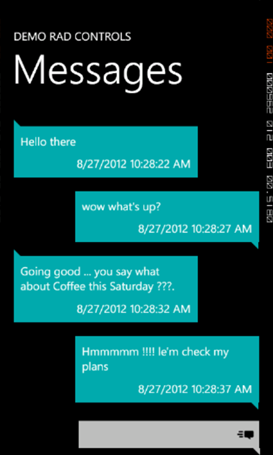
RadConversationView gives UI experience as following image. By default it takes accent color set on the device.

image

To start working with this control first thing you need to do is to add reference of Telerik.Windows.Controls.Data on the XAML page. You can add reference as following.

image

After adding reference, you can put control on XAML as following

image

You see that we are binding ItemSource property of RadConversationView in the same way we bind ListView control. After putting RadConversationView on the XAML, we need to create Conversation Message. ConversationViewMessage is used to create conversation message. However you can create custom message and bind to RadConversationView as well. You can create an incoming message as following,

image

You need to pass following parameter in the constructor of ConversationViewMessage to create a message.

  1. Message as string
  2. Time at message sent or receive as DateTime
  3. Type of the message that whether it is outgoing message or incoming message.

You can create an outgoing message as following

image

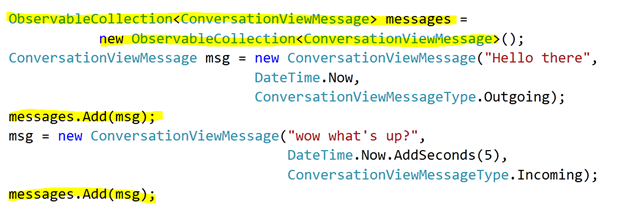
To show messages in RadConversationView control, you need to add all messages in an observable collection and bind the collection to the control. You can do that as following

image

After creating observable collection you need to bind the collection to itemsource property of RadConversationView. You can add new message by handling SendingMessage event

image

And in ConversationViewSendingMessage function a message can be added as given in below.

image

RadConversationView control is very flexible and you can also perform following tasks.

  • Change the outgoing message template
  • Change the incoming message template
  • Create and bind custom message
  • Create another message types than outgoing and incoming
  • Grouping of the message on an arbitrary criteria

In this way you can harness features of RadConversationView in creating killer Windows Phone application. For your reference full source code of above discussion is given below,

MainPage.xaml


<phone:PhoneApplicationPage
x:Class="Demo.MainPage"
xmlns="http://schemas.microsoft.com/winfx/2006/xaml/presentation"
xmlns:x="http://schemas.microsoft.com/winfx/2006/xaml"
xmlns:phone="clr-namespace:Microsoft.Phone.Controls;assembly=Microsoft.Phone"
xmlns:shell="clr-namespace:Microsoft.Phone.Shell;assembly=Microsoft.Phone"
xmlns:d="http://schemas.microsoft.com/expression/blend/2008"
xmlns:mc="http://schemas.openxmlformats.org/markup-compatibility/2006"
xmlns:telerikPrimitives="clr-namespace:Telerik.Windows.Controls;assembly=Telerik.Windows.Controls.Primitives"
xmlns:telerikData="clr-namespace:Telerik.Windows.Controls;assembly=Telerik.Windows.Controls.Data"
mc:Ignorable="d" d:DesignWidth="480" d:DesignHeight="768"
FontFamily="{StaticResource PhoneFontFamilyNormal}"
FontSize="{StaticResource PhoneFontSizeNormal}"
Foreground="{StaticResource PhoneForegroundBrush}"
SupportedOrientations="Portrait"  Orientation="Portrait"
shell:SystemTray.IsVisible="True">

<!--LayoutRoot is the root grid where all page content is placed-->
<Grid x:Name="LayoutRoot" Background="Transparent">
<Grid.RowDefinitions>
<RowDefinition Height="Auto"/>
<RowDefinition Height="*"/>
</Grid.RowDefinitions>

<!--TitlePanel contains the name of the application and page title-->
<StackPanel x:Name="TitlePanel" Grid.Row="0" Margin="12,17,0,28">
<TextBlock x:Name="ApplicationTitle" Text="DEMO RAD CONTROLS" Style="{StaticResource PhoneTextNormalStyle}"/>
<TextBlock x:Name="PageTitle" Text="Messages" Margin="9,-7,0,0" Style="{StaticResource PhoneTextTitle1Style}"/>
</StackPanel>

<!--ContentPanel - place additional content here-->
<Grid x:Name="ContentPanel" Grid.Row="1" Margin="12,0,12,0">

<telerikData:RadConversationView ItemsSource="{Binding}"
x:Name="conversationView"/>

</Grid>
</Grid>

</phone:PhoneApplicationPage>

MainPage.xaml.cs


using System;
using System.Collections.Generic;
using System.Linq;
using System.Net;
using System.Windows;
using System.Windows.Controls;
using System.Windows.Documents;
using System.Windows.Input;
using System.Windows.Media;
using System.Windows.Media.Animation;
using System.Windows.Shapes;
using Microsoft.Phone.Controls;
using System.Collections.ObjectModel;
using Telerik.Windows.Controls;

namespace Demo
{
public partial class MainPage : PhoneApplicationPage
{
// Constructor
ObservableCollection<ConversationViewMessage> messages =
new ObservableCollection<ConversationViewMessage>();
public MainPage()
{
InitializeComponent();
ConversationViewMessage msg = new ConversationViewMessage("Hello there",
DateTime.Now,
ConversationViewMessageType.Outgoing);
messages.Add(msg);

msg = new ConversationViewMessage("wow what's up?",
DateTime.Now.AddSeconds(5),
ConversationViewMessageType.Incoming);
messages.Add(msg);

msg = new ConversationViewMessage("Going good ... you say what about Coffee this Saturday ???.", DateTime.Now.AddSeconds(10), ConversationViewMessageType.Outgoing);
messages.Add(msg);

msg = new ConversationViewMessage("Hmmmmm !!!! le'm check my plans", DateTime.Now.AddSeconds(15), ConversationViewMessageType.Incoming);
messages.Add(msg);

this.DataContext = messages;
this.conversationView.SendingMessage +=
new EventHandler<ConversationViewMessageEventArgs>(ConversationViewSendingMessage);
}

void ConversationViewSendingMessage(object sender, ConversationViewMessageEventArgs e)
{

messages.Add((ConversationViewMessage) e.Message);
}

private object CreateMessage(string messageText, ConversationViewMessageType type)
{
return new ConversationViewMessage(messageText, DateTime.Now.AddSeconds(5), type);
}
}
}

When you run above application you should get output as following

image

I hope you find this post useful. Thanks for reading.

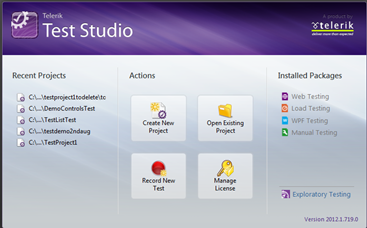
Slides and Projects to download from Test Studio webinar

image

Very first thank you very much for attending Test Studio webinar on 22nd September . We had great time presenting and hope you had great time learning about Test Studio as well. In this webinar we covered following topics

  • Benefits of Automation
  • Automated Web Testing
  • Data Driven Testing
  • Working with TestLists
  • Ajax Testing

We strongly recommend you to download 30 days free trial and start playing with it and learn more about Test Studio here

Download Test Projects and Slides Deck from here

Below are the some of the questions asked in webinar,

What is the difference between Creating a Folder and Creating a Test?

Folders are for organizing tests in; the test is the piece of automation

What’s Test Studio Express?

Express is a plug in for Visual Studio. You can create, execute, and maintain tests in it. It helps collaboration. Testers can work in Test Studio Standalone, then hand tests off to developers if they need to do things like check the database or use support infrastructure. Testers can use Test Studio Express, too, if they’re more comfortable there and like working in Visual Studio.

Is this a limitation of test studio that it allows recording in IE ONLY?

Recording is an extraordinarily difficult operation. We focus on IE so that we can make it powerful, smooth, and easy to use. You can play back in IE, Firefox, Safari, or Chrome

When we add multiple Tests inside a Test List, After finishing each test, will Test Studio close the window every time and re-launch it for the next test ?

By default, yes. You can also select to “Recycle Browser” in the web tab of the test list’s Settings. This will keep the same browser open; however, you have to be very careful about state, session, cookies, etc.

Where can we make custom code changes to any particular test step?

Yes! You can convert any test step to code by right clickign on it and selecting Convert to Code. You can also add custom code steps.

In case I don’t want to record and run the test but i want to do manual coding to create my own automation suite?

Yes, you can do fully manual coded tests or steps. You can write in C# or VB.NET

How TestStudio is helpful for Silverlight OOB applications?

Test Studio can be used to test the Silverlight OOB applications as well. Silverlight tests get recorded in exactly the same fashion as the web tests DJ has been showing. The experience is very similar. You can explore the visual tree, etc.

Which scripting language is supported by Test studio?

C# and VB.NET

Does it support SAP?

If the SAP application renders HTML, Silverlight or WPF then yes!

Does it work on other tools than .net?

Test Studio will test against any server technology. The demo application is written in Ruby!

Do we have any quick start guide on that?

Yes, please see tv.telerik.com for some great videos on testing Silverlight!

What about performance testing?

We have separate webinars on performance and load testing!

How to simulate multiple users?

You can use Load testing feature to simulate multiple users.

Will it work for software build using procedural language like Clarion?

If the system renders HTML, Silverlight or WPF then Test Studio will work fine with it.

If application is publish in citrix can we record and test it?

Possibly, there are sometimes difficulties depending on your environment.

I hope you had  worth of your time in this webinar. Looking forward  for your participation in further webinars ..

Using SQL Server for Data Driven Web Testing in Test Studio


In this post we will follow step by step approach to bind data from a SQL Server table to perform data driven automated web testing.

Let us assume we have a SQL Server table and we want to use it as data source for automated web testing in Test Studio. Assume table schema is as following

image

And data in table is as below

image

Before using data from this table for automated web testing, we need to add database containing this table as data source and then we will have to bind the table to the test. Essentially we need to perform three steps,

  1. Add database as data source in test project
  2. Bind table to test
  3. Bind column to a particular Test step

Add database to project

To add database as data source to project click on Project tab and then click on Add Data Sources

image

Choose Database as type of data source

image

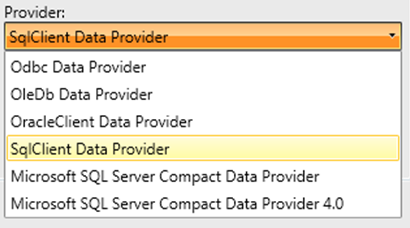
Select SqlClient Data Provider as Provider from then Provider drop down.

image

After selecting provider, we need to provide connection string of the database and a friendly name for the data source. Click on ok button to add SQL Server database as data source.

image

After adding data source you can see that added data source is being listed in the Data Source section.

image


Binding Table to a particular Test

Once data source is added to the test project, we can bind a particular table from data source to a test. To do that right clicks on test in which you want to do data binding. In below image we are binding to test named bingtest

image

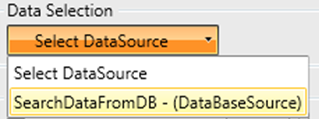
You will be prompted to select data source. In drop down the entire data source added to the project would be listed.

image

From drop down select data source we added in previous step.

image

Once data source is selected one more drop down would get visible to select table. In this case there is only one table named BingSearch in the data source. Select the table from the drop down.

image

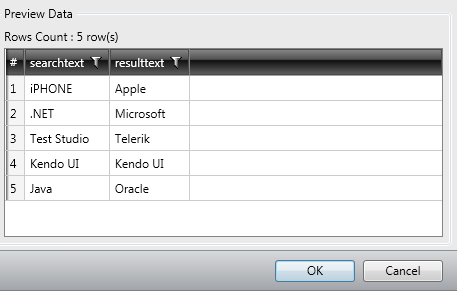
After selecting table all the records from table will be listed in Grid. Click on the Ok button to complete data binding task to a test.

image

You will notice a database icon next to test we done data binding.

image

Binding Columns to a Test Steps

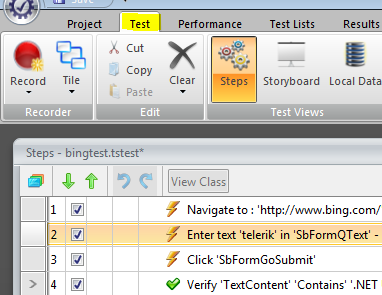
To bind a column to a test step we need to select that particular test step in the Steps tab and from the properties tab select collection option

image

After selecting the step in the property tab navigate to Data Driven section

image

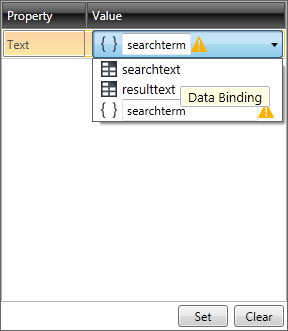
From the collection drop down, you need to select the column to bind to the step. Once column is selected, click on the Set button to complete the data binding.

image

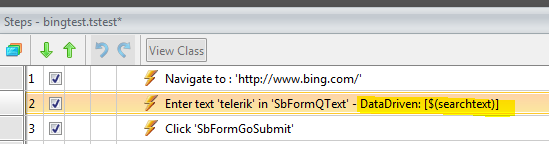
You can verify in the test step that test property of that element is data driven now.

image

In this way you can perform data driven testing fetching data from a SQL Server table. I hope this post was useful. Thanks for reading.


Adding and Removing Data Binding in a Web Test


In this post we will learn the way to add and remove Data Binding from a Web Test in Test Studio. Before binding data on a test, we need to have DataSource added in the project. We can add DataSource as following.

Step 1:

Select the Project tab and from Data Sources group, click on the Add menu button

image

Step 2:

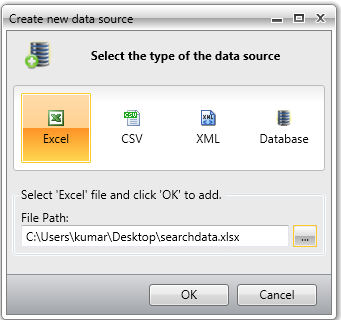
Choose the type of data source you are interested in adding. After choosing data source browse to file location to select the data source. Click on Ok button to add data source in the Test project.

image

Step 3:

After adding data source verify in Data Sources that data source being added. In this case we have added an Excel File as data source with name searchdata.

image

Once data source is added in the project we need to follow below steps to bind a data source to a test.

Step 1:

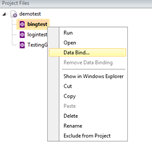
Right click on the Test and click on DataBind

image

Step 2:

Bind test to data source window will get prompted to you. Here you need to select the data source.

image

Step 3:

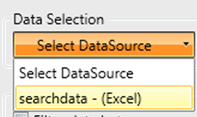
In drop down you will get the entire data source added to the project. You need to choose one to create data binding for the test.

image

Step 4:

After selecting data source you need to select the table or sheet in case of excel.

image

Step 5:

Once you select the sheet data will get displayed for the preview. Click on OK button to add the data binding.

image

In this way you can add a data binding to a test. Once data is bind to the test, you can see the database icon beside the test. In below image you can see bingtest has been bind with the test.

image

To remove data bind from the test, right click on the test and click on Remove Data Binding.

image

In this way you can add and remove data binding from a Test. I hope this post is useful. Thanks for reading.


Test Studio Webinar on 22nd Aug 2012

image

If you are enthusiastic about finding bugs in software and find solace in testing, we have a Ninja tool for you. Explore this chart buster software – Telerik Test Studio from the comfort of your seat. We are excited to invite you for a webinar on Telerik Test Studio. The details are as follows:

When: 22nd Aug 2012 at 3 pm (IST)

For Whom: Testers, Quality Professionals, Project Managers and Ninja’s

Register for Webinar here

In this webinar we will cover,

  • Automated Web Testing
  • Data Driven Testing
  • Working with Test Lists
  • Test Result Analysis and Reporting
  • Ajax Testing
  • Performance Testing

The webinar is demonstration lead and we hope to make it an interactive one with your participation.

See you all at the webinar.

You can learn more about Test Studio here and can start exploring by downloading the free trial

How to change background of View in Kendo UI Mobile

In this post I will show you how we can put a background color in Kendo UI Mobile view. Let us suppose that we got following view

clip_image001

There may be requirement when you will have to change background color of this view. You can change that using CSS as following

clip_image002

You will have to put this CSS on the page. I hope this post was useful. Thanks for reading

Toggle Button Icon and Handler in Kendo UI

While working on an application I come across a requirement to toggle the button in application layout. On clicking of the button, its icon and handler should be toggled with another icon and function. In this post we will learn how to achieve this.

Problem statement

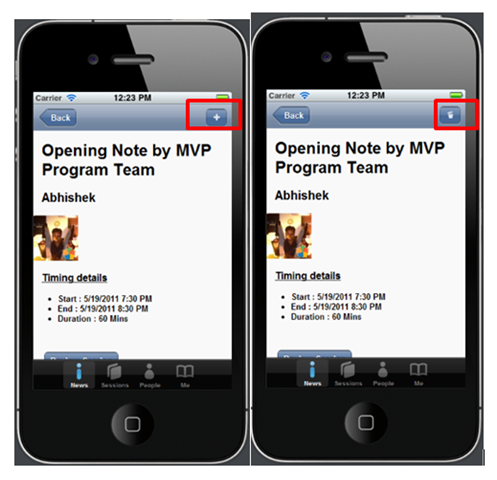
To understand the problem better let us consider following application. You can see that detail of a particular session is displayed in the view. In header there is an Add button. When user click on the Add button, this particular session should get added to Favorite Session List and Add button should get changed to Trash button. Essentially we need to toggle the button with different icon and function attached the click event.

image

Solution

We can toggle from Add to Trash as following

clip_image002

In above code

  • saveButton is id of the button.
  • fsaveDataLocally is name of the function to add Session in Favorite Session List.
  • fremoveDataLocally is name of the function to remove Session from Favorite Session List.

You can bind and unbind handler from your application as per your business requirement.

We can toggle from Trash to Add as following

image

In this way you can toggle icon on Kendo Button and can toggle handler in the run time. I hope this post is useful. Thanks for reading.


Getting Started With Rad Controls for Windows Phone

This post will help you to start working with Telerik Rad Controls for Windows Phone. You can download trial version from here

Learn more about Rad Controls for Windows Phone here

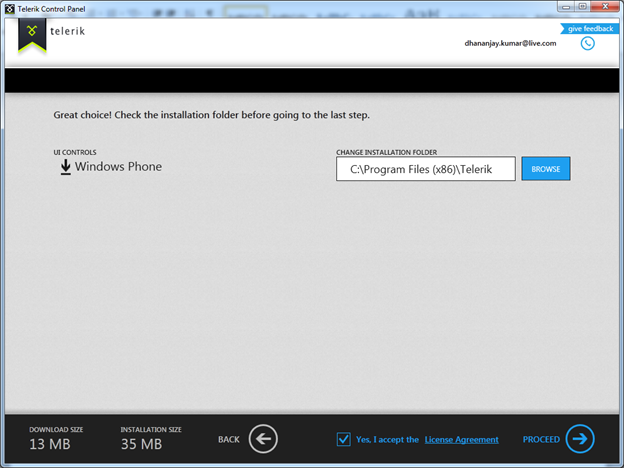
After downloading click on the exe file. You will get Telerik Control Panel as following . Select Windows Phone and click on proceed.

image

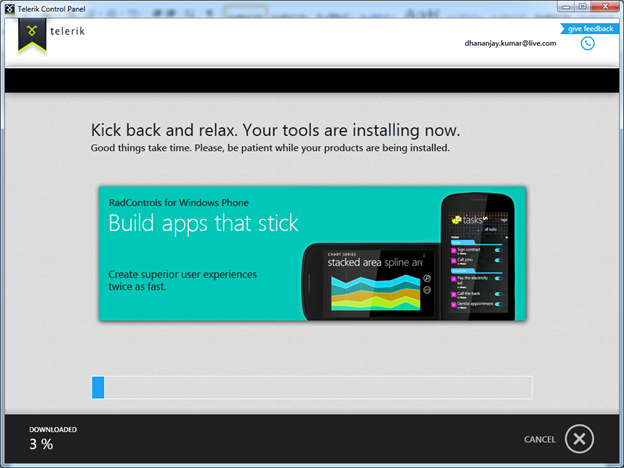
If you want you can change default installation folder on this screen or can leave the default. Accept the Terms and Conditions and click on Proceed.

image image

After successfully installation, go ahead and create new Windows Phone project in Visual Studio. In Silverlight for Windows Phone tab you will get Rad Control Windows Phone Application project template

image

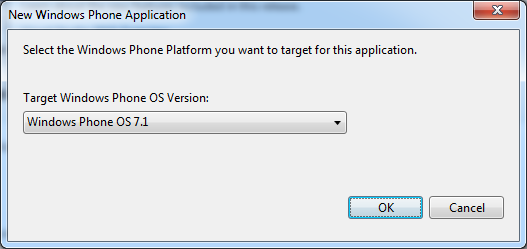
As usual choose Target version of Windows Phone operating system

image

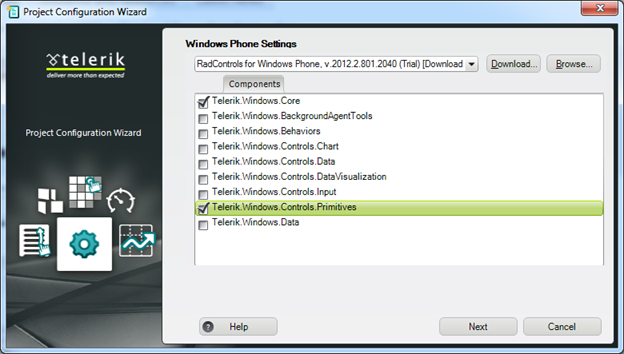
In next windows you need to select Telerik Rad Control for Windows Phone references. Select required reference for the Rad Control you are going to use in the application. I am going to use RadHubTile in the application and for that, we need following references.

image

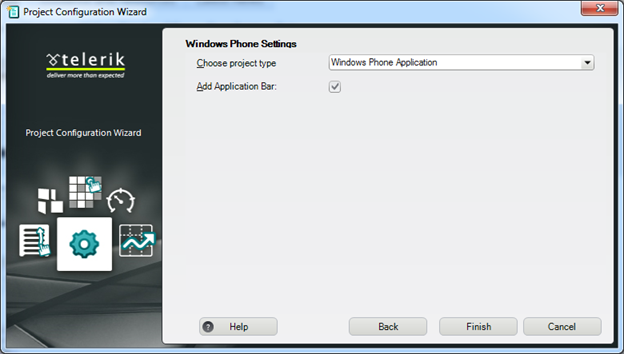
After adding references, you need to choose type of Windows Phone Application from the drop down. I am choosing simple Windows Phone Application. You can check the checkbox to add Application Bar in the application.

image

Click on Finish to create Windows Phone Application project. After creation of project to work with Rad Controls you need to add references on the XAML page.

image

After adding reference you can work with any RadControl. For example you can add RadHubTile on the application page as following

image

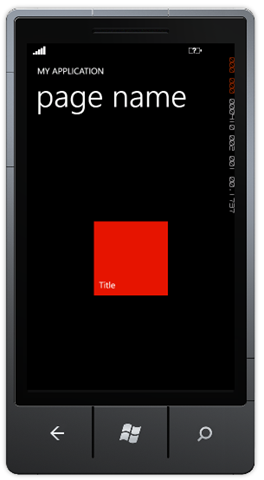
At the point if you run the application, you should be getting application with RadHubTile as following.

image

Conclusion

In this way you can set up environment to start developing Windows Phone Applications using Telerik Rad Controls for Windows Phone. In further posts we will get deeper into capabilities of all the Rad Controls.