Using SQL Server for Data Driven Web Testing in Test Studio


In this post we will follow step by step approach to bind data from a SQL Server table to perform data driven automated web testing.

Let us assume we have a SQL Server table and we want to use it as data source for automated web testing in Test Studio. Assume table schema is as following

image

And data in table is as below

image

Before using data from this table for automated web testing, we need to add database containing this table as data source and then we will have to bind the table to the test. Essentially we need to perform three steps,

  1. Add database as data source in test project
  2. Bind table to test
  3. Bind column to a particular Test step

Add database to project

To add database as data source to project click on Project tab and then click on Add Data Sources

image

Choose Database as type of data source

image

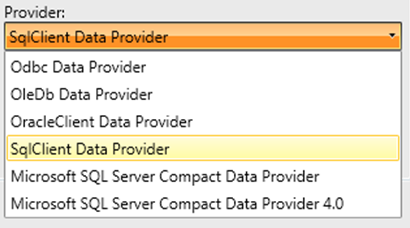
Select SqlClient Data Provider as Provider from then Provider drop down.
image

After selecting provider, we need to provide connection string of the database and a friendly name for the data source. Click on ok button to add SQL Server database as data source.

image

After adding data source you can see that added data source is being listed in the Data Source section.

image


Binding Table to a particular Test

Once data source is added to the test project, we can bind a particular table from data source to a test. To do that right clicks on test in which you want to do data binding. In below image we are binding to test named bingtest

image

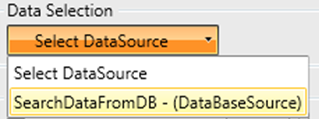
You will be prompted to select data source. In drop down the entire data source added to the project would be listed.

image

From drop down select data source we added in previous step.
image

Once data source is selected one more drop down would get visible to select table. In this case there is only one table named BingSearch in the data source. Select the table from the drop down.

image

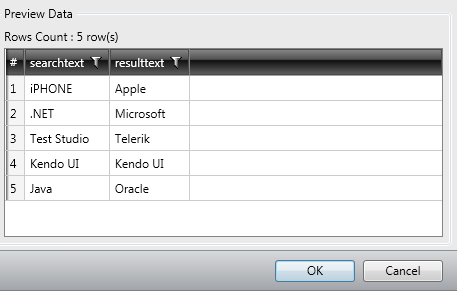
After selecting table all the records from table will be listed in Grid. Click on the Ok button to complete data binding task to a test.
image

You will notice a database icon next to test we done data binding.

image

Binding Columns to a Test Steps

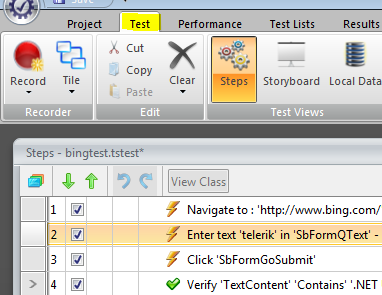
To bind a column to a test step we need to select that particular test step in the Steps tab and from the properties tab select collection option
image

After selecting the step in the property tab navigate to Data Driven section

image

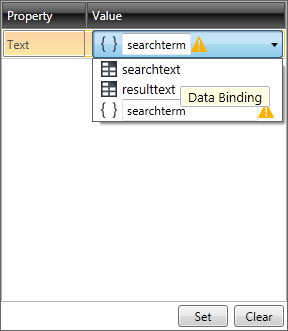
From the collection drop down, you need to select the column to bind to the step. Once column is selected, click on the Set button to complete the data binding.
image

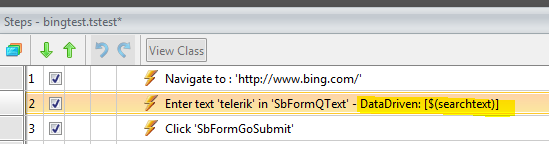
You can verify in the test step that test property of that element is data driven now.
image

In this way you can perform data driven testing fetching data from a SQL Server table. I hope this post was useful. Thanks for reading.


Adding and Removing Data Binding in a Web Test


In this post we will learn the way to add and remove Data Binding from a Web Test in Test Studio. Before binding data on a test, we need to have DataSource added in the project. We can add DataSource as following.

Step 1:

Select the Project tab and from Data Sources group, click on the Add menu button

image

Step 2:

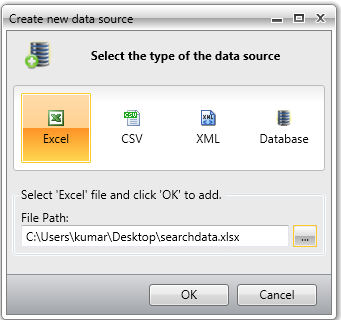
Choose the type of data source you are interested in adding. After choosing data source browse to file location to select the data source. Click on Ok button to add data source in the Test project.

image

Step 3:

After adding data source verify in Data Sources that data source being added. In this case we have added an Excel File as data source with name searchdata.

image

Once data source is added in the project we need to follow below steps to bind a data source to a test.

Step 1:

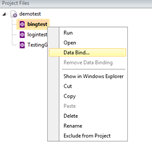
Right click on the Test and click on DataBind

image

Step 2:

Bind test to data source window will get prompted to you. Here you need to select the data source.

image

Step 3:

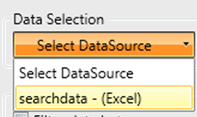
In drop down you will get the entire data source added to the project. You need to choose one to create data binding for the test.

image

Step 4:

After selecting data source you need to select the table or sheet in case of excel.

image

Step 5:

Once you select the sheet data will get displayed for the preview. Click on OK button to add the data binding.

image

In this way you can add a data binding to a test. Once data is bind to the test, you can see the database icon beside the test. In below image you can see bingtest has been bind with the test.

image

To remove data bind from the test, right click on the test and click on Remove Data Binding.

image

In this way you can add and remove data binding from a Test. I hope this post is useful. Thanks for reading.


Configure Internet Explorer for Test Studio Automation


In this post, we will go step by step to configure Internet Explorer to perform testing using Test Studio.

Very first you need to start with checking the Zoom level of Internet explorer. Make sure it is set to 100%

image 

You can find Zoom level detail in the right bottom on Internet Explorer. If Zoom level is not displayed in your browser then press ALT and from View menu navigate to Toolbars and the check Status Bar. After doing this you should have Zoom level information displayed in right bottom of the browser.

Next you need to disable the protected mode. To disable it navigate as,

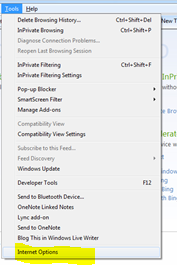
Tools menu -> Internet Options

image

Click on Security tab and for all four zones, like Internet, Local intranet, Trusted Sites and Restricted Sites uncheck Enable Protected Mode check box.

image

You will get a warning message click on to continue

image

After disabling protected mode, you need to disable the Pop-up blocker .For that clicks on Privacy tab in Internet Option. In Pop-up Blocker section uncheck Turn on Pop-up Blocker

image

After this you need to make sure that Pop-up always open in new window. To do this goes to Internet Options and in General Tab click on Setting in Tab section.

image

In the Tabbed Browsing Settings select Always open popup in new window.

image

After setting Pop-ups to open in new windows, you need to add site you are going to test as trusted site. To do that, open Internet Option and then Security tab.

image

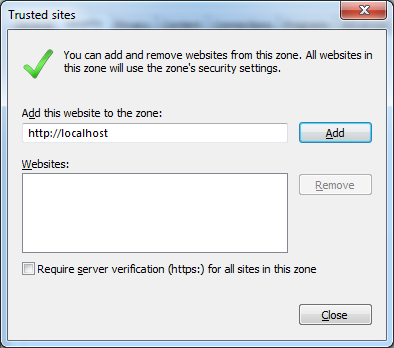
In Security tab select Trusted Sites and then click on Sites. Add site or domain of site as trusted site.

image

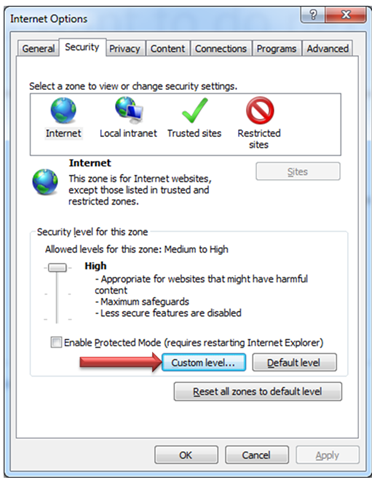
After performing this task, you need to make sure that JavaScript is enabling in the browser. For that open Internet Option and select Security tab. In Security tab click on the Custom Level.

image

In Security Setting window go to Scripting section and make sure that Active Scripting is enabled.

image

Then scroll to miscellaneous section and enable Display Mixed Content

image

Then scroll to download section and enable the File download

image

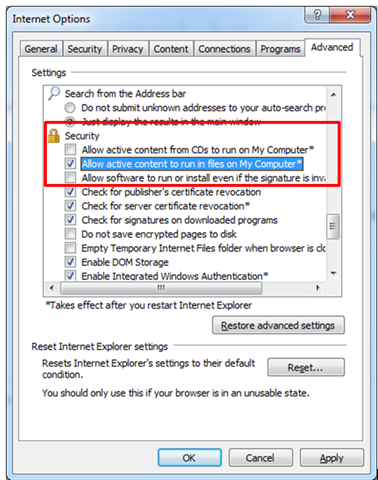
Last step is to make sure that active content can be run from the local file. To do this go to Internet Option and then select advanced tab. In Security section check the check box of Allow active content to run from local computer.

image

After performing this configuration, Internet Explorer is configured to perform testing using Test Studio.


How to do a Standalone Web Test using Test Studio

In this how to post we will see how to start Standalone Web Test using Test Studio.

Step 1

Open Test Studio and from New Test option in menu ribbon choose Web Test

clip_image001

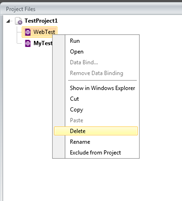
You can see in the project files a Web Test has been added. If you want you can rename that by right clicking on the project and choosing the rename option.

clip_image002

Step 2

Double click on the Web Test project in the project files to open it on the StoryBoard. From menu ribbon select Record ->Launch a New Recording Browser. It will launch selected browser. You can select browser from the ribbon

clip_image004

Step 3

In browser perform some operations to test. After performing all the operation choose Run from the ribbon the run the test.

clip_image005

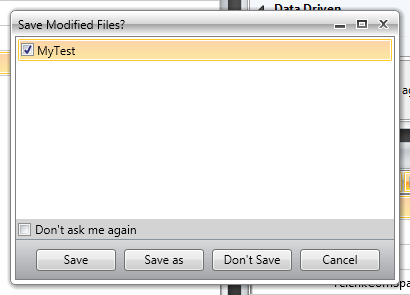
You will be asked to Save the Test.

clip_image006

Step 4

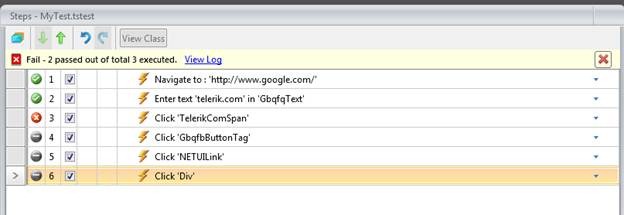
You can view all the steps with result.

clip_image008

On clicking of a step you can enable inline editing.

clip_image010

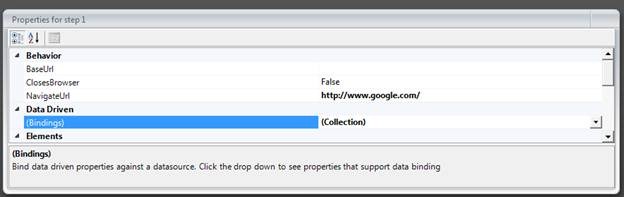
On the right you can see Property windows for a particular step.

clip_image012

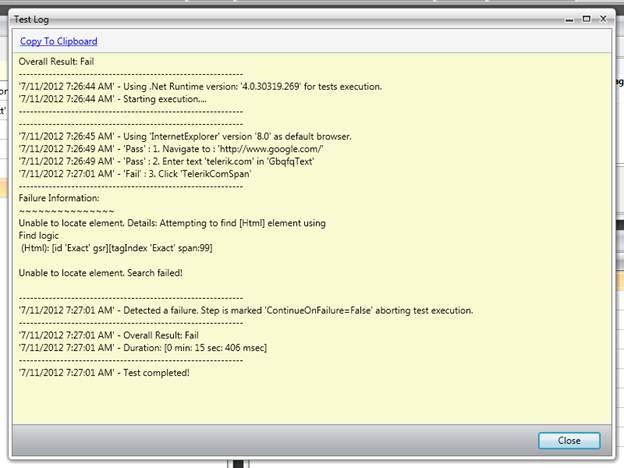
You can view error log by clicking on View Log

clip_image014

You can see error log as following

clip_image016

Step 5

To see Step failure error detail click on step failure in the steps

clip_image018

Step failure detail is as following

clip_image020

You can view image of failure as following

clip_image022

You can examine Page DOM on clicking DOM tab as well.

clip_image024

Suggestion to resolve failure can be viewed on clicking on Resolve Failure

clip_image026

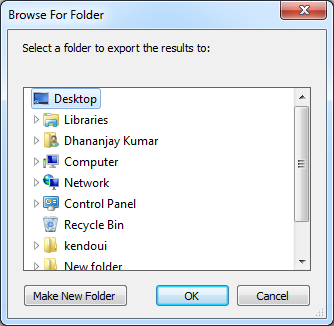
You can export result to file

clip_image028

On clicking of Export Result to file you will be asked to save the file.

clip_image029

A zip file will get saved at the given location. There will be following files inside the downloaded zipped file.
clip_image030

In this way you can perform standalone web testing