
TestStudio
Make sure you have enabled Test Studio Add-ons in Firefox before executing test
I was trying to execute a functional test in Firefox browser. For that I selected FF and clicked on Run to execute the functional test in Firefox browser.
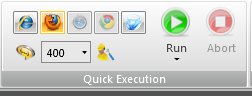
However while executing the test, I got this message and Test Studio was kept waiting for the browser to respond.
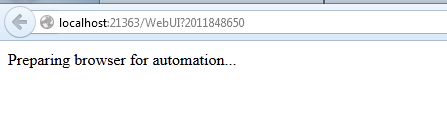
After investigation I found that in Add-ons of Firefox, Telerik Testing Framework Add-ons was not enabled.

Make sure to enable both the Add-ons and you will be able to execute the function test in Firefox.

After enabling that you should able to execute a function test in Firefox browser.
Slides and Projects to download from Test Studio webinar
Very first thank you very much for attending Test Studio webinar on 22nd September . We had great time presenting and hope you had great time learning about Test Studio as well. In this webinar we covered following topics
- Benefits of Automation
- Automated Web Testing
- Data Driven Testing
- Working with TestLists
- Ajax Testing
We strongly recommend you to download 30 days free trial and start playing with it and learn more about Test Studio here
Download Test Projects and Slides Deck from here
Below are the some of the questions asked in webinar,
What is the difference between Creating a Folder and Creating a Test?
Folders are for organizing tests in; the test is the piece of automation
What’s Test Studio Express?
Express is a plug in for Visual Studio. You can create, execute, and maintain tests in it. It helps collaboration. Testers can work in Test Studio Standalone, then hand tests off to developers if they need to do things like check the database or use support infrastructure. Testers can use Test Studio Express, too, if they’re more comfortable there and like working in Visual Studio.
Is this a limitation of test studio that it allows recording in IE ONLY?
Recording is an extraordinarily difficult operation. We focus on IE so that we can make it powerful, smooth, and easy to use. You can play back in IE, Firefox, Safari, or Chrome
When we add multiple Tests inside a Test List, After finishing each test, will Test Studio close the window every time and re-launch it for the next test ?
By default, yes. You can also select to “Recycle Browser” in the web tab of the test list’s Settings. This will keep the same browser open; however, you have to be very careful about state, session, cookies, etc.
Where can we make custom code changes to any particular test step?
Yes! You can convert any test step to code by right clickign on it and selecting Convert to Code. You can also add custom code steps.
In case I don’t want to record and run the test but i want to do manual coding to create my own automation suite?
Yes, you can do fully manual coded tests or steps. You can write in C# or VB.NET
How TestStudio is helpful for Silverlight OOB applications?
Test Studio can be used to test the Silverlight OOB applications as well. Silverlight tests get recorded in exactly the same fashion as the web tests DJ has been showing. The experience is very similar. You can explore the visual tree, etc.
Which scripting language is supported by Test studio?
C# and VB.NET
Does it support SAP?
If the SAP application renders HTML, Silverlight or WPF then yes!
Does it work on other tools than .net?
Test Studio will test against any server technology. The demo application is written in Ruby!
Do we have any quick start guide on that?
Yes, please see tv.telerik.com for some great videos on testing Silverlight!
What about performance testing?
We have separate webinars on performance and load testing!
How to simulate multiple users?
You can use Load testing feature to simulate multiple users.
Will it work for software build using procedural language like Clarion?
If the system renders HTML, Silverlight or WPF then Test Studio will work fine with it.
If application is publish in citrix can we record and test it?
Possibly, there are sometimes difficulties depending on your environment.
I hope you had worth of your time in this webinar. Looking forward for your participation in further webinars ..
A Quick Video on Adding Verification in a Test Step
Using SQL Server for Data Driven Web Testing in Test Studio
Follow @debug_mode
In this post we will follow step by step approach to bind data from a SQL Server table to perform data driven automated web testing.
Let us assume we have a SQL Server table and we want to use it as data source for automated web testing in Test Studio. Assume table schema is as following

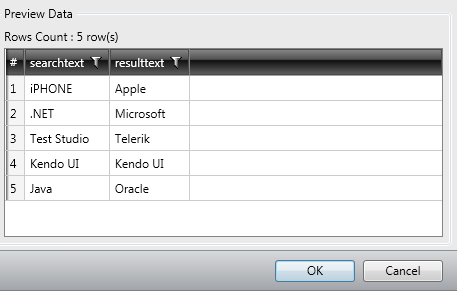
And data in table is as below

Before using data from this table for automated web testing, we need to add database containing this table as data source and then we will have to bind the table to the test. Essentially we need to perform three steps,
- Add database as data source in test project
- Bind table to test
- Bind column to a particular Test step
Add database to project
To add database as data source to project click on Project tab and then click on Add Data Sources

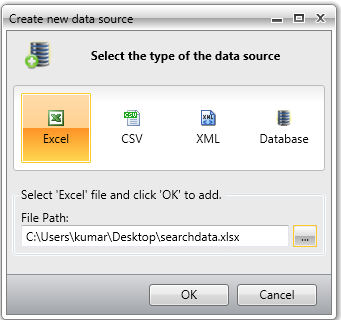
Choose Database as type of data source

Select SqlClient Data Provider as Provider from then Provider drop down.
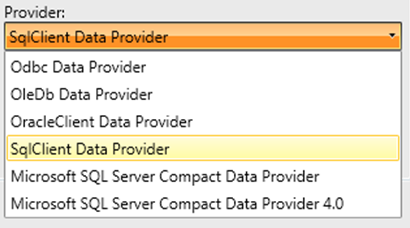
After selecting provider, we need to provide connection string of the database and a friendly name for the data source. Click on ok button to add SQL Server database as data source.

After adding data source you can see that added data source is being listed in the Data Source section.

Binding Table to a particular Test
Once data source is added to the test project, we can bind a particular table from data source to a test. To do that right clicks on test in which you want to do data binding. In below image we are binding to test named bingtest

You will be prompted to select data source. In drop down the entire data source added to the project would be listed.

From drop down select data source we added in previous step.
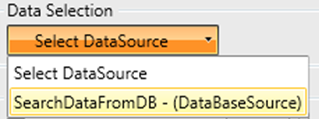
Once data source is selected one more drop down would get visible to select table. In this case there is only one table named BingSearch in the data source. Select the table from the drop down.

After selecting table all the records from table will be listed in Grid. Click on the Ok button to complete data binding task to a test.
You will notice a database icon next to test we done data binding.

Binding Columns to a Test Steps
To bind a column to a test step we need to select that particular test step in the Steps tab and from the properties tab select collection option
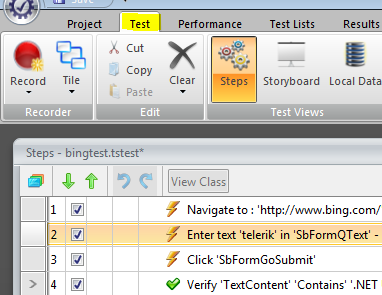
After selecting the step in the property tab navigate to Data Driven section

From the collection drop down, you need to select the column to bind to the step. Once column is selected, click on the Set button to complete the data binding.
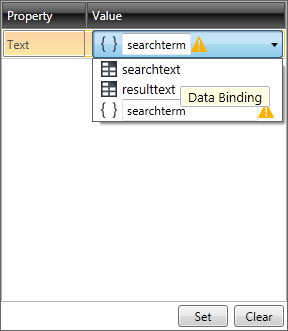
You can verify in the test step that test property of that element is data driven now.
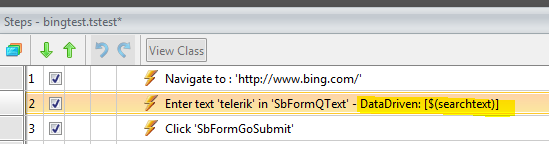
In this way you can perform data driven testing fetching data from a SQL Server table. I hope this post was useful. Thanks for reading.
Follow @debug_mode
A Quick Video on Automated Web Testing using data from a Excel File in Test Studio



Test Studio Webinar on 22nd Aug 2012
Follow @debug_mode
If you are enthusiastic about finding bugs in software and find solace in testing, we have a Ninja tool for you. Explore this chart buster software – Telerik Test Studio from the comfort of your seat. We are excited to invite you for a webinar on Telerik Test Studio. The details are as follows:
When: 22nd Aug 2012 at 3 pm (IST)
For Whom: Testers, Quality Professionals, Project Managers and Ninja’s
In this webinar we will cover,
- Automated Web Testing
- Data Driven Testing
- Working with Test Lists
- Test Result Analysis and Reporting
- Ajax Testing
- Performance Testing
The webinar is demonstration lead and we hope to make it an interactive one with your participation.
See you all at the webinar.
You can learn more about Test Studio here and can start exploring by downloading the free trial
Follow @debug_modeA Quick Video on Test Lists inTelerik Test Studio
Configure Internet Explorer for Test Studio Automation
Follow @debug_mode
In this post, we will go step by step to configure Internet Explorer to perform testing using Test Studio.
Very first you need to start with checking the Zoom level of Internet explorer. Make sure it is set to 100%

You can find Zoom level detail in the right bottom on Internet Explorer. If Zoom level is not displayed in your browser then press ALT and from View menu navigate to Toolbars and the check Status Bar. After doing this you should have Zoom level information displayed in right bottom of the browser.
Next you need to disable the protected mode. To disable it navigate as,
Tools menu -> Internet Options
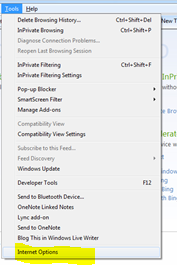
Click on Security tab and for all four zones, like Internet, Local intranet, Trusted Sites and Restricted Sites uncheck Enable Protected Mode check box.

You will get a warning message click on to continue

After disabling protected mode, you need to disable the Pop-up blocker .For that clicks on Privacy tab in Internet Option. In Pop-up Blocker section uncheck Turn on Pop-up Blocker

After this you need to make sure that Pop-up always open in new window. To do this goes to Internet Options and in General Tab click on Setting in Tab section.

In the Tabbed Browsing Settings select Always open popup in new window.

After setting Pop-ups to open in new windows, you need to add site you are going to test as trusted site. To do that, open Internet Option and then Security tab.

In Security tab select Trusted Sites and then click on Sites. Add site or domain of site as trusted site.
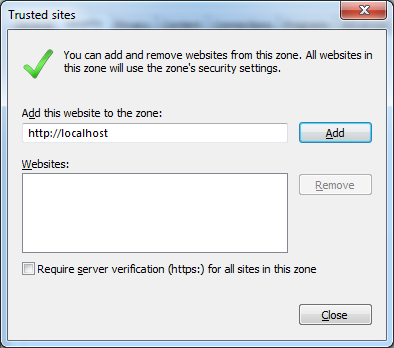
After performing this task, you need to make sure that JavaScript is enabling in the browser. For that open Internet Option and select Security tab. In Security tab click on the Custom Level.
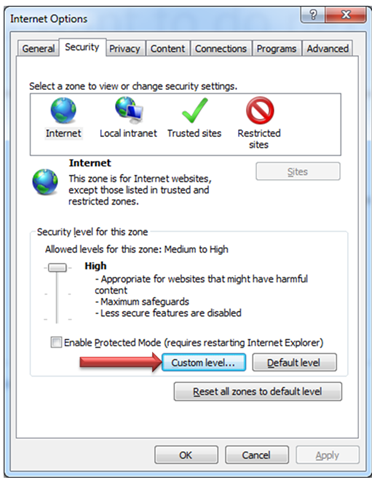
In Security Setting window go to Scripting section and make sure that Active Scripting is enabled.

Then scroll to miscellaneous section and enable Display Mixed Content

Then scroll to download section and enable the File download

Last step is to make sure that active content can be run from the local file. To do this go to Internet Option and then select advanced tab. In Security section check the check box of Allow active content to run from local computer.
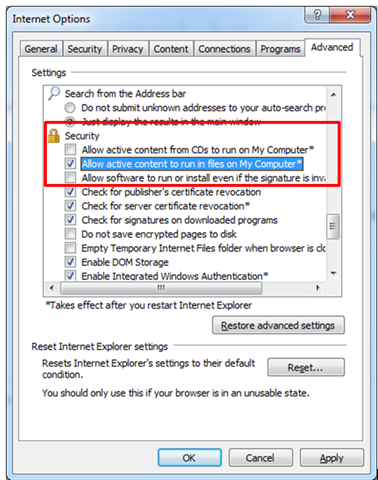
After performing this configuration, Internet Explorer is configured to perform testing using Test Studio.
Follow @debug_mode
 Helping Ninja Technologists