Webinar : Telerik Tools for Ninja Developer – Just Mock

Telerik India in a new initiative has started a series of webinars known as “Telerik tools for the Ninja Developer – The Series”. We have already completed 3 webinars as part of the series which includes Kendo UI, Just Code and Test Studio.

Continuing the series we are hosting a webinar on Aug 29 for Asia region. Here is the details of the webinar:

Title: Telerik Tools for Ninja Developer : Just Mock

Date: Aug 29 2012

Time: 3PM – 4PM IST

(Note: click on the title above to get to the registration link)

Do you avoid running your unit tests for fear they will never be complete? Do you wish for a better way? Well, look no further! With Telerik JustMock, you can make sure your code works as intended and be out of the office in time for happy hour. In this session, you will learn how to separate dependencies to make your tests run faster with JustMock Lite. You will then learn how the full edition of JustMock is used to tackle those hard-to-reach bits of code. Whether you’re new to unit testing, new to mocking, or just looking for a better way, this webinar is for you!

image

JustMock is an easy, fast, feature rich framework for creating unit tests. This complete mocking tool allows for mocking of non-virtual methods, non-public members, sealed classes and static methods and classes – all within one simple API. JustMock is the easy and fun way to test your code – anyone can mock with JustMock!

So join me as I take you through a tour of Just Mock and Unit Testing. Hope you will be there and will enjoy the ride. So what you waiting for – book a seat for yourself now. Register here.

See you at the webinar. Happy coding!

Slides and Projects to download from Test Studio webinar

image

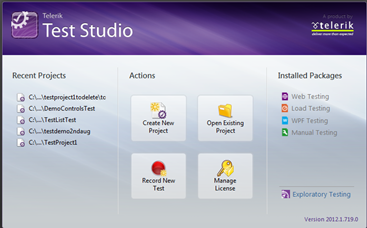
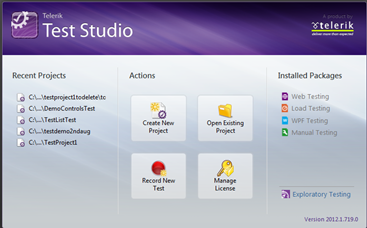
Very first thank you very much for attending Test Studio webinar on 22nd September . We had great time presenting and hope you had great time learning about Test Studio as well. In this webinar we covered following topics

  • Benefits of Automation
  • Automated Web Testing
  • Data Driven Testing
  • Working with TestLists
  • Ajax Testing

We strongly recommend you to download 30 days free trial and start playing with it and learn more about Test Studio here

Download Test Projects and Slides Deck from here

Below are the some of the questions asked in webinar,

What is the difference between Creating a Folder and Creating a Test?

Folders are for organizing tests in; the test is the piece of automation

What’s Test Studio Express?

Express is a plug in for Visual Studio. You can create, execute, and maintain tests in it. It helps collaboration. Testers can work in Test Studio Standalone, then hand tests off to developers if they need to do things like check the database or use support infrastructure. Testers can use Test Studio Express, too, if they’re more comfortable there and like working in Visual Studio.

Is this a limitation of test studio that it allows recording in IE ONLY?

Recording is an extraordinarily difficult operation. We focus on IE so that we can make it powerful, smooth, and easy to use. You can play back in IE, Firefox, Safari, or Chrome

When we add multiple Tests inside a Test List, After finishing each test, will Test Studio close the window every time and re-launch it for the next test ?

By default, yes. You can also select to “Recycle Browser” in the web tab of the test list’s Settings. This will keep the same browser open; however, you have to be very careful about state, session, cookies, etc.

Where can we make custom code changes to any particular test step?

Yes! You can convert any test step to code by right clickign on it and selecting Convert to Code. You can also add custom code steps.

In case I don’t want to record and run the test but i want to do manual coding to create my own automation suite?

Yes, you can do fully manual coded tests or steps. You can write in C# or VB.NET

How TestStudio is helpful for Silverlight OOB applications?

Test Studio can be used to test the Silverlight OOB applications as well. Silverlight tests get recorded in exactly the same fashion as the web tests DJ has been showing. The experience is very similar. You can explore the visual tree, etc.

Which scripting language is supported by Test studio?

C# and VB.NET

Does it support SAP?

If the SAP application renders HTML, Silverlight or WPF then yes!

Does it work on other tools than .net?

Test Studio will test against any server technology. The demo application is written in Ruby!

Do we have any quick start guide on that?

Yes, please see tv.telerik.com for some great videos on testing Silverlight!

What about performance testing?

We have separate webinars on performance and load testing!

How to simulate multiple users?

You can use Load testing feature to simulate multiple users.

Will it work for software build using procedural language like Clarion?

If the system renders HTML, Silverlight or WPF then Test Studio will work fine with it.

If application is publish in citrix can we record and test it?

Possibly, there are sometimes difficulties depending on your environment.

I hope you had  worth of your time in this webinar. Looking forward  for your participation in further webinars ..

RadControls for Web – And you ask why?


Overview:

In this post, we will quickly look at the factors that will compel you to consider Telerik RadControls as the framework for all your User Interface layers in your projects. So buckle up and let’s go for a ride with Telerik RadControls.


RadControls Defined:

Rad or RAD – stands for Rapid Application Development and RadControls are nothing but controls which help you in Rapid Application Development. Telerik offers over 10 years of aggressive development which includes a set course of 3 releases per year & the Service Packs, has been able to come out with industry leading UI component suite for Microsoft ASP.NET technology which includes AJAX, MVC and Silverlight. There are nearly 175+ controls under the combined umbrella of   AJAX, MVC and Silverlight. The controls themselves, enhance the framework provided controls with a lot of out of the box features. For e.g. If you consider the RadGridView we complement the framework Grid with features such as Filtering, Grouping, Sorting, Paging and export capability. Imagine if you had the onus of writing the paging and export all by yourself. I have been a programmer for close to a decade and I would say it will be like reinventing the wheel. So, with RadControls you just have to worry about your business need and the control complements your requirement with out of the box features.

image     Telerik Extensions for ASP.NET MVC   image


RadControls Decision Factors:

Having known about RadControls and what they are, next question will be – Why should you choose RadControls? Lets quickly run through some of the check list before you decide:

  • You want to develop a professional web application.
  • You want to deliver your application fast to the Client/Market.
  • You want to build apps which adhere to certain standards like Accessibility standards.
  • You want to meet your deadlines and budgets.
  • You want to cut down your development cost and development time.
  • You want to rapidly provide custom software for ever changing needs of clients.
  • You want to quickly create working prototypes.

If you have answered Yes to the above checklist – then – RadControls is what you need. RadControls will help you to achieve all of the above mentioned points in the check list. So I highly recommend you to download a trial and test drive the following RadControls:


RadControls and Developers:

Developer friendliness is one of the important factors for any UI component vendor. Keeping the developers in mind helps Telerik adopt the highest degree of friendliness when it comes to the UI controls. There are three main factors which we think makes a developers life easy when working with our RadControls. They are:

  • Visual Studio Integration – All our suites extend Visual Studio by integrating seamlessly with the Visual Studio toolbox. This allows developers to use the controls quickly by simply dragging and dropping on the working area. Currently we have support for Visual Studio 2012 as well.


  • Design Time Wizards – When working with the controls in design time, RadControls provide wizard interfaces on all controls to easily configure the features you need.


  • Familiarity – Whole of the RadControls framework mirrors the Microsoft .NET framework. So as a developer if you understand the .NET framework, RadControls is no different. So the learning curve is very minimal and you will be able to get on with it in a jiffy.


RadControls and Themes:

One of the deciding factors we looked at earlier was that of developing a professional looking web application. What we needed to make our application look like a professional app is style sheets. Be it Web app or Silverlight app, styles play a pivotal role in the look and feel of any User Interface. Most of the developers are not designers – which includes me too :). So the RadControls suite comes to the rescue by way of packaging what we call as Themes i.e. a complete style sheet which adheres to one common color scheme across the controls. The Telerik RadControls suite comes bundled with close to 25+ themes under the combined umbrella of ASP.NET AJAX, MVC and Silverlight. So out of the box we ship 25+ themes to use in your production level application. If that is not enough you can always create your own theme and embed the same in your application. ASP.NET AJAX and MVC suites provide a Visual Theme Builder which can be used to create your custom themes. Here are the links for Visual Theme Builder:


Summary:

Telerik RadControls for Web provides a lot of benefit to enterprises in not only speeding up the development life-cycle but also cuts down on the cost and time of development. It also is developer friendly with seamless Visual Studio integration and design time wizard to help code faster. As said in the previous sections, there are nearly 175+ controls to play around in the area of AJAX, MVC and Silverlight. If that doesn’t excite you then I don’t know what will :). Download the 30 day trial we have and give it a try. I bet you will fall in love with the RadControls.

Till next time – Happy Coding !!!

Using SQL Server for Data Driven Web Testing in Test Studio


In this post we will follow step by step approach to bind data from a SQL Server table to perform data driven automated web testing.

Let us assume we have a SQL Server table and we want to use it as data source for automated web testing in Test Studio. Assume table schema is as following

image

And data in table is as below

image

Before using data from this table for automated web testing, we need to add database containing this table as data source and then we will have to bind the table to the test. Essentially we need to perform three steps,

  1. Add database as data source in test project
  2. Bind table to test
  3. Bind column to a particular Test step

Add database to project

To add database as data source to project click on Project tab and then click on Add Data Sources

image

Choose Database as type of data source

image

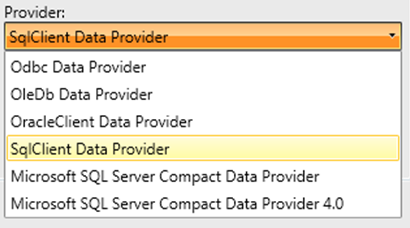
Select SqlClient Data Provider as Provider from then Provider drop down.

image

After selecting provider, we need to provide connection string of the database and a friendly name for the data source. Click on ok button to add SQL Server database as data source.

image

After adding data source you can see that added data source is being listed in the Data Source section.

image


Binding Table to a particular Test

Once data source is added to the test project, we can bind a particular table from data source to a test. To do that right clicks on test in which you want to do data binding. In below image we are binding to test named bingtest

image

You will be prompted to select data source. In drop down the entire data source added to the project would be listed.

image

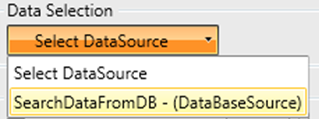
From drop down select data source we added in previous step.

image

Once data source is selected one more drop down would get visible to select table. In this case there is only one table named BingSearch in the data source. Select the table from the drop down.

image

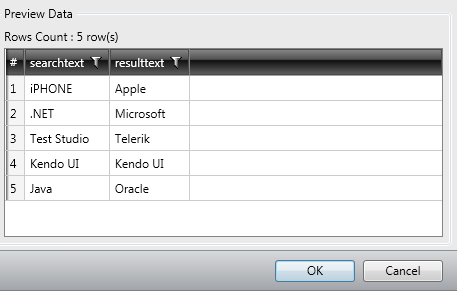
After selecting table all the records from table will be listed in Grid. Click on the Ok button to complete data binding task to a test.

image

You will notice a database icon next to test we done data binding.

image

Binding Columns to a Test Steps

To bind a column to a test step we need to select that particular test step in the Steps tab and from the properties tab select collection option

image

After selecting the step in the property tab navigate to Data Driven section

image

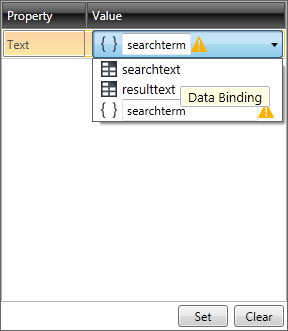
From the collection drop down, you need to select the column to bind to the step. Once column is selected, click on the Set button to complete the data binding.

image

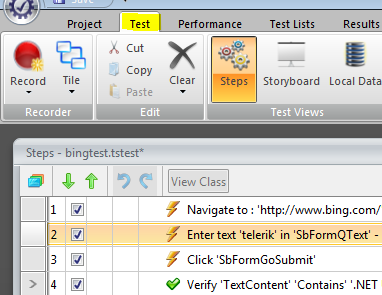
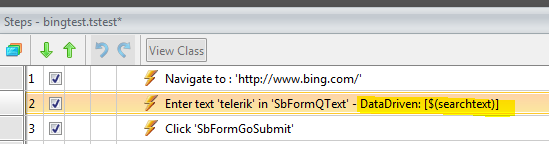
You can verify in the test step that test property of that element is data driven now.

image

In this way you can perform data driven testing fetching data from a SQL Server table. I hope this post was useful. Thanks for reading.


Adding and Removing Data Binding in a Web Test


In this post we will learn the way to add and remove Data Binding from a Web Test in Test Studio. Before binding data on a test, we need to have DataSource added in the project. We can add DataSource as following.

Step 1:

Select the Project tab and from Data Sources group, click on the Add menu button

image

Step 2:

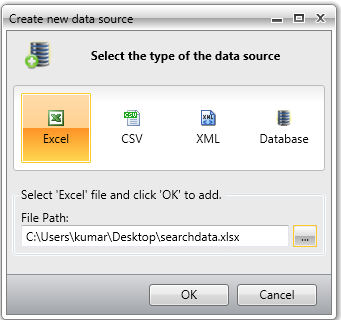
Choose the type of data source you are interested in adding. After choosing data source browse to file location to select the data source. Click on Ok button to add data source in the Test project.

image

Step 3:

After adding data source verify in Data Sources that data source being added. In this case we have added an Excel File as data source with name searchdata.

image

Once data source is added in the project we need to follow below steps to bind a data source to a test.

Step 1:

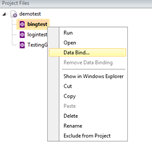
Right click on the Test and click on DataBind

image

Step 2:

Bind test to data source window will get prompted to you. Here you need to select the data source.

image

Step 3:

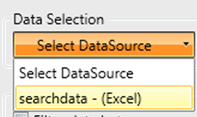
In drop down you will get the entire data source added to the project. You need to choose one to create data binding for the test.

image

Step 4:

After selecting data source you need to select the table or sheet in case of excel.

image

Step 5:

Once you select the sheet data will get displayed for the preview. Click on OK button to add the data binding.

image

In this way you can add a data binding to a test. Once data is bind to the test, you can see the database icon beside the test. In below image you can see bingtest has been bind with the test.

image

To remove data bind from the test, right click on the test and click on Remove Data Binding.

image

In this way you can add and remove data binding from a Test. I hope this post is useful. Thanks for reading.


Test Studio Webinar on 22nd Aug 2012

image

If you are enthusiastic about finding bugs in software and find solace in testing, we have a Ninja tool for you. Explore this chart buster software – Telerik Test Studio from the comfort of your seat. We are excited to invite you for a webinar on Telerik Test Studio. The details are as follows:

When: 22nd Aug 2012 at 3 pm (IST)

For Whom: Testers, Quality Professionals, Project Managers and Ninja’s

Register for Webinar here

In this webinar we will cover,

  • Automated Web Testing
  • Data Driven Testing
  • Working with Test Lists
  • Test Result Analysis and Reporting
  • Ajax Testing
  • Performance Testing

The webinar is demonstration lead and we hope to make it an interactive one with your participation.

See you all at the webinar.

You can learn more about Test Studio here and can start exploring by downloading the free trial

How to change background of View in Kendo UI Mobile

In this post I will show you how we can put a background color in Kendo UI Mobile view. Let us suppose that we got following view

clip_image001

There may be requirement when you will have to change background color of this view. You can change that using CSS as following

clip_image002

You will have to put this CSS on the page. I hope this post was useful. Thanks for reading

Toggle Button Icon and Handler in Kendo UI

While working on an application I come across a requirement to toggle the button in application layout. On clicking of the button, its icon and handler should be toggled with another icon and function. In this post we will learn how to achieve this.

Problem statement

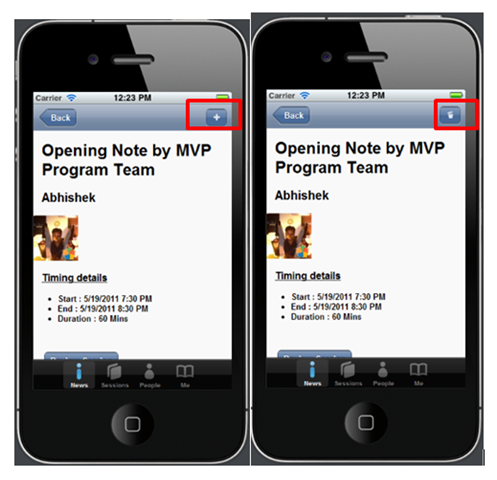
To understand the problem better let us consider following application. You can see that detail of a particular session is displayed in the view. In header there is an Add button. When user click on the Add button, this particular session should get added to Favorite Session List and Add button should get changed to Trash button. Essentially we need to toggle the button with different icon and function attached the click event.

image

Solution

We can toggle from Add to Trash as following

clip_image002

In above code

  • saveButton is id of the button.
  • fsaveDataLocally is name of the function to add Session in Favorite Session List.
  • fremoveDataLocally is name of the function to remove Session from Favorite Session List.

You can bind and unbind handler from your application as per your business requirement.

We can toggle from Trash to Add as following

image

In this way you can toggle icon on Kendo Button and can toggle handler in the run time. I hope this post is useful. Thanks for reading.


Getting Started With Rad Controls for Windows Phone

This post will help you to start working with Telerik Rad Controls for Windows Phone. You can download trial version from here

Learn more about Rad Controls for Windows Phone here

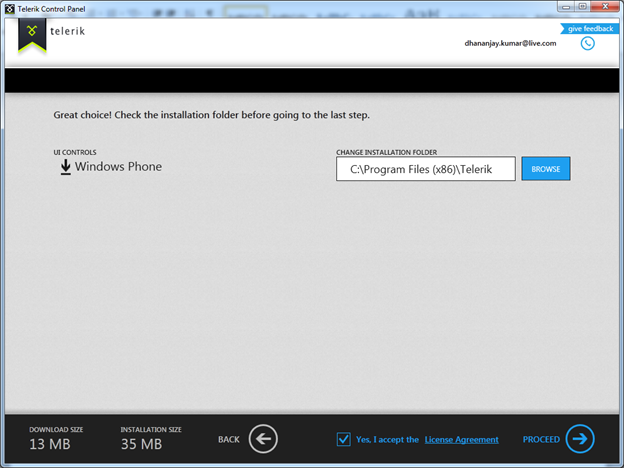
After downloading click on the exe file. You will get Telerik Control Panel as following . Select Windows Phone and click on proceed.

image

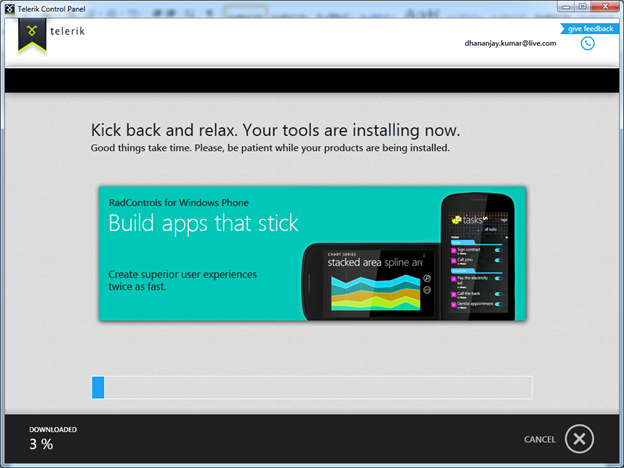
If you want you can change default installation folder on this screen or can leave the default. Accept the Terms and Conditions and click on Proceed.

image image

After successfully installation, go ahead and create new Windows Phone project in Visual Studio. In Silverlight for Windows Phone tab you will get Rad Control Windows Phone Application project template

image

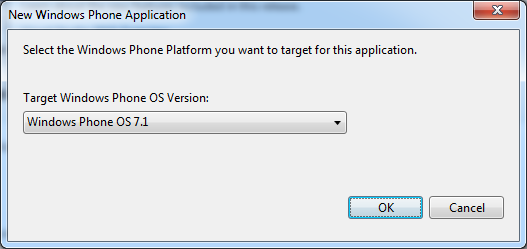
As usual choose Target version of Windows Phone operating system

image

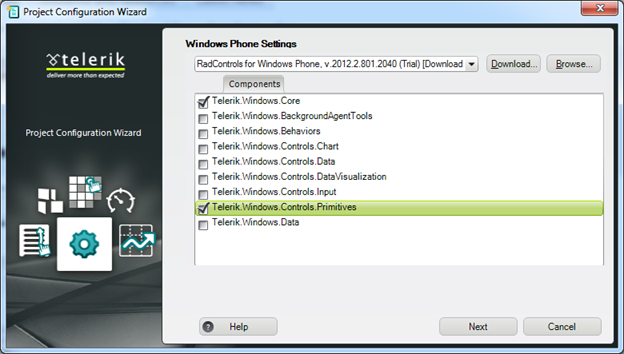
In next windows you need to select Telerik Rad Control for Windows Phone references. Select required reference for the Rad Control you are going to use in the application. I am going to use RadHubTile in the application and for that, we need following references.

image

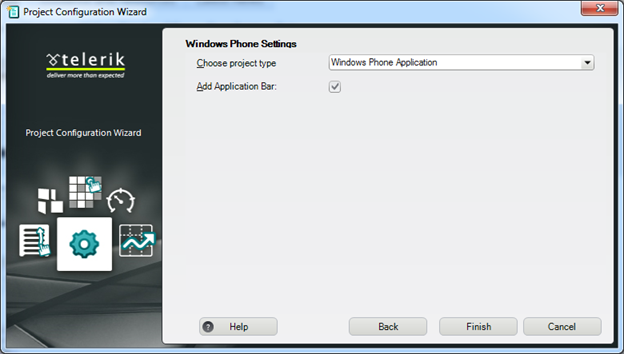
After adding references, you need to choose type of Windows Phone Application from the drop down. I am choosing simple Windows Phone Application. You can check the checkbox to add Application Bar in the application.

image

Click on Finish to create Windows Phone Application project. After creation of project to work with Rad Controls you need to add references on the XAML page.

image

After adding reference you can work with any RadControl. For example you can add RadHubTile on the application page as following

image

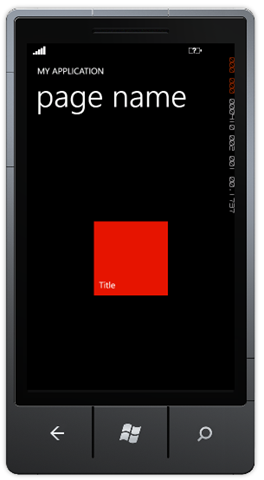
At the point if you run the application, you should be getting application with RadHubTile as following.

image

Conclusion

In this way you can set up environment to start developing Windows Phone Applications using Telerik Rad Controls for Windows Phone. In further posts we will get deeper into capabilities of all the Rad Controls.