Code Template in JustCode

Code Templates are reusable code snippets. Telerik Just Code helps to create reusable code templates for better developer productivity.

You can Free Trial of Telerik Just Code from here

There are three groups of Code Templates available

  1. Iteration
  2. Surrounding
  3. Conditional or basic statements

To insert code template you need to press ALT+END . You will get below popup

clip_image001

From popup you can choose code template to insert. If you are choosing

clip_image003

Now pressing tab will give you next variables to choose. In this way you can insert any code template by choosing it from popup.

You can insert a snippet using their acronym also. After the acronym press Shift+Space to insert code template.

You can also define your own code template. To create a code template click on JustCode->Option->CodeTemplate option from menu. Then click Add to add a new Code Template.

clip_image005

Basic syntax to create a template is as below,

$number[=function]$

Number is any natural number and function is any existing template function. If you want to create a basic template for If statement you can create it as below. I am giving acronym name as DJ.

clip_image007

In code after typing DJ when I press Shift and Space I get below code generated

clip_image008

In this way you can work with Code Template using Telerik Just Code. I hope this post is useful. Thanks for reading


Refactoring using JustCode

In this post we will see Refactoring techniques using Telerik JustCode. Telerik Just Code helps to perform following refactor operation.

You can perform many refactoring using Teleirk Just Code. Few of the refactoring can be performed are as below,

  • Convert Abstract class to Interface
  • Convert Interface to Abstract class
  • Convert Anonymous method to Lambda
  • Convert Anonymous method to Named Method
  • Convert Class selector to ID selector in CSS
  • Convert ID selector to Class selector in CSS
  • Convert Constructor to Factory method
  • Convert Extension method to Static method
  • Convert Method to Property
  • Convert Lambda to Named Method
  • Convert Lambda to Anonymous method and many more

Let us see few of the refactoring; we can perform using Telerik JustCode

Convert Abstract class to Interface

Let us s you have abstract class as below,

image

This class can be refactored to interface using Telerik Just Code.

  • Select class and press Alt+Insert
  • Choose R option
  • From R option choose convert to Interface

image

After converting resultant interface would be as below,

image

Convert Anonymous method to Lambda Expression

I have created a delegate as below,

image

And using delegate with anonymous function as below,

image

Above anonymous function can be converted to Lambda Expression as below,

  • Select anonymous function and press Alt+Insert
  • Choose R option
  • From R option choose convert to Interface

image

Resultant lambda expression would be as below,

image

Convert Anonymous method to Named Method

If you want to convert above anonymous method to named method, you can very much do that as below,

  • Select anonymous function and press Alt+Insert
  • Choose R option
  • From R option choose To Named Method

image

Resultant named method would be as below,

image

Convert Constructor to Factor Method

I have a class with constructor as below,

image

If you want to convert constructor to factory method, you can do that as below,

  • Select constructor and press Alt+Insert
  • Choose R option
  • From R option choose Convert Constructor to Factor method

image

Resultant factor method would be as below,

image

In similar way you can perform other refactoring operations using Telerik Just Code. I hope this post is useful. Thanks for reading

Code analysis using JustCode

Read Error Inspection using Telerik JustCode here

JustCode do on the fly analysis of the code. It does code analysis when you type the code and reports you and error or warning without any further delay.

image

You can download Telerik JustCode 60 days-trial version with dedicated support here

To have high lever perspective on Telerik JustCode, I have just console application and put no code so far.

image

JustCode does the analysis along with the visual studio inspection. It performs analysis using some custom inspection.

On the fly you can fix any error reported by pressing Alt+Enter. For example below Method2 is trying to pass parameter to Method1 whereas Method1 is defines without any input parameter. At the time of calling of Method1, on pressing Alt+Enter ,JustCode will suggest you the possible fixes.

image

JustCode performs below inspection on the Code,

For C#

  • Identical if and else clauses
  • Obsolete casts
  • Empty statements
  • Assignments with no effect
  • Unused private members
  • Unused parameters
  • Unused variables
  • Unused namespaces
  • Unreachable statements

For XAML

  • Missing object element type
  • Missing type of an attached property
  • Missing property that an attached property is referring to
  • Not found event handlers
  • Ambiguous property that an attached property is referring to

By default JustCode reports error in color red and warning in green.

Error in Red

clip_image002

If you want to change default color of reporting you can do it by navigating to

Tools->Options->Environment

clip_image004

I have changed error reporting color to blue and now error is reported in blue color as below,

clip_image006

Inspection of the code can be done in fours ways

Via a tooltip over a highlighted expression

clip_image001

Via a info popup

clip_image002

Via a tooltip in the Marker Bar

clip_image003

In the Error list Window

clip_image004

In this way you can perform analysis of code and fixing of any error reported using Telerik JustCode. I hope this post is useful. Thanks for reading

Code Navigation and Search with JustCode

Simply I cannot work without Telerik Just Code .It boost my productivity to next level. In this post, I am going to discuss on Code Navigation and Search feature of this amazing product. You may want to have a look on my previous post Error Inspection using Telerik Just Code

Advantages

  • Quickly navigate to different parts of code
  • Easily find definitions, errors, types, members etc.
  • Easily highlight found errors, types, members etc.
  • Quick navigation via Find Result Windows.
  • Camel case search : This searches capital letters of compound names

Go To options

There are four Go To Options available

clip_image002

clip_image003

In my sample console application I have created a class called Product. If I want to search that type (class in this case) then I can search like below,

clip_image004

Search Windows gives you information that class is internal class and its namespace name. if you press enter you will navigate to class definition.

Find Usage is another powerful feature . This can boost up productivity. This helps to navigate and search to different

  • Classes
  • Namespaces
  • Local variables
  • Methods
  • Fields

clip_image005

In Find Result windows you can see the usage of definitions or keywords. All different usage term would be open in different tabs. In below case type product and namespace usage is open.

clip_image006

In this way you can explore many other navigate options given by Telerik Just code option. I am very looking forward to explore more features of this amazing product. I will share my learning on the same  Smile


Working with RadDatePicker control for Windows Phone

In this post we will discuss about Telerik RadDatePicker control. You can download Telerik RadControl for Windows Phone from here

RadDatePicker control provides all the functionality of standard DatePicker control of Windows Phone 7 along with below added functionality

  1. Runtime validation
  2. Smoother animation
  3. Formatting of different special date in different style

To work with RadDatePicker control below references need to be added,

clip_image001

Working with RadDatePicker

To work with RadDatePicker, you need to add Telerik.Windows.Controls namespace on the xaml as below,

image

And you can create a Date Picker as below,

clip_image001[6]

If you want to change look, display and selector of control, you can very much do that using the formatter properties. You can apply two different types of formatting on the RadDatePicker.

clip_image003

DisplayValueFormat property of RadDatePicker controls allows you to format the selection of the date. It takes string input to format the display of the date. You can apply DisplayValueFormat as below,

clip_image002

After applying formatting you should get output as below,

clip_image003[6]

SelectorFormat property of RadDatePicker control allows you to remove any of the date components from selection. For example, if you only want to show day and month only you need to remove Y from the selectorformat . You can do remove year as below,

image

You should get expected date selection as below,

image

If you want to set maximum and minimum date for the selection, you can do that by setting value for MaxValue and MinValue property of RadDatePicker control.

clip_image002[6]

You can fetch selected value either as DateTime type or as String.

clip_image003[8]

RadDatePicker control comes with two buttons Ok and Cancel. By default images used in these buttons are taken from location

  • /Images/DateTimePickerOK.png
  • /Images/DateTimePickerCancel.png

There are three events exposed on RadDatePicker control.

image

By putting all together , you can use RadDatePicker control as below,


using System;
<phone:PhoneApplicationPage
x:Class="RadControlsWindowsPhoneApp3.MainPage"
xmlns="http://schemas.microsoft.com/winfx/2006/xaml/presentation"
xmlns:x="http://schemas.microsoft.com/winfx/2006/xaml"
xmlns:phone="clr-namespace:Microsoft.Phone.Controls;assembly=Microsoft.Phone"
xmlns:shell="clr-namespace:Microsoft.Phone.Shell;assembly=Microsoft.Phone"
xmlns:d="http://schemas.microsoft.com/expression/blend/2008"
xmlns:telerikcontrols="clr-namespace:Telerik.Windows.Controls;assembly=Telerik.Windows.Controls.Input"
xmlns:mc="http://schemas.openxmlformats.org/markup-compatibility/2006"
mc:Ignorable="d" d:DesignWidth="480" d:DesignHeight="768"
FontFamily="{StaticResource PhoneFontFamilyNormal}"
FontSize="{StaticResource PhoneFontSizeNormal}"
Foreground="{StaticResource PhoneForegroundBrush}"
SupportedOrientations="Portrait"  Orientation="Portrait"
shell:SystemTray.IsVisible="True">

<!--LayoutRoot is the root grid where all page content is placed-->
<Grid x:Name="LayoutRoot" Background="Transparent">
<Grid.RowDefinitions>
<RowDefinition Height="Auto"/>
<RowDefinition Height="*"/>
</Grid.RowDefinitions>

<!--TitlePanel contains the name of the application and page title-->
<StackPanel x:Name="TitlePanel" Grid.Row="0" Margin="12,17,0,28">
<TextBlock x:Name="ApplicationTitle" Text="MY APPLICATION" Style="{StaticResource PhoneTextNormalStyle}"/>
<TextBlock x:Name="PageTitle" Text="page name" Margin="9,-7,0,0" Style="{StaticResource PhoneTextTitle1Style}"/>
</StackPanel>

<!--ContentPanel - place additional content here-->
<Grid x:Name="ContentPanel" Grid.Row="1" Margin="12,0,12,0">
<telerikcontrols:RadDatePicker  x:Name="datepicker"
DisplayValueFormat="{}{0:dd, MMMM, yyyy}"
SelectorFormat="d/m"
MaxValue="01/01/2020"
MinValue="11/11/2000"/>
</Grid>
</Grid>
</phone:PhoneApplicationPage>

In this way you can work with RadDatePicker control. I hope this post is useful. Thanks for reading

Working with AutoComplete Widget

To see how to work with Kendo UI widgets, let us see how to work with widget AutoComplete

Very first you write HTML as below,

image

Then you initialize HTML to provide Kendo UI functionality as below,

image

Now if you want to add event to AutoComplete then you can do in either ways,

image

Or you can add event in other way also. First get the AutoComplete widget

image

And then using bind method attach event as below,

image

You will get below codes on putting all the codes together for AutoComplete widget


<html >

<!--In the header of your page, paste the following for Kendo UI Web styles-->
<!--Then paste the following for Kendo UI Web scripts-->
<script type="text/javascript" src="Scripts/jquery.min.js"></script><script type="text/javascript" src="Scripts/kendo.all.min.js"></script>
<script type="text/javascript" src="Scripts/Test.js"></script>My Kendo UI Demo</pre>
<h1>Kendo UI Demo</h1>
<pre>
<input id="FruitsAutoComplete" type="text" /><script type="text/javascript">// <![CDATA[
var data = ["Mango",
"Banana",
"Apple",
"Grapes",
"Guava",
"Orange"];

$("#FruitsAutoComplete").kendoAutoComplete({
dataSource: data
});

var autoComplete = $("#FruitsAutoComplete").data("kendoAutoComplete");
autoComplete.bind("change", onChangeEvent);
function onChangeEvent() {
alert('Change event occurs');
}
// ]]></script>

On running you will get AutoComplete widget as below and on the change event an alert message.

image

In above sample, I have bound local data source to AutoCompleteBox. You can very much get data from external data source as well. You can create data source from ODATA service as below,

image

Above we are fetching Title of the movies from ODATA feed of NetFlix. In type we are specifying that service is retuning ODATA and at one time we are asking service to return 10 records.

Next you can set it as data source of AutoComplete as below,

image

For AutoComplete widget we are setting minimum length to get a suggestion is 3 and Name filed of data source will be used.

Putting all the codes together


<html >

<!--In the header of your page, paste the following for Kendo UI Web styles-->
<!--Then paste the following for Kendo UI Web scripts-->
<script type="text/javascript" src="Scripts/jquery.min.js"></script><script type="text/javascript" src="Scripts/kendo.all.min.js"></script>
<script type="text/javascript" src="Scripts/Test.js"></script>My Kendo UI Demo</pre>
<h1>Kendo UI Demo</h1>
<pre>
<input id="FruitsAutoComplete" type="text" /><script type="text/javascript">// <![CDATA[
var data = new kendo.data.DataSource({
type: "odata", // specifies data protocol
pageSize: 10, // limits result set
transport: {
read: "http://odata.netflix.com/Catalog/Titles"
}
});

$("#FruitsAutoComplete").kendoAutoComplete({
minLength: 3,
dataTextField: "Name",
dataSource: data
});
// ]]></script>

On running you should be getting AutoComplete widget as below,

image

In this way you can work with AutoComplete widget. I hope this post is useful. Thanks for reading.

Working with Calendar Widget

In this post we will explore Calendar Widget. This widget gives a graphical calendar as below,

image

This widget gives option to

  • Configure maximum date
  • Configure minimum date
  • Configure start view
  • Configure custom template for Month View.

You can create a Calendar widget as below,

First define a div in HTML with Id

clip_image001

And then in jQuery you need to convert HTML div in Kendo UI Calendar widget as below,

clip_image002

You can configure Calendar Behavior like maximum date and minimum date as below,

clip_image003

You can configure the start option with start JSON attribute as below,

clip_image004

You will get calendar widget in output as below,

clip_image005

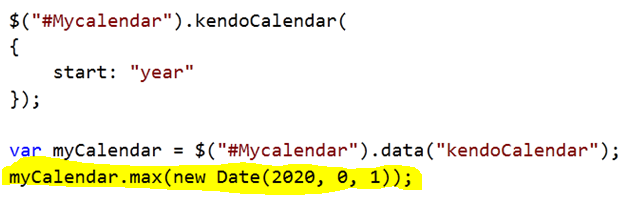
You can get reference of calendar and set maximum date as below,

clip_image006

You can specify a selected date as below,

clip_image007

The various functions on Calendar widgets are as below,

  • Max to set and get maximum date.
  • Min to set and get minimum date.
  • Navigate to desire date
  • Value to set and get current date.
  • NavigateUp to navigate up
  • NavigateDown to navigate down
  • NavigateToPast to navigate past
  • NavigateToFuture to navigate future

If you want to navigate to past you can navigate as below,

clip_image001[6]

Various events associated with Calendar widgets are as below,

  • Change event to fetch selected date
  • Navigate event fired on navigation

You can work with Change event as below,

clip_image001[8]

In this way you can work with Telerik Kendo UI Calendar Widgets. I strongly recommend you to leverage goodness of Telerik Kendo UI in your web applications.

Introduction to Telerik Kendo UI

Kendo UI is HTML 5 and Jquery based framework and it helps you to create modern Web Applications. Kendo UI helps you

  • In Data Binding
  • In Animations
  • With UI widgets like Grid and Chart
  • With Drag and Drop API
  • In Touch support.

Download kendo UI from here

Once you download you get below folders

image

Navigate to example folder for examples on various widgets.

If you want to start developing web applications using KendoUI then you need to add required file in your project.

You need to add below files in Script folder

image

And you need to add below files in Style folder.

image

Even though I have added script files and css files in Script Folder and Style folder respectively, you are free to keep them anywhere as you want. After adding these files you need to link them in header of the HTML page. You can add reference as below,

image

In later post I will go in detail of Kendo UI and play around all other aspects. However working with any widgets is very intuitive. For example if you want to work with Kendo AutoComplete , you can do that as below,

image

And using Jquery you can assign value as below,

image

Putting all code HTML and Script together full code is as below,

Test.htm


<html >
<head>
<!--In the header of your page, paste the following for Kendo UI Web styles-->
<link href="styles/kendo.common.min.css" rel="stylesheet" type="text/css" />
<link href="styles/kendo.default.min.css" rel="stylesheet" type="text/css" />
<!--Then paste the following for Kendo UI Web scripts-->
<script src="Scripts/jquery.min.js" type="text/javascript"></script>
<script src="Scripts/kendo.all.min.js" type="text/javascript"></script>
<script src="Scripts/Test.js" type="text/javascript"></script>
<title>My Kendo UI Demo</title>
</head>
<body>
<h1>Kendo UI Demo</h1>
<input id="cricketerAutoComplete" />
</body>
<script type="text/javascript">
$("#cricketerAutoComplete").kendoAutoComplete(
["Sachin",
"Dhoni",
"Saurabh",
"Rahul"]);
</script>
</html>

When you run Test.htm in browser you should be getting below output.

image

In later post I will get into detail of all widgets. I hope this post is useful. Thanks for reading.