Creating First Cross-Platform Application using Kendo UI Mobile and Icenium


Learn and explore more about Icenium here

Learn more about Kendo UI Mobile here

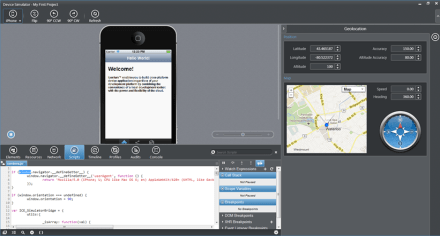
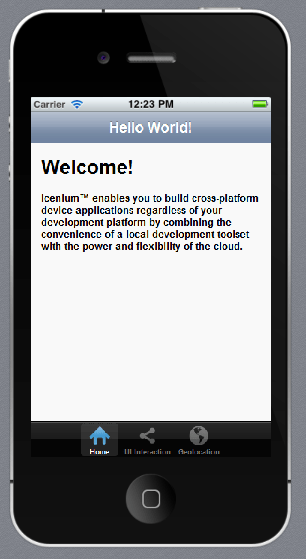
Yes as you see in below image that I am developing an application for IPhone on my Windows Machine and this is possible using Icenium.

Being an application developer I am very much excited with the launch of ICENIUM .Icenium is Cloud Based IDE to create Hybrid Application. If you are new to Hybrid Application then you may want to read what is a Hybrid Mobile App? And you may want to read As a Developer why should I worry about Hybrid Application Development?

Learn and explore more about Icenium here

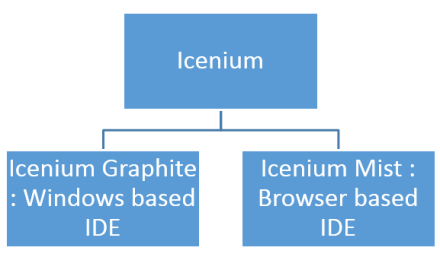
Icenium provides you two different types of IDE.


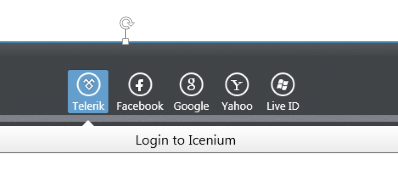
In this post we are going to use Icenium Graphite to create our first Cross-platform application. To start with launch Icenium Graphite IDE. You will be asked to Login to Icenium. You can login using any of the following as given in the image below.

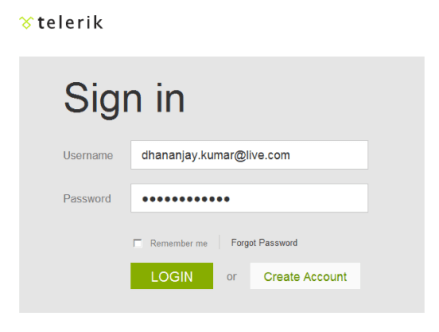
Let us choose Telerik ID to login into Icenium IDE.


After successful login you will get a Project dashboard. On project dashboard you can perform following three tasks

Create New Project
Browse existing Projects
Clone a project

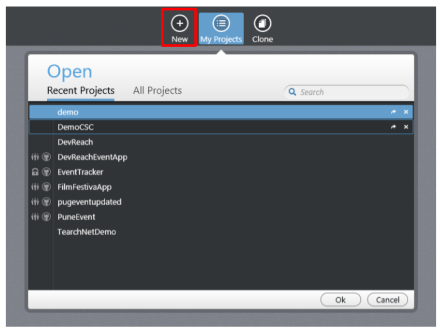
In below image you can see list of existing projects. To create new project click on New.

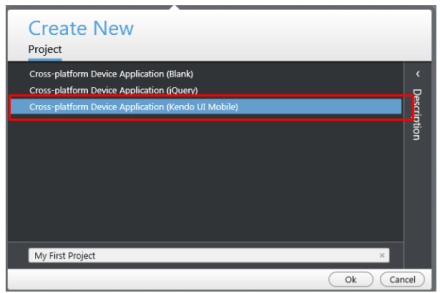
There are three project templates as following

  • Blank
  • Using jQuery
  • Using Kendo UI Mobile

Let us go ahead and create a cross-platform device application using Kendo UI Mobile.


Give name of the project. You will notice that you are not asked to select a location to save the project. Since Icenium is a cloud IDE, it saves the project in the cloud rather than saving it locally. Click ok to create the application.

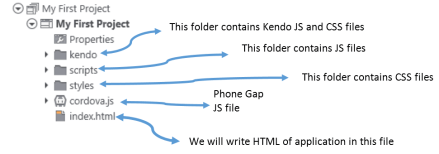
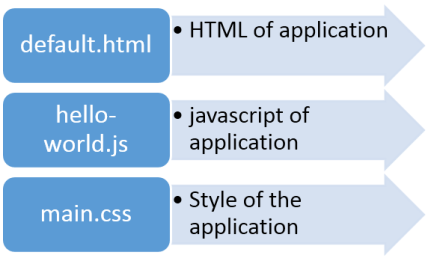
Let us go ahead and explore Project Navigator. You will find project structure as given in following image,


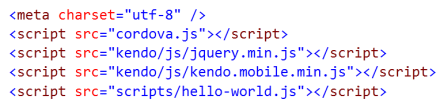
On opening of index.html, you will find some prior code there for reference. As you see in below image that to create Hybrid application using Kendo UI Mobile, you need minimum following references.


There are three default files you will be working on. However you are free to give any name to files.


Let us go ahead and run the default application got created by choosing Kendo project template.


There are two ways you can run the application. You can run application either

  1. On Device
  2. In Simulator

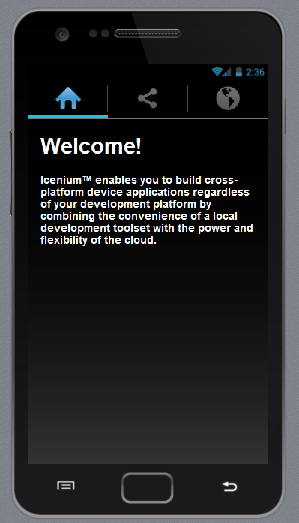
On running you get application running in iPhone simulator.


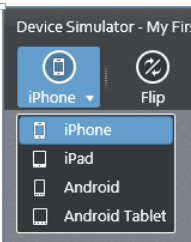
There are four simulator supported in Icenium.


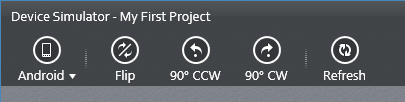
If you want to run the application in Android Simulator change the Device simulator and you are done

There are many other options available in Device Simulator. We will discuss them in detail in further blog posts.


In this way you can create, test and deploy a truly cross-platform application using Kendo UI Mobile and Icenium. I hope you find this post useful. Looking forward to share more learning on Icxenium and Kendo UI Mobile with you in further blog posts.

Getting started with Kendo UI MVC Wrapper in ASP.Net MVC 4.0

In this post we will learn getting started with Kendo UI MVC Wrapper.

Download Kendo UI free trial from here

Launch visual studio and create a new MVC 4 Web Application.


Choose Internet Application as type of application and Razor engine as the View Engine.


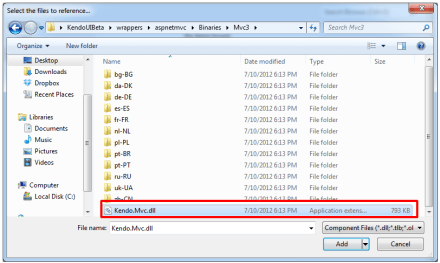
To test whether we have created application correctly or not press F5 and run the application. If application is successfully running then you are all set to start using Kendo UI MVC Wrapper in your application. Very first you need to add reference of Kendo.Mvc.dll. You will find this file in location \wrappers\aspnetmvc\Binaries\Mvc3. Right click on the reference in project and browse to add Kendo.Mvc.dll in the project.


After adding the reference open Web.config file


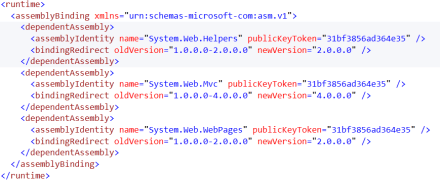
You need to make sure that following entry is present in the Web.config file.


If above entry is not present then make sure to add them in Web.config file.


<runtime>
<assemblyBinding xmlns="urn:schemas-microsoft-com:asm.v1">
<dependentAssembly>
<assemblyIdentity name="System.Web.Helpers" publicKeyToken="31bf3856ad364e35" />
<bindingRedirect oldVersion="1.0.0.0-2.0.0.0" newVersion="2.0.0.0" />
</dependentAssembly>
<dependentAssembly>
<assemblyIdentity name="System.Web.Mvc" publicKeyToken="31bf3856ad364e35" />
<bindingRedirect oldVersion="1.0.0.0-4.0.0.0" newVersion="4.0.0.0" />
</dependentAssembly>
<dependentAssembly>
<assemblyIdentity name="System.Web.WebPages" publicKeyToken="31bf3856ad364e35" />
<bindingRedirect oldVersion="1.0.0.0-2.0.0.0" newVersion="2.0.0.0" />
</dependentAssembly>
</assemblyBinding>
</runtime>

Now you add Kendo JS files and CSS files in the project. To add Kendo JS files right click on Script folder and select add existing item


Browse to JS folder in Kendo UI installation directory and add all the JS files in the Scripts folder. After adding JS files add CSS files in the project. To add that right click on Content folder in the project and choose option to add existing items


Browse to Styles folder in Kendo UI installation directory and all the CSS files in the Content folder. If you are going to use some specfic style like Metro or Silver then make sure you add texture folder in the Content directory as well. Make sure you have added Texture folder and Default folder also in the Contnet folder of the project.

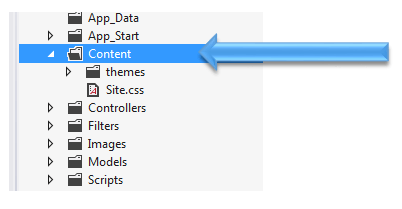
After adding all the css files and folder , Content folder in the project should look like as following


By this step , you have added all the required dll, js files and css files in the project. Next open Web.config from the Views


Here you need to add following namespace


You need to add this namespace in root level Web.config as well. So open root level Web.config and add the name space.


And add the namespace as following

last step you need to add references of CSS and JS file in _layout.cshtml file. You will find this file in Shared folder.


Open this file and scroll down. Comment the like referring to jquery file. You will find that reference just before closing body tag.


And at the beginning of the file add the following references ,


Above we have referred Metro CSS for metro styled UI experience. So go ahead and following references in _layout.cshtml file


<link rel="stylesheet" href="@Url.Content("~/Content/kendo.common.min.css")" />
<link rel="stylesheet" href="@Url.Content("~/Content/kendo.metro.min.css")" />
<script src="@Url.Content("~/Scripts/jquery.min.js")"></script>
<script src="@Url.Content("~/Scripts/kendo.web.min.js")"></script>
<script src="@Url.Content("~/Scripts/kendo.aspnetmvc.min.js")"></script>

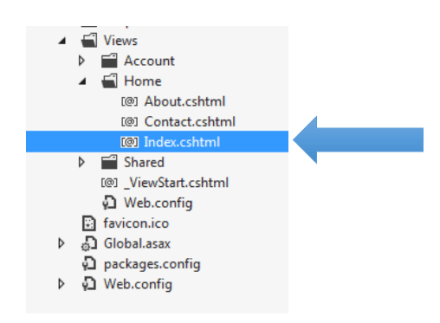
Now you are all set to use Kendo UI MVC Wrappers in the project. Let us go ahead and put a Kendo Calendar widget on index.cshtml . You can put that as following


Now press F5 to run the application. You should get the Kendo UI Calendar on the index view as following,


In this way you can start working with Kendo UI MVC Wrapper in ASP.Net MVC 4.0 Application. I hope you find this post useful. Thanks for reading!

JumpStarting Development with Kendo UI for ASP.NET MVC

Today in the ASP.NET world, MVC is the talk of the town. Every enterprise and every developer is looking to adopt it at some time. Even the architecture guidance from Telerik recommends ASP.NET MVC liberally.

While MVC does have its benefits, it still is not as close to the ease of development that ASP.NET Web Forms provides. The default controls with ASP.NET MVC in Visual Studio are very limited. Telerik fills this productivity gap by providing the toolset that adds many powerful HTML Helpers that aid in faster development. Kendo UI Complete for ASP.NET MVC is the toolset that has the server wrappers that you can use in your ASP.NET MVC project.

In the video below, we explore quickly getting started with Kendo UI for ASP.NET MVC in your project.

We look forward to hearing your experiences using the HTML Helpers from Kendo UI for ASP.NET MVC.

Transition styles in Kendo UI Mobile

In this post we will learn different Transition Styles between Kendo UI Mobile Views.

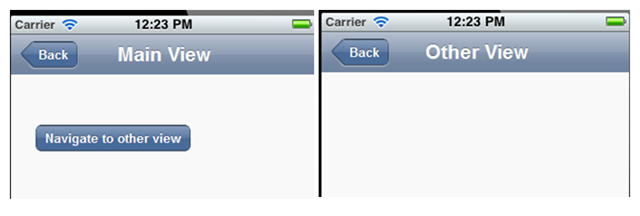
To start with let us assume we have an application as following. This application consists of two views. On click of Kendo button, user will navigate to Other View.

image

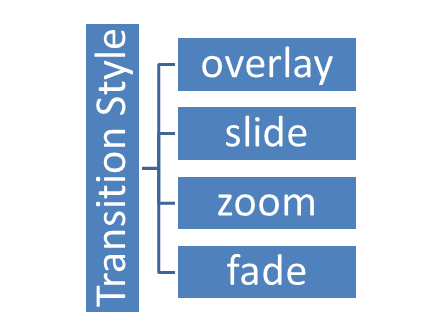
There are four supported Transition styles, they are as follows

image

Overlay transition style

See the video for the behavior of Overlay transition style

Slide transition style

See the video for the behavior of Slide transition style

Zoom transition style

See the video for the behavior of Zoom transition style

Fade transition style

See the video for the behavior of Fade transition style

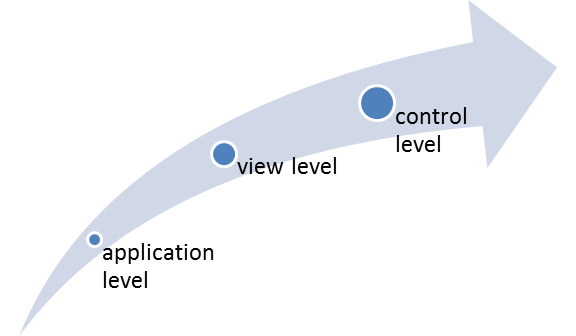
Default transition style is “slide”. We can apply transition style in three ways

  1. At the application level
  2. At the view level
  3. At the control level

At Application Level

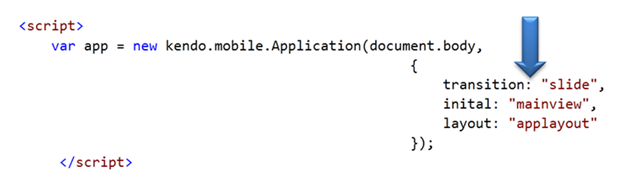
When set at application level same transition style will be applied to entire application. All views of the application will adhere to the same transition style. At application level transition style can be set by providing value of transition property in Kendo mobile initialization.

image

At View Level

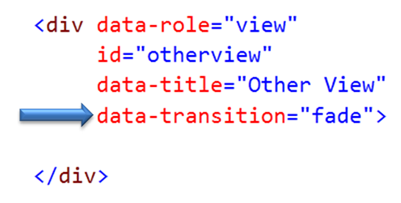
Other option to set transition style is at view level. On navigating to this view user will experience transition style set at the view.

image

At Control Level

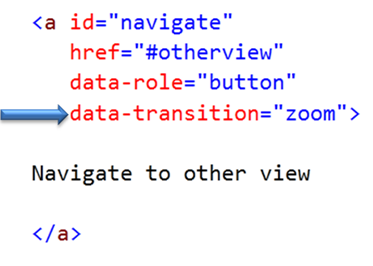
We can set transition style at control level as well. In following case we are applying transition style to a kendo button. User will experience zoom transition behavior while navigating to view set in the href property of the keno button.

image

If  transition style is set at all the three levels then Control level has highest priority whereas application level has lowest priority.

image

In this way you can apply different transition style to the application. For your reference find the source code of above discussed application below.


<!DOCTYPE html>
<html>
<head>
<title></title>
<meta charset="utf-8" />
<script src="cordova.js"></script>
<script src="kendo/js/jquery.min.js"></script>
<script src="kendo/js/kendo.mobile.min.js"></script>
<script src="scripts/hello-world.js"></script>
<link href="kendo/styles/kendo.mobile.all.min.css" rel="stylesheet" />
<link href="styles/main.css" rel="stylesheet" />
</head>
<body>

<div data-role="layout" data-id="applayout">
<header data-role="header">
<div data-role="navbar">
<a data-role="backbutton" data-align="left">Back</a>
<span data-role="view-title"></span>
</div>
</header>
</div>

<div data-role="view" id="mainview" data-title="Main View">
<a id="navigate"
href="#otherview"
data-role="button"
>
Navigate to other view
</a>
</div>

<div data-role="view"
id="otherview"
data-title="Other View"
>

</div>

<script>

var app = new kendo.mobile.Application(document.body,
{
transition: "overlay",
inital:"mainview",
layout:"applayout"
});
</script>

</body>
</html>

I hope you find this post useful. Thanks for reading.

WebMatrix 2, NuGet, Kendo UI Web = Awesome combination

In this blog post, we will look at how easy it is to get started with Kendo UI Web using WebMatrix as a development tool. we will look at what is this WebMatrix in brief and how you can play with Kendo UI Web widgets within WebMatrix.

image Kendo logo

What is WebMatrix:

WebMatirx is a free and lightweight web development tool. You can create, publish and maintain your website with ease right within WebMatrix. You can know more about WebMatrix here: http://www.microsoft.com/web/webmatrix/
image

Installing WebMatrix:

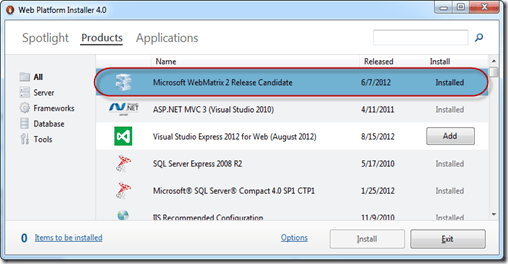
WebMatrix can be installed by using the Web Platform Installer 4.0. Click the following button to install the WebMatrix. This will download an exe and launch the Web Platform Installer 4.0.

image

The Web Platform Installer will have an option to select WebMatrix 2 Release Candidate. Just select that and perform the installation.
SNAGHTML1d262f33

Creating a Web Site using WebMatrix:

Once installed launch the WebMatrix from Start Menu. With WebMatrix we have 2 options to create a new web site.

SNAGHTML1d2a1cbc

We can use the Templates option to select from a pre defined 12 templates which includes ASP.NET, PHP, Node & HTML templates or we can use App gallery to download 61 open source application to start with.

SNAGHTML1d2bc8f2 SNAGHTML1d317d72

For this blog post, I will be creating an empty site which can be found under Templates option. Give a name to the new site and hit Next button.

SNAGHTML1d330650

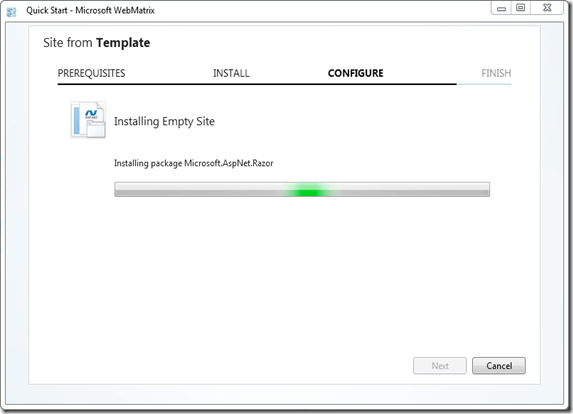
WebMatrix will go ahead and get the pre requisite for the template we have selected, install and configure the site for us.
SNAGHTML1d33f30e

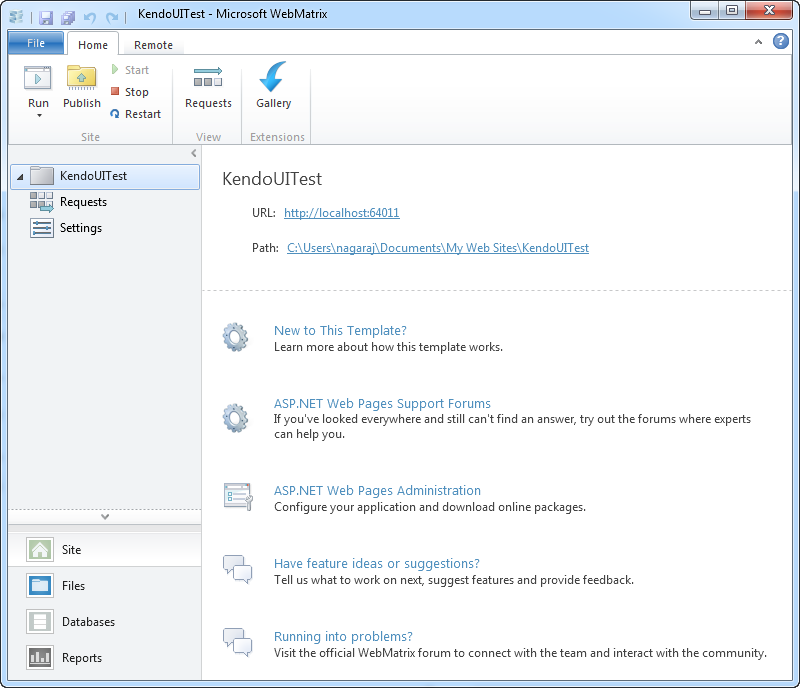
Once configured the site dashboard will look like below:

SNAGHTML1d34f5bc

As you can see, the site is created in user’s Documents folder.

Integrating Kendo UI:

One of the new features added to WebMatrix 2 is the support of NuGet packages. From the web site dashboard, select the Files workbench located in the left hand bottom corner. This will show the file structure of the project. Also notice the change in the ribbon in this view. On the far right hand top corner you will see a familiar NuGet Package icon. Similar to the package addition experience in Visual Studio here also within WebMatrix we can perform pretty much the the same steps to get a package. So lets see how to get Kendo UI Web.

SNAGHTML1d8c52bc

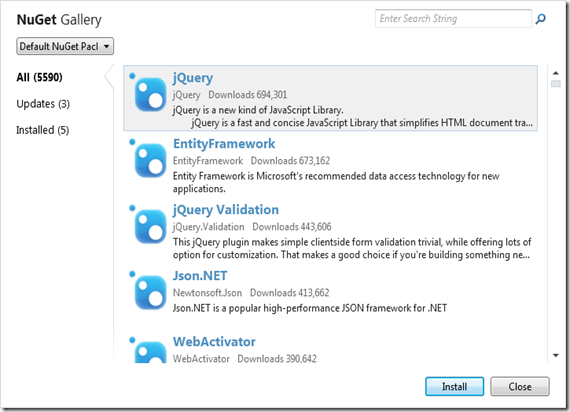
Click on the NuGet Gallery button. You will be presented with NuGet Gallery window as below:
image

In the search string enter “Kendouiweb” and wait for the results to come back. NuGet will find one package with that search string and show you that in the results pane. Select the package and click Install.
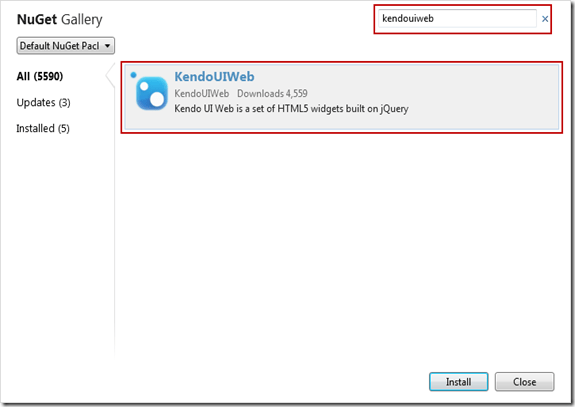
image

Next screen it will show information of the package. Click Install again on this screen.

image

At this point, WebMatrix will retrieve the package information from NuGet server. It will get the End User License Agreement if any and show you that. You have option to Accept or Reject the EULA. If you accept the agreement package will be installed otherwise installation will be skipped.
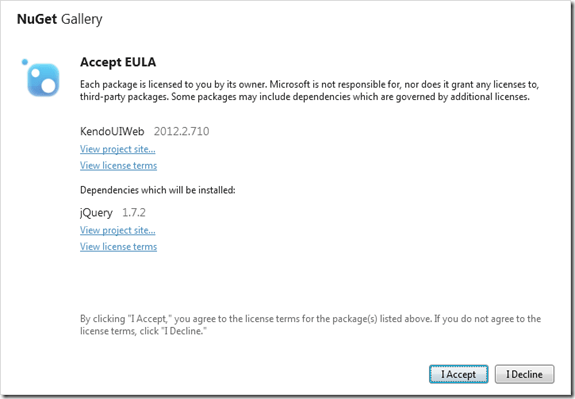
image

Note: At this moment it is important for you to know that you are downloading Kendo UI Web trial version and I urge you to read the trial license without fail. This trial download allows you a free trial of Kendo UI Web framework for 30 days.  You can click on the “View License Terms” to understand the EULA. Alternatively, you can visit the licensing FAQ here http://www.kendoui.com/faq/licensing.aspx and here http://www.kendoui.com/purchase/license-agreement/kendo-ui-trial.aspx

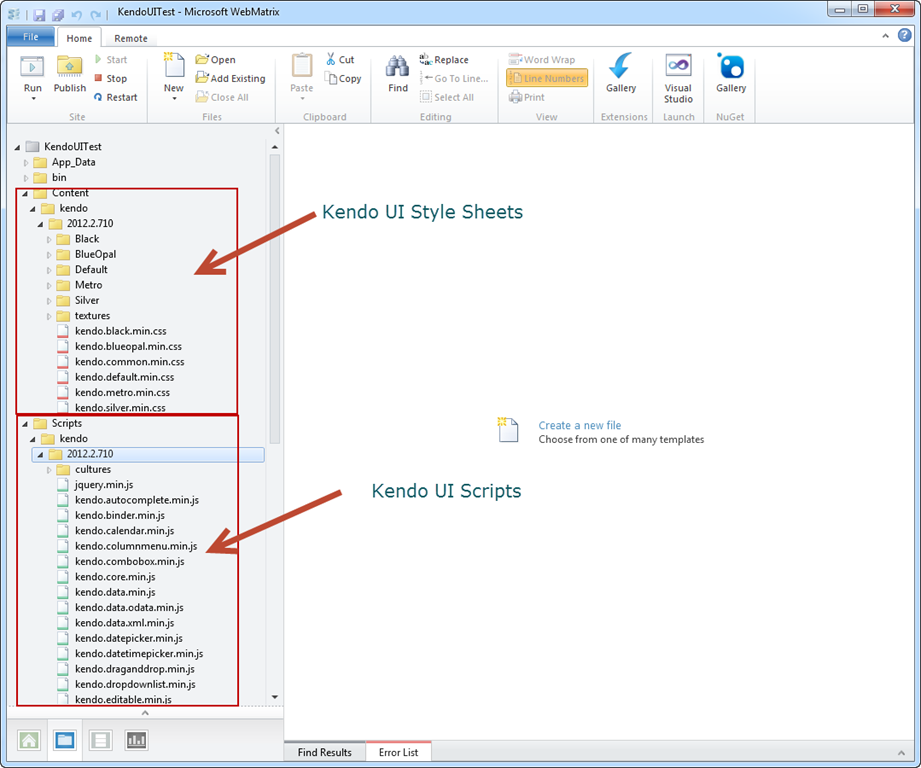
Once you click on Accept, the package will be retrieved and installed in our application. Here is the folder structure after package installation.
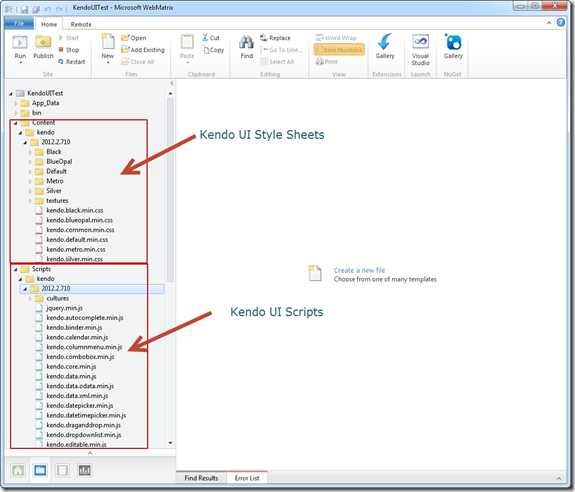
SNAGHTML1d9ac29e

As you can see from the above screen shot, Kendo UI framework related files have been downloaded and added to our application. The stylesheet’s are placed in Content folder and java script files are placed in Scripts folder. Next we will see how to work with Kendo UI Web Widgets

Create UI with Kendo:

Working with Kendo UI Web framework is 3 steps – Stylesheet reference, JavaScript reference and defining the HTML. So we will see them one by one.

Open the Default.cshtml and start by placing reference to Kendo UI Web stylesheets. Kendo UI comes with the following themes out of the box:

  • Black
  • Blue Opal
  • Default
  • Metro
  • Silver

Apart from the above theme stylesheets, we have a common stylesheet which is required for all other theme stylesheets to work. So here is the stylesheet reference code:

<link href="/Content/kendo/2012.2.710/kendo.common.min.css" 
rel="stylesheet" />
<link href="/Content/kendo/2012.2.710/kendo.default.min.css" 
rel="stylesheet" />

Next, we reference the javascript required to work with Kendo UI. Here is the script tag snippet:

<script src="~/Scripts/jquery-1.7.2.min.js"></script>
<script src="~/Scripts/kendo/2012.2.710/kendo.web.min.js"></script>

Next we defined the HTML. In this example I am going to create a UI Widget called DateTimePicker i.e. a widget which allows users to select Date and as well as Time in a single control. In the body of the page declare a input tag, give it an id and set a value to any date and time value. Here is the code snippet:

<input id="datetimepicker" value="10/12/2012 01:00 PM"
style="width:200px;" />

Next, on document ready we will refer the input tag by its id and ask kendo to transform that into an DateTimePicker widget with just one line of code as below:

<script>
    $(document).ready(function() {
        // create DateTimePicker from input HTML element
        $("#datetimepicker").kendoDateTimePicker();
    });
</script>

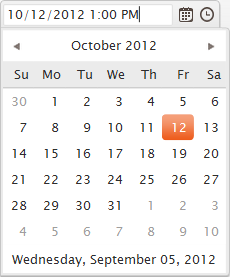
We use JQuery to get a reference to the input tag by its id and then invoke a kendo function kendoDateTimePicker() which does the magic under the hood to transform the input tag to a date time control like below:

image image

Here is the complete HTML code snippet of Default.cshtml:

<!DOCTYPE html>

<html lang="en">
    <head>
        <meta charset="utf-8" />
        <title>My Site's Title</title>
        <!-- Step 1 : StyleSheet Reference -->
        <link href="/Content/kendo/2012.2.710/kendo.common.min.css" 
            rel="stylesheet" />
        <link href="/Content/kendo/2012.2.710/kendo.default.min.css" 
            rel="stylesheet" />

        <!-- Step 2 : JavaScript Reference -->
        <script src="~/Scripts/jquery-1.7.2.min.js"></script>
        <script src="~/Scripts/kendo/2012.2.710/kendo.web.min.js"></script>
    </head>
    <body>
        <div id="example" class="k-content">
            <div id="to-do">
                    <input id="datetimepicker" value="10/12/2012 01:00 PM" 
                    style="width:200px;" />
            </div>
        </div>
         <script>
            $(document).ready(function() {
                // create DateTimePicker from input HTML element
                $("#datetimepicker").kendoDateTimePicker();
            });
        </script>
    </body>
</html>

Here is the output of the code we just wrote:

image

Well that’s how easy it is to work with Kendo.

Conclusion:

WebMatrix is a great tool which is free and is best suited for lightweight web development. Through this post we have now seen the webMatrix support for NuGet packages. We saw how easy it is to get going with Kendo UI Web controls right from the step of looking at the package to installing to coding our first example with Kendo – all done within WebMatrix.

More information about Kendo UI can be seen at www.kendoui.com. You can view more demos of Kendo UI Web at the site itself. Here is a direct link to launch the demos –
image

You can also download Kendo UI directly from the site for a 30 day free trial. Here is the direct link for the download:

image

Hope this excites you to start coding with Kendo UI. Looking forward to your experiences with Kendo. Till next time – Happy Coding !.


Working with Kendo Data ObservableArray

Kendo.data.ObservableArray can be defined as below equation. It is a simple array with capability to track the changes.
image

Read more here

Kendo UI Observable String Array can be created as following

image

Array can be traversed in usual way as following. length filed returns number of elements in the array .

image

On any change in the observableArray change events gets fired. You can bind change event to array as following.

image

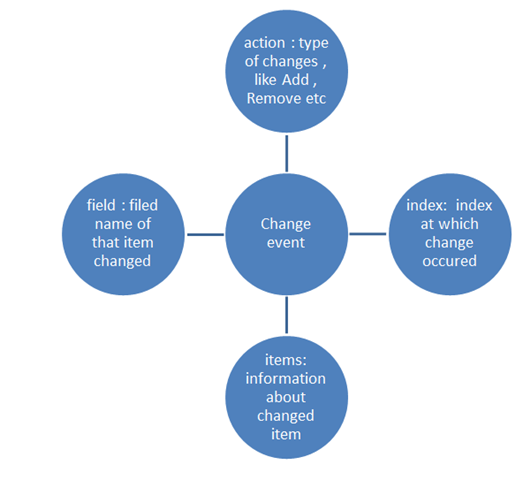
You can track finer level details of change as well. You can get following change information as shown in diagram

image

For example, let is push “John “in above array. We can do that as following

image

After that in change event you can get information like Add and John as following

image

Using Join method you can join all items of array into a string. For example, if you want to have a separator $ between all names, you can do that by calling simple join method on array as following

image

Join method takes a string input parameter.

An item can be inserted into array using the push method and can be removed using pop method. More than one item can be inserted as following

image

And item can be removed as following

image

So far we have worked with primitive type string observablearray. We can have complex type observablearray as well. We can create and traverse that as following.

image

We can insert an item in above created complex type observablearray as following

image

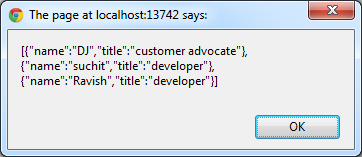
We can convert an array to JSON as following

image

You should get the output as following

image

In this way you can work with Kendo Data ObservableArray. I hope you find this post useful. Thanks for reading.


4 Steps to Kendo UI


Overview:

In this post, we will look at the steps involved in working with Kendo UI. For those of you who are hearing about Kendo UI for the first time – I would recommend you head straight to www.KendoUI.com and spend couple of moments there to familiarize yourself with Kendo UI. In brief Kendo UI is

Kendo logo

A comprehensive, end-to-end framework, compatible with jQuery, and custom-built from the ground up for rock-solid reliability and lightning-fast performance. Includes MVVM support, a rich DataSource, several UI widgets, and everything you need to build rich JavaScript applications today.

It takes 4 steps to working with Kendo UI. So lets see the 4 steps in detail in the coming sections.


Step 1:

The simplest of all the steps :). This step involves downloading of Kendo UI. You can download Kendo UI from the download page at: http://www.kendoui.com/download.aspx.

Kendo UI comes in 3 flavors, namely:

  • Kendo UI Web – UI controls to be used in web applications
  • Kendo UI Data Viz – Data Visualization controls for both Web and Mobile platforms
  • Kendo UI Mobile – UI controls for Mobile platforms like iOS, Android and BlackBerry

Kendo UI comes with a free 30 day trial and I highly recommend downloading that. Rest of the sections will assume that you have downloaded kendo ui on to your hard disk.


Step 2:

Once you have downloaded the Kendo UI on to your hard drive next step is to start using it in a HTML page. First piece to get in place is the stylesheets required by the Kendo itself. These stylesheets are responsible for giving the look and feel of the UI controls or widgets as we call them. When you install the Kendo ui the styles folder contains all the required stylesheets. Kendo UI ships with  5 themes namely – Default, Black, Blue Opal. Metro and Silver.

We need to first reference the common stylesheet required by the Kendo framework. The link tag for this as follows:

<link href=”styles/kendo.common.min.css” … />

Here are the theme specific stylesheet which must be referenced while applying a particular theme:

  • Default theme:

<link href=”styles/kendo.black.min.css” … />

  • Black theme:

<link href=”styles/kendo.black.min.css” … />

  • Blue Opal theme:

<link href=”styles/kendo.blueopal.min.css” … />

  • Metro theme:

<link href=”styles/kendo.metro.min.css” … />

  • Silver theme

<link href=”styles/kendo.silver.min.css” … />

If you are using DataViz framework then you would need to refer DataViz stylesheet apart from the common stylesheet. Here is the link tag for that:

<link href=”styles/kendo.dataviz.min.css” … />

Here is the HTML code for step 2:

<!DOCTYPE html>
<html>
  <head>
    <title>Kendo UI</title>
    <!-- Kendo UI Web styles -->
    <link rel="stylesheet" href="styles/kendo.common.min.css" />
    <link rel="stylesheet" href="styles/kendo.default.min.css" />
  </head>
  <body>
  </body>
</html>

Step 3:

Once we have the stlesheet in place, next it to add the Javascripts which is required for the initialization of the UI controls/widgets themselves.

So for web applications, the first script to reference is the jquery. Then reference the kendo.web.min.js file from the js folder. Here is how the =script tag will look like:

<script src=”js/jquery.min.js” ..></script>
<script src=”js/kendo.web.min.js” ..></script>

If you are working with Data Visualization, then instead of the kendo.web.min.js you will need to refer kendo.dataviz.min.js file.

Here is the HTML code for step 3:

<!DOCTYPE html>
<html>
  <head>
    <title>Kendo UI</title>
    <!-- Kendo UI Web styles -->	
    <link rel="stylesheet" href="styles/kendo.common.min.css" />
    <link rel="stylesheet" href="styles/kendo.default.min.css" />

    <!-- Kendo UI Web scripts -->
    <script src="js/jquery.min.js"></script>
    <script src="js/kendo.web.min.js"></script>	

  </head>
  <body>
  </body>
</html>

Step 4:

This is the interesting step. With Step 2 and Step 3 we have set the stage for the most interesting part of the journey with Kendo UI. Stykesheets and scripts necessary to work with Kendo UI has been referenced. Now we see how to initialize the kendo UI controls or widgets. Kendo UI Web as nearly 19 widgets to work with. You can know more about this at http://demos.kendoui.com/web/overview/index.html.

For this exercise I will take a simple control like Calendar widget and show you how to initialize that. To start with, place a div in the HTML body and give it name, let’s say “kendo-calendar”. Next spin up a jquery statement for document ready and code the following:

<script>
  $(document).ready(function(){
    $("#kendo-calendar").kendoCalendar();
  })
</script>

well that’s all its there to working with kendo UI. What we have done is, we have grabbed the div which have placed it in the HTML body and used kendo framework to turn that into a pretty neat calendar. Here is the code for the Step 4:

<!DOCTYPE html>
<html>
  <head>
    <title>Kendo UI</title>
    <!-- Kendo UI Web styles -->	
    <link rel="stylesheet" href="styles/kendo.common.min.css" />
    <link rel="stylesheet" href="styles/kendo.default.min.css" />

    <!-- Kendo UI Web scripts -->
    <script src="js/jquery.min.js"></script>
    <script src="js/kendo.web.min.js"></script>	

  </head>
  <body>
	<div id="kendo-calendar"></div>
	<script>
		$(document).ready(function(){
			$("#kendo-calendar").kendoCalendar();
		});
	</script>
  </body>
</html>

Here is the live version of the same code that I have created in jsfiddle:

http://jsfiddle.net/kashyapa/CrEZb/


Summary:

In this post we saw how easy it is to work with Kendo UI. with simple 4 steps you are ready to take a ride with Kendo UI. Although we saw a simple example of calendar being initialized, pretty much all the widgets in Kendo UI can be initialized in the same mechanism. Hope you will do the step 1 and following along till step 4.

Till next time, Happy coding.

Tearch: Creating Twitter Search Application using Kendo UI Mobile

In this post, we will create Twitter Search Application using Kendo UI Mobile. In order to create this application, we will learn about

  • Kendo UI Mobile View
  • Kendo UI Mobile ListView
  • Kendo UI DataSource
  • Kendo UI Template
  • Kendo UI ModalView
  • Working with HTML5 localstorage

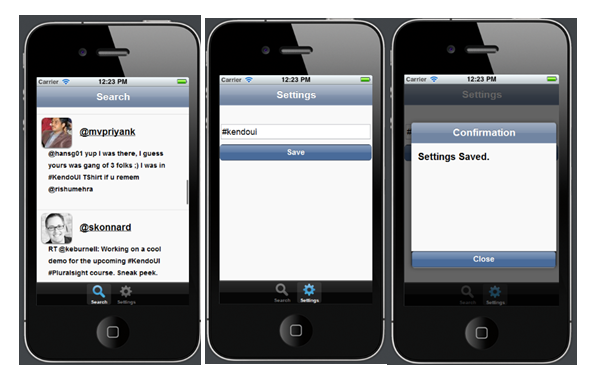
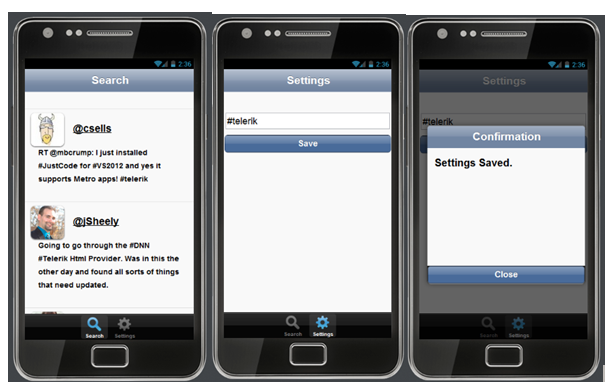
Idea behind application is that we will search tweets using Twitter API returning JSON. Application will look like as following

On iPhone

image

On Android

image

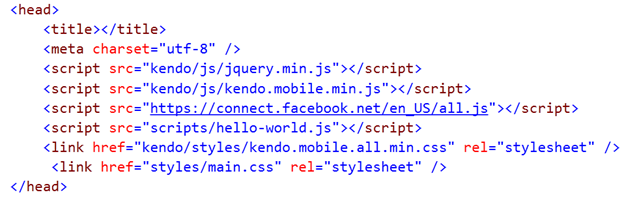
Step 1 : Add References

Before we start creating application, we need to add the references of required css and js files.

image

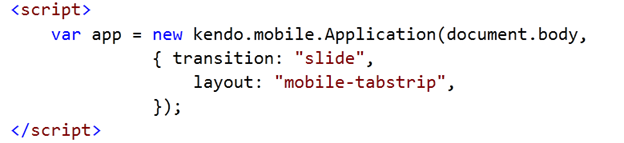
After adding references we need to initlaize the Kendo Mobile Application. Put following code just before closing body tag.

image

Step 2: Create Layout

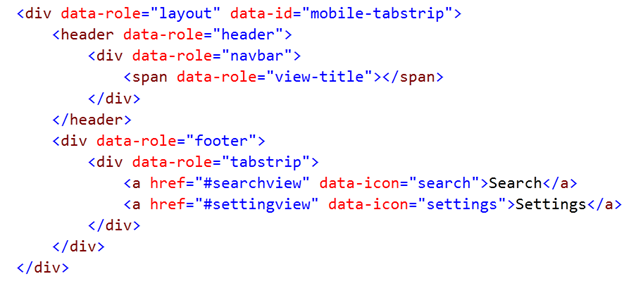
We will start with creating layout of the application. In header we want title of the application and in footer we want two buttons. Search button and Setting button. Layout can be created as following

image

Step 3: Create Setting View

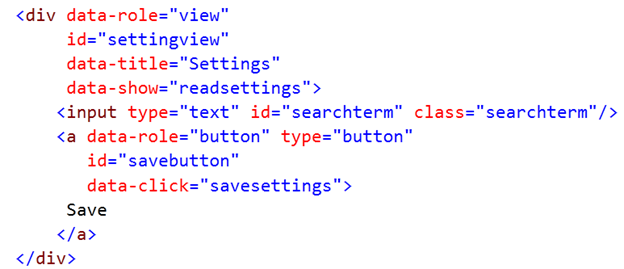
In setting view, we are going to put input box and a button.

image

On click event of the button, text from input box will be saved in local storage. Twitter search will be performed on the text saved in local storage. We are going to use HTML5 localstorage API to save data locally. If you notice that data-click attribute of button is set to javascript function savesettings. Savesettings function is as following

image

When user will navigate to Settings view, saved search term should be displayed to user. For that we are setting data-show attribute of settings view to javascript function readsetting. Readsetting function is as following. In this function, we are checking that if there is any setting saved. If not then we are displaying default text “#KendoUI”.

image

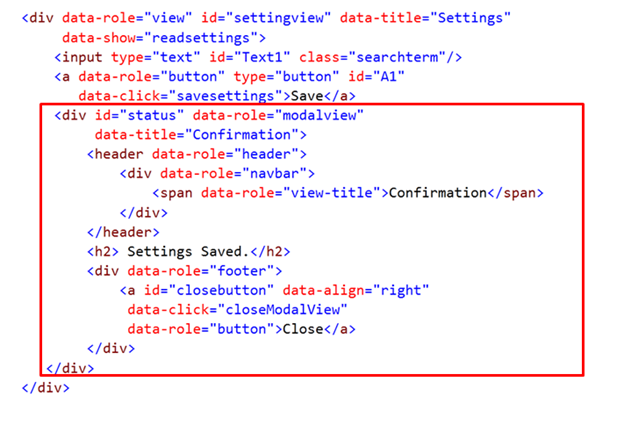
Once setting is saved successfully, we want to show a message to user. We will use kendo UI Mobile ModelView widget to display confirmation message to user. To work with Kendo UI Mobile Model View, we need to put following div inside settings view

image

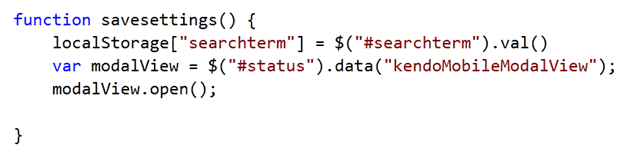
After putting model view we need to open this confirmation box once data is saved successfully. We can do that by modifying savesettings function. After modification function is as following. In below function we are getting reference of Kendo UI Mobile Modal View and calling Open method of that.

image

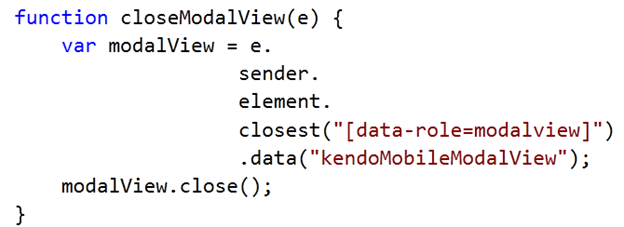
There is a close button in confirmation box. closeModalView javascript function is called on click event of this button to close the confirmation box.

image

Step 4 : Create Search View

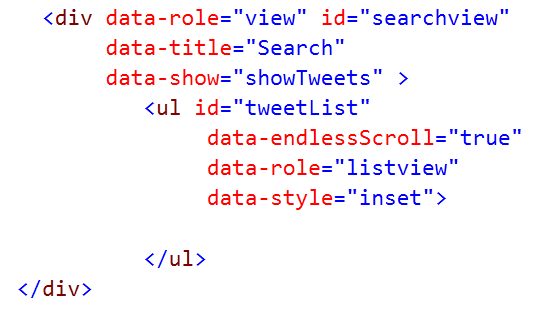
Now we need to create view in which we will show the tweets on basis of the search term. Let us create Kendo UI Mobile View and put a Kendo UI Mobile ListView inside that view. ListView is KendoUI widgets used to show data. Fetched Tweets from Twitter Server will be displayed in the ListView.

image

In above code, we are performing the following operations.

  • Creating KendoUI Mobile view by setting data-role property of HTML div element as view
  • Setting data-show attribute of view to javascript function showTweets
  • Creating ListView inside mobile view.
  • ListView is being created by setting data-role attribute of HTML ul element as listview

Data-Template defines how data should be displayed. Template can be created as following

image

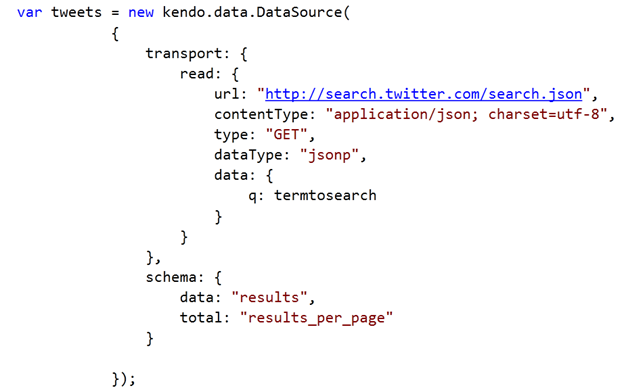
After creating Data-Template, we need to fetch tweets from Twitter on basis of search term and create Data Source. This can be done as following

image

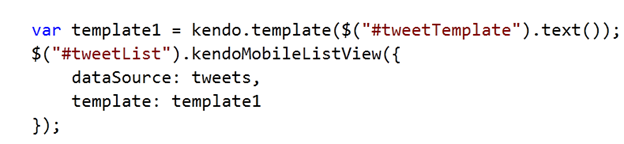
The value of q is the search criteria in while creating transport to fetch tweets. We have created Data-Source and Data-Template. Next we need to set Data-Source and Data-Template of ListView. That can be done as following

image

After setting DataSource and DataTemplate our application is ready. To make application more immersive we have put some styling. You can find those CSS in code section of the article. For your reference source code of the application is as following

Default.html


<!DOCTYPE html>
<html>
 <head>
 <title></title>
 <meta charset="utf-8" />
 <script src="kendo/js/jquery.min.js"></script>
 <script src="kendo/js/kendo.mobile.min.js"></script>
 <script src="scripts/hello-world.js"></script>
 <link href="kendo/styles/kendo.mobile.all.min.css" rel="stylesheet" />
 <link href="styles/main.css" rel="stylesheet" />
 </head>
 <body>

 <div data-role="view" id="searchview" data-title="Search" data-show="showTweets" >
 <ul id="tweetList"
 data-endlessScroll="true"
 data-role="listview"
 data-style="inset">

 </ul>
 </div>

<div data-role="view" id="settingview" data-title="Settings" data-show="readsettings">
 <input type="text" id="searchterm" class="searchterm"/>
 <a data-role="button" type="button" id="savebutton" data-click="savesettings">Save</a>
 <div id="status" data-role="modalview" data-title="Confirmation">
 <header data-role="header">
 <div data-role="navbar">
 <span data-role="view-title">Confirmation</span>
 </div>
 </header>
 <h2> Settings Saved.</h2>
 <div data-role="footer">
 <a id="closebutton" data-align="right" data-click="closeModalView" data-role="button">Close</a>
 </div>
 </div>
 </div>

 <div data-role="layout" data-id="mobile-tabstrip">
 <header data-role="header">
 <div data-role="navbar">
 <span data-role="view-title"></span>
 </div>
 </header>
 <div data-role="footer">
 <div data-role="tabstrip">
 <a href="#searchview" data-icon="search">Search</a>
 <a href="#settingview" data-icon="settings">Settings</a>
 </div>
 </div>
 </div>

 <script id="tweetTemplate" type="text/x-kendo-template">
 <img class="profileImage" src=#= profile_image_url# />
 <h4><a href="http://twitter.com/${from_user}">@#=data.from_user#</a></h4>
 <h5>#=text#</h5>
 </script>

 <script>
 var app = new kendo.mobile.Application(document.body,
 { transition: "slide",
 layout: "mobile-tabstrip",
 initial : "searchview"});

 </script>
 </body>
</html>


<pre> <style scoped>
 #searchterm {
 height:25px;
 width: 310px;
 margin-left: 03px;
 margin-top: 40px;
 margin-right: 03px;

 }
 #savebutton{
 display: block;
 text-align: center;
 margin: .7em .12em 0;
 font-size: 1.2em;
 }
 #closebutton{
 display: block;
 text-align: center;
 margin: .7em .12em 0;
 font-size: 1.2em;
 }

 #searchview
 h4 {
 display: inline-block;
 font-size: 1.2em;
 margin: 0.9em;
 }
 h5 {
 display: inline-block;
 font-size: 0.9em;
 margin-left: 5px;
 margin-top:0px
 }

 #searchview
 img {
 float: left;
 width: 4em;
 height: 4em;
 margin: 0;
 -webkit-box-shadow: 0 1px 3px #333;
 box-shadow: 0 1px 3px #333;
 -webkit-border-radius: 8px;
 border-radius: 8px;
 }

 </style></pre>

HelloWord.js


// JavaScript Document

// Wait for PhoneGap to load
document.addEventListener("deviceready", onDeviceReady, false);

// PhoneGap is ready
var termtosearch="#kendoui";
function onDeviceReady() {

}

function savesettings()
{
 localStorage["searchterm"]= $("#searchterm").val()
 var modalView = $("#status").data("kendoMobileModalView");
 modalView.open();

}

function readsettings()
{
 if(localStorage.searchterm)
 {
 $('#searchterm').val(localStorage["searchterm"]);
 termtosearch = localStorage["searchterm"];
 //console.log(termtosearch);
 }
 else
 {
 $('#searchterm').val("#kendoui");
 termtosearch = "#kendoui";
 //console.log(termtosearch);
 }
}

function closeModalView(e) {
 // find the closest modal view, relative to the button element.
 var modalView = e.sender.element.closest("[data-role=modalview]").data("kendoMobileModalView");
 modalView.close();
 }

&nbsp;
function showTweets(e) {

 if(localStorage.searchterm)
 {
 $('#searchterm').val(localStorage["searchterm"]);
 termtosearch = localStorage["searchterm"];
 //console.log(termtosearch);
 }
 else
 {
 $('#searchterm').val("#kendoui");
 termtosearch = "#kendoui";
 //console.log(termtosearch);
 }

var tweets = new kendo.data.DataSource(
 {

transport: {
 read: {
 url: "http://search.twitter.com/search.json",
 contentType: "application/json; charset=utf-8",
 type: "GET",
 dataType: "jsonp",
 data: {
 q: termtosearch
 }
 }
 },
 schema: {
 data: "results",
 total: "results_per_page"
 }

});

 tweets.fetch();
 var template1 = kendo.template($("#tweetTemplate").text());
 $("#tweetList").kendoMobileListView({
 dataSource: tweets,
 template:template1

 });

}

I hope you find this post useful. Thanks for reading