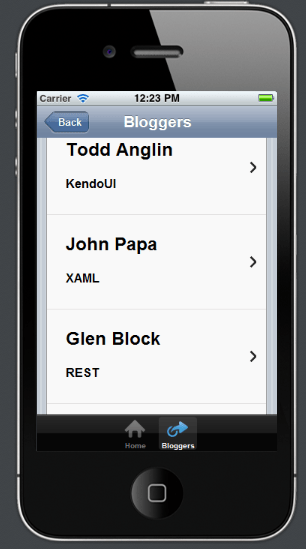
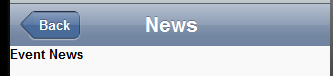
Transition styles in Kendo UI Mobile

In this post we will learn different Transition Styles between Kendo UI Mobile Views.

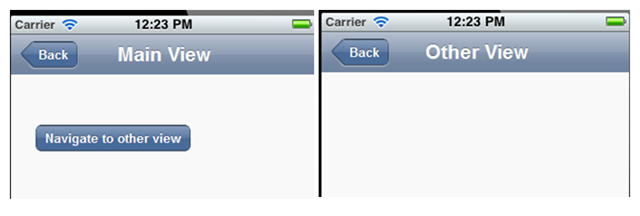
To start with let us assume we have an application as following. This application consists of two views. On click of Kendo button, user will navigate to Other View.

image

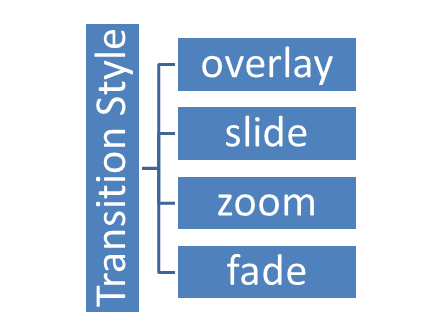
There are four supported Transition styles, they are as follows

image

Overlay transition style

See the video for the behavior of Overlay transition style

Slide transition style

See the video for the behavior of Slide transition style

Zoom transition style

See the video for the behavior of Zoom transition style

Fade transition style

See the video for the behavior of Fade transition style

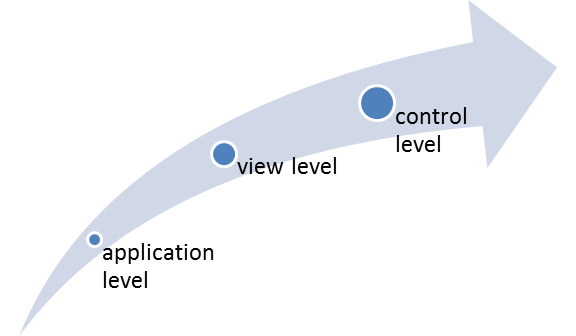
Default transition style is “slide”. We can apply transition style in three ways

  1. At the application level
  2. At the view level
  3. At the control level

At Application Level

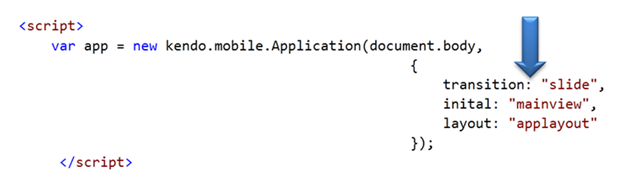
When set at application level same transition style will be applied to entire application. All views of the application will adhere to the same transition style. At application level transition style can be set by providing value of transition property in Kendo mobile initialization.

image

At View Level

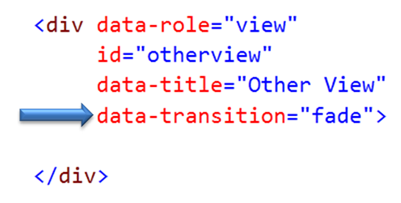
Other option to set transition style is at view level. On navigating to this view user will experience transition style set at the view.

image

At Control Level

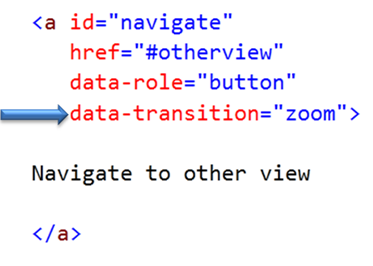
We can set transition style at control level as well. In following case we are applying transition style to a kendo button. User will experience zoom transition behavior while navigating to view set in the href property of the keno button.

image

If  transition style is set at all the three levels then Control level has highest priority whereas application level has lowest priority.

image

In this way you can apply different transition style to the application. For your reference find the source code of above discussed application below.


<!DOCTYPE html>
<html>
<head>
<title></title>
<meta charset="utf-8" />
<script src="cordova.js"></script>
<script src="kendo/js/jquery.min.js"></script>
<script src="kendo/js/kendo.mobile.min.js"></script>
<script src="scripts/hello-world.js"></script>
<link href="kendo/styles/kendo.mobile.all.min.css" rel="stylesheet" />
<link href="styles/main.css" rel="stylesheet" />
</head>
<body>

<div data-role="layout" data-id="applayout">
<header data-role="header">
<div data-role="navbar">
<a data-role="backbutton" data-align="left">Back</a>
<span data-role="view-title"></span>
</div>
</header>
</div>

<div data-role="view" id="mainview" data-title="Main View">
<a id="navigate"
href="#otherview"
data-role="button"
>
Navigate to other view
</a>
</div>

<div data-role="view"
id="otherview"
data-title="Other View"
>

</div>

<script>

var app = new kendo.mobile.Application(document.body,
{
transition: "overlay",
inital:"mainview",
layout:"applayout"
});
</script>

</body>
</html>

I hope you find this post useful. Thanks for reading.

WebMatrix 2, NuGet, Kendo UI Web = Awesome combination

In this blog post, we will look at how easy it is to get started with Kendo UI Web using WebMatrix as a development tool. we will look at what is this WebMatrix in brief and how you can play with Kendo UI Web widgets within WebMatrix.

image Kendo logo

What is WebMatrix:

WebMatirx is a free and lightweight web development tool. You can create, publish and maintain your website with ease right within WebMatrix. You can know more about WebMatrix here: http://www.microsoft.com/web/webmatrix/

image

Installing WebMatrix:

WebMatrix can be installed by using the Web Platform Installer 4.0. Click the following button to install the WebMatrix. This will download an exe and launch the Web Platform Installer 4.0.

image

The Web Platform Installer will have an option to select WebMatrix 2 Release Candidate. Just select that and perform the installation.

SNAGHTML1d262f33

Creating a Web Site using WebMatrix:

Once installed launch the WebMatrix from Start Menu. With WebMatrix we have 2 options to create a new web site.

SNAGHTML1d2a1cbc

We can use the Templates option to select from a pre defined 12 templates which includes ASP.NET, PHP, Node & HTML templates or we can use App gallery to download 61 open source application to start with.

SNAGHTML1d2bc8f2 SNAGHTML1d317d72

For this blog post, I will be creating an empty site which can be found under Templates option. Give a name to the new site and hit Next button.

SNAGHTML1d330650

WebMatrix will go ahead and get the pre requisite for the template we have selected, install and configure the site for us.

SNAGHTML1d33f30e

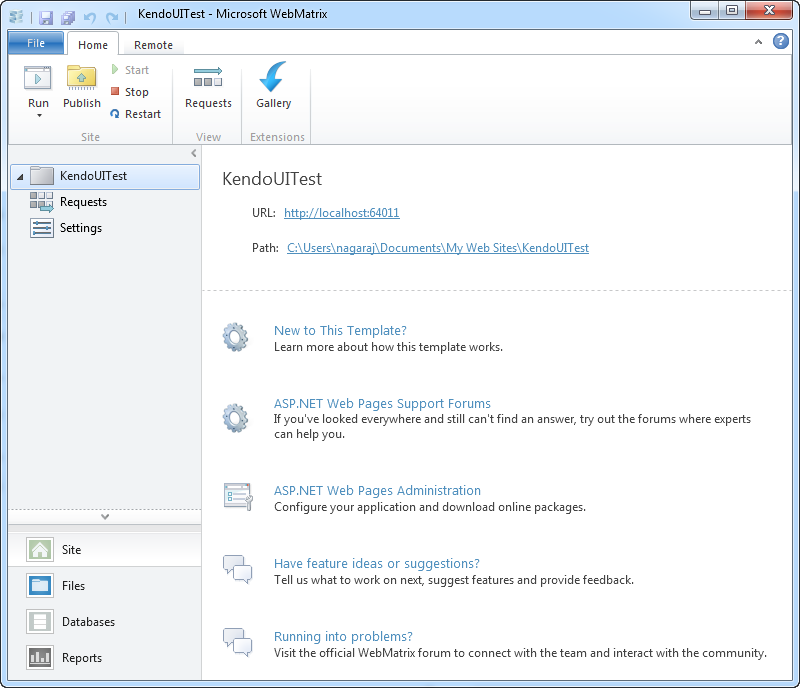
Once configured the site dashboard will look like below:

SNAGHTML1d34f5bc

As you can see, the site is created in user’s Documents folder.

Integrating Kendo UI:

One of the new features added to WebMatrix 2 is the support of NuGet packages. From the web site dashboard, select the Files workbench located in the left hand bottom corner. This will show the file structure of the project. Also notice the change in the ribbon in this view. On the far right hand top corner you will see a familiar NuGet Package icon. Similar to the package addition experience in Visual Studio here also within WebMatrix we can perform pretty much the the same steps to get a package. So lets see how to get Kendo UI Web.

SNAGHTML1d8c52bc

Click on the NuGet Gallery button. You will be presented with NuGet Gallery window as below:

image

In the search string enter “Kendouiweb” and wait for the results to come back. NuGet will find one package with that search string and show you that in the results pane. Select the package and click Install.

image

Next screen it will show information of the package. Click Install again on this screen.

image

At this point, WebMatrix will retrieve the package information from NuGet server. It will get the End User License Agreement if any and show you that. You have option to Accept or Reject the EULA. If you accept the agreement package will be installed otherwise installation will be skipped.

image

Note: At this moment it is important for you to know that you are downloading Kendo UI Web trial version and I urge you to read the trial license without fail. This trial download allows you a free trial of Kendo UI Web framework for 30 days.  You can click on the “View License Terms” to understand the EULA. Alternatively, you can visit the licensing FAQ here http://www.kendoui.com/faq/licensing.aspx and here http://www.kendoui.com/purchase/license-agreement/kendo-ui-trial.aspx

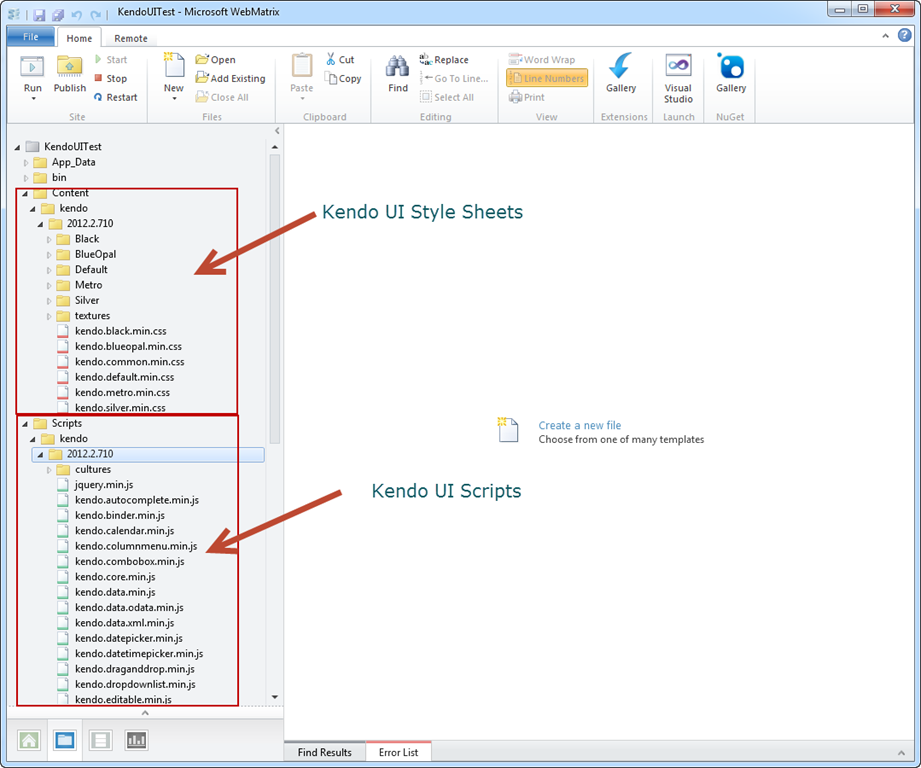
Once you click on Accept, the package will be retrieved and installed in our application. Here is the folder structure after package installation.

SNAGHTML1d9ac29e

As you can see from the above screen shot, Kendo UI framework related files have been downloaded and added to our application. The stylesheet’s are placed in Content folder and java script files are placed in Scripts folder. Next we will see how to work with Kendo UI Web Widgets

Create UI with Kendo:

Working with Kendo UI Web framework is 3 steps – Stylesheet reference, JavaScript reference and defining the HTML. So we will see them one by one.

Open the Default.cshtml and start by placing reference to Kendo UI Web stylesheets. Kendo UI comes with the following themes out of the box:

  • Black
  • Blue Opal
  • Default
  • Metro
  • Silver

Apart from the above theme stylesheets, we have a common stylesheet which is required for all other theme stylesheets to work. So here is the stylesheet reference code:

<link href="/Content/kendo/2012.2.710/kendo.common.min.css" 
rel="stylesheet" />
<link href="/Content/kendo/2012.2.710/kendo.default.min.css" 
rel="stylesheet" />

Next, we reference the javascript required to work with Kendo UI. Here is the script tag snippet:

<script src="~/Scripts/jquery-1.7.2.min.js"></script>
<script src="~/Scripts/kendo/2012.2.710/kendo.web.min.js"></script>

Next we defined the HTML. In this example I am going to create a UI Widget called DateTimePicker i.e. a widget which allows users to select Date and as well as Time in a single control. In the body of the page declare a input tag, give it an id and set a value to any date and time value. Here is the code snippet:

<input id="datetimepicker" value="10/12/2012 01:00 PM"
style="width:200px;" />

Next, on document ready we will refer the input tag by its id and ask kendo to transform that into an DateTimePicker widget with just one line of code as below:

<script>
    $(document).ready(function() {
        // create DateTimePicker from input HTML element
        $("#datetimepicker").kendoDateTimePicker();
    });
</script>

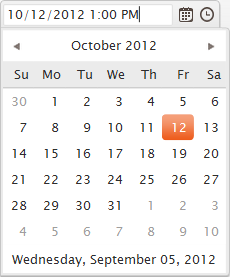
We use JQuery to get a reference to the input tag by its id and then invoke a kendo function kendoDateTimePicker() which does the magic under the hood to transform the input tag to a date time control like below:

image image

Here is the complete HTML code snippet of Default.cshtml:

<!DOCTYPE html>

<html lang="en">
    <head>
        <meta charset="utf-8" />
        <title>My Site's Title</title>
        <!-- Step 1 : StyleSheet Reference -->
        <link href="/Content/kendo/2012.2.710/kendo.common.min.css" 
            rel="stylesheet" />
        <link href="/Content/kendo/2012.2.710/kendo.default.min.css" 
            rel="stylesheet" />

        <!-- Step 2 : JavaScript Reference -->
        <script src="~/Scripts/jquery-1.7.2.min.js"></script>
        <script src="~/Scripts/kendo/2012.2.710/kendo.web.min.js"></script>
    </head>
    <body>
        <div id="example" class="k-content">
            <div id="to-do">
                    <input id="datetimepicker" value="10/12/2012 01:00 PM" 
                    style="width:200px;" />
            </div>
        </div>
         <script>
            $(document).ready(function() {
                // create DateTimePicker from input HTML element
                $("#datetimepicker").kendoDateTimePicker();
            });
        </script>
    </body>
</html>

Here is the output of the code we just wrote:

image

Well that’s how easy it is to work with Kendo.

Conclusion:

WebMatrix is a great tool which is free and is best suited for lightweight web development. Through this post we have now seen the webMatrix support for NuGet packages. We saw how easy it is to get going with Kendo UI Web controls right from the step of looking at the package to installing to coding our first example with Kendo – all done within WebMatrix.

More information about Kendo UI can be seen at www.kendoui.com. You can view more demos of Kendo UI Web at the site itself. Here is a direct link to launch the demos –

image

You can also download Kendo UI directly from the site for a 30 day free trial. Here is the direct link for the download:

image

Hope this excites you to start coding with Kendo UI. Looking forward to your experiences with Kendo. Till next time – Happy Coding !.

How to change background of View in Kendo UI Mobile

In this post I will show you how we can put a background color in Kendo UI Mobile view. Let us suppose that we got following view

clip_image001

There may be requirement when you will have to change background color of this view. You can change that using CSS as following

clip_image002

You will have to put this CSS on the page. I hope this post was useful. Thanks for reading

Toggle Button Icon and Handler in Kendo UI

While working on an application I come across a requirement to toggle the button in application layout. On clicking of the button, its icon and handler should be toggled with another icon and function. In this post we will learn how to achieve this.

Problem statement

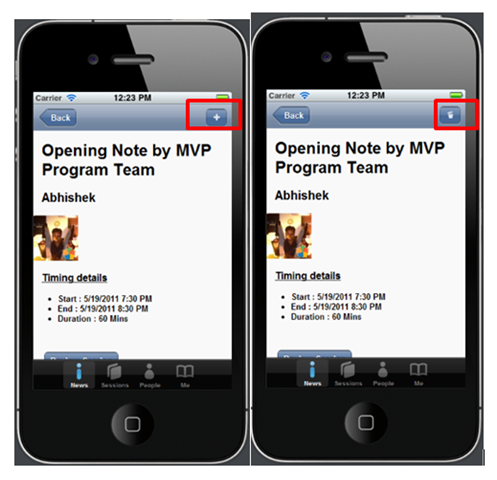
To understand the problem better let us consider following application. You can see that detail of a particular session is displayed in the view. In header there is an Add button. When user click on the Add button, this particular session should get added to Favorite Session List and Add button should get changed to Trash button. Essentially we need to toggle the button with different icon and function attached the click event.

image

Solution

We can toggle from Add to Trash as following

clip_image002

In above code

  • saveButton is id of the button.
  • fsaveDataLocally is name of the function to add Session in Favorite Session List.
  • fremoveDataLocally is name of the function to remove Session from Favorite Session List.

You can bind and unbind handler from your application as per your business requirement.

We can toggle from Trash to Add as following

image

In this way you can toggle icon on Kendo Button and can toggle handler in the run time. I hope this post is useful. Thanks for reading.


Working with Kendo Data Model

Kendo.data.model provides the ability to define schema. Inside schema fields with various attributes and methods can be defined. It is inherited from ObservableObject

Read more about it here

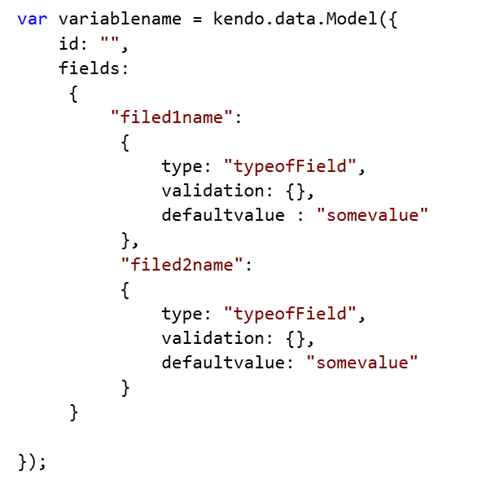
You can create Kendo UI Model as following,

image

Even though at first glance above syntax looks verbose but it is very straight forward. You can create a new model by creating a variable of type kendo.data.model

  • First we define identifier of the model. This can be any field of the model. It is defined by setting id attribute
  • Different fields of model can be created in field attribute

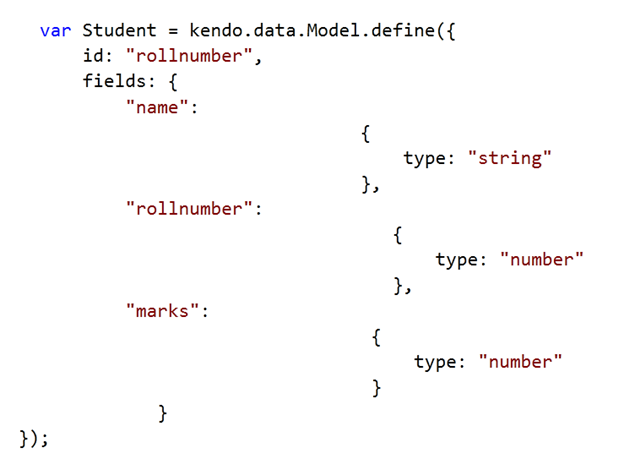
For example, if you want to create a model for Student, you can do that as following

image

In Student model

  • There are three fields name , rollnumber and marks
  • Rollnumber is set as identifier field of this model.
  • Type of the fields is set in the type attribute.

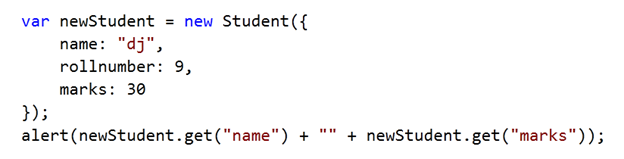
You can create object of a model as below.

image

You can controls fields behavior and can configure many details like following

  • Default value can be set
  • Editable behavior can be set
  • Null behavior can be set
  • Default parsing function for a field can be set.
  • Validation rules can be set

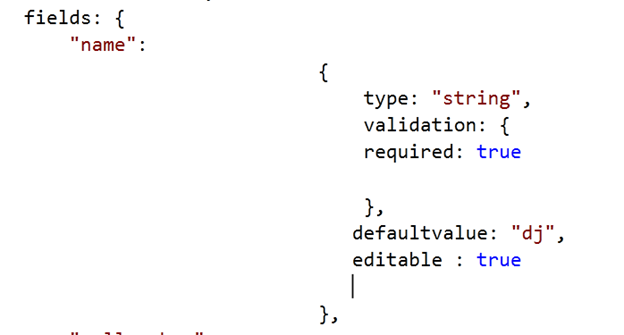
You can configure various attributes as following

image

Name filed in the model is created with different attributes. For example this name field is editable and its default value is dj.

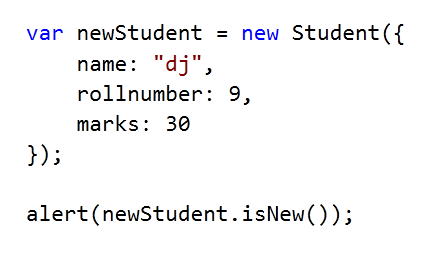
You can determine that whether a model is new or not using isNew method. Consider below instance of Student model, you will get false as output. If model identifier is set then Kendo framework does not consider that as new

image

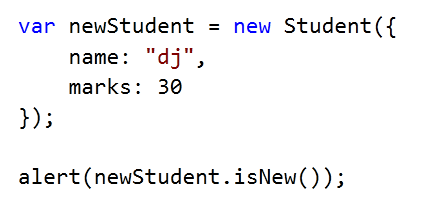
If you change above model as following, you will get true in alert since id of model is not set.

image

In this way you can work with Kendo.data.model. I hope you find this post useful. Thanks for reading.


Working with Kendo Data ObservableArray

Kendo.data.ObservableArray can be defined as below equation. It is a simple array with capability to track the changes.

image

Read more here

Kendo UI Observable String Array can be created as following

image

Array can be traversed in usual way as following. length filed returns number of elements in the array .

image

On any change in the observableArray change events gets fired. You can bind change event to array as following.

image

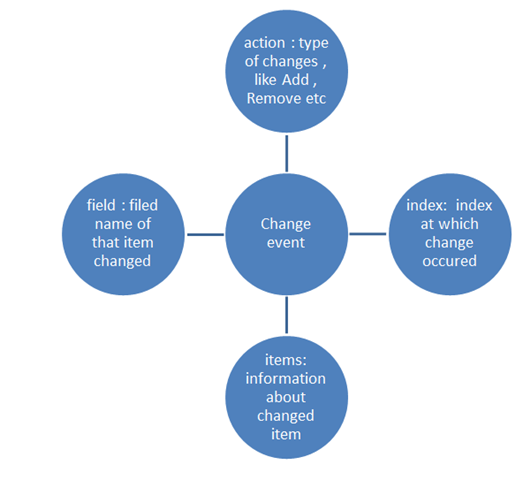
You can track finer level details of change as well. You can get following change information as shown in diagram

image

For example, let is push “John “in above array. We can do that as following

image

After that in change event you can get information like Add and John as following

image

Using Join method you can join all items of array into a string. For example, if you want to have a separator $ between all names, you can do that by calling simple join method on array as following

image

Join method takes a string input parameter.

An item can be inserted into array using the push method and can be removed using pop method. More than one item can be inserted as following

image

And item can be removed as following

image

So far we have worked with primitive type string observablearray. We can have complex type observablearray as well. We can create and traverse that as following.

image

We can insert an item in above created complex type observablearray as following

image

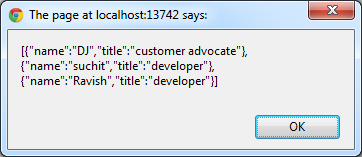
We can convert an array to JSON as following

image

You should get the output as following

image

In this way you can work with Kendo Data ObservableArray. I hope you find this post useful. Thanks for reading.


Dynamically Navigating from one View to other in Kendo UI Mobile

While creating application, a very common requirement you may come across is to dynamically navigate from one View to other on basis of some query parameter.

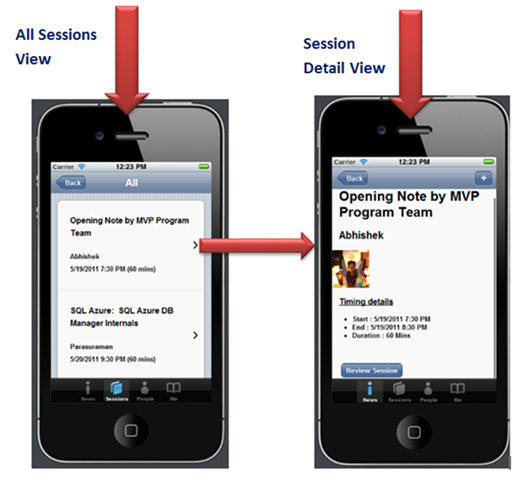
Consider a requirement from below diagram, when you click on a particular session, you need to navigate to session detail view.

image

We can list down the requirement as following

  • We need to fetch Session ID from All Session View and pass it as input parameter to Session Detail view
  • On Session Detail view fetch the data on basis of the Session Id passed from All Session View.
  • Dynamically display Session Detail of a particular Session on Session Detail View.

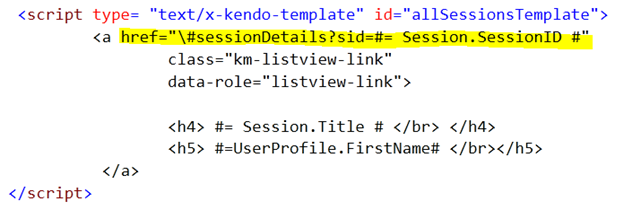
At very first we need to set the query parameter in Template of All Session View as following. If you notice we are setting Session ID as query parameter in list view link button. On click of the detail button, application will be navigated to SessionDetails view with Session ID as value in query parameter.

image

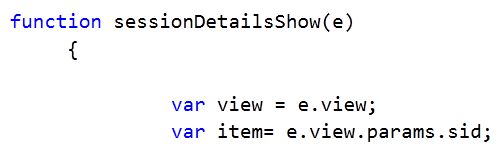
Next Session Detail View is as below. Data-Show attribute of Session Detail View is set the function sessionDetailsShow. Whenever application will navigate to this view javascript function SessionDetails will be invoked

image

In SessionDetails function view Session ID can be read as following

image

Once you have value of Session ID passed from All Session View on Session Detail view, filter the data source on this Session ID. After fetching filtered data, data can be bind to Session Detail template as following.

image

Above code should be in SessionDetailShow function and you can define Template from Session Detail View as of your requirement

image

This is what all you need to do to do navigate from one view to other with data. I hope this post is useful. Thanks for reading.

4 Steps to Kendo UI


Overview:

In this post, we will look at the steps involved in working with Kendo UI. For those of you who are hearing about Kendo UI for the first time – I would recommend you head straight to www.KendoUI.com and spend couple of moments there to familiarize yourself with Kendo UI. In brief Kendo UI is

Kendo logo

A comprehensive, end-to-end framework, compatible with jQuery, and custom-built from the ground up for rock-solid reliability and lightning-fast performance. Includes MVVM support, a rich DataSource, several UI widgets, and everything you need to build rich JavaScript applications today.

It takes 4 steps to working with Kendo UI. So lets see the 4 steps in detail in the coming sections.


Step 1:

The simplest of all the steps :). This step involves downloading of Kendo UI. You can download Kendo UI from the download page at: http://www.kendoui.com/download.aspx.

Kendo UI comes in 3 flavors, namely:

  • Kendo UI Web – UI controls to be used in web applications
  • Kendo UI Data Viz – Data Visualization controls for both Web and Mobile platforms
  • Kendo UI Mobile – UI controls for Mobile platforms like iOS, Android and BlackBerry

Kendo UI comes with a free 30 day trial and I highly recommend downloading that. Rest of the sections will assume that you have downloaded kendo ui on to your hard disk.


Step 2:

Once you have downloaded the Kendo UI on to your hard drive next step is to start using it in a HTML page. First piece to get in place is the stylesheets required by the Kendo itself. These stylesheets are responsible for giving the look and feel of the UI controls or widgets as we call them. When you install the Kendo ui the styles folder contains all the required stylesheets. Kendo UI ships with  5 themes namely – Default, Black, Blue Opal. Metro and Silver.

We need to first reference the common stylesheet required by the Kendo framework. The link tag for this as follows:

<link href=”styles/kendo.common.min.css” … />

Here are the theme specific stylesheet which must be referenced while applying a particular theme:

  • Default theme:

<link href=”styles/kendo.black.min.css” … />

  • Black theme:

<link href=”styles/kendo.black.min.css” … />

  • Blue Opal theme:

<link href=”styles/kendo.blueopal.min.css” … />

  • Metro theme:

<link href=”styles/kendo.metro.min.css” … />

  • Silver theme

<link href=”styles/kendo.silver.min.css” … />

If you are using DataViz framework then you would need to refer DataViz stylesheet apart from the common stylesheet. Here is the link tag for that:

<link href=”styles/kendo.dataviz.min.css” … />

Here is the HTML code for step 2:

<!DOCTYPE html>
<html>
  <head>
    <title>Kendo UI</title>
    <!-- Kendo UI Web styles -->
    <link rel="stylesheet" href="styles/kendo.common.min.css" />
    <link rel="stylesheet" href="styles/kendo.default.min.css" />
  </head>
  <body>
  </body>
</html>

Step 3:

Once we have the stlesheet in place, next it to add the Javascripts which is required for the initialization of the UI controls/widgets themselves.

So for web applications, the first script to reference is the jquery. Then reference the kendo.web.min.js file from the js folder. Here is how the =script tag will look like:

<script src=”js/jquery.min.js” ..></script>
<script src=”js/kendo.web.min.js” ..></script>

If you are working with Data Visualization, then instead of the kendo.web.min.js you will need to refer kendo.dataviz.min.js file.

Here is the HTML code for step 3:

<!DOCTYPE html>
<html>
  <head>
    <title>Kendo UI</title>
    <!-- Kendo UI Web styles -->	
    <link rel="stylesheet" href="styles/kendo.common.min.css" />
    <link rel="stylesheet" href="styles/kendo.default.min.css" />

    <!-- Kendo UI Web scripts -->
    <script src="js/jquery.min.js"></script>
    <script src="js/kendo.web.min.js"></script>	

  </head>
  <body>
  </body>
</html>

Step 4:

This is the interesting step. With Step 2 and Step 3 we have set the stage for the most interesting part of the journey with Kendo UI. Stykesheets and scripts necessary to work with Kendo UI has been referenced. Now we see how to initialize the kendo UI controls or widgets. Kendo UI Web as nearly 19 widgets to work with. You can know more about this at http://demos.kendoui.com/web/overview/index.html.

For this exercise I will take a simple control like Calendar widget and show you how to initialize that. To start with, place a div in the HTML body and give it name, let’s say “kendo-calendar”. Next spin up a jquery statement for document ready and code the following:

<script>
  $(document).ready(function(){
    $("#kendo-calendar").kendoCalendar();
  })
</script>

well that’s all its there to working with kendo UI. What we have done is, we have grabbed the div which have placed it in the HTML body and used kendo framework to turn that into a pretty neat calendar. Here is the code for the Step 4:

<!DOCTYPE html>
<html>
  <head>
    <title>Kendo UI</title>
    <!-- Kendo UI Web styles -->	
    <link rel="stylesheet" href="styles/kendo.common.min.css" />
    <link rel="stylesheet" href="styles/kendo.default.min.css" />

    <!-- Kendo UI Web scripts -->
    <script src="js/jquery.min.js"></script>
    <script src="js/kendo.web.min.js"></script>	

  </head>
  <body>
	<div id="kendo-calendar"></div>
	<script>
		$(document).ready(function(){
			$("#kendo-calendar").kendoCalendar();
		});
	</script>
  </body>
</html>

Here is the live version of the same code that I have created in jsfiddle:

http://jsfiddle.net/kashyapa/CrEZb/


Summary:

In this post we saw how easy it is to work with Kendo UI. with simple 4 steps you are ready to take a ride with Kendo UI. Although we saw a simple example of calendar being initialized, pretty much all the widgets in Kendo UI can be initialized in the same mechanism. Hope you will do the step 1 and following along till step 4.

Till next time, Happy coding.

Tearch: Creating Twitter Search Application using Kendo UI Mobile

In this post, we will create Twitter Search Application using Kendo UI Mobile. In order to create this application, we will learn about

  • Kendo UI Mobile View
  • Kendo UI Mobile ListView
  • Kendo UI DataSource
  • Kendo UI Template
  • Kendo UI ModalView
  • Working with HTML5 localstorage

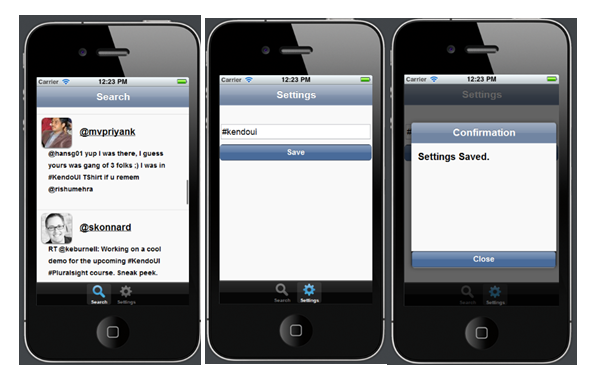
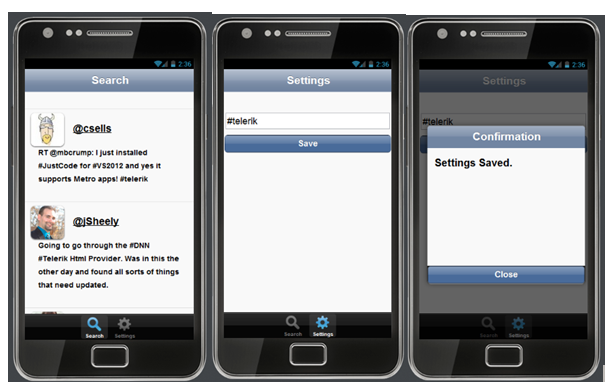
Idea behind application is that we will search tweets using Twitter API returning JSON. Application will look like as following

On iPhone

image

On Android

image

Step 1 : Add References

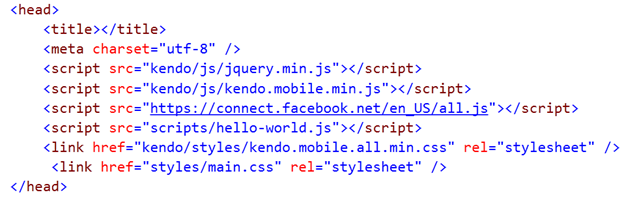
Before we start creating application, we need to add the references of required css and js files.

image

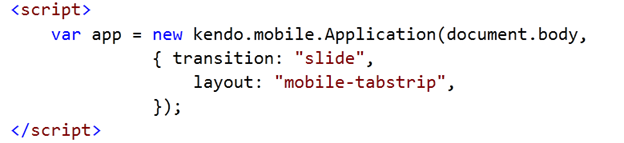
After adding references we need to initlaize the Kendo Mobile Application. Put following code just before closing body tag.

image

Step 2: Create Layout

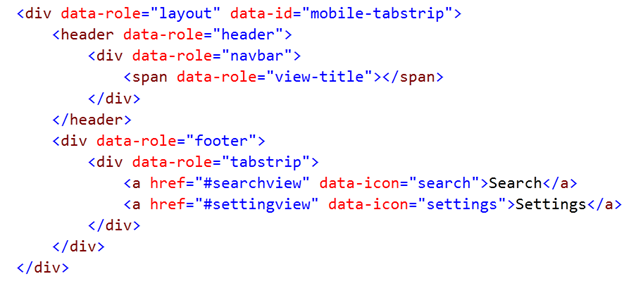
We will start with creating layout of the application. In header we want title of the application and in footer we want two buttons. Search button and Setting button. Layout can be created as following

image

Step 3: Create Setting View

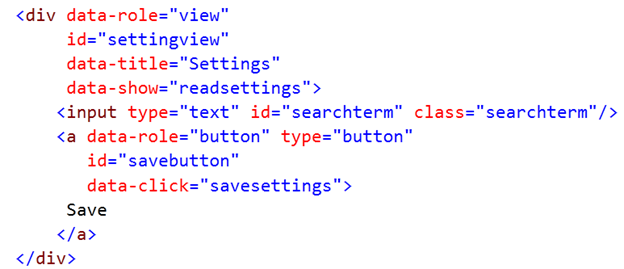
In setting view, we are going to put input box and a button.

image

On click event of the button, text from input box will be saved in local storage. Twitter search will be performed on the text saved in local storage. We are going to use HTML5 localstorage API to save data locally. If you notice that data-click attribute of button is set to javascript function savesettings. Savesettings function is as following

image

When user will navigate to Settings view, saved search term should be displayed to user. For that we are setting data-show attribute of settings view to javascript function readsetting. Readsetting function is as following. In this function, we are checking that if there is any setting saved. If not then we are displaying default text “#KendoUI”.

image

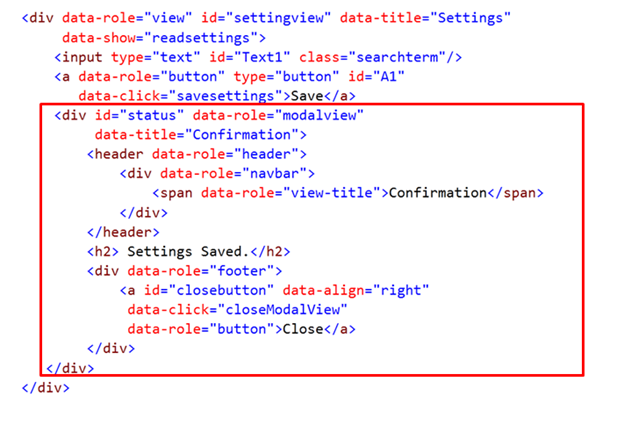
Once setting is saved successfully, we want to show a message to user. We will use kendo UI Mobile ModelView widget to display confirmation message to user. To work with Kendo UI Mobile Model View, we need to put following div inside settings view

image

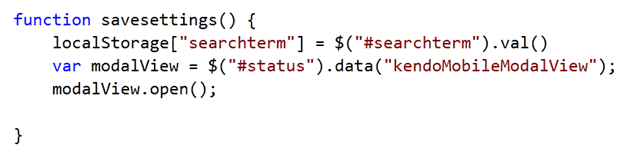
After putting model view we need to open this confirmation box once data is saved successfully. We can do that by modifying savesettings function. After modification function is as following. In below function we are getting reference of Kendo UI Mobile Modal View and calling Open method of that.

image

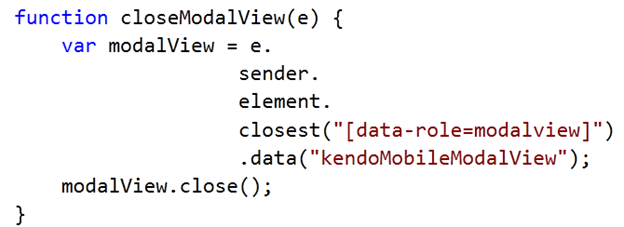
There is a close button in confirmation box. closeModalView javascript function is called on click event of this button to close the confirmation box.

image

Step 4 : Create Search View

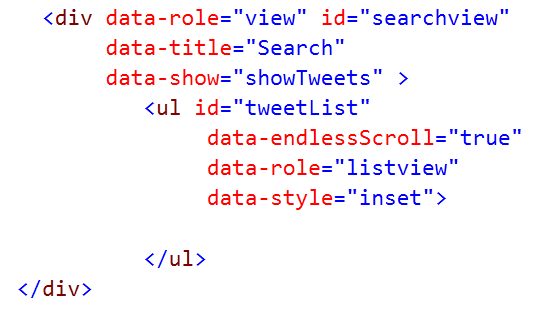
Now we need to create view in which we will show the tweets on basis of the search term. Let us create Kendo UI Mobile View and put a Kendo UI Mobile ListView inside that view. ListView is KendoUI widgets used to show data. Fetched Tweets from Twitter Server will be displayed in the ListView.

image

In above code, we are performing the following operations.

  • Creating KendoUI Mobile view by setting data-role property of HTML div element as view
  • Setting data-show attribute of view to javascript function showTweets
  • Creating ListView inside mobile view.
  • ListView is being created by setting data-role attribute of HTML ul element as listview

Data-Template defines how data should be displayed. Template can be created as following

image

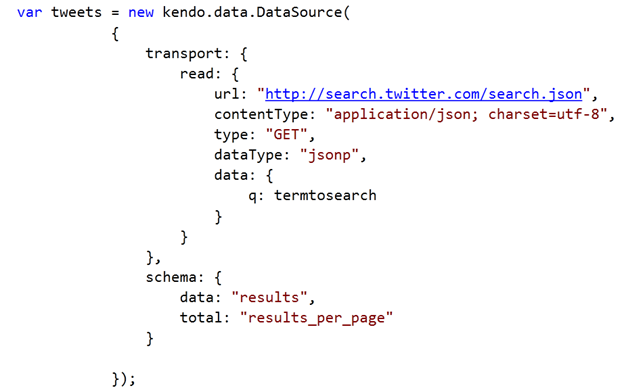
After creating Data-Template, we need to fetch tweets from Twitter on basis of search term and create Data Source. This can be done as following

image

The value of q is the search criteria in while creating transport to fetch tweets. We have created Data-Source and Data-Template. Next we need to set Data-Source and Data-Template of ListView. That can be done as following

image

After setting DataSource and DataTemplate our application is ready. To make application more immersive we have put some styling. You can find those CSS in code section of the article. For your reference source code of the application is as following

Default.html


<!DOCTYPE html>
<html>
 <head>
 <title></title>
 <meta charset="utf-8" />
 <script src="kendo/js/jquery.min.js"></script>
 <script src="kendo/js/kendo.mobile.min.js"></script>
 <script src="scripts/hello-world.js"></script>
 <link href="kendo/styles/kendo.mobile.all.min.css" rel="stylesheet" />
 <link href="styles/main.css" rel="stylesheet" />
 </head>
 <body>

 <div data-role="view" id="searchview" data-title="Search" data-show="showTweets" >
 <ul id="tweetList"
 data-endlessScroll="true"
 data-role="listview"
 data-style="inset">

 </ul>
 </div>

<div data-role="view" id="settingview" data-title="Settings" data-show="readsettings">
 <input type="text" id="searchterm" class="searchterm"/>
 <a data-role="button" type="button" id="savebutton" data-click="savesettings">Save</a>
 <div id="status" data-role="modalview" data-title="Confirmation">
 <header data-role="header">
 <div data-role="navbar">
 <span data-role="view-title">Confirmation</span>
 </div>
 </header>
 <h2> Settings Saved.</h2>
 <div data-role="footer">
 <a id="closebutton" data-align="right" data-click="closeModalView" data-role="button">Close</a>
 </div>
 </div>
 </div>

 <div data-role="layout" data-id="mobile-tabstrip">
 <header data-role="header">
 <div data-role="navbar">
 <span data-role="view-title"></span>
 </div>
 </header>
 <div data-role="footer">
 <div data-role="tabstrip">
 <a href="#searchview" data-icon="search">Search</a>
 <a href="#settingview" data-icon="settings">Settings</a>
 </div>
 </div>
 </div>

 <script id="tweetTemplate" type="text/x-kendo-template">
 <img class="profileImage" src=#= profile_image_url# />
 <h4><a href="http://twitter.com/${from_user}">@#=data.from_user#</a></h4>
 <h5>#=text#</h5>
 </script>

 <script>
 var app = new kendo.mobile.Application(document.body,
 { transition: "slide",
 layout: "mobile-tabstrip",
 initial : "searchview"});

 </script>
 </body>
</html>


<pre> <style scoped>
 #searchterm {
 height:25px;
 width: 310px;
 margin-left: 03px;
 margin-top: 40px;
 margin-right: 03px;

 }
 #savebutton{
 display: block;
 text-align: center;
 margin: .7em .12em 0;
 font-size: 1.2em;
 }
 #closebutton{
 display: block;
 text-align: center;
 margin: .7em .12em 0;
 font-size: 1.2em;
 }

 #searchview
 h4 {
 display: inline-block;
 font-size: 1.2em;
 margin: 0.9em;
 }
 h5 {
 display: inline-block;
 font-size: 0.9em;
 margin-left: 5px;
 margin-top:0px
 }

 #searchview
 img {
 float: left;
 width: 4em;
 height: 4em;
 margin: 0;
 -webkit-box-shadow: 0 1px 3px #333;
 box-shadow: 0 1px 3px #333;
 -webkit-border-radius: 8px;
 border-radius: 8px;
 }

 </style></pre>

HelloWord.js


// JavaScript Document

// Wait for PhoneGap to load
document.addEventListener("deviceready", onDeviceReady, false);

// PhoneGap is ready
var termtosearch="#kendoui";
function onDeviceReady() {

}

function savesettings()
{
 localStorage["searchterm"]= $("#searchterm").val()
 var modalView = $("#status").data("kendoMobileModalView");
 modalView.open();

}

function readsettings()
{
 if(localStorage.searchterm)
 {
 $('#searchterm').val(localStorage["searchterm"]);
 termtosearch = localStorage["searchterm"];
 //console.log(termtosearch);
 }
 else
 {
 $('#searchterm').val("#kendoui");
 termtosearch = "#kendoui";
 //console.log(termtosearch);
 }
}

function closeModalView(e) {
 // find the closest modal view, relative to the button element.
 var modalView = e.sender.element.closest("[data-role=modalview]").data("kendoMobileModalView");
 modalView.close();
 }

&nbsp;
function showTweets(e) {

 if(localStorage.searchterm)
 {
 $('#searchterm').val(localStorage["searchterm"]);
 termtosearch = localStorage["searchterm"];
 //console.log(termtosearch);
 }
 else
 {
 $('#searchterm').val("#kendoui");
 termtosearch = "#kendoui";
 //console.log(termtosearch);
 }

var tweets = new kendo.data.DataSource(
 {

transport: {
 read: {
 url: "http://search.twitter.com/search.json",
 contentType: "application/json; charset=utf-8",
 type: "GET",
 dataType: "jsonp",
 data: {
 q: termtosearch
 }
 }
 },
 schema: {
 data: "results",
 total: "results_per_page"
 }

});

 tweets.fetch();
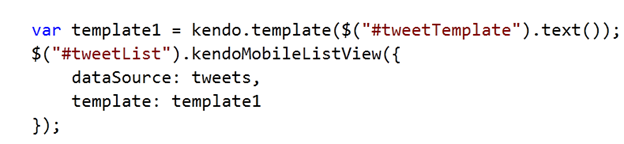
 var template1 = kendo.template($("#tweetTemplate").text());
 $("#tweetList").kendoMobileListView({
 dataSource: tweets,
 template:template1

 });

}

I hope you find this post useful. Thanks for reading

Slides and Source Codes to the “Webinar on Creating HTML5/JS Mobile & Web Apps with Kendo UI” available to download

Hi Everyone,

image

Thank you so much for attending Kendo UI webinar yesterday. We had exciting time and hope you found webinar useful. As promised we are making all the resources of webinar available to download.

Download Slides and Source Codes from here

If you missed the webinar then you can start learning about Kendo UI from here . We strongly recommend you to go ahead and download trial version of Kendo UI from here. If you find any difficulties , throw your questions in comment or can directly send mail to us.


In this webinar we covered

  • Introduction to Kendo UI
  • Getting started with Kendo UI Web
  • Understanding and using different Kendo UI Web widgets
  • Getting started with Kendo UI Data VIZ
  • Kendo UI widgets on SharePoint web parts
  • Introduction to Kendo UI Mobile
  • Creating Hybrid Mobile application “Movie Explorer”

You can find some resources here to start exploring Kendo UI and can read Kendo UI documents here

If you need any assistance to start with Kendo UI please writes to us. See you soon in next webinar.

Netflix Movie Explorer : A Hybrid Mobile App using Kendo UI Mobile

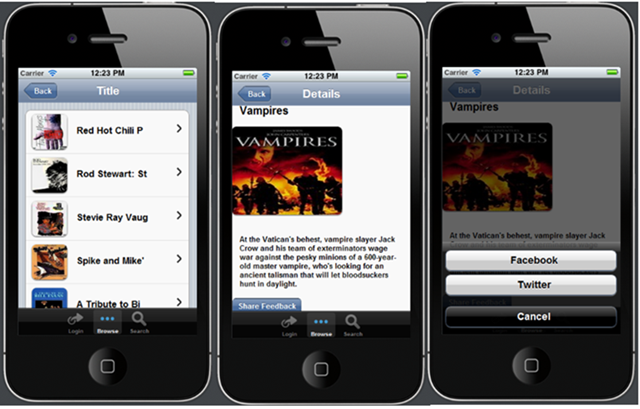
This post is “Step by Step Illustration of Codes “required to create Netflix Movie Application. You can read a detailed article on same topic here .

image image

image

Step 1 : Add Reference


<meta charset="utf-8" />
 <script src="kendo/js/jquery.min.js"></script>
 <script src="kendo/js/kendo.mobile.min.js"></script>
 <script src="scripts/hello-world.js"></script>
 <link href="kendo/styles/kendo.mobile.all.min.css" rel="stylesheet" />
 <link href="styles/main.css" rel="stylesheet" />

Step 2 : Create Layout


<div data-role="layout" data-id="mobile-tabstrip">
 <header data-role="header">
 <div data-role="navbar">
 <a data-role="backbutton" data-align="left">Back</a>
 <span data-role="view-title"></span>
 </div>
 </header>
 <div data-role="footer">
 <div data-role="tabstrip">

 <a href="#loginView" data-icon="action">Login</a>
 <a href="#movieTitleView" data-icon="more">Browse</a>
 <a href="#searchView" data-icon="search">Search</a>
 </div>
 </div>
 </div>

Step 3 : Initialize Kendo Mobile


<script>
 var app = new kendo.mobile.Application(document.body,
 { transition: "slide",
 layout: "mobile-tabstrip",
 initial: "loginView"
 });
</script>

Step 4 : Create Views

 <div data-role="view" id="movieTitleView" data-title="Title" >
 <h1>Movie Title View </h1>
 </div>
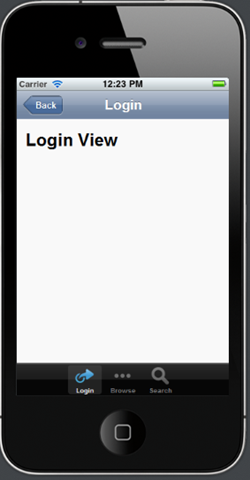
 <div data-role="view" id="loginView" data-title="Login" >
 <h1>Login View </h1>
 </div>
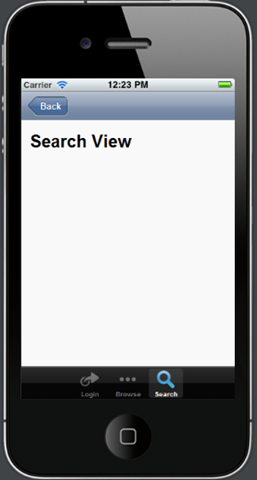
 <div data-role="view" id="searchView">
 <h1>Search View</h1>
 </div>

Step 5 : Create Data Source


var movieTitleData;
 movieTitleData = new kendo.data.DataSource(
 {
 type: "odata",
 pageSize: 30,
 endlessScroll: true,
 batch: false,
 transport: {
 read: {
 url: "http://odata.netflix.com/Catalog/Titles",
 dataType: "jsonp",

data: {
 Accept: "application/json"
 }
 }
 }

});
 function showMovieTitle(e) {
 movieTitleData.fetch();
 }

Step 6 : Create Template to show Movies Title


<script id="movieTemplate" type="text/x-kendo-template">
 <a href="\#movieDetailView?Id=#:data.Id#"
 class="km-listview-link"
 data-role="listview-link">
 <h4>#=data.Name.substring(0,15)#</h4>
 <img src= #=data.BoxArt.MediumUrl# />
 </a>
 </script>

Step 7 : Create List View to display Movie Title

<div data-role="view" id="movieTitleView"
 data-title="Title"
 data-show="showMovieTitle" >
 <ul id="movieTitleList"
 data-source="movieTitleData"
 data-endlessScroll="true"
 data-template="movieTemplate"
 data-role="listview"
 data-style="inset">
 </ul>
</div>

Step 8 : Define CSS for Movie Title


<style scoped>
 #movieTitleView
 h4 {
 display: inline-block;
 font-size: 1.1em;
 margin: 1em 0 .5em 1em;
 }

 #movieTitleView
 img {
 float: left;
 width: 4em;
 height: 4em;
 margin: 0;
 -webkit-box-shadow: 0 1px 3px #333;
 box-shadow: 0 1px 3px #333;
 -webkit-border-radius: 8px;
 border-radius: 8px;
 }
 #movieDetailView
 img {
 float: none;
 width: 15em;
 height: 12em;
 margin: 0;
 -webkit-box-shadow: 0 1px 3px #333;
 box-shadow: 0 1px 3px #333;
 -webkit-border-radius: 8px;
 border-radius: 8px;
 }

 </style>

Step 9 : Create Data Source for Movie detail view


var movieTitleData;
movieTitleData = new kendo.data.DataSource(
 {
 type: "odata",
 pageSize: 30,
 endlessScroll: true,
 batch:false,
 transport:{
 read: {
 url: "http://odata.netflix.com/Catalog/Titles",
 dataType: "jsonp",

data: {
 Accept: "application/json"
 }
 }
 }

});

Step 10 : Create Template for Movie detail view


<script id="movieDetailTemplate" type="text/x-kendo-template">
 <h2>#=data.Name#</h2>
 <img src= #=data.BoxArt.LargeUrl# height=1 width=1/></br></br>
 <h4> #=data.Synopsis# </h4>
 <a data-role="button" data-rel="actionsheet" href="\#shareonSocialMediaActionSheet">Share Feedback</a>
 </script>

Step 11 : Create View for Movie detail view


<div data-role="view"

id="movieDetailView"

data-title="Details"

data-show="showMovieDetail" >

<ul data-role="actionsheet" id="Ul1" >

<li><a data-action="functionToShareOnFacebook">Facebook</a></li>

<li><a data-action="functionToShareOnTwitter">Twitter</a></li>

</ul>

</div>

Downloading and Setting up environment to work with RadControls for Metro

You can download RadControls for Metro from here . RadControls are available in both HTML and XAML flavor.

image

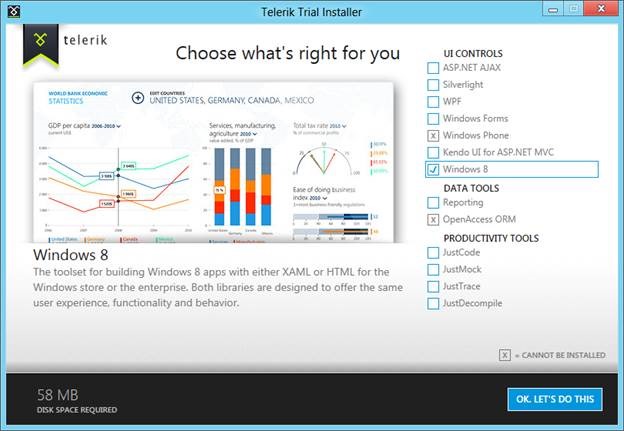
After downloading, you should get Telerik Installer. You have options to select trial version of other products as well. Checks the checkbox of Windows 8 and click on Ok Let’s do it

clip_image002

Accept the term and conditions and Go to Next Step

clip_image004

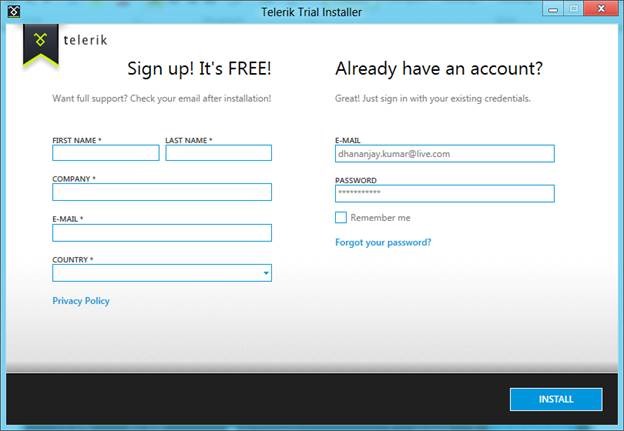
If you already have an account login using that else register yourself and click on Install.

clip_image006

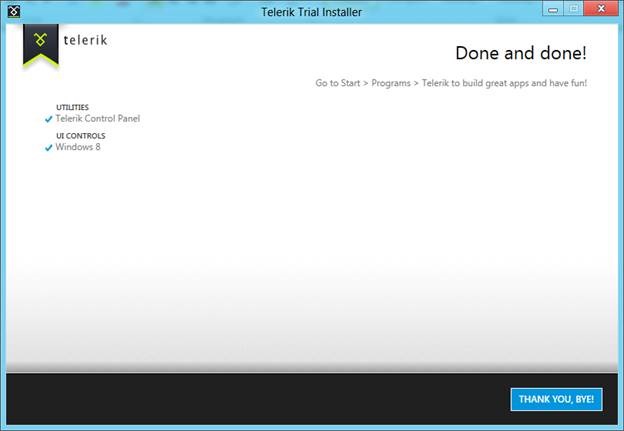
Once successfully installation done, you should be getting the following window.

clip_image008

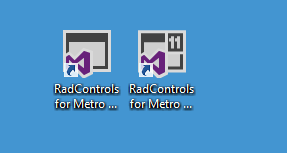
After installation you should get two demo solution created. One for HTML and one for XAML project template.

clip_image009

Go ahead and open visual studio solution of your choice of language. And run it either on local machine or Simulator.

clip_image011

Click on any control. For example I have clicked on Gauge control

clip_image013

If you want to see the codes behind this control select Show Code from the app bar

clip_image015

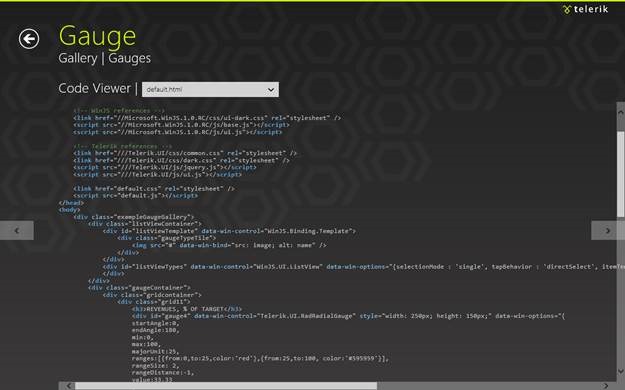
You should able to see the code. From drop down choose CSS, HTML or JS file.

clip_image017

So here you got all the demo and source code associated with that to get it started. Now start playing with controls and since it is still in Beta version you may have some feedback to product team. I later post we will explore each controls one by one.

Consuming JSON based WCF REST Service in Kendo UI Mobile

In this post we will walkthrough on consuming WCF REST Service in Kendo UI Mobile. We may consider this post is divided in two parts. In part 1, we will see the way to create REST based WCF service and in part2 of this post we will consume that REST Service in Kendo UI mobile.
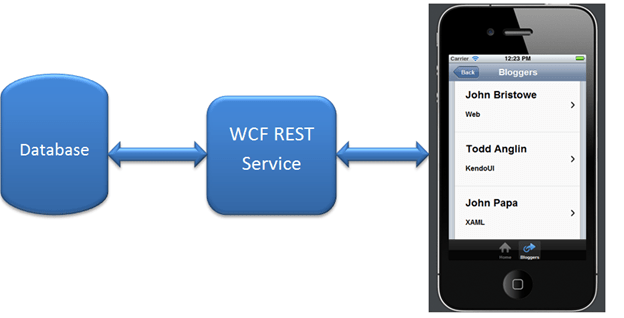
image

Creating WCF REST Service

If you are new to WCF and wondering how to create WCF REST Service .Please read many articles on WCF REST Service here .

To get it started quickly fire visual studio and create a new project. From WCF tab select WCF Service Application project template.
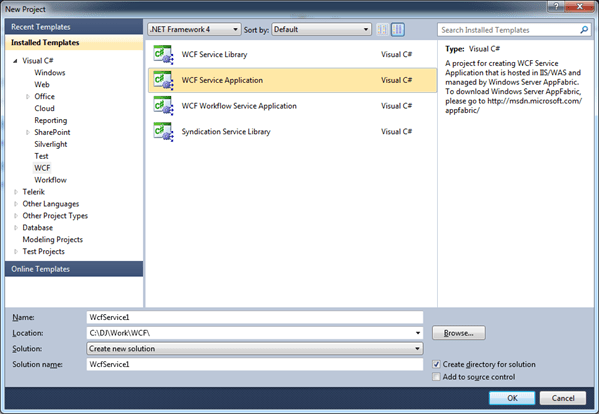
image

Delete all the codes generated from both the IService1.cs and Service1.svc.cs file.

Although in this post we are not going to fetch and data from database. We will return C sharp collection as data from WCF REST Service. However we can use any methodologies to create data model and expose data from data model as service. To make it simple we are going to work with following business object.


public class Bloggers
{
[DataMember]
public string BloggerID { get; set; }
[DataMember]
public string Name { get; set; }
[DataMember]
public string Technology { get; set; }

}

Define service as following


[ServiceContract]
 public interface IService1
 {

[OperationContract]
 [WebGet(UriTemplate = "/GetBloggers",
 ResponseFormat = WebMessageFormat.Json,
 RequestFormat = WebMessageFormat.Json)]
 List<Bloggers> GetBloggers();

 }

If you notice we have explicitly set the Request and Response message format as Json. Service is implemented as following. There is not much fancy about the service implementation, it is simply creating collection of business object and returning.


using System.Collections.Generic;

namespace RESTServiceForKendo
{

 public class Service1 : IService1
 {

public List<Bloggers> GetBloggers()
 {
 List<Bloggers> lstBloggers = new List<Bloggers>()
 {
 new Bloggers { BloggerID = "1", Name= "Jesse Liberty ", Technology = "XAML"},
 new Bloggers { BloggerID = "2" , Name = "Michael Crump" , Technology = "XAML"},
 new Bloggers { BloggerID = "3" , Name = "Chris Eargel" , Technology = "C Sharp"},
 new Bloggers { BloggerID = "4" , Name = "Chris Sells" , Technology = "All"},
 new Bloggers { BloggerID = "5" , Name = "John Bristowe" , Technology = "Web"},
 new Bloggers { BloggerID = "6" , Name = "Todd Anglin " , Technology = "KendoUI"},
 new Bloggers { BloggerID = "7", Name= "John Papa ", Technology = "XAML"},
 new Bloggers { BloggerID = "8" , Name = "Glen Block" , Technology = "REST"},
 new Bloggers { BloggerID = "9" , Name = "Lohith " , Technology = "Telerik"},
 new Bloggers { BloggerID = "10" , Name = "Scott Hanselman " , Technology = "All"},
 new Bloggers { BloggerID = "11" , Name = "Debugmode" , Technology = "Kendo"},
 new Bloggers { BloggerID = "12" , Name = "Pinal Dave " , Technology = "SQL Server"},
 new Bloggers { BloggerID = "12" , Name = "Julie Lerman" , Technology = "Entity Framework"}

 };
 return lstBloggers;
 }
 }
}

Next we need to configure Endpoint. Rather than creating Endpoint we are going to use factory class. Class System.ServiceModel.Activation.WebServiceHostFactory enables REST Endpoint on WCF Service. To set factory class right click on Service1.svc and click on view markup. In markup add factory class as following.
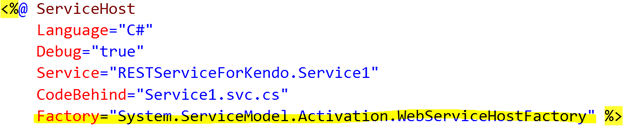
image

After configuring factory class we are all set with WCF REST Service. To test the service, run the service in browser. We should be getting Bloggers information as JSON data in browser.
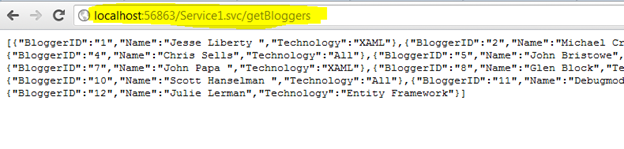
image

Once you get data in browser (if you are using IE then you will be prompted to save returned data), we are all set to consume this data in Kendo UI Mobile.

Consuming in Kendo UI Mobile

We will consume JSON data from WCF REST service step. If you are using Visual Studio for Kendo UI development then you may find below post useful

Setting Development Environment in Visual Studio 2010 using NuGet for KendoUI

To proceed with follow the following steps

Step 1

Very first add the required references to work with Kendo UI Mobile. You need to add reference in head section of the page.

<head>
 <title></title>
 <meta charset="utf-8" />
 <script src="kendo/js/jquery.min.js"></script>
 <script src="kendo/js/kendo.mobile.min.js"></script>
 <link href="kendo/styles/kendo.mobile.all.min.css" rel="stylesheet" />

</head>

After adding references we need to initialize the mobile. To do this adds below script just before the closing body tag.


<script>
 var app = new kendo.mobile.Application(document.body, { transition: "slide", layout: "pageLayOut" });
 </script>
</body>

You can see that layout and transition has been set. We will create layout in next step.

Step 2

After adding reference we need to create layout of the application. In layout we want two buttons in bottom tabstrip and a back button on the top. Layout can be created as following


&nbsp;
<div data-role="layout" data-id="pageLayOut">
 <header data-role="header">
 <div data-role="navbar">
 <a data-role="backbutton" data-align="left">Back</a>
 <span data-role="view-title"></span>
 </div>
 </header>
 <div data-role="footer">
 <div data-role="tabstrip">

<a href="#homeView" data-icon="home">Home</a>
 <a href="#bloggerView" data-icon="action">Bloggers</a>

</div>
 </div>
 </div>

Step 3

Next we need to create different views. As you notice from layout that we need to create two views. One is homeView and other bloggerView. In homeView we will display a message.

homeView is as following


<div data-role="view" id="homeView" id="homeView" data-title="Bloggers">

<h1>Welcome!</h1>
 <p>
 In this App we will fetch Bloggers information from WCF REST Service
 </p>
 </div>

Step 4

Now we need to create bloggerView. In this view we will put a Kendo UI Mobile ListView control. All the data returned from service will be bind to this ListView.

<div data-role="view" id="bloggerView" data-title="Bloggers" data-show="showBloggers">

 <ul id="bloggerList"
 data-source="bloggersData"
 data-endlessScroll="true"
 data-template="bloggersTemplate"
 data-role="listview"
 data-style="inset">
 </ul>
 </div>

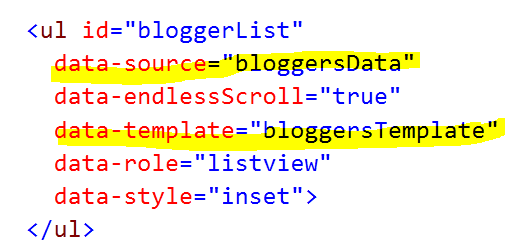
There are couples of important points worth discussing about above code. In above listview we are setting data-source and data-template as following
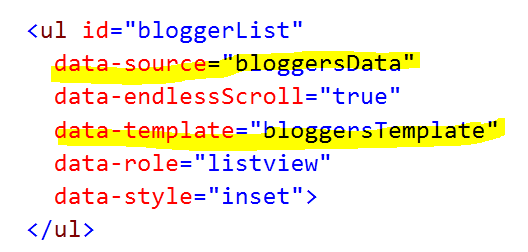
clip_image001

So we need to

  • Create data-source bloggersData from the returned JSON data from the WCF REST Service (step5)
  • Create data-template bloggersTemplate (step4)

Step 4

Data Template allows us to render data as we want. It is used to format the displaying of data. A template can be created as following. We are creating a Kendo UI list view link button and displaying Name and Technology of the blogger. Id of this template is set as data-template property of list bloggerList.

<script id="bloggersTemplate" type="text/x-kendo-template">

 <a href="\#BloggerDetailsView" class="km-listview-link" data-role="listview-link">
 <h2>#=data.Name#</h2>
 <h4>#=data.Technology#</h4>
 </a>

 </script>

Step 5

Now we need to create datasource. We are going to create Kendo UI DataSource reading JSON data from the service.

clip_image002

In Kendo UI DataSource configuration, read attribute has been set to the URL of the WCF REST Service. Since service is retuning JSON data hence Accept type is as application/json.

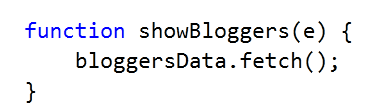
Finally in data-show method of view we will fetch data from the DataSource. If you notice data-show attribute of bloggerView is set to showBloggers.
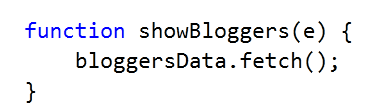
clip_image003

Putting all the discussion together DataSource can be created and data from that can be fetched as shown in below code

 var bloggersData;

bloggersData = new kendo.data.DataSource(
 {
 transport: {
 read: {
 url: "http://localhost:56863/Service1.svc/getBloggers",

data: {
 Accept: "application/json"
 }
 }
 }

});

function showBloggers(e) {
 bloggersData.fetch();

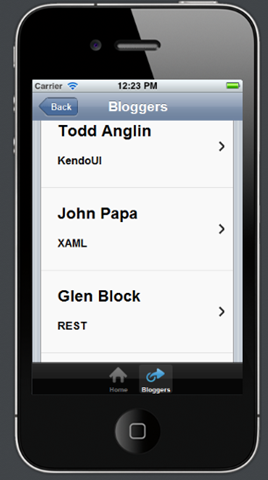
Now we are all set to run the application. On running we should be getting Bloggers data as following

Home View

clip_image001[6]

Blogger View

clip_image002

In this way you can consumed a JSON based WCF REST Service in Kendo UI mobile. I hope you find this post useful. Thanks for reading.

Back button styling problem in Kendo UI Mobile

I was creating a sample cross platform mobile application using with KendoUI mobile. I had a back button in the header and it was not rendering as expected .It was rendering like below,
clip_image001

On walking through code I found, I have added css reference twice.

clip_image003

I went ahead and removed duplicate reference. After that I found Back button was rendering as expected.

clip_image004

I hope this small observation will help you in creating your cool applications using Kendo UI Mobile.