You can access badge value with badge method. So if you need to read current badge value and print it in AddFunction JavaScript function then it can be done as follows.
function AddFunction()
{
 var badgeValue = parseInt(this.badge());

 alert(badgeValue);
}
We are reading badge value with badge() method. That returns a string value and before alerting that we are converting that to integer.
To write value of badge you need to pass a parameter in badge() method. So badge value can be written as below,
function AddFunction()
{
 var badgeValue = parseInt(this.badge());
 badgeValue++;
 this.badge(badgeValue);
 alert(badge);
}
You can remove badge from button by passing false to badge method. So you can remove badge as follows
function AddFunction()
{
 this.badge(false);
}
In this way you can work with badge in Kendo UI Mobile button. I hope you find this post useful. Thanks for reading.
On Jan 30, we conducted a webinar titled “Scaffolding in One Asp.Net”. This blog post is the recap of the webinar.
Scaffolding in ASP.NET:
ASP.NET Scaffolding is a code generation framework for ASP.NET Web applications. Visual Studio 2013 includes pre-installed code generators for MVC and Web API projects. You add scaffolding to your project when you want to quickly add code that interacts with data models. Using scaffolding can reduce the amount of time to develop standard data operations in your project.
So in this webinar I went about showcasing how scaffolding can be use in MVC scenario, Web API scenario and Web Forms scenario.
As with every webinar we have done, we have selected 2 random persons from the audience and they will get our .NET Ninja T Shirts. Congratulations to the winners.
Rajesh Haramkar
Ramesh Pyru
Our office will contact you to get your postal address so that we can ship them to you.
On Jan 23 2014 we conducted the webinar on “Node.js development using Visual Studio”. This blog post will provide you some of the resources from the webinar like Slide Deck, Video recording of the webinar and source codes used in the demo.
Node.js is asynchronous event driven server side JavaScript. It is written in C++ and runs on Google V8 engine. Servers created using Node are high at performance and scalable. It perform File, DB and IO operations in non-blocking way.
Every webinar we give away two .NET Ninja T-Shirts which have become quite popular among developers. In this webinar we have selected the following 2 persons to receive our t-shirt.
Ishitva Goel
Ramesh Pyru
Congratulations to the winners. We will contact you on the email address you have provided to us. We will ship the t-shirt to your address.
On Jan 16 2014 we conducted the very first webinar of 2014 titled “Achieve Responsive Web Application with Ease using Kendo UI”. This blog post will provide you some of the resources from the webinar like Slide Deck, Video recording of the webinar and lastly the Q&A section.
Responsive Web Design:
Responsive Web Design or RWD as it is known as, is an interesting topic in the landscape of modern day web application development. With the proliferation of mobile phones and tablets, your web page is seen not just in one screen i.e. Desktop Browser but also in Mobile Browsers and Tablet Browsers. Because of the screen size or form factor differences, it is important for your as a app developer to provide the right experience across the form factors. So in this webinar we looked at how Kendo UI is responsive and how you can build responsive screens using Kendo UI.
Slide Deck:
Here is the slide deck from the webinar:
Video:
As with every webinar, we have recorded this one too. Here is the video recording of the webinar for your leisure viewing:
Questions & Answers:
There was a lot of questions asked during this webinar. we were able to answer some of them during the live webinar. Here is the complete list of questions and answers to those questions:
Q: can we mix azure mobile services Apis with kendo?
A: Absolutely. Kendo UI is a client side framework. You can use it with any backend.
Q: can we integrate with Silverlight? A: Sorry, Silverlight is a very different framework. Kendo UI is a HTML 5 framework.
Q: We have existing clients having content added in tables , can we make existing content responsive using CSS?
A: Yes. Kendo Grid provides adaptive layouts as well.
Q: Is Kendo UI necessary to develop responsive web design?
A: No not necessary. It is a framework that enables writing web applications to deliver responsive design much easier.
Q: What is the difference between Kendo UI and other similar services like Sencha? A: Kendo UI is an HTML 5 framework for the web, mobile and data visualizations. I am not as knowledgeable about Sencha but it could be just a mobile development framework.
Q: Is it necessary to use visual studio or we can use other IDE also?
A: Any IDE can be used – Eclipse, Sublime or simply notepad 🙂
Q: Required to import Kendo UI framework/library in projects?
A: yes. that’s what gives the functionality of being responsive.
Q: Does Kendo do any polyfill ?
A: Yes. We do polyfilling under the hood. We sniff the browser and see if it supports HTML5. If not we polyfill. This is pertaining only Kendo UI controls and behaviors only.
Q: When we design a responsive web design application, is it like we wont see horizontal scroll bar? A: Horizontal scroll bars are not considered good usability. So, responsive design avoid having them.
Q: Can Kendo UI be used with android as well?
A: Kendo UI Mobile controls can be used to create cross platform hybrid mobile applications.
Q: How does the old browsers behave with Media queries?
A: While some polyfill is available, Kendo does require modern browsers with HTML5 support to function correctly. We support IE7+, FF, Chrome and other major browsers.
Q: Does all the controls in Kendo are responsive in nature, or not?
A: Yes, they are. And then there are adaptive layouts for Grid etc.
Q: Can Kendo UI be used with android as well? A: Yes. We have a specific module for mobile applications – Kendo UI mobile. http://www.kendoui.com/mobile.aspx
Q: How will be the performance of Kendo UI control? A: We have optimized Kendo UI for extremely fast performance. In our studies it may be perform a lot better than some other frameworks.
Q: Is Kendo UI based on twitter bootstrap? A: No. We have out of the box 11 themes that we ship. We have also released a Kendo UI Twitter Bootstrap theme and with this theme all our widgets will look and feel like a bootstrap scheme.
Q: Is it light weight? A: yes, this framework is very light weight with option to assemble only the functionality that you require (reducing the size even further)
Q: Is it mandatory to know HTML5 in order to use Kendo UI?
A: yes, Kendo UI is based on HTML 5 capabilities.
Q: Is it compatible with Windows phone too? A: Kendo UI Web controls are supported on latest and greatest browsers which support HTML5. We also have Kendo UI Mobile controls which can be used to develop cross platform hybrid mobile apps. Kendo UI Mobile are supported on all major Mobile OS.
Q: Is there any difference between ASP.NET MVC Kedo UI controls and simple Kendo UI controls?
A: The functionality is the same in both. The programming model is different. Kendo UI needs JS programming while MVC controls are programmed with Razor syntax.
Q: Can we use Kendo UI with Asp.Net MVC 4?
A: Yes. We support MVC 3+.
Q: Kendo UI is browser specific?
A: Nope. Just requires a HTML 5 enabled browser.
Q: I’m using fusionchart component for data visualization.. i want to make it responsive as my app works on iPad and desktop.. is it possible with Kendo?
A: Yes. You can use Kendo DataViz for the same. http://www.kendoui.com/dataviz.aspx
Q: can we integrate with PHP site? A: Absolutely. There is specific wrapper for PHP as well that will allow you to continue to write PHP code. http://www.kendoui.com/server-wrappers/php.aspx
Q: Can we use Kendo UI in xcode? A: Kendo UI is a web framework. You would be building native app with XCOde. In that case, you can use Kendo in a WebView only.
Q: How can we customize Kendo Ui to adapt style sheet css from our web application, Requirement is Kendo ui controls use the web site theme ?
A: You can use our themebuilder to customize the stylesheet instead of using the theme we ship. Take a look at our theme builder here: http://demos.kendoui.com/themebuilder/web.html
Q: can we create custom controls using Keno UI? A: Yes. We support plugin architecture. So you can create a custom plugin and use it as a Kendo UI Widget.
Q: Is all Kendo UI controls are responsive? A: Yes.
Q: Can Kendo UI be used with PhoneGap? A: Yes. The specific control set for mobiles is Kendo UI mobile: http://www.kendoui.com/mobile.aspx
Q: What is right database connectivity for developing browser application using Kendo UI A: You will need to develop a server side application that spits out REST based JSON data. In .NET, you can use WebAPI or WCF Data Services.
Every webinar we give away two .NET Ninja T-Shirts which have become quite popular among developers. In this webinar we have selected the following 2 persons to receive our t-shirt.
Dhiraj Gautame
Tejendra Chaturvedi
Congratulations to the winners. We will contact you on the email address you have provided to us. We will ship the t-shirt to your address. Others don’t feel bad. There are plenty of webinars to come. So keep participating and try your luck next time
As you see in above example on click of button Add , JavaScript function AddFunction will be called. Whereas on click of Home button user will be navigated to mobile View with id home.
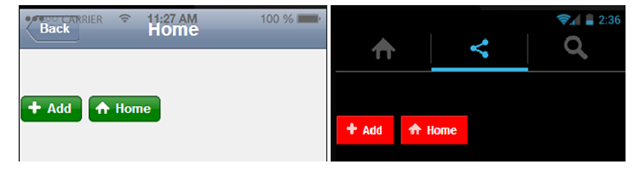
By default you get buttons rendered as below,
You can put style of buttons as well. For example you can set background colour as below,
You will get buttons rendered on mobile view as below,
There could be scenario in which you need to render different colours of buttons for android and iOS. Let us say you want blue colour for Android and red for iOS. You can do that by setting button styles in CSS as below,
In this blog post I will be exploring how to get started with our Kendo UI Grid Wrapper for ASP.NET MVC. We will take a basic usage of displaying data in a grid format in an ASP.NET MVC view. To know more about Kendo UI Web controls head over to www.kendoui.com. If you want to follow along with this blog post, you can do so by downloading a 30 day free trial of Kendo UI Complete for ASP.NET MVC.
Getting Started:
First lets create a ASP.NET MVC project. I am using Visual Studio 2012. When you install Kendo UI, we also install certain project templates which make it easy to create kendo UI based ASP.NET MVC project. I assuming you have installed Kendo UI Web for the rest of the post. In Visual Studio, select File > New Project > Web > Kendo UI for ASP.NET MVC. Give it a name and wait for Visual Studio to spin up the new project.
Datasource:
For the sake of this blog post, I will be using Northwind database. I will also be using ADO.NET Entity Model to Northwind database and use Customers table data. So go ahead and add a ADO.NET Entity Model to your project. We will use the entity data model to fetch data and bind it to the grid. I have also created a CustomerViewModel so that I can use this as the Model to the view. Here is the code for the CustomerViewModel:
public class CustomerViewModel
{
public string CustomerID { get; set; }
public string CompanyName { get; set; }
public string ContactName { get; set; }
public string ContactTitle { get; set; }
public string Country { get; set; }
}
Home Controller & Index Action method changes:
We will read the customers data, build CustomerViewModel list and add this to view as a Model. Here is the Index Action method code snippet:
public ActionResult Index()
{
var customerViewModelList = GetCustomers();
return View(customerViewModelList);
}
GetCustomers is a helper method which converts Customers entity to CustomerViewModel entity and return a list. Here is the code snippet of GetCustomers method:
private IEnumerable<CustomerViewModel> GetCustomers()
{
var context = new NORTHWINDEntities();
var customers = context.Customers.Select(customer => new CustomerViewModel
{
CustomerID = customer.CustomerID,
CompanyName = customer.CompanyName,
ContactName = customer.ContactName,
ContactTitle = customer.ContactTitle,
Country = customer.Country,
});
return customers;
}
Adding Grid to View:
In order to use a grid on a view, you will use the GridBuilder. GridBuilder supports the following overloaded methods for creating the grid:
public virtual GridBuilder<T> Grid<T>() where T : class;

public virtual GridBuilder<DataRowView> Grid(DataTable dataSource);

public virtual GridBuilder<DataRowView> Grid(DataView dataSource);

public virtual GridBuilder<T> Grid<T>(IEnumerable<T> dataSource) where T : class;

public virtual GridBuilder<T> Grid<T>(string dataSourceViewDataKey) where T : class;
in this blog post we will be using the method where it allows us to pass a IEnumerable as the data source. First lets take a look at the code snippet. Following the snippet I will explain the code in detail:
Well that’s all it takes to create a grid in MVC. Now lets go over the code in detail.
We pass the Model which is IEnumerable<CustomerViewModel> in this case to the GridBuilder
All widgets in Kendo UI needs to be named, so we provide a name using the Name() method
We define columns of the grid using the Columns() method. We can provide lambda expression to indicate which columns should be bound
In order to allow paging on the grid, we just add the Pageable() method
Sorting on the grid is enabled by adding the Sorting() method
Grouping is enabled by adding the Groupable() method
Similarly, filtering is provided by adding the Filterable() method
Now build the project and run the application. Following is the output of the code we just wrote:
Server Operation False:
At this moment if you click on a pager link or try to sort or try to group, Kendo UI Grid will be default send a request back to Server. That’s the default behavior that the grid works with. It assumes that Server would like to perform operation before getting the data. In this scenario that is not intended for me. I have got all the data that I need and I have given it to the grid. So it should do all the operation at client side rather than sending a request to server. For this to happen we just need to let the Grid DataSource not to perform server operation. This can be done by setting the Grid DataSource setting as below:
now when you run the project and perform any operations, grid will not send a request to the server but do it client side.
Conclusion:
This blog post was like a primer to anybody who would like to get started with Kendo UI Grid Wrapper for ASP.NET MVC. With just 15 lines of settings you will have a full fledged grid in your app within no time. If you are interested in Kendo UI Grid, do download a 30 day free trial at www.kendoui.com.
A Very Happy New Year to you! 2014 is expected to be a good year for IT industry that is still recovering from the slow down in 2013.
Forrester is forecasting good IT growth in 2014 with focus on mobile, cloud and analytics. What this means for development teams is the need for new skills to cater to the hungry business users. I called the business users “hungry” for a specific reason. The business users are now demanding consumer grade experiences on multiple devices as they have become accustomed to the great user experience they offer. This hunger will need to be satiated by the development teams of today.
Telerik is ready to help you take on these new challenges with new products and services in the new year.
In addition, we are happy to share our learnings with you so that you can deliver the experiences that your customers want.
Check out the list of webinars we have in store for you for Jan – Feb ‘14:
Telerik tools work on the cutting edge of ever changing technology. This means we work on a lot of new things that can be shared. Keeping abreast of these changes may be a challenge for anyone. Wouldn’t it be great if there was a simple way of keeping track of what’s new from Telerik?
Telerik publishes monthly newsletters that make brings the summary of the latest in your mailbox. If you have trialled any product from Telerik or downloaded a free product, you may still not be subscribed to the newsletters. This is strictly sent on an “opt-in” basis to avoid any unintentional spamming.
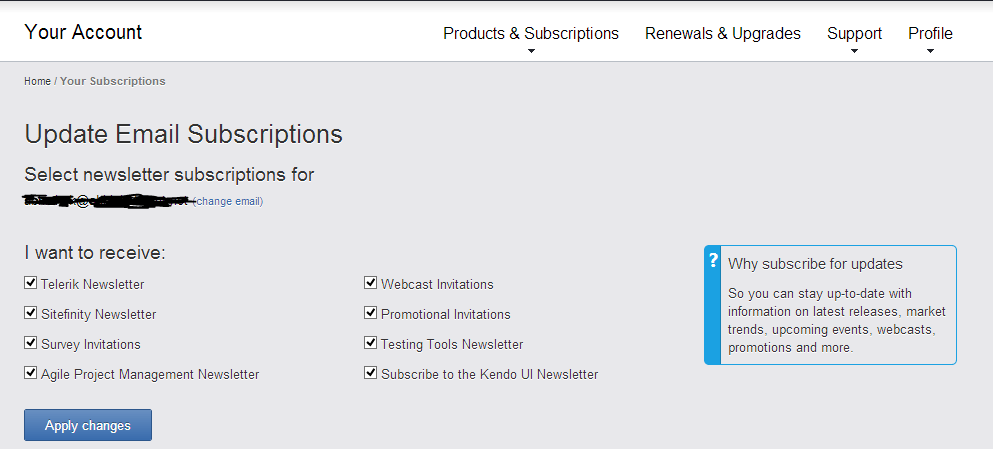
Here’s how you can subscribe to the Telerik newsletters:
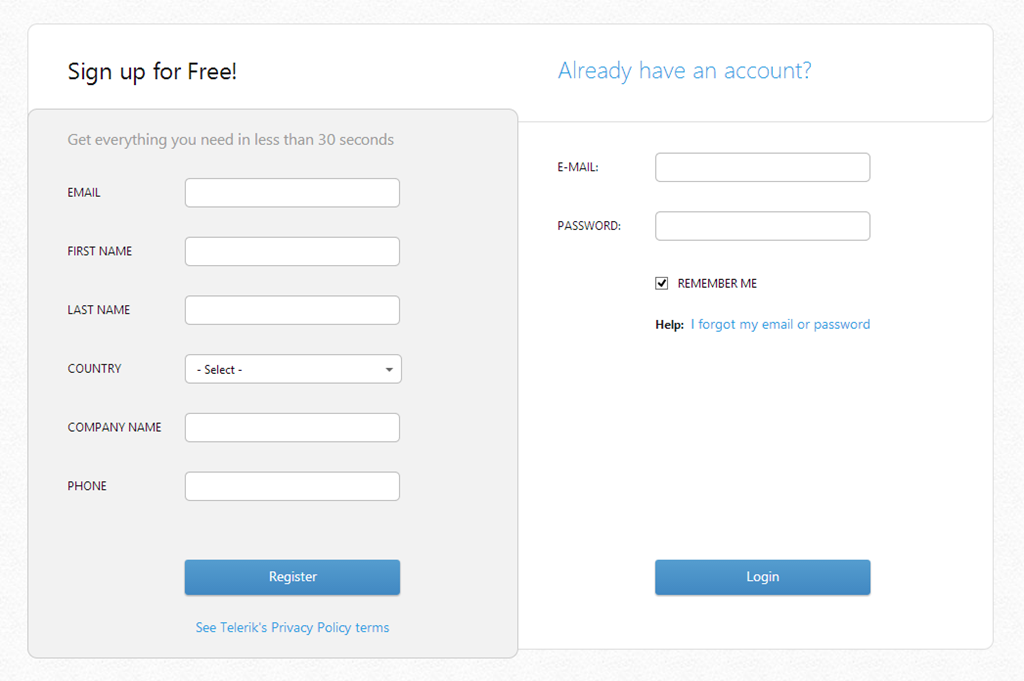
Login to your Telerik a/c. (create a new one for free if you don’t have one)
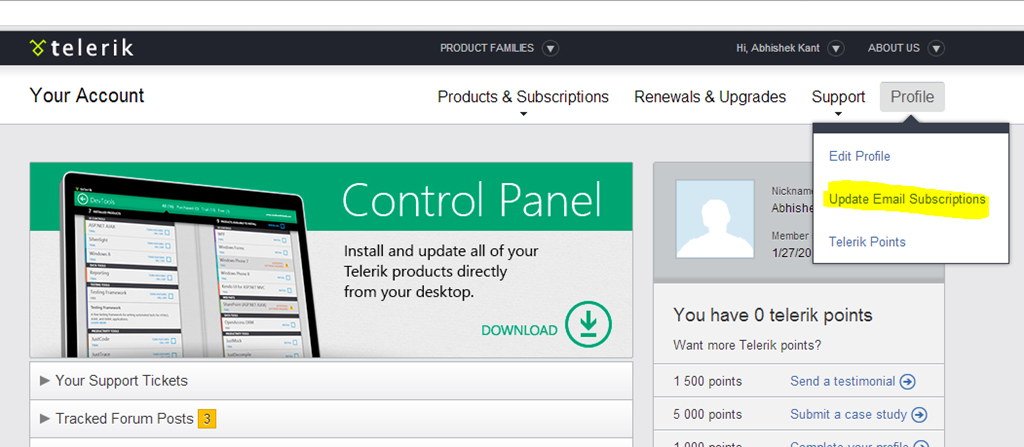
Browse to Profile –> Update Email Subscriptions
Choose the newsletter(s) that you want to subscribe to and click on Apply Changes
In this blog post we will take a look at one of the new widgets we have released as part of Kendo UI Web controls suite. For long people have been asking about why we didn’t have a Kendo UI Button in the arsenal. Well we already have a <button> element in HTML specs so we didn’t want to reinvent things. But when it comes to using Kendo UI for your app you may want to keep things in your app consistent with respect to styling. So instead of you using regular button and styling it to have a look and feel of Kendo UI style sheet, we have gone ahead and released a Button widget for you. You just instantiate the button as any other widget you have been using. The button automatically takes the style of the current Kendo UI theme you are using. So this blog post will be your primer for using the Button Widget in your ASP.NET MVC apps.
About Button Wrapper:
Kendo UI Button Wrapper for ASP.NET MVC provides a styled clickable UI widget with any arbitrary content. With Kendo UI Button Wrapper you get a consistent Kendo UI styling.
Basic Button Usage:
In order to create a Button, you will use the Button() builder. You will need to provide a name to the widget and the content which needs to be shown on the button. Here is the code:
Kendo UI Button wrapper allows you to also specify a icon as part of the button content. The icons can be provided to the button in three ways. They are:
SpriteCssClass Method
Icon Method
ImageUrl Method
SpriteCssClass Method Usage:
You can use the SpriteCssClass() method to provide a icon to the content. In this method the icon is provided by using a background image (usually a sprite). From web standards point of view, using a background image is better. In the below example I am using a sprite which contains flags of different country. I will create a class to point to a specific country lets say Netherlands and use that class in the Button SpriteCssClass() method. Here is the code for this scenario:
You should use Icon() method when you want to use one of the predefined icons we pack as part of Kendo UI control set. You can refer our Icons Demo to get a glimpse of all the pre packaged icons. Here is the code to use the Icon() method and provide an Kendo UI Icon for the button:
Here is the screen shot of the buttons with all the above 3 icon methods being employed:
Handling Client Side Events:
You can handle the client side event using the ButtonEventBuilder. Button has a Click event exposed. You can provide the name of the client side JavaScript function which will handle the event. Here is the code snippet for handling click event on the client side:
Similar to all kendo UI Widgets, an existing Button instance can be accessed via the .data() jQuery method, executed by the jQuery object on the originating element. Here is code snippet of how to access a button instance:
In this blog post we looked at how easy it is to work with the Kendo UI Button wrapper for ASP.NET MVC. We looked at the feature of providing icons to the button. We support 3 different types using which you can provide the icons. You can look at more Kendo UI Button demos here. Give it a spin and let us know if you have any feedback or comment.
This content was originally posted on Telerik’s blogs here.
Overview:
Telerik’s ASP.NET AJAX Cloud Upload is a brand new control in the arsenal of ASP.NET controls which provides you the ability to support uploading of files to Cloud providers. What’s best about this control is, you don’t have to write any code i.e. this is codeless uploading of files. If this excites you, then read on.
In rest of the sections, we will see how to use Cloud Upload with Everlive.
What is Everlive?
Everlive is Telerik’s Backend as a Service or BaaS. Everlive links your application to backend cloud storage and provides User management, push notifications, Social networking services integration etc. Some of the benefits are:
One portal to manager your entire app background
Data & file security
Target every mobile platform with ease
Frictionless login with social authentication services
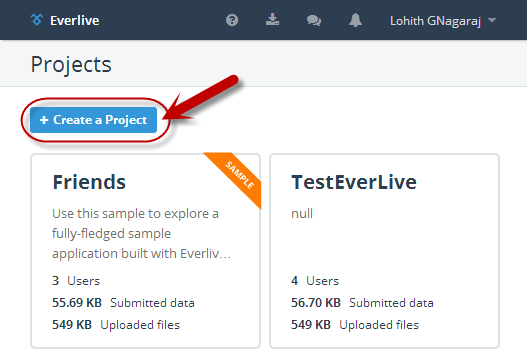
You can sign up for free and you get a developers account which gives you unlimited API calls, 10K push notifications, 100MB of DB space, 1GB of file storage and 5GB of bandwidth. Once you log into your Everlive account, you can create a new project. Click on “Create a Project” from the Everlive dashboard.
In the “New Project” dialog, enter project name, description, select “Start from scratch” radio button and click on “Create Project” button.
Here is the project dashboard once Everlive creates our new project:
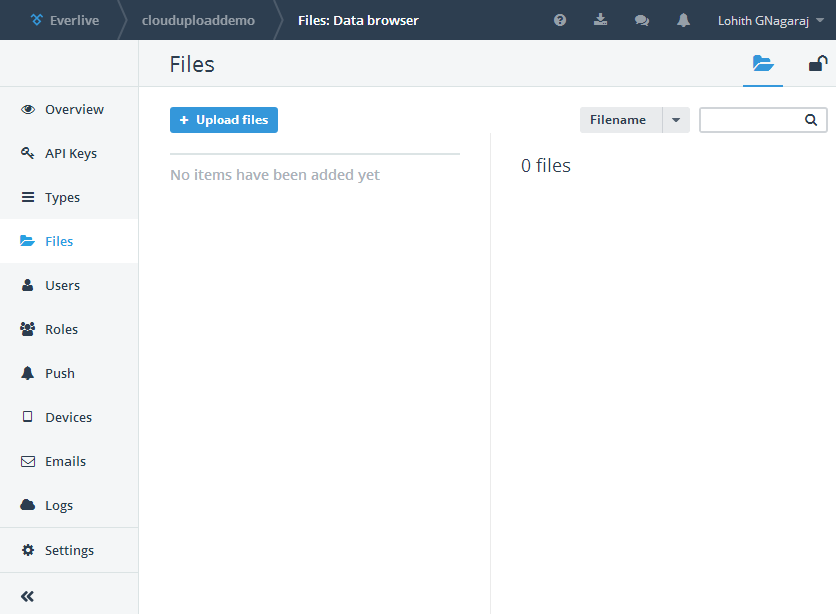
Notice that, Everlive has out of the box added Files, Users and Roles entity types. Files entity type is like container to which you can readily add files. Click on Files link on the left hand menu to look at Files screen:
You can click on “Upload Files” to upload a new file from the portal itself.
API Keys for accessing Everlive:
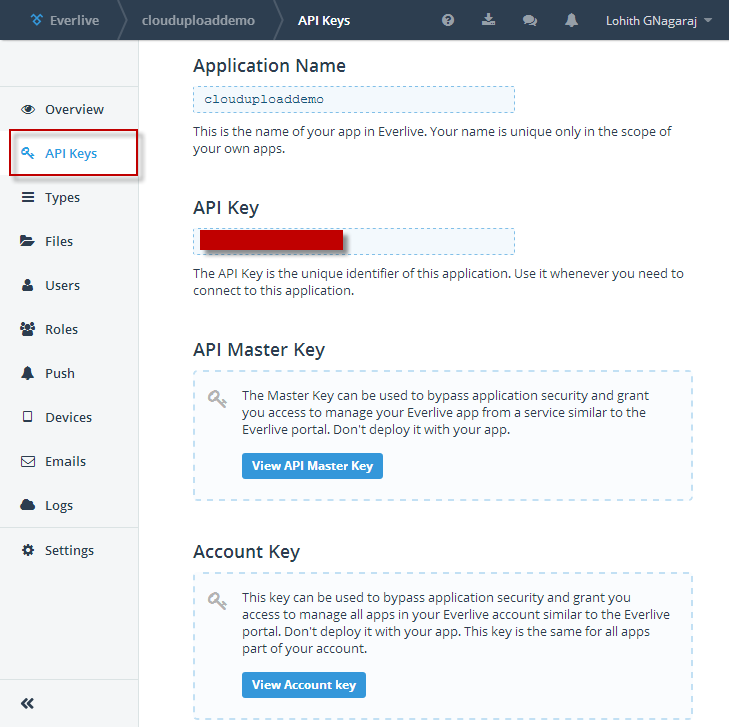
In order to integrate with Everlive i.e. uploading to or reading files from Everlive from any application, you will need to have access keys. You can get access keys to your projects, by clicking on “API Keys” in your project dashboard. Note down the application name and the application key. We will need this information when we integrate with RadCloudUpload.
Create a Web Application:
Fire up a Visual Studio 2013 and select File > New Project. In web templates select “RadControls Web Application”, give it a name, location and click Ok. Visual Studio will go ahead and create our project. By default a default.aspx page is already added to the project. We will use this page for the demo purpose.
Adding Everlive Client Library:
To integrate with Everlive Cloud Storage, we need to reference the assembly Telerik.Everlive.Sdk.Net35dll. You can download the files from here. Download the zip file, extract it and add reference to Telerik.Everlive.Sdk.Net35.dll in the web project. We also need Newtonsoft.Json.dll, so add a reference for that too.
Using the Cloud Upload control:
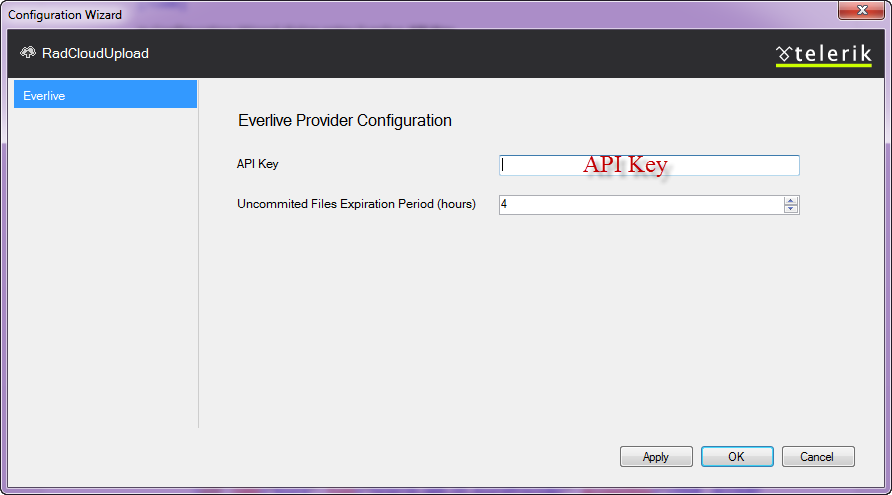
From the tool box drag and drop RadCloudUpload control on to Default.aspx page. Access the smart tag of the control and choose Everlive as the provider type. Then click on the “Open Everlive’s Configuration Wizard”.
In Configuration Wizard dialog enter Everlive API Key.
Specifying the Uncommitted Files Expiration Period (hours), you could easily configure the time, after which the unprocessed files will be removed from the storage.
This will add configuration setting in the web.config file:
We are all set now. Just run the application. You will see a select button. Click on the select button to select a file. As soon as a file is selected, the upload will start. Here is the snapshot of file being uploaded:
And here is the snapshot of file upload being finished:
At this point if we jump back in to Everlive project dashboard and Files section, you should see the file we just uploaded. Here is the screenshot of the Files on Everlive:
Conclusion:
That’s it. We are done. I did not write single line of code but was able to upload files to Everlive file storage. That is as easy as it can get with Telerik’s Cloud Upload for ASP.NET AJAX. Give it a spin or check out the demos and let us know what you feel about this control.
Telerik Test Studio got out of box feature to automate test for image verification. You can verify, whether image has been changed or distorted in application without writing any script. In this post we will take a look on, “How can image verification test can be automatedin Test Studio”
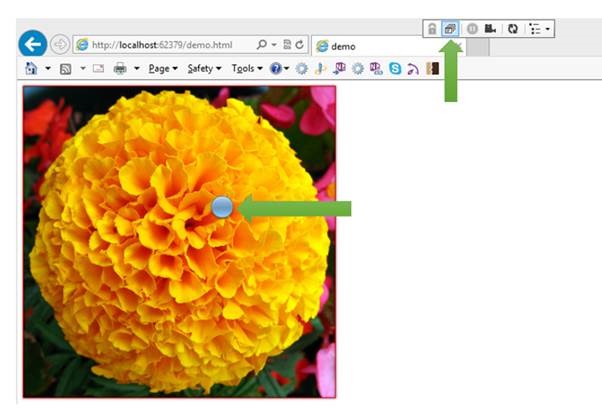
Let us consider that there is web application with an image as below,
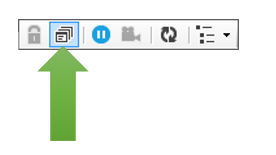
To do verification around this image, start recording the test. Once application is launched for recording, select Enable or Disable over hover option from Test Studio control panel docked in recording browser window,
This will allow you to select image on DOM. Put mouse for some time and you will get a blue bubble.
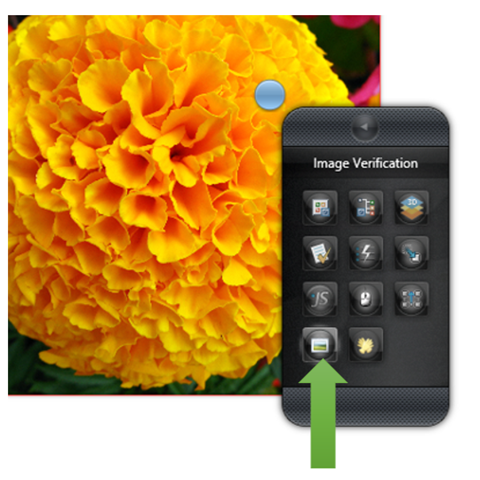
On clicking of blue bubble you will get option to Image Verification.
Next you need to click on Image Verification. On clicking you will get Image Verification dialog box.
In dialog box you can configure various options like,
Verify entire image
Verify certain area of image
To do exact match you need to put Total Difference as 0. Recommended is to put in between 1 to 5 %. If you want to verify certain area of image then uncheck Verify Entire Image checkbox and configure X axis, Y axis, Width and Height value.
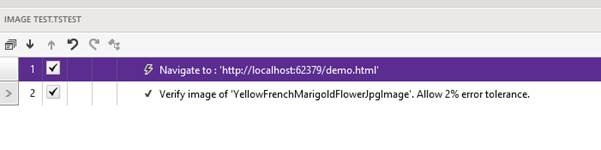
I have recorded a very simple test for image verification with two steps as below. You can see that error tolerance has been set to 2%.
Assume if test fails in image verification step then you will get information as below that Images are not the same.
We just learnt that Test Studio allows us to perform automation of image verification without writing any script. I hope you find this post useful. Thanks for reading.
You can consider this post as second post of the series. In first post of this series we learnt about fetching data from Telerik Everlive in a .Net application.
We are creating item to be inserted. This item is instance of client side representation (class) of Everlive content type. In this case we are creating object of Products. This will pass as parameter to Create function.
Asynchronously we are inserting an item by calling Create function. This function takes instance of Products as parameter. This instance will get inserted as an item to Telerik Eeverlive
So these simple steps you need to follow to insert an item from .Net application to Telerik Everlive content type.
Next you can update an item by first fetching it on basis of id or any other column. Once data is fetched at the client application , you can update that and using Update() function save data back to Everlive server.
Using Update function saving data back to Everlive
These simple steps are required to update an item from .Net application.
Deleting an item is simplest. You need to pass id of item to delete that. If you want you can delete an item on other projection as well. In further posts we will discuss about that. To keep it simple we can delete an item on basis of id as below,
These simple steps are required to perform CRUD operation from .Net application on Telerik Everlive data. I hope you find this post useful. Thanks for reading.
To start with and put in a single sentence Telerik Everlive in Backend as a Service offering from Telerik. In this post we will take a look on fetching data from Everlive in a .Net application. We will consider using .Net Console Application. However concept will be same for almost all other kind of .Net applications like WPF, Windows Apps.
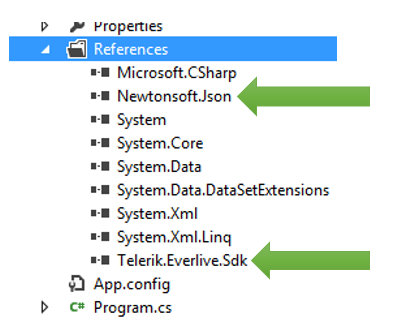
To start with download .NET SDK from here . On download page make sure that you have selected .NET platform. Download and extract folder. You should get two dll. You need to add these dll in .Net project.
To add dll in project right click on Reference in project. From context menu select option of Add Reference. You need to add above two extracted dll in the project.
After adding required references next step is to create class which will represent Everlive content type in the client application. That class can be created as following ,
public class Products : DataItem
 {
 private string productName;
 public string ProductName
 {
 get
 {
 return this.productName;
 }

set
 {
 this.productName = value;
 this.OnPropertyChanged("ProductName");
 }
 }

private int unitPrice;
 public int UnitPrice
 {
 get
 {
 return this.unitPrice;
 }

set
 {
 this.unitPrice = value;
 this.OnPropertyChanged("UnitPrice");
 }
 }

private int quantity;
 public int Quantity
 {
 get
 {
 return this.quantity;
 }

set
 {
 this.quantity = value;
 this.OnPropertyChanged("Quantity");
 }
 }

private bool isContinued;
 public bool IsContinued
 {
 get
 {
 return this.isContinued;
 }

set
 {
 this.isContinued = value;
 this.OnPropertyChanged("IsContinued");
 }
 }
 private int unitInStock;
 public int UnitInStock
 {
 get
 {
 return this.unitInStock;
 }

set
 {
 this.unitInStock = value;
 this.OnPropertyChanged("UnitInStock");
 }
 }


}
There are couple of points you need to keep in mind,
Class name should be same as Content Type name
Class should inherit from DataItem. It is not a must condition though.
Properties name should be same as columns of Content Type
After creating client side class, you can either synchronously or asynchronously fetch items from Everlive. Items can be fetched asynchronously as below,
Important point is that you need to pass client side type (class) in this case Product to fetch items. You need to make an instance of EverliveApp class passing your app key in the constructor.
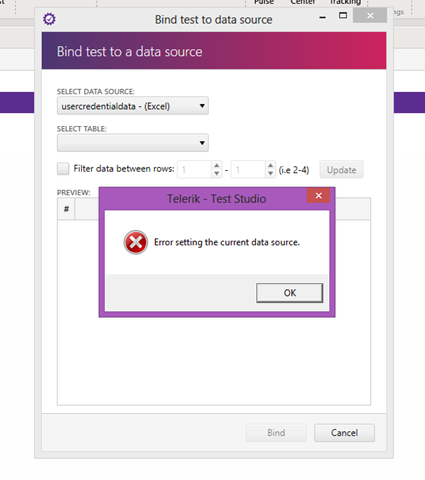
Okay, so have you come across this error while binding an Excel File as DataSource to a Test in Test Studio? You may get this error when you are working with fie saved in Excel 2013 format.
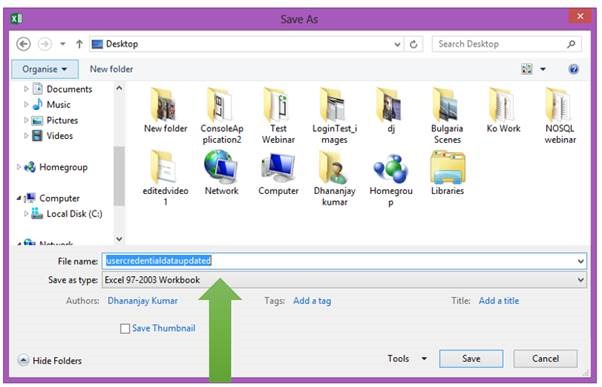
Now how to solve this error? Very easily you can solve this error by saving Excel file in Excel97-2003 Workbook format.
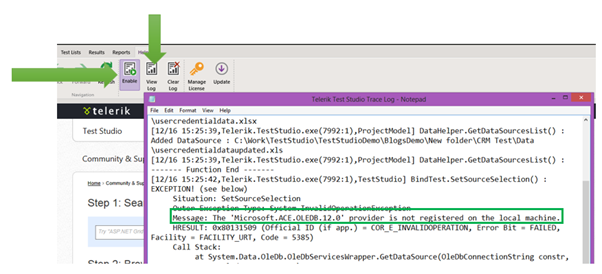
If you do not want and can save your file in Excel97-2003 format then probably you may want to check application log. To check application log follow these two steps,
Navigate to Help Menu
Click on Enable log to enable log in Test Studio.
In Log if you see something like Microsoft.ACE.OLEDB.12.0 is not registered on local machine then, you need to install Access Database Engine. You can download and install it from below link,













![clip_image004[6]](https://telerikhelper.net/wp-content/uploads/2013/12/clip_image0046.jpg "clip_image004[6]")


 Helping Ninja Technologists