In this post we will take a look on fetching data from Telerik Everlive using REST API and use it in a web application. In web app we will be using Kendo UI DataSource to bind data to Kendo UI web ListView.
We are going to learn following,
Fetch data from Telerik Everlive using REST API
Create Kendo DataSource from returned data
Bind data to Kendo UI ListView
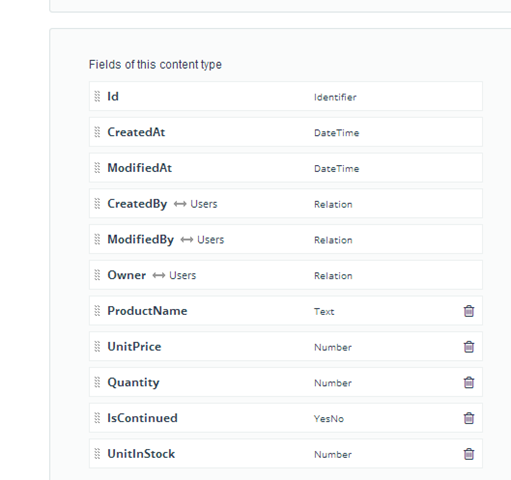
Okay so to keep it simple, I have created a simple Content Type Products in Everlive project as below. Permission of this Products content type is set as Public.
To fetch data from Telerik Everlive using REST API, Simply you can fetch data from Icenium Everlive using a AJAX call. You need to provide
URL of the Everlive project with API key
Content type name should be appended in URL. In this case we have appended Products (name of content type) in URL.
Set type as GET
You need to set two callback function. One Callback function will be called on success and another on error.
So data can be fetched using below code. You may want to notice that you need to replace yourapikey in URL with API key for your Everlive project.
BindDataToListView is callback function and this function will be called on success fetching of data. In this function you need to create Kendo UI DataSource from returned data. Before we do that let us examine what value we get from Everlive server.
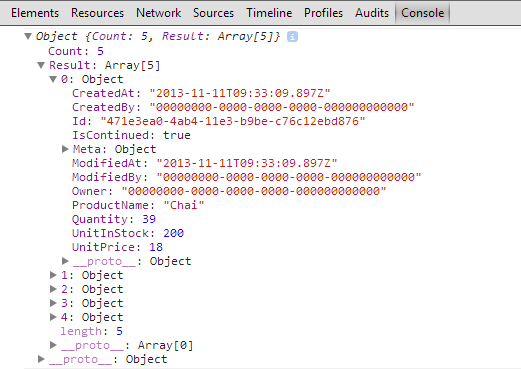
You should get below output in browser console,
You can see that in output you are getting count and data in Result property of the returned Object. So you can create Kendo DataSource as follows,
function BindDataToListView(e)
{
 console.log(e);
 var dsource = new kendo.data.DataSource(
 {
 data: e.Result
 });

}
Again in Console log you can view that Kendo DataSource has been created from returned data.
Next we need to create Kendo Template and Kendo ListView. We are going to create a very simple template as follows,
And to create Kendo ListView create a HTML div as follows,
<div id="listView"></div>
Again let us go back to callback function BindDataToListView() and convert div to Kendo ListView and bind already datasource
function BindDataToListView(e)
{
 console.log(e);
 var dsource = new kendo.data.DataSource(
 {
 data: e.Result
 });
 console.log(dsource);

$("#listView").kendoListView({
 dataSource: dsource,
 template: kendo.template($("#producttemplate").html())
 });

}
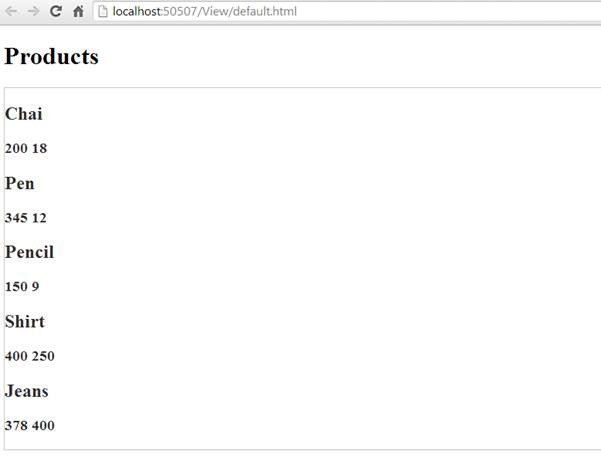
This is it. We are setting datasource and template after converting HTML div as Kendo ListView. When you run this web application you should get output as below,
In this way you can fetch data from Telerik Everlive using REST API and use in Kendo UI Web. I hope you find this post useful. Thanks for reading.
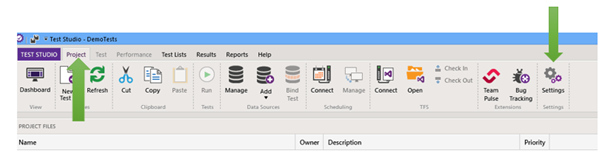
Often I get questions from customers that how I could detect if there are any configuration setting missing to work with different browser in Test Studio. This can be easily detected. Very first before you start working with Test Studio in different browsers make sure you have configured them.
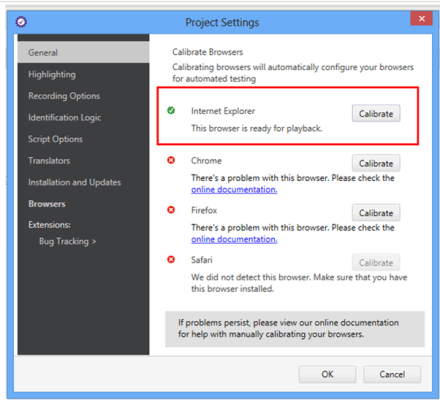
After installation you can detect browsers or configured or not in Project Setting.
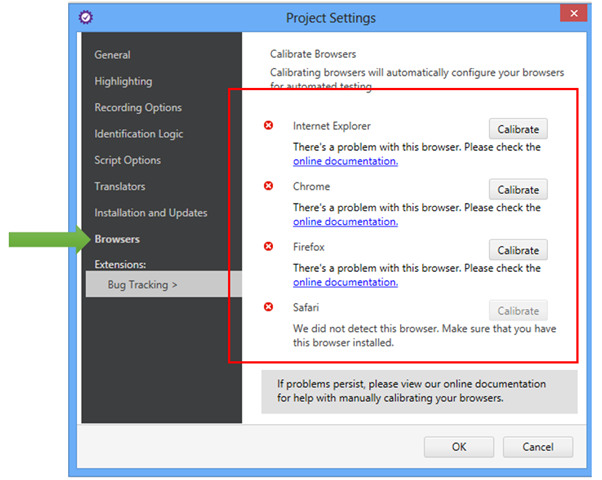
In Project Settings you will get option Browsers. In that you can see a message below each type of browsers that “There is a problem with this browser”
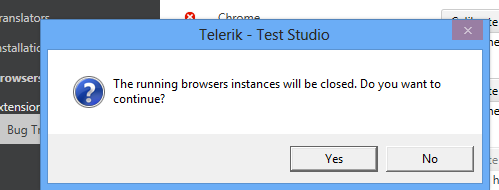
You have option to calibrate browser right from there. You will get message to close instance.
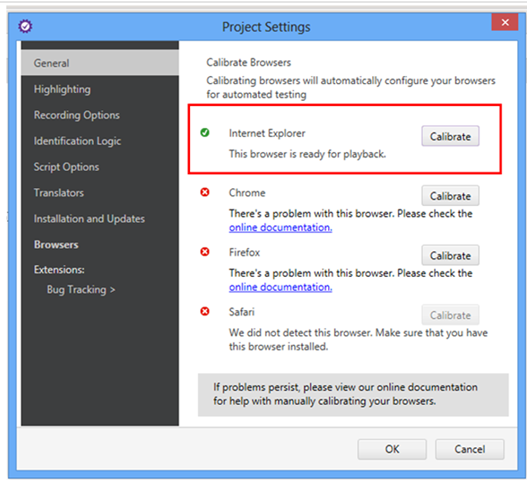
Once browser is successfully calibrated you can see message below browser that “The browser is ready for playback”
In this way you can detect configuration setting of browsers to work with Test Studio. I hope you find this post useful. Thanks for reading.
On September 5th we conducted a webinar on our Icenium extension for Visual Studio. The webinar was titled “Building iOS and Android apps using Visual Studio”. This is part of the ongoing webinar series we here at Telerik India have been doing almost every Thursday of the month. If you want to know our webinar schedule, take a look at this blog post: https://telerikhelper.net/2013/10/04/technology-to-keep-you-company-in-the-holiday-season/
About Icenium:
Icenium is a product from Telerik which makes cross platform mobile development simplified. Icenium enables you to use HTML5, CSS and JavaScript to develop, test, and publish applications that run natively on the Apple iOS and Google Android mobile platforms. It combines the convenience of a local coding environment with cloud-based services powered by the Apache Cordova framework. Icenium also provides the seamless creation of a backend for your apps with data storage, user management, and email and push notifications.
As promised, here is the video recording of the webinar:
Q & A:
We had a lot of questions asked during the webinar. Our team was able to answer as much as we can during the webinar. We normally do a recap of the questions and try to provide answers to all of them through this blog post. So here are the questions from the webinar along with the answers:
Q: Are these native apps we are talking about?
A: We are talking about a model of Mobile App development called Hybrid Application Model. In this model you develop app using HTML5/JavaScript/CSS. You package this and it runs on the device pretty muck like a native app.
Q: Can we use Express Edition to practice this? A: Sorry. This needs a non-Express VS edition
Q: Can we practice it on any other ide other than VS or is it only for it?
A: The webinar featured a extension we have for Visual Studio. But Icenium comes as a stand alone IDE also. We have Windows Client called Icenium Graphite or you can use Icenium on the browser itself. Currently supported only on Chrome.
Q: For android development with visual studio can we do it without any explicit plugin?
A: Yes. It depends mostly on your application feature and design. If you are building a simple data entry application which does not require any custom plugin you can do it easily with just a HTML markup and a JavaScript code to handle service calls.
Q: How difficult/easy it is to design my app once, and create ios application and android application PARALLELY?
A: With Icenium and Kendo UI Mobile controls, you write your code only once. Icenium lets you build packages for Android and iOS right within Icenium. Kendo UI Mobile controls provide you the adaptive rendering capability i.e. Kendo UI Mobile controls adapt to platform they are running on and give you native look and feel.
Q: what is Icenium?
A: Icenium – Mobile application development tool from Telerik. More details: http://www.icenium.com
Q: Can the jQuery version file be changed at any time?
A: Yes you can.
Q: Is Icenium different from Kendo control set ?
A: Icenium = Cloud IDE + Build Services + Simulators + Debug Capabilitie + Mobile BaaS + Kendo Mobile
Q: Will Icenium Support design and development of Web Services or the same will have to be developed seperately in .NET?
A: This will need to be developed separately. We have a Visual Studio addin avaialble to do the same called OpenAccess. http://www.telerik.com/products/orm.aspx
Q: Is Icenium an opensource? A: No. Icenium is licensed product. It is per developer subscription based.
Q: Since iOS 7 is released, how do we set the version to 7.0 in iOS simulator? A:. Work is under way. We will update the simulator once we are ready. In fact we already have a flat theme in Kendo UI Mobile control set from past year or so. So you already have a flat theme to apply to your apps.
Q: Which Visual Studio version we are going to discuss to achieve this?
A: Icenium Extension for Visual Studio supports only Visual Studio 2012 at the moment.
Q: Can we run tis apps on windows phone 8 also?
A: Yes. But Icenium cannot make the package for you. You will need to copy the complete source code. use Windows Phone project template for HTML5 and dump your code. Then create the XAP file and put it to market place.
Q: this will be compatible with all device of Android and iPhone? A: Yes. Icenium also provides adaptive rendering for individual platform.
Q: Only VS 2012 is enough or do we need to install any plugins?
A: You will need to install Icenium Extension for Visual Studio from Visual Studio Gallery.
Q: From where can we download Icenium Plugin? We already have a license of telerik, do we need to buy a separate one?
A: You can download the Icenium extension from Visual Studio Gallery. You can develop an app and test in Icenium simulator. But when it comes to packaging you will need to buy Icenium subscription which is per developer and on monthly basis.
Q: Can we deploy directly to physical phone if its connected ?
A: Yes, you will be able to. LiveSync enables immidiate sync to all devices attached to the machine.
Q: An application developed on Telerik Silverlight, can it be replicated to Icenium app
A: No direct migration from Silverlight to Icenium.
Q: Can we access hardware including Camera, GPS and other sensors?
A: Yes, via the cordova library. Part of Icenium.
Q: I have a Kendo app (browser app) can we migrate it to Icenium?
A: Kendo Browser Apps using Kendo UI Web controls which is meant for running on desktop browsers. For mobile, we recommend using Kendo UI Mobile controls.
Q: Can we use debugger on trial version of Icenium A: Yes, the trials are fully featured trials.
Q: Does Icenium support windows mobile A: WP is supported by a slightly different procedure. Please write to sales@telerikindia.com in case you would like to explore this further.
Q: Does the API has support to access device specific functionalities A: Yes, via the plugin architecture.
Q: Can we create system apps via Icenium A: Sorry, Icenium can only build mobile apps.
Q: Where is the div attributes coming from (like data-role, data-icon) A: There are known as “data-“ attributes in HTML5 specification. HTML 5 makes provision for it. Icenium makes it functional.
Q: Can we get a trial version of Icenium? A: Yes, one month trial of Icenium is available at: http://www.icenium.com
Q: The difference between Jquey Mobile / Cordova app & Kendo UI is nativeness A: Yes. In addition, we have SPA framework + MVVM framework + Client side DataSource + Templates and more
Q: We need to know how to use ListView and how to bind a data to listview practically? A: Please write to sales@telerikindia.com and we will help you specifically.
Q: Are you using any MVVM framework like backbone.js A: Kendo UI framework has its own MVVM framework. This further reduces the size of the application by removing the need for adding more frameworks like backbone.js
Q: Is this a stand-alone or web based Mobille App? A: This is being like a web based app. Upon compilation/ build it will become a stand alone app (apk/ipa) that can be put on respective app stores.
Q: Just to confirm the support for ODATA using these controls? A: Yes, ODATA is supported. Use DataSource to connect to Odata services and controls can bind to this datasource
Q: Will a single code will work for both IOs and Android? A: Yes, it will. that’s magical, isn’t it?
Q: Any ETA to remove this BETA ? A: Icenium is a live app (not in BETA). The VS plugins is in BETA.
Q: Can we use VS2012 to write Objective C code using Icenium? A: No. This is not possible.
Q: Will kendo ui mobile and jQuery mobile work together? A: There is nothing that prevents jQuery Mobile from working with Kendo UI. However, it is needless as most capabilities are available in Kendo UI.
Q: is it support local database ie sqllite etc ? A: Yes. Icenium has support for SQLite plugin which can be included in your project.
Q: How Icenium plugin is aligned with iphone/android/windowsPhone design elements ? A: Icenium is just the IDE for developing Hybrid Mobile Apps. It’s the Kendo UI Mobile control set which adheres to design principles of the Mobile Platform and render the controls accordingly.
Q: do you have icenium extention for Eclipse/JBuilder/IntelliJ.? A: Not immidiately. you can use the Windows client of Icenium: http://www.icenium.com/product/graphite
Q: How we can publish our app for iOS? A: Publishing for Apple Store is directly supported from Icenium. No need for a Mac.
Q: To publish a app in Apple store, I need a mac device & Xcode? A: You will be excited to know that Icenium supports deployment to Apple Store directly. so, you don’t need a Mac or XCode for publishing. You can develop and deploy completely without the need for a Mac.
Q: Who does the magic behind the scene from different phone sets? is it Kendo, which recognizes and builds the layout A: Yes, Kendo is the magic behind support for different platforms/ form factors.
Q: Can you name any application developed using kendo UI and deployed in different markets for iOS,Android and Microsoft
A: SafeBridge, DevReach. Check out our showcase apps: http://www.icenium.com/resources/showcase
Q: How abt symbian apps A: sorry not supported by Icenium.
Q: An important question: What is % degrade in performance using Kendo UI v/s native html/css apps ? A: It is quite the opposite. We have seen improvements of 200 – 300% in performance when using Kendo versus other HTML/ CSS apps (not native)
Q: we have to write all the codes in one single page i.e. index.html A: it is a Single Page app :). However, we support browsing to other pages and hence you can have code in another page as well.
Q: Did you develop the KENDO framework by your own? A: Yes, Telerik developed it by itself 🙂
Q: Where can I get the help related to Kendo UI? A: Extensive documentation available at: http://docs.kendoui.com
Q: Can We Use Web Services in Icenium? A: Yes, we support REST/ OData services.
Q: Can I create ASP.NET MVC4 project, where I build views using cshtml files, however use the Kendo UI controls on views ?
A: Absolutely. You can use Kendo UI Web controls for serving to desktop browsers. You can develop .mobile.cshtml files and use Kendo UI Mobile controls.
Q: As you told like look and feel vary between android and iOS devices .. but if I want to make theme consistant across all platform what I will have to do? A: You can use our Flat theme which gives consistent theme across all the platforms. Otherwise you can always use our Theme Builder and build your own theme.
Q: Can we write custom plugin to ICENIUM like we can do in Cordova? A: Yes. Icenium allows you to import custom plugins too.
Q: Instead of using emulators, can we test the app on real mobile w/o submitting it to store? A: Yes. it is fully supported. On Android the deployment is direct and on iOS you can use Icenium Ion: http://www.icenium.com/product/ion
Q: How we can use Kendo Ui for WP8 ? A: Quickly, you got to use the PhoneGap template in VS. Insert the Kendo UI files in WWW folder. Compile the project to get WP8 app.
Webinar Giveaway:
In each of our webinars we pick random 2 people from the attendee list and they get out cool .NET Ninja T-Shirt. This webinar, we have picked the following folks:
Ajay Negi
Jaish Mathews
Congratulations to the winners. Our office will contact you for your details and we will ship your t-shirts.
For those of you who are felling sad about not winning, well try your luck next time by attending our next webinar on Oct 31.
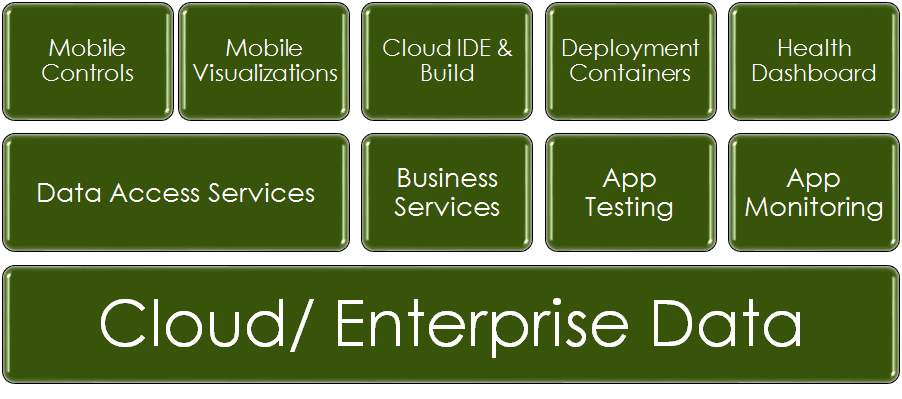
Mobile apps have mostly meant games and a few more utility apps. While this is a large section of the mobile app ecosystem, there is a potentially lucrative market waking up now to the possibilities of mobile apps – The Enterprise.
The enterprise mobility requires a different set of considerations than the consumer oriented mobile apps. While in-app ads, mobile commerce, frame rates, access to a RadBackend (or mBaas) may be important for consumer apps, the enterprise looks for value elsewhere.
For long enterprises have controlled the hardware and the software that is allowed within its premises for reasons of security, resource optimization and IT management. These days employees are getting their own mobile devices into the enterprise leading to a more heterogeneous environment.
A story that illustrates this is about an enterprise that adopted WiFi to make it easy for employees to work on their laptops anywhere in the building. The load was calculated keeping in mind the number of laptops in the organisation (a decent assumption). The infrastructure collapsed within a week of it launching. On investigation, the IT realized that the devices logging into the WiFi system were more than double of what was planned for. The sneaky addition was the mobile devices of the employees (outnumbering the laptops easily)!
Now, let us look at the requirements that an enterprise or small & medium business might have of the mobility application platform that they may use:
Support for heterogeneous devices
The BYOD trend can saddle an enterprise with multiple platforms – Android, iOS, Windows Phone & BlackBerry. Add to it the complexity of different form factors for each platform. The mobile apps need to accommodate and embrace this heterogeneity.
Legacy Hardware Infrastructure
A lot of infrastructure is in production in an enterprise. This may include the LAN architecture and the servers in use. The enterprises will need to add WiFi infrastructure and provision for the additional load on the IT servers by the way of mobile.
With mobility, users will also want to access data from outside the corporate network. The organisation may need to revisit its IT policies to allow data access from outside corporate network.
Security
The enterprise first needs think about securing the mobile devices though policies (e.g. password, retention). An investment needs to be made in the device management software allowing for capabilities like platform upgrades, remote wipe/lockout.
The next step is to plan user authentication via the mobile apps. Mobile apps are thick clients and need a different authentication mechanism(s) than currently used. Extending LDAP or ADFS infrastructure becomes necessary here.
Apart from authentication, one needs to consider authorization in the mobile apps. Consider the nightmarish scenario of HR deptt accessing sales apps and employees accessing executive dashboards.
Integration with Business Apps
IT has become the backbone of the modern enterprise. Various business applications (e.g. SAP, Oracle, Salesforce, SharePoint) are driving the everyday business processes. Mobile devices require a different set of endpoints to be exposed (namely webservices). The enterprise needs to consider the extensibility of the apps to accommodate this requirement.
Enterprise App Stores
The mobile app ecosystems are tightly controlled by the platform vendors. The devices are only allowed to download apps from the “official” marketplaces of the devices. This leads to exposure of apps meant for the employees of the organisation to the masses. This risk can be mitigated by integrating secure login into the application.
Another option is to deploy an enterprise app store working with the platform vendors. This option may be more expensive and resource intensive (think registering devices in the app stores).
Development Choice
The enterprise needs to make a decision on the the development technology and the tool of choice. Today, the options exist between Native Development or Hybrid Development. Hybrid development offers a host of benefits including reuse of existing skills, cross platform development and lower hardware requirements for mobile app development.
I believe that today’s enterprise requirements are very well met with the Hybrid Mobile Development approach. In a recent report by reserach2guidance, they found the following:
“The majority of users say that CP (Cross Platform) Tools have saved them time compared to native app development. Almost 45% of the users estimate time-savings of 50% and more.”
Equally important things to consider would be requirements, configuration, bug and release management for the application development phase.
Mobile Testing
The mobile apps should perform as per expectations. Having a good quality team to whet the quality of the initial release is very important. Even more important is to have an automated process in place to verify each app release meets the quality bar of the organization.
App Analytics
This is an area that hasn’t been paid much attention to but would pay tremendously if included in the mobile app. Knowing the features of apps that are most widely used allows the enterprise on developing those features further. Also, knowing the detailed crash reports help to pinpoint the buggy sections of the code improving the reliability of the apps.
Synchronization/ Offline Capabilities
This is one non-functional requirement that takes special meaning in the mobile app scenarios. Since the mobile app works in the sometimes disconnected environment, it is important to have some offline way of caching data.
One needs to take care of the scenario where the server may not be available at intermediate times. Even at these times, the mobile app should provide some critical functionalities to the users.
Backend Services
While mBaaS services are in vogue today, they have limited value for the enterprises. The main challenge is that mBaaS are public cloud services. An enterprise may be reluctant to host its data in a public cloud due to security considerations. In addition to file and data storage, mBaaS services may also provide notification services, geolocation services, login services, digital wallets, audience segmentation and device management capabilities. The enterprise may consider mBaaS services if they require any of the above services.
Recently in one of the customer interaction I came across a question that how a Coded Step in Test Studio can be debugged? This is an important query and can be very useful while writing complex Coded Step.
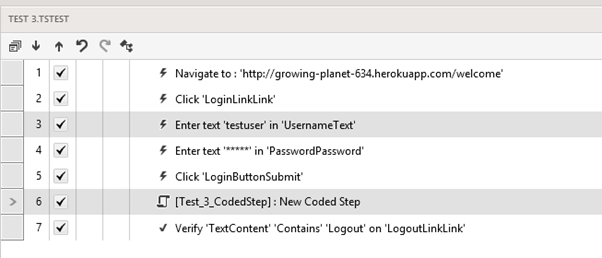
So let us begin with following recorded step,
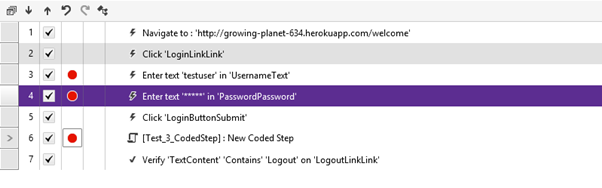
As we see step 6 is a Coded Step. We need to debug this step. To being with we cannot debug a particular line of coded step in Test Studio desktop version. In Test Studio desktop version we can put breakpoint to debug only at Test Step level. So we can put a breakpoint on Test Step as given below. Test Studio will wait for user at step 3, 4 and 6.
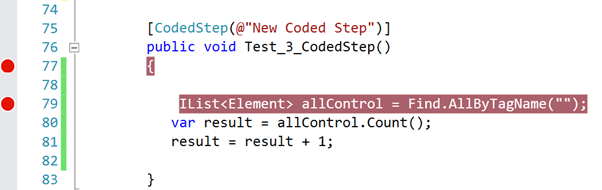
Putting breakpoint at Test Step level is simple. However our requirement is to debug particular line of code in Coded Step. We cannot do this in Test Studio Desktop version. But this can be done in Test Studio plug-in of Visual Studio. So we need to follow below steps to debug coded step.
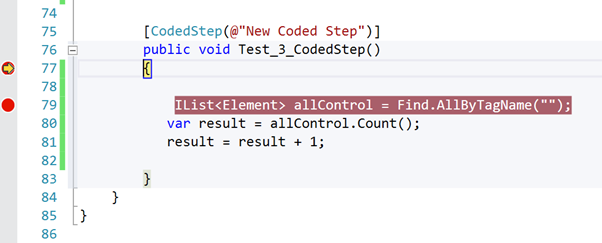
Very first open Test in Visual Studio and put a breakpoint in line of the code we need to debug. This can be done as follows,
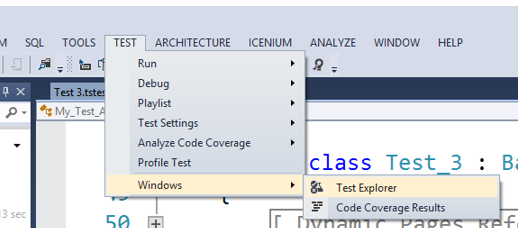
After this open Test Explorer. To open it from menu select Test and then Windows and then Test Explorer. See the image below for reference.
Once Test Explorer is open select test (of which coded step you want to debug). In this case that is Test3 and right click on that and from context menu select Debug Selected Tests as given in below image,
Now on debugging of that particular test you will find breakpoint is being hit.
We learnt it is super easy to debug a codes step in Test Studio. I hope you find this post useful. Thanks for reading.
Kendo UI is a flagship product from Telerik which is a HTML5 powered client side JavaScript framework. We have Widgets/Controls apart from a plethora of framework level goodies like MVVM, Validation, Globalization etc. out of the box. Although this is a client side framework which means that you program against Kendo UI using JavaScript – obviously. But Kendo UI also has a server side wrapper for ASP.NET MVC very similar to HtmlHelper extensions available from Microsoft (TextBox, CheckBox etc.). What this means is, the wrappers shield you from writing JavaScript yourself and instead you code in your natural comfort zone of C# and Razor and the wrappers output the JavaScript for you. These JavaScript are the initialization scripts for the widgets.
Widget Initialization Scripts:
Kendo UI relies on 2 things – JQuery framework and Kendo Web JavaScript file. Before you can start working with Kendo you need these 2 JavaScript file references added to your page. Assume that we have referenced the 2 script files in the head section of the page.
When you use wrappers to code on the server side, the wrappers output the necessary JavaScript code required for Kendo UI to work on the client side. Note: the wrappers do not out put the markup rather output the JavaScript which is required to initiate a widget on the client side. But the initialization code blocks are rendered right at the place where the widget was defined in your source code.
To illustrate this – lets take a simplest of the code as an example. We will use the AutoComplete Widget and see the rendered code on the client side. Here is the Razor syntax using AutoComplete Kendo UI Wrapper:
@(Html.Kendo().AutoComplete()
.Name("countries")
.Filter("startswith")
.Placeholder("Select country...")
.BindTo(new string[] {
"Bulgaria",
"India",
"Australia",
"Germany",
"USA",
"UK",
"Hong Kong"
})
.Separator(", ")
)
<div class="hint">Start typing the name of an European country</div>
Notice that we have a div after the autocomplete widget. Now at run time right click on the browser and view the source code. Here is the code that gets generated:
<input id="countries" name="countries" type="text" /><script>

jQuery(function(){jQuery("#countries").kendoAutoComplete({"dataSource":["Bulgaria","India","Australia","Germany","USA","UK"],"filter":"startswith","placeholder":"Select country...","separator":", "});});

</script>

<div class="hint">Start typing the name of an European country</div>
As you can see the initialization script code is rendered right at the place where we had defined the wrapper in our source code. This works fine as long as the Jquery and Kendo script references are done at the head level of the document. In next section we will see what happens when we move the script reference to the end of the page.
Following Best Practice for Script References:
One of the best practice of the web development is to load any scripts we need at the end of the page. What this does is it doesn’t block the page from loading. Page continues to load & render and the scripts gets loaded at the end and user does not see any blockings in the page load. But we have a problem. As seen in the previous section, the widget initialization script gets rendered at the position where the widget was defined in source code and gets executed immediately. if the Jquery and Kendo scripts are loaded at the end of the page, the initialization script will fail with errors as the frameworks are not yet loaded. Here is the error we get:
Deferring Initialization Scripts:
Luckily, Kendo UI Wrappers have a answer to the initialization scenario we saw in the previous section. Each of the widget wrappers expose a method called Deferred(). It’s a fluent method and will suppress immediate script statement rendering. The next question we may have is – we deferred the initialization, but how do we initialize the widget once page is loaded. Answer is, Kendo wrappers expose one more fluent method called DeferredScripts(). DeferredScripts method will output all the previously deferred initialization statements.
Here is the updated code to handle deferring the scripts:
First, I moved the Jquery and Kendo script reference to end of the page and made a call to RenderSection. This is the section where we will out put the initialization scripts from the pages.
Second, I have called the Deferred() fluent method on the auto complete wrapper. Declared a section PageScripts and called DeferredScripts() fluent method to output the deferred statements.
@(Html.Kendo().AutoComplete()
.Name("countries")
.Filter("startswith")
.Placeholder("Select country...")
.BindTo(new string[] {
"Bulgaria",
"India",
"Australia",
"Germany",
"USA",
"UK",
"Hong Kong"
})
.Separator(", ")
.Deferred()
)
<div class="hint">Start typing the name of an European country</div>
@section PageScripts {
@Html.Kendo().DeferredScripts()
}
With the above code changes, we now have the initialization statements deferred till we explicitly call the DeferredScripts() fluent method in the PageScripts section. Here is the generated code at run time:
<input id="countries" name="countries" type="text" />
<div class="hint">Start typing the name of an European country</div>
<script src="<a href="http://localhost:39897/Scripts/kendo/2013.2.716/jquery.min.js">/Scripts/kendo/2013.2.716/jquery.min.js</a>"></script>
<script src="<a href="http://localhost:39897/Scripts/kendo/2013.2.716/kendo.all.min.js">/Scripts/kendo/2013.2.716/kendo.all.min.js</a>"></script>
<script>jQuery(function(){jQuery("#countries").kendoAutoComplete({"dataSource":["Bulgaria","India","Australia","Germany","USA","UK","Hong Kong"],"filter":"startswith","placeholder":"Select country...","separator":", "});});</script>
Conclusion:
When using Kendo UI ASP.NET MVC wrappers, you should pay attention to how you want to use the widgets. Since the wrappers output the initialization statements immediately at the position of the wrappers definition, it needs the JQuery and kendo scripts to be available upfront. If you follow the best practice of loading the scripts at the end of the page, you will need to defer the initialization statement and manually output all deferred statements after you have loaded the JQuery and Kendo scripts. This blog post introduces you to Deferred() and DeferredScripts() fluent method supported in Kendo. Hope this information is useful to you. If you have not experienced Kendo UI, encourage you to visit www.kendoui.com and take a look at our demos.
For Indians worldwide, the Holiday season is about to start with the harbinger of festivals – Dusshera round the corner. As the time for revelry draws closer, Telerik India is here to keep you stay updated with the latest from the world of software development.
While our inner geek so much wants to have fun, it also craves to learn & share the latest. And we are happy to oblige the Geek Ninja in us 🙂
Here is our schedule of e-learning webinars for the months of Oct – Dec 2013:
The timing for all the below webinars is 3:00 – 4:00 PM (IST)
Title
Date
Registration Link
Walking on Water: Building Android and iOS Apps with Visual Studio
Sometimes, we feel that Dusshera is just an excuse to start the party earlier than the rest of the world! The party continues with Telerik as we continue to hand out T-shirts to select few attendees from every webinar.
If you ever wanted to meet the great presenters from our webinars, you can find us in various industry events. In the coming months you can find us at:
On any kind of Apps sharing on Facebook could be a frequent task. Icenium a Cloud Based IDE allows you to create Cross Platform Apps. In this blog post we will take a look on sharing status on FaceBook from a Cross Platform App being created using Icenium.
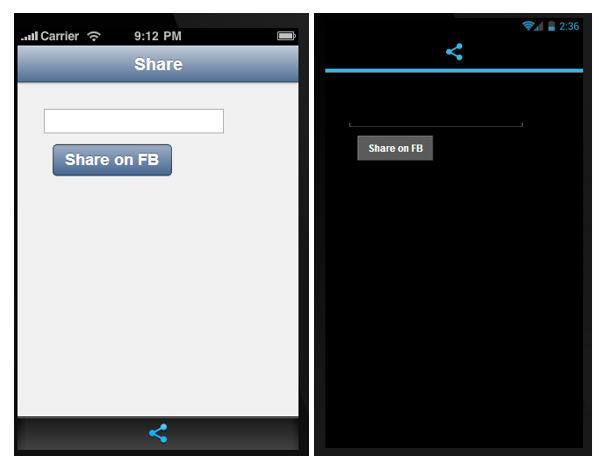
To start with let us create view. I am putting an input text box and a button. On click of button text from input box will be shared on FB wall of user.
Very first we will create helper functions we need to post To start with let us create an identity provider. Identity Provider can be created as given in following code
var IdentityProvider = function (config) {
 var that = this;
 var ref;
 this.getAccessToken = function (callback) {

// Begin Authorization
 var authorize_url = config.endpoint
 + "?response_type=" + config.response_type
 + "&client_id=" + config.client_id
 + "&redirect_uri=" + config.redirect_uri
 + "&display=" + config.display
 + "&access_type=" + config.access_type
 + "&scope=" + config.scope

//CALL IN APP BROWSER WITH THE LINK
 ref = window.open(authorize_url, '_blank', 'location=no');

ref.addEventListener('loadstart', function (event) {
 that.locationChanged(event.url, callback);
 });

ref.addEventListener('loadstop', function (event) {
 that.locationChanged(event.url, callback);
 });
 }

this.locationChanged = function (loc, callback) {
 if (loc.indexOf("access_token=") != -1) {
 ref.close();
 var token = getParameterByName("access_token", loc);
 callback(token);
 }
 }
}
We are using a function to get parameter by name. Below function is doing this task.
function getParameterByName(name, url) {
 name = name.replace(/[\[]/, "\\\[").replace(/[\]]/, "\\\]");
 var regexS = name + "=([^&#]*)";

console.log("Parameter name: " + name);
 console.log("Url: " + url);

var regex = new RegExp(regexS);
 var results = regex.exec(url);

console.log("Result: " + results);

if (results == null) {
 return false;
 }
 else
 return decodeURIComponent(results[1].replace(/\+/g, " "));
}
Once identity provider is being created, next you need to create instance of IdentityProvider. Important configuration you need to pass are as follows
Name of the app
In client id make sure to pass client if for your app. You will get client id while registering your app to Facebook.
In case of Cross Platform mobile App redirect Uri will be always as given in below setting
loginMethodName would be always loginWithFaceBook
var facebook = new IdentityProvider({
 name: "My Test App",
 loginMethodName: "loginWithFacebook",
 endpoint: "https://www.facebook.com/dialog/oauth",
 response_type: "token",
 client_id: fbClientID,
 redirect_uri: "https://www.facebook.com/connect/login_success.html",
 access_type: "online",
 scope: "email,publish_actions",
 display: "touch"
});
By this step we have created all the helper functions we need to post an update on Facebook. Now on click event of the button we will
get Access Token from helper function
pass that to Graph API to post on FaceBook
Below we are reading textbox value, fetching access token and calling a function to make a FB post.
function PostOnFb(e)
{
 var msgToPost = $('#msgTxt').val();
 alert(msgToPost)
 facebook.getAccessToken(function (token) {
 makefbPost(msgToPost, "http://debugmode.net", "DebugMode", token);
 });
}
We are passing
message to post
URL of application
Title of the post and
FB token to post status message
Last function we need to create to make a FB post. That function is as given below.
function makefbPost(FBmessage, FBLink, FBLinkName, fbToken) {
 var postURL = "https://graph.facebook.com/me/feed";
 var data = {};
 data.message = FBmessage;
 data.name = FBLinkName;
 data.link = FBLink;

data.access_token = fbToken;
 console.log("Token:" + fbToken);

$.post(postURL, data)
 .done(function (results) {
 navigator.notification.alert("Status Posted", function () { }, "DebugMode", "Done");

})
 .error(function (err)
 navigator.notification.alert("Error encountered. Details:" + err.message, function () { }, "Error", "Done");
 });
}
Recently while conversing with one of the customers I came across some of the following queries,
How to do some tasks while navigating away from Mobile View
How to do some tasks while navigating to a Mobile View
Let us first simplify above queries. Essentially customer wants to call JavaScript functions while navigating to or navigating away from the Mobile View. There could be following combinations of scenarios like following,
Perform some task before Mobile View is visible
Perform some task after Mobile View is visible
Perform some task before Mobile View is hidden
Perform some task after Mobile View is hidden
Perform some task when Mobile View is visible
Perform some task when Mobile View is hidden
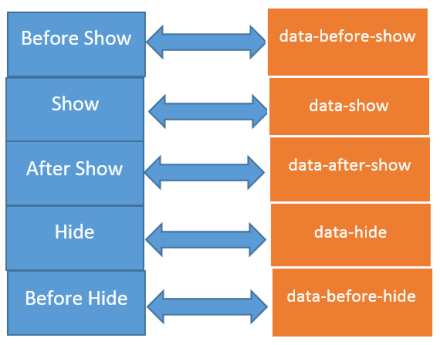
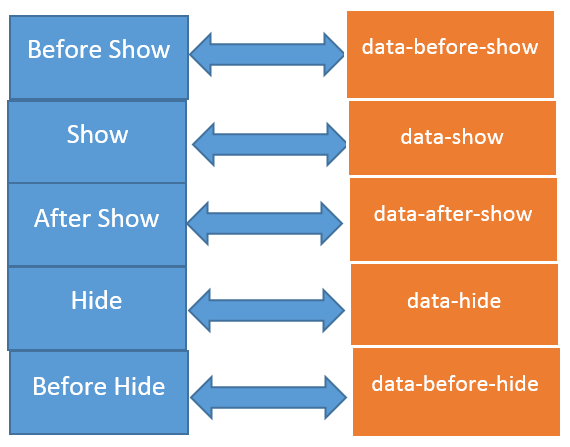
Kendo UI Mobile View provides events for all these scenario. As a developer what all you need to do is to call various events associated with Kendo UI Mobile View. Various events with their purpose is depicted in below image,
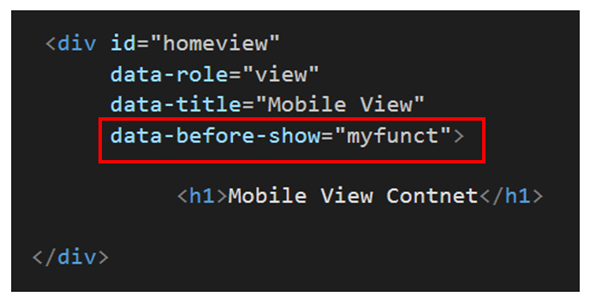
Now let us consider example that you need to perform a task before Kendo UI Mobile view is getting visible. You can do that by setting data-before-show attribute of Mobile View. In below image we are setting data-before-show property to a function with name myfunct.
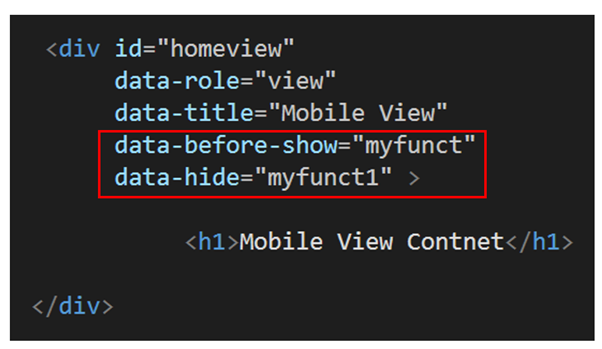
Now each time before homeview (id of the view in example is set to homeview) will be navigated or get visible a function myfunct will be called. In the same way you can set other events as attributes to achieve a particular task while navigating to or away from view. Let us consider one more example that you want to achieve a task after view is hidden. In that scenario you need to set data-hide attribute of the view. We can achieve that as given in following image,
In this way you can set events as attributes to achieve any tasks while navigating to and from a Mobile View. Below I am putting codes from above discussion,
<div id="homeview"
 data-role="view"
 data-title="Mobile View"
 data-before-show="myfunct"
 data-hide="myfunct1" >

 <h1>Mobile View Contnet</h1>

 </div>

<script>
 function myfunct() {

alert("Called before View is Visible");
 console.log("Called before View is Visible");
 }
 function myfunct1() {

alert("Called after View is Hiden");
 console.log("Called after View is Hiden");
 }
 </script>
I hope you find this post useful. Thanks for reading.
When you automate a test, working with various mouse actions as desktop commands are essential. Mouse actions could be as following,
Single Click
Double Click
Right Click
Mouse Hover etc.
When I talk to customers who are coming from manual testing background or working with other automated testing tools they complain about automation of mouse actions like hover etc. They say it is tough in their existing tools to automate Mouse Actions. They require them to write some amount of scripts to achieve automation of mouse actions.
In Test Studio automating mouse actions are super simple. In this post we will take a look on how to do that.
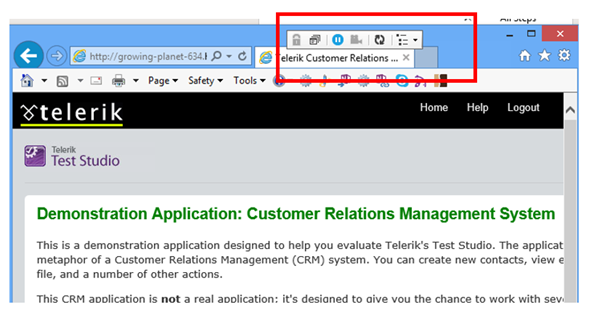
Let us consider you are recording a test and Test Studio is connected to recording browser (IE in this case) . From Test Studio control panel docked on browser select second option. It will allow to select an element on the DOM
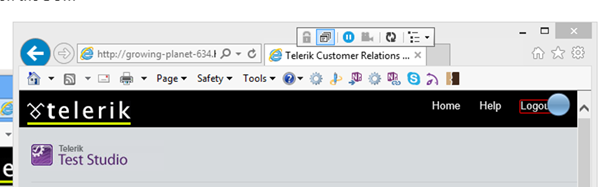
When you move mouse on page elements would be getting selected. There would be a red rectangle around selected element. Keep mouse for some time and you will get a blue bubble.
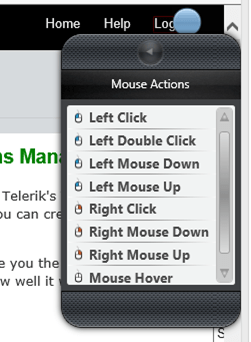
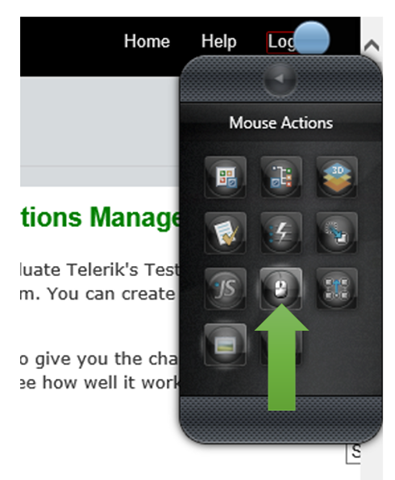
Next you need to click on blue bubble. You will get various options. In options select Mouse Actions options.
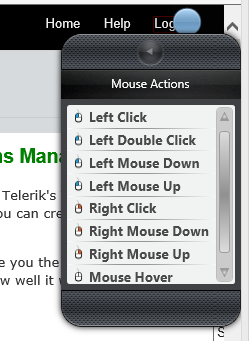
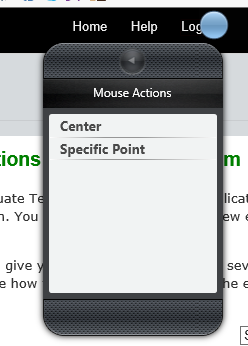
On selecting Mouse Actions option , you will get available mouse actions to automate.
For example if you want to add Mouse Hover action in your test just double click on Mouse Hover and a step will get added in the test. Next Test Studio will ask you further options like Centre and Specific Point.
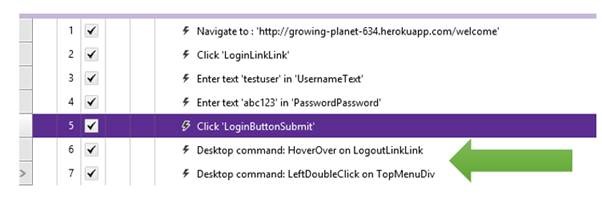
You will find mouse actions are added in test as follows
We just witnessed how easy it is to automate various desktop mouse actions command using Test Studio. We did not have to write any script and automation can be done while recording test. I hope you find this post useful. Thanks for reading.
In this post we will take a step by step look on creating Android app using Visual Studio. To create Android or iPhone app you need Icenium Extension for Visual Studio.
Let us start step by step from installation to creating Android APK package. Follow the steps below,
Step1: Download and Installation
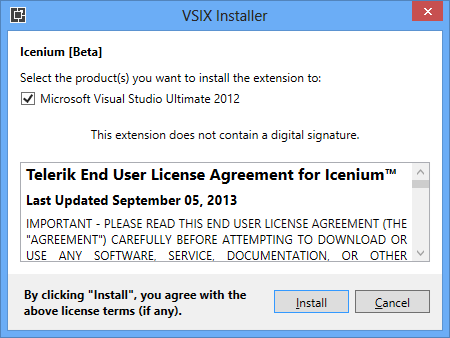
Very first you need to install Icenium Extension for Visual Studio from here . After successful download close all running instances of Visual Studio and install Icenium Extension for Visual Studio.
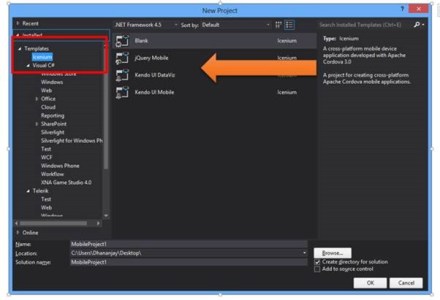
After successful installation launch Visual Studio and you will get Icenium tab. There you can choose any project template as per your requirement.
Step2: Create project
After successful download and installation go ahead and create project for Cross Platform Mobile Application. You have four options to create application depending on library you want to use.
For example if you want to use your own library then go ahead and select Blank Project Template and start adding your own library to create apps.
To create app using jQuery Mobile select jQuery Mobile project template.
To create app using Kendo UI Mobile select Kendo UI Mobile project template. In this scenario I am going to create app using Kendo UI Mobile.
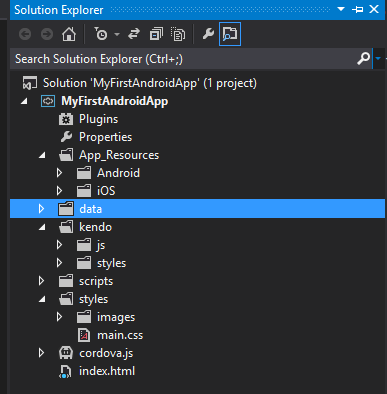
Here I have created a project selecting Kendo UI Mobile. On successful creation of project, you get a reference project created for you. You can use this as reference to build your app further. Project structure in solution explorer will look like following,
In this post I am not going into much details of programming aspect so let us consider that we want to publish default created app to Google Play.
Step 3: Build and Test in Simulator
We are going to build default reference app got created. In menu you will find an option Icenium.
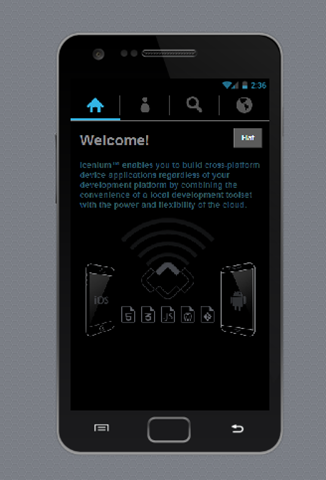
To test application in simulator select Run in Simulator option. You will get application running in simulator. Icenium supports iPhone, iPad, Android, Android tab simulator. In Android phone simulator default created app will look like as given in below image,
We will talk in detail about simulator in later posts.
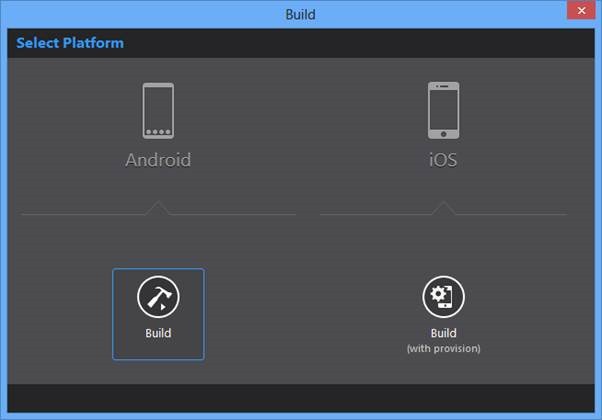
Next we need to build app for Android. You can do that by selecting Build App in Cloud option from Icenium menu in visual studio.
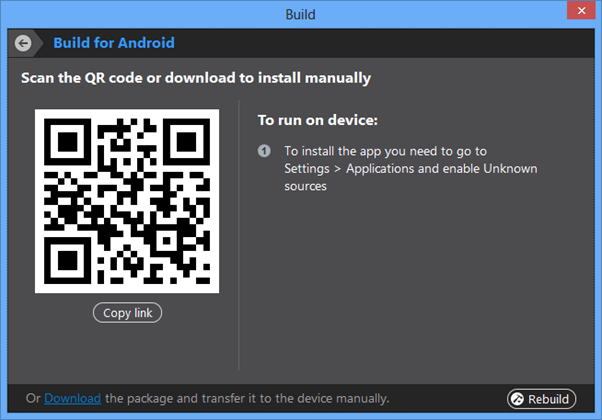
Here select Android Build option. After successful build you will get two options to run Android app on device.
Option one is to scan the QR code and option two is that you will find apk package in project’s bin->debug->android folder.
You need to upload apk package in Google Play to publish your android app to Google Play.
We just learnt it is super easy to create Android app in Visual Studio using Icenium extension.
In this post we will take a look on working with camera in Icenium. You can access camera in Icenium using Cordova or PhoneGap.
Let us say we want to capture a photo on touch of a button. I have designed view as below. On touch of button camera will be launched and then taken photo will get bind to image control.
In above function we are using cordova function navigator.camera.getPicture() to launch camera and click photo. You can pass many optional parameters to this function like quality, destinationType, sourceType, targetWidth , targetHeight etc.
On successful selection of photo onPhotoDataSucess function will be called. In this function you can access photo and use that as per your required. In this scenario we are binding that too an image control.
function onPhotoDataSuccess(imageData) {

 var smallImage = document.getElementById('smallImage');


smallImage.src = "data:image/jpeg;base64," + imageData;
 }
As you see that we are reading image with data url and setting that as source of image. If there is error selecting photo then onFail() function will be called. We can simply display an error message in this function.
function onFail(message) {
 alert('Failed because: ' + message);
 }
In this way you can work with camera in Icenium. I hope you find this post useful. Thanks for reading.

![clip_image001[6]](https://telerikhelper.net/wp-content/uploads/2013/11/clip_image0016.png "clip_image001[6]")
![clip_image001[8]](https://telerikhelper.net/wp-content/uploads/2013/11/clip_image0018.png "clip_image001[8]")








![clip_image002[6]](https://telerikhelper.net/wp-content/uploads/2013/09/clip_image0026.jpg "clip_image002[6]")
![clip_image002[8]](https://telerikhelper.net/wp-content/uploads/2013/09/clip_image0028.jpg "clip_image002[8]")

 Helping Ninja Technologists