Secure Databricks Notebook Run in Azure Data Factory with Service Principal

We recently had a case where a customer was running Azure Databricks notebook from Azure Data Factory. They mentioned that the configuration used to run the notebook was not secure as it was associated with a user account (probably a service account). The username and password was known to multitude of users and it had already caused some trouble. The concept of a “service account” has been quite prevalent since the times of on-premise applications. The service account was a user account that was used to run various applications and nothing else. In the modern world of cloud services, service accounts are obsolete and should never be used.

He wondered if there was a better way to run such notebooks in a more secure way?

In a single line, the solution to this problem is running the notebook as a service principal (and not a service account).

Here is a detailed step by step guide on how to make this work for Azure Databricks notebooks running from Azure Data Factory:

  1. Generate a new Service Principal (SP) in Azure Entra ID and create a client secret
  2. Add this Service Principal to the Databricks workspace and grant “Cluster Creation” rights
  3. Grant this Service Principal User Access to the Databricks workspace as a user
  4. Generate a Databricks PAT for this Service Principal
  5. Create a new Linked Service in ADF using Access Token credentials of the Service Principal
  6. Create a new workflow and execute it

If you followed the above instructions, your Databricks notebook will be run as a Service Principal.

One thing to understand before going over the detailed steps is the fact that when you add a Databricks notebook as an activity in Azure Data Factory, you are creating an “ephemeral job” in Databricks in the background when the ADF pipeline is run. You can control what kind of job cluster gets created and the user credentials under which the job will be run based on the linked service settings. Let’s get started:

  1. Generate a new SP with client secret
  1. Go to portal.azure.com and search for “Microsoft Entra ID” in the search tab and click it
  2. Click on Add and select “App registration”
  3. Give a meaningful name and leave the rest as-is and click “register”
  4. You should now see something like below
  5. Now click on “Certificates & secrets” and under the “Client secrets” tab click “New client secret”
  6. Under the “Add a client secret” pop-up, give a meaningful description and choose the appropriate expiration window and click “create”. Once done you should see something like this under the “Client secrets” tab
  7. Now open a notepad and have all the information noted there.
    Host: Databricks workspace URL
    Azure_tenant_id and Azure_client_id will be what is shown in the image under point 4
    Azure_client_secret will be the value in the image under point 6

2. Add this Service Principal to the Databricks workspace and grant “Cluster Creation” rights

  1. Now go to your target workspace and click on your Name to expand the menu, click open the settings( this requires workspace admin privilege)
  2. Now click on” identity and access” and under service principals click on manage

Click on “add service principal” button
Now click on Add new
Select the “Microsoft Entra ID managed” radio button and populate with the Application ID(client id) and give the same name as shown in point 4 and click Add

Now provide “Allow cluster creation” permission to the service principal to ensure it can create a new job cluster when we run through an ADF and click “update”

Generate a Databricks PAT for this Service Principal

  1. If you are on Mac open the terminal and use the command “nano .databrickscfg” to open the databricks config file and paste the information from the notepad from point 8.
    If you are on Windows press windows + R and type “notepad
    %APPDATA%\databricks\databricks.cfg” and press enter. Now paste the information from the notepad from point 8 into the Databricks config file. You will also have to give a meaningful profile name to identify the workspace in the config file.

  2. The config file should look like below once you are done. [hdfc-dbx] is the profile name here.Save and exit.
  3. Now go to Databricks CLI and authenticate the service principal’s profile using a PAT token by typing “databricks configure”. It will prompt for the host workspace’s URL and PAT token, provide it, and press enter.
  4. Now goto databricks cli and generate a PAT token for the Service Principal using the command “databricks tokens create –lifetime-seconds 86400 -p <profile name>”. You should see a proper response like below:
  5. Now grab the “token value” and keep it in a notepad safely

Create a new Linked Service in ADF using Access Token credentials of the Service Principal

  1. Now go to ADF, click on Manage -> Linked services -> New
    Under New Linked Service popup click on “compute” and select “Azure Databricks” click continue
  2. Now provide a meaningful name to the linked service, select the proper Azure subscription, and your target workspace. Under Authentication Type leave the option as Access Token and under the access token field update the access token we generated in point 13.(This is being done as an interim solution, the best practice is to use an Azure Key Vault and pass the token through secret).
  3. Now select the cluster version as 13.3 LTS, Node type, Python version, and Worker options as relevant to current cluster configuration. You can select the UC Catalog Access Mode as “Assigned” for single user and “Shared” for shared access mode. Click on test connection to ensure everything is working as intended.

Create a new workflow and execute it

  1. Now create a pipeline select the linked service that you created and point the ADF to a notebook.
  2. Click “Debug” and the job should run successfully

If you open the job execution link, you can see the job has been run as a Service Principal under task details

This is indicated by the value against “Run as” which is that of the Service Principal.


Introduction to Machine Learning with Spark ML – II

In the earlier post, we went over some concepts regarding Machine Learning done with Spark ML. Here are primarily 2 types of objects relating to machine learning we saw:

  1. Transformers: Objects that took a DataFrame, changed something in it and returned a DataFrame. The method used here was “transform”.
  2. Estimator: Objects that are passed in a DataFrame and would apply an algorithm on it to return a transformer. E.g. GBTClassifier. We used the “fit” function to apply the algorithm on the Dataframe.

In our last example of predicting income level using Adult dataset, we had to change our input dataset to a format that is suitable for machine learning. There was a sequence of changes we had done e.g. converting categorical variables to numeric, One Hot Encoding & Assembling the columns in a single column. Everytime there is additional data available (which will be numerous times), we will need to do these steps again and again.

In this post, we will introduce a new Object that organises these steps in sequence that can be run as many times as needed and it is called the Pipeline. The Pipeline chains together various transformers and estimators in sequence. While we could do the machine learning without the Pipeline, it is a standard practice to put the sequence of steps in a Pipeline. Before we get there, let’s try to add an additional step in fixing our pipeline and that is to identify and remove Null data. This is indicated in our dataset as ‘?’.

To know how many null values exist let’s run this command:

from pyspark.sql.functions import isnull, when, count, col
adultDF.select([count(when(isnull(c), c)).alias(c) for c in adultDF.columns]).show()

The result shows that there are no null values. Inspecting the data, we see that null values have been replaced with “?”. We would need to remove these rows from our dataset. We can replace the ? with null values as follows:

adultDF = adultDF.replace('?', None)

Surprisingly this doesn’t change the ? values. It appeared that the ? is padded with some spaces. So we will use the when and trim function as follows:

from pyspark.sql.functions import isnull, when, count, col,trim
adultDF = adultDF.select([when(trim(col(c))=='?',None).otherwise(col(c)).alias(c) for c in adultDF.columns])

This replaces ? will null that we can now drop from our dataframe using dropna() function. The number of rows remaining are now 30,162.

Now let’s organise these steps in a Pipeline as follows:

from pyspark.ml import Pipeline

adultPipeline = Pipeline(stages = [wcindexer,eduindexer,maritalindexer,occupationindexer,relindexer,raceindexer,sexindexer,nativecountryindexer,categoryindexer,ohencoder,colvectors])

The stages list contains all the transformers we used to convert raw data into dataset ready for machine learning. This includes all the StringIndexers, OneHotEncoder and VectorAssembler. Next, the process of defining the GBTClassifier and BinaryClassificationEvaluator remains the same as in the earlier post. You can now include the GBTClassfier in the pipeline as well and run the fit() on this pipeline with train dataset as follows:

adultMLTrainingPipeline = Pipeline(stages = [adultPipeline,gbtclassifier])
gbmodel  = adultMLTrainingPipeline.fit(train)

However, we can perform another optimization at this point. The model currently trained is based of a random split of values from the dataset. Cross Validation can help generalise the model even better by determining best parameters from a list of parameters and do it by creating more than one train and test datasets (called as folds). The list of parameters are supplied as ParamGrid as follows:

from pyspark.ml.tuning import CrossValidator, ParamGridBuilder

paramGrid = ParamGridBuilder()\
  .addGrid(gbtclassifier.maxDepth, [2, 5])\
  .addGrid(gbtclassifier.maxIter, [10, 100])\
  .build()

# Declare the CrossValidator, which performs the model tuning.
cv = CrossValidator(estimator=gbtclassifier, evaluator=eval, estimatorParamMaps=paramGrid)

The cross validator object takes the estimator, evaluator and the paramGrid objects. The pipeline will need to be modified to use this cross validator instead of the classifier object we used earlier as follows:

adultMLTrainingPipeline = Pipeline(stages = [adultPipeline,gbtclassifier])


adultMLTrainingPipeline = Pipeline(stages = [adultPipeline,cv])

With these settings, the experiment ran for 22 mins and the evalution result came out to be 91.37% area under RoC.

Azure Databricks – What is it costing me?

A customer wanted to know the total cost of running Azure Databricks for them. They couldn’t understand what DBU (Databricks Units) was, given that is the pricing unit for Azure Databricks.

I will attempt to clarify DBU in this post.

DBU is just really an abstraction not related to any amount of compute or compute metrics. At the same time, it changes with the following factors:

  1. When there is a change in the kind of machine you are running the cluster on
  2. When there is change in the kind of workload (e.g. Jobs, All Purpose)
  3. The tier / capabilities of the workload (Standard / Premium)
  4. The kind of runtime (e.g. with or without Photon)

So, the DBUs really measure the consumption of resources. It is billed on a per second basis. The monetary value of these DBUs is called $DBU and is determined by a $ rate charged per DBU. Pricing rate per DBU is available here.

You are paying DBUs for the software that Databricks has made available for processing your Big Data workload. The hardware component needed to run the cluster is charged directly by Azure.

When you visit the Azure Pricing Calculator and look at the pricing for Azure Databricks, you would see that there are two distinct sections – one for compute and another for Databricks DBUs that specifies this rate.

The total price of running an Azure Databricks cluster is a combination of the above two sections.

Let us now understand if we are running a cluster of 6 machines what is the total cost likely to be:

For the All Purpose Compute running in West US in Standard tier with D3 v2, the total cost for compute (in PAYG model) is likely to be USD 1,222/ month.

From the calculator you can see that DBU consumption is 0.75 DBU with a rate of USD 0.4/ hr. So, the total cost of running 6 D3 v2 machines in the cluster will be $ 219 * 6 = $ 1,314.

The total cost hence would be USD 2,536.

From an optimization perspective, you can reduce your hardware compute by making reservations e.g. 1 yr or 3 yrs in Azure. DBUs from the Azure calculator doesn’t have any upfront commitment discounts available. However, they are available if you contact Databricks and request for discount on a fixed commitment.

If you are interested in saving costs while running Databricks clusters, here are two blog posts that you may find interesting:
https://medium.com/similarweb-engineering/how-we-cut-our-databricks-costs-by-50-7c60d6b6c069
https://www.databricks.com/blog/2022/10/18/best-practices-cost-management-databricks.html

Copy Data in Azure Databricks Table from one region to another

One of our customers had a requirement of copying data that was locked in an Azure Databricks Table in a specific region (let’s say this is eastus region). The tables were NOT configured as Delta tables in the originating region and a subset of personnel had access to both the regions.

However, the analysts were using another region (let’s say this is westus region) as it was properly configured with appropriate permissions. The requirement was to copy the Azure Databricks Table from eastus region to westus region. After a little exploration, we couldn’t find a direct/ simple solution to copy data from one Databricks region to another.

One of the first thoughts that we had was to use Azure Data Factory with the Databricks Delta connector. This would be the simplest as we would simply need a Copy Data activity in the pipeline with two linked services. The source would be a Delta Lake linked service to eastus tables and the sink would be another Delta Lake linked service to westus table. This solution faced two practical issues:
  1. The source table was not a Delta table. This prevented the use of Delta Lake linked service as source.
  2. When sink for copy activity is a not a blob or ADLS, it requires us to use a staging storage blob. While we were able to link a staging storage blob, the connection could not be established due to authentication errors during execution. The pipeline error looked like the following:
Operation on target moveBlobToADB failed: ErrorCode=AzureDatabricksCommandError,Hit an error when running the command in Azure Databricks. Error details: shaded.databricks.org.apache.hadoop.fs.azure.AzureException: shaded.databricks.org.apache.hadoop.fs.azure.AzureException: Unable to access container adf-staging in account xxx.blob.core.windows.net using anonymous credentials, and no credentials found for them in the configuration. Caused by: shaded.databricks.org.apache.hadoop.fs.azure.AzureException: Unable to access container adf-staging in account xxx.blob.core.windows.net using anonymous credentials, and no credentials found for them in the configuration. Caused by: hadoop_azure_shaded.com.microsoft.azure.storage.StorageException: Public access is not permitted on this storage account..

On digging deeper, this requirement is documented as a prerequisite. We wanted to use the Access Key method but it requires the keys to be added into Azure Databricks cluster configuration. We didn’t have access to modify the ADB cluster configuration.

To work with this, we found the following alternatives:

  1. Use Databricks notebook to read data from non-Delta Tables in Databricks. The data can be stored in a staging Blob Storage.
  2. To upload the data into the destination table, we will again need to use a Databricks notebook as we are not able to modify the cluster configuration.

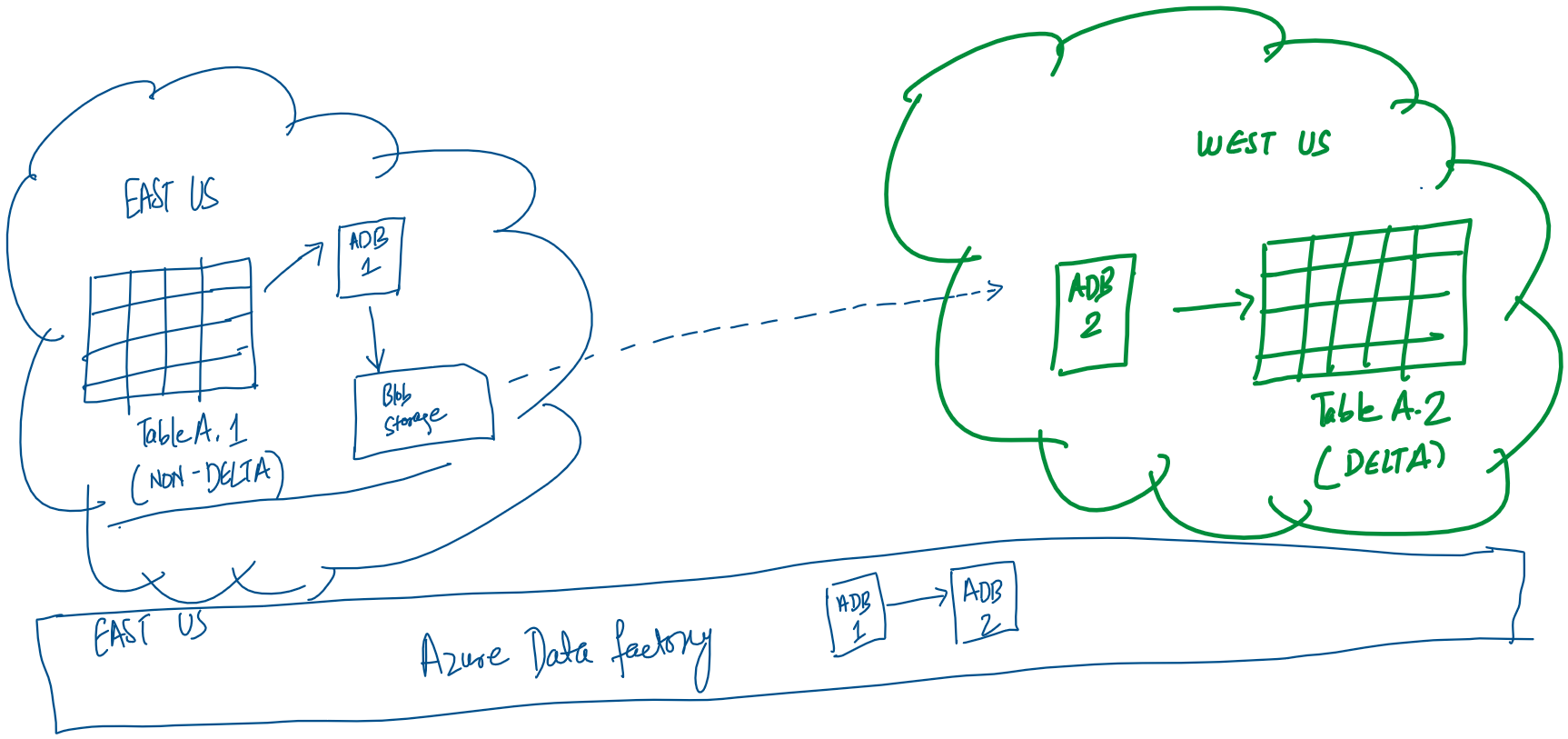
Here is the solution we came up with:

In this architecture, the ADB 1 notebook is reading data from Databricks Table A.1 and storing it in the staging blob storage in the parquet format. Only specific users are allowed to access eastus data tables, so the notebook has to be run in their account. The linked service configuration of the Azure Databricks notebook requires us to manually specify: workspace URL, cluster ID and personal access token. All the data transfer is in the same region so no bandwidth charges accrue.

Next the Databricks ADB 2 notebook is accesses the parquet file in the blob storage and loads the data in the Databricks Delta Table A.2.

The above sequence is managed by the Azure Data Factory and we are using Run ID as filenames (declared as parameters) on the storage account. This pipeline is configured to be run daily.

The daily run of the pipeline would lead to a lot of data in the Azure Storage blob as we don’t have any step that cleans up the staging files. We have used the Azure Storage Blob lifecycle management to delete all files not modified for 15 days to be deleted automatically.