Using RadControls in JavaScript based Windows 8 Application

In this post we will set up project to use RadControls for Windows 8 in JavaScript based Application. Before you go ahead with this post, read here

Getting Started with Rad Controls for Windows 8

Once you have done with downloading and installing Rad Control for Windows 8, create a new JavaScript based Windows Store project

image

Right click on the reference in solution explorer and add a new reference. Choose Windows Library for JavaScript and add to the project.

image

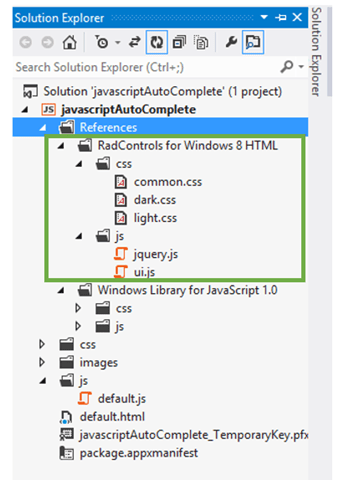
After adding references, verify in solution explorer that you have successfully added the references

image

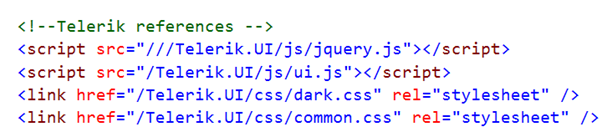
Once references are successfully added in the project, you need to add references of Rad Control JS files and CSS files on the HTML page. You can refer them as following listing,

image

Now you are all set to use RadControls for Windows 8 in your application. To test that whether we have added all the references correctly or not ,let us put a RadSlider control on HTML

image

Now when you run the application you should get a RadSlider control on the page successfully.

image

In this way you can get it started with Rad Controls for Windows 8 in JavaScript based application for Windows Store. I hope you find this post useful. Thanks for reading.

Working with Github and Icenium

Cloud based IDE Icenium allows you to develop cross platform mobile applications. When you create a project in Icenium IDE , it saves that project in cloud and allow you to do version control. Aprat from cloud integration , Icenium allows you to push and pull your project with Github Repositiry as well.

image

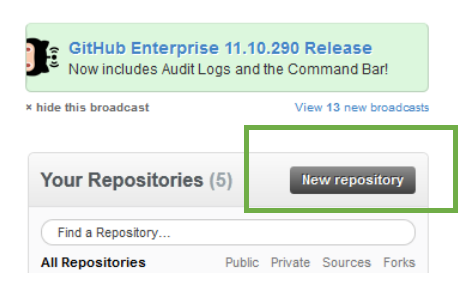
To integrate project from Icenium to Github repository, first create a repository in guthib. You can create that on Github site by clicking on New Repository link button

image

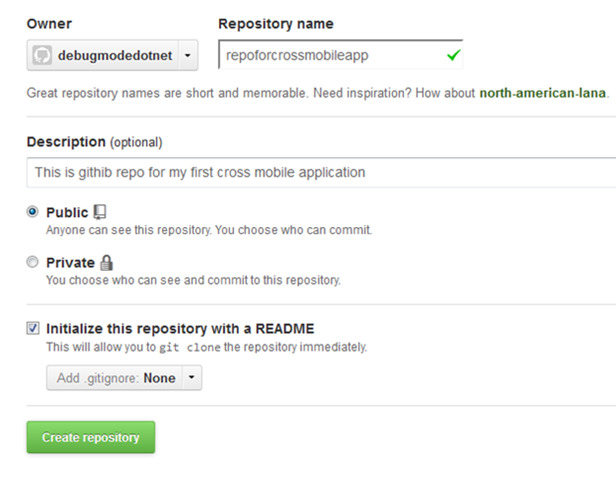
To create new repository, you need to provide following information. I am symbolically providing information here to create a new repository.

image


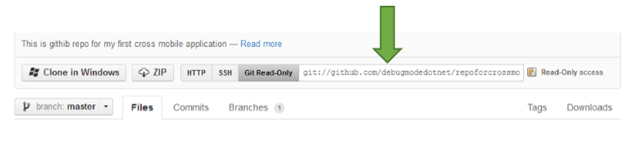
Once repository got created, you will get a URL to work with that repository.

image

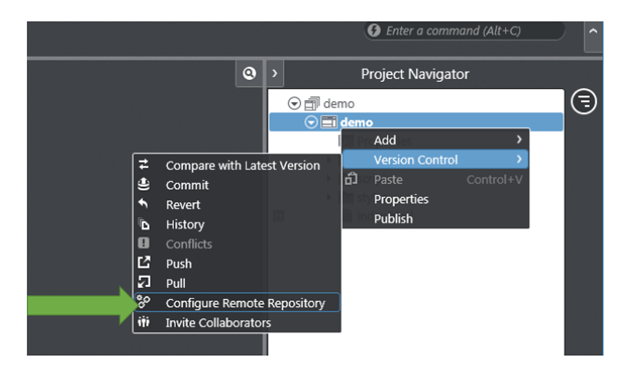
As of now you have created a repository in Github. Now let us switch to Icenium IDE. Right click on the project then select Version Control. In Version Control select the option of Configure Remote Repository

image

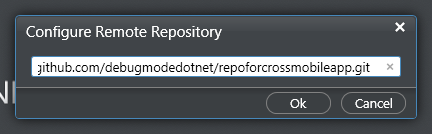
Next you need to provide URL of Github repository.

image

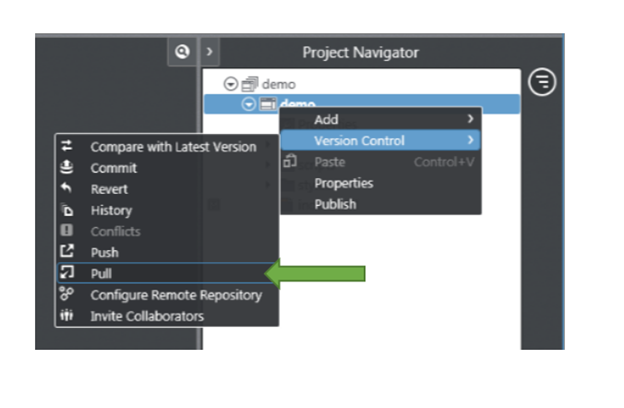
Next again right click on the project and from Version Control select the option of Pull

image

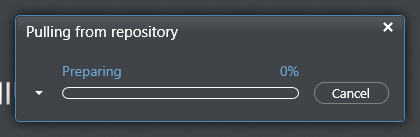
You will see that you have pulled the repository.

image  

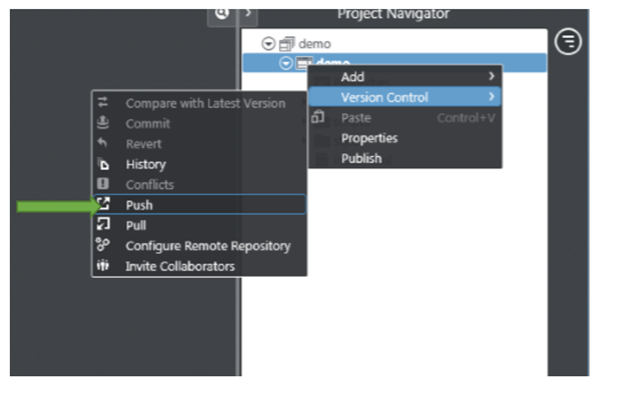
Now to push the project to github repository right click on project and select version control then Push option

image

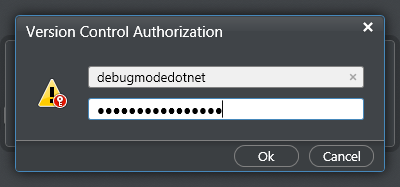
When you start pushing you need to authorize yourself to the repository.

image

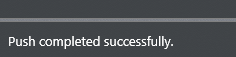
On successful completion of the push, you will get a message at bottom of IDE as following    

image


So in this way you can integrate project from Icenium to Github repository.  I hope this post was useful. Thanks for reading.

Using Kendo AutoComplete in ASP.Net MVC 4.0

In this post, we will see how we could work with Kendo AutoComplete in ASP.Net MVC. We will fetch data from SQL Server table in Kendo AutoComplete using LINQ to Sql class

Adding the Model

Follow Adding Model section of this post to create model.

Adding Controller

We have created the Model, now we need to fetch data using Model in the Controller. I am going to use default created HomeController and Action Index. Go ahead and in HomeController.cs file modify the Action Index.

image

Here we need to create instance of model and pass the data to view. That can be done as following

image

Adding Kendo AutoComplete on View

We are passing data from Index action, so we need to put Kendo AutoComplete in IndexView. Go to View and Home folder and open Index.cshtml

image

Very first you need to make View as strongly typed. You can make a View strongly typed as following

image

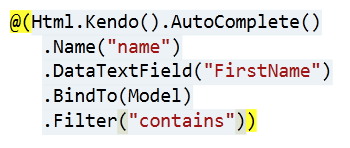
Next add Kendo UI AutoComplete. Make sure that you are providing the name attribute. In DataTextField pass the name of the column on which you want to filter the data.

image

For your reference code in view is as following


@model IEnumerable<mvcwrappersample1.Models.Person>

<h3>Kendo AutoComplete</h3>

@(Html.Kendo().AutoComplete()
.Name("name")
.DataTextField("FirstName")
.BindTo(Model)
.Filter("contains"))

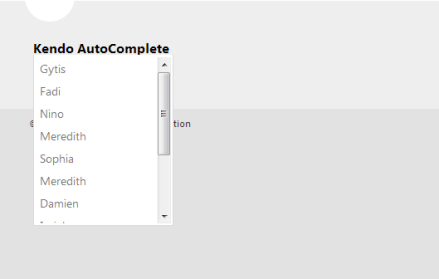
Press F5 to run the application, you should able to get data from model in Kendo AutoComplete.

image

I hope you find this post useful. Thanks for reading.

Getting Started with Rad Controls for Windows 8

In this post, we will learn how we could start with Rad Controls for Windows 8.

Download Trial Version from here

As of now these controls are available, 

  • Chart
  • DatePicker
  • Pagination
  • Gauge
  • TimePicker
  • HubTile
  • BulletGraph
  • NumericBox
  • Slider
  • ComboBox
  • AutoCompleteBox
  • DropDownList

You can download Demo Applications exploring the controls from here

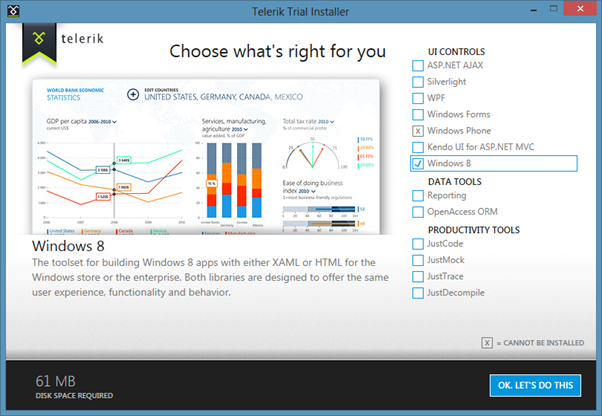
After downloading, follow the Telerik Installer Wizard.

 image

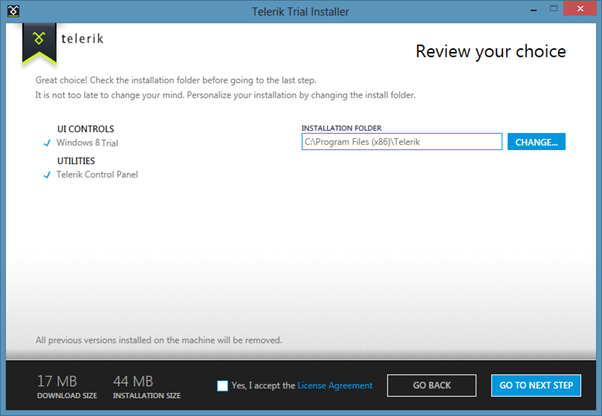
Make sure that Windows8 is selected. Click on OK.LET’S DO THIS. Configure installation folder , accept license terms and click on Go to Next Step

image

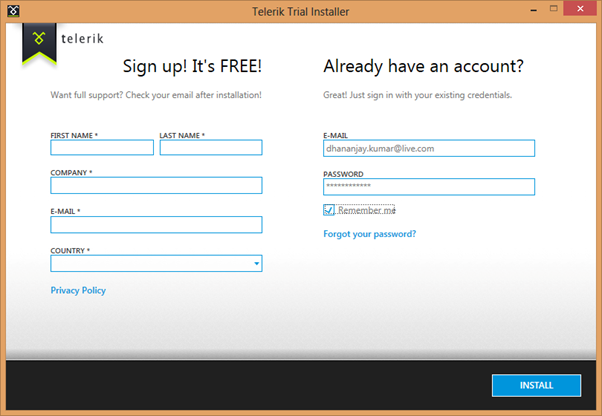
Provide credential and click on Install to start the installation.

image

After successful installation, you will get following message

 image

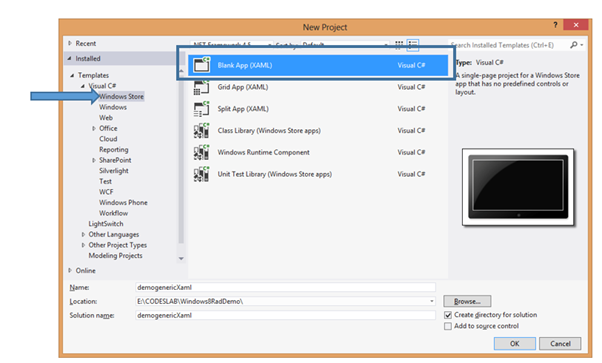
By this step, you have successfully installed Rad Controls for Windows 8. Now go ahead and launch Visual Studio and create an Application for Windows Store. Let us choose Blank Application from the XAML Windows Store template.

image

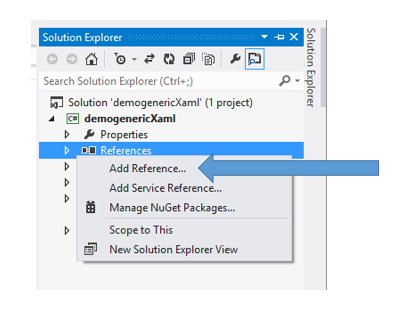
Once the project is created in Solution Explorer right click on the Reference and select Add Reference

image

In the dialog box make sure that you have selected Extension and select Rad Controls for Windows 8.

image

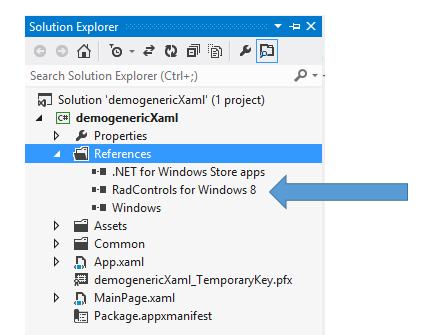
After adding rerefence in solution explorer verify that refence of Rad Controls has been added successfully.

image


By this step you have succesfully created the project and added the required refrence. Now you are all set to use Rad Controls for Windows 8 in your application. Let us go ahead and add RadDatePicker control on the MainePage.xaml. Before using any Rad Control , you need to add namespace. Add namespace as following

image

After adding namespace put RadDatePicker control as following

image

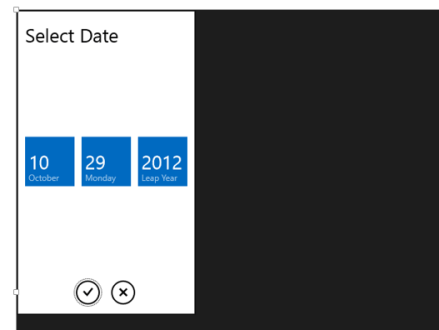
Now press F5 and run the application. You should able to get RadDatePicker control

image

In this way you can start working with Rad Controls for Windows 8. In further posts we will explore each controls individually. I hope you find this post useful. Thanks for reading.

Using Kendo Grid in ASP.Net MVC 4.0

In this post we will see, how we could work with Kendo Grid in ASP.Net MVC. We will display data from SQL Server table in Kendo Grid using LINQ to Sql class. Pictorially we can represent it as follows

image

Before you start with this post, I strongly recommend you to read

Getting started with Kendo UI MVC Wrapper in ASP.Net MVC 4.0

Adding Model

Once you are done with setting up environment go ahead and add a model. We are going to use LINQ TO SQL Class as model. To add model right click on model folder and select New Item. Select Data tab and choose LINQ to SQL Classes to add as model. Give any name to model, I am leaving the default name.

image

Next on the design surface choose Server Explorer

image

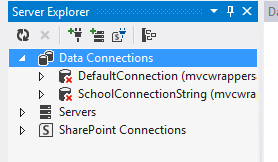
If in the Server Explorer, you do not find Data Connection you want to use then go ahead and right click on the Data Connection and select Add New Connection

image

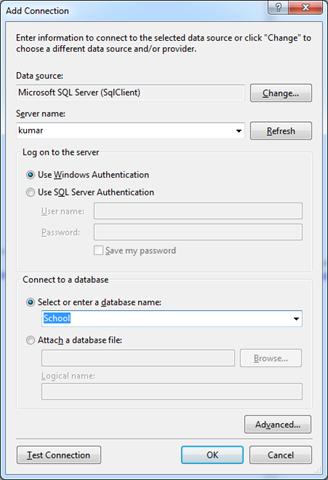
In Add Connection dialog box provide server name and from drop down choose desired database.

image

Click on Ok to add a new connection. Next from Server Explorer drag and drop the tables on dbml file to create the model. I am choosing only Person class from School database.

image

In Solution explorer you can see a dbml file has been added.

image

Adding Controller

We have created the Model, now we need to fetch data using Model in the Controller. I am going to use default created HomeController and Action Index. Go ahead and in HomeController.cs file modify the Action Index.

image

Here we need to create instance of model and pass the data to view. That can be done as following

image

Adding Kendo Grid on View

We are passing data from Index action, so we need to put Kendo Grid in IndexView. Go to View and Home folder and open Index.cshtml

image

Very first you need to make View as strongly typed. You can make a View strongly typed as following

image

Next we can bind data from Model to Kendo Grid as following. Make sure you provide name of the Kendo Grid. This is mandatory because name act as id attribute of the Grid element.

image

For your reference code in view is as following


@model IEnumerable<mvcwrappersample1.Models.Person>

<h3>Kendo Grid</h3>

@(Html.Kendo().Grid(Model)
.Name("personGrid")
.Columns(columns =>
{
columns.Bound(p => p.FirstName);
columns.Bound(p => p.LastName);
columns.Bound(p => p.HireDate);
columns.Bound(p => p.EnrollmentDate);
})
.Pageable() //Enable paging
)

Press F5 to run the application. You should able to get data from model in Kendo Grid.

image

I hope you find this post useful. Thanks for reading.

Creating First Cross-Platform Application using Kendo UI Mobile and Icenium


Learn and explore more about Icenium here

Learn more about Kendo UI Mobile here

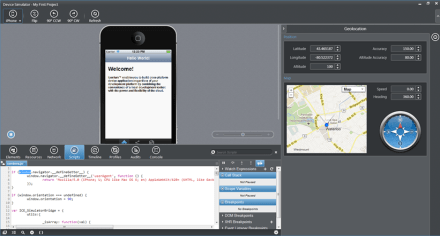
Yes as you see in below image that I am developing an application for IPhone on my Windows Machine and this is possible using Icenium.

Being an application developer I am very much excited with the launch of ICENIUM .Icenium is Cloud Based IDE to create Hybrid Application. If you are new to Hybrid Application then you may want to read what is a Hybrid Mobile App? And you may want to read As a Developer why should I worry about Hybrid Application Development?

Learn and explore more about Icenium here

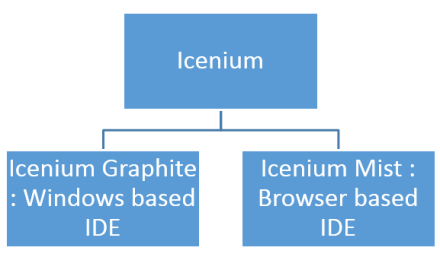
Icenium provides you two different types of IDE.


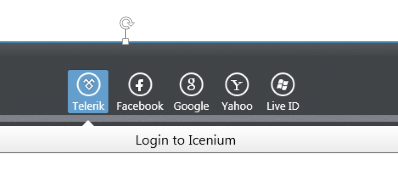
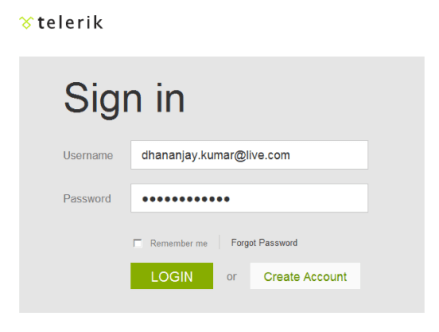
In this post we are going to use Icenium Graphite to create our first Cross-platform application. To start with launch Icenium Graphite IDE. You will be asked to Login to Icenium. You can login using any of the following as given in the image below.

Let us choose Telerik ID to login into Icenium IDE.


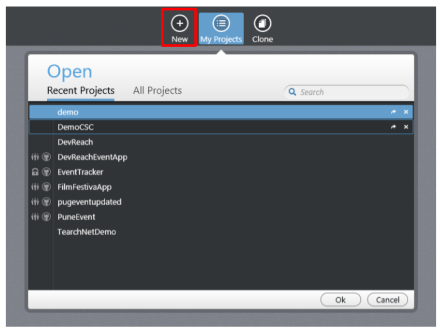
After successful login you will get a Project dashboard. On project dashboard you can perform following three tasks

Create New Project
Browse existing Projects
Clone a project

In below image you can see list of existing projects. To create new project click on New.

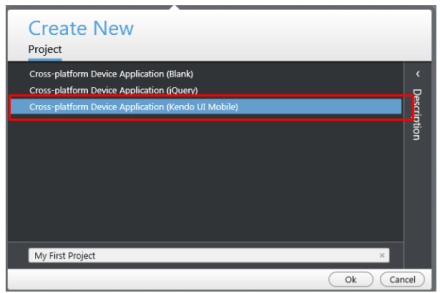
There are three project templates as following

  • Blank
  • Using jQuery
  • Using Kendo UI Mobile

Let us go ahead and create a cross-platform device application using Kendo UI Mobile.


Give name of the project. You will notice that you are not asked to select a location to save the project. Since Icenium is a cloud IDE, it saves the project in the cloud rather than saving it locally. Click ok to create the application.

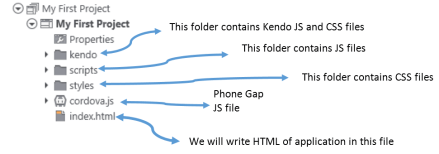
Let us go ahead and explore Project Navigator. You will find project structure as given in following image,


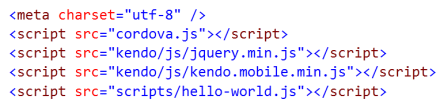
On opening of index.html, you will find some prior code there for reference. As you see in below image that to create Hybrid application using Kendo UI Mobile, you need minimum following references.


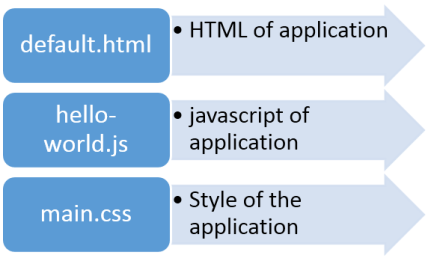
There are three default files you will be working on. However you are free to give any name to files.


Let us go ahead and run the default application got created by choosing Kendo project template.


There are two ways you can run the application. You can run application either

  1. On Device
  2. In Simulator

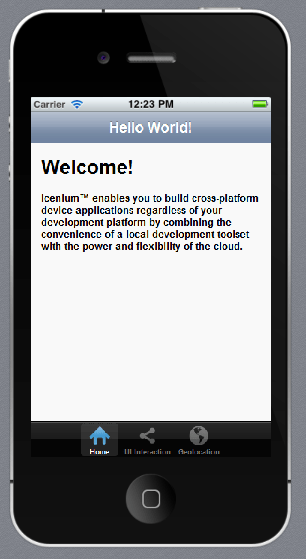
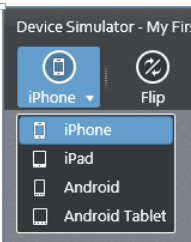
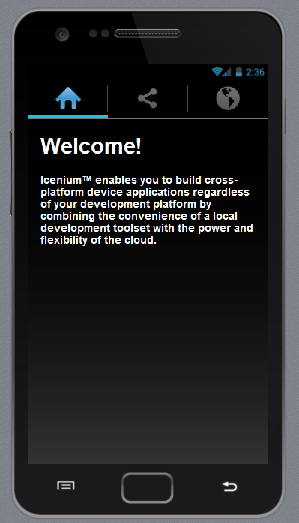
On running you get application running in iPhone simulator.


There are four simulator supported in Icenium.


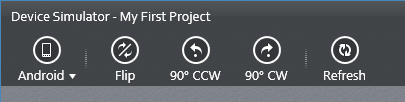
If you want to run the application in Android Simulator change the Device simulator and you are done

There are many other options available in Device Simulator. We will discuss them in detail in further blog posts.


In this way you can create, test and deploy a truly cross-platform application using Kendo UI Mobile and Icenium. I hope you find this post useful. Looking forward to share more learning on Icxenium and Kendo UI Mobile with you in further blog posts.

Getting started with Kendo UI MVC Wrapper in ASP.Net MVC 4.0

In this post we will learn getting started with Kendo UI MVC Wrapper.

Download Kendo UI free trial from here

Launch visual studio and create a new MVC 4 Web Application.


Choose Internet Application as type of application and Razor engine as the View Engine.


To test whether we have created application correctly or not press F5 and run the application. If application is successfully running then you are all set to start using Kendo UI MVC Wrapper in your application. Very first you need to add reference of Kendo.Mvc.dll. You will find this file in location \wrappers\aspnetmvc\Binaries\Mvc3. Right click on the reference in project and browse to add Kendo.Mvc.dll in the project.
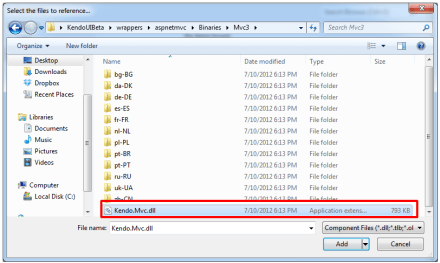

After adding the reference open Web.config file


You need to make sure that following entry is present in the Web.config file.
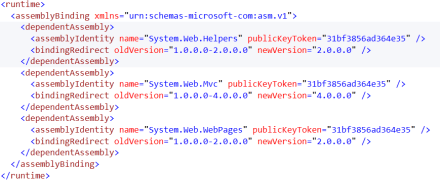

If above entry is not present then make sure to add them in Web.config file.


<runtime>
<assemblyBinding xmlns="urn:schemas-microsoft-com:asm.v1">
<dependentAssembly>
<assemblyIdentity name="System.Web.Helpers" publicKeyToken="31bf3856ad364e35" />
<bindingRedirect oldVersion="1.0.0.0-2.0.0.0" newVersion="2.0.0.0" />
</dependentAssembly>
<dependentAssembly>
<assemblyIdentity name="System.Web.Mvc" publicKeyToken="31bf3856ad364e35" />
<bindingRedirect oldVersion="1.0.0.0-4.0.0.0" newVersion="4.0.0.0" />
</dependentAssembly>
<dependentAssembly>
<assemblyIdentity name="System.Web.WebPages" publicKeyToken="31bf3856ad364e35" />
<bindingRedirect oldVersion="1.0.0.0-2.0.0.0" newVersion="2.0.0.0" />
</dependentAssembly>
</assemblyBinding>
</runtime>

Now you add Kendo JS files and CSS files in the project. To add Kendo JS files right click on Script folder and select add existing item


Browse to JS folder in Kendo UI installation directory and add all the JS files in the Scripts folder. After adding JS files add CSS files in the project. To add that right click on Content folder in the project and choose option to add existing items
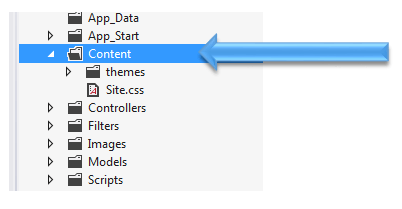

Browse to Styles folder in Kendo UI installation directory and all the CSS files in the Content folder. If you are going to use some specfic style like Metro or Silver then make sure you add texture folder in the Content directory as well. Make sure you have added Texture folder and Default folder also in the Contnet folder of the project.

After adding all the css files and folder , Content folder in the project should look like as following


By this step , you have added all the required dll, js files and css files in the project. Next open Web.config from the Views


Here you need to add following namespace


You need to add this namespace in root level Web.config as well. So open root level Web.config and add the name space.


And add the namespace as following

last step you need to add references of CSS and JS file in _layout.cshtml file. You will find this file in Shared folder.


Open this file and scroll down. Comment the like referring to jquery file. You will find that reference just before closing body tag.


And at the beginning of the file add the following references ,


Above we have referred Metro CSS for metro styled UI experience. So go ahead and following references in _layout.cshtml file


<link rel="stylesheet" href="@Url.Content("~/Content/kendo.common.min.css")" />
<link rel="stylesheet" href="@Url.Content("~/Content/kendo.metro.min.css")" />
<script src="@Url.Content("~/Scripts/jquery.min.js")"></script>
<script src="@Url.Content("~/Scripts/kendo.web.min.js")"></script>
<script src="@Url.Content("~/Scripts/kendo.aspnetmvc.min.js")"></script>

Now you are all set to use Kendo UI MVC Wrappers in the project. Let us go ahead and put a Kendo Calendar widget on index.cshtml . You can put that as following


Now press F5 to run the application. You should get the Kendo UI Calendar on the index view as following,


In this way you can start working with Kendo UI MVC Wrapper in ASP.Net MVC 4.0 Application. I hope you find this post useful. Thanks for reading!

How to do Exploratory Testing in Test Studio

Using Telerik Test Studio Exploratory Testing tool you can

  • Submit and send and idea
  • Submit and send Important information
  • Submit a bug to Team Pulse or TFS


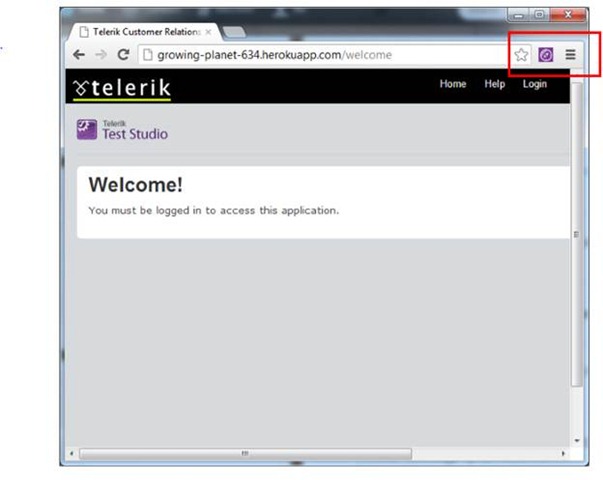
Directly from your browser. In this post we will learn how we can perform Exploratory Testing. To do exploratory testing click on Telerik Exploratory Testing Extension in the browser (Chrome is being used here}


clip_image002

Not able to launch Exploratory Testing Tool? Read here

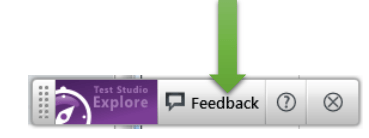
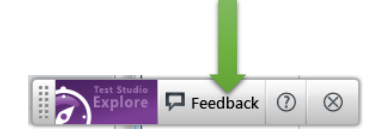
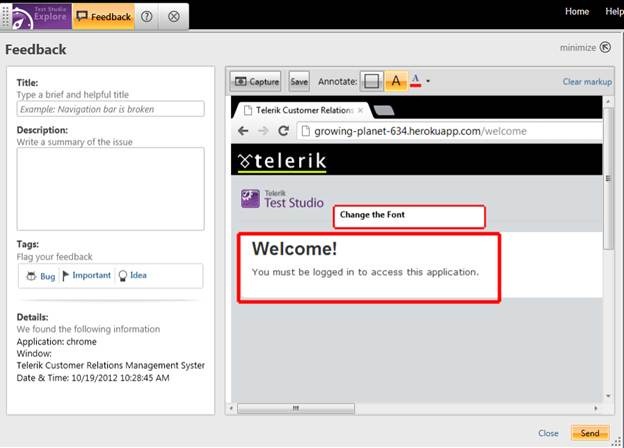
You will get Test Studio Exploratory toolbar open. Click on Feedback button to perform exploration testing

clip_image003


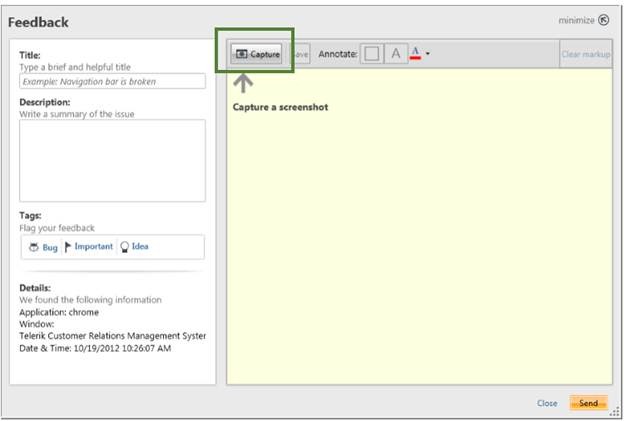
Next click on Capture button to capture a screenshot

clip_image005


Now you can capture any screen short from the page. Annotate a particular element as following. Like in following case we are saying “Change the font of Welcome element.

clip_image007


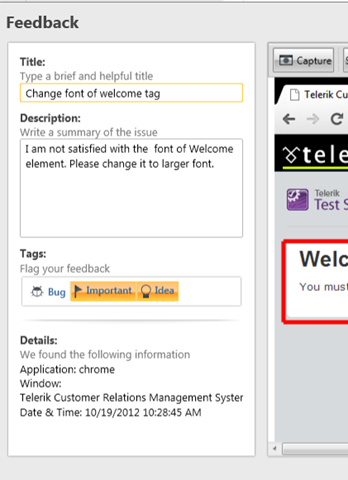
In the left side you get Feeback panel. Here you can provide Title, Description and tag the annotation.


clip_image008

You can tag either as Important or Idea. After providing all the information you can send this by clicking on send button in bottom.

clip_image009


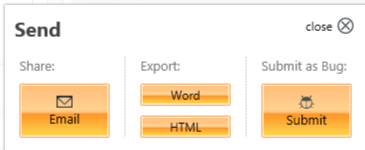
You can either export to

  • Word
  • HTML

Or can send in Email. You can submit it as bug as well. You can submit to Team Pulse or TFS.


clip_image010


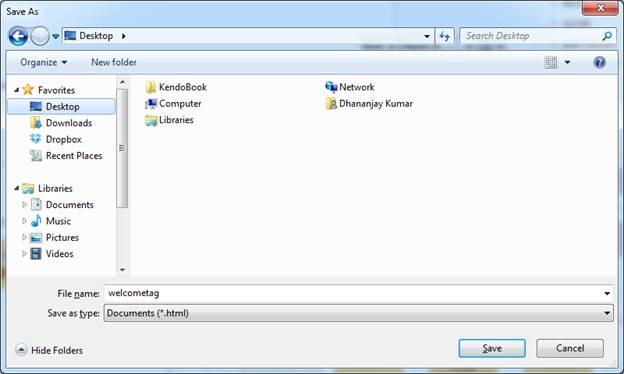
If you want to export to HTML click on HTML option. You will be asked to provide name of the file and choose the location to save the file.

clip_image012


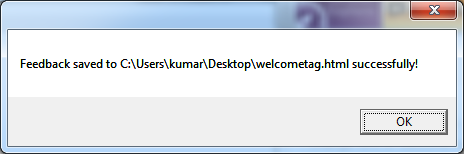
You will get a confirmation message that Feedback is saved to the given location.


clip_image013


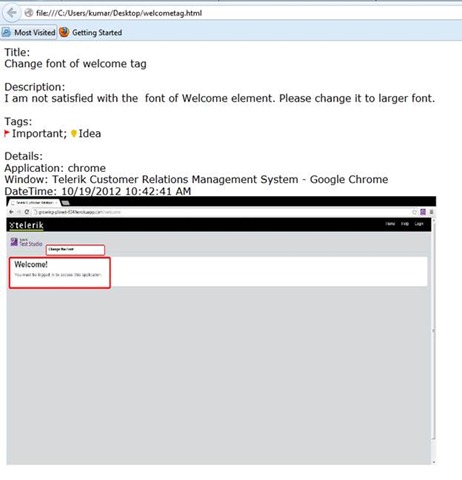
If you open file you will get all the information of the feedback submitted.


clip_image015

In this way you can perform Exploratory Testing right in your browser using Telerik Test Studio.

. I hope you find this post useful. Thanks for reading.

Not able to launch Exploratory Testing Tool in Test Studio?

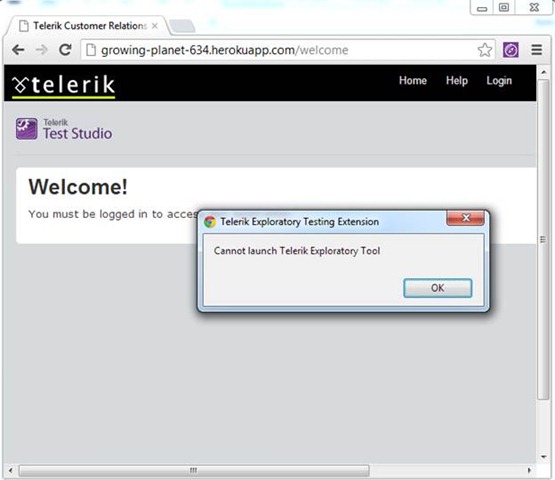
You might have come across following error when you try to open Telerik Test Studio Exploratory Tool in browser

clip_image002 

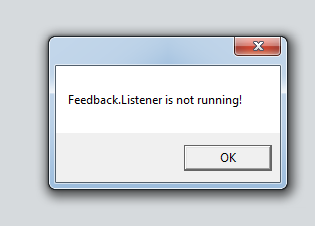
If you open exploratory tool in Internet Explorer, you will get more specific error message as following

clip_image003

You can solve this problem in two steps,

Step 1:

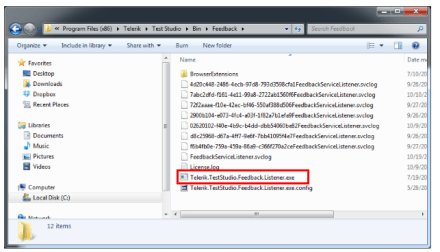
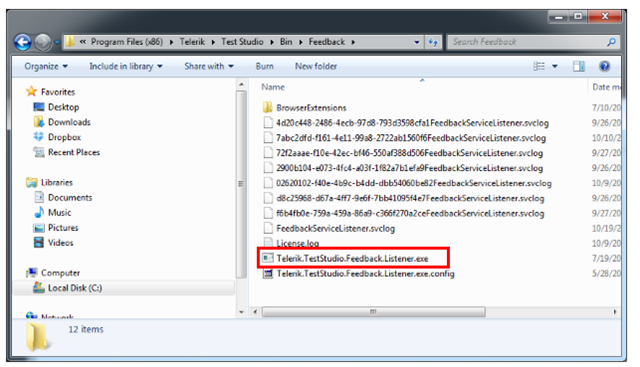
Browse to folder C:\Program Files (x86)\Telerik\Test Studio\Bin\Feedback

clip_image004


Step 2:

locate for file Telerik.TestStudio.Feedback.Listener.exe . Right click on the file and click Run as Administrator

After running this service go back to browser and open exploratory tool, you should able to launch it successfully.

I hope you find this post useful. Thanks for reading

How to encrypt information while testing in Test Studio?

Let us assume that you are doing automated test of login functionality. While executing the test you want to encrypt the Password information provided by the user to authenticate. Test Studio allows you to encrypt the vital information in the test steps.

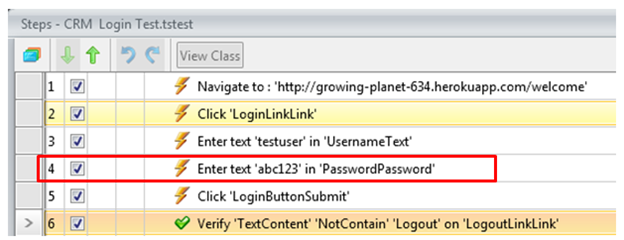
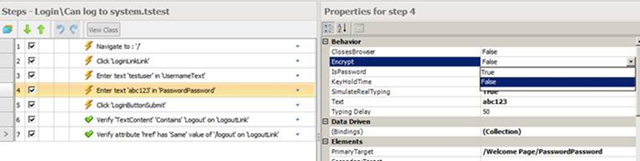
Suppose you have recorded a login test as following. If you see in step 4 password is displayed in the plain text.

image


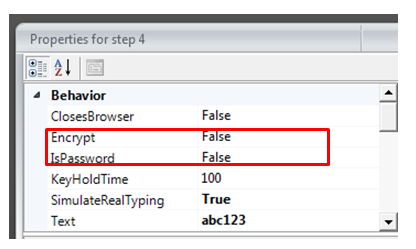
If you want to encrypt this information select the step and open the property. Open the property window for enter password step and navigate to Behavior tab. At the top of property window you can verify that for which step property is open. You see that Encrypt behavior value is set to false.


clip_image003

To encrypt the password you need to change value of Encrypt to true.

clip_image004

After changing this value when you navigate back to test steps, you will find password has been encrypted

clip_image005

So in this way you can encrypt vital information while executing the test. I hope you find this post useful. Thanks for reading.

Question and Answers from “Performance and Load Testing with Test Studio” Webinar

I would like to thank everyone for attending webinar on “Performance and Load Testing with Test Studio”. Please find below answers of the questions come up in the webinar.

How to encrypt the password and please can you show us how to handle the parameterization?

Password encryption is set via the property panel for that test step.

image 

How to handle dynamic objects?

See the Video here

Can we do Performance test & Load test with third party application that do not run through browser

Test Studio support web applications. Other applications are not supported.

Test Studio is only for .NET testing not for the JAVA or other testing. Can it test standalone java application?

Test Studio will test any web, Silverlight, or WPF application. The web application can be written on any platform. Java, Ruby, .NET, Python, PHP, it doesn’t matter as long as HTML is sent across the wire.

How many computers we can select at one shot during performance testing

We support multiple computers. We’ve tested with large configurations.

Can we have test suites for the performance testing?

Yes. Test Lists may be created which focus on performance tests.

Can we have custom performance counters added?

Custom counters will be available if they are added through the Windows Performance counter infrastructure.

Describe how to identify the memory leakage using Telerik Test Studio

Memory leakage would be monitored by using performance monitor counters for memory usage. (Total available bytes, garbage collection, etc.)

What criteria would you use to select Web transactions for load testing?

If by “transactions” you mean use cases, then you want to select as many different ones as possible in order to model your site’s traffic as accurately as possible.

How to use Regular Expression in Load Runner for web functions

This webinar is about Telerik’s Test Studio. Please see HP for questions about Load Runner.

Can do the Regression Testing also by using Test Studio

Yes. Automated tests are perfect for regression testing.

Transition styles in Kendo UI Mobile

In this post we will learn different Transition Styles between Kendo UI Mobile Views.

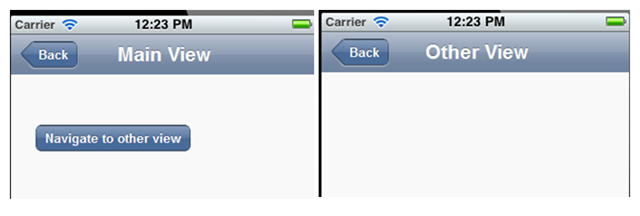
To start with let us assume we have an application as following. This application consists of two views. On click of Kendo button, user will navigate to Other View.

image

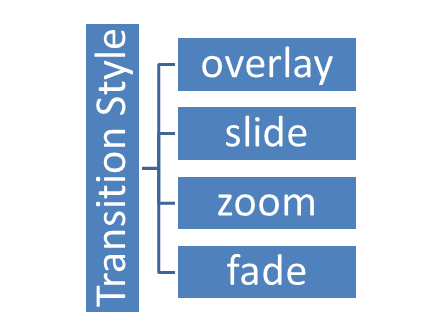
There are four supported Transition styles, they are as follows

image

Overlay transition style

See the video for the behavior of Overlay transition style

Slide transition style

See the video for the behavior of Slide transition style

Zoom transition style

See the video for the behavior of Zoom transition style

Fade transition style

See the video for the behavior of Fade transition style

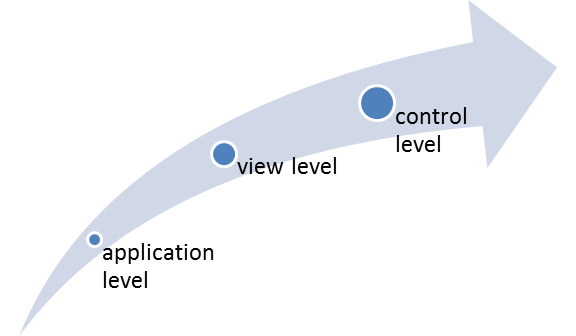
Default transition style is “slide”. We can apply transition style in three ways

  1. At the application level
  2. At the view level
  3. At the control level

At Application Level

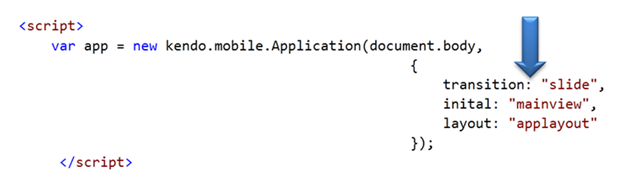
When set at application level same transition style will be applied to entire application. All views of the application will adhere to the same transition style. At application level transition style can be set by providing value of transition property in Kendo mobile initialization.

image

At View Level

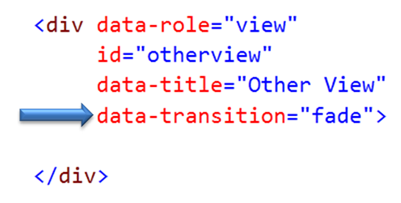
Other option to set transition style is at view level. On navigating to this view user will experience transition style set at the view.

image

At Control Level

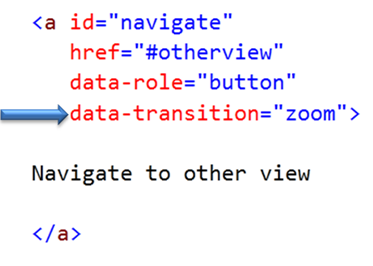
We can set transition style at control level as well. In following case we are applying transition style to a kendo button. User will experience zoom transition behavior while navigating to view set in the href property of the keno button.

image

If  transition style is set at all the three levels then Control level has highest priority whereas application level has lowest priority.

image

In this way you can apply different transition style to the application. For your reference find the source code of above discussed application below.


<!DOCTYPE html>
<html>
<head>
<title></title>
<meta charset="utf-8" />
<script src="cordova.js"></script>
<script src="kendo/js/jquery.min.js"></script>
<script src="kendo/js/kendo.mobile.min.js"></script>
<script src="scripts/hello-world.js"></script>
<link href="kendo/styles/kendo.mobile.all.min.css" rel="stylesheet" />
<link href="styles/main.css" rel="stylesheet" />
</head>
<body>

<div data-role="layout" data-id="applayout">
<header data-role="header">
<div data-role="navbar">
<a data-role="backbutton" data-align="left">Back</a>
<span data-role="view-title"></span>
</div>
</header>
</div>

<div data-role="view" id="mainview" data-title="Main View">
<a id="navigate"
href="#otherview"
data-role="button"
>
Navigate to other view
</a>
</div>

<div data-role="view"
id="otherview"
data-title="Other View"
>

</div>

<script>

var app = new kendo.mobile.Application(document.body,
{
transition: "overlay",
inital:"mainview",
layout:"applayout"
});
</script>

</body>
</html>

I hope you find this post useful. Thanks for reading.