Telerik tools for the Ninja Developer : The Series

If you are here – you are already an awesome developer! Probably you are looking to become what we call the “Ninja Developer”! The Ninja Developers treats coding as an art with tools that he knows would take him beyond to the metaphysical.

There are developer tools and then there are Telerik tools (ok, this was indulgent)!

If the path you have chosen is to become the ultimate developer, Telerik is proud to arm you with tools that will get you there quicker. So, we would like to present to you our array of equipment that is so lethal that is best hidden within your IDE (lest competing clans got their hands on it).

Let the Ninjutsu begin (below is the calendar for the training):

Date Time (Indian Standard Time) Topic
25th July 2012 3:00 – 4:00 PM Telerik Tools for Ninja Developer: Kendo UI
1st August 2012 3:00 – 4:00 PM Telerik Tools for Ninja Developer: JustCode
22nd August 2012 3:00 – 4:00 PM Telerik Tools for Ninja Developer: Test Studio
29th August 2012 3:00 – 4:00 PM Telerik Tools for Ninja Developer: Just Mock
5th Sep 2012 3:00 – 4:00 PM Telerik Tools for Ninja Developer: Rad Controls for Windows Phone
12th September 2012 3:00 – 4:00 PM Telerik Tools for Ninja Developer: Just* Suite
27th September 2012 3:00 – 4:00 PM Telerik Tools for Ninja Tester: Load Testing with Test Studio
10th October 2012 3:00 – 4:00 PM Telerik Tools for Ninja Developer: Just Trace
17th October 2012 3:00 – 4:00 PM Telerik Tools for Ninja Developer: Reporting
21st  Nov 2012 3:00 – 4:00 PM Telerik Tools for Ninja Developer: Windows 8 Controls
12th Dec 2012 3:00 – 4:00 PM Telerik Tools for Ninja Developer: Silverlight

After completing this webinar series (that we are hosting in the Asian Time Zone), we will award you with the Telerik Ninja Certificate (dare you on this)!

If you would like us to cover a specific tool (err topic), feel free to share that in the comments below. Come back here often for the master regularly updates this series with the attendee links and surprise sessions.

May the force be with you! (Blessings loaned from Yoda)

Netflix Movie Explorer : A Hybrid Mobile App using Kendo UI Mobile

This post is “Step by Step Illustration of Codes “required to create Netflix Movie Application. You can read a detailed article on same topic here .

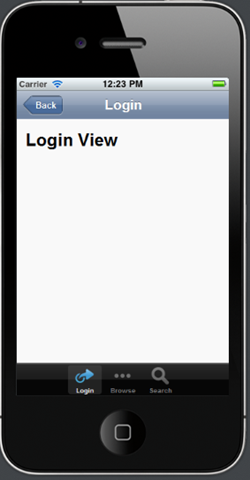
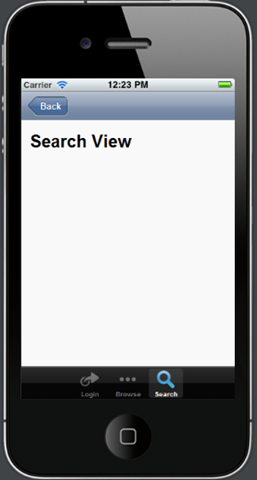
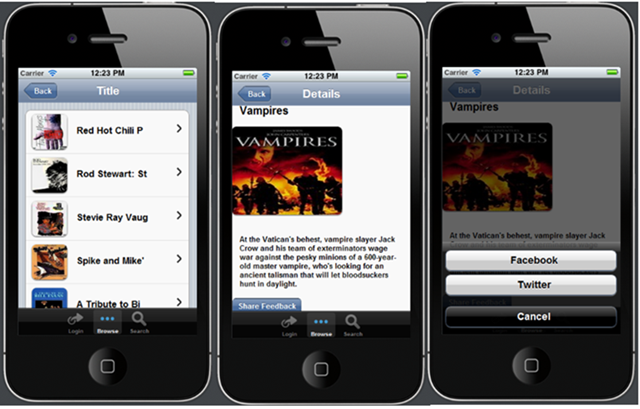
image image

image

Step 1 : Add Reference


<meta charset="utf-8" />
 <script src="kendo/js/jquery.min.js"></script>
 <script src="kendo/js/kendo.mobile.min.js"></script>
 <script src="scripts/hello-world.js"></script>
 <link href="kendo/styles/kendo.mobile.all.min.css" rel="stylesheet" />
 <link href="styles/main.css" rel="stylesheet" />

Step 2 : Create Layout


<div data-role="layout" data-id="mobile-tabstrip">
 <header data-role="header">
 <div data-role="navbar">
 <a data-role="backbutton" data-align="left">Back</a>
 <span data-role="view-title"></span>
 </div>
 </header>
 <div data-role="footer">
 <div data-role="tabstrip">

 <a href="#loginView" data-icon="action">Login</a>
 <a href="#movieTitleView" data-icon="more">Browse</a>
 <a href="#searchView" data-icon="search">Search</a>
 </div>
 </div>
 </div>

Step 3 : Initialize Kendo Mobile


<script>
 var app = new kendo.mobile.Application(document.body,
 { transition: "slide",
 layout: "mobile-tabstrip",
 initial: "loginView"
 });
</script>

Step 4 : Create Views

 <div data-role="view" id="movieTitleView" data-title="Title" >
 <h1>Movie Title View </h1>
 </div>
 <div data-role="view" id="loginView" data-title="Login" >
 <h1>Login View </h1>
 </div>
 <div data-role="view" id="searchView">
 <h1>Search View</h1>
 </div>

Step 5 : Create Data Source


var movieTitleData;
 movieTitleData = new kendo.data.DataSource(
 {
 type: "odata",
 pageSize: 30,
 endlessScroll: true,
 batch: false,
 transport: {
 read: {
 url: "http://odata.netflix.com/Catalog/Titles",
 dataType: "jsonp",

data: {
 Accept: "application/json"
 }
 }
 }

});
 function showMovieTitle(e) {
 movieTitleData.fetch();
 }

Step 6 : Create Template to show Movies Title


<script id="movieTemplate" type="text/x-kendo-template">
 <a href="\#movieDetailView?Id=#:data.Id#"
 class="km-listview-link"
 data-role="listview-link">
 <h4>#=data.Name.substring(0,15)#</h4>
 <img src= #=data.BoxArt.MediumUrl# />
 </a>
 </script>

Step 7 : Create List View to display Movie Title

<div data-role="view" id="movieTitleView"
 data-title="Title"
 data-show="showMovieTitle" >
 <ul id="movieTitleList"
 data-source="movieTitleData"
 data-endlessScroll="true"
 data-template="movieTemplate"
 data-role="listview"
 data-style="inset">
 </ul>
</div>

Step 8 : Define CSS for Movie Title


<style scoped>
 #movieTitleView
 h4 {
 display: inline-block;
 font-size: 1.1em;
 margin: 1em 0 .5em 1em;
 }

 #movieTitleView
 img {
 float: left;
 width: 4em;
 height: 4em;
 margin: 0;
 -webkit-box-shadow: 0 1px 3px #333;
 box-shadow: 0 1px 3px #333;
 -webkit-border-radius: 8px;
 border-radius: 8px;
 }
 #movieDetailView
 img {
 float: none;
 width: 15em;
 height: 12em;
 margin: 0;
 -webkit-box-shadow: 0 1px 3px #333;
 box-shadow: 0 1px 3px #333;
 -webkit-border-radius: 8px;
 border-radius: 8px;
 }

 </style>

Step 9 : Create Data Source for Movie detail view


var movieTitleData;
movieTitleData = new kendo.data.DataSource(
 {
 type: "odata",
 pageSize: 30,
 endlessScroll: true,
 batch:false,
 transport:{
 read: {
 url: "http://odata.netflix.com/Catalog/Titles",
 dataType: "jsonp",

data: {
 Accept: "application/json"
 }
 }
 }

});

Step 10 : Create Template for Movie detail view


<script id="movieDetailTemplate" type="text/x-kendo-template">
 <h2>#=data.Name#</h2>
 <img src= #=data.BoxArt.LargeUrl# height=1 width=1/></br></br>
 <h4> #=data.Synopsis# </h4>
 <a data-role="button" data-rel="actionsheet" href="\#shareonSocialMediaActionSheet">Share Feedback</a>
 </script>

Step 11 : Create View for Movie detail view


<div data-role="view"

id="movieDetailView"

data-title="Details"

data-show="showMovieDetail" >

<ul data-role="actionsheet" id="Ul1" >

<li><a data-action="functionToShareOnFacebook">Facebook</a></li>

<li><a data-action="functionToShareOnTwitter">Twitter</a></li>

</ul>

</div>

Downloading and Setting up environment to work with RadControls for Metro

You can download RadControls for Metro from here . RadControls are available in both HTML and XAML flavor.

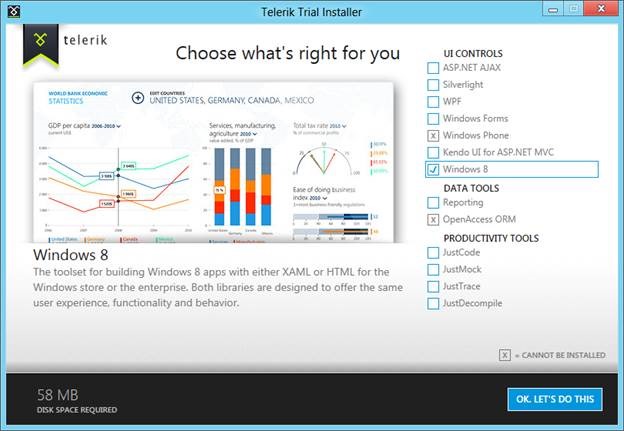
image

After downloading, you should get Telerik Installer. You have options to select trial version of other products as well. Checks the checkbox of Windows 8 and click on Ok Let’s do it

clip_image002

Accept the term and conditions and Go to Next Step

clip_image004

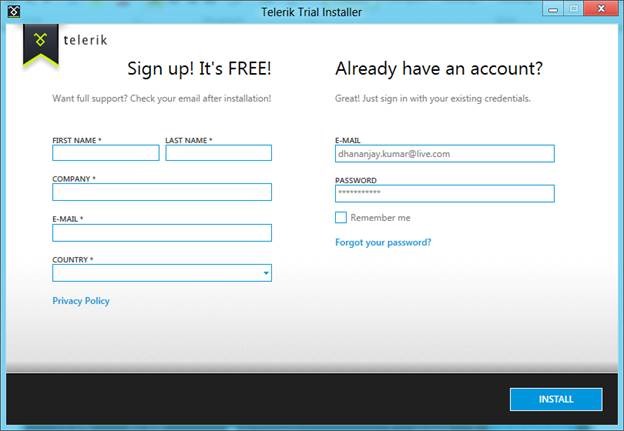
If you already have an account login using that else register yourself and click on Install.

clip_image006

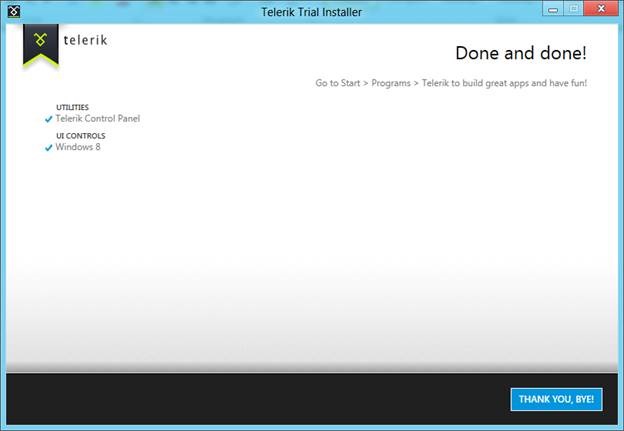
Once successfully installation done, you should be getting the following window.

clip_image008

After installation you should get two demo solution created. One for HTML and one for XAML project template.

clip_image009

Go ahead and open visual studio solution of your choice of language. And run it either on local machine or Simulator.

clip_image011

Click on any control. For example I have clicked on Gauge control

clip_image013

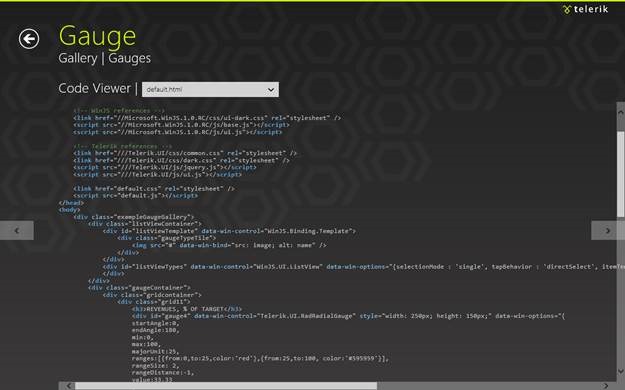
If you want to see the codes behind this control select Show Code from the app bar

clip_image015

You should able to see the code. From drop down choose CSS, HTML or JS file.

clip_image017

So here you got all the demo and source code associated with that to get it started. Now start playing with controls and since it is still in Beta version you may have some feedback to product team. I later post we will explore each controls one by one.

Webinar on Creating HTML5/JS Mobile & Web Apps with Kendo UI

image

I am excited to inform you about coming Webinar on Kendo UI. It is on 25th July 2012 at 3:00 PM. If you are new to Kendo UI, you may find more about it here

image

In this Webinar we will help you to get it started with Kendo UI. We will cover many demos to have a better understanding on the Kendo UI as product. Find below the details to attend the Webinar.

Below is Live Meeting URL to attend the Webinar.

https://www.livemeeting.com/cc/0000000379_116/join?id=9MWM5W&role=attend

Just make sure that Live Meeting client has installed on your machine. In case if you need,

Meeting ID: 9MWM5W

If you find any difficulty in attending the session or need more detail about the Webinar, please send me a mail on

clip_image002

We would like to encourage you , your team to attend the Webinar.


Consuming JSON based WCF REST Service in Kendo UI Mobile

In this post we will walkthrough on consuming WCF REST Service in Kendo UI Mobile. We may consider this post is divided in two parts. In part 1, we will see the way to create REST based WCF service and in part2 of this post we will consume that REST Service in Kendo UI mobile.

image

Creating WCF REST Service

If you are new to WCF and wondering how to create WCF REST Service .Please read many articles on WCF REST Service here .

To get it started quickly fire visual studio and create a new project. From WCF tab select WCF Service Application project template.

image

Delete all the codes generated from both the IService1.cs and Service1.svc.cs file.

Although in this post we are not going to fetch and data from database. We will return C sharp collection as data from WCF REST Service. However we can use any methodologies to create data model and expose data from data model as service. To make it simple we are going to work with following business object.


public class Bloggers
{
[DataMember]
public string BloggerID { get; set; }
[DataMember]
public string Name { get; set; }
[DataMember]
public string Technology { get; set; }

}

Define service as following


[ServiceContract]
 public interface IService1
 {

[OperationContract]
 [WebGet(UriTemplate = "/GetBloggers",
 ResponseFormat = WebMessageFormat.Json,
 RequestFormat = WebMessageFormat.Json)]
 List<Bloggers> GetBloggers();

 }

If you notice we have explicitly set the Request and Response message format as Json. Service is implemented as following. There is not much fancy about the service implementation, it is simply creating collection of business object and returning.


using System.Collections.Generic;

namespace RESTServiceForKendo
{

 public class Service1 : IService1
 {

public List<Bloggers> GetBloggers()
 {
 List<Bloggers> lstBloggers = new List<Bloggers>()
 {
 new Bloggers { BloggerID = "1", Name= "Jesse Liberty ", Technology = "XAML"},
 new Bloggers { BloggerID = "2" , Name = "Michael Crump" , Technology = "XAML"},
 new Bloggers { BloggerID = "3" , Name = "Chris Eargel" , Technology = "C Sharp"},
 new Bloggers { BloggerID = "4" , Name = "Chris Sells" , Technology = "All"},
 new Bloggers { BloggerID = "5" , Name = "John Bristowe" , Technology = "Web"},
 new Bloggers { BloggerID = "6" , Name = "Todd Anglin " , Technology = "KendoUI"},
 new Bloggers { BloggerID = "7", Name= "John Papa ", Technology = "XAML"},
 new Bloggers { BloggerID = "8" , Name = "Glen Block" , Technology = "REST"},
 new Bloggers { BloggerID = "9" , Name = "Lohith " , Technology = "Telerik"},
 new Bloggers { BloggerID = "10" , Name = "Scott Hanselman " , Technology = "All"},
 new Bloggers { BloggerID = "11" , Name = "Debugmode" , Technology = "Kendo"},
 new Bloggers { BloggerID = "12" , Name = "Pinal Dave " , Technology = "SQL Server"},
 new Bloggers { BloggerID = "12" , Name = "Julie Lerman" , Technology = "Entity Framework"}

 };
 return lstBloggers;
 }
 }
}

Next we need to configure Endpoint. Rather than creating Endpoint we are going to use factory class. Class System.ServiceModel.Activation.WebServiceHostFactory enables REST Endpoint on WCF Service. To set factory class right click on Service1.svc and click on view markup. In markup add factory class as following.

image

After configuring factory class we are all set with WCF REST Service. To test the service, run the service in browser. We should be getting Bloggers information as JSON data in browser.

image

Once you get data in browser (if you are using IE then you will be prompted to save returned data), we are all set to consume this data in Kendo UI Mobile.

Consuming in Kendo UI Mobile

We will consume JSON data from WCF REST service step. If you are using Visual Studio for Kendo UI development then you may find below post useful

Setting Development Environment in Visual Studio 2010 using NuGet for KendoUI

To proceed with follow the following steps

Step 1

Very first add the required references to work with Kendo UI Mobile. You need to add reference in head section of the page.

<head>
 <title></title>
 <meta charset="utf-8" />
 <script src="kendo/js/jquery.min.js"></script>
 <script src="kendo/js/kendo.mobile.min.js"></script>
 <link href="kendo/styles/kendo.mobile.all.min.css" rel="stylesheet" />

</head>

After adding references we need to initialize the mobile. To do this adds below script just before the closing body tag.


<script>
 var app = new kendo.mobile.Application(document.body, { transition: "slide", layout: "pageLayOut" });
 </script>
</body>

You can see that layout and transition has been set. We will create layout in next step.

Step 2

After adding reference we need to create layout of the application. In layout we want two buttons in bottom tabstrip and a back button on the top. Layout can be created as following


&nbsp;
<div data-role="layout" data-id="pageLayOut">
 <header data-role="header">
 <div data-role="navbar">
 <a data-role="backbutton" data-align="left">Back</a>
 <span data-role="view-title"></span>
 </div>
 </header>
 <div data-role="footer">
 <div data-role="tabstrip">

<a href="#homeView" data-icon="home">Home</a>
 <a href="#bloggerView" data-icon="action">Bloggers</a>

</div>
 </div>
 </div>

Step 3

Next we need to create different views. As you notice from layout that we need to create two views. One is homeView and other bloggerView. In homeView we will display a message.

homeView is as following


<div data-role="view" id="homeView" id="homeView" data-title="Bloggers">

<h1>Welcome!</h1>
 <p>
 In this App we will fetch Bloggers information from WCF REST Service
 </p>
 </div>

Step 4

Now we need to create bloggerView. In this view we will put a Kendo UI Mobile ListView control. All the data returned from service will be bind to this ListView.

<div data-role="view" id="bloggerView" data-title="Bloggers" data-show="showBloggers">

 <ul id="bloggerList"
 data-source="bloggersData"
 data-endlessScroll="true"
 data-template="bloggersTemplate"
 data-role="listview"
 data-style="inset">
 </ul>
 </div>

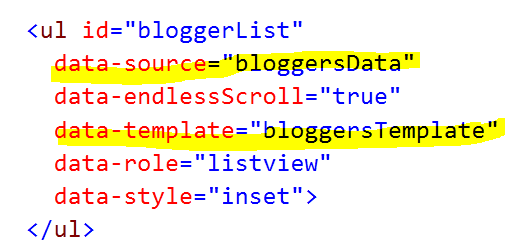
There are couples of important points worth discussing about above code. In above listview we are setting data-source and data-template as following

clip_image001

So we need to

  • Create data-source bloggersData from the returned JSON data from the WCF REST Service (step5)
  • Create data-template bloggersTemplate (step4)

Step 4

Data Template allows us to render data as we want. It is used to format the displaying of data. A template can be created as following. We are creating a Kendo UI list view link button and displaying Name and Technology of the blogger. Id of this template is set as data-template property of list bloggerList.

<script id="bloggersTemplate" type="text/x-kendo-template">

 <a href="\#BloggerDetailsView" class="km-listview-link" data-role="listview-link">
 <h2>#=data.Name#</h2>
 <h4>#=data.Technology#</h4>
 </a>

 </script>

Step 5

Now we need to create datasource. We are going to create Kendo UI DataSource reading JSON data from the service.

clip_image002

In Kendo UI DataSource configuration, read attribute has been set to the URL of the WCF REST Service. Since service is retuning JSON data hence Accept type is as application/json.

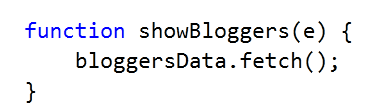
Finally in data-show method of view we will fetch data from the DataSource. If you notice data-show attribute of bloggerView is set to showBloggers.

clip_image003

Putting all the discussion together DataSource can be created and data from that can be fetched as shown in below code

 var bloggersData;

bloggersData = new kendo.data.DataSource(
 {
 transport: {
 read: {
 url: "http://localhost:56863/Service1.svc/getBloggers",

data: {
 Accept: "application/json"
 }
 }
 }

});

function showBloggers(e) {
 bloggersData.fetch();

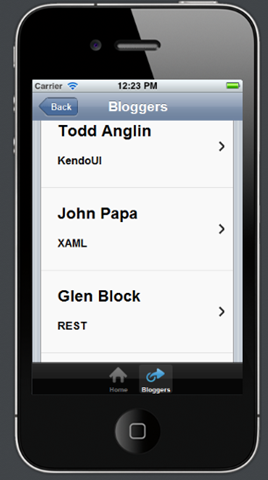
Now we are all set to run the application. On running we should be getting Bloggers data as following

Home View

clip_image001[6]

Blogger View

clip_image002

In this way you can consumed a JSON based WCF REST Service in Kendo UI mobile. I hope you find this post useful. Thanks for reading.

Back button styling problem in Kendo UI Mobile

I was creating a sample cross platform mobile application using with KendoUI mobile. I had a back button in the header and it was not rendering as expected .It was rendering like below,

clip_image001

On walking through code I found, I have added css reference twice.

clip_image003

I went ahead and removed duplicate reference. After that I found Back button was rendering as expected.

clip_image004

I hope this small observation will help you in creating your cool applications using Kendo UI Mobile.


Setting Development Environment in Visual Studio 2010 using NuGet for KendoUI

Read more about Kendo UI here

Read How to work with NuGet here

In this post we will walkthrough on setting up development environment in Visual Studio 2010 by installing NuGet package of KendoUI. To start with launch Visual Studio and create Web Application project.

image

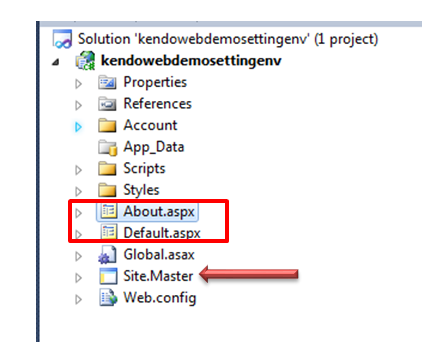
Now delete Default.aspx, About.aspx,Site.master files from the project.

image

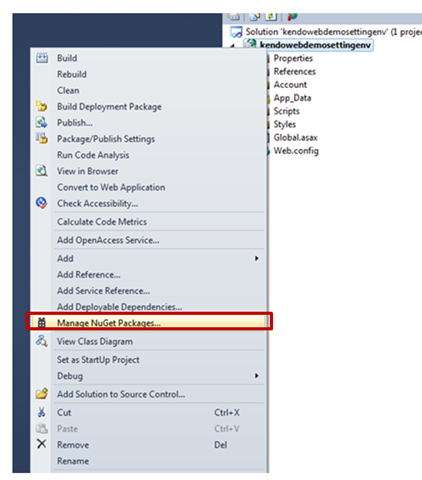
After deleting files right click on solution explorer and click on Manage NuGet Package.

image

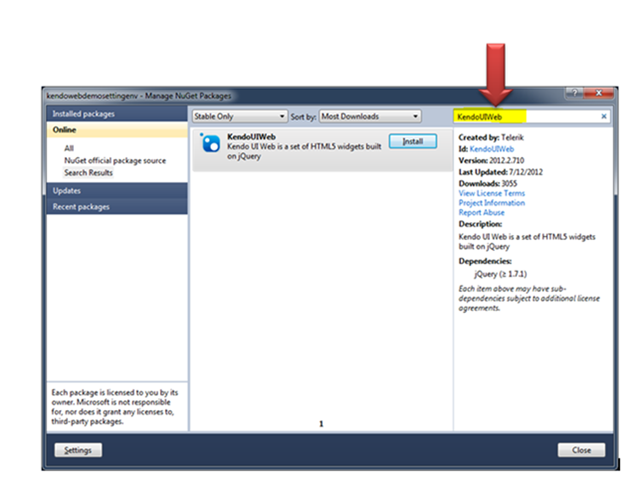
In Mange NuGet Packages windows search for KendoUIWeb. After searching once you get the package click on Install button to install all Kendo UI Web components to the project.

image

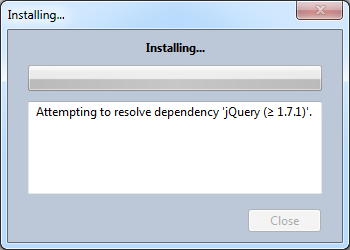
After clicking on Install, you should get Installing window as following. After successful installation close Mange NuGet Packages windows.

image

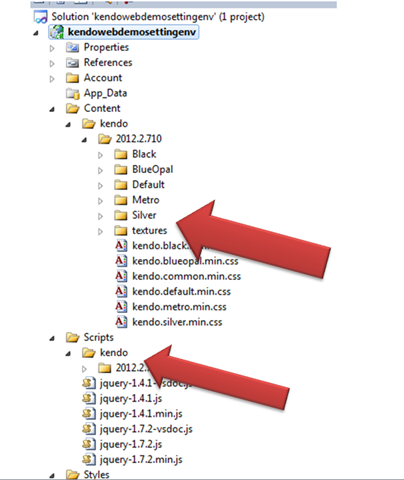
Once KendoUIWeb has been installed you will find KendoUI JS files has been added in Scripts folder and KendoUI CSS files along with images has been added to a kendo subfolder inside Content folder.

image

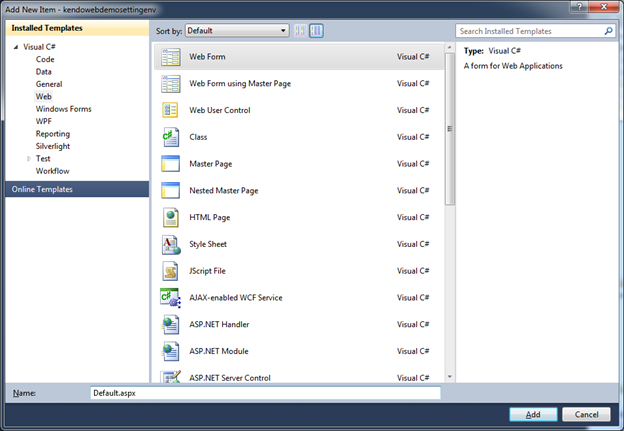
Once all the required files have been added to the project, next add a Web Form. To add a web Form right clicks on solution explorer and click on Add New Item. Choose Web Form from Web tab .

image

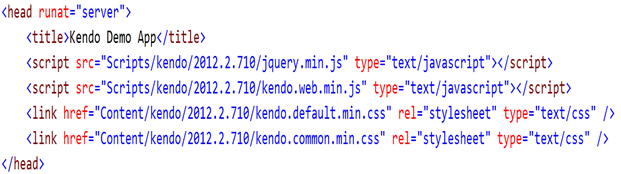
Now we need to add reference of Kendo on the Web Form. To get started with development add minimal you need to add below references on the page.

image

After adding all the references you are all set to start development using Kendo UI. Read more on Kendo UI here

Conditional statement in Kendo UI Template

While working I had a requirement to display a Total Seat of Venue in Kendo UI Mobile ListView. To display Venue Name and Number of Seats available, I created Kendo UI Template as following


<script type= "text/x-kendo-template" id="venueTemplate">
 <a href="\#toSomePage?vid=#= VenueID #" class="km-listview-link" data-role="listview-link">
 <h3>#= VenueName # </h3>
 <h5>Total Seats : <b> #=Capacity# </b> </h5>
 # }#
 </a>
 </script>

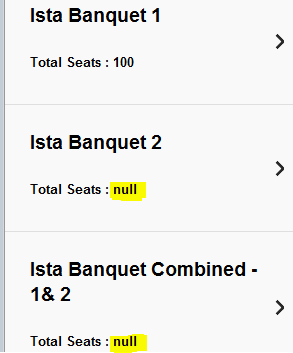
However on running the application I found that in some of the cases Capacity was retuning values as null.

image

Obviously displaying null was not a good idea. To display formatted information we can put condition in Kendo UI Template. Template can be modified with If-else statement as following


<script type= "text/x-kendo-template" id="venueTemplate">
 <a href="\#sessionsAtVenue?vid=#= VenueID #" class="km-listview-link" data-role="listview-link">

 <h3>#= VenueName # </h3>

 #if(Capacity ===null)
 {#
 <h5>Total Seats : <b> Not Available </b> </h5>

#}else{#
 <h5>Total Seats : <b> #=Capacity# </b> </h5>
 # }#
 </a>
 </script>

Now null value of capacity will get replaced by Not Available. On running output should be as following

image

We need to be bit cognizant for syntax. In below diagram you can see that line need to be executed as condition and keyword is enclosed in hash #.

image

In this way you can have if-else condition in KendoUI Template. I hope you find this post useful.

How to format DateTime type column from OData in Kendo UI Template

In this post we will look into, the way to format DateTime type columns of OData feed as string in Kendo UI Template.

For DateTime type of columns, OData returns number of seconds from January 1, 1970. Most likely you will be getting returned value as below,

image

Obviously you need to format returned date before displaying. You can format that using

kendo.toString ()

See demo of kendo.toString() on jsfiddle


StartTime: #= kendo.toString(
 new Date(
 new Date(
 parseInt(returnedTimeValue.ToTime.replace("/Date(", "").replace(")/",
 ""),
 10))),"g")#

You will get date formatted as following.

clip_image001

Explanation of code

Now let us examine that what exactly we are doing in above snippet. There are five steps being performed

  1. First replacing /Date( from returned value with empty string
  2. Next replacing )/ from returned value with empty string
  3. Parsing remaining returned value as integer
  4. Creating date using returned parsed integer
  5. Passing created date to kendo.string to format as desired.

In this way you can format a ODATA DateTime column using kendo.string. I hope you find this post useful.

First look of Telerik India office

image

Telerik  is a recognized name in the space of developer tools. We make controls that deliver popping user experience and tools to make a normal developer a Ninja!

Once we wondered – where do we find the most Developer Ninja’s in the world? The answer didn’t really require us to be enlightened. So, Telerik India came into being!

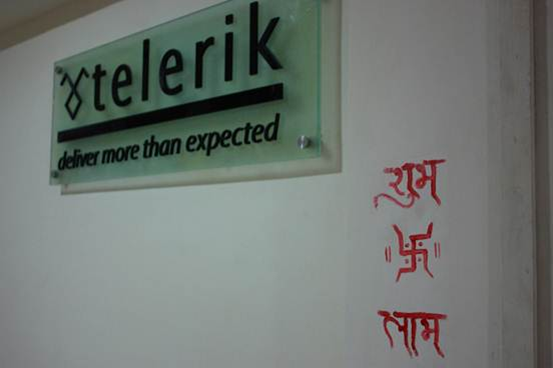
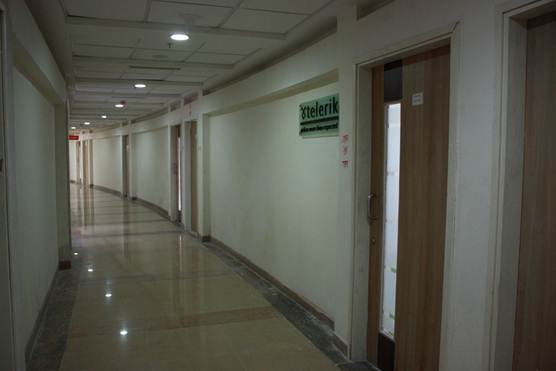
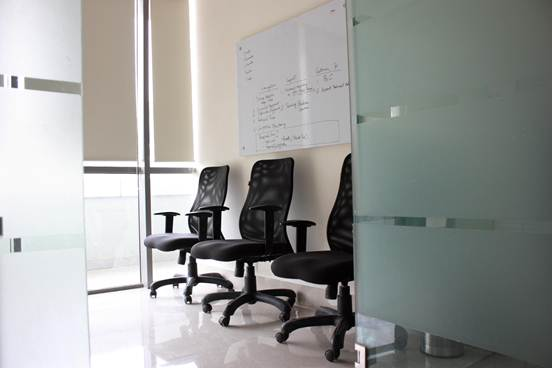
I am here with some snaps of Telerik India office. Our office is on Sohna Road, Gurgaon. It is on the 5th floor of Shopper Stop building.

image

image

image

image

image

image

On behalf of Telerik India, I invite you to visit our office and have a technological chit chat over coffee. Trust me our coffee machine‘s coffee is worth trying once

How to do a Standalone Web Test using Test Studio

In this how to post we will see how to start Standalone Web Test using Test Studio.

Step 1

Open Test Studio and from New Test option in menu ribbon choose Web Test

clip_image001

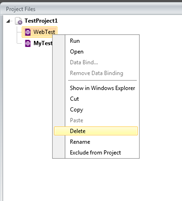
You can see in the project files a Web Test has been added. If you want you can rename that by right clicking on the project and choosing the rename option.

clip_image002

Step 2

Double click on the Web Test project in the project files to open it on the StoryBoard. From menu ribbon select Record ->Launch a New Recording Browser. It will launch selected browser. You can select browser from the ribbon

clip_image004

Step 3

In browser perform some operations to test. After performing all the operation choose Run from the ribbon the run the test.

clip_image005

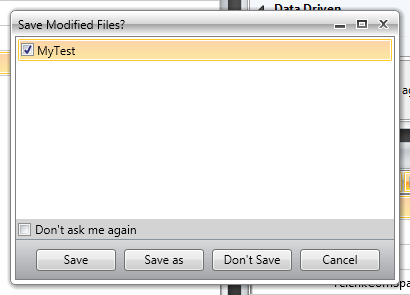
You will be asked to Save the Test.

clip_image006

Step 4

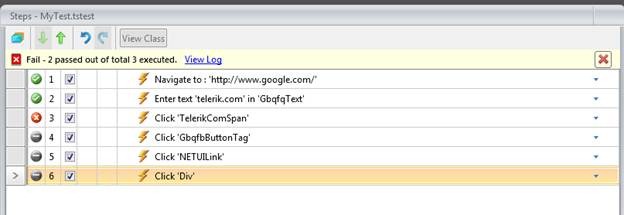
You can view all the steps with result.

clip_image008

On clicking of a step you can enable inline editing.

clip_image010

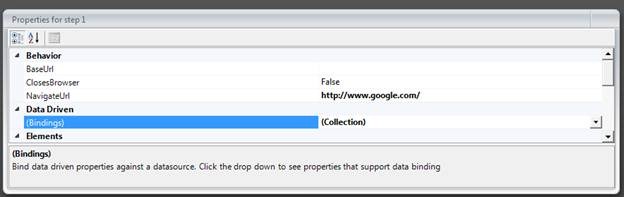
On the right you can see Property windows for a particular step.

clip_image012

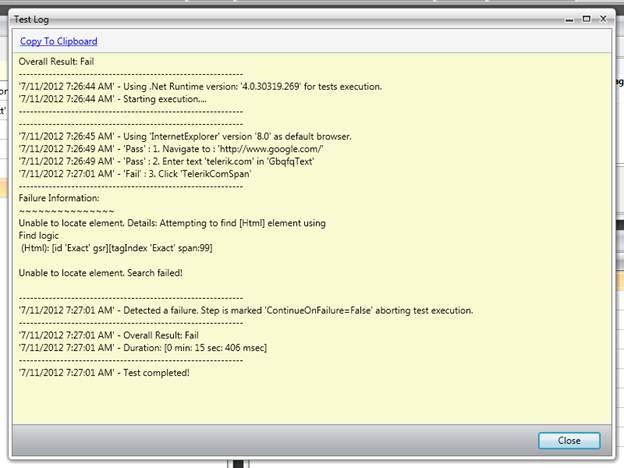
You can view error log by clicking on View Log

clip_image014

You can see error log as following

clip_image016

Step 5

To see Step failure error detail click on step failure in the steps

clip_image018

Step failure detail is as following

clip_image020

You can view image of failure as following

clip_image022

You can examine Page DOM on clicking DOM tab as well.

clip_image024

Suggestion to resolve failure can be viewed on clicking on Resolve Failure

clip_image026

You can export result to file

clip_image028

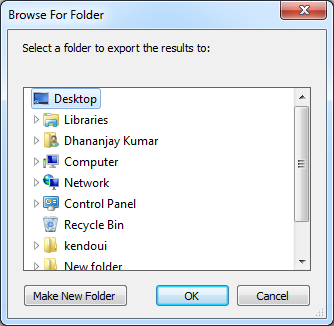
On clicking of Export Result to file you will be asked to save the file.

clip_image029

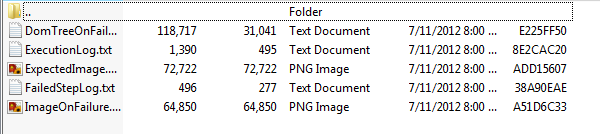
A zip file will get saved at the given location. There will be following files inside the downloaded zipped file.

clip_image030

In this way you can perform standalone web testing


Getting Started with Kendo UI Mobile : Video

Add References


    Test Application
<script type="text/javascript" src="http://code.jquery.com/jquery-1.7.1.min.js"></script>
                <!-- Kendo UI Scripts --><script type="text/javascript" src="http://cdn.kendostatic.com/2012.1.515/js/kendo.all.min.js"></script>
<script type="text/javascript" src="http://cdn.kendostatic.com/2012.1.515/js/kendo.mobile.min.js"></script>

Create View

</pre>
<div id="loginview" data-role="view">

<h1>This is Login View</h1>
</div>
<pre>

</pre>
<div id="detailview" data-role="view">

<h1>This is Detail View</h1>
</div>
<pre>

</pre>
<div id="settingview" data-role="view">

<h1>This is Setting View</h1>
</div>
<pre>

Initialize KendoUI

<script type="text/javascript">// <![CDATA[
        var app = new kendo.mobile.Application($(document.body),
            {
                initial: "loginview",
                layout: "defualtlayout"

            }
            );

// ]]></script>

Create Layout

</pre>
<div data-role="layout" data-id="defualtlayout">
<div data-role="header">
<div data-role="navbar"><a data-role="backbutton" data-align="left">
 Back
 </a>
 Test Application</div>
</div>
<div data-role="footer">
<div data-role="tabstrip"><a href="#loginview" data-icon="home">login</a>
 <a href="#detailview" data-icon="details">detail</a>
 <a href="#settingview" data-icon="settings">setting</a></div>
</div>
</div>
<pre>

Finally Full source code of Video is as following


    Test Application
<script type="text/javascript" src="http://code.jquery.com/jquery-1.7.1.min.js"></script>
                <!-- Kendo UI Scripts --><script type="text/javascript" src="http://cdn.kendostatic.com/2012.1.515/js/kendo.all.min.js"></script>
<script type="text/javascript" src="http://cdn.kendostatic.com/2012.1.515/js/kendo.mobile.min.js"></script></pre>
<div data-role="layout" data-id="defualtlayout">
<div data-role="header">
<div data-role="navbar"><a data-role="backbutton" data-align="left"> Back </a> Test Application</div>
</div>
<div data-role="footer">
<div data-role="tabstrip"><a href="#loginview" data-icon="home">login</a> <a href="#detailview" data-icon="details">detail</a> <a href="#settingview" data-icon="settings">setting</a></div>
</div>
</div>
<pre>

</pre>
<div id="loginview" data-role="view">
<h1>This is Login View</h1>
</div>
<pre>

</pre>
<div id="detailview" data-role="view">
<h1>This is Detail View</h1>
</div>
<pre>

</pre>
<div id="settingview" data-role="view">
<h1>This is Setting View</h1>
</div>
<pre>
<script>
        var app = new kendo.mobile.Application($(document.body),
            {
                initial: "loginview",
                layout: "defualtlayout"

            }
            );
</script>

Working with KendoUI Mobile Switch in Four steps

In this post we will learn how to work with KendoUI Mobile ActionSheet in four steps. You can learn more about this here

Switch is in action as following

clip_image001 clip_image002

Let us follow below steps to work with switch.

Step 1

Add all the required references to work with Kendo UI on your page .Make sure you are adding references in Head section of the page


<head>
 <title>
 Working with Switch
 </title>
 <link href="http://cdn.kendostatic.com/2012.1.515/styles/kendo.common.min.css" rel="stylesheet" />
 <link href="http://cdn.kendostatic.com/2012.1.515/styles/kendo.default.min.css" rel="stylesheet" />
 <link href="http://cdn.kendostatic.com/2012.1.515/styles/kendo.mobile.all.min.css" rel="stylesheet" />
 <script src="http://code.jquery.com/jquery-1.7.1.min.js"></script>
 <!-- Kendo UI Scripts -->
 <script src="http://cdn.kendostatic.com/2012.1.515/js/kendo.all.min.js" type="text/javascript"></script>
 <script src="http://cdn.kendostatic.com/2012.1.515/js/kendo.mobile.min.js" type="text/javascript"></script>

</head>

Step 2

Next we need to create a main view on the page and initialize the page to be used as page of mobile application. For this just above closing body tag add following script

<script>
var app = new kendo.mobile.Application($(document.body), {
initial: "mainview"
});
</script>
</body>

You will notice that we have set initial view property. So let us go ahead and create a view with the id mainview

<div data-role="view" id="mainview" >

</div>

By this step we have added all the required references and created the main view to put Switch inside that.

Step 3

Now we can put a Mobile Switch as following


<div data-role="view" id="mainview" >
<input type="checkbox" data-role="switch" />
</div>

Only you need to provide value of data-role attribute as switch of checkbox element. Suppose we want to check this on click event of a button. For that let us put a button in the maindiv . On click of button we will check whether switch is on or off.

After adding button div will be as following


<div data-role="view" id="mainview" >
<input type="checkbox" data-role="switch" id="onoffswitch" />
 <a data-role="button" data-click="checkSwitchState">Check Switch State</a>
</div>

And on click of button function checkSwitchState is being called. See the data-role property of button. Now let us write checkSwitchState function.


<script>
 function checkSwitchState() {
 var switch1 = $("#onoffswitch").data("kendoMobileSwitch");
 var checked = switch1.check();
 alert(checked);
}
</script>

You can Toggle the button as following,


<script>
 function checkSwitchState() {
 var switch1 = $("#onoffswitch").data("kendoMobileSwitch");

 switch1.toggle();

}
</script>

Now let us stop for a moment and run the page to see how it works

image

image

On click event of the button, switch will be toggled and we will get alert on the state of the switch.

image

And on clicking Ok switch will be toggled.

image

Below you can find full source code of above discussions.

<!DOCTYPE html>
<html>
<head>
 <title>
 Sharing on Social Media
 </title>
 <link href="http://cdn.kendostatic.com/2012.1.515/styles/kendo.common.min.css" rel="stylesheet" />
 <link href="http://cdn.kendostatic.com/2012.1.515/styles/kendo.default.min.css" rel="stylesheet" />
 <link href="http://cdn.kendostatic.com/2012.1.515/styles/kendo.mobile.all.min.css" rel="stylesheet" />
 <script src="http://code.jquery.com/jquery-1.7.1.min.js"></script>
 <!-- Kendo UI Scripts -->
 <script src="http://cdn.kendostatic.com/2012.1.515/js/kendo.all.min.js" type="text/javascript"></script>
 <script src="http://cdn.kendostatic.com/2012.1.515/js/kendo.mobile.min.js" type="text/javascript"></script>

</head>
<script>
 function checkSwitchState() {
 var switch1 = $("#onoffswitch").data("kendoMobileSwitch");
 var checked = switch1.check();
 alert(checked);
 switch1.toggle();
 }
</script>

<body>
<div data-role="view" id="mainview" >
<input type="checkbox" data-role="switch" id="onoffswitch" />
 <a data-role="button" data-click="checkSwitchState">Check Switch State</a>
</div>
<script>
 var app = new kendo.mobile.Application($(document.body), {
 initial: "mainview"
 });
</script>
</body>
</html>

Step 4

Sometime you may want to fire an event when user is changing state of the switch. You can do that as following


$("#onoffswitch").data("kendoMobileSwitch").bind("change", function (e) {
 console.log(e.checked); // true or false
 alert(e.checked);
 });

In this way we can work with Switch in KendoUI Mobile in four steps. I hope you find this post useful. Any comment is welcome.

Working with KendoUI Mobile ActionSheet in Four steps

In this post we will learn how to work with KendoUI Mobile ActionSheet in four steps. You can learn more about this here

ActionSheet in action as below,

image

Let us start creating it by following below steps.

Step 1

Add all the required references to work with Kendo UI on your page .Make sure you are adding references in Head section of the page


<head>
 <title>
 Sharing on Social Media
 </title>
 <link href="http://cdn.kendostatic.com/2012.1.515/styles/kendo.common.min.css" rel="stylesheet" />
 <link href="http://cdn.kendostatic.com/2012.1.515/styles/kendo.default.min.css" rel="stylesheet" />
 <link href="http://cdn.kendostatic.com/2012.1.515/styles/kendo.mobile.all.min.css" rel="stylesheet" />
 <script src="http://code.jquery.com/jquery-1.7.1.min.js"></script>
 <!-- Kendo UI Scripts -->
 <script src="http://cdn.kendostatic.com/2012.1.515/js/kendo.all.min.js" type="text/javascript"></script>
 <script src="http://cdn.kendostatic.com/2012.1.515/js/kendo.mobile.min.js" type="text/javascript"></script>

</head>

Step 2

Next we need to create a main view on the page and initialize the page to be used as page of mobile application. For this just above closing body tag add following script


<script>
 var app = new kendo.mobile.Application($(document.body), {
 initial: "mainview"
 });
</script>
</body>

You will notice that we have set initial view property. So let us go ahead and create a view with the id mainview


<div data-role="view" id="mainview" >

</div>

By this step we have added all the required references and created the main view to put Action Sheet inside that.

Step 3

Now we will add a button. On touch of this event ActionSheet will be open. Let us add button inside the view as following


<div data-role="view" id="mainview" >
 <a data-role="button" data-rel="actionsheet" href="#shareonSocialMediaActionSheet
">Share on Social Media</a>

</div>

If you notice in button attributes we are setting

clip_image002

Step 4

Now we need to add actionsheet on the page. ActionSheet can be created by setting data-role property of <ul> as actionsheet . To create actionsheet there must be at-least one <li> inside <ul>. shareOnsocialmedia actionsheet can be created as following


<ul data-role="actionsheet" id="shareonSocialMediaActionSheet">
 <li><a data-action="functionToShareOnFacebook">Facebook</a></li>
 <li><a data-action="functionToShareOnTwitter">Twitter</a></li>
 <li><a data-action="functionToShareOnLinkedin">Linkedin</a></li>
 <li><a data-action="functionToShareOnFlickr">Flickr</a></li>
</ul>

Some points about above code is as following

  • There are links <a> inside <li>. data-action attribute of <a> is set to JavaScript function we want call on the tap of the item in actionsheet
  • After execution of the function set in data-action control will returned to calling DOM element.
  • By default a cancel item will get added to the ActionSheet.

Running Application

Let us go ahead and run the application to see ActionSheet in the action.

clip_image001

On touch of this button ActionSheet will open as following

clip_image003

You can see that Cancel item has been added by the framework itself. On tap of cancel control will return to calling DOM element.

Below you can find full source code of above discussion


<!DOCTYPE html>
<html>
<head>
 <title>
 Sharing on Social Media
 </title>
 <link href="http://cdn.kendostatic.com/2012.1.515/styles/kendo.common.min.css" rel="stylesheet" />
 <link href="http://cdn.kendostatic.com/2012.1.515/styles/kendo.default.min.css" rel="stylesheet" />
 <link href="http://cdn.kendostatic.com/2012.1.515/styles/kendo.mobile.all.min.css" rel="stylesheet" />
 <script src="http://code.jquery.com/jquery-1.7.1.min.js"></script>
 <!-- Kendo UI Scripts -->
 <script src="http://cdn.kendostatic.com/2012.1.515/js/kendo.all.min.js" type="text/javascript"></script>
 <script src="http://cdn.kendostatic.com/2012.1.515/js/kendo.mobile.min.js" type="text/javascript"></script>

 <script>
 function functionToShareOnFacebook(e) {

 console.log("share on FB");
 }

function functionToShareOnTwitter(e) {
 console.log("share on Twitter");
 }
 function functionToShareOnLinkedin(e) {
 console.log("share on Linkedin");
 }

function functionToShareOnFlickr(e) {
 console.log("share on Flickr");
 }

 </script>

</head>

<body>

<div data-role="view" id="mainview" >
 <a data-role="button" data-rel="actionsheet" href="#shareonSocialMediaActionSheet">Share on Social Media</a>
<ul data-role="actionsheet" id="shareonSocialMediaActionSheet" cancel="hello" >
 <li><a data-action="functionToShareOnFacebook">Facebook</a></li>
 <li><a data-action="functionToShareOnTwitter">Twitter</a></li>
 <li><a data-action="functionToShareOnLinkedin">Linkedin</a></li>
 <li><a data-action="functionToShareOnFlickr">Flickr</a></li>
</ul>
</div>
<script>
 var app = new kendo.mobile.Application($(document.body), {
 initial: "mainview"
 });
</script>
</body>
</html>

In this way you can work with KendoUI Mobile ActionSheet in four steps. I hope you find this post useful. Thanks for reading.

Creating Netflix Movie Explorer Application using KendoUI and OData


Objective

In this post series we are going to make Netflix Movie Explorer App. We will use Kendo UI OData feed of Netflix to create application. Final application (after this post) will look like as following,

And on tapping of a movie, we will be navigated to

In order to create this application we will explore following in this post

  • Working with KendoUI Mobile ListView
  • Working with KendoUI Mobile View
  • Working with kendoUI Mobile View Layout
  • Working with Navigation between views
  • Working with creating datasource and OData.

To start with we need to add following reference on HTML page

After adding all the required references let us try to create a Mobile View. A Mobile view contains single HTML page with multiple mobile views on that. For example you can have LoginView, ShowDataView ,AboutView . All mobile views are a div element with data-role property set to view. A View can be created as following,

You can set default view of the application in Application Startup. Let us set default view of the application as LoginView. That can be set as following,

Additionally we can set layout of the mobile application as well. There are two ways we can set the layout. Either we can set on the application level or we can set on particular view level. Let us set layout on application level. This can be set as following,

We have set the layout of the application. Now we need to create application layout we set. A Layout can be created as following,

  • Create a <div> element.
  • Set data-role property as “layout”

Hence layout can be created as following,

A Layout can have a Header and Footer. We can define Header and Footer in layout as following,

Let us put a back button in the header. A back button can be put as following

image_thumb26

We have put nav bar and inside that a back button as header. A nav bar can be created as following

  • Create a <div> element.
  • Set data-role property to “navbar”

Inside the navigation bar we are putting a back button. That can be put as <a> link with setting data-role as “backbutton”

As of now we are done with navigation bar in header. Now let us create TabStrip in the footer.

image_thumb29

A TabStrip can be created as following,

  • Create a <div> element
  • Set data-role property to “tabstrip”

Inside “tabstrip” we can have buttons to navigate between the pages. We are putting three buttons to navigate. We can specify view to navigate in href property of <a>.

  • View to be navigated can be set by providing view id with hash tag as href property.
  • Data-icon can be set to provide a specific look to button.

Putting all the codes together,

<html>
 <head>
 <title>
 Test Application
 </title>
 <link href="http://cdn.kendostatic.com/2012.1.515/styles/kendo.common.min.css" rel="stylesheet" />
 <link href="http://cdn.kendostatic.com/2012.1.515/styles/kendo.default.min.css" rel="stylesheet" />
 <link href="http://cdn.kendostatic.com/2012.1.515/styles/kendo.mobile.all.min.css" rel="stylesheet" />
 <script src="js/jquery.min.js" type="text/javascript"></script>
 <!-- Kendo UI Scripts -->
 <script src="http://cdn.kendostatic.com/2012.1.515/js/kendo.all.min.js" type="text/javascript"></script>
 <script src="http://cdn.kendostatic.com/2012.1.515/js/kendo.mobile.min.js" type="text/javascript"></script>
 </head>
 <body>
 <div data-role="view">
 <div data-role="header">Header</div>
 Hello world!
 <div data-role="footer">Footer</div>
 </div>

<div data-role="view" id="LoginView" >
 <h1>This is a Login View </h1>
 </div>
 <div data-role="view" id="DataView" >
 <h1>This is a Data View </h1>
 </div>
 <div data-role="view" id="AboutView" >
 <h1>This is a About View </h1>
 </div>
 <div data-role="layout" data-id="TestAppLayout">
 <div data-role="header">
 <div data-role="navbar">
 <a data-role="backbutton" data-align="left">
 Back
 </a>
 Test Application
 </div>
 </div>
 <div data-role="footer">
 <div data-role="tabstrip">
 <a href="#LoginView" data-icon="settings">Login</a>
 <a href="#DataView" data-icon="download">Data</a>
 <a href="#AboutView" data-icon="home">About</a>
 </div>
 </div>
 </div>

<script type="text/javascript">
 var app = new kendo.mobile.Application($(document.body), {
 initial: "LoginView",
 layout: "TestAppLayout"
 }
 );
 </script>

 </body>
</html>
</html>

Now go ahead and run the application. In mobile browser you should be getting output as following

image_thumb32

As of now we have set layout at the application level. If we want we can have different layout for different view. Let us try that by giving different layout to DataView.

Create specific layout for DataView as following,
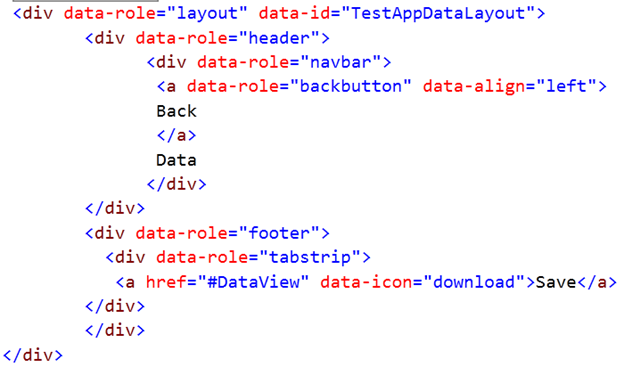
image_thumb35

We can set layout for DataView as following,

image_thumb38

If you notice here we have set layout at application level as well as view level. When layout is set at both levels then view level layout takes precedence over application level layout. After doing above modifications we should be getting following output,

image_thumb41

On clicking of Data, you should be getting below output. If you notice Back button from header is working as expected.

image_thumb44

Now let us try to show some data from service. In this case we will be displaying Movie details from OData feed of Netflix.

You can find Title of all the Movies from Netflix ODATA from below link.

http://odata.netflix.com/Catalog/Titles

Very first we need to create DataSource reading data from ODATA feed. We can create KendoUI Datasource as following

image_thumb47

  • Instance of kendo.data.DataSource being created
  • Since data being fetched from ODATA feed so type is set to odata
  • Pagesize property is set to tell server how many records need to be fetched. In this case it is 5.
  • In Trasnport property we need to provide URL of ODATA feed.

Once we created datasource we need to create Template. In template we say how we want to show data in listview. A template can be created as following

image_thumb50

In template we set property of DOM elements with the property of datasource. For example we want to display name of the movie. We are setting that with datasource property data.Name. Here data is name of the datasource and Name is property. A very important point need to be noticed is href value of <a> DOM element. We are setting that to DataDetailView. On tap user will be navigated to this view.

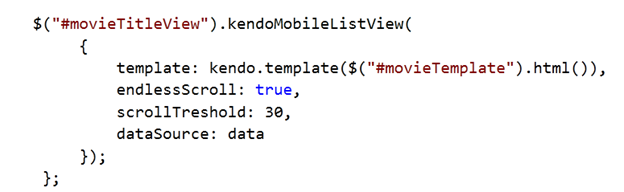
As of now we have created datasource and temple. Now let us create listview. To create a listview modify data div as following,

image_thumb53

A listview can be created by setting data-role property of <ul> as listview. If you notice we are setting data-init property of view as getMovieDetails. In getMovieDetails function we are fetching data from OData feed and setting the template as following. We are setting template and datasource value in the property.
image_thumb56

Combining all the discussions together and putting all the codes together we should have following code in HTML file.

<html>
 <head>
 <title>
 Test Application
 </title>
 <link href="http://cdn.kendostatic.com/2012.1.515/styles/kendo.common.min.css" rel="stylesheet" />
 <link href="http://cdn.kendostatic.com/2012.1.515/styles/kendo.default.min.css" rel="stylesheet" />
 <link href="http://cdn.kendostatic.com/2012.1.515/styles/kendo.mobile.all.min.css" rel="stylesheet" />
 <script src="js/jquery.min.js" type="text/javascript"></script>
 <!-- Kendo UI Scripts -->
 <script src="http://cdn.kendostatic.com/2012.1.515/js/kendo.all.min.js" type="text/javascript"></script>
 <script src="http://cdn.kendostatic.com/2012.1.515/js/kendo.mobile.min.js" type="text/javascript"></script>

 </head>
 <body>
 <div data-role="view">
 <div data-role="header">Header</div>
 Hello world!
 <div data-role="footer">Footer</div>
 </div>

<div data-role="view" id="LoginView" >
 <h1>This is a Login View </h1>
 </div>

<div data-role="view" id="DataView" data-init="getMovieDetails" >
 <ul id="movieTitleView" data-role="listview"></ul>
 </div>

 <div data-role="view" id="AboutView" >
 <h1>This is a About View </h1>
 </div>
 <div data-role="layout" data-id="TestAppLayout">
 <div data-role="header">
 <div data-role="navbar">
 <a data-role="backbutton" data-align="left">
 Back
 </a>
 Test Application
 </div>
 </div>
 <div data-role="footer">
 <div data-role="tabstrip">
 <a href="#LoginView" data-icon="settings">Login</a>
 <a href="#DataView" data-icon="download">Data</a>
 <a href="#AboutView" data-icon="home">About</a>
 </div>
 </div>
 <script type="text/javascript">
 var app = new kendo.mobile.Application($(document.body), {
 initial: "LoginView",
 layout: "TestAppLayout"

 }
 );
 </script>
<script id="movieTemplate" type="text/x-kendo-template">
 <div>
 <img src=${data.BoxArt.MediumUrl} height="50" width="50" />
 <strong>${data.Name}</strong>
 <a href="\#DataDetailView?Id=#:data.Id#"" data-role="detailbutton" data-style="detaildisclose"></a>
 </div>
 </script>
<script>
 var data;
 data = new kendo.data.DataSource(
 {
 type: "odata",
 pageSize: 5,
 endlessScroll: true,
 scrollTreshold: 30,
 transport:{
 read: {
 url: "http://odata.netflix.com/Catalog/Titles",
 dataType: "jsonp",

data: {
 Accept: "application/json"
 }
 }
 }

 });
 var getMovieDetails = function () {
 $("#movieTitleView").kendoMobileListView(
 {
 template: kendo.template($("#movieTemplate").html()),
 endlessScroll: true,
 scrollTreshold: 30,
 dataSource: data
 });
 };
</script>

 </body>
</html>

On running we should be getting output as following

image_thumb59

On tap of Data button we should get below output

image_thumb62

At this point of time of you tap on the detail button you will be getting an exception because we have not created detail view yet. Let us create detail view

image_thumb65

Here we are setting different layout to DataDetailView. Let us create layout as below,

image_thumb68

This layout structure is same as we discussed previously. Now we need to write function shwDeatilsView function. In this function we will fetch selected data from the server on basis of Movie selected in first view.

image_thumb71

This function is quiet simple. First we are reading query parameter as following,

image_thumb74

After that we are making a call to server to fetch specific detail of the movie. Server call is as following. We are setting filter to fetch specific record.

image_thumb77

Once data is being fetched from the server, we need to initialize downloaded data to Movie Detail template. This template will tell how we are going to show data in movie detail page.

image_thumb80

We need to write MovieDetailtemplate as following,

image_thumb84

Combining all the discussions together and putting all the codes together we should have following code in HTML file.


<html>
 <head>
 <title>
 Test Application
 </title>
 <link href="http://cdn.kendostatic.com/2012.1.515/styles/kendo.common.min.css" rel="stylesheet" />
 <link href="http://cdn.kendostatic.com/2012.1.515/styles/kendo.default.min.css" rel="stylesheet" />
 <link href="http://cdn.kendostatic.com/2012.1.515/styles/kendo.mobile.all.min.css" rel="stylesheet" />
 <script src="js/jquery.min.js" type="text/javascript"></script>
 <!-- Kendo UI Scripts -->
 <script src="http://cdn.kendostatic.com/2012.1.515/js/kendo.all.min.js" type="text/javascript"></script>
 <script src="http://cdn.kendostatic.com/2012.1.515/js/kendo.mobile.min.js" type="text/javascript"></script>

 </head>
 <body>
 <div data-role="view">
 <div data-role="header">Header</div>
 Hello world!
 <div data-role="footer">Footer</div>
 </div>

<div data-role="view" id="LoginView" >
 <h1>This is a Login View </h1>
 </div>

<div data-role="view" id="DataView" data-init="getMovieDetails" >
 <ul id="movieTitleView" data-role="listview"></ul>
 </div>

 <div data-role="view" id="AboutView" >
 <h1>This is a About View </h1>
 </div>
 <div data-role="layout" data-id="TestAppLayout">
 <div data-role="header">
 <div data-role="navbar">
 <a data-role="backbutton" data-align="left">
 Back
 </a>
 Test Application
 </div>
 </div>
 <div data-role="footer">
 <div data-role="tabstrip">
 <a href="#LoginView" data-icon="settings">Login</a>
 <a href="#DataView" data-icon="download">Data</a>
 <a href="#AboutView" data-icon="home">About</a>
 </div>
 </div>
 </div>
 <div data-role="layout" data-id="TestAppDataLayout">
 <div data-role="header">
 <div data-role="navbar">
 <a data-role="backbutton" data-align="left">
 Back
 </a>
 Data
 </div>
 </div>
 <div data-role="footer">
 <div data-role="tabstrip">
 <a href="#DataView" data-icon="download">Save</a>
 </div>
 </div>
 </div>
 <div data-role="view" id="DataDetailView"
 data-layout="TestAppDataLayout"
 data-show="showDetailsView">
 <h1>This is a Data Detail View </h1>
 </div>

<script type="text/javascript">
 var app = new kendo.mobile.Application($(document.body), {
 initial: "LoginView",
 layout: "TestAppLayout"

 }
 );
 </script>

<script id="movieTemplate" type="text/x-kendo-template">
 <div>
 <img src=${data.BoxArt.MediumUrl} height="50" width="50" />
 <strong>${data.Name}</strong>
 <a href="\#DataDetailView?Id=#:data.Id#"" data-role="detailbutton" data-style="detaildisclose"></a>
 </div>
 </script>

<script id="movieDetailTemplate" type="text/x-kendo-template">
 <div>
 <img src=${data.BoxArt.MediumUrl} height="100" width="100"/>
 <br/>
 Movie Name : <strong>${data.Name}</strong>
 <br/>
 ${data.Synopsis}
 </div>
 </script>
 <script>
 var data;
 data = new kendo.data.DataSource(
 {
 type: "odata",
 pageSize: 5,
 endlessScroll: true,
 scrollTreshold: 30,

 transport:{
 read: {
 url: "http://odata.netflix.com/Catalog/Titles",
 dataType: "jsonp",

data: {
 Accept: "application/json"
 }
 }
 }

});

console.log(data);

 var getMovieDetails = function () {

$("#movieTitleView").kendoMobileListView(
 {
 template: kendo.template($("#movieTemplate").html()),
 endlessScroll: true,
 scrollTreshold: 30,
 dataSource: data
 });
 };
 var movieDetailTemplate = kendo.template($("#movieDetailTemplate").text());

function showDetailsView(e) {
 var view = e.view;
 console.log(view.params.Id);
 var query = view.params.Id.toString();
 var data1 = new kendo.data.DataSource(
 {
 type: "odata",
 serverPaging: true,
 serverFiltering: true,
 pageSize: 50,
 transport: {

 read: "http://odata.netflix.com/Catalog/Titles"
 },

filter: { filters: [{ field: "Id", operator: "eq", value: query}] }
 });
 data1.read();
 data1.fetch(function () {
 var item = data1.at(0);
 console.log(item);
 view.scrollerContent.html(movieDetailTemplate(item));
 kendo.mobile.init(view.content);
 });
 }

</script>

 </body>
</html>

Now let us go ahead and run application

image_thumb87

Now when we select a movie, we will go into detail of that movie

image_thumb90

Conclusion

Yes detail view is not that immersive. In second part of this post, we will make it more immersive and implement much more features. I hope you like this post. Thanks for reading.