Recap of webinar Journey from Manual to Automated Tester

image

On 12th December 2013, we conducted webinar on Journey from Manual to Automated Tester in 1 Hrs. We had great time teaching Automated Testing over web to audience of more than 150.

Download free 30 days trial of TestStudio from here

Find more about Test Studio here

In webinar we covered following topics,

  • Why to automate a Test
  • Advantage of Test Automation
  • Getting started with Test Studio
  • Record and Play a Test
  • Cross Browser Testing
  • Data Driven Testing
  • Test Lists and Scheduling

If you missed webinar then you can view recorded webinar below,


Some of the Questions and Answers from webinar are below,

Which all technologies that can be automated by Test Studio?

TestStudio can automate functional Testing of

  • Web Applications
  • Desktop Apps created using WPF
  • Load Testing
  • Load Testing of Web Services
  • Load Testing of Mobile Apps

Can we perform Load testing for more than 100 virtual users?

Yes Load Testing can be performed with more than 100 Virtual Users. Learn more about Load Testing here,

http://www.telerik.com/automated-testing-tools/support/documentation/user-guide/load-testing.aspx

Can we do automation testing for excel application?

What I understand from this question that you want to automate testing of

  • Reading Excel file
  • Verifying whether data being written to Excel file.

Yes you can do it using CODED STEPS. You need to write C# Code using File System API and Excel API to achieve automation .Learn more about Coded Steps here

http://www.telerik.com/automated-testing-tools/support/documentation/user-guide/coded_steps.aspx

What programming languages does it support?

Test Studio supports below programming languages,

  • C#
  • VB.Net

Can test studio access Linux System?

No Test Studio does not work on Linux system. As of now Test Studio supports only Windows.

Can you please show how we parameterise the user name and password?

As shown in demo you can do it using Data Driven Testing. Learn more about Data Driven Testing here,

http://www.telerik.com/automated-testing-tools/support/documentation/user-guide/data-driven-testing.aspx

When you choose any Browser for test recording

Learn more about recording here,

http://www.telerik.com/automated-testing-tools/support/documentation/user-guide/recording-tests.aspx

How this tool is handled browser pop-up?

Learn more about handling popup here,

http://www.telerik.com/automated-testing-tools/support/documentation/user-guide/dialogs-and-popups/dialogs.aspx

Is there any option for automating silver light application?

Yes Test Studio supports automation testing of Silverlight application. Learn more about that here,

http://www.telerik.com/automated-testing-tools/support/documentation/user-guide/write-tests-in-code/silverlight-test-automation/introduction.aspx

Does it support flex?

Unfortunately Test Studio does not support Flex application testing.

Can we do testing for Kendo UI applications?

Test Studio supports out of box testing of Kendo UI Widgets. See Kendo UI Grid testing video here,

http://tv.telerik.com/watch/automated-testing-tools/testing-kendoui-grid-with-test-studio

Webinar was highly demo oriented and PPT had very less role to play. However if PPT interests you then find it below,

Download free 30 days trial of TestStudio from here

Find more about Test Studio here

clip_image002

Telerik TestStudio: Subscription based Automation Testing Tool

image

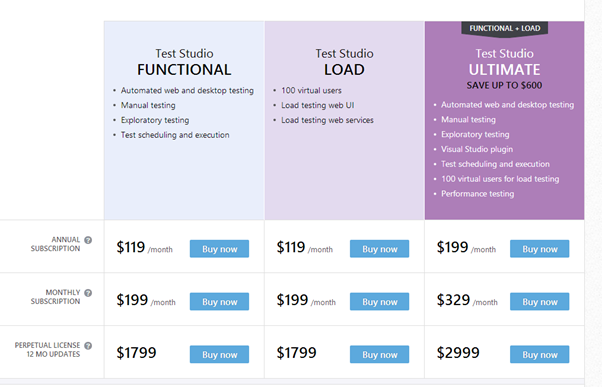
Telerik TestStudio is now subscription based. Now as user you have three options to choose from.

Learn more about Purchasing Options

image

You have now monthly and yearly subscription option. You can choose among three bundles as per your requirement.

There are many added and imprived features with this release. Some of them are as follows,

  • Load Testing Traffic from Mobile Devices
  • Load Testing of Web Services
  • Extended Support for HTML5 Controls
  • Improved Browser Calibration
  • TeamPulse Integration Improvement. Etc.

Learn what is new in TestStudio

I hope you will find new subscription based model along with new features exiting. Test Studio rocks.

How to change default waiting time to find Element for a step in Test Studio

Learn more about Test Studio here

While talking to customers I come across one common question that, “How can we change default waiting time to find element for a particular Test Step? “

Let me start with explaining this question little bit more. So when you record a test, TestStudio saves information about elements in Element Repository. While executing test, TestStudio try to identify element in Element Repository on basis of Identification Logic saved. TestStudio waits for 30ms to find element.

Now there could be scenario when 30ms is not enough and you want to change this default wait on step value. Let us learn how can we change this?

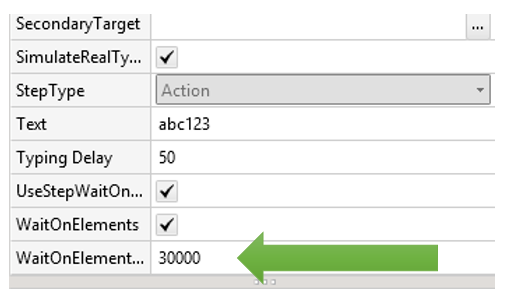
To change default wait to find element in a step, click on edit steps. You will get an option of UseStepWaitOnElements. You need to check the check box as given below.

image

Once you check this check box, next go to step property. There you will find WaitOnElement property field editable. Here you need to put desired wait time to find an element for a particular step.

clip_image001

This is what all you need to do to change default wait time for elements. I hope you find this post useful. Thanks for reading.

Telerik Test Studio participated at STC 2013

Learn more about Test Studio here

See Photos from Event here

We are happy to announce that Telerik team was present at STC 2013 on 4-5th December in Bangalore. We had great time talking, interacting and advocating our products to esteem audience. Telerik had a booth at the event and we witnessed great response from audience at booth.

Download 30 days free trial of Test Studio from here

image

It was one of the premiere event with large number of audience. There were industry known speakers and audience from profile of Test Director to junior level Test Professional.

clip_image002

Our Evangelist Dhananjay Kumar did two presentations at event. At first day he gave a Test Studio tool demo. Second day he had a talk on “A Look on Automated Web Testing”. In talk he focused on how to handle dynamic id and Ajax in web test automation.

clip_image004

We gave away more than 100 Telerik Ninja TShirts and Nexus 7 Tablet to winner of lucky draw.

clip_image006

We had great time at the event. If you have any further queries feel free to write us at Dhananjay.kumar@telerik.com

Download 30 days free trial of Test Studio from here

Handle Dynamic Id with ease in Test Studio

Learn more about Test Studio here

Download 30 days Free Trial Here

Okay, so I will start this post saying there is not a single golden rule to handle dynamic id while automating Test. It depends, I repeat it depends. In this post I will focus on various ways you can handle dynamic id in Test Studio.

clip_image002

In this post we will learn to deal with dynamic id in three different ways,

  1. Handling with changing setting at Test Project level
  2. Handling with changing setting at Element level
  3. Handling with Coded Step

Scenario # 1 : Test Project Level

Let us say you are sure that id is going to be dynamic throughout the application. And you cannot rely on id to identify element. In this scenario Test Studio allows you to configure Identification Logic at the Test Project level. You can change that in Project Settings.

By default Test Studio finds and element on following identification logic. It search on the id AND tagname. This is set for the Test Project level.

clip_image002

Now we know that id for application in test is going to be dynamic and we want to change the FindLogic to some other tag. In other words we want to change default Find Logic for whole Test Project. To do this navigate to Project Settings.

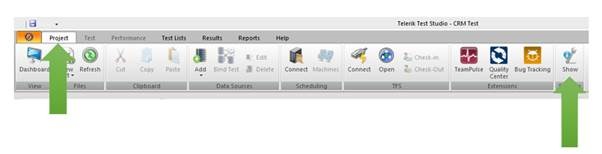
You can browse to FindLogic setting of Test project by clicking on

Project -> Show Setting

clip_image004

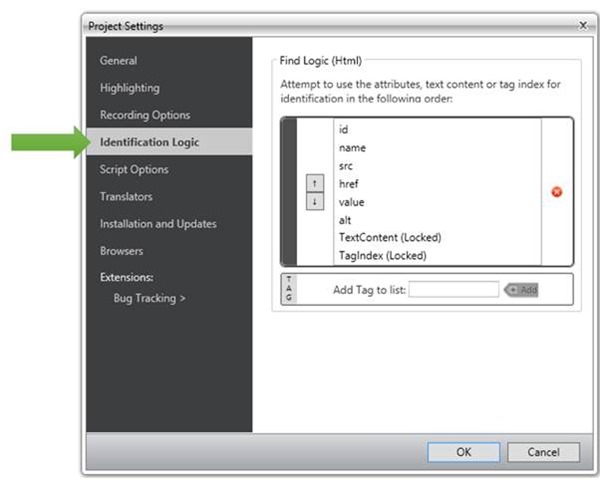
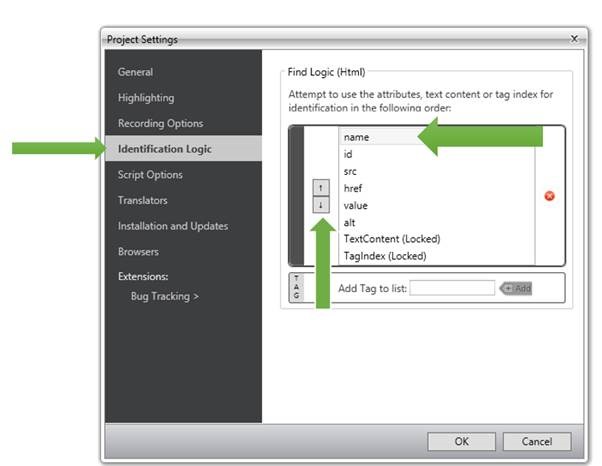
In Project Setting dialog box click on identification logic. Here you can find identification logic and change it as per requirement to your project.

clip_image006

As you can clearly see that by default Test Studio find an element on its Id. If you consider that Name of the elements are not expected to change frequently then you can consider to change project setting to find an element on its Name attribute.

To change FindLogic select any attribute then click on up/down arrow to change its position. For example Name is at second from top. To make it first attribute on which Test Studio will find element select Name and then click on up arrow button to bring it at the top in the list.

clip_image008

In this way you can configure FindLogic. You may notice that if required you can add new Tag to list as well. After reconfiguring Identification Logic you can find that now FindLogic for whole Test project (recording which will happen after changing logic) has been set to name and tagname.

clip_image010

Scenario # 2 : Element Level

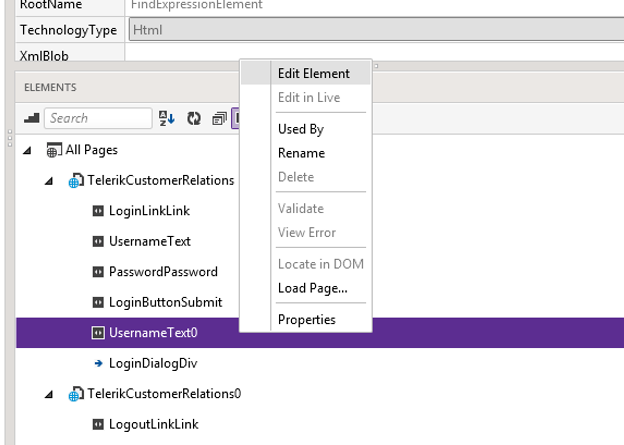
Second scenario could be you need to change identification logic only for a particular element. You do not want to change identification logic for whole Test project rather for a particular element. Test Studio allows you to do that as well. To do this select element from Element Repository and right click. From context menu select Edit Element.

clip_image001

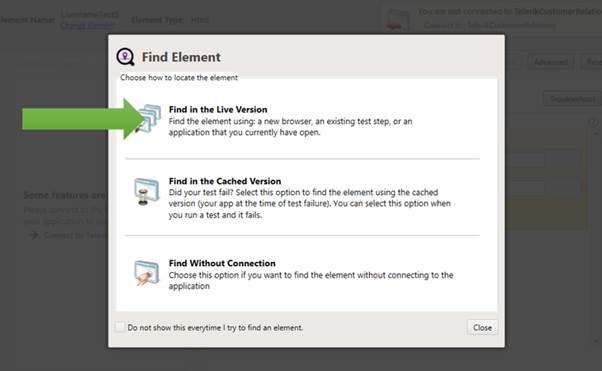
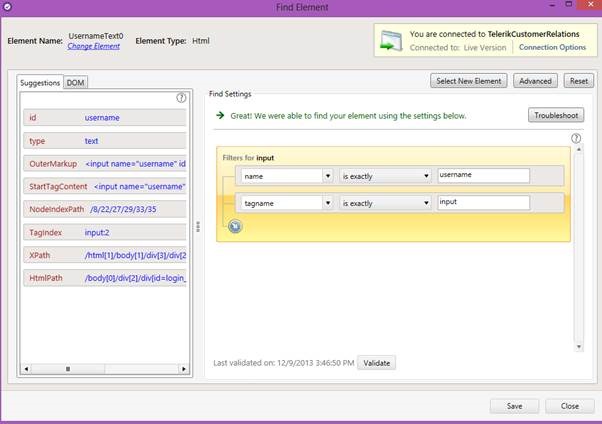
When click on Edit Element, next you will get various options to Find Element.

clip_image003

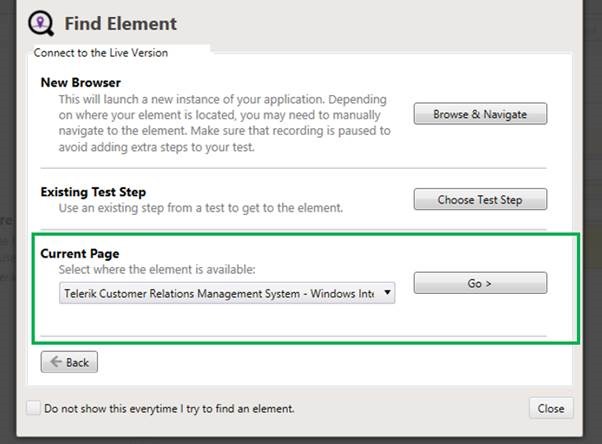
Let us Find Element in Live Version. To find element in Live Version make sure that application is already open in browser. Since already application is opened here so select open Current Page and select application from drop down.

clip_image005

After navigating to application you will find Elements current FindLogic.

clip_image007

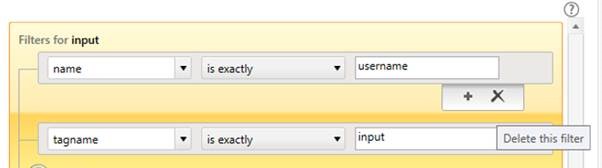
To delete current logic move mouse and you get option like below to delete current filter.

clip_image009

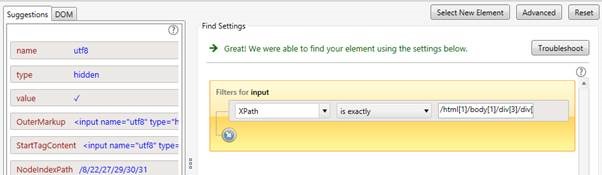
After deleting both filter let us use XPath to find element.

clip_image011

This is what all you need to change FindLogic for a particular element. You can see in Element Repository that FindLogic has been changed to XPath.

clip_image013

Scenario # 3 : Code Step

So far in above two scenario we saw that if Id is dynamic we can change it to some other attribute of element like Name, XPath etc. Now there could be scenario that you cannot rely on any attributes.

XPath gives you positional based FindLogic. Consider scenario of a Grid. In Grid you need to automate test to find an Employee ‘e2’. Say e2 is second employee in database and is listed in the second rows of Grid. You can put verification step as below,

clip_image001[6]

Now above test will fail if order of elements in Grid is changed. So in this kind of scenario you cannot rely on either id or XPath of element.

There could be many ways you can fix and automate test to find whether employee e2 exists in db or not. Test Studio allows you to write your custom logic using Coded Step. So we can write a coded step as below.

clip_image002[6]

In above coded step, we are finding reference of Grid then searching Employee ‘e2’ in whole grid and then asserting if count is equal to 1 to verify existence of Employee e2.

So in this scenario we are not finding element on any of the attribute and writing our own logic in script to find element.

Conclusion

We learnt in this post that there are various ways to deal with dynamic id. Again there is not a single bullet proof method to deal with dynamic id. It depends on the scenario that how dynamic id cane be handled while automating test.

Learn more about Test Studio here

Download 30 days Free Trial Here

How To Get Started With Telerik’s ASP.NET AJAX Controls

Overview:

Recently when talking to one of our clients, I had a question from them. They said your demos are great and covers most of the scenarios but when I take a particular control lets say Grid, how do I get started. Well that question prompted me to write this blog post. So if you are one of those who get the exact question in your mind about our controls, then do read on.

About Telerik’s ASP.NET AJAX Controls:

RadControls for ASP.NET AJAX is a complete development tool set for developing web sites or web apps based on ASP.NET AJAX technology. Our suite for ASP.NET AJAX contains nearly 70+ controls and helps you in rapid UI development. We also provide you with nearly 15 themes out of the box. If this excites you, check out the product page here: http://www.telerik.com/products/aspnet-ajax.aspx

ASP.NET AJAX Controls Help Documentation:

Almost all suites of Telerik have a very rich documentation support. Various formats of help is available. You can choose which mode you want to use the help documentation. If you navigate to page – http://telerik.com/help, it will list all suites help options. We will concentrate on ASP.NET AJAX controls for now. Here is the screen shot of the page with ASP.NET AJAX Controls Help Documentation Options:

image

Lets spend a moment here to understand the help options. For ASP.NET AJAX we have the following resources:

  • Online Help or you can download a copy of CHM format, MS Help 2 format or MS Help 3 format. Clicking on “Online Help” will give you the documentation online. Where as other options you can download the help documentation on to your hard disks.
  • Step-by-step tutorial – the name says it all
  • Knowledge Base – a vast base of knowledge articles for you to do a quick glance at
  • Code Library – a vast library of codes for specific scenarios or requirements

For this blog post I will consider the “Online Help” option and point you to resources there. This will be the same for other formats too.

Navigating Help Documentation:

If you are starting new on a specific control, first thing you should do is to head over to the help documentation and get to the section which deals with the control you want work with. II f you navigate to online help link which is at http://www.telerik.com/help/aspnet-ajax/introduction.html, you will see the following page:

image

If you notice the help documentation page, we have a tree on the left hand side. This tree lists down a lot options for you to get help on. I have highlighted 2 sections, namely – RadControls for ASP.NET AJAX Fundamentals and RadControls. The RadControls for ASP.NET AJAX Fundamentals will give you fundamental details about ASP.NET AJAX and about the RadControls itself. If you want to get to the documentation of controls you will need to expand the section “RadControls” which then will list all of our controls. As a shortcut, on the center section of the online help page, you will see links to controls directly and you can click on your control of interest. You will be navigated to that controls Documentation now.

Getting Started with a Control:

Now that you know how to navigate to the Help Documentation, the next step is to figure out getting started with a control. Remember the short cut I said that is available on the help documentation home page – well find the control you want to learn and click on it (the control name is a hyperlink which will take you to its documentation). For this exercise I will take our most popular control Grid and walk you through. Once I click on the RadGrid hyperlink, it will take me to RadGrid for ASP.NET AJAX Overview page. The left side tree on the page will now have the node RadGrid under RadControls be default selected and the sub nodes under it would have been expanded.

image

Now you will see a sub node called Getting Started. Click on it to expand the node. You will now see a child node which says “Getting Started with RadGrid for ASP.NET AJAX”. Click on the link and you will get a step by step guide on how to start working with our Grid.

image

And that’s it – now you can first go through the getting started, understand steps required to get a Grid on your page and start using the grid.

Looking at the Demos:

Now that you know how to get started with the Telerik RadGrid, next step would be to start looking at our demos to understand different features and how to work with those features. In our demos we try to provide you with all the scenarios in which a Grid will be used in real world applications. So take a look at the demos online here – http://demos.telerik.com/aspnet-ajax/. Note that, when you download our product, the same online demo is shipped and installed on your hard disk. So you can just open the local demos right from your hard disk and go through them.

image

Telerik TV:

Another great resource for anybody getting started with our Telerik Suites is to look at our Telerik TV. This is a public site available on the internet and you don’t need to be a licensee of Telerik to access the site. Telerik TV has videos on all of our products which are short in nature and very focused on a particular feature of a control. These videos are created by evangelists like me in Telerik. Personally I use this a lot to quickly understand how to work with a control. I highly recommend book marking this one in your browsers. Here is the Telerik TV URL: http://tv.telerik.com

Conclusion:

Whenever you are starting new, without knowing the right resources and guide its little tough to get started. Idea of this blog post was to hold your hand and walk you through various resources we here at Telerik have to make your experience of developing with Telerik controls an easy one. Personally as a developer at heart first place I go to is our documentation to understand the control and to go over its API exposed. Next stop would be Telerik TV and finally a look at the demos to understand different features and scenario in which the control can be used. Hope these simple steps will help you all with your evaluation of Telerik controls and make it much more easier and simpler to evaluate. Do feel free to get in touch with us in case you need further assistance.

Resources for webinar “Adaptive Rendering Mobile Web Apps using ASP.NET MVC”

On Nov 28 2013 we conducted a webinar on the topic “Adaptive Rendering Mobile Web Apps using ASP.NET MVC”. In this blog post we will provide the resources from the webinar.

ASP.NET MVC has a fantastic feature which allows you to design web pages for traditional web browser or for a mobile browser. In order to support Mobile browsers, all you need to do is to create a page with “.mobile” in the file name i.e. if I have index.cshtml view just create a index.mobile.cshtml and ASP.NET MVC pipeline will serve this page when some body requests index view from a mobile browser.

image

Kendo UI Mobile is a flagship product from Telerik which is a HTML5 based cross platform adaptive rendering mobile controls. Kendo UI Mobile controls when uses will adapt to the platform they are running on and will give you the look and feel of that platform. So you write your application only once and deploy to platforms like Android, iOS, Windows Phone and Blackberry without any code changes.

Slide Deck:

One of the things I tried with this webinar was – Only Action No Theory. Well what I meant was I didn’t have a slide deck for this webinar. It was completely demo oriented.

Video Recording:

If you had missed attending the the live event or you want to go over it once again don’t worry we record every one of our webinars. So here is the video recording of the  webinar:

Q&A:

As with every webinar, this webinar too had many questions from the attendees. We tried our best to address most of them during the webinar. With the lack of time, we might not have been able to answer every question. So we list them here with the answers.

Q: Is adaptive rendering same as responsive design?
A: No. Responsive design is where you design a web page which reacts to different dimensions of the browser. For e.g. If you create a web page using Twitter’s bootstrap style sheets they have rules which make your page realign to different dimension. Where as adaptive rendering is about rendering controls which look native on the platform they run. For e.g. if you use a button, when the page is seen from a iOS browser, button should look the blue shade button or when it is seen from a Android browser, it should look like a black shade android button etc.

Q: How does kendo recognize the mobile or device in which app is running?
A: Each browser will let you know information about the platform through user agent strings. So we rely on that.

Q: Can we override the native look and feel. Like if we have requirement to show app similar to android in IOS
A: Yes you can. We have a special skin or theme called Flat. If you use this flat theme the UI will be same across platforms. You can customize the Flat theme CSS to have your own color combination.

Q: Can we use Kendo UI without using Asp .net MVC?
A: Yes you can. Kendo UI is a HTML5 powered Client Side UI framework. You can use Kendo UI Web Controls in a plain HTML page also. Kendo UI Mobile controls are used for developing Mobile Applications.

Q: Why there is a need to add Jquery mobile script file separately and why can’t we make it as part of kendo scripts ?
A: Kendo UI depends only on Jquery and nothing else. So its necessary to first add Jquery before referencing Kendo UI scripts.

Q: Is it possible to create iOS/Android apps like messaging, file sharing using KENDO UI?
A: Yes you can.

Q: when you Customize/override the layout by making skin ‘Flat’ , the tabs were in the bottom in Android UI too, so it means Kendo UI will not work if we override or customize it?
A: When we use Flat skin, the UI looks consistent across platforms which includes the tab strip too. The tab strip will be at bottom. But if you want the tab strip to be on top for android or other platforms you can easily customize the flat theme CSS for a particular platform.

Q: I can build Mobile Web using such adaptive layout with Jquery mobile + ASP.net MVC , what are the key features for Kendo Web UI?
A: Kendo UI Mobile controls are adaptive in nature. i.e. you write once and deploy on different platforms, the controls will look like native UI. For more information visit: http://www.kendoui.com/mobile.aspx

Q: Does Kendo UI supports HTML5 features?
A: Yes.

Q: how to convert mobile web app to hybrid app?
A: You can just take the HTML/JS/CSS files, package it and deploy it to respective marketplace.

Q: What all kind of app we can develop using Kendo UI?
A: kendo UI comes with 3 flavors. Kendo UI Web – used to develop HTML5 based web apps/sites, Kendo UI DataViz – used to develop data visualizations for web and mobile and Kendo UI Mobile – used for developing Hybrid Mobile Apps. For more information visit – www.KendoUI.com

T-Shirt Giveaway:

With every webinar we select 2 random attendees to receive a give away from our side. The give away is a .NET Ninja t-shirt from Telerik. So here are the 2 winners from this webinar:

  • Sivakumar SS
  • Mahesh Darga

For those of you who are feeling sad about not winning the t-shirt, don’t worry. We have a lot of webinars planned ahead. So keep looking out for our next webinar.

Learn about Telerik Testing Solution at STC 2013

Learn more about Test Studio here

We are happy to inform that Telerik team will be present at STC 2013 on 4-5th December in Bangalore. Do join us to learn more about Test Studio, along with other products at the event.

We invite you to join us at Telerik booth and explore Test Studio with us.

image

We are giving away one Nexus 7 Tablet as well at the booth. So if you come, interact and explore Test Studio with us then you have a chance to win Nexus 7 Tablet.

clip_image002

Our Evangelist Dhananjay Kumar will present on “A Look on Automated Web Testing”. In this session he will use Test Studio as tool to demonstrate the concepts. He will touch on following topics,

  • Getting started with Test Automation
  • Data Driven Testing
  • Ajax Testing
  • Grouping of Tests and Scheduling

We are excited to see you at event. If you have any further queries feel free to write us at Dhananjay.kumar@telerik.com

Assigning Telerik licenses to individual developers

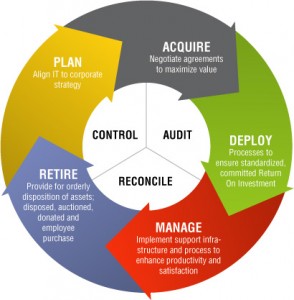
asset-management-software-294x300If you have purchased license(s) of Telerik tools, it is highly desirable that you assign the licenses to the developers who are going to be using it. Apart from the licensing requirements, it provides two important benefits for your developers:

  1. Gives them ability to download the latest updates for the software they are using on their own
  2. Allows them to raise support tickets to Telerik on their own. This is managed support from the Telerik team. This support is different from posting your query on Telerik forums, stackoverflow or on social media. It is fully managed by our dedicated support team.

In this post, we will detail the steps that you need to take to assign the licenses to your developers. One purchase of a license, you would have provided 2 pieces of information:

1. Billing Information

2. Shipping Information

To us the billing information is license holder. He/she is one responsible for making the payment to Telerik. The invoice generated for the payment due is sent to the billing contact alias. The email alias provided in the shipping information is the address where the license activation mail is sent. If you want both billing and shipping information can be made the same.

Most people get it till here. The piece that is shrouded in ignorance starts from here. Let’s say you bought 30 licenses of DevCraft Complete to be used by 30 developers in your team. However, only 1 shipping alias would have been specified. This means that all licenses at the time of activation are provided to the shipping contact. It is the responsibility of the shipping contact and a licensing requirement that the shipping contact assign the licenses to the named developers actually using the product. To do the same, the following steps needs to be done:

1. The shipping contact person needs to login to his account on Telerik.com:

clip_image002

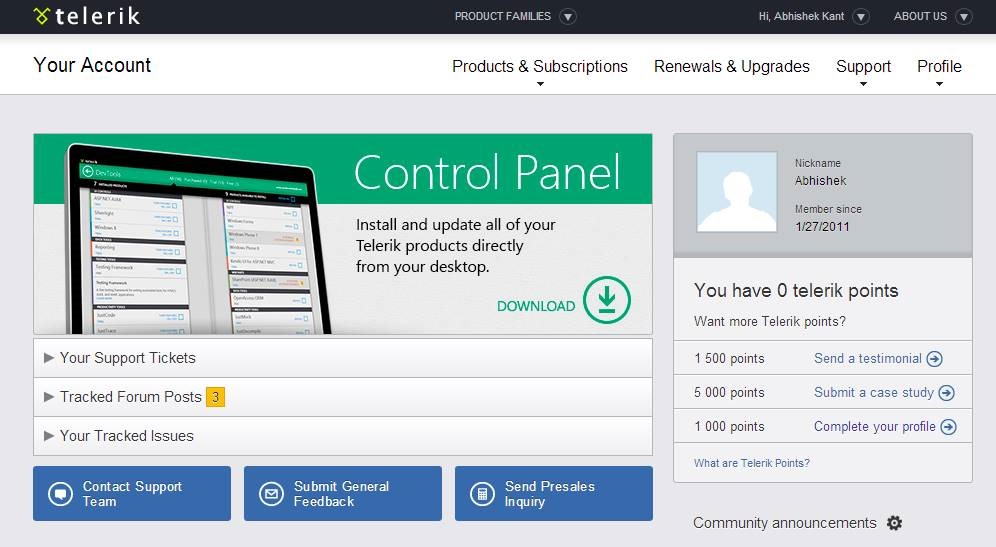
2. Browse to his Account Overview (using the email alias and password):

clip_image004

3. Single Click on “Products & Subscriptions” Menu and choose the “Manage Licensed users” option:

clip_image006

(If you can’t see the “Manage Licensed Users” option, you are not authorized to assign licenses to other developers)

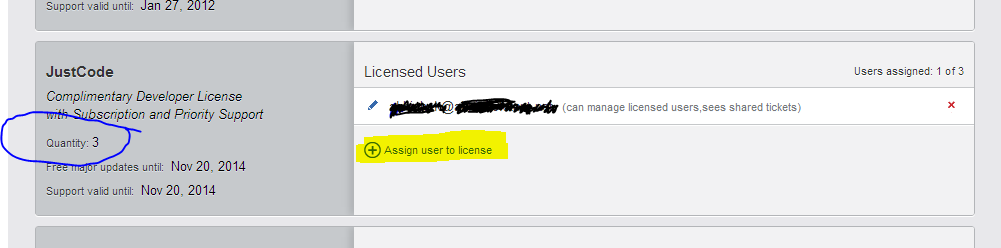
4. Select the product for which you want to assign the licenses:

image

In this view, you are able to see the users to whom the licenses have been assigned and their permissions.

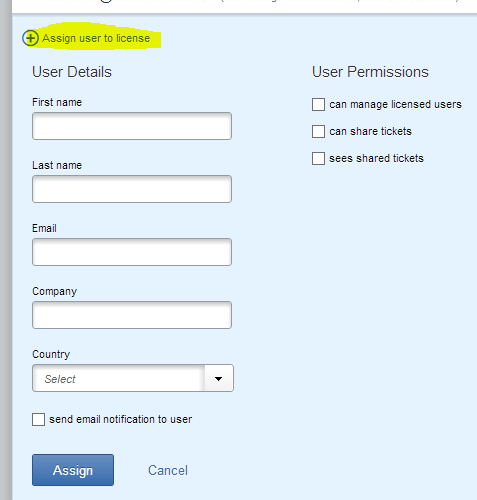
5. Click on “Assign user to license”. Please enter the details of the developer you want to add (making sure that email has been spelled correctly):

image

Please pay close attention to the “User Permissions” section. You don’t want to provide the “can manage licensed users” permission to any developer. With this permission they will acquire the right to further assign the license to another person making software asset management more difficult. Please do select the “send email notification to user” checkbox so that the developer is notified of the license assignment.

6. On clicking “Assign” button, an email is sent to the developer added with his account activation instructions. After this the developer is able to login to Telerik.com to raise support tickets and download the product updates etc.

There may be times, when you want to revoke a license from a user and reassign it someone else. The screens used are the same as above. But now, you first delete the user that is currently assigned to and then add the new user. The user that is removed will need to uninstall the specific Telerik tool from their machine to avoid mis-licensing.

image

If you need any further help on managing your licenses more efficiently, you can always reach us on our contact nos. located across the world. The one in India is located in the New Delhi area (specifically in Gurgaon).

Now that you know how to support your developers better with their queries, here is how to raise that support ticket on Telerik.

Creating RSS Reader App using Telerik Icenium in Three simple steps

Learn more about Icenium here

In this post we will learn to create RSS reader App in Telerik Icenium. While creating this app we will have learning on creating following topics,

  • Kendo DataSource
  • Kendo Template
  • Kendo ListView

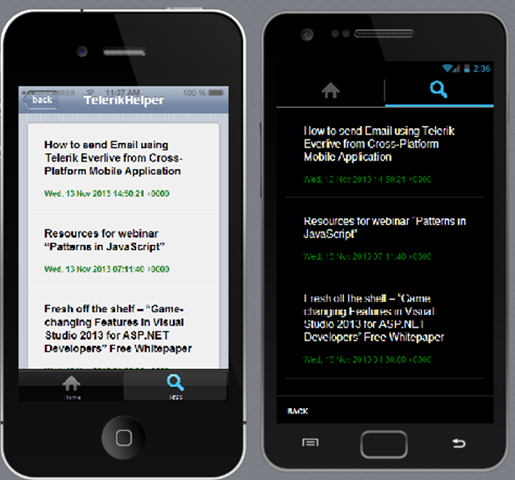
In this post we will create RSS Reader of https://telerikhelper.net/. Final output should be as follows,

clip_image001

Step 1: Create DataSource

To start with we will use YML to read RSS feed. Let us configure URL of Yahoo Query and RSS feed of desired site. Below I have configured that for https://telerikhelper.net/.


var url = "https://telerikhelper.net/feed/";
var proxyUrl = "http://query.yahooapis.com/v1/public/yql?q=select%20*%20from%20xml%20where%20url%3D'" + encodeURIComponent(url) +"'";

Next we need to create Kendo DataSource. That can be created using proxyUrl. RSS feed returns XML and we need to configure that while creating DataSource.


var telerikHelperRSSDS = new kendo.data.DataSource({
 transport:{
 read:{
 url: proxyUrl,
 dataType: "xml"
 }
 },
 schema:{
 type:"xml",
 data:"query/results/rss/channel/item",
 model:{
 id:"guid",
 fields:{
 title: "title/text()",
 pubDate: "pubDate/text()",
 story: "description/text()",
 url: "link/text()",
 id: "guid/text()"
 }
 }
 }
});


There are couple of points worth discussing about above code snippet,

  • We are creating schema reading title , published date , story and url of the post
  • Id of model is set to guid
  • Setting up data type as xml
  • data is set as query/results/rss/channel/item


Step 2: Create Template

Once DataSource is created next we need to create Template. Kendo Template decide how data will be displayed. We are displaying title and publication date of post.

You can see that

</span>

<script id="telerikhelperrsstemplate" type="text/x-kendo-template">

 <p class="titlecs">#=title#</p>
 <p class="datecs">#=pubDate#</p>

 </script>

Step 3: Creating ListView

In last step we need to create ListView. ListView is the Kendo UI Widget in which we will display RSS feeds.

ListView can be created as follows,

 <div data-role="view" id="telerikhelperrssview" data-title="TelerikHelper">
 <ul id="telerikhelperview"
 data-source="telerikHelperRSSDS"
 data-endlessscroll="true"
 data-template="telerikhelperrsstemplate"
 data-role="listview"
 data-style="inset">
 </ul>
 </div>

In ListView we are setting

  • Data source
  • Data template
  • Data style

That’s it. We need to perfrom only these three steps to create RSS Reader App using Telerik Icenium

clip_image001[6]

I hope you find this post useful. Thanks for reading.

How to send Email using Telerik Everlive from Cross-Platform Mobile Application

Have you ever come across scenario in which you need to send an Email from your app? There are various ways you can do that. Some of them are as follows,

  1. Sending Email using PhoneGap API
  2. Sending Email using HTML5
  3. Delegate Send Email task to a server

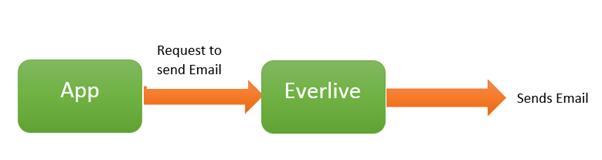
In this post we will learn to send Email using Telerik Everlive. Everlive is a cloud based Backend as a Service. It provides you many functionalities using Email Services. You can send Email from your app using Telerik Everlive.

image

There are two components in Everlive Email Service.

  1. Email Template
  2. Send Email

Before sending Email, you need to create Email Template. You can create Email Template in two ways,

  1. Using code in your app
  2. At portal

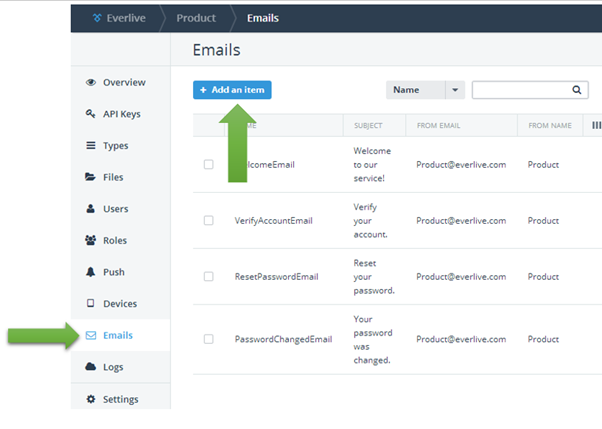
You need id of Email Template to send Email. Okay so in this post we are going to create Email Template in portal. To create Email Template login to portal and you will get option to create Email Template.

image

As you see there are four default Email Templates already available in Telerik Everlive. To create new template click on Add an item and at right hand side you get option to create new Email Template. After successful creation of new Email Template you can view that in Template List. You need ID of the Email Template at code to send Email from App.

image

Make sure that you have copied API key and Account Key of application. You need this to send Email using code. You can get keys by clicking on API KEYS in left options.

Okay so we have done configuration at portal. We created Email Template. Next we need to send Email from app. We can send Email using REST API.

Very first you need to create recipients. You can create this as JavaScript object. In below code I am setting two Email addresses to send in TO.


var recipients = {
 "Recipients": [
 “Dhananjay.kumar@telerik.com”,
 “debugmode@outlook.com”
 ],
 "Context":{
 "SpecialOffer":"Happy New Year”
 }
 };

Once you have created recipients you need to make a AJAX post to send an Email using Telerik Email. You can send an Email using code below.


$.ajax({
 type: "POST",
 url: 'http://api.everlive.com/v1/Metadata/Applications/PUTYOURAPIKEY/EmailTemplates/PUTYOUREMAILTEMPLATEID/send',
 contentType: "application/json",
 headers: { "Authorization" : "Accountkey PUTYOURACCOUNTKEY" },
 data: JSON.stringify(recipients),
 success: function(data){
 alert("Email successfully sent.");
 },
 error: function(error){
 alert(JSON.stringify(error));
 }
});

Above code is very simple,

  • In URL you need to set API key and ID of Template
  • In headers put account key of application
  • In data set recipients
  • On success you can set a JavaScript function as callback
  • On error you can set a JavaScript function as callback

That’s it. You need to do only this much of work to send an Email using Telerik Everlive from Cross-platform application. I hope you find this post useful. Thanks for reading.

Resources for webinar “Patterns in JavaScript”

On November 7th we conducted a webinar “Patterns in JavaScript”. This is yet another webinar in the ongoing series we here at Telerik India have been doing. You want to know more about these webinar, take a look at the schedule here:

https://telerikhelper.net/2013/10/04/technology-to-keep-you-company-in-the-holiday-season/

Slide Deck

As usual the webinar was demo oriented and we learn to code various patterns of JavaScript. Even though webinar was demo oriented we covered almost everything in slide deck. This slides could be useful to you.

Video Recording

We record all our webinars so that those of you who couldn’t attend the live event or you had some audio issues can come back and view the webinar at your leisure time. Below is the recorded version of this webinar:

Resources

You can find different blog posts on same topic below,

Revealing Module Pattern in JavaScript

Understanding Prototype Pattern in JavaScript: Part # 2

Understanding Prototype Pattern in JavaScript

Invocation patterns in JavaScript

How to setup JavaScript Build in Sublime Text 2

I hope you find this webinar useful. See you in next webinar.

Fresh off the shelf – “Game-changing Features in Visual Studio 2013 for ASP.NET Developers” Free Whitepaper

I started my web programming in 2001 and I have pretty much seen all the versions of Visual Studio over the past 12 years. Microsoft released yet another version of the IDE this October – Visual Studio 2013.

Visualstudio_logo

As with any other release, Visual Studio 2013 brings in a lot of framework and language enhancements for different project types and development environments. But I am more excited with this release than any other for a single reason: there are lots of enhancements for ASP.NET as a platform. Web as a platform is moving very fast and Visual Studio as an IDE needs to catch up. I feel Visual Studio 2013 is now packed with all the things a web developer needs to build a modern web application conforming to all modern standards.

game-changing-features.png

In this Telerik whitepaper, we identify and explore the top 10 features in Visual Studio 2013 we think are valuable for ASP.NET developers. Some of the items we tackle are as follows:

  • One ASP.NET
    No more confusion in creating web applications, there will be only one choice now.
  • Scaffolding for WebForms, MVC, WebAPI, SignalR
    We call it Scaffolding on steroids as we can scaffold pretty much anything in ASP.NET.
  • BrowserLink
    You can now say good bye to design view. BrowserLink makes it possible to do live update to your pages.
  • Bootstrap Templates
    Bootstrap template is the default template for all new ASP.NET projects in VS2013 now.
  • CodeLens
    You now have the spy lens at your disposal called CodeLens. This lets you know how many places a function/class is referenced right above your function/class definitions.
  • And others!

I am super excited about Visual Studio 2013 for all the ASP.NET features & enhancements. My favorite being the One ASP.NET feature. If you are also excited as I am then go ahead, download this whitepaper and get to know the new things in Visual Studio 2013.

Download Today

You can grab a copy of the whitepaper here. We hope you too enjoy the 10 features of Visual Studio 2013 that we mention. As always, we would love to hear your feedback. Is there a feature you like and we haven’t covered it, feel free to write a comment below.

Resources for webinar “What’s New in Visual Studio 2013”

On Oct 31 we conducted a webinar “What’s New in Visual Studio 2013”. This is yet another webinar in the on going series we here at Telerik India have been doing. You want to know more about these webinar, take a look at the schedule here:  https://telerikhelper.net/2013/10/04/technology-to-keep-you-company-in-the-holiday-season/

File:Visualstudio logo.png

Microsoft has released yet another version of Visual Studio and is called as Visual Studio 2013. Through this webinar we took a lap around some of the newest feature that every developer should be aware of. A lot of enhancements have been made in the language as well as the IDE itself. You can know more about Visual Studio 2013 here: http://www.microsoft.com/visualstudio/eng#visual-studio-2013

Slide Deck:

As usual the webinar was demo oriented as I spent most of the time show casing the new features of the new IDE. The slide deck contains just the pointers to my talk. So I suggest you watch the recorded video of the webinar along with the slide deck.

Video Recording:

We record all our webinars so that those of you who couldn’t attend the live event or you had some audio issues can come back and view the webinar at your leisure time. Below is the recorded version of this webinar:

Whats New in Visual Studio 2013

Webinar Giveaway:

If you have attended our webinars you will know that we usually pick 2 attendees from the participants list and they will receive our .NET Ninja T-Shirt shipped. For this webinar we have picked the following 2 attendees who receive the t-shirt:

  • Ravi Tyagi
  • Robin Banga

Congratulations to the winners. We will contact you for your address and will ship the t-shirt. Rest of you don’t feel bad. You can be the next winner and for that you will need to attend out next webinar.

Till next time – Happy Coding.

Codeless File Uploading to Windows Azure Storage using Telerik’s Cloud Upload for ASP.NET AJAX

This content was originally posted on Telerik’s blogs here.

Overview:

Ever wondered if there was a way a file upload could be done in your application without writing a single line of code. As a web programmer for 12 years, I have always wondered this myself. I would like to let a control know where it needs to upload and it should do the rest for me. I am happy to say that today that thought of mine is possible with Telerik’s Cloud Upload for ASP.NET AJAX. In this blog post we will see how you can upload files to your Windows Azure Storage BLOBs without writing a single line of code.

About Cloud Upload for ASP.NET AJAX:

RadCloudUpload is an ASP.NET AJAX control that provides you and your application the ability to upload files directly to your cloud providers. With the 2013 Q3 release, we support – Amazon S3, Azure Blob Storage and Everlive (Telerik’s Backend as a Service). On modern browsers, the control makes use of the File API and falls back to an IFrame upload module on older browsers. Some of the key features of the control are:

  • Multiple File Selection
  • Validation
  • Progress Monitoring
  • Large file uploading
  • Localization
  • Customization etc.

In rest of the sections, we will see how to use RadCloudUpload with a Windows Azure Storage account.

Setting up Windows Storage Account:

In this section, we will see how to set up a storage account on Windows Azure. I am assuming that you have a Windows Azure account, if not you can register for a trial account and follow along.

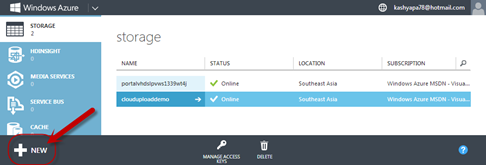
First thing to do is to log in to your azure management portal at http://manage.windowsazure.com. After logging in, click on the “New” button available at bottom left hand corner of the page.

image

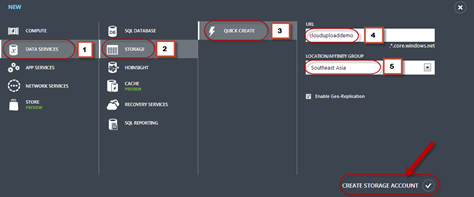
You will be presented with a new item dialog. Select Data Service > Storage > Quick Create. Enter a name for your storage account and select which location you want the account to be created. You can optionally enable the Geo Replication feature. Once you have completed the form, click on Create Storage Account.
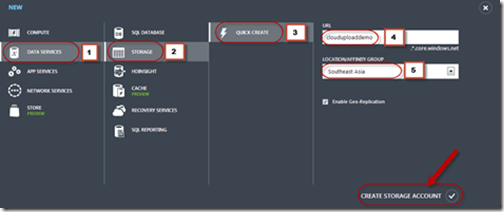
image

Azure will go ahead and provision your account.

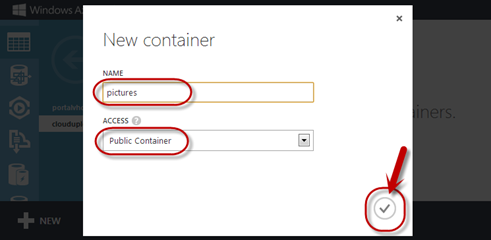
Once your storage account is created, navigate to the storage account and access the Containers tab. We will create a container to hold our files. I will name my container pictures for this demo. The idea is to upload and save pictures as blobs in my storage container.
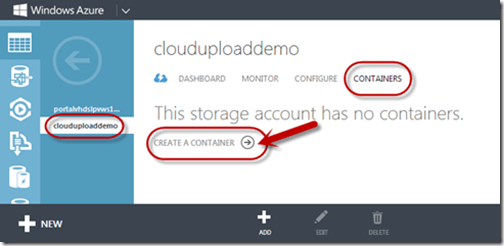
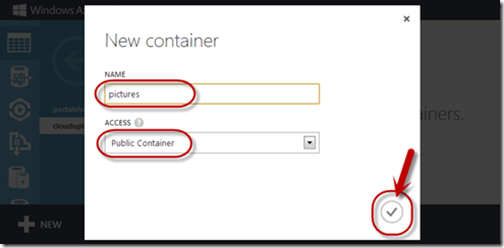
image

image

Write down the container name you have assigned, as we will need this to set up the RadCloudControl in our application.

Identifying Azure Storage Account Name and Key:

For the RadCloudUpload control to work – it needs three things. Namely:

  • Storage Account Name
  • Storage Account Key
  • Storage Container Name

Now let us see how to get to the account name and key.

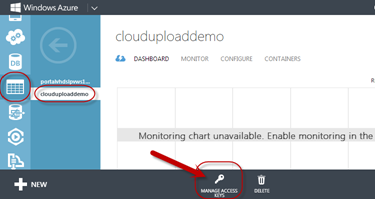
In your azure management portal, navigate to your storage account that we created in the previous section. Bottom of the page you should see a link which says “Manage Access Keys” – click on that link.
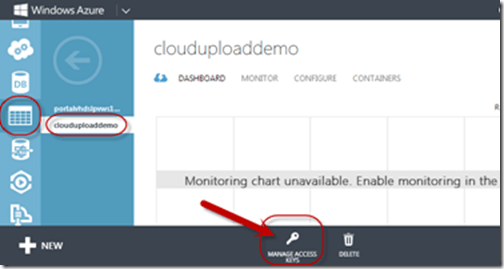
image

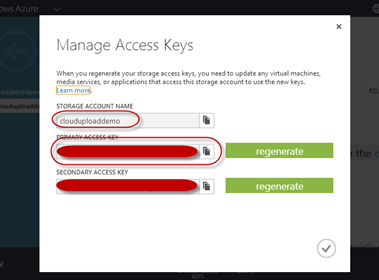
You will be presented with the Manage Access keys dialog. From this dialog write down the Storage Account Name and Primary Access Key. Secondary Access key is also provided if you want to share the account to your 3rd party associates.

image

Next, we see the RadCloudUpload in action.

Create a Web Application:

I am using Visual Studio 2013 as our RadControls are VS2013 compliant. However, you can also do this with 2012. Fire up a VS and select File > New Project. In web templates select “RadControls Web Application”, give it a name & location and click Ok. Visual Studio will spin up the new project with a default.aspx already added to the project. We will use this page for the demo.

Adding Azure Storage Client Library:

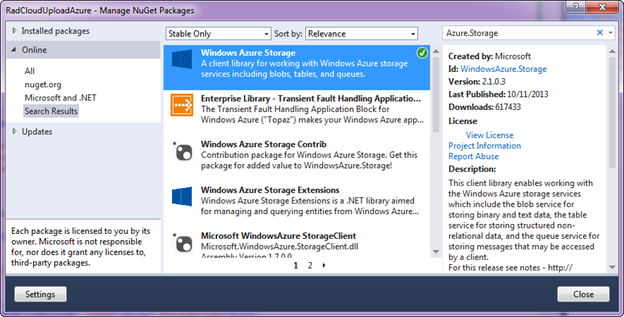
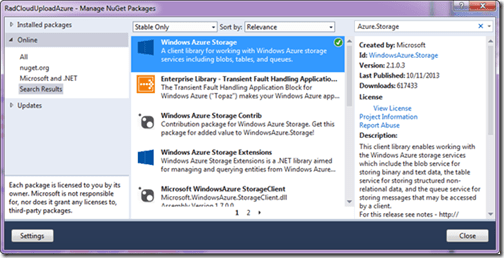
In order for the RadCloudUpload to work with Azure Storage, it needs Azure Storage Client Libraries. You can get those from NuGet. Right click on References node in Solution explorer and select Manage NuGet Packges. In the NuGet Package Manager, search for “WindowsAzure.Storage” and add the package to the application. The package will install 2 dlls – Microsoft.WindowsAzure.StorgaeClient.dll and Microsoft.WindowsAzure.Configuration.dll. For this demo we don’t need the Configuration assembly. Therefore, we can remove its reference.
image

Using the Cloud Upload control:

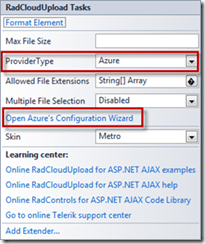
From the toolbox drag and drop RadCloudUpload control on to Default.aspx page. Access the smart tag of the control and choose Azure as the provider type. Then click on the “Open Azure’s Configuration Wizard”.
image

<telerik:RadCloudUpload ID="RadCloudUpload1" runat="server"
ProviderType="Azure"
Skin="Metro" />

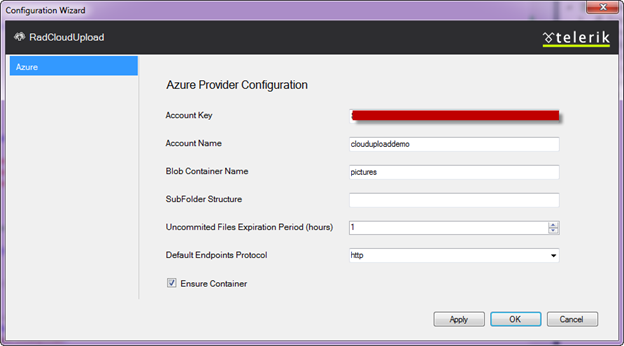
In Configuration Wizard dialog enter Azure Storage Account Key, Storage Account Name and the Storage Blob Container Name. In this demo the Account Name is clouduploaddemo and container name is pictures.

image

Specifying the Uncommitted Files Expiration Period (hours), you could easily configure the time, after which the unprocessed files will be removed from the storage.

When Ensure Container is checked, the control will create a new Container if it does not exist. In the scenario where it is not checked and the Container does not exists – an exception will be thrown.

This will add the following configuration setting in the web.config file:

<telerik.web.ui>
<radCloudUpload>
<storageProviders>
<add name="Azure" type="Telerik.Web.UI.AzureProvider" accountKey="<YOUR ACCOUNT KEY>" accountName="clouduploaddemo" blobContainer="pictures" ensureContainer="true" uncommitedFilesExpirationPeriod="1" defaultEndpointsProtocol="" />
</storageProviders>
</radCloudUpload>
</telerik.web.ui>

RadCloudUpload in Action:

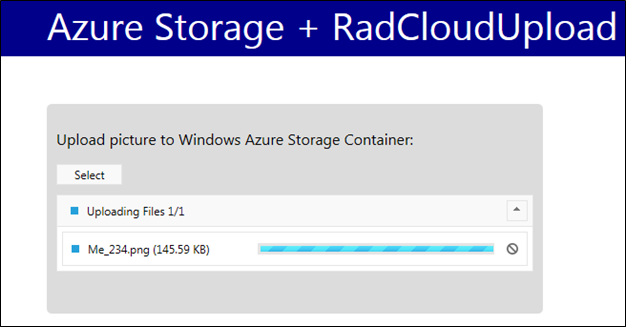
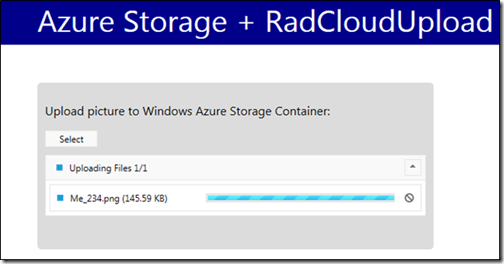
We are all set now. Just run the application. You will see a select button. Click on the select button to select a file. As soon as a file is selected, the upload will start. Here is the snapshot of file being uploaded:
image

Here is the snapshot of file upload being finished:

image

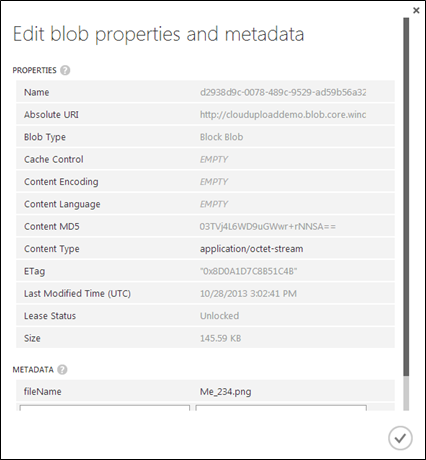
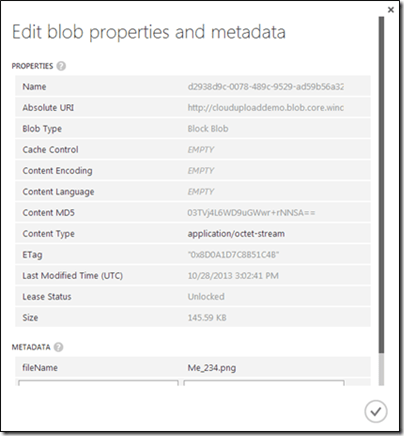
Here is the blob container meta data properties of the file we uploaded:
image

Conclusion:

As you have seen in the post, I did not write even a single line of code. Apart from dragging and dropping the control on to the page, the rest of the things were just settings. Codeless file uploading is a reality with Telerik’s Cloud Upload for ASP.NET AJAX. Check out more demos of Cloud Upload at http://demos.telerik.com/aspnet-ajax/cloud-upload/examples/overview/defaultcs.aspx