Hybrid Application Development with students of G L Bajaj Institute of Management and Research

View Photos from Event here

image

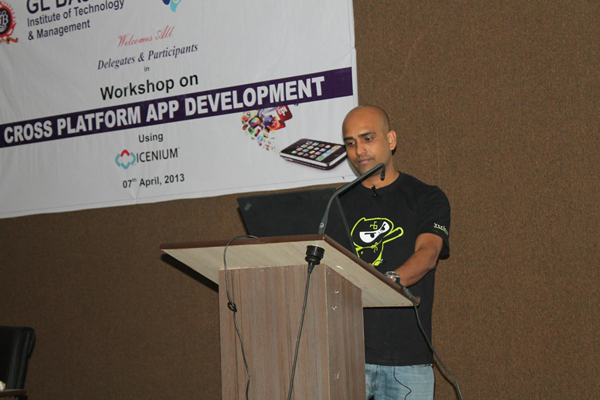
I had exciting and overwhelming experience doing Cross Platform App Development workshop using ICENIUM with around 50 bright students of G L Bajaj Institute of Management and Research

image

In 4 hrs. Lab students learnt about

  • Thought Process behind Hybrid Application Development
  • How Hybrid Apps are different from Native Apps
  • When should one create Hybrid Apps or Native Apps
  • Introduction to Icenium
  • Managing certificates in Icenium
  • Creating package for Google Play
  • Working with Mobile layout, Mobile Views, Data etc.

Being a presenter for me it was nice and enchanting time interacting with students. In lab students learnt to create a Hybrid App for IPL.

image

Time was a constraint in the event but students were very interactive and I am sure they had learnt about new genre of mobile development that is Cross Platform Mobile Application Development.

Complex Object and RadAutoCompleteBox in XAML based Windows Store Application

Learn more about Rad Controls for Windows 8 here

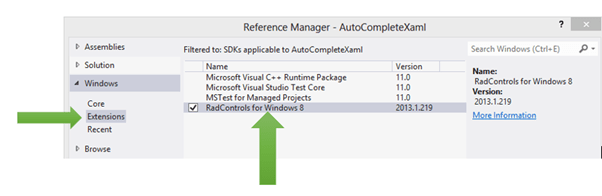
In this post we will take a look on working with Complex Business object and RadAutoCompleteBox in XAML based Windows Store Application. To start with make sure that you have added RadControls for Windows 8 reference in project. To add reference right click on project and from Extensions tab select RadControls for Windows8.
image

After adding reference of RadControls for Windows 8 you need to create business object. Let us assume, we are going to work with Employee object. You need to create Employee class is as follows,

public class Employee
 {
 public string FirstName { get; set; }
 public string LastName { get; set; }
 public string Department { get; set; }

}
}

As of now you have created Employee class. Next you need to create or rather populate Employee data. There are many ways Employee data can be populated in application. Some of them are as follows,

  • From WCF SOAP Service
  • From WCF REST based Service returning either JSON or XML.
  • From OData Service etc

For purpose of this post we are going to populate data locally. Let us create a function returns collection of Employee

private List<Employee> GetEmployees()
 {
 List<Employee> lstEmployee = new List<Employee>
 {
 new Employee
 {
 FirstName = "Dhananjay",
 LastName = "Kumar",
 Department = "Team1"
 },
 new Employee
 {
 FirstName = "Dhananjay",
 LastName = "Kumar",
 Department = "Team1"
 },
 new Employee
 {
 FirstName = "Deepak",
 LastName = "Chwala",
 Department = "Team2"
 },
 new Employee
 {
 FirstName = "Amit",
 LastName = "Chawla",
 Department = "Team1"
 },
 new Employee
 {
 FirstName = "Arun",
 LastName = "Narayn",
 Department = "Team2"
 },
 new Employee
 {
 FirstName = "Bunty",
 LastName = "Goyel",
 Department = "Team1"
 },
 new Employee
 {
 FirstName = "Boman",
 LastName = "Irani",
 Department = "Team2"
 },
 new Employee
 {
 FirstName = "Charu",
 LastName = "Sharma",
 Department = "Team2"
 },
 new Employee
 {
 FirstName = "Depanker",
 LastName = "Banerjee",
 Department = "Team1"
 },
 new Employee
 {
 FirstName = "Ashok",
 LastName = "Singhal",
 Department = "Team2"
 },
 new Employee
 {
 FirstName = "Chabhi",
 LastName = "Rastogi",
 Department = "Team1"
 },

};

return lstEmployee;
 }

As of now you have collection of business object with you. Now you need to create RadAutoCompleteBox. Very first on XAML add following namespace


xmlns:tinput="using:Telerik.UI.Xaml.Controls.Input"

After adding namespace you need to add RadAutoCompleteBox on XAML a follows,


<tinput:RadAutoCompleteBox
 Height="70"
 Width="200"
 x:Name="autocompleteEmployee"
 DisplayMemberPath="FirstName">

 </tinput:RadAutoCompleteBox>

You can set one of the property of complex object as suggestion term. Above we are setting FirstName property as suggestion term.

In last step you need to set ItemSource of RadAutoCompleteBox. This can be set as following

protected override void OnNavigatedTo(NavigationEventArgs e)
 {
 autocompleteEmployee.ItemsSource = GetEmployees();

 }

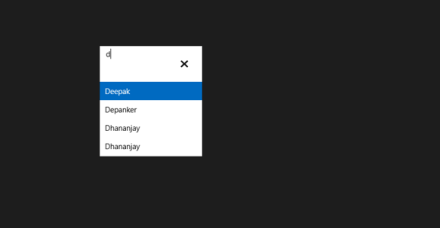
Now on running application you will find RadAutoCompleteBox bind with complex object.
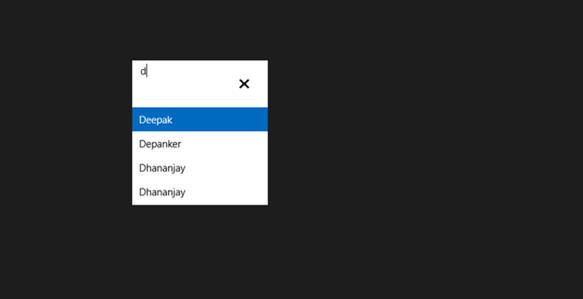
image

In this way you can work with complex object as RadAutoCompleteBox in XAML based Windows Store Application. I hope you find this post useful. Thanks for reading.


Setting up Samsung S3 to work with Icenium

In this post we will take a look on how could we configure Samsung S3 to work with Icenium . Icenium Graphite allows you to live sync application directly with connected device. You can directly deploy application on device and debug them. Follow below steps to configure Samsung S3 to work as development device with Icenium

Step 1

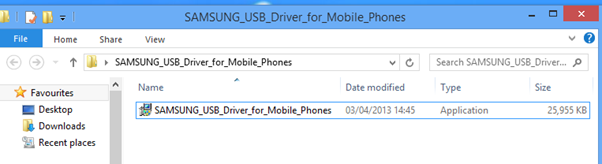
Download Samsung USB drivers for Mobile phones. You can download them from here

image

After downloading unzip file and you will get an exe. Double click to run that.

image

Step 2

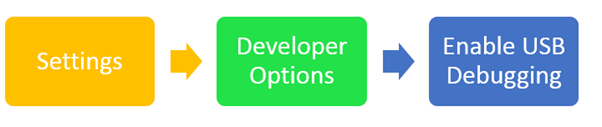
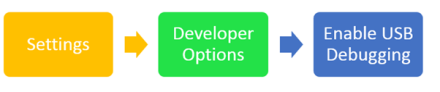
Next you need to enable debug mode on device. To enable that go to Settings and then Developer Options and then Enable USB Debugging.

image

Step 3

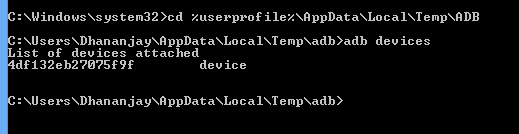
Next you need to make sure that Android Debug Bridge is installed. By default it gets installed with Graphite. To verify this go to directory userprofile and then AppData\Local\Temp\ADB. On this directory type command ADB DEVICES. You should get your connected device listed there.

image

Step 4

Now to deploy and debug application on device select on device Run on Device. In graphite also you can see devices connected

clip_image002

In this way you can configure Samsung S3 to work with Icenium. I hope you find this post useful. Thanks for reading.

How to Read Accelerometer values in Icenium

In this post we will take a look on reading device Accelerometer values in Icenium . As we know Icenium is a Cloud based IDE works on top of Cordova or Phonegap. We will use Accelerometer API of Cordova to read device accelerometer values.

Let us say on click event of button we want to read current accelerometer value. Button can be created as following


<div id="homeview" data-role="view" data-title="Home View">
 <a data-click="GetData" data-role="button">Get Accelorometer Data</a>
 <div id="outputdiv" ></div>
 </div>

On click event of the button we will read Accelerometer values and display them in output div. On click event of button we are calling GetData JavaScript function. In GetData function we are making a call to function navigator.accelerometer.getCurrentAcceleration. In Icenium by default Phonegap reference gets added hence we do not need to add any referenced to work with cordova.


function GetData() {
 navigator.accelerometer.getCurrentAcceleration(onSuccess, onError);
 }

In onSuccess we will read accelerometer values and in onError function we will display error message.

In onSucess function we will read X, Y, Z and TimeStamp values as data.x, data.y,data.z respectively.

 function onSuccess(data) {
 var outputdiv = document.getElementById('outputdiv');
 outputdiv.innerHTML = 'X: ' + data.x + '<br />' +
 'Y: ' + data.y + '<br />' +
 'Z: ' + data.z + '<br />' +
 'Time: ' + data.timestamp;
 }

In onError function let us display error message as following

function onError() {
 alert("error occured");
 }

In this way we can read accelerometer values in Icenium. I hope you find this post useful. Thanks for reading.
How to place TabStrip at bottom of Android in Kendo UI Mobile

Recently I was in one of the event and while doing demo one question came up. Question was How to place tabstrip at bottom of Android.

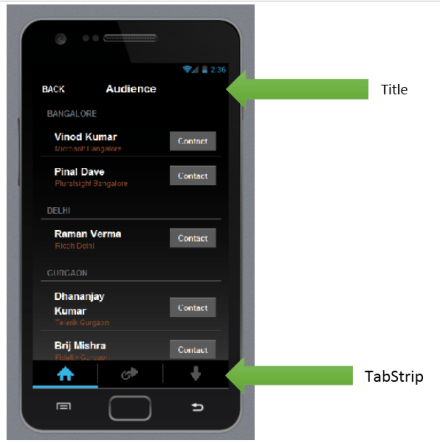
Let me first explain you question in detail. While creating a Cross-Platform Mobile Application using Kendo UI Mobile and Icenium you will notice following default behavior of tabstrip and Mobile View Title.

By default in IOS, View Title will be displayed at the top and tabstrip at bottom

image

By default in Android, View Title would not be visible and tabstrip will be displayed at the top.

image

Above Layout being created with View Title, tabstrip as following,

 <div data-role="layout" data-id="applayout">
 <header data-role="header">
 <div data-role="navbar">
 <span data-role="view-title"></span>
 <a data-role="backbutton" data-align="left">Back</a>
 </div>
 </header>

<div data-role="footer">
 <div data-role="tabstrip">
 <a href="#dataview" data-icon="home">Audience</a>
 <a href="#createview" data-icon="action">Add Audience</a>
 <a href="#movieview" data-icon="download">Movies</a>
 </div>
 </div>
 </div>

Now question was how to achieve same behavior of tabstrip and view title for both IOS and Android? They wanted to achieve same behavior in Android also as of IOS. This can be very easily done by modifying some CSS. In CSS we will override default design.

.km-root .km-android .km-view {
 -webkit-box-direction: normal;
 -webkit-flex-direction: column;
}

.km-android .km-view-title
{
 visibility: visible;
}

&nbsp;

Above we are changing default tabstrip behavior for Android and forcing it to be in bottom. To display view-title we are setting visibility of view-title for android as true. Now on running application you will find tab-strip in bottom and view-title visible for android.

image

In this way you can place tabstrip at the bottom of Android. I hope you find this post useful. Thanks for reading.

How to list all Github Repository in Icenium to clone

image

I wrote first part of Github and Icenium series here .After this post I got a question from a reader that

“I do not remember Github repository URL. Is there any way I can see all my repository listed and can further select one of them to clone in Icenium “

I replied yes you can do that. Let us see below how could we do that?

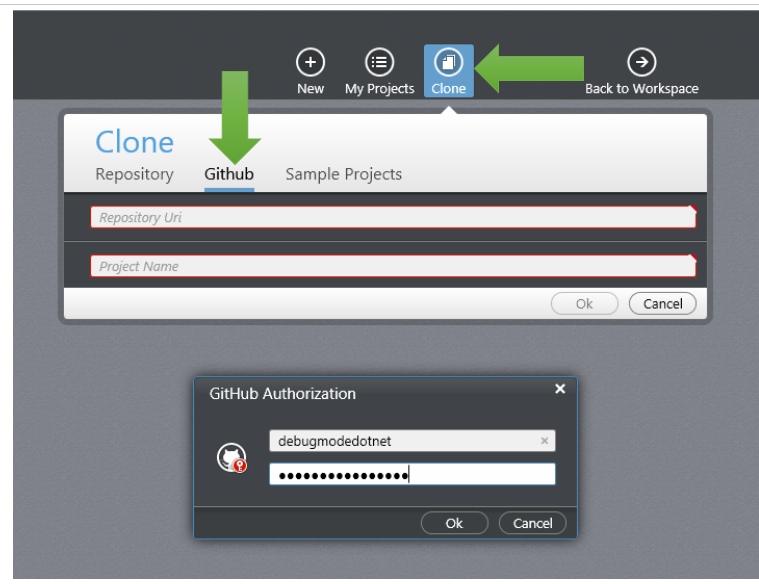
  1. Launch Graphite and click on Clone.
  2. In Clone option select Github tab
  3. You will be prompted for Github Authorization.

image

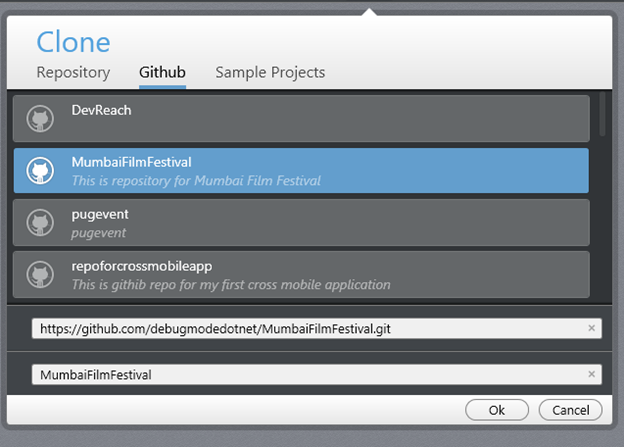
After successful authorization, you will find all repository under that account listed. You can choose any repository to clone in Icenium

image

In this way you can clone Github repository in Icenium. I hope you find this post useful. Thanks for reading.
How to automate “once login and perform many operation Test ” in Test Studio

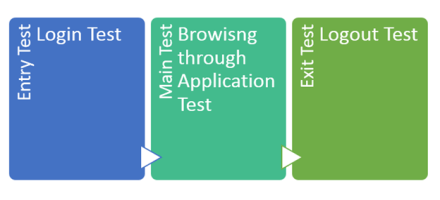
I was talking to a customer and they wanted to test a CRM application. There test scenario more or less like below image. They wanted to execute Entry Test and Exit Test only once and Main Test any number of times. When we do manual testing of this scenario this is usual kind of test cases. However automating this test is not that simple. In this post we will take a look that how Test Studio simplify automating this type of test scenario.

image

Let us assume you need to automate a test for following scenario,

Test Step 1: Login to application

Test Step 2: Perform various operations

Test Step 3: Logout from application

Requirement is that user will Login only once, perform operations any number of times and then logout from application. Essentially step 1 and step 3 will be executed by user only once and step 2 will be executed any number of times. Iteration of step 2 depends on external data source. This may be usual automated testing scenario you always come across.

Now let us assume that you have recorded test as following,

image

In above test we are data driving step 6. We are performing usual data driven testing. Problem with this approach is that each steps will get executed number of times depending on rows in data source. So if there are 10 rows in test data then this each test steps will be executed 10 times.

Our requirement is different in above test steps we want to execute only test step 6 ten times and other test steps only once. Let us see how we can do this.

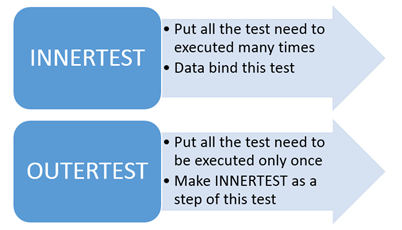
Step 1: Move test steps you want to execute many times in different test. Let us call this test as INNERTEST

Step 2: Make sure to data bind the INNERTEST

Step 3: Record OUTERTEST. In OUTERTEST record all the steps you want to execute only once.

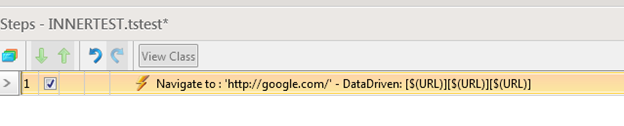
So in above recorded test we can record step 6 as separate test. We are calling that test as INNERTEST. This test is data bind.

image

This INNERTEST will contain all the test steps we want to execute repeatedly. In this case we have test step in INNERTEST.

image

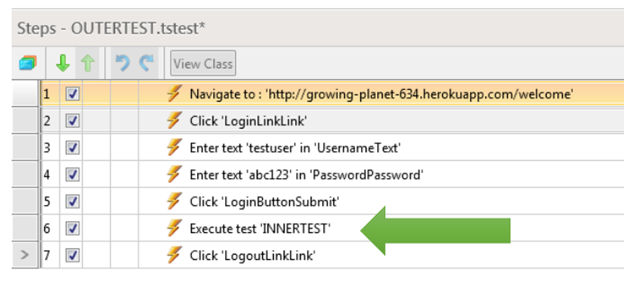
After recording INNERTEST, let us go ahead and record OUTERTEST. We need to put all test need to executed only once part of this test. So all test steps for Login and Logout will be part of OUTESTEST. You notice that we want these test steps to be executed only once.

image

Now from ribbon add a Test as step in OUTERTEST.

image

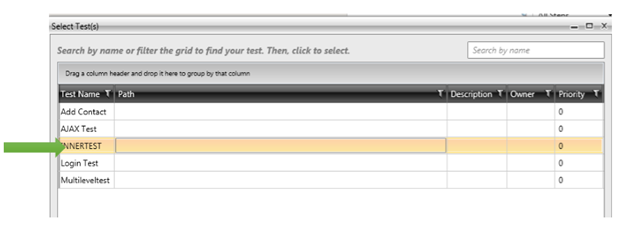
You need to choose INNERTEST as test as step to be part of OUTERTEST

image

We have added INNERTEST as test as step in OUTERTEST at step 6.

image

Now on execution of test you will find that all test steps are getting executed only once however test steps of INNERTEST will executed many times depending on number of rows of data source. So we can conclude that

image

In this way you can work with multilevel test using Test Studio. I hope you find this test useful. Thanks for reading.

How to set up Icenium project from Github repository

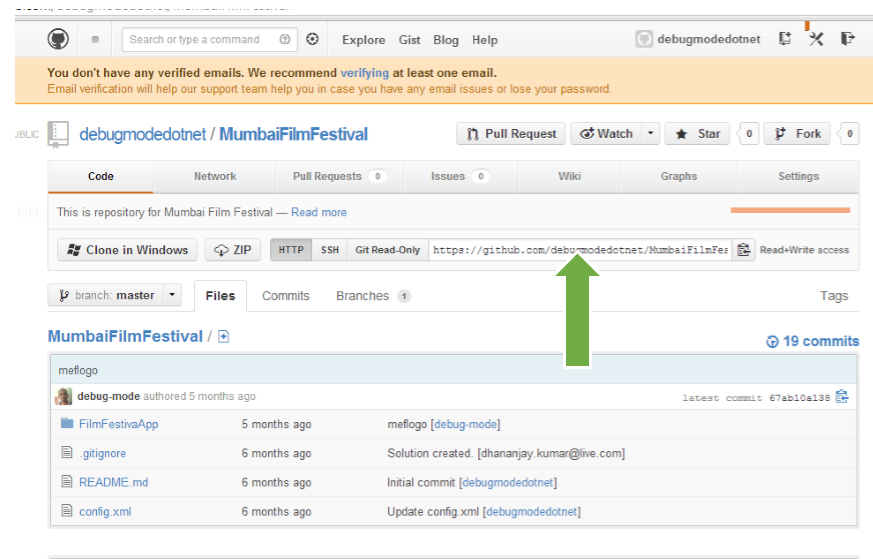
In this post we will take a look on setting up project in Icenium from Github repository. Let us assume you have a github repository as given in below image. You need to set up project in Icenium based on this repository.

image

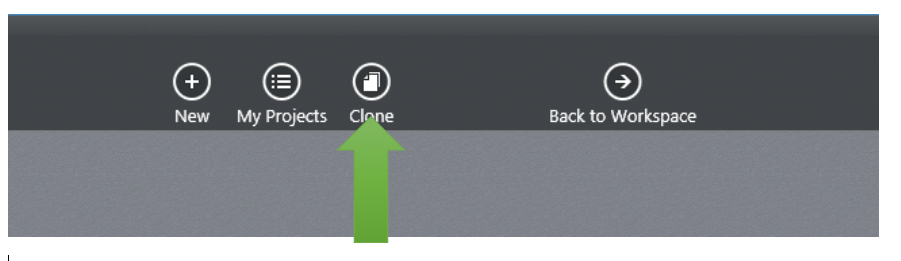
First step is, launch Icenium and click on Clone

image

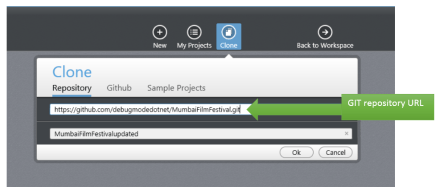
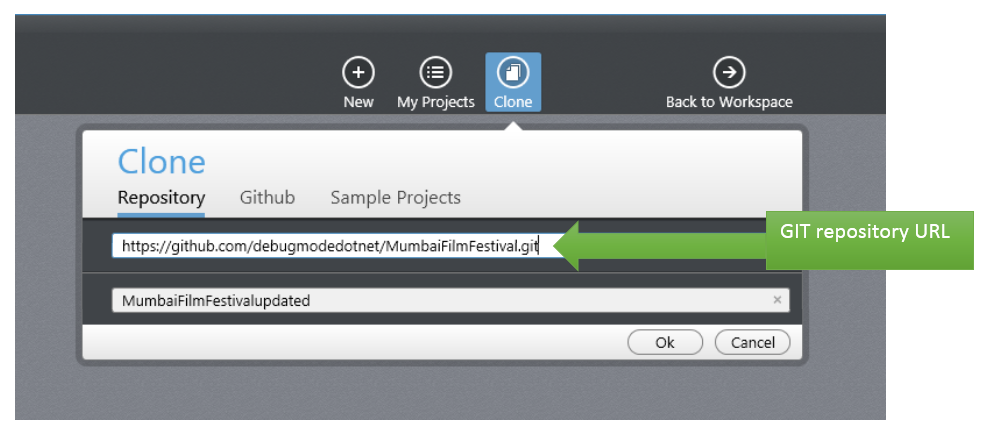
After clicking on Clone, select Repository option and give Git repository URL here. By default Icenium will give you project name and you can change project name if required.

image

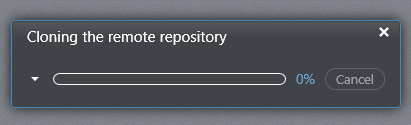
You will get message Cloning remote repository.

image

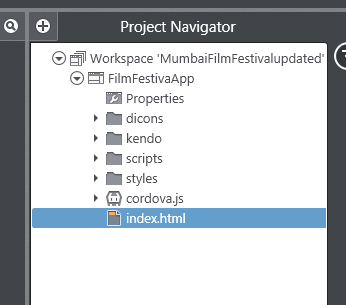
After successful cloning you will find project in project navigator of Icenium.

image

In this way you can clone a GIT repository as Icenium project. I hope you find this post useful. Thanks for reading.

How to work with Loops in Test Studio

You may come across many scenario in which you need to execute a particular test several number of times or in other words you need to execute certain number of test steps in a loop.

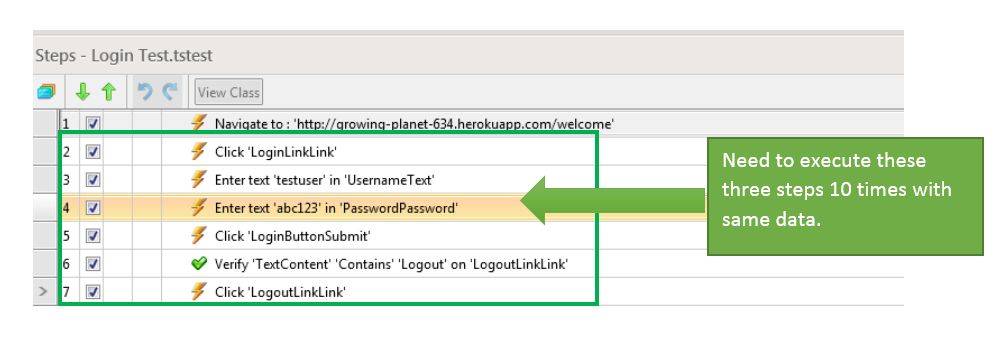
Let us consider following test. These are automated test steps for login functionality. Assume, you need to run step 2 to step 7 5 times with same data. In this scenario you need to execute from step 2 to step 7 in loop.

image

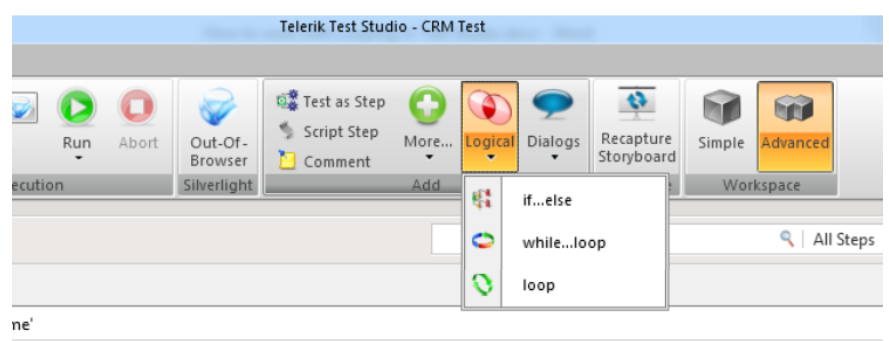
To automate above scenario Test Studio provides you out of box solution. You can automate above scenario with Logical Steps. In Test view you will find Logical Steps in Add section.

image

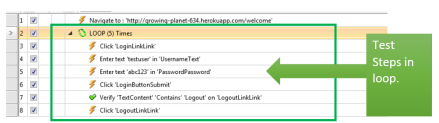
To put test steps in loop select loop Logical step from Add section and add a Logical Test Step in test. After adding logical step you can change Count. We are setting count as 5 here.

image

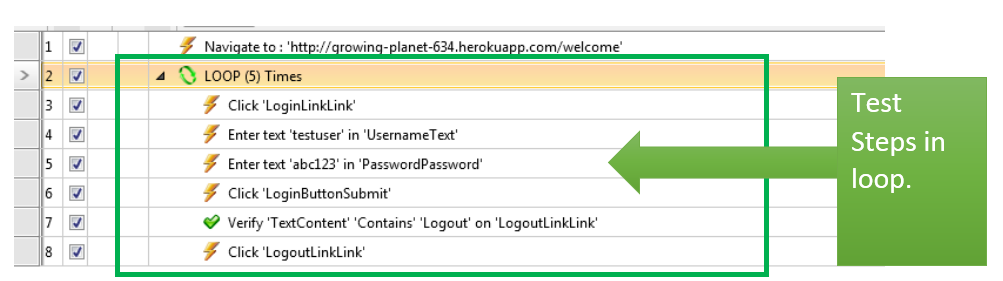
After setting Count drag and drop test steps you want to execute under test. Here we need to drag and drop step 2 to 7 in the loop. After dragging and dropping test steps test will look like below image. Now test step 2 to 7 will be executed 5 times.

image

In this you can execute a test in loop. Loop Logical steps should be used when you need to execute same test with same data many number of times. I hope you find this post useful. Thanks for reading.

Webinar Recap: Automated Functional Testing can be affordable with Test Studio

Ninja Enough? – Telerik India Webcasts (April – May 2013)

clip_image001

On 21st March 2013 we at Telerik India hosted webinar on Automated Functional Testing Can be affordable with Test Studio . We thank you for attending the webinar. In this webinar we tried a story way of presenting and on poll 75% audience liked that. This data was very motivating.

Find Test Studio resources at below links,

Download free trial from here

Learn more about Test Studio here

Read documentation here

In webinar, we started from scratch and did demo on

  • Recording a Test
  • Working with verification steps
  • Integrating bugs with TFS and Team Pulse
  • Data Driven Testing
  • AJAX Testing

Find below presentation from webinar,

If  you have any technical query feel free to reach me at

Dhananjay.kumar@telerik.com

And for any sales related query feel free to send a mail to

Abhishek.kant@telerik.com and sales@telerik.com

Thanks once again for attending webinar. See you in next webinar.

Join me for the webinar Automated Functional Testing Can be affordable with Test Studio

Register to attend webinar here

When: Thursday, March 21, 2013 3:00PM to 4:00PM India Time

clip_image001

Should your functional testing only be manual? Are you shying away from testing only because of the cost considerations? Are you paying through your nose to maintain your testing tool? In this webinar, we will talk about an affordable solution that covers the testing capabilities you need. If you are enthusiastic about finding bugs in software and find solace in testing, we have a Ninja tool for you. Explore this chart buster software – Telerik Test Studio from the comfort of your seat. We are excited to invite you for a webinar on Telerik Test Studio.

In this webinar we will cover and see how easy it is to do

  • Automated Web Testing
  • Data Driven Testing
  • Working with Test Lists
  • Test Result Analysis and Reporting
  • Ajax Testing
  • Performance Testing

To attend webinar register here

I am excited to see you in webinar on 21st March 2013 at 3 PM India time.

How to ask questions in Telerik Forums?

Recently one of our customer sent me mail that how could I ask questions in Forums. She was a fresher with assigned job to work on Rad Controls for AJAX. I helped her over the call and found a step by step guide could be useful for many Telerik products users. To ask question in forums follow following steps,

Step 1

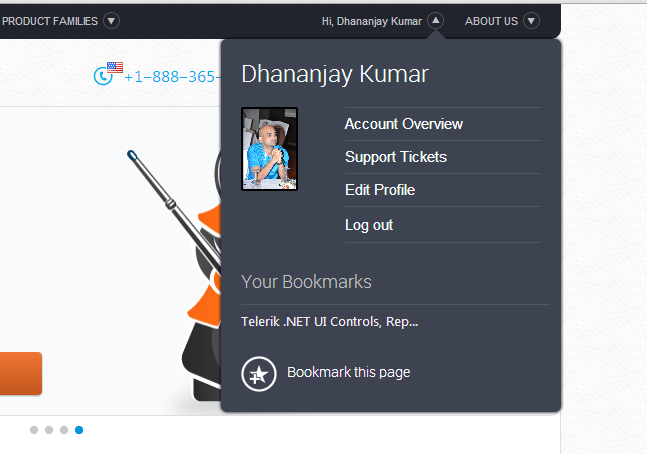
Navigate to http://www.telerik.com/ and login with your Telerik Credentials. You should able to see your name at the right top.

clip_image001


Step 2

Next select the specific product for which you want to ask question. Let us say you want to ask question for any of the DevTools. From top click on Product Families and select DevTools.

clip_image003

Step 3

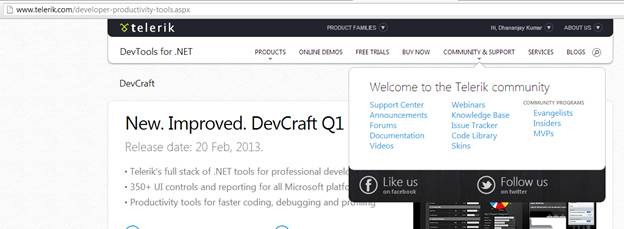
Now from menu select Community & Support and then choose Forums.

clip_image004clip_image006

Step 4

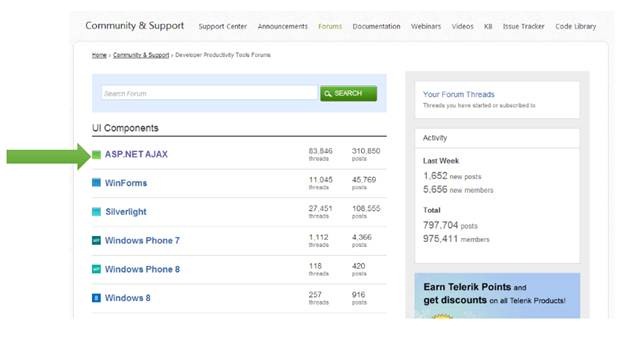
Next you need to choose specific product. Let us assume you want to ask question for Rad Controls for AJAX. For that choose ASP.NET AJAX

clip_image008

Alternatively you can search in entire forum also. For that put your search term and click green Search button.

Step 5

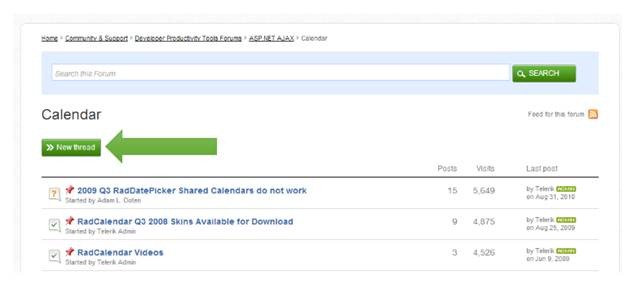
Now you need to select category of your question. For instance if you want to ask question for Calendar control then choose Calendar from listed option. After choosing category click on green New Thread button to ask question.

clip_image010

While asking question following points are important,

  • · Give descriptive title of the question.
  • · Embed code using code button from menu
  • · Be specific in asking question.

At end make sure to check subscribe me to this thread such that on every reply you get a mail.

clip_image012

In this way you can ask questions in forum. I hope you find this post useful. Thanks for reading.
How to use a smaller test as Step of bigger test in Test Studio

Let us assume a scenario that we need to automate test of a complex functionality. This complex function may be constituted of other small functions. Now all small functions are tested separately. To automate test of this bigger function we have two choices

  1. Record all steps in bigger function testing
  2. Use various smaller functional tests as a step in bigger function testing.

Test Studio provides us a feature in which we can use a functional test as step of another functional test. You can get that option in Add section of ribbon.

clip_image002

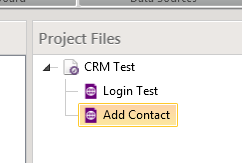
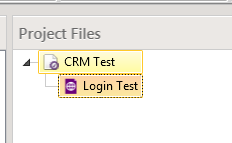
Assume we need to test CRM application. We have separately created automated test for Login functionality of application as given below,

clip_image003

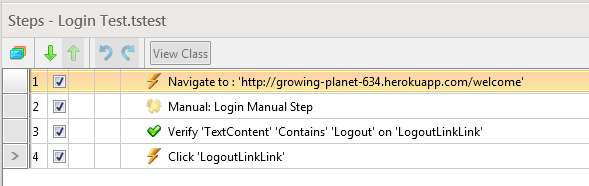
And steps of this test is recorded as following

clip_image004

Next we want to record test for bigger function Add Contact in CRM. To do that let us create a test as following,

clip_image005

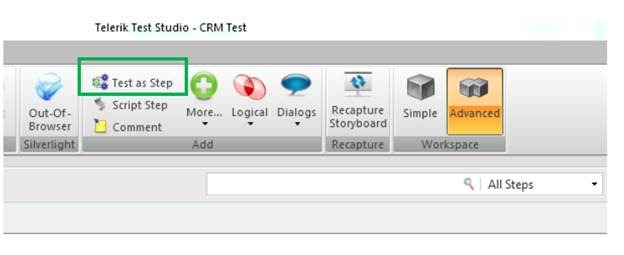
Now we want to use Login Test as a step in Add Contact test. To do this double click on Add Contact test to open the test. After that from Add section in ribbon select Test as Step option.

clip_image006

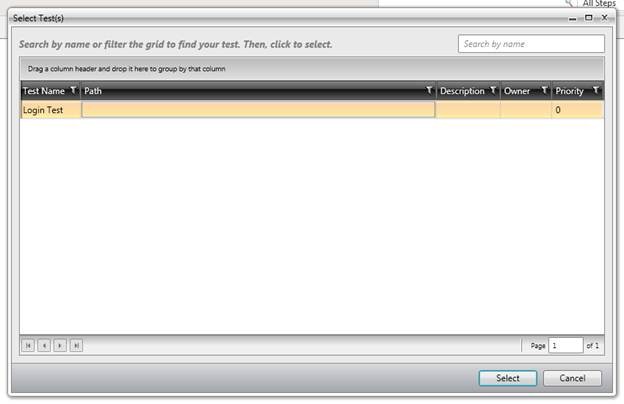
You will get option to choose from all the tests added in the test project. In this case there is only one test other than Add Contact Test. So select Login Test to add as step in Add Contact test.

clip_image008

After adding Login Test as step right click on the test and from context menu select Run then To here option.

clip_image010

On selecting this option Test Studio will first execute all the steps of Login Test and allow you to record further steps for Add Contact test.

In this way we can add a test as step in Test Studio to use a functional test as part of another bigger functional test. I hope you find this post useful. Thanks for reading.

Working with Manual Steps in Test Studio

Recently I was talking to a customer. Customer was automating there CRM functionally test and they had to perform test steps as following,

Step 1: Navigate to portal

Step 2: Login to portal

Step 3: Browse through portal

Step 4: Logout from portal

They recorded test to automate as given in below image

clip_image002

Now they had requirement that they want to perform login steps manually. In other words they wanted to manually perform steps 2, step 3 and steps 4. They had a question that

Can we add manual steps to an automated test in Test Studio? “. Answer is “YES”.

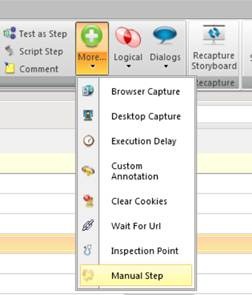
To add manual step Add section in ribbon and select more option. In drop down you will find Manual Step option to add.

clip_image004

Select Manual Step to add a manual step in Test Steps. Give desired name of manual step and click on OK to add it.

clip_image005

After adding manual step deleted automated test steps for login. After adding manual step and removing automated test steps for login test will look like following

clip_image007

Now while running test after step 1 Test Studio will wait to perform manual step. In manual step login to CRM can be done manually.

clip_image008

After manually login further test steps will be executed automatically.

clip_image009

In this way I answered customer to work with manual steps in automated test. I hope you find this post useful. Thanks for reading.
 

Download Source codes, Slides and Recording from 7th march Webinar: Developing Applications for Nokia Lumia using Telerik Controls

On 7th March 2013 we at Telerik India hosted webinar on Developing Applications for Nokia Lumia using Telerik Controls. We appreciate that you joined in. We hope that webinar was useful to you. If you have any further queries, please feel free to reach us.
Learn more about Rad Controls for Windows Phone here

Download trial from here

Download webinar resources from here

In webinar we explored various controls with focus on following three controls.

  • Conversation View
  • QR and Barcodes
  • Different kind of charts

Please find recorded webinar below.

Learn more about Rad Controls for Windows Phone here

Download trial from here

Download webinar resources from here

If you have any query feel free to reach us. You can reach me any time at dhananjay.kumar@telerik.com .