How to do CSS verification of HTML Elements in Test Studio

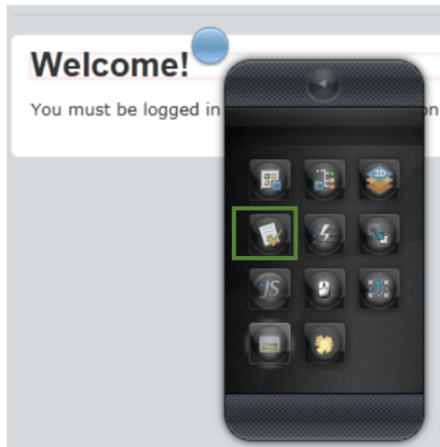
In this post, we will take a look on doing CSS Verification of HTML element in Test Studio. You can put verification on CSS while recording the test. Let us say on following page you want to do CSS verification on highlighted element.

image

While recording the test click on Enable or Disable Hover.

image

After selecting that select element and click on blue bubble. Select “Build Verification

image


In DOM Explorer, select HTML element and click on Style.

image

In Style, you have option to select

  1. Computed Style
  2. Inline Style

You can create verification step by choosing different options from the drop down.

image

Let us say you want to create a verification step “Font size of element is 2em”. You can do that selecting Font and Size from drop down.

image

After selecting value from drop downs click on Validation Rules. You will get a message that “Validation Passed”

image

After closing DOM Explorer and stopping the recording, you will find a CSS verification step has been added to the Test Steps.

image

In this way you can do CSS verification on HTML elements. I hope you find this post useful. Thanks for reading.

Download Slides and Source Codes from Rad Controls for Windows 8 Webinar

Download Webinar Resources from here

Thank you so much for attending webinar Telerik Tools for Ninja Developer: Windows 8 RadControls . I hope it was useful. If you have not done it yet then I strongly recommend you to download free trial of RadControls for Windows 8and start playing around it. You will find more resources at below given links

Product Overview

Download free tiral from here

Find Fourm here

Demo Applications

Documentation on XAML based Rad Controls for Windows 8

Documentation on HTML based Rad Controls

In webinar we started with discussion on development for Windows Store. We discussed on various aspect in choosing development option. We did a walkthrough of various RadControls for Windows8. In detail we discussed on following RadControls in HTML based Windows Store Application,

  • RadChart
  • RadAutoCompleteBox
  • RadNumericBox
  • RadDropDownList
  • RadHubTile

Download Webinar Resources from here

If you need more information and any assistance then please feel free to get connected with me at @debug_mode or send me mail on Dhananjay.kumar@telerik.com . Thanks once again for attending the webinar.

Working with RadAutoCompleteBox in JavaScript based Application for Windows Store

In this post we will take a look on working with RadAutoCompleteBox in JavaScript based Windows Store Application.

Getting Started with RadAutoCompleteBox

You can create RadAutoCompleteBox by setting data-win-control property of a div or span as Telerik.UI.RadAutoCompleteBox. See the code below,


<div id="sportsAutoComplete"
 data-win-control="Telerik.UI.RadAutoCompleteBox"
 data-win-options="{placeholder:'enter player...'}">
</div>

In above code

  • data-win-control attribute of div is set as Telerik.UI.RadAutoCompleteBox
  • In data-win-options attribute

You can set datasource of RadAutoCompleteBox in two ways. You can directly set datasource either in data-win-options attribute or in the JavaScript function. You can set datasource in code behind as following,


var sportsArray = ['Sachin Tendulkar', 'Saurabh Ganguli', 'MS Dhoni', 'Rahul Dravid', 'Kevin Pierson', 'Kalis'];
 var sportsAutoComplete = document.getElementById("sportsAutoComplete").winControl;
 sportsAutoComplete.dataSource.data = sportsArray;

In above code we are

  • Creating an array named sportsArray
  • Creating reference of RadAutoCompleteBox as winControl
  • Setting datasource of RadAutoCompleteBox with the sportsArray

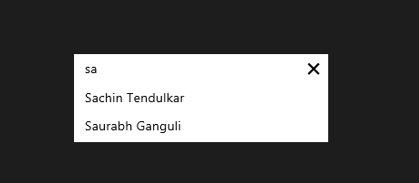
At the point if you run application you should get Auto Complete Box as following,
image

Working with Template for RadAutoCompleteBox

There may be scenario when you need to set data source of RadAutoCompleteBox to array of complex objects. For example there is an array as following,

 var movieArray = [
 { title: "The Artist", picture: "images/TheArtist.jpg" },
 { title: "A Better Life", picture: "images/abetterlife.jpg" },
 { title: "Abduction", picture: "images/abduction.jpg" },
 { title: "African Cats", picture: "images/africancats.jpg" },
 { title: "Angel Crest", picture: "images/angelscrest.jpg" },
 { title: "Arthur", picture: "images/arthur.jpg" },
 { title: "Anonymous", picture: "images/anonymous.jpg" },
 { title: "A Dangerous Method", picture: "images/adangerousmethod.jpg" },
 { title: "A Good Old Fashioned Orgy ", picture: "images/agoodoldfashionedorgy.jpg" },
 { title: "A Seperation ", picture: "images/aseparation.jpg" },
 { title: "Another Earth ", picture: "images/anotherearth.jpg" },
 { title: "A Heartbeat Away ", picture: "images/aheartbeataway.jpg" },
 { title: "Bad Teacher ", picture: "images/badteacher.jpg" },
 { title: "Begineers ", picture: "images/beginners.jpg" },
 { title: "Brotherhood ", picture: "images/brotherhood.jpg" },
 { title: "Bridesmaids ", picture: "images/bridesmaids.jpg" },
 { title: "Born To Be Wild ", picture: "images/borntobewild.jpg" },
 { title: "Blackthorn ", picture: "images/blackthorn.jpg" },
 { title: "Bellflower ", picture: "images/bellflower.jpg" },
 { title: "Butter ", picture: "images/butter.jpg" },
 { title: "Bunraku ", picture: "images/bunraku.jpg" },
 { title: "Cars 2 ", picture: "images/cars2.jpg" },
 { title: "Cost Of A Soul", picture: "images/costofasoul.jpg" },
 { title: "Carnage ", picture: "images/carnage.jpg" },
 { title: "Crazy Stupid Love ", picture: "images/crazystupidlove.jpg" },
 { title: "Cracks ", picture: "images/cracks.jpg" },
 { title: "Colombiana ", picture: "images/colombiana.jpg" },
 { title: "Cedar Rapids ", picture: "images/cedarrapids.jpg" },
 { title: "Captain America ", picture: "images/captainamerica.jpg" },
 ];

You can set this array also, as data source of RadAutoComplte Box. This can be done as following,


var movieAutoComplete = document.getElementById("movieAutoComplete").winControl;
 movieAutoComplete.dataSource.data = movieArray;

On HTML RadAutoComplete with id movieAutoComplete is created as following

<div id="movieAutoComplete"
 data-win-control="Telerik.UI.RadAutoCompleteBox"
 data-win-options="{placeholder:'enter movie...',
 template:moviestemplate,
 dataTextField: 'title'}">
</div>

  • Placeholder is set as enter movie
  • dataTextField is set as title . title is one of the property in array.
  • template is set as moviestemplate. Template decides how data will be displayed in the control. Template can be created by setting data-win-control property of a div or span as WinJS.Binding.Template

We have created moviestemplate as following

<div id="moviestemplate" data-win-control="WinJS.Binding.Template">
 <div style="width: 100px;height: 100px;">
 <img src="#" style="width: 70px;height: 70px;" data-win-bind="src:picture" />
 <h4 data-win-bind="innerText:title" />
 </div>
 </div>

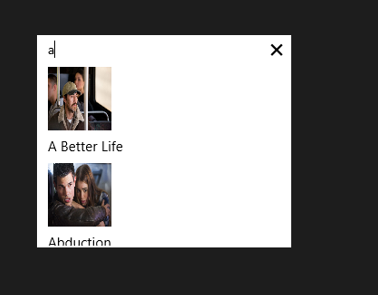
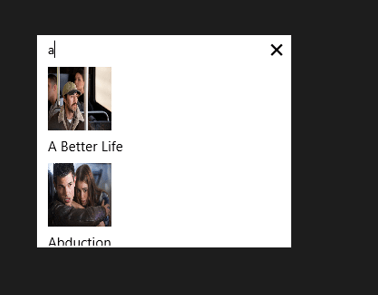
We are binding title of the array to h4 element and picture property of the array to image element. When you run the application, you should get RadAutoCompleteBox as following
image

Working with onSelect Event

You can read the selected item in RadAutoCompleteBox in onSelect event. You can attach select event and read the selected value as given in following,

movieAutoComplete.addEventListener("select", function (e) {
 document.getElementById("selectedmovie").src = movieAutoComplete.dataItem(e.item.index()).picture;
 });

In above code selectmovie is id of the image element. Image of the selected movie item will be displayed.

So in this way you can start using RadAutoCompleteBox in application. I hope you find this post useful. Thanks for reading.

Working with RadDropDownList in JavaScript based Windows Store Application

Read here to set up environment to use RadControls in your application.

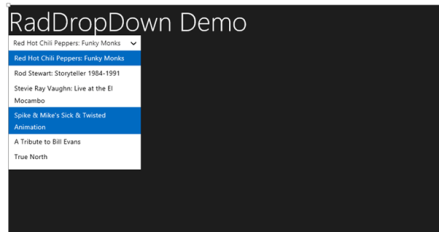
In this post we will take a look on working with RadDropDownList in JavaScript based application for Windows 8. RadDropDownList allows you to select one item from list of items.

Getting Started with RadDropDownList

You can create a RadDropDownList by setting data-win-control property of a span or div element as Telerik.UI.RadDropDownList. You can do that as following,


<span id="sportsdropdown"
 data-win-control="Telerik.UI.RadDropDownList"
 data-win-options="{height: 250,
 dataSource:['Cricket','Soccer','Tennis']
 }"
 >
 </span>

RadDropDownList allows you to select an element from the list of elements displaying in drop down. RadDropDownList can display a local array or data returning from remote service as data. dataSource property of RadDropDown defines the data to be displayed . In above RadDropDown we have set the dataSource with inline array in the data-win-options. You can also bind dataSource of RadDropDownList from array defined in other files or JSON data returning from the remote services.

Let us say there is an array on default.js as following


var sportsArray = ['Cricket','FootBall','Hockey','Tennis','BaseBall'];

To set it as dataSource of RadDropDownList, first you need to create a Namespace. You can create that as following,

WinJS.Namespace.define("sportsdata", { sports: sportsArray }
 );

So far we have create array and namespace. Now you can set dataSource of RadDropDownList with array defined on default.js as following,

<div id="sportsdropdown"
 data-win-control="Telerik.UI.RadDropDownList"
 data-win-options="{height: 250,
 dataSource:sportsdata.sports
 }"
 >
 </div>

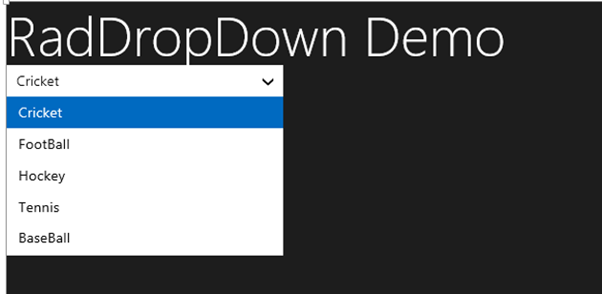
On running the application you should get RadDropDownList as populated with data from sportsArray as following,

image

Working with Remote Data

Above we used local data as dataSource of RadDropDownList. We can bind data from remote data source as well. For example if we want to display movies title from Netflix we can do that following below steps ,

  • Make a call to Netflix Odata serveice
  • Parse the resturned JSON
  • Construct array from parsed JSON data
  • Set array as datasource of RadDropDownList

WinJS.xhr({
 url: "http://odata.netflix.com/Catalog/Titles" + "?$format=json&$select=ShortName,BoxArt&$top=300"
 }).then(function (xhr) {
 var movies = JSON.parse(xhr.response).d;
 movies.forEach(function (i) {
 movieArray.push(i.ShortName);
 });
 var moviedropdown = document.getElementById("moviesdropdown").winControl;
 moviedropdown.dataSource.data = movieArray;
 });

In above code,

  • we are making call to Netflix OData feed using WinJS.xhr
  • Prasing returned JSON using JSON.parse
  • Iterting each element and pushing it to array
  • Taking reference of RadDropDownList using document.getElementbyID
  • Setting the datasource

And on HTML there is a div elment with id moviedropdown


<div id="moviesdropdown"
 data-win-control="Telerik.UI.RadDropDownList"
 data-win-options="{height: 250,

 }"
 >
 </div>

When you run the application you will get RadDropDownList populated with movies title from Netflix.

image

Attaching Change Event

You can attach change event to RadDropDownList and read the selected value . You can do that as following


moviedropdown.addEventListener("change", function (e) {
 document.getElementById("output").innerText = e.target.value;

});

In above code

  • Output is id of the span
  • Selected value will be displayed as text of the output span

In this way you can work with RadDropDownList in the application. In this post we learnt on getting started, working with remote data and about change event. I hope you find this post useful. Thanks for reading.

Reading NotficationTemplate controls value in RadHubTile for Windows 8

In this post we will take a look on how to read values NotificationTemplate controls in RadHubTile. Let us say, you are working with RadHubTile and you have set the NotificationTemplate as following,


<telerik:RadHubTile x:Name="rdRunsHubTiles"
 Title="Score"
 Message="India/Eng Score"
 ImageSource="/Assets/indengmatchlogo.JPG"
 BackContent="Score of India England first Test"
 Margin="93,209,0,388">
 <telerik:RadHubTile.NotificationTemplate>
 <DataTemplate>
 <StackPanel Orientation="Horizontal" >
 <TextBlock Text="{Binding Runs}" />
 <TextBlock Text="{Binding Country}" />
 </StackPanel>
 </DataTemplate>
 </telerik:RadHubTile.NotificationTemplate>
 </telerik:RadHubTile>

There are two TextBlock Controls inside the NotificationTemplate. Both TextBlock are data bind. RadHubTile DataCoontext is set as following


protected override void OnNavigatedTo(NavigationEventArgs e)
 {
 rdRunsHubTiles.DataContext = GetRun();

 }

Data GetRun()
 {
 return new Data ()
 {
 Runs = 200,
 Country = "India"
 };

 }

And Data class is defined as following,


public class Data
 {
 public int Runs { get; set; }
 public string Country { get; set; }
 }

Now when user tapd RadHubTile you need to read values of NotficationTemplate TextBlocks. To do this you need to handle tap event. Register tap event to RadHubTile as following ,


public MainPage()
 {
 this.InitializeComponent();
 rdRunsHubTiles.Tapped += rdRunsHubTiles_Tapped;

 }

Now in the Tap event we can read controls values as following,


void rdRunsHubTiles_Tapped(object sender, TappedRoutedEventArgs e)
 {

Data valueOfNotification = (sender as RadHubTile).DataContext as Data ;
 var runsettocontrol = valueOfNotification.Runs;
 var countrysettocontrol = valueOfNotification.Country;
 }

In above code we are

1. Typecasting sender as RadHubTile

2. Reading DataContext of RadHubTile as Data

3. Reading set values as property

So in this way we can read NotificationTemplate controls value. I hope you find this post useful. Thanks for reading.

Working with RadHubTile in XAML based Windows Store Application

In this post we will take a look on working with RadHubTile in XAML based Windows Store Application. RadHubTile gives you same immersive experience as you see on the home screen of Windows 8. You can display message, notification, title and message on flipping of tile using RadHubTiles. RadHubTile gives you experience like below image.

image

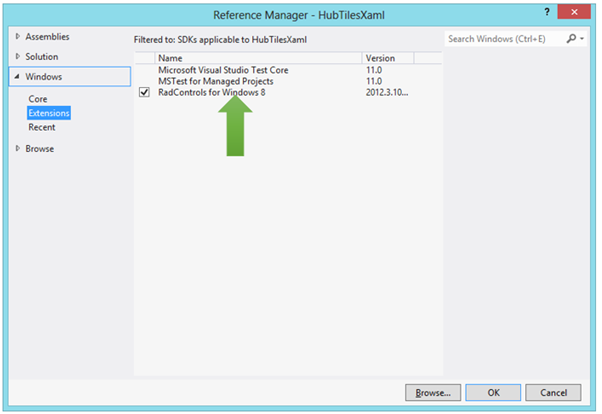
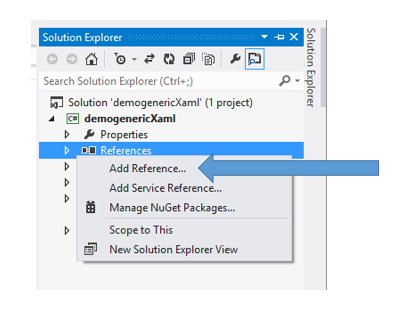
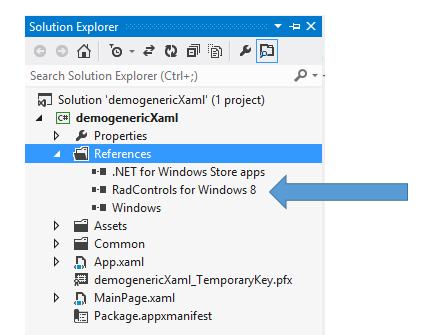
To start working with RadHubTile let us start with Creating Application for Windows Store. To create this choose Blank App from Windows Store project tab. After creating project you need to add reference Of Rad Control for Windows 8 in the project. To do that right click on the reference and select Add Reference. From the Reference Manager Dialog box select Rad Control for Windows8.

image

After adding reference in the project, you need to add namespace on the XAML page. You can do that as following,

image

You can create a HubTile on XAML as following ,

image

Since you have not set any propery of RadHubTile like Message , Title etc , so as output you will get a simple rectangular tile as below,

image

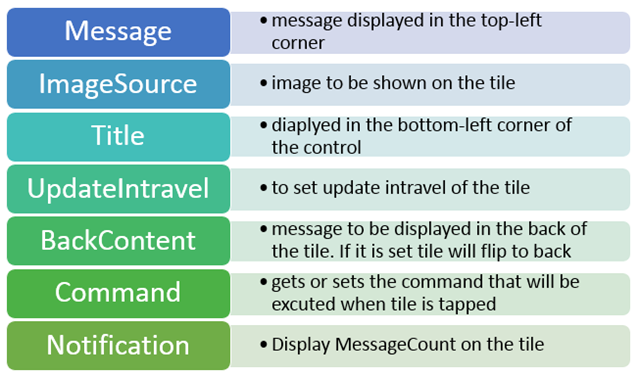
Some of the important properties of RadHubTiles are as following ,

image

Now let us go ahead and set properties of RadHubTiles ,

 <telerik:RadHubTile Title="Score"
 Message="India/Eng Score"
 ImageSource="/Assets/indengmatchlogo.JPG"
 Notification="100/0"
 BackContent="Score of India England first Test"
 >

 </telerik:RadHubTile>

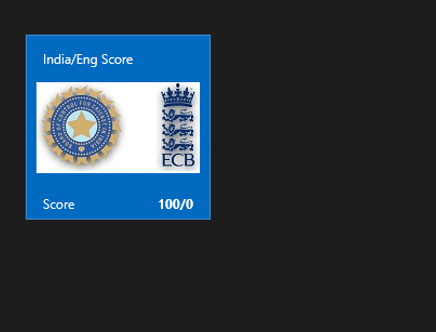
Above we have set several properties of RadHubTiles . Now let us go ahead and run the application to see the output

image

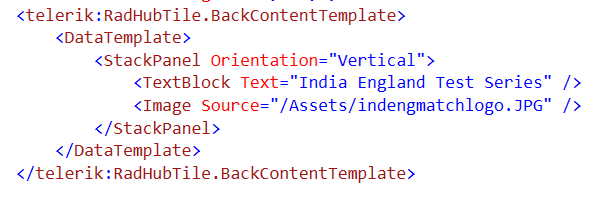
Now let is go ahead and create template for BackContent. We crate template to show information in back of the RadHubTile as we want. Let us say , we want to display Image and Title in the back of the RadHubTile. We can do that by creating a DataTemplate and then setting that as value of BackContentTemplate. We can do that as following ,

image

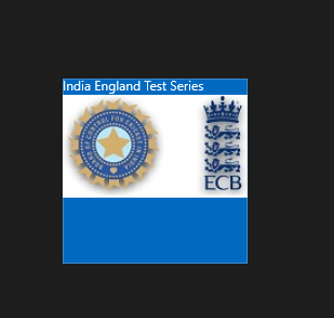
You see that in above code we have created DataTemplate . There is StackPanel and one Image control along with TextBlock have put vertically in the StackPanel. When you run the application , you will get RadHubTile back content as following ,

image

For your reference full code with BackContent Template is given below,

 <telerik:RadHubTile Title="Score"
 Message="India/Eng Score"
 ImageSource="/Assets/indengmatchlogo.JPG"
 Notification="100/0"
 BackContent="Score of India England first Test"
 Margin="93,209,0,388">
 <telerik:RadHubTile.BackContentTemplate>
 <DataTemplate>
 <StackPanel Orientation="Vertical">
 <TextBlock Text="India England Test Series" />
 <Image Source="/Assets/indengmatchlogo.JPG" />
 </StackPanel>
 </DataTemplate>
 </telerik:RadHubTile.BackContentTemplate>

</telerik:RadHubTile>

As we set BackContentTemplate , we can set

  • NotificationTemplate
  • MessageTemplate

As well. Let us go ahead and create the NotificationTemplate. We will bind controls in NotificationTemplate with the data coming from the background. Let us say there is function returning Data. In this case I am hard coding the data value, however in real time scenario you will like to fetch data from a remote service.

 Data GetRun()
 {
 // Put code here to fetch data from remote service
 return new Data ()
 {
 Runs = 200,
 Country = "India"
 };

 }

Data class is defined as following,


namespace HubTilesXaml
{
 public class Data
 {
 public int Runs { get; set; }
 public string Country { get; set; }
 }
}

We need to set DataContext of RadHubTile as given below,


protected override void OnNavigatedTo(NavigationEventArgs e)
 {

rdRunsHubTiles.DataContext = GetRun();

}

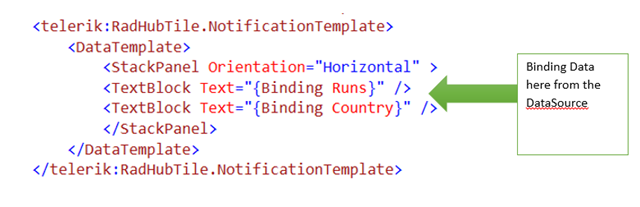
Now let us go ahead and create NotificationTemplate . NotficationTemplate can be created as following.

image

We are creating a DataTemplate and setting it as value of NotificationTemplate property of RadHubTile. For your reference full code with BackContentTemplate and NotficationTemplate for RadHubTile is given below,

<telerik:RadHubTile x:Name="rdRunsHubTiles"
 Title="Score"
 Message="India/Eng Score"
 ImageSource="/Assets/indengmatchlogo.JPG"

 BackContent="Score of India England first Test"
 DataContext=""
 Margin="93,209,0,388">
 <telerik:RadHubTile.BackContentTemplate>
 <DataTemplate>
 <StackPanel Orientation="Vertical">
 <TextBlock Text="India England Test Series" />
 <Image Source="/Assets/indengmatchlogo.JPG" />
 </StackPanel>
 </DataTemplate>
 </telerik:RadHubTile.BackContentTemplate>
 <telerik:RadHubTile.NotificationTemplate>
 <DataTemplate>
 <StackPanel Orientation="Horizontal" >
 <TextBlock Text="{Binding Runs}" />
 <TextBlock Text="{Binding Country}" />
 </StackPanel>
 </DataTemplate>
 </telerik:RadHubTile.NotificationTemplate>

</telerik:RadHubTile>

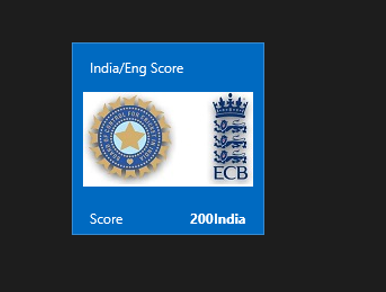
At this point if you run the application you should get a RadHubTile with BackContentTemplate , NotficationTemplate , Message and Image.

image

We can get all the information from RadHubTile in code behind and can use them. For example let us say when user is tapping on the RadHubTile , we want to display the NotificationCount. We can do that as following,


void rdRunsHubTiles_Tapped(object sender, TappedRoutedEventArgs e)
 {

var runset = (sender as RadHubTile).Notification;
 }

In this way we can work with RadHubTile in Application for Windows Store. I hope you find this post useful. Thanks for reading.

Conditional Navigation between Views in Kendo UI Mobile

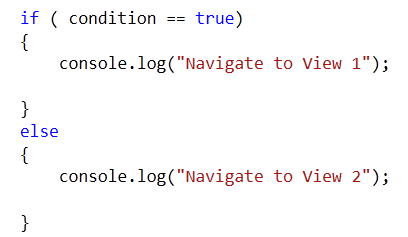
Recently while working with Kendo UI Mobile, I had to navigate from one view to other view inside if else condition. I had scenario, something like following

image

To achieve this, first I tried something like following,

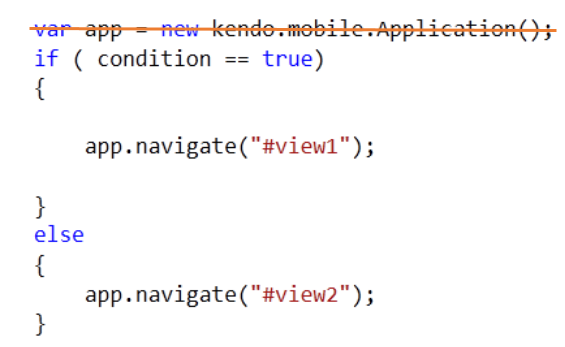
image

In above approach, I was able to navigate to views. However after navigating views were not adhering to the layout set for the application because I was creating new instance of the Application. So certainly this approach was not a suitable solution to go ahead with.

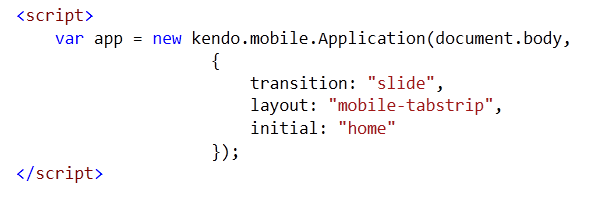
To solve this, you need to navigate on instance which you already created while initializing the html for mobile application. You create something like this on HTML.

image

To navigate conditionally just call navigate function on app. essentially you do not need to recreate instance of application. So if we modify above solution, you do not need first line of the code. Point to be noted here is that app is the variable name we are using while initializing the application on the html.

image

In this way you can navigate to different views from JavScript in KendoUI Mobile. I hope you find this post useful. Thanks for reading.

How to find which button is selected in KendoUI Mobile ButtonGroup

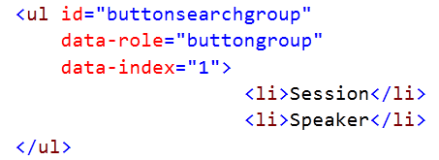
In this post we will take a look on, how to find which button is selected in KendoUI Mobile ButtonGroup . Let us suppose we have a ButtonGroup like following,

image

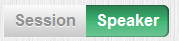
ButtonGroup will look like following

image

In JavaScript we can find index of selected button as following.

image

buttonsearchgroupis the id of the ButtonGroup. We can check for the selected index in if condition to perform a task according to the selected button in ButtonGroup. This can be done as following,


if ( $("#buttonsearchgroup").data("kendoMobileButtonGroup").current().index() == 1)
 {
 console.log("session button selected");
 }
 else
 {
 console.log("speaker button selected");
 }

In this way you can find which button is selected in KendoUI Mobile ButtonGroup. I hope you find this post useful. Thanks for reading.

Webinar on Telerik Tools for Ninja Developer: Windows 8 RadControls

Register for the Webinar here

Date: 21st November 2012

Time: 3PM to 4PM (IST)

Launch of Windows 8 has brought enormous enthusiasm among developers along with normal users. Developers are aspired to write fascinating killer apps and want to reach maximum Windows 8 users. If you are one of those aspired developer then this webinar is for you. In this webinar we will talk and learn about Rad Controls for Windows 8. Rad Controls for Windows 8 allows you to write fascinating touch enabled Windows 8 Application which your users will love. It helps you to shorten development time, quickly take application to market and get better ranking.  There are 15+ native controls available for you to use in your application.  You can use controls natively in your application regardless you are developing in XAML or HTML.

Read more about RadControls for Windows 8 here

This will be demo oriented webinar. In webinar we will write code from scratch and learn how different Rad Controls can be used in application.

Register for the Webniar here

For any query do send a mail to Dhananjay.kumar@telerik.com . Hope to see you in the webinar.

Working with RadNumericBox in JavaScript Windows 8 Application

In this post we will take a look on working with RadNumericBox. If first time you are working with RadControls in JavaScript based Windows 8 Application, I recommend you to read this post .

To work with RadNumericBox simply set data-win-control property of a div or span as Telerik.UI.RadNumericBox


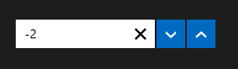
You will get RadNumericBox configured with default values as following,

You can work with RadNumericBox from JavaScript as well.


Here agebox is id of span.

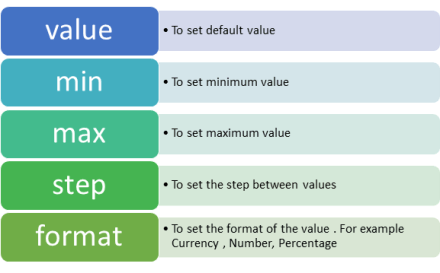
You can set different options for RadNumericBox. Some of those options are as following,

Options can be set as following,

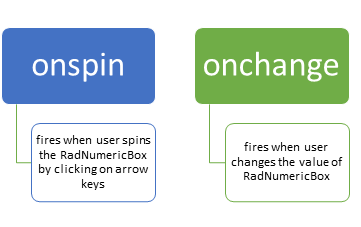
Now when you run the application, you should get RadNumericBox configured with default value 40, minimum value 0, maximum value 255 and step as 10. While working with RadNumericBox there are two important events,

In code behind you can attach event to RadNumericBox as following,

You can work with spin event as following

And showmessage function is written as below,


For your reference code is given below,

Default.html

<!DOCTYPE html>
<html>
<head>
 <meta charset="utf-8" />
 <title>javascriptAutoComplete</title>

<!-- WinJS references -->
 <link href="//Microsoft.WinJS.1.0/css/ui-dark.css" rel="stylesheet" />
 <script src="//Microsoft.WinJS.1.0/js/base.js"></script>
 <script src="//Microsoft.WinJS.1.0/js/ui.js"></script>

<!--Telerik references -->
 <script src="///Telerik.UI/js/jquery.js"></script>
 <script src="/Telerik.UI/js/ui.js"></script>
 <link href="/Telerik.UI/css/dark.css" rel="stylesheet" />
 <link href="/Telerik.UI/css/common.css" rel="stylesheet" />

<!-- javascriptAutoComplete references -->
 <link href="/css/default.css" rel="stylesheet" />
 <script src="/js/default.js"></script>
</head>
<body>
 <h1>Numeric Box Demo</h1>
 <div id="agebox"
 data-win-control="Telerik.UI.RadNumericBox"
 data-win-options="{value: 40,
 min: 0,
 max: 255,
 step: 10,
 decimals: 2,
 format: 'n0',
 }">
 </div>
 <br />
 <span id="output" >

 </span>
</body>
</html>

&nbsp;

Default.js


if (args.detail.kind === activation.ActivationKind.launch) {
 if (args.detail.previousExecutionState !== activation.ApplicationExecutionState.terminated) {
 // TODO: This application has been newly launched. Initialize
 // your application here.
 } else {
 // TODO: This application has been reactivated from suspension.
 // Restore application state here.
 }
 args.setPromise(WinJS.UI.processAll());
 var nbage = document.getElementById("agebox").winControl;
 nbage.addEventListener("spin", showmessage);
 nbage.addEventListener("change", function (e) {
 document.getElementById("output").innerText = "You have selected" + nbage.value;
 });
 }
 };

 function showmessage(e) {

document.getElementById("output").innerText = "You have selected" + e.target.value;
 }

I hope you find this post useful. Thanks for reading.

Working with LINQ to SQL Class and AJAX RadGrid

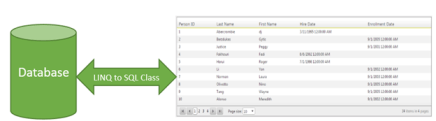
In this post we will take a look on working with RadGrid and LINQ to SQL Class. We will display data in RadGrid using LINQ to SQL Class from SQL Server database.

image

Very first let us create DataSource to be used with RadGrid. We will use LINQ to SQL class to create data model here. To create data model using LINQ to SQL class right click on the project and select Add then New Item. From Data tab, choose LINQ to SQL Classes

image

If you want you can change name of the LINQ to SQL class, however I am leaving default name and clicking on the Add button. Choose Server Explorer on the design surface to create data classes.

image

In Server Explorer right click on the Data Connection and Add Connection. In Add Connection dialog box provide database server name and choose the database to create data model. Click on Ok to add a new Data Connection in Server Explorer.

image

On successfully adding of data connection , you can see that in server explorer

image

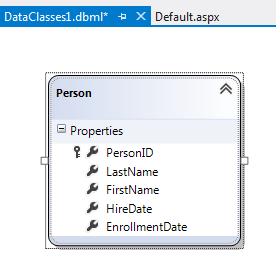
Next drag and drop Tables, Views , Stored Procedures and Functions from Server Explorer on dbml design surface to make a part of data model. In this case , I am going ahead with only one table Person. Now you can see that Person is added on dbml file.

image

As of now we have added the data model in the project. Now let us go ahead and add a RadGrid on the page. To add RadGrid on the page drag and drop it from Toolbox on the page. If you don’t find RadControls in toolbox then right click on the General tab in tool box and select Add Tab

image

Give name of the tab . Right click on newly created tab and selecte Choose Items. Then browse to

C:\Program Files (x86)\Telerik\RadControls for ASP.NET AJAX Q1 2012 SP1\Bin40

and choose Telerik.Web.UI.dll and after selecting dll click on Ok button to add the controls in toolbox.

image

In toolbox you can see that RadControls are successfully added.

image


Next from the Telerik AJAX Data Component tab , drag and drop RadGrid on the page.

<pre><asp:Content runat="server" ID="BodyContent" ContentPlaceHolderID="MainContent">
<telerik:RadGrid ID="RadGrid1" runat="server" AllowPaging="True">

</telerik:RadGrid>
</asp:Content>


As of now we have added RadGrid on the page . Next we need to create data source from the data model and bind to the RadGrid. Below is the function returning List of Person.


private List<Person> GetStudents()
{
DataClasses1DataContext context = new DataClasses1DataContext();
return  context.Persons.ToList();
}

In function we are creating instance of DataContext class and returning list of person on that. Now we need to bind data returning from this function to RadGrid. We can do that as following


using System;
using System.Collections.Generic;
using System.Linq;
using System.Web.UI;

namespace GridSample
{
public partial class _Default : Page
{
protected void Page_Load(object sender, EventArgs e)
{
RadGrid1.AllowPaging = true;
RadGrid1.NeedDataSource += RadGrid1_NeedDataSource;


}

void RadGrid1_NeedDataSource(object sender, Telerik.Web.UI.GridNeedDataSourceEventArgs e)
{
RadGrid1.DataSource = GetStudents();
}


private List<Person> GetStudents()
{
DataClasses1DataContext context = new DataClasses1DataContext();
// return context.Persons.SortBy("FirstName").ToList();
return context.Persons.ToList();
}
}
}

Now when you press F5 to run the application , you should get data in RadGrid using LINQ to SQL class.

image

In this way you can pull data from database using LINQ to SQL class and bind to a RadGrid. I hope you find this post useful. Thanks for reading.

Using RadControls in JavaScript based Windows 8 Application

In this post we will set up project to use RadControls for Windows 8 in JavaScript based Application. Before you go ahead with this post, read here

Getting Started with Rad Controls for Windows 8

Once you have done with downloading and installing Rad Control for Windows 8, create a new JavaScript based Windows Store project

image

Right click on the reference in solution explorer and add a new reference. Choose Windows Library for JavaScript and add to the project.

image

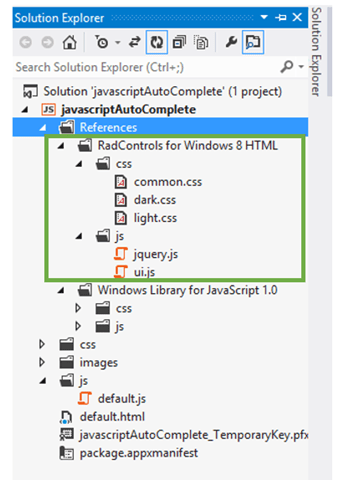
After adding references, verify in solution explorer that you have successfully added the references

image

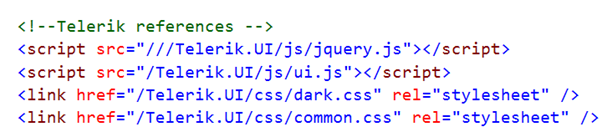
Once references are successfully added in the project, you need to add references of Rad Control JS files and CSS files on the HTML page. You can refer them as following listing,

image

Now you are all set to use RadControls for Windows 8 in your application. To test that whether we have added all the references correctly or not ,let us put a RadSlider control on HTML

image

Now when you run the application you should get a RadSlider control on the page successfully.

image

In this way you can get it started with Rad Controls for Windows 8 in JavaScript based application for Windows Store. I hope you find this post useful. Thanks for reading.

Working with Github and Icenium

Cloud based IDE Icenium allows you to develop cross platform mobile applications. When you create a project in Icenium IDE , it saves that project in cloud and allow you to do version control. Aprat from cloud integration , Icenium allows you to push and pull your project with Github Repositiry as well.

image

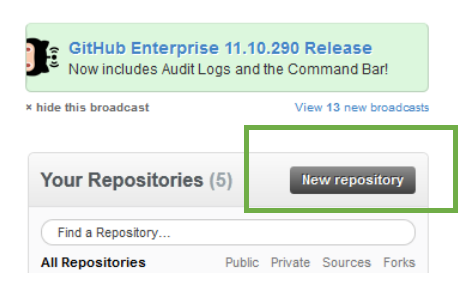
To integrate project from Icenium to Github repository, first create a repository in guthib. You can create that on Github site by clicking on New Repository link button

image

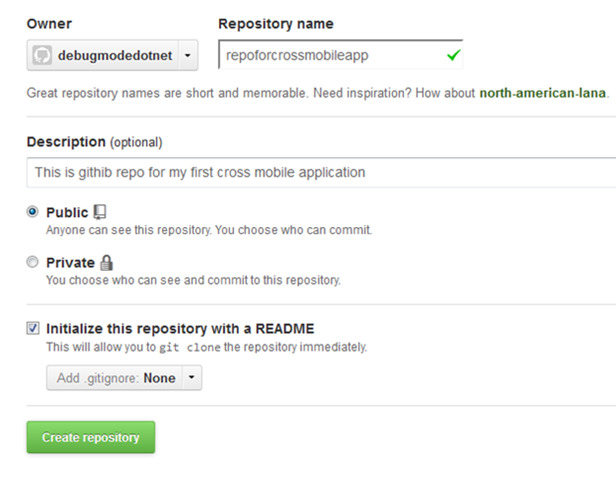
To create new repository, you need to provide following information. I am symbolically providing information here to create a new repository.

image


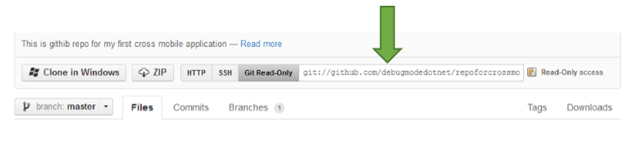
Once repository got created, you will get a URL to work with that repository.

image

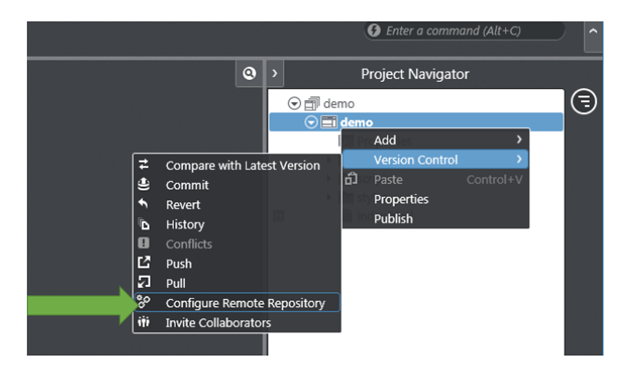
As of now you have created a repository in Github. Now let us switch to Icenium IDE. Right click on the project then select Version Control. In Version Control select the option of Configure Remote Repository

image

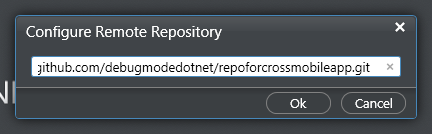
Next you need to provide URL of Github repository.

image

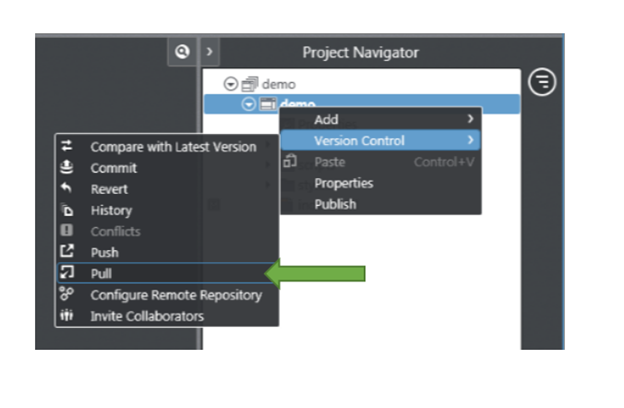
Next again right click on the project and from Version Control select the option of Pull

image

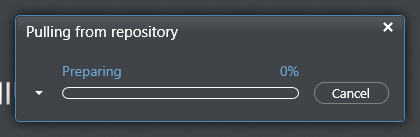
You will see that you have pulled the repository.

image  

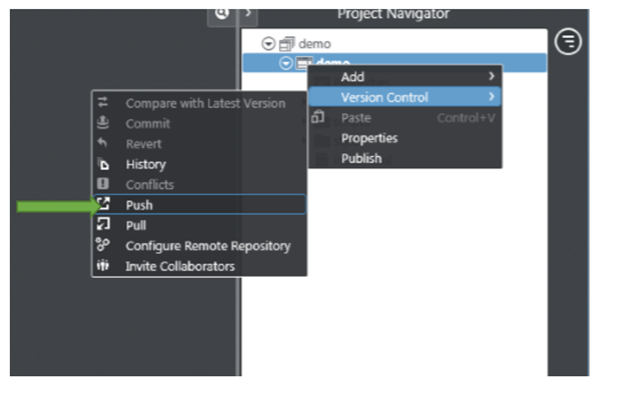
Now to push the project to github repository right click on project and select version control then Push option

image

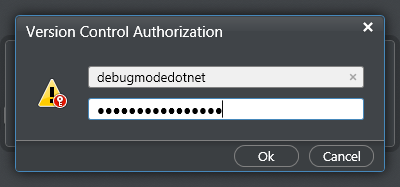
When you start pushing you need to authorize yourself to the repository.

image

On successful completion of the push, you will get a message at bottom of IDE as following    

image


So in this way you can integrate project from Icenium to Github repository.  I hope this post was useful. Thanks for reading.

Using Kendo AutoComplete in ASP.Net MVC 4.0

In this post, we will see how we could work with Kendo AutoComplete in ASP.Net MVC. We will fetch data from SQL Server table in Kendo AutoComplete using LINQ to Sql class

Adding the Model

Follow Adding Model section of this post to create model.

Adding Controller

We have created the Model, now we need to fetch data using Model in the Controller. I am going to use default created HomeController and Action Index. Go ahead and in HomeController.cs file modify the Action Index.

image

Here we need to create instance of model and pass the data to view. That can be done as following

image

Adding Kendo AutoComplete on View

We are passing data from Index action, so we need to put Kendo AutoComplete in IndexView. Go to View and Home folder and open Index.cshtml

image

Very first you need to make View as strongly typed. You can make a View strongly typed as following

image

Next add Kendo UI AutoComplete. Make sure that you are providing the name attribute. In DataTextField pass the name of the column on which you want to filter the data.

image

For your reference code in view is as following


@model IEnumerable<mvcwrappersample1.Models.Person>

<h3>Kendo AutoComplete</h3>

@(Html.Kendo().AutoComplete()
.Name("name")
.DataTextField("FirstName")
.BindTo(Model)
.Filter("contains"))

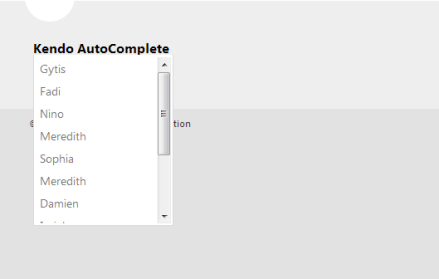
Press F5 to run the application, you should able to get data from model in Kendo AutoComplete.

image

I hope you find this post useful. Thanks for reading.
Getting Started with Rad Controls for Windows 8

In this post, we will learn how we could start with Rad Controls for Windows 8.

Download Trial Version from here

As of now these controls are available, 

  • Chart
  • DatePicker
  • Pagination
  • Gauge
  • TimePicker
  • HubTile
  • BulletGraph
  • NumericBox
  • Slider
  • ComboBox
  • AutoCompleteBox
  • DropDownList

You can download Demo Applications exploring the controls from here

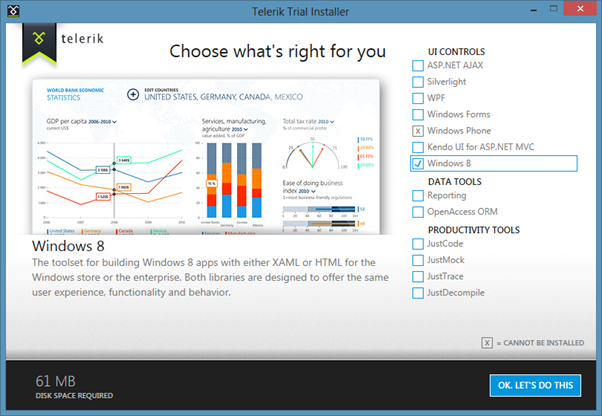
After downloading, follow the Telerik Installer Wizard.

 image

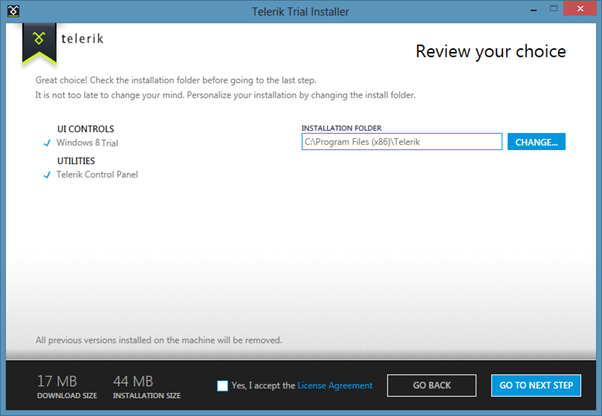
Make sure that Windows8 is selected. Click on OK.LET’S DO THIS. Configure installation folder , accept license terms and click on Go to Next Step

image

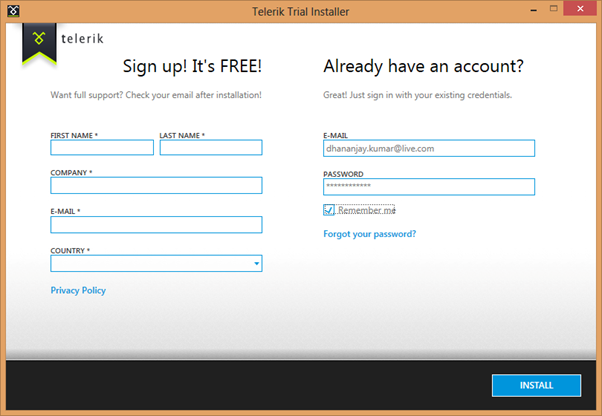
Provide credential and click on Install to start the installation.

image

After successful installation, you will get following message

 image

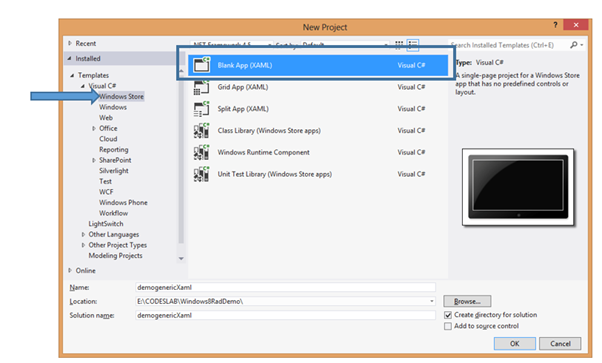
By this step, you have successfully installed Rad Controls for Windows 8. Now go ahead and launch Visual Studio and create an Application for Windows Store. Let us choose Blank Application from the XAML Windows Store template.

image

Once the project is created in Solution Explorer right click on the Reference and select Add Reference

image

In the dialog box make sure that you have selected Extension and select Rad Controls for Windows 8.

image

After adding rerefence in solution explorer verify that refence of Rad Controls has been added successfully.

image


By this step you have succesfully created the project and added the required refrence. Now you are all set to use Rad Controls for Windows 8 in your application. Let us go ahead and add RadDatePicker control on the MainePage.xaml. Before using any Rad Control , you need to add namespace. Add namespace as following

image

After adding namespace put RadDatePicker control as following

image

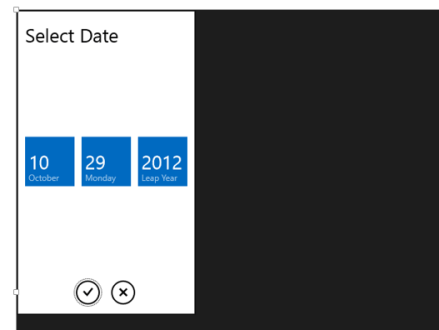
Now press F5 and run the application. You should able to get RadDatePicker control

image

In this way you can start working with Rad Controls for Windows 8. In further posts we will explore each controls individually. I hope you find this post useful. Thanks for reading.