On Jul 31 I presented a webinar titled “Build HTML5 Sites/Apps for Free with Kendo UI Core”. This webinar was part of the monthly webinars we do here in Telerik India. This blog post is a recap of the webinar. You will find the slide deck, video recording and Q&A from the webinar.
Kendo UI core
On April 16th, we i.e. Telerik announced the introduction of an Open Source Software called Kendo UI Core. Kendo UI Core includes 24 of the UI widgets that are found currently in Kendo UI Web and all of the widgets & features formerly available under Kendo UI Mobile. Kendo UI Core also includes the core framework features that are available in Kendo UI for e.g. DataSource, MVVM, SPA etc.
Here is a recap of the questions that we received during the webinar.
Q: Recently Kendo team integrated Angular JS framework in kendo UI core. Is there any dependencies to create Angular JS apps or just include kendo-ui-core.min.js and jQuery.js?
A: You need to have a reference to angular.js script file before referencing kendo script file. That’s the only dependency we have for working with angular.
Q: How can I select only date from the datetime picker control that is without showing default time? A: Date Time Picker is for showing both date and time. If you just need Date, you should try DatePicker widget – http://docs.telerik.com/kendo-ui/api/web/datepicker
Q: How we can implement offline behaviour of application using Kendo UI? A: At the moment we don’t have out of the box support for offline. But you can always cache the data in local storage and use it when offline.
As usual we have picked two winners for our t-shirt giveaway. The following persons will get our .NET Ninja T-Shirt shipped to them.
Chandra Bhushan
Vinay Kumar
Congratulations. We will contact you on our email to get your address and ship it to you. For rest of you, don’t worry – we do have a lot of webinars lined up through the year.
This is a wrap up blog post for my series on mobilizing your SAP data with Kendo UI Mobile. So far I have written 4 parts on this series. Here are the links to the 4 parts of this series:
Here is a quick summary of what we have achieved so far with each part of the blog posts:
Part 1 – We took a look at the SAP demo system, got the credentials for the system and set up our environment to start work on Mobilizing SAP data.
Part 2 – We started out with building a mobile app using Telerik AppBuilder which is part of the Telerik Platform. We understood the project structure and created our first screen – Business Partners Listing.
Part 3 – In Part 2 we had built the listing of Business Partners. In Part 3 we went a step forward and built the Partner Details screen. When a Partner is clicked in the listing, we navigated to details screen.
Part 4 – we built a new screen to add new Business Partner to the system.
Things ahead:
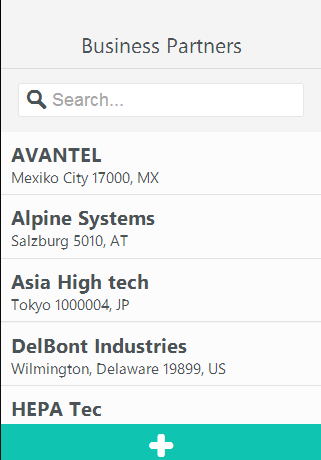
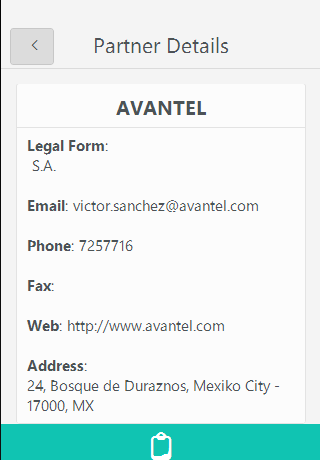
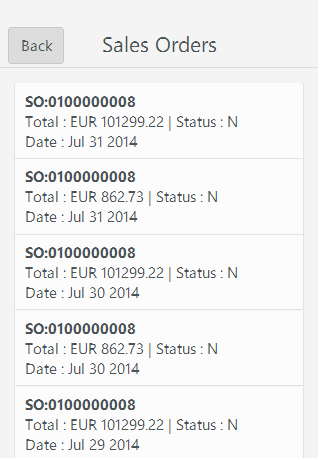
I have provided you the basic structure of the mobile application so far. What you can do is to build upon the same techniques and add additional screens. For e.g. From a Partner details screen, we can navigate to his Orders. From Orders listing screen, we can then navigate to Order details. From Order details we can navigate to Order Item details screen. And in Item details screen we can list all the items in the order as a grid. I leave it up to you to try all this out.
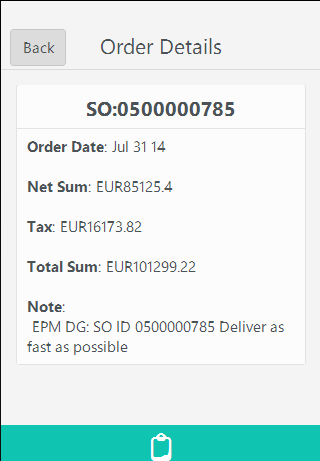
Screen Shots:
Partners Listing
Partner Details
Orders Listing
Order Details
Order Items Listing
Summary:
The primary goal of the 5 part blog series on “Mobilizing SAP Data with Kendo UI Mobile” was to showcase the power of Kendo UI Mobile and the ease with which you can mobilize your SAP data. One of the highlight of Kendo UI is its ability to consume and interact with OData Service endpoint out of the box. It does all the heavy lifting in terms of read, create, update and delete.
Hope this series helps you if you are trying to mobilize your SAP data. If you need further information or want to get in touch with us to help you out – feel free to reach out to me @ lohith.nagaraj@telerik.com.
On Jul 24 2014 we conducted yet another webinar titled “Build a Mobile Dashboard using HTML 5 and Telerik Platform”. This is part of the monthly webinars we do here in Telerik India. This blog post is a recap of the webinar with resource links and video recording of the webinar.
Kendo UI:
Kendo UI is a flagship product from Telerik which is a HTML5 based client side UI framework. It contains Kendo UI Web for web apps, Kendo UI DataViz for Data Visualization and Kendo UI Mobile for Hybrid Mobile Application Development.
Kendo UI
You can know more about Kendo UI here. Also the Kendo UI demos are all online and can be found here.
Video Recording:
We record all our webinars so that if there is anybody who missed attending live, they have another chance to go through the webinar. So here is the video recording of the webinar:
Q & A:
Q: how to contert telerik asp.net web application to mobile compactable?
A: If you are using Telerik ASP.NET WebForms controls it is Mobile ready. If you are developing ASP.NET MVC application, you can use Kendo UI which is HTMl5 based controls set and can run on Desktop Browser as well as Mobile Browsers.
Q: Where can we find kendo chart keywords used in JavaScript?
A: Please refer Kendo UI documentation here.
Q: Can you give me the URL to try App builder directly?
A: AppBuilder is part of our Telerik Platform. Please sign up for Telerik Platform here.
Q: What is the difference with singlepage app and a mobile app?
A: Single Page App or SPA as it is known as is just a pattern that many app developers utilize to build modern day web site/apps and Mobile Apps.
Q: How did u initiate simulator?
A: From the AppBuilder select Run > In Simulator to launch the simulator.
Q: What is the relation between Appbuilder and Kendo UI Mobile chart?
A: AppBuilder is the IDE for Hybrid Mobile App development. Kendo UI DataViz is the data visualization control set to be used in a mobile app.
Q: How we can implement offline behaviour of application using Kendo UI?
A: Kendo UI DataSource in future will provide the capability of offline caching of data. As of now you as a developer will need to take care of caching the data.
Q: Can the Kendo UI support access of Native component of os? like camera , media library etc?
A: Kendo UI is a UI control set and hence wont provide any device capability access. Where as you can use Cordova JavaScript library to access the device capability in your mobile apps.
T-Shirt Winners:
We usually pick 2 random attendees from the webinar and they receive our Telerik .NET Ninja T-Shirts. Following folks are the winners of the t-shirt for this webinar:
Ashok Rapaka
Ajithkumar Rai
Congratulations to the winners. We will contact you to get your address and ship the t-shirt.
This is 4th blog post in the series “Mobilizing Your SAP Data with Kendo UI”. So far we have seen how to set up the environment, create a mobile application and list business partners from the SAP Sales Order System and show a particular partners details. If you want to go through the first 3 part of this series, find the links below:
In this blog post we will be creating a screen to add a new partner to the business partner’s collection. So without much further ado, let’s get on with the business.
Home View Recap:
If you have been following the series, you will know by now that our home view is a listing of the Business Partners in the Sales Order system. In the footer of this view, we had created a tab in the tab strip with an add button. By clicking this add button we will navigate to “newPartnerview.html”. Here is the code snippet of home view:
This file contains hidden or bidirectional Unicode text that may be interpreted or compiled differently than what appears below. To review, open the file in an editor that reveals hidden Unicode characters. Learn more about bidirectional Unicode characters
The way we navigate to new partner view is just by pointing the href attribute of the anchor to “view/newPartnerView.html”. Kendo will do the navigation to the new screen by adding the default transition that is slide.
New Partner View:
Create a new HTML file in views folder and name it “newPartnerView.html”. We will create the form as below:
This file contains hidden or bidirectional Unicode text that may be interpreted or compiled differently than what appears below. To review, open the file in an editor that reveals hidden Unicode characters. Learn more about bidirectional Unicode characters
Notice that we use the Partner view model as the data model for new partner view. We have placed a save button in the header on the right hand side of the navbar. It is data bound to “add” method on the partner view model. The rest of the form is self-explanatory. Here is the code snippet of add method that we have added on the partner view model:
This file contains hidden or bidirectional Unicode text that may be interpreted or compiled differently than what appears below. To review, open the file in an editor that reveals hidden Unicode characters. Learn more about bidirectional Unicode characters
In add method, we build a JSON object and make use of Partners view model > partners datasource and call add on data source and tell the data source to sync the changes with the server. That’s all it is there to save a record if you use Kendo UI Data Source.
Update to Partners Data Source:
In part 2 of this series, we had created Partners view model and it had a partner’s data source. At that point we just had Read URL set up. But since we want to create a new record now, we set up Create URL on the data source. Here are the changes to the partners data source:
This file contains hidden or bidirectional Unicode text that may be interpreted or compiled differently than what appears below. To review, open the file in an editor that reveals hidden Unicode characters. Learn more about bidirectional Unicode characters
Notice the addition of create property to transport of Kendo UI data source. We also had to change the read property a little bit. If we have to send a create request to OData service, it is expecting a CSRF token. So, before we issue read instruction, we ask for CSRF token to be sent back to the client, and after read operation is completed, we fetch the token from the header and store it for further use. During create operation, we add the token to the header using the before send method of Kendo UI data source.
Running the App:
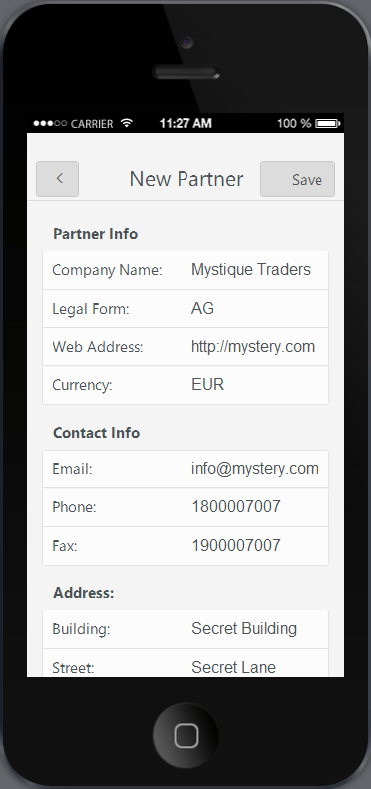
Now, our Create New Partner screen is complete. Time to run the app and see the output. Here is the screenshot of the new partner creation screen:
New Partner View
Summary:
In this blog post we saw an entity creation scenario. We created a data entry screen for adding a new business partner to the system. And we hardly wrote any code. With Kendo UI Data Source, handling CRUD scenarios is very easy as the data source does all the heavy lifting.
This blog post is a 3rd one in the series of “Mobilizing your SAP Data with Telerik Platform”. If you have not read my first 2 parts I suggest you take a look at those first. Here is the link to first 2 parts of this series:
In Part 1 I wrote about how to get started with SAP. In Part 2 I talked about building a mobile app using Kendo UI Mobile. We connected with the SAP data through the OData service that SAP Netweaver Gateway system provides. We were also able to build the first screen of the app namely the Partners listing screen. In this blog post we will look at how to build a screen that shows the details of the selected Partner. Let’s get started
Recap – Partner Item Template:
In the part 1 when we built the Partners listing screen, we used Kendo UI Mobile ListView to list the partners from the system. Each item in the ListView will be rendered by making use of an item template we provided. Just to recap that code, here is the code snippet of the item template:
This file contains hidden or bidirectional Unicode text that may be interpreted or compiled differently than what appears below. To review, open the file in an editor that reveals hidden Unicode characters. Learn more about bidirectional Unicode characters
Notice the usage of data-role=touch on the div and the data bind syntax where we trap the tap event and provide an event handler named “partnerSelected”. Here is the code snippet of the partnersViewModel where we have defined the partnerSelected event handler:
This file contains hidden or bidirectional Unicode text that may be interpreted or compiled differently than what appears below. To review, open the file in an editor that reveals hidden Unicode characters. Learn more about bidirectional Unicode characters
We saw that we have an event handler which handles the tap event of the partners listing listview. The code just navigates to a new view called partnerView. But the view name is not hard coded. It is coming from appsettings object which contains viewsettings and the value for partnerView. Also notice that we are passing the currently selected partner UID in the querystring. UID is the unique identifier that the Kendo UI Data Source maintains for each item in its data collection. We will use this information to get a single partner object from the collection using datasource method getbyid().
First let’s update the appsettings.js with viewsettings data. Here is the code snippet:
This file contains hidden or bidirectional Unicode text that may be interpreted or compiled differently than what appears below. To review, open the file in an editor that reveals hidden Unicode characters. Learn more about bidirectional Unicode characters
Notice that we have the URI of the new view set to “views/partnerView.html”. Let’s create a new folder under the root of the project by name “views” and create a new html file called “partnerView.html”.
Partner View Screen
When you add a new HTML file, the file content will have bare bone HTML code. Remove that basic HTML code as we don’t need that. Next we will create the partnerView UI.
Partner View UI:
As part of the partner view screen, we will just list out all the details of a partner like name, email, phone, address, etc. Here is the code snippet of the partner view:
This file contains hidden or bidirectional Unicode text that may be interpreted or compiled differently than what appears below. To review, open the file in an editor that reveals hidden Unicode characters. Learn more about bidirectional Unicode characters
Let’s go over the code once. It’s a simple div with its data role set to view. This is how Kendo UI knows that this is a page or screen in the app. We are trapping the show method of the view through data-show attribute and is bound to Partner object’s show() method. We will see the partner object in next section. Then we have spans to output different property of the partner and we have data bound different properties to the text property of the span. Next let’s take a look at the Partner JavaScript file.
Partner JavaScript Object:
In previous section we saw that the partner view screen is data bound to partner JavaScript object. Create a new JavaScript file named “partner.js” in scripts folder. And paste the following code in the script file:
This file contains hidden or bidirectional Unicode text that may be interpreted or compiled differently than what appears below. To review, open the file in an editor that reveals hidden Unicode characters. Learn more about bidirectional Unicode characters
Pay close attention to show() method. Remember that when we navigate from the partners listing screen, we had passed a querystring value which was the UID of the partner object. Here in partner view show method, we retrieve the UID and piggyback on app.Partners.partners data source and use the data source method getByUid() to retrieve the partner object. Once we get the object we use kendo.bind() method to data bind it to the view. With this the view at runtime get data bound with the partner object and the spans will show the appropriate data as they have the data-bind syntax.
Running the App:
One last thing to do is adding a reference to partner.js. Add a script reference to partner.js in the script block of index.html. After adding the reference, select Run > In Simulator from the toolbar. Here is the screen shot of the partner view:
Partner Details Screen
Don’t question me on the UI – I am a design handicap when it comes to UX. But we now have 2 screens as part of the application itself. We now have the Partners Listing screen and Partner Details screen. And we are making progress.
Summary:
In this blog post we looked at how to create Partner details screen. We created a HTML page and a corresponding JavaScript file. With the concept of DataBinding we were able to bind different properties of a Partner object to different span on the view. In the next part of this blog series, we will take a look at how to create a new partner right from the mobile app itself. So stay tuned.
This is the second post in the series of “Mobilizing Your SAP Data with Kendo UI Mobile”. If you haven’t read my first post, it’s a good idea to read it now and can be found here. In the first post I talked about getting the environment ready. In this second post I will be writing about how to create a mobile application with Kendo UI Mobile for the SAP data. So if that’s sounds interesting to you, stay along with me for the rest of the blog post.
Get the tools of the trade:
As part of Telerik Platform, we offer a service called AppBuilder. AppBuilder is a complete IDE for building a Hybrid Mobile Application using Kendo UI Mobile. Using AppBuilder you can build iOS, Android and Windows Phone 8 hybrid mobile apps using a single pure HTML5, CSS & JavaScript codebase. Kendo UI Mobile is an adaptive rendering Mobile control set that will be used for the UI elements of the mobile app. You can know more about Kendo UI Mobile here. Visit the AppBuilder product overview page and sign up for a trial. You will have 30 days to try out AppBuilder and post that we will downgrade you to a starter tier. In starter tier you are allowed to build only 2 Mobile apps.
Telerik AppBuilder
IDE Choices:
AppBuilder provide 5 IDE choices and you can choose the one that suits you best. Here are the choices:
In-Browser Client – develop hybrid mobile apps on the go with a web client that runs on all browsers
Command-Line Interface – access AppBuilder capabilities from command line on Windows or OS X
For the sake of this blog post I will be using the Windows Client of AppBuilder. I already have signed up for Telerik Platform and I have created a workspace in the Platform and will create a new hybrid mobile app in that workspace. To know more about the Telerik platform, check our documentation here.
Create a Mobile App:
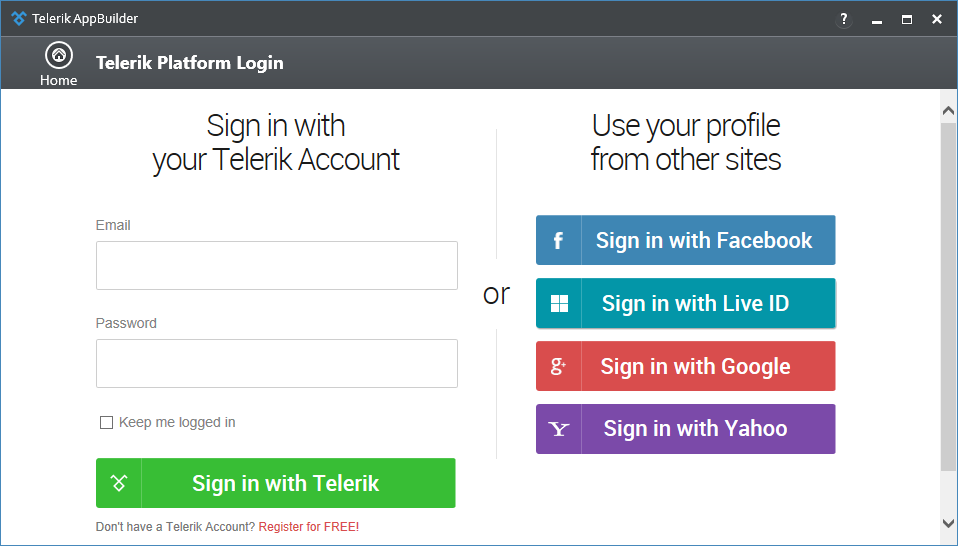
Now that we have the required tool for creating an app, lets get going. I am assuming at this point of time you have the AppBuilder Windows Client installer. Launch the AppBuilder windows client application. Since this is the first time, it will ask you for your Telerik Platform credentials.
Telerik Platform Credentials
Once you log in with your credentials, you will be presented with a “New” project creation dialog. From here you can select “Hybrid” > “Kendo UI Mobile App”. Provide a name for your mobile app and click create.
AppBuilder New Project Dialog
Here is the project structure that the IDE creates. Notice that Kendo UI Mobile control is added by default as we had selected Kendo UI Mobile App.
AppBuilder Project Structure
When you create a new project, IDE adds a dummy application out of the box. The app contains Home, Login, Location and Weather screen. In the scripts folder, you will find four scripts namely app.js, location.js, login.js and weather.js. The app.js contains the Kendo Mobile app creation code and other script files for the respective screens. At this moment if you just run the app by selecting Run > In Simulator or by pressing F5 in the IDE, you will see the following output:
Kendo UI Default Mobile App
We will clean up whatever default code has been created and start building our UI for Sales Order application.
Creating Mobile Application Layout:
Open the index.html and clear off everything that was added by default. Keep the reference to Kendo UI stylesheet, Cordova JavaScript file, jquery and app.js and remove rest of the things. The index.html, after the changes should look like below:
Cleaned Up Index Page
Now that we have a clean slate, let’s get started with our UI building process. First we will create a mobile layout that is required for our app.
This file contains hidden or bidirectional Unicode text that may be interpreted or compiled differently than what appears below. To review, open the file in an editor that reveals hidden Unicode characters. Learn more about bidirectional Unicode characters
Let’s go over the code. We have a div whose data role is set to layout and we have given it an identifier. Then we create a header div and place a navbar inside it. Navbar will contain a place holder for the title that will be shown for the current active screen. The keywords “layout”,”navbar” and “view-title” are Kendo UI specific and the Kendo UI Mobile app engine understand what needs to be done. Now that we are done with the markup for layout, we need to let Kendo UI mobile app engine know that it has to use this layout as a default layout for the app. Open app.js and replace the following code:
app.application = new kendo.mobile.Application(document.body, { layout: “tabstrip-layout” });
with
app.application = new kendo.mobile.Application(document.body, { layout: “applayout” });
Next we will create our first screen in the app which will list all the partners in the Sales Order system
Create Partners Listing Screen:
The Sales Order System that we are using for this demo app has a Business Partners endpoint and lists all the partners in the system. So our first screen would be to list all partners alphabetically as a mobile list view. So let’s start coding. First let’s create a view and within the view we will keep mobile list view. I will used MVVM pattern and create a view model for this screen. The Kendo UI Mobile Views provides a way to bind the view model to the view itself. Here is the markup for the view:
This file contains hidden or bidirectional Unicode text that may be interpreted or compiled differently than what appears below. To review, open the file in an editor that reveals hidden Unicode characters. Learn more about bidirectional Unicode characters
It’s a simple div with a data role set to “View” and data model set to “app.Partners”. We will create the Partners view model next. Then I have a header where I have the navbar with a title. Then I create a mobile list view with an unordered list. By setting the data role of <ul> as listview, Kendo UI engine will work its magic at runtime and convert the <ul> to a mobile list view. The mobile list view requires item template which we will have to create next. The data source to listview is set to “partners” property on the view model.
Partner Item Template:
For the list view to display each item, it needs a template to be provided. Here is a simple template I have created:
This file contains hidden or bidirectional Unicode text that may be interpreted or compiled differently than what appears below. To review, open the file in an editor that reveals hidden Unicode characters. Learn more about bidirectional Unicode characters
You will notice the usage of ${} syntax. It is Kendo UI template syntax where you are telling the rendering engine that at run time it has to get the value of the property of the currently bound data object and emit that into the template.
Partners View Model JavaScript File:
We will create a view model which exposes the business partner’s related functionality like listing and details of a business partner. Add a new JS file in the Scripts folder and name it Partners.js. Here is the code snippet for the view model:
This file contains hidden or bidirectional Unicode text that may be interpreted or compiled differently than what appears below. To review, open the file in an editor that reveals hidden Unicode characters. Learn more about bidirectional Unicode characters
As of now it’s a place holder and we will build the functionality as we proceed further.
Partner Data Model Object:
I will model the Business Partner entity that is exposed by the SalesOrder system as a JavaScript object in the partners.js file. Here is how my JavaScript object looks like:
This file contains hidden or bidirectional Unicode text that may be interpreted or compiled differently than what appears below. To review, open the file in an editor that reveals hidden Unicode characters. Learn more about bidirectional Unicode characters
Next we need to create a data source to connect to the OData service exposed by the Sales Order system. I am using Kendo UI Data source as my data source in the application. In order to read data from a service end point we need just set the URI on transport > read property of the data source. I will add this to partner data model itself. Here is the code snippet with the data source added:
This file contains hidden or bidirectional Unicode text that may be interpreted or compiled differently than what appears below. To review, open the file in an editor that reveals hidden Unicode characters. Learn more about bidirectional Unicode characters
Believe it or not, that data source is all you need to connect to any service which returns data in JSON format. Notice that for reading a service I am making use of a appSettings object. That is nothing but a simple JavaScript file with a bunch of settings. We will shortly take a look at that.
Partners View Model Object:
Now that we have the Partner Data Model and Data Source ready, we now create the partners view model which will expose a property called partners and partners is nothing but the instance of the kendo UI data source in the partner data model object. Here is the code snippet:
This file contains hidden or bidirectional Unicode text that may be interpreted or compiled differently than what appears below. To review, open the file in an editor that reveals hidden Unicode characters. Learn more about bidirectional Unicode characters
Here is the complete code listing of Partners.js we have implemented so far:
This file contains hidden or bidirectional Unicode text that may be interpreted or compiled differently than what appears below. To review, open the file in an editor that reveals hidden Unicode characters. Learn more about bidirectional Unicode characters
In the code snippet for data source, the URL to read data was got from data settings of appsettings object. I have created a new JavaScript file “settings.js” in the scripts folder. Here is the code snippet for the same:
This file contains hidden or bidirectional Unicode text that may be interpreted or compiled differently than what appears below. To review, open the file in an editor that reveals hidden Unicode characters. Learn more about bidirectional Unicode characters
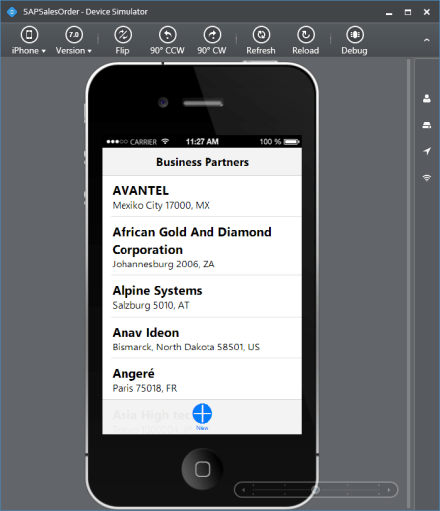
Now that we have finished creating the pieces of the application there is one last thing to do. We need to add reference to partner.js & settings.js in index.html. Once we add that, just press F5 on the IDE and the simulator will simulate the app we just built. Here is the screen shot of the app being simulated in iOS platform:
Business Partners Listing Screen
Wrap Up:
We have successfully created a mobile app which connects to a SAP backend and in particular a Sales Order system using Netweaver Gateway OData service and built a listing screen in the app. The listing screen is listing the business partners that are available in the system. One thing to note is how easy it was to create the app. The main point of this whole exercise is that of the Kendo UI Data Source which makes it super easy to connect to a service end point, invoke, retrieve data and bind it to the control. I didn’t sweat a lot to achieve this. So this is a good starting point. Next up we will create the Business Partner Details page. Stay tuned till my next blog post.
On Jun 26 2014, we presented a webinar titled “Mobilizing Your SAP Data with Telerik Platform”. This was part of our regular webinars we do here in Telerik India. This is a recap of that webinar. You will find the slide deck that was used in the webinar and the video recording of the webinar.
This webinar we focused on a enterprise story. Most of the enterprises today have SAP rolled out in their organization. As you all know SAP is a enterprise software to manage business operations and customer relations. One of the challenges that enterprises face is – how to mobilize the SAP data. You may want to expose the SAP data and make that data available through a Mobile Application so that people on the field can use it.
In this webinar I explain how you can expose data from SAP and use Kendo UI Mobile controls which are part of Telerik Platform to create a Hybrid Mobile App and target it to any mobile platform.
Telerik Platform
Slidedeck:
Here is the slide deck that was used in the webinar:
Video Recording:
Here is the video recording of the webinar:
T-Shirt Giveaway:
As with any other webinars of ours, we have 2 lucky audience selected to receive our .NET Ninja t-shirt. Here are the 2 attendees who have been choosen:
Eknath Pawar
Ujjwal Kumar
Congratulations to the winners. We will contact you and ship your t-shirt. Others don’t worry as we still have a lot of webinars lined up. We look forward to your presence in our future webinars.
On Jun 19 we conducted a webinar titled “Build Hybrid Mobile Applications for Nokia Lumia Devices”. This was part of our monthly webinar we do for APAC region. This blog post is a recap of the webinar and you will find the slide deck used in the webinar, video recording of the webinar, Q & A section and of course the t-shirt winners details. So read on.
AppBuilder
As part of the demo I used our AppBuilder Visual Studio extension to build a Hybrid Mobile App. AppBuilder is a service we offer as part of our Telerik Platform. Using our AppBuilder you can build iOS, Android and Windows Phone 8 hybrid apps using a single pure HTML5, CSS and JavaScript codebase. You can know more about our AppBuilder here. We use our Kendo UI Mobile control as the UI control set. Kendo UI Mobile is a adaptive rendering mobile control which provide native looking UI on platform they run. You can know more about Kendo UI here.
Telerik AppBuilder
Slidedeck:
As with any webinar recap, here is the slide deck from the webinar:
Video Recording:
Q&A:
Q: What is difference between mobile app and hybrid app?
A: Hybrid App is a paradigm or a type of Mobile Application Development technique
Q: Can mobile web apps run without net connection also what about hybrid apps?
A: Mobile Web Apps are served from a server. So if there is no internet connection on the device, you can connect to your mobile web app. Where as a Hybrid App gets installed on the device. So you can pretty much handle the scenario of no connection and show a user friendly message.
Q: What is the basic Diff. B/w cordova (Phonegap) and Telerik Hybrid Mobile Developement?
A: Telerik Hybrid Mobile Apps use Kendo UI Mobile which can adapt to the platform they are running on and provide you a native look and feel for your app. Where as when you develop an app with Cordova, you will be using UI control sets like Jquery Mobile UI.
Q: Is Cordova a standard API across all hybrid applications OR do other equivalent APi’s exist?
A: With respect to Hybrid Mobile Apps, Cordova is the only JS API which can provide you with the device capabilities.
Q: How many platforms can we target?
A: Windows Phone, iOS, Android and BlackBerry
Q: How much effort is required to repackage for diff platforms?
A: Using AppBuilder, you can package for iOS, Android and Windows Phone with one Button click.
Q: Are these controls free of cost?
A: The Kendo UI Mobile controls are free and open source. They are available as part of the Kendo UI Core. You can know more about Kendo UI Core here
Q: Can we develop for BlackBerry using Kendo UI ?
A: Yes you can. Kendo UI Mobile controls support Black Berry platform.
Q: Is AppBuilder only for creating hybrid apps and that too using Telerik?
A: Yes. AppBuilder is like Visual Studio for creating Hybrid Mobile Apps. AppBuilder can be used to build Hybrid Mobile App using any UI control set. For e.g. you can use Jquery Mobile as the UI control set for your application but use AppBuilder for coding, simulating and Building
Q: Does AppBuider work with VS 2012 as well?
A: Yes it does
Q: Can we add other plugins to this Kendo UI Mobile App?
A: Yes. Custom Cordova plugins can be added to Kendo UI Mobile Apps
Q: Does we have manifest file to put icons and dev information?
A: AppBuilder provides a project property feature where all meta data can be entered and during packaging it will convert it into a manifest.
Q: Where can i check other demos or source codes for mobile?
A: We have a whole list of Hybrid Mobile Application samples and can be found here.
T-Shirt Giveaway:
In each of our webinars, we give away our famous .NET Ninja t-shirt for 2 lucky audience. So in this webinar we have picked the following two folks as the winners of our t-shirts:
Ruth Pushpalatha
Rohit Vardhan
Congratulations to the winners. Those of you who did not win, dont worry. We have a lot of webinars lined up for the year. So keep coming back and try your luck.
On Jul 12 2014, we conducted a webinar titled “Integrate Video and Photos in your ASP.NET applications with ease”. This is part of the monthly webinars we have been doing here in Telerik India. This blog post is a recap of that webinar.
RadImageGallery & RadMediaPlayer:
As the name goes, RadImageGallery can be used to create Image Gallery in your apps with minimal coding. Similarly, RadMediaPlayer can be used to create a YouTube like Media Player with minimal coding. Both of these controls are part of our “UI for ASP.NET AJAX” suite. If you are not familiar with our “UI for ASP.NET AJAX” suite of controls, head over to our product overview page here.
UI for ASP.NET AJAX
You can know more about RadImageGallery here and about RadMediaPlayer here.
Slidedeck:
Here is the slide deck that was used in the webinar:
Video Recording:
We record all our webinars and the videos are available for on demand viewing. So here is the video recording of this webinar:
Q & A:
Q: Is the library of these controls free to download or require any license?
A: A trial of 30 days is available. This is a paid product from Telerik
Q: Does it take Images from online services/providers like Flicker/OneDrive and stream here in control?
A: Both of these controls provide a feature of binding data from the client side. So you can get the data as JSON on page load and bind it to the control client side.
Q: Can we have this Image Gallery in MVC?
A: No. This is a ASP.NET AJAX control. Cannot be used in MVC.
Q: does RadImageGallery provides paging?
A: Yes. RadImageGallery supports the paging
Q: Can we specify how many thumbnails to show/ or customize thumbnail settings?
A: RadImageGallery provides a thumbnails settings where we can set Width, Height, Thumbnail Width, Thumbnail Height and Thumbnail spacing.
Q: How to get and integrate these controls to Visual studio?
A: Download the controls from http://www.telerik.com/products/aspnet-ajax.aspx. Run the Installer and that will integrate the controls in the control toolbox. Go ahead from there.
Q: Can we incrase the size of the preview display and keep the thumbnails in different dimensions?
A: Yes. RadImageGallery provide Image Area Settings and Thumbnails Area Settings.
Q: Can we give the source dynamically to the rad media player?
A: Yes. The data can be bound to RadMediaPlayer through code also.
Q: Does it require any media player to be installed at client side like Silverlight/Adobe media player?
A: No. RadMediaPlayer uses the build-in HTML5 <video> and <audio> element functionality to bring powerful media capabilities to your apps without the necessity of installing additional plug-ins. It provides a quick and easy to setup way to deliver rich media web experience for websites, blogs, online TV channels, e-commerce pages, etc. For older browsers which don’t support HTML5 natively, Internet Explorer 8 and 7 in particular, the player provides a Flash fallback method to play the video or audio file by rendering a Flash object.
In our webinars, we usually give away 2 t-shirts to 2 lucky attendees. We randomly pick from the webinar attendees and they get our .NET Ninja T-Shirt. In this webinar, the winners are:
Ashish Bhat
Surya Vinukonda
Don’t worry if you didn’t win the t-shirt. Try your luck in our next webinar.
Over the last couple of years that I have been evangelizing for Telerik, I have met a lot of customers and in particular enterprise customers. Most of the big enterprises have SAP deployed in their organization. This gives them the flexibility of having point to point information with respect to their projects or revenue or even an employee. In short SAP is one of the widely used system in enterprises. But it comes with its own environment and applications. The number one question from enterprise customers for us has always been “how does your offering work with SAP?” A fair question especially when it comes to engaging with a third party vendor. This question was more of a high priority question when it came to Mobile teams in the enterprises. How soon can you go to market with an application and expose the SAP data.
The questions from the enterprises led me to write this 2 part series on how to mobilize your SAP data. This blog post is the first in this series and below is how I have planned out the 3 part series blog post:
Mobilizing Your SAP Data with Kendo UI Mobile – Get the Environment Ready – Part 1
Mobilizing Your SAP Data – Mobile App Development – Part 2
If you are as excited as I am, then be with me in this journey of 2 blog posts. So let’s get started.
What is SAP ERP?
According to the dictionary of the web i.e. Wikipedia, SAP ERP is defined as follows:
SAP ERP is an Enterprise Resource Planning software which provides an integrated solution that incorporates key business functions of an organization.
I will not be delving too much in to SAP as a software as that is not the intention of the blog post. Now that we know what is SAP let’s see how to expose data from SAP so that applications outside of SAP can consume them.
SAP Netweaver Gateway:
In order for the SAP data to be exposed to outside world you use a technology called SAP Netweaver Gateway to develop REST based ODATA services. According to SAP, Netweaver Gateway is defined as:
Technology that provides a simple way to connect devices, environments and platforms to SAP software based on market standards.
SAP Netweaver Gateway offers connectivity to SAP applications using any programming language and you do not need to have SAP knowledge. SAP Netweaver Gateway leverages the REST Services and OData/ATOM protocols for data exchange.
SAP Netweaver Gateway System
Again I won’t be getting into too much details as to how you do this. SAP Community Network (SCN) has tutorials on how to do this.
SalesOrders All the Sales Orders can be read using this collection
SalesOrderItems Items of a Sales Order can be read from this collection
Products Collection of products which can be purchased
BusinessPartners Collection of Partners with whom the company does transaction
Setting Up Reverse Proxy:
Services exposed by SAP Netweaver Gateway Demo system are all protected and need credentials to access them. In the previous section we talked about getting access to the demo system. During that process you would have used a username and password. You need the same credentials to authenticate against the demo system when querying for data.
In order for us to perform full CRUD on the demo system we will need to setup a reverse proxy in order to overcome the Same Origin policy restriction. A reverse proxy should be used for sending client HTTP requests designated to its domain to the correct server. Reverse proxy can be achieved in 2 ways. They are:
We can also create a simple reverse proxy using ASP.NET Web API.
Reverse Proxy using ASP.NET Web API:
A simple reverse proxy can be easily created using ASP.NET Web API. Idea is to create a Web API and pass the SAP URI we need query data as a query string parameter. The Web API will read the query string value and use that as a URI to connect to the SAP Service. Response from SAP Service will be relayed back to the client as JSON. Following code snippet shows the Web API Controller and in particular the Get action method:
public class ProxyController : ApiController
{
        string username = "<username>";
        string password = "<password>";
        // GET: api/Proxy
        public async Task<JsonResult<string>> Get(string url)
        {
            var sapUri = new Uri(url);
            using (var client = new HttpClient())
            {
                var base64String = GetBase64String(username, password);
                client.DefaultRequestHeaders.Add("Accept", "application/json");
                client.DefaultRequestHeaders.Add("Authorization", "Basic " + base64String);
                var response = await client.GetAsync(sapUri);
                HttpContext.Current.Response.StatusCode = (int)response.StatusCode;
                return Json(await response.Content.ReadAsStringAsync());
            }
        }
}
Instead of querying the SAP service directly from the mobile application, we will querying the proxy we just created above and pass the SAP service URL as a query string. Here is the usage:
Notice that we pass an Authorization header when making a request. SAP Services expect an authorization header and we pass the username:password string converted to base 64 and pass it as a request header. I have showed the example of a Read or Get. But on the similar grounds you can create the Create/Update/Delete actions also.
Summary:
With this blog post we start a journey to read data from SAP and use that data in a mobile application. As a first step we learnt that SAP data can be exposed to outside world using the SAP Netweaver Gateway system. We looked at various the demo services and picked the Sales Order system as a candidate to build the mobile app. In next post we will create a mobile application using Kendo UI Mobile framework and Telerik App Builder.
Kendo UI DataViz is our Data Visualization package as part of the Kendo UI Framework. Kendo UI DataViz is HTML5 compliant and generates SVG (Scalable Vector Graphics) on HTMl5 supported browsers and falls back to VML (Vector Markup Language) on browsers that don’t support HTML5. VML is supported by pretty much all browser versions. If you are keen to know more about Kendo UI DataViz, head over to our DataViz demos online: http://demos.telerik.com/kendo-ui/area-charts/index
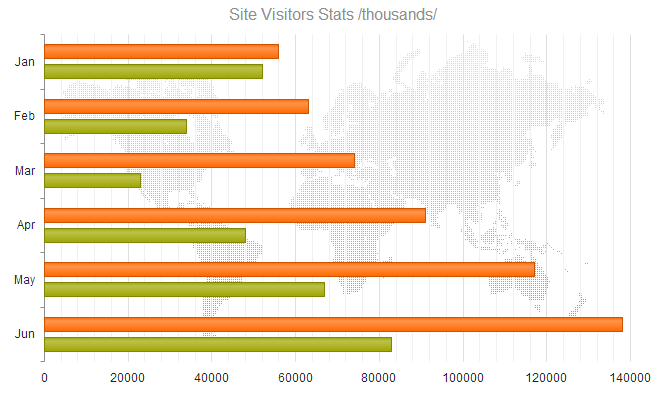
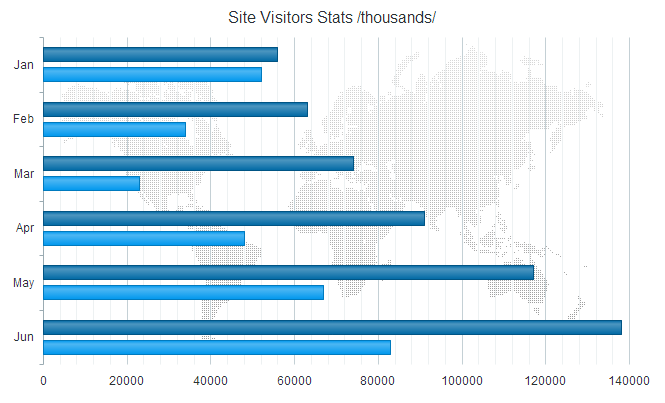
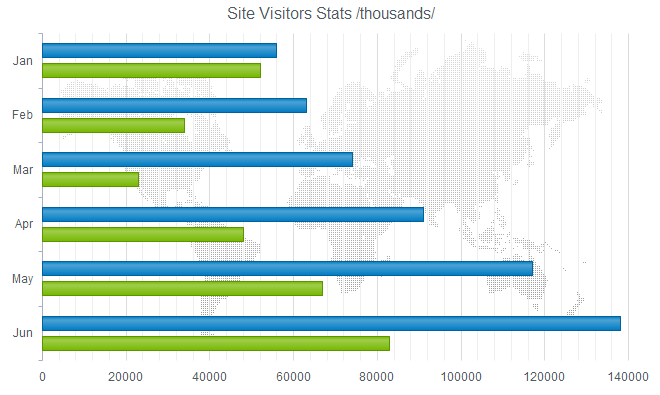
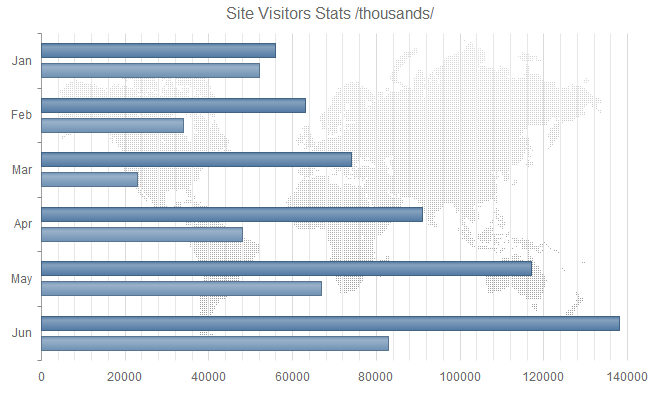
This blog post will walk you through how to create a custom theme for DataViz charts. Out of the box we ship the following 11 themes:
Default
Blue Opal
Bootstrap
Silver
Uniform
Metro
Black
Metro Black
High Contrast
Moonlight
Flat
I don’t know about you guys but I say those are pretty good themes for me. But we do understand that not all the times you will go with the default themes we ship. You may want to customize it to your organizational or even project color combination. So we will see how we can do the customization in the coming section.
Kendo UI Themebuilder:
The tool which will help you to customize Kendo UI themes is known as “Kendo UI ThemeBuilder”. It lets you modify themes so that they match the look and feel of our DataViz widgets to that of your site or app. It is an online tool and no we don’t charge you to use it. You can look at the ThemeBuilder tool here: http://demos.telerik.com/kendo-ui/themebuilder/
Steps to Customize DataViz Widgets:
Navigate to ThemeBuilder tool online.
To start customization, you are required to first select one of the default themes. This is like a foundation to start the customization. So select any default theme first.
Next start the ThemeBuilder tool by clicking on the button named “Kendo UI ThemeBuilder”. This will launch the ThemeBuilder GUI tool and will appear on the right hand side of the page. Give it a couple seconds to load the GUI.
Since we want to customize the DataViz widgets, select the button labeled “DataViz” in the ThemeBuilder GUI tool. This will provide us with a UI which will help us to customize different aspects of the DataViz widgets.
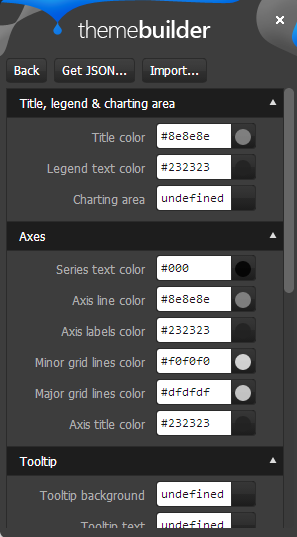
Things that can be customized on the DataViz Widgets are: Title, Legend, Charting Area, Axes, Tooltip, Series Colors and Gauge
Scroll Down the page to see the DataViz widgets. Then change the appropriate widget property to your custom value. For e.g. I have changed the chart area color to a custom value and as soon as I do it – I get a instant update of how the widget will look like. Here is a snapshot of my changes:
Like this you can set your custom colors for all the customization points available for the widget.
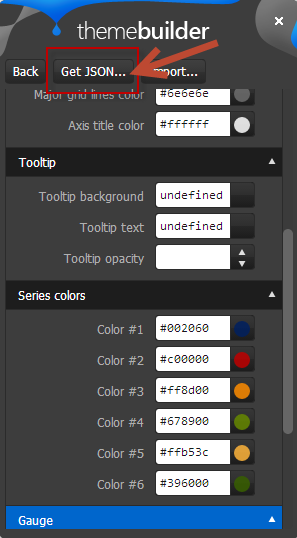
Once you are done with your changes, click on the “Get JSON” button available on top of the GUI tool. This will spit out a JSON structure of the changes you just did.
The JSON code will look like below:
Notice that by default the custom code is named as “newTheme”. You can change that and provide your own custom name. Remember the name as this is the name you will use to set a theme on a DataViz widget. All we are doing is – we register this new theme with the DataViz ui and later when we set theme property of DataViz widgets to this custom theme name, Kendo UI will be able to apply your color schemes to the widgets.
Copy the JSON code and add that into a new JavaScript file. Give JS file a meaningful name and include it in any page where you need the custom theme.
Using Custom Theme:
In the previous section, we saw how to create a custom theme. In order to use the custom theme, all you need to do is to set the “theme” property on DataViz widgets to the new custom theme name you have provided during registration. Here is a code snippet of setting the theme on a DataViz widget:
$("#area-chart").kendoChart({
theme:"LohithTheme",
transitions: false,
title: {
text: "Internet Users"
},
legend: {
position: "bottom"
},
seriesDefaults: {
type: "area"
},
series: [
{
name: "United States",
data: [67.96, 68.93, 75, 74, 78]
}, {
name: "World",
data: [15.7, 16.7, 20, 23.5, 26.6]
}
],
valueAxis: {
labels: {
format: "{0}%"
}
},
categoryAxis: {
categories: [2005, 2006, 2007, 2008, 2009]
},
tooltip: {
visible: true,
format: "{0}%"
}
});
I have named my theme as “LohithTheme” and use that name while creating a chart.
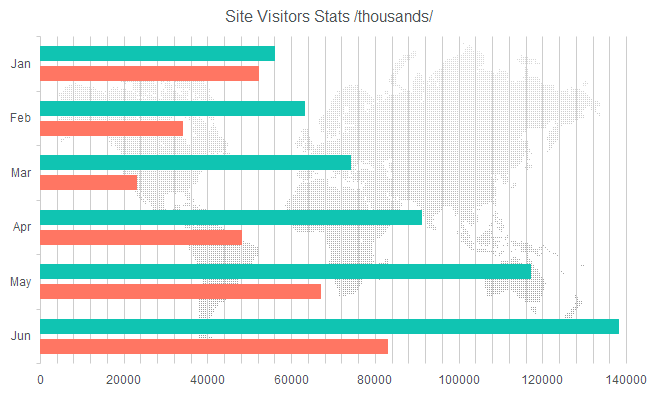
I have put up a full fledged demo with a custom theme here: http://trykendoui.telerik.com/@kashyapa/icAJ. This is our new shiny playground for Keno UI called “Kenod UI Dojo”. In the code section you can review the JS code and when you click on Run button output will be shown on the right hand side. Here is snapshot of my custom theme in action:
And that’s as easy as it can get to customize a DataViz theme.
Hope this blog post helps you if you have a similar scenario of customizing our DataViz widgets. Do let us know your feedback on this blog post through the comments.
On May 24 we conducted yet another webinar as part of our monthly webinars. This time the topic was “Getting Productive with ASP.NET MVC5”. This webinar was a lap around the new features released as part of ASP.NET MVC5.
ASP.NET MVC5 is the latest release for ASP.NET MVC and comes with Visual Studio 2013. In order to know more about this release you can go through the official documentation here: http://www.asp.net/mvc/mvc5
Slide Deck:
Here is the slide deck I used as part of the webinar:
Video Recording:
All of our webinars are recorded for on demand viewing. So here is the video recording of this webinar:
T-Shirt Giveaway:
One of the benefits of attending our webinars is that you can be a lucky winner of our Telerik .NET Ninja t-shirt. Every webinar we select 2 attendees in random and those 2 get our .NET Ninja t-shirt. So, following are the lucky winners of our t-shirt for this webinar:
Arpan Shah
Prakash Kumar
Congratulations to the winners. We will contact you on your registered email and get details about your postal address. We will ship your t-shirt through courier. Others, don’t worry as we have a lot of webinars planned for the rest of the year. Here is the May/June schedule that we have put up on our site: https://telerikhelper.net/2014/05/17/a-new-govt-for-india-and-new-tech-for-techies-in-india/
One of the fascinating things about being an evangelist is that, everyday I get to hear a new problem that people are trying to solve. It always keeps me on my toes as it gives me an opportunity to dig into our documentation once again and unearth the code necessary to solve the problem. In this blog post I will talk about one such problem a customer sent us. They wanted to know if Kendo UI DataViz charts support drill down or not. Out of the box Kendo UI DataViz does not have the capability in built but we provide events on the chart which will help you to achieve this functionality easily. So this blog post is all about achieving drill down functionality using Kendo UI DataViz chart. So if you have such a situation in your project, you may want to sit back and follow rest of the post.
Step 1 – Define the markup:
As you know in order to work with Kendo UI DataViz you will need to first add reference to Kendo UI DataViz CSS and then add reference to Kendo UI DataViz Theme CSS. Theme can be anything for e.g. black, metro, blue opal etc. Then add a reference to Jquery and Kendo UI DataViz JavaScript. Next define a div and give it a id of “chart”.
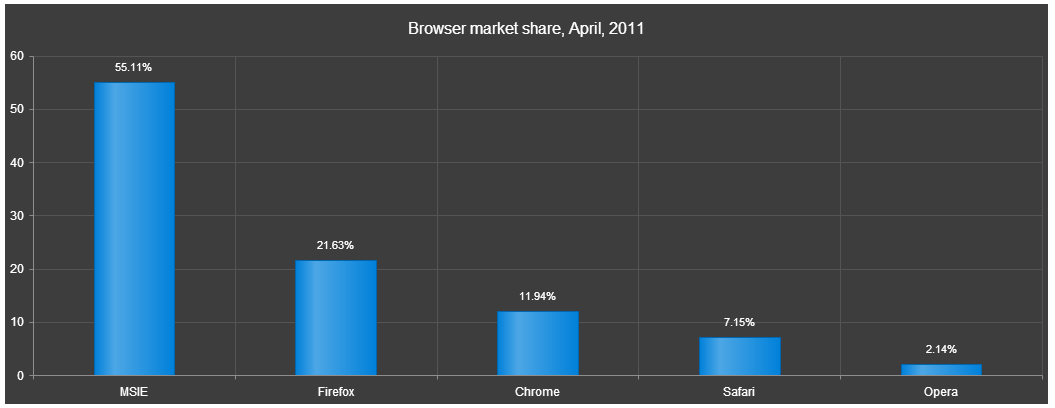
For the sake of this blog post i am going to fake some data about browsers market share. So initially i will show column chart for major browsers. Then on clicking each column i should be able to drill down into its specific data. I will create my data as a JavaScript array and use them for binding to chart. Here are my data array which i will use while binding to chart:
As you can see, I have an initial data to bind to the chart. And also the drill down data. For the sake of simplicity i have only shown drill down data for one of the columns. At the end of this post i will give link to the code which will have drill down data for all the columns of the chart.
Step 3 – Initialize the Chart:
Now we are ready to initialize the chart and bind the initial data to it. Here is the code snippet for initializing the chart:
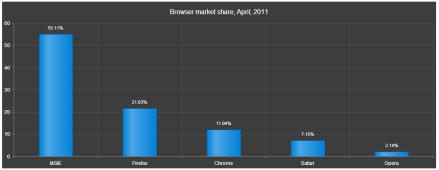
Let me go over the code once. I access an element with id “chart” and then initialize Kendo Chart on that element. I set the theme to Black. Then i provide a title to the chart. Next comes the data source and i create a Kendo.data.DataSource object and provide the value of chartInitialData to data property. Then I set the series as a column chart type. Next I set the value field and category field of the chart to corresponding column name from the data source. I also set the labels to be visible on top of each column. Lastly I set the tooltip to a custom template. Now if we run the code this is what we see:
Drill Down Chart Initial Look
Step 4 – Handle Series Click:
Now that we have our chart initialized and see that the data is getting bound correctly, next step is to handle the series click. Series Click is an event fired when the user clicks on any columns in the chart. Chart API exposes a method called setDataSource(). So in order to achieve a drill down, handle the series click event and set a new data source to the chart. What this does is, it will repaint the chart area and provides the drill down effect. So here is the code snippet for the seriesClick event:
seriesClick: function(e)
 {
 var categorySelected = e.category;
 var chart = $("#chart").data("kendoChart");
 if(categorySelected === "MSIE")
 {
 chart.setDataSource(new kendo.data.DataSource({data:msieData}));
 }
 else if(categorySelected === "Firefox")
 {
 chart.setDataSource(new kendo.data.DataSource({data:ffData}));
 }
 else if(categorySelected === "Chrome")
 {
 chart.setDataSource(new kendo.data.DataSource({data:chromeData}));
 }
 else if(categorySelected === "Safari")
 {
 chart.setDataSource(new kendo.data.DataSource({data:safariData}));
 }
 else if(categorySelected === "Opera")
 {
 chart.setDataSource(new kendo.data.DataSource({data:operaData}));
 }
 else
 {
 //not handling the child level drill down - setting the chart back to original data source
 chart.setDataSource(new kendo.data.DataSource({data:chartInitialData}));
 }
 }
And thats all it is there to create a drill down with Kendo UI DataViz.
The demo code is done using our Kendo UI Dojo. When you navigate to the demo page, left hand side will have the source code and right hand side will show the output. You will need to click on the Run button on the page to see the output.
Hope this demo helps somebody who want to achieve the same scenario.
On Mar 13 we conducted a webinar titled “One Data for Different Kinds of Apps Using Telerik Backend Services”. This blog post is a recap of that webinar. You will find the slide deck and video recording from the webinar.
About Telerik Platform:
Telerik Platform is a modular platform that combines a rich set of UI tools with powerful cloud services to develop web, hybrid and native apps. With Telerik Platform you can do: Seamless prototyping & design, Build Cross Platform mobile applications, Comprehensive services to manage data, users and integrations, Perform automated cross platform mobile testing, Streamlined app publishing and Measure your app and user behavior.
As with every webinars we host, this webinar was also recorded. So if you missed attending the webinar live, don’t worry you can watch the webinar recording at your free time. Here is the recording of the webinar:
Webinar Giveaway:
Every webinar we do, we select 2 attendees and give them our Telerik .NET Ninja T-Shirt as a giveaway. In this webinar too we have 2 winners. Here is the lucky 2 who get our t-shirt:
Manoj Patel
Kalpana Thangavel
Congratulations to the winners. We will contact you and ship the t-shirts. Rest of you who did not win the t-shirt, don’t worry we still have a lot of webinars in 2014. So make sure you are there in our upcoming webinars and try your luck.
On Feb 27 we presented a webinar on our Telerik Reporting suite. The webinar was titled “Take Your Reports to Any Screen with Telerik Reporting”. In this blog post we will recap the webinar for those of you who couldn’t not make it live.
Telerik Reporting:
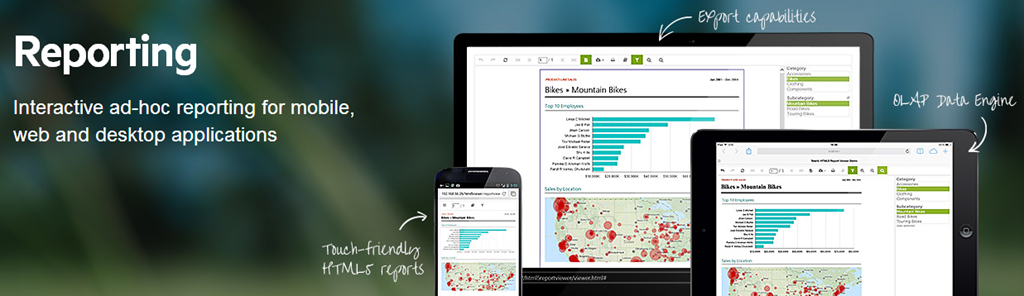
Telerik Reporting is a lightweight reporting solution for all .NET cloud, web, and desktop platforms (ASP.NET, Ajax, Silverlight, WPF, Windows Forms, and Azure) which targets developers and end-users. Rich interactive and reusable reports can be created by developers in Visual Studio, and by end users in the desktop-based Report Designer. With the help of Telerik Reporting users can examine and probe data, export reports to Microsoft Office Word and Excel for further analysis, and even present them as PowerPoint documents.
We record all our webinars for the benefit of on demand viewing. So if you missed attending the webinar live don’t worry, here is the recorded video of the webinar:
Questions & Answers:
Q: Is it possible to convert existing reports in to this?
A: Telerik Reporting has conversion wizards for Crystal Reports, Active Reports and Xtra Reports.
Q: Is this compatible with ORACLE data source? A: Telerik Reporting supports Microsoft SQL Server Analysis Services cubes, ADO.NET data sources, relational databases, business objects, ORMs and XML. So as long as ORACLE has a ADO.NET Data Provider we will support it.
Q: Is there possibility to have chart and table is same report?
A: Yes. Chart and Table are what we call as Report Items. So they can be placed together and bind data accordingly. You can check our dashboard Reporting demos which showcase this.
Q: I have 5-10 reports with data displayed in different formats(table,graph…). I would like to apply same text font for all those reports. Is it possible?
A: Yes you can. You can use external style sheets to apply the same styles in different reports – Exporting and Reusing Style Sheets
Q: is it possible to convert vs2010 local reports to telerik reports?
A: We do not have converters from SSRS reports, because there is a great difference in the reports’ structures.
T-Shirt Giveaway:
If you are a regular to our Telerik India webinars, you will know that we select 2 random names from the webinar attendee list and they get our cool Telerik .NET Ninja t-shirt. So here are the 2 winners from this webinar:
Rajan Thaora
Keerti Valmiki
Congratulations to the winners. We will contact you to get you address so that we can ship the t-shirt. Others don’t worry, you can try your luck in our next webinar.





















 Helping Ninja Technologists