How to create Custom Theme for Kendo UI DataViz

Kendo UI DataViz is our Data Visualization package as part of the Kendo UI Framework. Kendo UI DataViz is HTML5 compliant and generates SVG (Scalable Vector Graphics) on HTMl5 supported browsers and falls back to VML (Vector Markup Language) on browsers that don’t support HTML5. VML is supported by pretty much all browser versions. If you are keen to know more about Kendo UI DataViz, head over to our DataViz demos online: http://demos.telerik.com/kendo-ui/area-charts/index

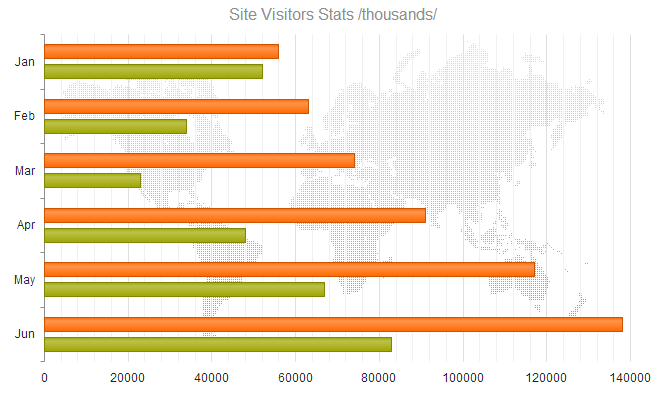
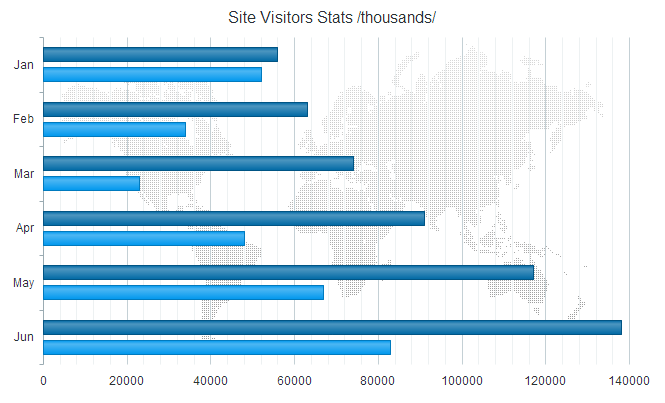
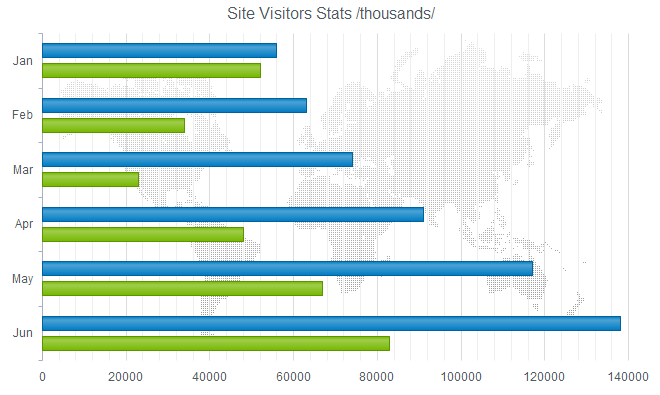
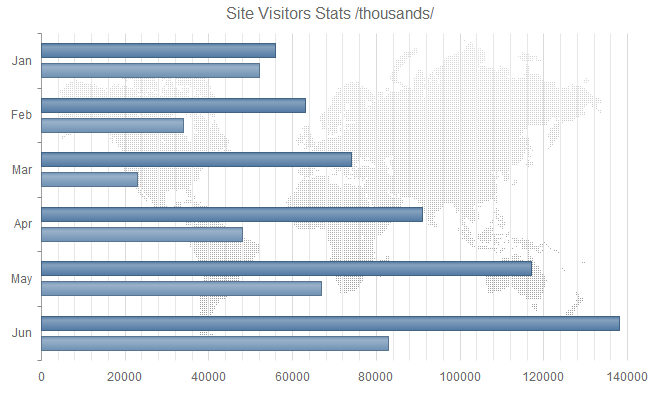
This blog post will walk you through how to create a custom theme for DataViz charts. Out of the box we ship the following 11 themes:

Default
image

Blue Opal
image

Bootstrap
image

Silver
image

Uniform
image

Metro
image

Black
image

Metro Black
image

High Contrast
image

Moonlight
image

Flat
image

I don’t know about you guys but I say those are pretty good themes for me. But we do understand that not all the times you will go with the default themes we ship. You may want to customize it to your organizational or even project color combination. So we will see how we can do the customization in the coming section.

Kendo UI Themebuilder:

The tool which will help you to customize Kendo UI themes is known as “Kendo UI ThemeBuilder”. It lets you modify themes so that they match the look and feel of our DataViz widgets to that of your site or app. It is an online tool and no we don’t charge you to use it. You can look at the ThemeBuilder tool here: http://demos.telerik.com/kendo-ui/themebuilder/

Steps to Customize DataViz Widgets:

  1. Navigate to ThemeBuilder tool online.
  2. To start customization, you are required to first select one of the default themes. This is like a foundation to start the customization. So select any default theme first.

    image 
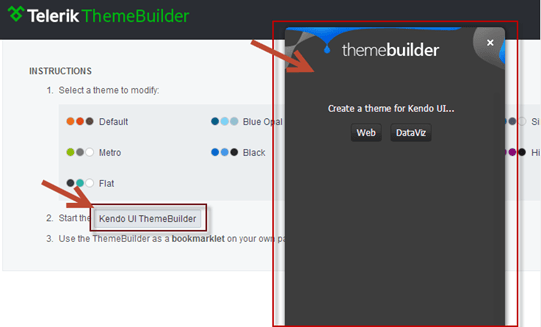
  3. Next start the ThemeBuilder tool by clicking on the button named “Kendo UI ThemeBuilder”. This will launch the ThemeBuilder GUI tool and will appear on the right hand side of the page. Give it a couple seconds to load the GUI.
    image
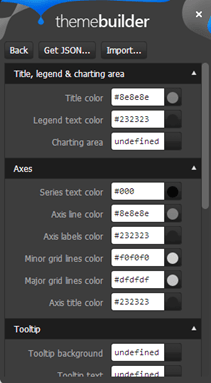
  4. Since we want to customize the DataViz widgets, select the button labeled “DataViz” in the ThemeBuilder GUI tool. This will provide us with a UI which will help us to customize different aspects of the DataViz widgets.
    image 
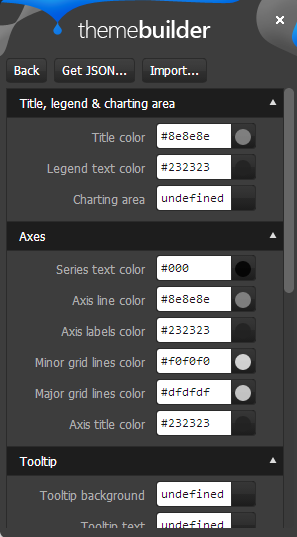
  5. Things that can be customized on the DataViz Widgets are: Title, Legend, Charting Area, Axes, Tooltip, Series Colors and Gauge
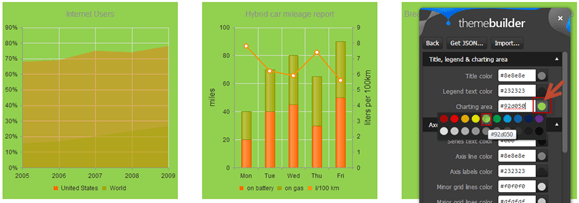
  6. Scroll Down the page to see the DataViz widgets. Then change the appropriate widget property to your custom value. For e.g. I have changed the chart area color to a custom value and as soon as I do it – I get a instant update of how the widget will look like. Here is a snapshot of my changes:
    image
    Like this you can set your custom colors for all the customization points available for the widget.
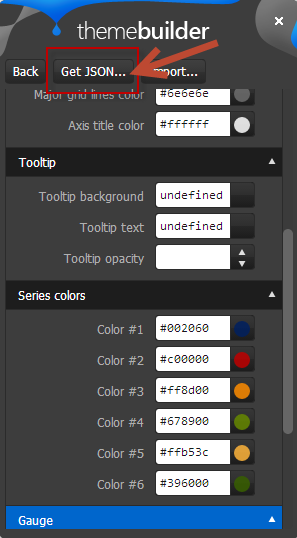
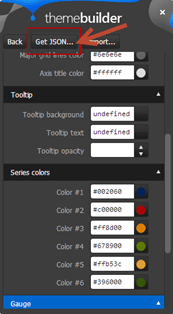
  7. Once you are done with your changes, click on the “Get JSON” button available on top of the GUI tool. This will spit out a JSON structure of the changes you just did.
    image 
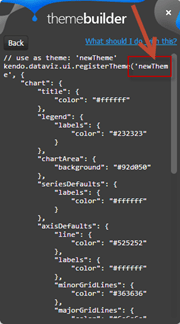
  8. The JSON code will look like below:
    image
    Notice that by default the custom code is named as “newTheme”. You can change that and provide your own custom name. Remember the name as this is the name you will use to set a theme on a DataViz widget. All we are doing is – we register this new theme with the DataViz ui and later when we set theme property of DataViz widgets to this custom theme name, Kendo UI will be able to apply your color schemes to the widgets.
  9. Copy the JSON code and add that into a new JavaScript file. Give JS file a meaningful name and include it in any page where you need the custom theme.

Using Custom Theme:

In the previous section, we saw how to create a custom theme. In order to use the custom theme, all you need to do is to set the “theme” property on DataViz widgets to the new custom theme name you have provided during registration. Here is a code snippet of setting the theme on a DataViz widget:

$("#area-chart").kendoChart({

        theme:"LohithTheme",

            transitions: false,

            title: {

                text: "Internet Users"

            },

            legend: {

                position: "bottom"

            },

            seriesDefaults: {

                type: "area"

            },

            series: [

                {

                    name: "United States",

                    data: [67.96, 68.93, 75, 74, 78]

                }, {

                    name: "World",

                    data: [15.7, 16.7, 20, 23.5, 26.6]

                }

            ],

            valueAxis: {

                labels: {

                    format: "{0}%"

                }

            },

            categoryAxis: {

                categories: [2005, 2006, 2007, 2008, 2009]

            },

            tooltip: {

                visible: true,

                format: "{0}%"

            }

        });

I have named my theme as “LohithTheme” and use that name while creating a chart.

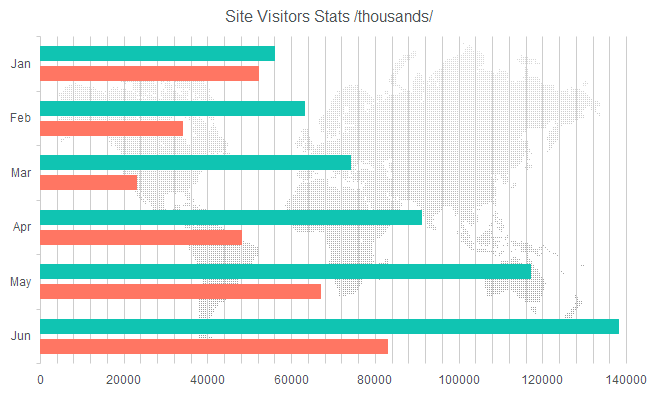
I have put up a full fledged demo with a custom theme here: http://trykendoui.telerik.com/@kashyapa/icAJ. This is our new shiny playground for Keno UI called “Kenod UI Dojo”. In the code section you can review the JS code and when you click on Run button output will be shown on the right hand side. Here is snapshot of my custom theme in action:

image

And that’s as easy as it can get to customize a DataViz theme.

Hope this blog post helps you if you have a similar scenario of customizing our DataViz widgets. Do let us know your feedback on this blog post through the comments.

Till next time – Happy Coding.

Resources for webinar “Beginning with Git Source Control for Enterprise Projects”

Git is the new source control technology that is getting wide spread adoption. In this presentation we cover the basics of Git and move on to strategies for developer workflows, source control migration to Git and Project Management with Git.

Slides:

Video:

Selected Q&A from the webinar is as follows:

Q: why should we use GIT,other than its an open source?
A: Git is extremely light weight steeply reducing your infrastructure needs. It provides for offline working and has great support for collaboration. It is also very fast.

Q: Can I Save Image File (like Logos) in Git?
A: Any known file types can be saved 🙂 remember you are just storing on a hard disk 🙂

Q: In TFS… we have only one process… called “Check-in” to make it store in server…. but in Git we have Commit and Push… why both are needed ?
A: Commit is meant to check in code to a local copy. and finally when everything is ready – you can just push to remote Git repo…

Q: Can i use in .net project;for .cs file
A: Yes … any type of files.

Q: is there a possiblity to switch my working directory file from one branch to other branch..?
A: yes you can, using checkout in Git

Q: how to update code in git.
A: Git has got nothing to do with the editing. You can use your favorite editors to work with your source code for e.g. notepad or Visual Studio or anything. Git detects the changes and allows your to commit and push

Q: may I know what is the command to switch a file from one branch to another branch in my working directory?
A: From the branch where you want to switch to, run this command: git checkout

Q: Does it have any Cloud Storage option on this Git?
A: Git is a Software to manage your source code and that is why its called source control. You can host it locally on your laptop/desktop or on your own cloud. Services like GitHub or BitBucket do the same. they have their own cloud and host Git on the cloud and you can just use their service

Q: Can i use in windows azure?
A: Yes. you will need to create a VM and then install the Git software and maintain yourself. The TFS online offering from Microsoft also offers Git repos.

Q: I am having a repo in the server and other systems that will develop the code i had lost all my data in server where i will store what should i do
A: The advantage of Git is that you have many full local copies available in computers where the code has been pulled. You can use any local copy to restore the server and let others connect to the same. Also, your server infrastructure should be in such a way that you do regular backups of your Git folders.

Q: Do we have any kind of provision for restore after delete in GIT?
A: Delete is a part of the commit. You can revert to an earlier point by checking out a specific commit.

The winners for the raffle for this webinar are:

  1. Karthi Keyan
  2. NareshKumar Kothamaddi

Resources for webinar “Getting Productive with ASP.NET MVC5”

On May 24 we conducted yet another webinar as part of our monthly webinars. This time the topic was “Getting Productive with ASP.NET MVC5”. This webinar was a lap around the new features released as part of ASP.NET MVC5.

ASP.NET MVC5 is the latest release for ASP.NET MVC and comes with Visual Studio 2013. In order to know more about this release you can go through the official documentation here: http://www.asp.net/mvc/mvc5

Slide Deck:

Here is the slide deck I used as part of the webinar:

Video Recording:

All of our webinars are recorded for on demand viewing. So here is the video recording of this webinar:

T-Shirt Giveaway:

One of the benefits of attending our webinars is that you can be a lucky winner of our Telerik .NET Ninja t-shirt. Every webinar we select 2 attendees in random and those 2 get our .NET Ninja t-shirt. So, following are the lucky winners of our t-shirt for this webinar:

  • Arpan Shah
  • Prakash Kumar

Congratulations to the winners. We will contact you on your registered email and get details about your postal address. We will ship your t-shirt through courier. Others, don’t worry as we have a lot of webinars planned for the rest of the year. Here is the May/June schedule that we have put up on our site: https://telerikhelper.net/2014/05/17/a-new-govt-for-india-and-new-tech-for-techies-in-india/

Till next time – Happy Coding.

Drill Down Chart

Drill Down Charts using Kendo UI DataViz

One of the fascinating things about being an evangelist is that, everyday I get to hear a new problem that people are trying to solve. It always keeps me on my toes as it gives me an opportunity to dig into our documentation once again and unearth the code necessary to solve the problem. In this blog post I will talk about one such problem a customer sent us. They wanted to know if Kendo UI DataViz charts support drill down or not. Out of the box Kendo UI DataViz does not have the capability in built but we provide events on the chart which will help you to achieve this functionality easily. So this blog post is all about achieving drill down functionality using Kendo UI DataViz chart. So if you have such a situation in your project, you may want to sit back and follow rest of the post.

Step 1 – Define the markup:

As you know in order to work with Kendo UI DataViz you will need to first add reference to Kendo UI DataViz CSS and then add reference to Kendo UI DataViz Theme CSS. Theme can be anything for e.g. black, metro, blue opal etc. Then add a reference to Jquery and Kendo UI DataViz JavaScript. Next define a div and give it a id of “chart”.

<link rel="stylesheet" href="http://cdn.kendostatic.com/2014.1.416/styles/kendo.dataviz.min.css">
<link rel="stylesheet" href="http://cdn.kendostatic.com/2014.1.416/styles/kendo.dataviz.black.min.css">
<body>
<div id="chart" ></div>
<script src="http://code.jquery.com/jquery-1.9.1.min.js"></script>
<script src="http://cdn.kendostatic.com/2014.1.416/js/kendo.all.min.js"></script>
<script>
<!-- chart draw logic here -->
</script>
</body>

Step 2 – Prepare Data:

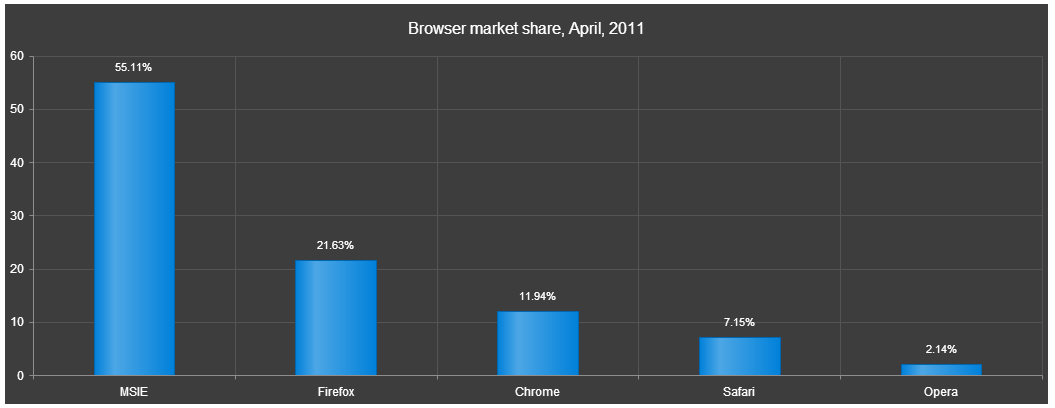
For the sake of this blog post i am going to fake some data about browsers market share. So initially i will show column chart for major browsers. Then on clicking each column i should be able to drill down into its specific data. I will create my data as a JavaScript array and use them for binding to chart. Here are my data array which i will use while binding to chart:

<script>
var chartInitialData=[
 {category:"MSIE",value:55.11},
 {category:"Firefox",value:21.63},
 {category:"Chrome",value:11.94},
 {category:"Safari",value:7.15},
 {category:"Opera",value:2.14},
 ];
 var msieData = [
 {category:"MSIE 6.0",value:10.85},
 {category:"MSIE 7.0",value:7.35},
 {category:"MSIE 8.0",value:33.06},
 {category:"MSIE 9.0",value:2.81},
 ];
</script>

As you can see, I have an initial data to bind to the chart. And also the drill down data. For the sake of simplicity i have only shown drill down data for one of the columns. At the end of this post i will give link to the code which will have drill down data for all the columns of the chart.

Step 3 – Initialize the Chart:

Now we are ready to initialize the chart and bind the initial data to it. Here is the code snippet for initializing the chart:

$(document).ready(function(){

 $("#chart").kendoChart({
 theme:"Black",
 title: { text: "Browser market share, March, 2014"},
 dataSource:{ data:chartInitialData },
 series: [{
 type:"column",
 field:"value",
 categoryField:"category",
 labels:{
 visible:true,
 template:"${value}%"
 }
 }],
 tooltip:{
 visible:true,
 template:"<center>${category}: <b>${value}% market share</b><br/>Click to see ${category} versions</center>"
 },
 });
 })

Let me go over the code once. I access an element with id “chart” and then initialize Kendo Chart on that element. I set the theme to Black. Then i provide a title to the chart. Next comes the data source and i create a Kendo.data.DataSource object and provide the value of chartInitialData to data property. Then I set the series as a column chart type. Next I set the value field and category field of the chart to corresponding column name from the data source. I also set the labels to be visible on top of each column. Lastly I set the tooltip to a custom template. Now if we run the code this is what we see:

Drill Down Chart

Drill Down Chart Initial Look


Step 4 – Handle Series Click:

Now that we have our chart initialized and see that the data is getting bound correctly, next step is to handle the series click. Series Click is an event fired when the user clicks on any columns in the chart. Chart API exposes a method called setDataSource(). So in order to achieve a drill down, handle the series click event and set a new data source to the chart. What this does is, it will repaint the chart area and provides the drill down effect. So here is the code snippet for the seriesClick event:

seriesClick: function(e)
 {
 var categorySelected = e.category;
 var chart = $("#chart").data("kendoChart");
 if(categorySelected === "MSIE")
 {
 chart.setDataSource(new kendo.data.DataSource({data:msieData}));
 }
 else if(categorySelected === "Firefox")
 {
 chart.setDataSource(new kendo.data.DataSource({data:ffData}));
 }
 else if(categorySelected === "Chrome")
 {
 chart.setDataSource(new kendo.data.DataSource({data:chromeData}));
 }
 else if(categorySelected === "Safari")
 {
 chart.setDataSource(new kendo.data.DataSource({data:safariData}));
 }
 else if(categorySelected === "Opera")
 {
 chart.setDataSource(new kendo.data.DataSource({data:operaData}));
 }
 else
 {
 //not handling the child level drill down - setting the chart back to original data source
 chart.setDataSource(new kendo.data.DataSource({data:chartInitialData}));
 }
 }

And thats all it is there to create a drill down with Kendo UI DataViz.

Here is a link to the source code of this demo: http://trykendoui.telerik.com/@kashyapa/eCEP/3.

The demo code is done using our Kendo UI Dojo. When you navigate to the demo page, left hand side will have the source code and right hand side will show the output. You will need to click on the Run button on the page to see the output.

Hope this demo helps somebody who want to achieve the same scenario.

Till next time – Happy Coding.

Indian Parliament

A New Govt. for India and New Tech for Techies in India

Congratulations to 1.2 bn Indians countrymen who participated in the elections to give ourselves a new Govt. It is exemplary that our democracy recorded over 66% voting. For perspective, USA voting percentage in Presidential elections of 2012 was 57%.

Telerik salutes all the responsible Indian citizens (esp. the youth) who voted and hope that the voting percentage would further increase in the next elections. For technologists, here are some fresh technical webinars that would get you started with the new technologies:

Date

Time (IST)

Title

May 22 2014

3:00 – 4:00 PM

Getting productive with ASP.NET MVC 5

May 29
2014

3:00 – 4:00 PM

Leveraging the Git Source Control for Enterprise Projects

June 12 2014

3:00 – 4:00 PM

Integrate Video and Photos in your ASP.NET applications with ease

June 19 2014

3:00 – 4:00 PM

Build Hybrid Mobile Applications for Nokia Lumia Devices

June 26 2014

3:00 – 4:00 PM

Mobilizing SAP with Telerik Platform

The webinars are free and can be attended from anywhere. Participate by registering for the webinars and attending them.


Resources for webinar “Integrating Knockout.js with Kendo UI”

On 24th April 2014 we hosted a webinar on Integrating KendoUI with Knockout.js. Now a days MV* patterns are most used patterns in almost all kind of applications. Knockout.js is one of the most popular library to achieve MVVM in JavaScript based web applications.

Learn more about Knockout.js here

Kendo UI provides complete capability to achieve MVVM. If you use Kendo UI, you don’t need to use any other JavaScript library to create applications based on MVVM or Single Page Application. In this webinar we tried to show you integration between Kendo UI and Knockout.js.

Learn more about Kendo UI here

Find below slides from the webinar,


Find below recording of webinar,


I hope you find this webinar useful.

Resources: Getting Intelligence in your web, desktop and mobile applications

Analytics-DataBeing an application developer means that you got to know how your app is being used in the wild by your customers. If you are a mobile app developer this is even more important allowing you to focus on the features that are most widely used.

Telerik Analytics provides you with a framework for application analytics to answer such questions. Telerik Analytics is available for iOS, Android, .NET, Windows Phone, Java, Web and COM applications.

Take a look at the below resources that would help you get started with gathering intelligence from your apps:

Slide Deck:

Video:

Telerik Test Professionals Conference 2014

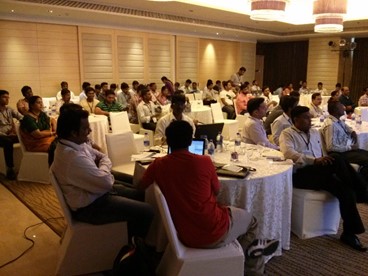
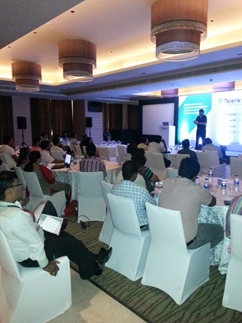
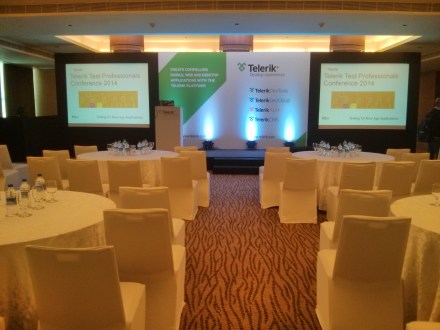
 mastheadTelerik India hosted the second Telerik Test Professionals Conference(TTPC)  for QA professionals in Chennai on 4th March 2014. A quick report on the TTPC 2013 edition can be found here. A pre-conference was also organised in Bangalore on Feb 28th. The event was aimed at sharing the best practices in automation testing with the test professionals. The attendees learnt to solve common automation testing problems during the event.

Telerik understands the value of class room teaching and in person conversation with experts to solve real life test automation problems. The presenters included Jim Holmes and Dhananjay Kumar. Jim Holmes is well known expert on Test Automation and he travelled from USA to India to conduct these workshops. Dhananjay Kumar is Developer Advocate with Telerik India.

The theme of the event was “Testing for New Age Applications”. True to the theme, strategies to enable testing for AJAX, web services and mobile applications were discussed in detail during the event.

The event saw a tremendous response from testers in Chennai with over 80 attendees from various organizations like HCL, CTS, Hexaware etc. This event covered complex testing automation problems and was conducted in the format of open discussions. Attendees discussed various automation testing issue from their projects and the presenters did a great job answering them by demonstrations.


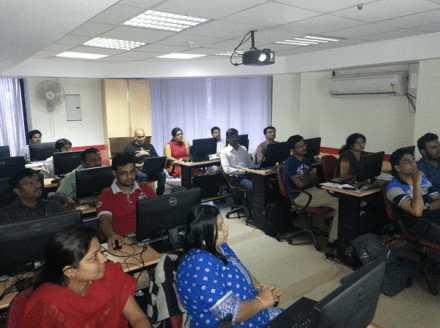
On 28th February we conducted the pre-conference workshop in Bangalore for six hours. Workshop was hosted in Manipal centre at MG road. There were 20 seats for the workshop and it was occupied by representative from well-known organizations like ITC InfoTech, Philips, PWG etc.

Bangalore workshop was aimed at manual testers and a step by step approach was followed to bring them upto speed on automated testing. The attendees appreciated the workshop and left the day equipped with the knowledge to confidently take up automated testing.

Some topics covered during the conference included:

  • Where UI Automation fits in
  • UI Automation basics
  • Getting Started With Telerik Test Studio
  • Creating hierarchy of tests
  • Test Design
  • Working with tables
  • Working with AJAX
  • Tests and Code
  • Data driving tests
  • Load & Performance Testing
  • Performance overview
  • Load Testing
  • Mobile Testing

In both events attendees learnt to solve common automation testing problems (some of them listed above) by working on the problems in the lab.

Some feedback about the event:

Telerik Session went very well. I have learned and Knew about test suite modules.” – T Satish KumarRoy, Steria

Good followup and event went on as per the agenda mentioned. ” – Ganesh Jayaraman, DuPont

the event was well organized and informative” – Vardhini, SelfServIT

Both workshops were well received by audience and there were many practical problems discussed and solved collaboratively. Curious attendees continued to engage with the presenters even after the day was over. All attendees were presented with a certificate of participation at the conclusion of the event.

We loved the experience of being able to converse with the quality professionals in person and hope to continue meeting them in various conferences and community events.

Resources for Webinar “One data for different kinds of Apps using Telerik Backend Services”

On Mar 13 we conducted a webinar titled “One Data for Different Kinds of Apps Using Telerik Backend Services”. This blog post is a recap of that webinar. You will find the slide deck and video recording from the webinar.

About Telerik Platform:

Telerik Platform is a modular platform that combines a rich set of UI tools with powerful cloud services to develop web, hybrid and native apps. With Telerik Platform you can do: Seamless prototyping & design, Build Cross Platform mobile applications, Comprehensive services to manage data, users and integrations, Perform automated cross platform mobile testing, Streamlined app publishing and Measure your app and user behavior.

image

You can know more about Telerik Platform here: http://www.telerik.com/platform

Slide Deck From Webinar:

Here is the slide deck that was used in the presentation:


Video Recording of Webinar:

As with every webinars we host, this webinar was also recorded. So if you missed attending the webinar live, don’t worry you can watch the webinar recording at your free time. Here is the recording of the webinar:

Webinar Giveaway:

Every webinar we do, we select 2 attendees and give them our Telerik .NET Ninja T-Shirt as a giveaway. In this webinar too we have 2 winners. Here is the lucky 2 who get our t-shirt:

  • Manoj Patel
  • Kalpana Thangavel

Congratulations to the winners. We will contact you and ship the t-shirts. Rest of you who did not win the t-shirt, don’t worry we still have a lot of webinars in 2014. So make sure you are there in our upcoming webinars and try your luck.

Till next time – Happy Coding.
Dynamic Values passing between test steps in Test Studio

Recently I was talking to a customer. He discussed a simple but important problem with me on test automation using Test Studio. He had a requirement to use values of variables from one test step in another test step.

To understand this problem in better way, consider below web application which is inserting data in database.

clip_image001

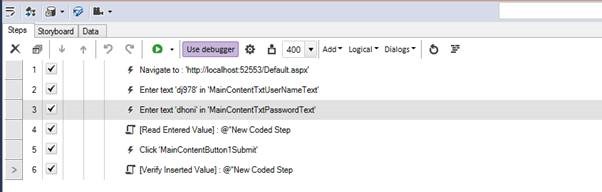
Let us try to understand this problem bit further. Suppose you have 6 test steps in test. In step2 user is typing UserName to be inserted.

clip_image003

To verify successful insertion of UserName in database, you need to do follow steps,

  • Read UserName inserted by user from step 2
  • Reading of username is done in step 4. So here you are reading value from step 2 in step4.
  • Use read value of step 4 to verify insertion in database.

In this post we are going to see how we can read variables value from one step in another step. In this case from step 2 to step 4 and then in step 6.

To use variable from one step in another you need Coded step. To add coded step select Test from menu and then Script Step from ribbon. In Visual Studio extension Coded Step can be added by clicking Add then selecting Coded Step.

clip_image001[6]

If you notice test steps in we have taken in example there are two test steps (step 4 and step 6) are coded steps. In step 4 we are reading user inserted value as below and assigning that to a public global variable.

clip_image003[6]

In step 4 (coded step) we read value from step 2 or in other words value from DOM element in which value got assigned in step 2. Now we need to read global variable value in step 6.

clip_image005

In this way very easily you can read variable values from one step in another step in a test project. I hope this post will help you. Thanks for reading.

Resources for webinar “Take your reports to any screen with Telerik Reporting”

On Feb 27 we presented a webinar on our Telerik Reporting suite. The webinar was titled “Take Your Reports to Any Screen with Telerik Reporting”. In this blog post we will recap the webinar for those of you who couldn’t not make it live.

Telerik Reporting:

image

Telerik Reporting is a lightweight reporting solution for all .NET cloud, web, and desktop platforms (ASP.NET, Ajax, Silverlight, WPF, Windows Forms, and Azure) which targets developers and end-users. Rich interactive and reusable reports can be created by developers in Visual Studio, and by end users in the desktop-based Report Designer. With the help of Telerik Reporting users can examine and probe data, export reports to Microsoft Office Word and Excel for further analysis, and even present them as PowerPoint documents.

To know more about Telerik Reporting check the product page here: http://www.telerik.com/products/reporting.aspx

Slide Deck:

Here is the slide deck used for the webinar:

Video:
We record all our webinars for the benefit of on demand viewing. So if you missed attending the webinar live don’t worry, here is the recorded video of the webinar:
 

Questions & Answers:

Q: Is it possible to convert existing reports in to this?
A: Telerik Reporting has conversion wizards for Crystal Reports, Active Reports and Xtra Reports.

Q: Is this compatible with ORACLE data source?
A: Telerik Reporting supports Microsoft SQL Server Analysis Services cubes, ADO.NET data sources, relational databases, business objects, ORMs and XML. So as long as ORACLE has a ADO.NET Data Provider we will support it.

Q: For Telerik reports do we need to take any other license like any telerik controls license with reports?
A: You can check our pricing section: http://www.telerik.com/purchase/individual/reporting.aspx

Q: What is the ReportBook?
A: You can read more about our ReportBook here: http://www.telerik.com/help/reporting/designing-reports-general-explanation.html

Q: Is there possibility to have chart and table is same report?
A: Yes. Chart and Table are what we call as Report Items. So they can be placed together and bind data accordingly. You can check our dashboard Reporting demos which showcase this.

Q: I have 5-10 reports with data displayed in different formats(table,graph…). I would like to apply same text font for all those reports. Is it possible?
A: Yes you can. You can use external style sheets to apply the same styles in different reports –  Exporting and Reusing Style Sheets

Q: is it possible to convert vs2010 local reports to telerik reports?
A: We do not have converters from SSRS reports, because there is a great difference in the reports’ structures.

T-Shirt Giveaway:

If you are a regular to our Telerik India webinars, you will know that we select 2 random names from the webinar attendee list and they get our cool Telerik .NET Ninja t-shirt. So here are the 2 winners from this webinar:

  • Rajan Thaora
  • Keerti Valmiki

Congratulations to the winners. We will contact you to get you address so that we can ship the t-shirt. Others don’t worry, you can try your luck in our next webinar.

Till next time – Happy Coding.

Vote for Telerik Webinars (March – April 2014)

It is election season in the country. As we host the largest democratic exercise in the world for the 16th Lok Sabha elections, it is the duty of every eligible Indian to cast his vote.

Image

Telerik India encourages its community to exercise their vote in the Lok Sabha elections. It is just not your right but also your duty.

And we are pleased to continue discharging our duty by bringing the latest technology webinars to you. Just like the results on May 16th will usher in the new Govt., development also has elected new paradigms – mBaaS, HTML 5 visualizations, App Analytics and MVVM. Our webinars will cover these emerging trends in March – April.

DATE TIME (IST) TOPIC
Thursday,
6 March
3:00 – 4:00 PM Unpeeling the Mobile Development with Telerik Platform Register »
Thursday,
13 March
3:00 – 4:00 PM One data for different kinds of Apps using Telerik Backend Services   Register »
Thursday,
27 March
3:00 – 4:00 PM Support Financial Charts, Sparklines & Maps in your HTML 5 powered web apps Register »
Thursday,
10 April
3:00 – 4:00 PM Add intelligence to your web, desktop & mobile apps with Application Analytics Register »
Thursday,
24 April
3:00 – 4:00 PM Using Knockout.js with Kendo UI Register »

This is the last series when we would be shipping the Ninja T-Shirts. Last chance to be the cool Ninja in the town too.

You can catch the archive of older webinars here: https://telerikhelper.net/category/webinars/

Devices as Test Agents in Telerik Mobile Testing

Telerik Mobile Testing is an automated testing solution for native, hybrid, and web apps. To discover more about this product, I would recommend reading Robert Shoemate’s blog post entitled, Introducing Telerik Mobile Testing, where he details our motivations for building the product along with its technical underpinnings. In this post, I’ll explain how to configure devices to integrate as test agents with this environment. As an example, we’ll explore to configure an Android device as test agent on a Windows machine. However, if you’re interested in learning how to perform testing against a native iOS app, make sure to check out Anthony Rinaldi’s blog post entitled, Telerik Mobile Testing – iOS Case Study.

Before I go ahead and show you how to add a device as Test Agent, let us try to understand few fundamental questions. For example,

  • What is a Test Agent?
  • Why we need Test Agent?
  • Why we need to add a real device as Test Agent?

Test Agent is a place in which you run the test. It could be a computer, emulator, simulator, browser or even a background process. Test Agent can be seen as an environment in which test gets executed.

Any serious mobile application should get tested before launching to various stores. As a tester you should or rather must test application on real devices. For instance consider Android platform, it has more than 1000 variations of devices and any serious Android application should be tested on some of them.  To test application on device you need to add them as Test Agent. Same challenges goes with iOS app as well. They run on various version of operating systems and you should test applications against almost all versions of OS.

Telerik Mobile Testing allows you to add devices as Test Agent. You can add any kind of Android or iOS devices and run test on them. You can add devices as Test Agent without jail breaking them and only requirement is that devices (Test Agent) and Test Runner should be connected to same Wi-Fi networks.

Telerik Mobile Testing allows you to add real devices and emulator as Test Agent at the same time. So any testing scenario in which application should be tested on device and emulator at the same time can be possible here.

image 

Following are the steps you need to follow to set up an Android device (Samsung Galaxy S3) as Test agent. However almost same steps you need to follow to add iOS app.

Step 1

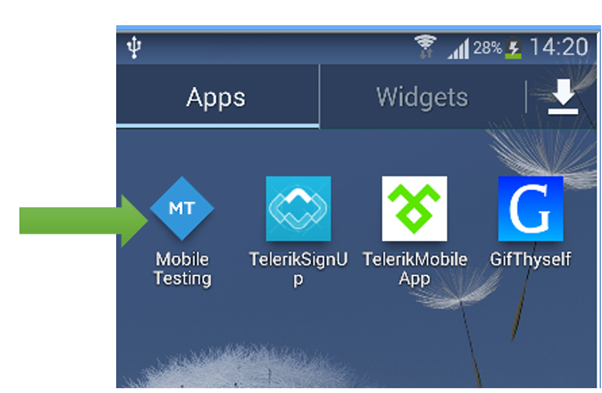
In order to test native and hybrid apps on a device, you need to download and install the Telerik Mobile Testing companion app for iOS (App Store) or Android (Google Play). Once installed, the app will appear on your device as follows:

image


Step 2

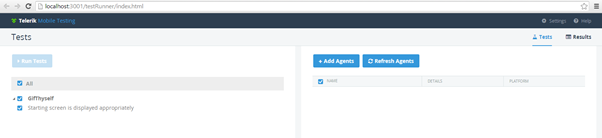
Download and extract the Telerik Mobile Testing archive to your machine. Navigate to Telerik Mobile Testing folder and run start_win.exe. This will launch the Test Runner with its default configuration and open a browser window that points to the Test Runner execution environment.


image


It will launch Test Runner in browser.

image


As of now you there is no Agent added to the Test Runner.

Step 3

Launch the Telerik Mobile Testing companion app on your device:

image

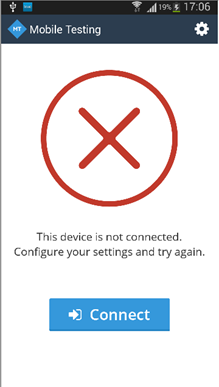
When launched, the app will be not connected to the Test Runner. To connect it to Test Runner, click on setting in Application. You will find setting option in top right.

image

In Setting you need to provide IP Address of machine in which Test Runner is running. You can find IP address of machine by running ipconfig command on command prompt in Windows devices. Ensure that you have provided port address as 8081.

image

Once you have provided Host as IP Adress of machine on which Test Runner is running (You can provide host name also) and port address as 8081, click on Connect to connect device with Test Runner.

image

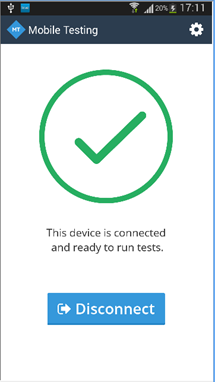
On successful connection you will get message in App as this device is connected and ready to run tests.

Step 4

Now you have device connected as Test Agent. To view it go back to Test Runner and click on Refresh Agents. You will find device has been added to Test Runner as Test Agent

image

Now you can select device as Test Agent and run the Application Test on real device. I hope this post will help you in setting up device as Test Agent with ease and explain you why you need to test application on real devices. Thanks for reading.

Resources from webinar Kendo UI Mobile Tips and Tricks

On Feb 13 2014 we conducted the webinar on “Kendo UI Mobile Tips and Tricks”. This blog post will provide you some of the resources from the webinar like Slide Deck, Video recording of the webinar.

Kendo UI Mobile

Kendo UI Mobile helps you to build Cross Platform Mobile or Hybrid Applications with pure JavaScript and HTML5.

Learn more about Kendo UI Mobile here

Slide Deck

Here is the slide deck from the webinar


Video

As with every webinar, we have recorded this one too. Here is the video recording of the webinar for your leisure viewing


Thanks for attending webinar.

Telerik India @ Devcon Kochi

Kerala Microsoft User Group or KMUG as we call it is one of the active User Groups in India concentrating on Microsoft Technologies. KMUG is lead by some of the enthusiastic professionals and good friends of mine. Every year they conduct a day long technology event called “DEVCON” short for Developer Conference. This year too DEVCON will be held on Feb 15 2014.

image

I am delighted to say that I will be representing Telerik in this developer conference. I will be presenting the following sessions at DevCon:

Talk: Develop ASP.NET MVC Applications faster with Kendo UI
Time: 10:15AM

This talk will be primarily to show how you can develop your ASP.NET MVC applications faster with the help of Kendo UI Wrappers for ASP.NET MVC. Kendo UI Wrappers bring in the concept of controls to your MVC development environment. If you are working on MVC technology do come attend this talk and see the wow factor we bring in with Kendo UI.

Hands on Lab: Hybrid Mobile Application Development with Kendo UI
Time: 01:45PM

Kendo UI Mobile lets you build Cross Platform, Adaptive Rendering Hybrid Mobile Application which can be packaged and run on any Mobile OS platform. Kendo UI Mobile will provide you with the mobile and tablet controls and you just need to have web skills to become a mobile developer. So do join me as I show you how to develop Mobile Apps with Kendo UI Mobile.

For more information on DEVCON, do visit the official website here: http://devcon14.k-mug.org/

If you are attending DEVCON, do bump into me and say hello. Just catch hold of me and lets discuss anything you would like to tell us.

I am excited for DEVCON. See you at DEVCON on Feb15.

Till next time – Happy Coding!