Resources for Webinar “Make Windows Forms speak the Windows 8 Modern UI design”

On September 5th we conducted a webinar on our RadControls for WinForms suite. The webinar was titled “Make Windows Forms speak the Windows 8 Modern UI design”. This is part of the ongoing webinar series we here at Telerik India have been doing almost every Thursday of the month. If you want to know our webinar schedule, take a look at this blog post: https://telerikhelper.net/2013/07/29/telerik-india-webinarsmonsoon-edition/

image

You can know more about our RadControls for WinForms suite here: http://www.telerik.com/products/winforms.aspx

About RadPanorama:

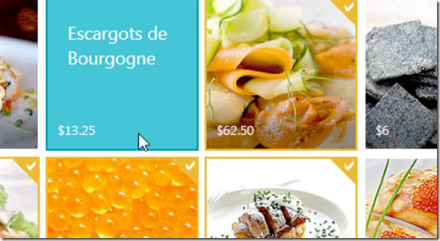
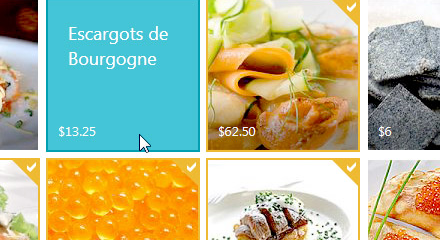
Telerik RadPanorama is a control that displays elements of type RadTileElement in a mosaic manner. Basically, this control allows you to represent a small amount of data in the form of tiles that the end-user is able to smoothly scroll left or right with a gesture, just like in Windows 8, and to reorder the tiles with drag and drop. With its help, in just a few minutes you can achieve Modern Style UI for your WinForms applications, similar to the Start Menu screen of Windows 8.

In the webinar I just showcased how you get started with the Panorama control. We looked at created groups, creating tiles within the group and also how to create live tiles. If you want to know more about the Panorama control, have a look at the control page here: http://www.telerik.com/products/winforms/panorama.aspx

Slide Deck:

Here is the slide deck used for the webinar:

Video Recording:
Here is the link to video recording of the webinar:

Questions & Answers:

As with every webinar, we might not have been able to answer all the questions that were asked during the webinar. We make it a practice to collate all questions asked during webinar and answer them in these recap blog posts. So here are the questions and answers from this webinar:

Q: Does this control work with windows form & even WPF i.e. xaml?
A: This webinar talks about our Panorama control for WinForms. We have a separate suite for WPF and it contains a similar control on XAML.

Q: Is there any limit for tiles in panorama?
A: No

Q: Will this work with Visual Studio2010?
A: Yes. It is supported on VS2010 environment also.

Q: Can we place tiles of one group to another group?
A: Yes. Control will automatically do that out of the box without any special coding.

Q: Can we do resizing of Tile?
A: At the moment we don’t have the capability to resize the tile similar to what Windows 8 OS provides. However during design time you can set the size of the tiles.

Q: Is it necessary to have .png format or any photo format like.jpeg or .gif will work?
A: Any image format will work. But PNG is preferred.

Q: Can we rotate the tiles ?
A: No. Moreover if you rotate you are violating the Modern UI design philosophy.

Q: If we have more tiles in a window will the scroll bar appears?
A: Yes. Panorama will automatically provide the horizontal scroll bar.

Q: The Tiles added can be independent of RadPanorama or it should be contained in it?
A: Tiles can be added directly to Panorama or can be added to the groups.

Ninja T-Shirt Giveaway:

In each of our webinars we give away 2 of our very popular .NET Ninja T-Shirts. We have picked the following 2 people from the webinar audience as the winners of our T-Shirts:

  • Farjana Parveen
  • Upendra M

Congratulations to the winners. We will get in touch with you to get your details and we will ship your T-Shirt. Rest of you folks, don’t worry – attend our future webinars to win a T-Shirt. We look forward to your presence in our future webinars.

Till next time – Happy Coding!

RadGrid

RadGrid and SqlDataSource control – Be Careful with your DataSource choice

Overview:

This blog post is in response to one of the customer queries we received a couple of days back. One of our India customer called us up and said that they are seeing slowness in couple of pages where they are using RadGrid. Problem statement was – when they click on “Add New Row” button it takes nearly 1.5 minutes for the row to appear on the grid. This made it even scary for them as they had moved the code to production. Through this blog post I will try to outline what I found out and what could have been done better to resolve the problem.

Analysis:

I went in to a call with the customer and took a look at their code. There were couple of things they were doing. Let me list them down:

  • DataSource for the RadGrid was a SqlDataSource control defined in the .ASPX page
  • They were handling OnItemCommand and OnItemDataBound. They had some logic in this method which would execute on every data bound and every item command
  • The new item template had lot of drop down lists and each of them were bound to SqlDataSource control as their data source.

Now, next thing I did was to take look at the timing. We used IE Developer Tools and captured the network traffic when Add New button was clicked. What I found out was, server was taking close to 10 seconds to finish its server side processing. That’s a lot of time if you ask me. What was surprising for them was, they had paging enabled on the grid. So they were thinking that paging is happening correctly but still why is the add new row scenario slow.

So this made me to delve little bit deeper into what exactly is happening in this scenario. So rest of this blog post is all about my observation. Read on if you have faced a similar problem.

Observations:

Did two experiments to figure out what was happening. First I use a RadGrid and bind it to SqlDataSource control and look at the query executed at the DB side. Second was to use entity data source instead of SQL data source and look at the query executed at the DB.

For my experiments I am using Northwind Database and in particular Order Details table. Order Details table contains nearly 2155 records. So this makes a good candidate to mimic a scenario where you are paging the RadGrid lets say 10 records per page.

I assume that you have RadControls for ASP.NET AJAX suite installed on your system. If not, you can always download from our products page – www.telerik.com/products/aspnet-ajax.aspx. You will need that if you want to follow along with this post. Also in order to trace the SQL Queries executed, I am making use of a open source tool called “Express Profiler” which is available at CodePlex here: http://expressprofiler.codeplex.com/. I had to use this as I have a SQL Server 2012 express edition and express edition does not come with Profiler option. You need a full blown SQL server to get the profiler.

I have created a RadControls Web Application for my experiments. When you install the RadControls for ASP.NET AJAX suite, you will get project templates in Visual Studio, using which you can create a web application.

SNAGHTML47a123f

Fig 1: RadControls Web Application Project Template

DataBinding with SqlDataSource control:

First experiment was placing a RadGrid and bind it to SqlDataSource control. I placed a RadGrid and set its basic properties.  Then added a SqlDataSource control to the page and set its connection string and provided a select command. Here is the code snippet for grid and SQL data source control:

 
    <telerik:RadGrid ID="RadGrid1" runat="server" 
                     DataSourceID="SqlDataSource1" 
                     AllowPaging="true" AllowSorting="true" 
                     AllowFilteringByColumn="true" AllowAutomaticInserts="True"
                     MasterTableView-EditMode="InPlace"  
                     MasterTableView-CommandItemDisplay="TopAndBottom" />
    <asp:SqlDataSource ID="SqlDataSource1" runat="server" 
                       ConnectionString="<%$ ConnectionStrings:NorthwindConnectionString %>"
                       ProviderName="System.Data.SqlClient" 
                       SelectCommand="SELECT * FROM [Order Details]" />

Analyzing the queries:

Now, before you run the application, lets get ready to trace the SQL queries that get executed. You should have downloaded the Express Profiler. Start the express profiler – Set the server details, select the authentication mechanism and finally select the events you want to trace. Here is the screen shot:

SNAGHTML4aaebbd

Fig 2: Express Profiler Settings

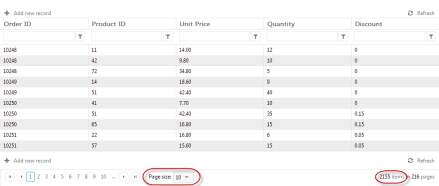
Run the web application. Notice that if we just set AllowPaging=true on RadGrid and do not provide a page size, by default RadGrid puts 10 as the PageSize. So in my case I should see only 10 rows on my first page of the RadGrid. Here is the Grid output:

image

Fig 3: RadGrid output

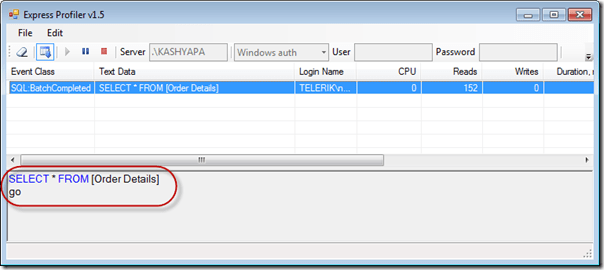
When I ran the app and looked at the trace, here is what I get:
SNAGHTML4af9b0f

Fig 4: SQL Query Trace for SQL Data Source Control bound to RadGrid

What you see here is a call to retrieve all the records from the table. You may be asking but the page size is set to 10. That is correct but what really happens is this: RadGrid will go ahead and ask SQL Data Source to get the data. SQL Data Source will blindly execute the query that has been set for the select command. RadGrid will not be able to do any tinkering with query because the SQL Data Source does not provide us a chance to put paging related statements.

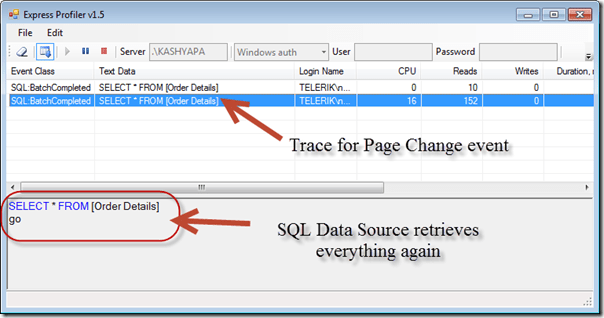
Now lets do a page change on the grid. I will go ahead and click on Page 2.  RadGrid will now navigate to Page 2. Here is the trace that is generated for this:
SNAGHTML4c8b053

Fig 5: SQL Trace for Page Change Event

What you notice is, the SQL Data Source goes ahead and brings all the records from the table. RadGrid will then pick up only the second page rows and displays it.

Now lets go ahead and click on the Add New Row button and trace the query executed:

SNAGHTML4cdbf80

Fig 6: SQL Trace for Add New Record Event

As you can see it again retrieves all the records from the table.

What this tells us is the time taken is due to the fact that its going and getting all the table records no matter whatever is the situation we have. Now hitting DB and getting everything does call for some time although small but it till takes up time on the server.

Now lets do the same experiment but with Entity Data Source.

DataBinding with Entity Data Source:

I will use the same data grid but instead of SQL Data Source I will use a Entity Data Source. In order to work with Entity Data Source, you need a Entity Data Model. I will not get into how to create a Entity Data Model but assume that you know how to do it. Just create a ADO.NET Entity Data Model and generate the models from the database and use the same Northwind database. Once you have the ADO.NET Entity Data Model created, create a Entity Data Source on the page. Here is the Entity Data Source code snippet that I have:

 
<asp:EntityDataSource ID="EntityDataSource1" runat="server" 
                          OnContextCreating="EDS_ContextCreating" 
                          EntitySetName="Order_Details" />

I am making use of the OnContextCreating event to set the DbContext of ADO.NET Data Model to Entity Data Source ObjectContext. Here is the code for the event handler of OnContextCreating:

 
protected void EDS_ContextCreating(object sender, EntityDataSourceContextCreatingEventArgs e)
{
    var db = new NORTHWINDEntities();
    e.Context = (db as IObjectContextAdapter).ObjectContext;
}

Here NORTHWINDEntities is my Entity Data Model context. I am just casting it to ObjectContext since Entity Data Source works with ObjectContext. I set this entity data source as the data source of the RadGrid.

Analyzing the Queries:

Now lets run the app and trace SQL queries for the same set of actions we did with SQL Data Source control.

First, on page load:
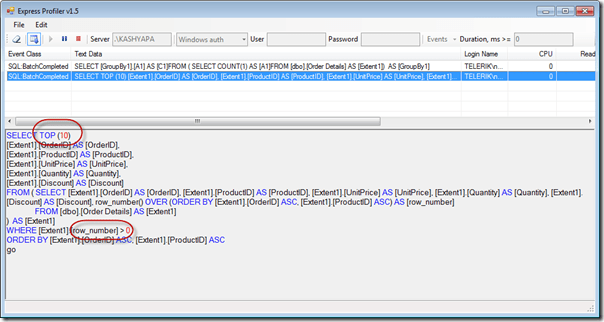
SNAGHTML509e74c

Fig 7: Entity Data Source – Page Load – Query Trace

As you can see we have put in a “SELECT TOP 10” statement in the query. So its not bringing all 2155 records rather only 10 records. So time spent to do this will be very negligible. We also execute one additional query to get the total record count.

Now lets see what happens when we do a paging:

SNAGHTML50e4016

Fig 8: Entity Data Source – Paging – Query Trace

Now, lets trace the query when we do ‘’Add new record” scenario:

SNAGHTML50fd88d

Fig 9: Entity Data Source – Add New Record – Query Trace

Notice that, in this scenario, we automatically page to the last row and add a blank record.

As you can see from the above experiments, RadGrid is intelligent enough to optimize the queries based on the scenario you are dealing with.

Conclusion:

It was very evident from the experiments that if you are using SQL Data Source as your data source choice, there is not much RadGrid can do to optimize the query before it gets executed. Where as with Entity Data Source, RadGrid is smart enough to optimize the query and always have a optimized data fetch. I personally recommend using an ORM in the project for the data access scenarios and use the Entity Data Source as your data source choice. We i.e at Telerik have a free ORM called OpenAccess. Its free for life so you can pretty much use this in your production without any hassle at all. Do give it a try and let us know how you feel about it.

I hope this blog post does give you information on things you need to take care while doing data binding to Grids. This is just not in particular to RadGrid, this is mostly about any data binding scenario. Trace your queries and be sure that write and optimized queries are getting executed in your apps.

Till next time, Happy Coding.

How to insert data in Icenium Everlive using KendoUI DataSource

Read about Icenium here

Read more about Kendo UI DataSource here

Icenium Everlive is Backend as a Service offering from Telerik. In this post we will take a look on how easily KendoUI DataSource can be used to fetch data from Icenium Everlive.

Read : How to fetch data from Icenium Everlive using KendoUI DataSource

To start with, in Everlive I have created a content type with name Session. In Everlive Content type represents a data type or loosely I can say it represents a table. I have created content type with name Sessions. Now we need to insert and item in Sessions content type using Kendo UI DataSource.

Very first we need to add reference of Everlive as below,


<script src="scripts/everlive.all.min.js"></script>

After adding reference create instance of Everlive as below. You need to pass Everlive application key as parameter while creating instance of Everlive. You will find application key on Everlive portal.


var el = new Everlive('W1286lVOH0DXYZ');

Now you will be amazed seeing how easily you can insert item in Session content type using Kendo UI DataSource. Before creating an item or inserting an item, create Kendo UI DataSource as following.


var sessionDataSource = new kendo.data.DataSource({
 type: 'everlive',
 transport: {
 typeName: 'Sessions'
 },
 schema: {
 model: { id: Everlive.idField }
 }

});

While creating Kendo UI Data Source, we need to set following

  • type as everlive
  • In transport typeName as content type name. You need to provide name of the content type which data items you want to fetch. In this case we want items of Sessions content type so typeName is Sessions

Once Kendo UI DataSource is created, you need to create item to be inserted in Everlive . So let us go ahead and create item for Sessions content type as following,


var sessionItemToAdd = {
 'Name': 'Cloud',
 'Time': '09:00-10:00',
 'Level': '300',
 'SpeakerName': 'dj',
 'HallName': 'A',
 'Date': '3rd Oct',
 'Day': 'Day 1'

};

Now you have item to be inserted. Next add this item to DataSource using Add method. After adding that call sync() method on DataSource. You can achieve adding and syncing with Everlive server as given in below code,


sessionDataSource.add(sessionItemToAdd );
 sessionDataSource.sync();
 console.log("data inserted");

Putting above discussion all together, below function will add an item in Sessions content type.


function addSessions() {
 console.log("Entering");
 var sessionDataSource = new kendo.data.DataSource({
 type: 'everlive',
 transport: {
 typeName: 'Sessions'
 },
 schema: {
 model: { id: Everlive.idField }
 }

});
 var sessionItemToAdd = {
 'Name': 'Cloud',
 'Time': '09:00-10:00',
 'Level': '300',
 'SpeakerName': 'dj',
 'HallName': 'A',
 'Date': '3rd Oct',
 'Day': 'Day 1'
 };

sessionDataSource.add(sessionItemToAdd);
 sessionDataSource.sync();
 console.log("data inserted");
 }


This is the way you can add an item in Everlive content type. I hope you find this post useful. Thanks for reading.

How to change Build Settings in Icenium

Learn more about Icenium here

In Icenium you have two Build Settings, they are as follows

  1. Release
  2. Debug

While developing apps you should have Build Settings set to debug whereas before publishing it to store, you should set it to Release. In this post I will walk you through how to change Build Settings.

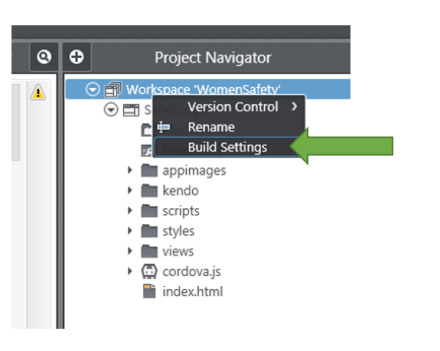
To change Build Settings, right click on project workspace and then select Build Settings option from context menu.

image

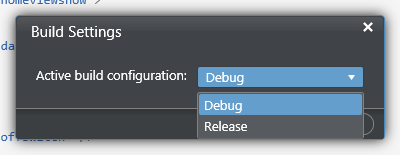
Next you get options to change Active build configuration. From drop down you can change Build Settings.

clip_image001

Just we learnt that it is very easy to work different Build Settings in Icenium. I hope you find this post useful. Thanks for reading.

Learn more about Icenium here

How to fix ButtonGroup at the top in KendoUI Mobile View

Learn more about Kendo UI here

Recently, I was working on one of the requirement in which I had following widgets in same mobile view.

  1. Kendo UI Mobile ListView
  2. Kendo UI Mobile ButtonGroup

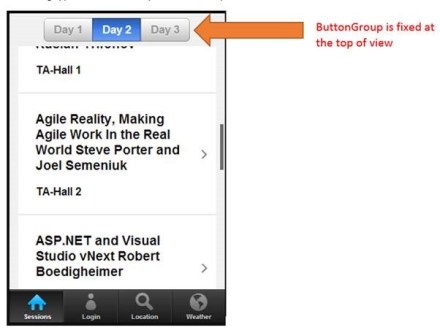
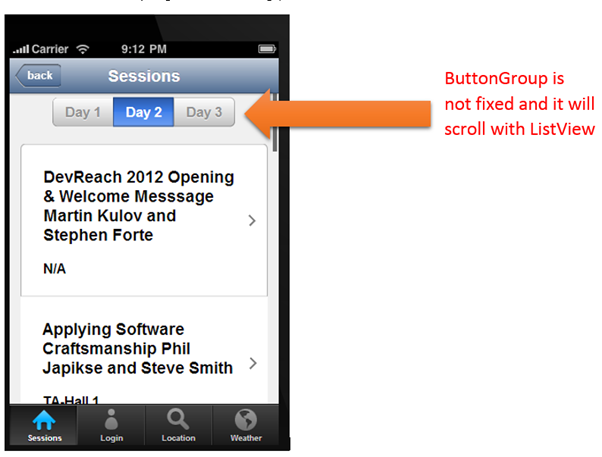
I had to fix position of ButtonGroup always on the top. To explain it more let us suppose there are a ListView and ButtonGroup as given in below image,

image

I have created above view with following code


<div data-role="view" data-title="Sessions" id="sessionview" data-show="getSessions">

 <ul data-role="buttongroup" data-index="1" data-select="onSelect">
 <li>Day 1</li>
 <li>Day 2</li>
 <li>Day 3</li>
 </ul>

 <ul id="sessionList"
 data-source="sessionDataSource"
 data-endlessscroll="true"
 data-template="sessionTemplate"
 data-role="listview"
 data-style="inset">
 </ul>

</div>

Only problem in above implementation is that, ButtonGroup is not fixed and when you scroll ListView it will scroll with ListView.

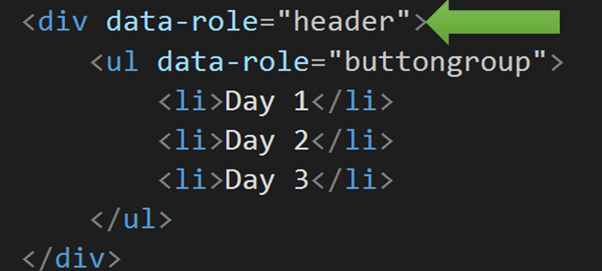
Fixing this or rather achieving this is quite simpler, what all you need to do is to put ButtonGroup inside a header. Essentially you need to do following,

image

Now I have modified implementation as below to achieve ButtonGroup at fixed position


<div data-role="view" data-title="Sessions" id="sessionview" data-show="getSessions">

 <div data-role="header">
 <ul data-role="buttongroup" data-index="1" data-select="onSelect">
 <li>Day 1</li>
 <li>Day 2</li>
 <li>Day 3</li>
 </ul>
 </div>
 <ul id="sessionList"
 data-source="sessionDataSource"
 data-endlessscroll="true"
 data-template="sessionTemplate"
 data-role="listview"
 data-style="inset">
 </ul>

</div>

On running application ButtonGroup is fixed at the top.

clip_image002

I hope you find this post useful. Thanks for reading.

How to fetch data from Icenium Everlive using KendoUI DataSource

Read about Icenium here

Icenium Everlive is Backend as a Service offering from Telerik. In this post we will take a look on how easily KendoUI DataSource can be used to fetch data from Icenium Everlive.

Read more about Kendo UI DataSource here

To start with, in Everlive I have created a content type with name Session. In Everlive Content type represents a data type or loosely I can say a table. I have created content type with name Sessions. Now we need to fetch all the items from Sessions content type using Kendo UI DataSource.

Very first we need to add reference of Everlive as below,


<script src="scripts/everlive.all.min.js"></script>

After adding reference create instance of Everlive as below. You need to pass Everlive application key as parameter while creating instance of Everlive. You will find application key on Everlive portal.


var el = new Everlive('W1286lVOH0DXYZ');

Now you will be amazed seeing how easily you can fetch all the items from Session content type using Kendo UI DataSource. Only you need to provide type as everlive and in transport typeName as name of Everlive Content type.


var sessionDataSource = new kendo.data.DataSource({
 type: 'everlive',
 transport: {
 typeName: 'Sessions'
 },
 schema: {
 model: { id: Everlive.idField }
 }

});

While fetching data from Everlive using Kendo UI Data Source, we need to set following

  • type as everlive
  • In transport typeName as content type name. You need to provide name of the content type which data items you want to fetch. In this case we want items of Sessions content type so typeName is Sessions

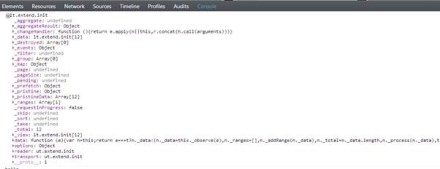
You can verify in any debugger console that data is fetched from Everlive in Kendo UI DataSource.

clip_image002

Now once you have data at the client side you can use them as of your requirement. You can bind that ListView , GridView etc. I hope you find this post useful. Thanks for reading.

Icenium Workshop in Pune

View event photos here

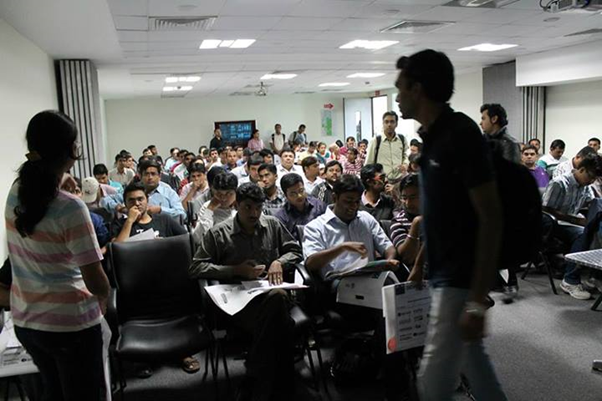
Telerik India conducted a full day Icenium Day in Pune on 26th Aug 2013.

clip_image002

It was invite only event and 30 energetic developers attended full day workshop on Icenium. There was high energy discussions around native v/s hybrid, JavaScript or C# etc. It was great gathering of prominent and opinionated developers.

We started day with introduction of Icenium and setting up development environment on participant machines. Some of the participants preferred to work on Icenium MIST, so they did not need any installation.

clip_image004

Whole day we covered following topics,

  • Why Cross Platform Mobile Application
  • Getting started with Icenium
  • Creating your first Cross Platform App
  • Managing Certificates in Icenium
  • Debugging with Live Sync
  • Understanding version control and Github integration
  • Building and packaging App
  • Publishing Apps to store
  • Working with Kendo UI Framework elements like DataSource and Template
  • Consuming Services like OData
  • Understanding layout , transition etc
  • Working with Icenium Everlive

This was Hands on Lab workshop and all participants wrote codes for whole day with sheer passion.After successful completion of labs each participant got a participation certificate.

clip_image002[6]

It was energetic learning day. We loved developers from Pune and excited to visit city again with more sharing on goodness of Telerik.

clip_image004[6]

View event photos here

Resources for Webinar Integrating Coded Steps in Telerik Test Studio

Learn more about Test Studio here

On Aug 22 we conducted a webinar titled “Integrating Coded Steps in Telerik Test Studio”. This is part of the ongoing webinar series we here at Telerik India are doing targeting the APAC region. We call this the Telerik. .NET Ninja Developer Webinar series. You can take a look at the Aug-Sep schedule here

image

Slides deck of webinar is here,


For those of you who missed attending the webinar live, we have it covered for you. We record all our webinars and so was this one. Here is the recording of the webinar:


Telerik Ninja T-Shirt Giveaway:

We select 2 person from the webinar attendees and give away our .NET Ninja T-Shirt in each of our webinars. We have picked up 2 lucky persons in this webinar too. They are:

Farjana Parveen

swati gagare

Congratulations to the winners. We will be contacting you shortly and we will ship your t-shirts.

Excited to see you in next webinar

Telerik India at PUG DevCon 2013

It was 10th Anniversary of India’s one of the most prominent Microsoft User Group and as always Pune User Group did not disappoint. PUG delivered packed two days event with more than 300 attendees and 25 speakers.

More about event here

Telerik loves community and as part of our community engagement, Telerik India team participated in event.

image

We had a booth for both days and we had great interaction with Pune community. We loved the passion of community and discussion went on the topics ranging from Cross Platform Mobile Apps to Automate Testing. I and Telerik India country manager Abhishek Kant both presented in event.

Mr Kant presented on SPA with Kendo UI and I presented on Backend as a Service with Everlive. We gave away Ninja T-Shirts and one lucky winner got a Karbon Android tablet.

I loved passion being shown my developers around Kendo UI and Icenium .

image

If you were at the event and want any further discussion or demo, do not hesitate to reach us through our site or send us a mail on Dhananjay.kumar@telerik.com or abhishek.kant@telerik.com

Push Notification on Android device using Icenium Everlive

Download sample used in this blog post from Github

Learn more about Icenium

In this post we will walkthrough working with Icenium Everlive Push Notification on an Android device. This post is divided in three parts from creating Google project to writing JavaScript code to enable notification on device.

Let us follow following steps to get it started with push notification on android devices

Step 1: Configure or Create Google Project

You need to start with creating Google Project. You need Google project ID to enable Push Notification.

  • Navigate to https://code.google.com/apis/console
  • In drop down you get an option to create a new project. From there create a new project
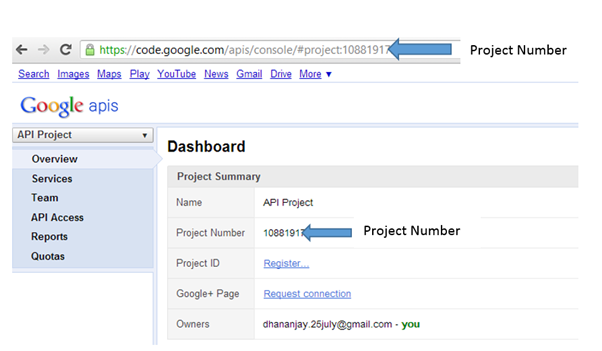
  • After creating project, you will get project number. There are two ways you can find project number, either in URL or on dashboard

image

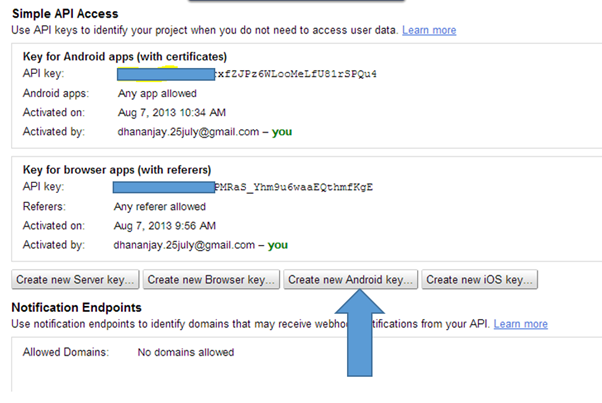
After creating Google project, from left hand options select API Access. In that go ahead and click on Create a New Android Key. We need Android key at Everlive server side to enable Push Notification

image

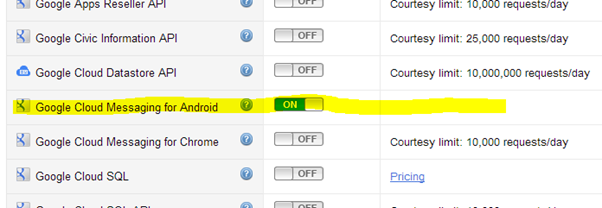
After getting Android key next step you need to do to enable Service. To enable that click on Services in left and On Google Cloud Messaging for Android.

image

As of now we have created Google Project.

Step 2: Create and Configure project in Icenium Everlive

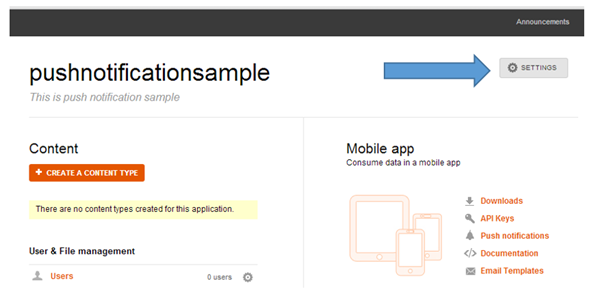
To create Icenium Everlive project, navigate to https://www.everlive.com/ . To create new project click on Create New Project on the home page. After successful creation of project go to Settings

image

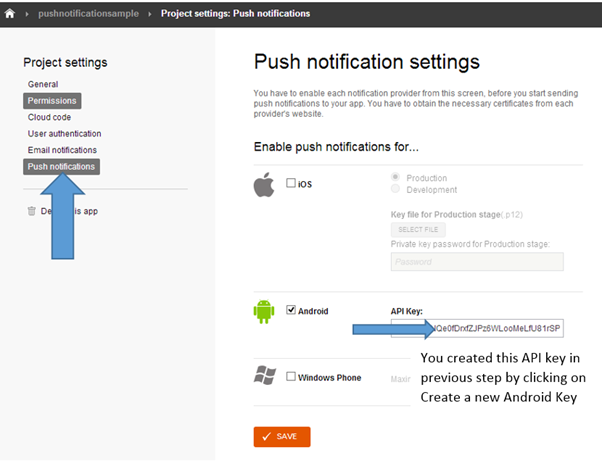
In Settings select Push Notification from left menu options. We are going to enable Push Notification for Android, so check the check box of Android and provide Android Key created in previous step.

image

Step 3: Create Application

In this step we will create application to work with push notification. We will us EverLive JavaScript SDK. You can download sample Sample App from GitHub here

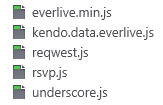
To start with you need following JavaScript files in your application. You can get these files from downloaded sample.

image

Now to start with, you need EverLive API key of your project and android project number. You will find API key on EverLive portal and android project number which you configured in step1 of this post.

image

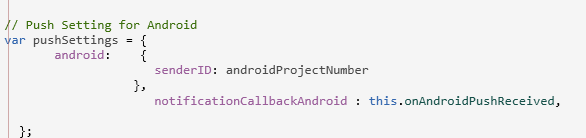
As of now we have created environment in application to work with EverLive SDK for PushNotification. Next we need to create pushSettings for Android. You may notice that we are passing androidProjectNumber to create push setting for android.

image

Next you can enable notification on device by calling enableNotifications function and passing setting for push notification as input parameter in that. On successful enabling we are returning registration of device.

image

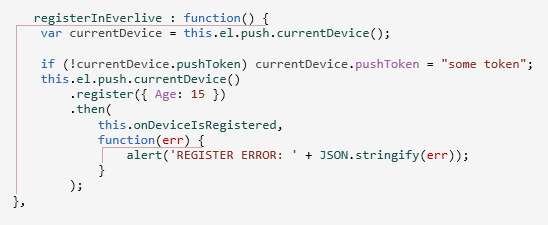
After enabling notification on device you need to register device in Everlive portal. To do this call register function on instance of current device.

image

These are two operations you need to perform to get push notification on android device from Everlive push notification. I have created two buttons on app view to enable notification on device and then register device to get push notification. View with buttons are as follows,

 <div data-role="view" id="pushview" data-tile="Push" data-model="app.pushService.viewModel" >
 <a id="initializeButton" data-role="button" data-bind="click: enablePushNotifications" class="btn-big">Enable Notifications</a>
 <a id="registerButton" data-role="button" data-bind="events: { click: registerInEverlive }" class="btn-big">Register</a>

 </div>

Below find full code to enable and register device for push notification.


(function (global) {
 var everliveApiKey = 'I1eE4AuOaWv0Vp5y';
 var androidProjectNumber = '1088191728786';
 var emulatorMode = false;

var pushViewModel = kendo.data.ObservableObject.extend({

el: new Everlive({
 apiKey: everliveApiKey
 }),

message: function () {
 alert("dhananjay");
 },

onAndroidPushReceived: function (args) {
 alert('Android notification received: ' + JSON.stringify(args));
 },
 enablePushNotifications: function () {
 // Push Setting for Android
 var pushSettings = {
 android: {
 senderID: androidProjectNumber
 },
 notificationCallbackAndroid: this.onAndroidPushReceived,

};
 // Setting the current device
 var currentDevice = this.el.push.currentDevice(this.emulatorMode);
 currentDevice.enableNotifications(pushSettings)
 .then(
 function (initResult) { return currentDevice.getRegistration();
 },
 function (err) {
 alert("ERROR!<br /><br />An error occured while initializing the device for push notifications.<br/><br/>" + err.message);
 }
 );

&nbsp;
 },
 registerInEverlive: function () {
 var currentDevice = this.el.push.currentDevice();

if (!currentDevice.pushToken) currentDevice.pushToken = "some token";
 this.el.push.currentDevice()
 .register({ Age: 15 })
 .then(
 this.onDeviceIsRegistered,
 function (err) {
 alert('REGISTER ERROR: ' + JSON.stringify(err));
 }
 );
 },
 onDeviceIsRegistered: function () {

alert("device registered");
 }

&nbsp;
 });

app.pushService = {
 viewModel: new pushViewModel()
 };

})(window);

&nbsp;

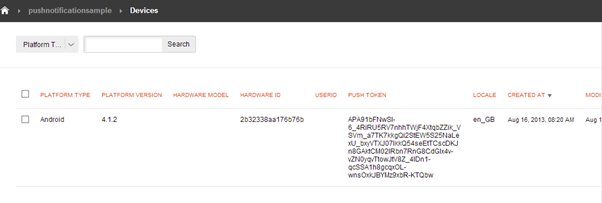
After successful operations on device, you will find device is registered in Everlive portal as below. All device registered for application will be listed here.

image

Now you can send push notification to device from portal. Device is enabled and registered to receive push notification from the Icenium Everlive server. We just witnessed that it is so easy working with push notification on Android devices from Icenium Everlive server. I hope you find this post useful. Thanks for reading.

Download sample used in this blog post from Github

Learn more about Icenium

RadTileList

Resources for Webinar “Modern UI in ASP.NET Applications using RadTileList”

On Aug 8 we conducted a webinar “Modern UI in ASP.NET Applications using RadTileList”. This is part of the ongoing webinar series we here at Telerik India are doing targeting the APAC region. We call this the Telerik .NET Ninja Developer Webinar series. You can take a look at the Jun-Jul schedule here: https://telerikhelper.net/2013/05/24/telerik-webcasts-june-july/.

image

About RadTileList:

Build modern, Windows-8-like navigation easier and faster. With its first version the TileList control supports out of the box:

  • Single and multiple selection
  • 4 tile types: image, text, image and text, and template tiles
  • Peek templates and animations
  • Drag to reorder
  • Tile groups and more

Slide Deck:

Here is the slide deck from the webinar:


Webinar Video:

Here is the recorded video of the webinar:

Questions & Answers:

As with all the webinars, we too had a bunch of questions in this webinar too. We answered a few and we couldn’t answer many of them. So we will try to answer as much questions as possible here:

Q: Any size restriction for the Image and Text tile?
A: The tiles are of 2 types – – Wide and Square. Wide tiles have a dimension of 350x150px and Square tiles are of 150x150px dimension.

Q: we can use any type of image?
A: Yes. Any image types can be used in the Image tiles.

Q: Difference between ContentTemplate and Text Tile?
A: You can take a look at the Tiles overview here: http://www.telerik.com/help/aspnet-ajax/tilelist-tiles-overview.html

Q: Image and Text Tile, title will always be at bottom or we can arrange the position?
A: The Title is always at the bottom. You cannot customize that.

Q: Can we format text in the image and text tile control?
A: Yes. The content text of the tiles can be customized.

Q: Can the badge be mapped to any other page say a link?
A: No. The linking is on the tile itself. The Modern UI philosophy is all about using the Tiles as a navigational item. The Badge is used as a additional information display.

Q: Whether Tile can be customized to various size?
A: No. The tiles come in two dimension: Wide – 350x150px and Square – 150x150px.

Q: Can these tiles be resized?
A: No. They come in standard dimension as per the Modern UI guidelines – Wide and Square.

Q: can we use effects the way tile appears?
A: Yes. We have the concept of Peek Templates. Peek Templates have settings which control how the template should appear. You can find more info here: http://www.telerik.com/help/aspnet-ajax/tilelist-tiles-peek-template.html

Q: what all languages you support in RAD?
A: C# and VB.NET

Q: We have Telerik license for developers. Do we need to install it on production server also ?
A: No. the app build will contain all that is required for Telerik controls to work. No need to install it on production server.

Q: Can I change the positions of Title and Badge ?
A: No. This is as per the Modern UI guidelines and it dictates that the Title and Badge have to be in the lower portion of the tile.

Q: I am curious about its interoperability along with several other controls in Telerik?
A: You can work with this control programmatically too. You can wrap this control and create your sub classed controls too.

Q: Can I use RadTilelist control in sharepoint 2010/2013 applications?
A: All of our ASP.NET AJAX controls suite is SharePoint compatible. You can use our AJAX controls in custom WebParts and host them in Sharepoint.

Q: If the content exceeds the height of the content tile how we have to control the text flow?
A: As per the design principles, when using ContentTemplate Tile, the text or content you provide should be a short and informational text. You can use CSS to control the overflow – but then it will bring in the scroll bars and the whole tile concept wont look good.

Q: How it works in Desktop app UI design. We don’t deal much with Web app coding?
A: We have Windows Presentation Foundation control suite and Windows Forms controls suite for desktop applications. WPF has TileList control and Windows Forms has RadPanirama control. Both of these controls help you build a Modern UI like navigation using Tiles in your windows applications.

Q: Once Tiles are re-arranged,, whether this can be persist or re-set after page refresh?
A: Yes. The selections can be persisted. You can integrate with the RadPersistenceFramework.

Q: Is this also part of ASP.net MVC?
A: No. This is part of ASP.NET Webforms.

Q: how to resize the tile as in windows 8 using rad controls?
A; At the moment we don’t support resizing.

Q: Can we bind these values to some data source so that frequently that can be refreshed, like we have in Mail tile in Windows 8?
A: Yes absolutely. You can do that certainly.

Q: Am using Telerik controls version: 2013.1.403.40, but this doesn’t contain Rad tile List control in toolbox?
A: This was released as part of our Q2 release. So upgrade yourself to 2013 Q2 release and you will see the control.

Q: do we documentation available for RadTileList ?
A: Yes very much. You can find the documentation here: http://www.telerik.com/help/aspnet-ajax/tilelist-overview.html

Q: Can Tile be created as dynamic as similar to number of rows in Grid?
A: Yes. You can programmatically create the Tiles too. You don’t have to place them on designer like the way I did in the demo.

Q: Why is it called RADControls?
A: RAD stands for Rapid Application Development. We help you build things faster. We help you improve your productivity through our controls. Our controls contains out of the box many features that otherwise you will need to build them by yourself.

Q: can we create a link on image to redirect to another page?
A: All the tile types support NavigateUrl property which when set, clicking the tile will navigate to that page.

Telerik .NET Ninja T-Shirt Giveaway:

We select 2 persons from the audience in every webinar and give away a Telerik .NET Ninja T-Shirt. So from this webinar we have randomly selected the following 2 persons:

  • Himanshu Garg
  • Kothainayaki Krishnamoorthy

Congratulations to the winners. We will be contacting you shortly to get your postal address. We will ship you your T-Shirt soon. Rest of the folks, don’t worry we have a lot of webinars coming up. So try your luck in next webinars.

Till next time – Happy Coding.

MVVM using Kendo UI in three simple steps

Learn more about Kendo UI here

Find sample used in this blog on JSFiddle

Yes I know you love Kendo UI and you love MVVM as well. There are many libraries out there like Knockouts to help you creating HTML5 Apps adhering to MVVM pattern. In this post we will learn to create a simple application using MVVM.

Step 1: Create View Model

ViewModel can be created using Kendo.observable. Object of Kendo.observable will notify any changes to view. Let us create a studentViewModel as below.


var studentViewModel = kendo.observable({
                          name: "Dhananjay Kumar",
                          age : 30 ,
                          sayHello: function () {
                              var name = this.get("name");
                              var age = this.get("age");
                              alert("Hello, " + name + "You are" + age + "Years Old") ;
                                               }
                             });

studentViewModel contains two properties and one method sayHello.

Step 2: Create View

In second step let us go ahead and create View. You need to bind ViewModel to view.


<div id="studentview">
          <input data-bind="value: name" />
          <input data-bind="value: age" />
          <button data-bind="click: sayHello">Say Hello</button>
 </div>

Above in studentview , we are binding value of input types and click of button. There are many other HTML properties can be bind using Kendo UI MVVM like Text , Value , Visible , Html etc.

As you see we are using data-bind property to perform binding.

Step 3: Binding View and ViewModel

Third and final step you need to do is to bind View and ViewModel. Either you can bind ViewModel to a particular view (in this case div with id studentview) or you can bind ViewModel to any DOM element using body. Binding can be done as follows,

 kendo.bind($("#studentview"), studentViewModel);

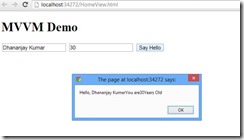
This is all what you need to do to start creating HTML 5 Apps adhering MVVM pattern using Kendo UI. When you run app, you shall get expected output as below,

clip_image002

Last but not least do not forget to add references of KendoUI library in your project.

Find sample used in this blog on JSFiddle

I hope you find this post useful. Thanks for reading.

Learn more about Kendo UI here

Raise a support ticket for that

Sometimes customers need more help that is possible over a phone call or a demo. These cases are the ones that require more investigation or may fall outside the expertise of the person conducting the demo.

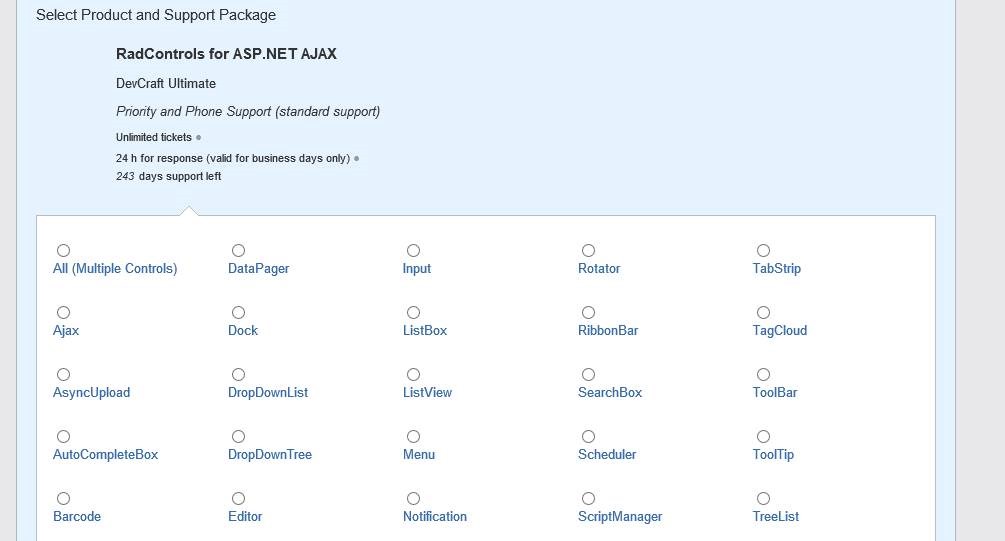
Now, if you have faced the dreaded comment – “Please raise a support ticket for that” here is how you can do the same:

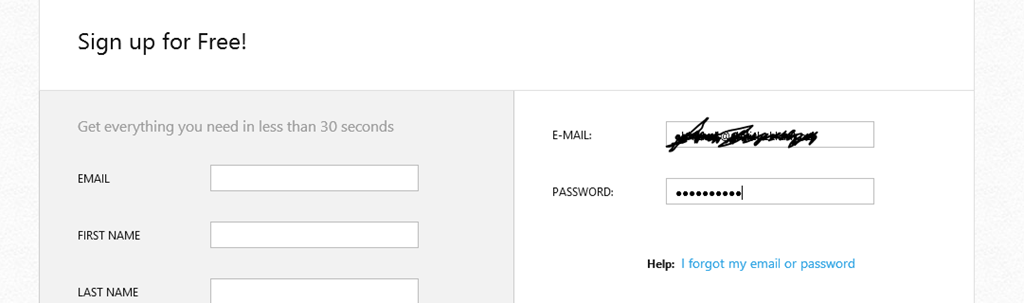
  • Login to your account (trial/ paid) on telerik.com:

image

image

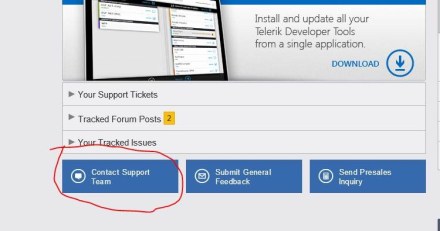
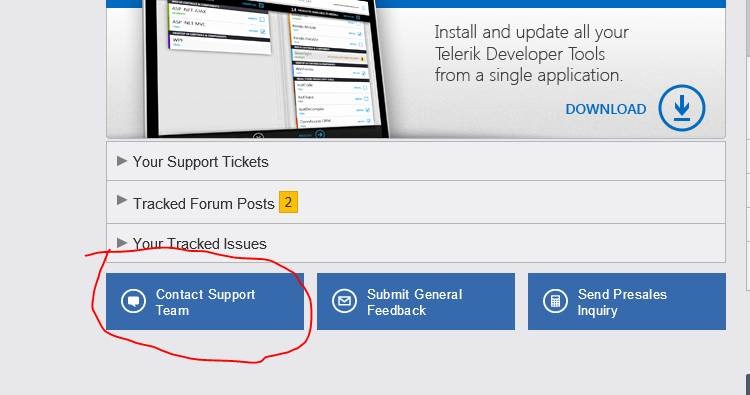
  • Click on “Contact Support Team” from your account page (after logging in):

clip_image002

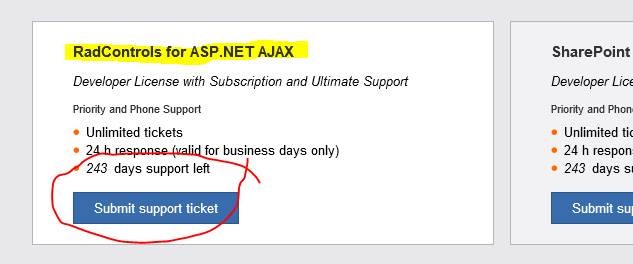
  • Choose the product you want the support for:

clip_image004

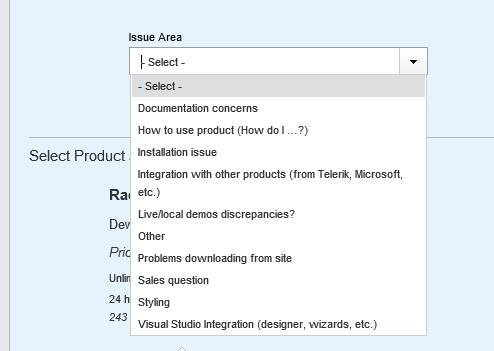
  • Identify the kind of help you need:

clip_image006

  • Choose the control you are looking help for:

clip_image008

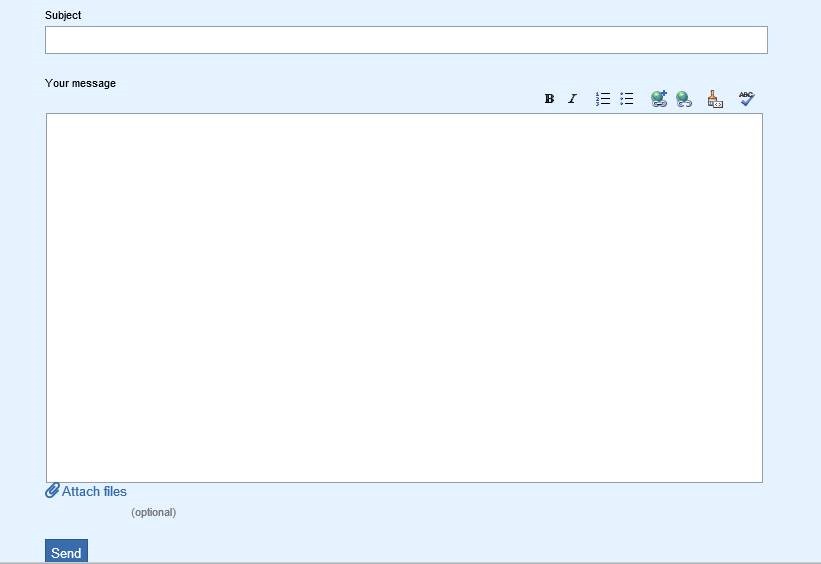
  • Provide details:

clip_image010

The message should include information on:

1. Steps to reproduce the problem

2. Attach screenshots of the error that you are encountering

Press Send button.

After you have submitted the support ticket, you expect a reply. But how soon? We have 24 working hours SLA for paid subscribers. However, we have no SLA for non-paid/trial subscribers but try and provide answers in 72 working hours. Do be aware of the “working hours”! So, if you have raised a support ticket on Friday evening, you can’t expect to get an answer on Monday morning even if you are a paid customer.

The procedure is almost the same for all Telerik products. We take pride in providing help to our customers when it is needed to improve their productivity. The above process helps us prioritize our tasks so that we can deliver most value.

If you have any feedback/ suggestions/ comments on how we can improve this further, please do share your thoughts on the comments section.

Update: We now have a video demonstrating this process:

RadHtmlChart

How to bind RadHtmlChart for ASP.NET AJAX to EntityDataSource control

Introduction:

This is the 3rd blog post in the series on RadHtmlChart, our HTML5 based charting control for ASP.NET AJAX and its data binding options. So far we have seen data binding the RadHtmlChart control with SQLDataSource and LinqDataSource. In this blog post we will look at one more data binding option namely binding to EntityDataSource.

In this blog post we will focus on how to create a EDM or entity Data Model using Entity Framework, then adding the EntityDataSource control to the web page and finally binding it to the RadHtmlChart. For the rest of this post it is assumed that you have already installed our RadControls for ASP.NET AJAX suite and also our free ORM called OpenAccess.

About EntityDataSource:

EntityDataSource is a control that was made available during the days of Visual Studio 2008 SP1 i.e. .NET 3.5. According to MSDN EntityDataSource control is defines as:

A control which can be used together with a data-bound control to retrieve data from an EDM and to display, edit, and sort data on a Web page by using little or no code.

I wont be spending too much time on discussing EntityDataSource control in this blog post. I suggest you to go through the overview article from MSDN available here: http://msdn.microsoft.com/en-us/library/cc488502.aspx. The article will get you up to speed with the EntityDataSource control.

Getting Started:

To start with, lets create a “C# RadControls Web Application”. Open a Visual Studio and navigate to File > New Project > Telerik > Web and select “C# RadControls Web Application”. Give it a name & click finish so that VS can go ahead and create the project for us.

SNAGHTML13df131b

Figure 1: New Project Dialog

Adding ADO.NET Entity Data Model:

Entity Data Source control requires a ADO.NET Entity Data Model to work with. Entity Data Source can be configured to work with a Entity Data Context for reading, creating, updating and deleting data with little or no code from the web page. In order to create a EDM, we need to first add Entity Framework bits to our project. Use the Nuget Package Manager to add a package named EntityFramework.

SNAGHTML1424992c

Figure 2: Nuget Package Manager

One of the best practice is to create a Models folder at the root of the web application. So lets create a folder called Models. Right click on the Models folder and select Add > New Item. In the new item dialog, under Data category select “ADO.NET Entity Data Model”, give it a name and click Add.

SNAGHTML142c24a9

Figure 3: Add New Item Dialog

Next we will be presented with a EDM Wizard. In the interest of the time, I will post my settings in the wizard as a serious of images below:

SNAGHTML142e40e0

Figure 4: Entity Data Model Contents

SNAGHTML142f47a3

Figure 5: Data Connection

SNAGHTML1430a6f2

Figure 6: Database objects

Once we finish with the wizard, NorthwindEntityDataModel.edmx is created in the Models folder. Double clicking that we will be presented with a visual designer with one object called Product placed. Remember we had selected only one Table for this demo called Product. Here is the screen shot of the EDMX designer:

image

Figure 7: EDMX Designer

Now that we have the EDM created, next is to add the Entity Data Source control to the page.

Adding Entity Data Source Control:

Open Default.aspx page and add EntityDataSource control to the page. You can either drag and drop the entity data source control from toolbar and you can write the declarative code by hand. I will drag and drop it from the toolbox onto the page. Use the Entity Data Source control smart tag (either from the ASPX page or from the designer) to configure data source settings. Here is my settings for the data source:

SNAGHTML144def19

Figure 8: Object Context Configuration

SNAGHTML144ee98e

Fig 9: Data Selection Configuration

When we finish the configuration wizard, following code will be generated by the Visual Studio

 
<asp:entitydatasource id="NorthwindEntityDataSource" runat="server" 
defaultcontainername="NORTHWINDEntities" connectionstring="name=NORTHWINDEntities" 
enableflattening="False" entitysetname="Products" 
entitytypefilter="Product" 
select="it.[ProductName], it.[UnitPrice]">
</asp:entitydatasource>

Note that we couldn’t add the top 10 keywords when configuring using the wizard and also there was no way to provide the orderby clause. In order to specify the top keyword just prepend “top(10)”  to the Select text. EntityDataSource supports OrderBy property. So add the property and provide the value “it.UnitPrice DESC”. Here is the final code:

 
<asp:EntityDataSource ID="NorthwindEntityDataSource" runat="server"
                DefaultContainerName="NORTHWINDEntities"
                ConnectionString="name=NORTHWINDEntities"
                EnableFlattening="False"
                EntitySetName="Products"
                EntityTypeFilter="Product"
                Select="top(10) it.[ProductName], it.[UnitPrice]"
                OrderBy="it.UnitPrice DESC" >
            </asp:EntityDataSource>

Add RadHtmlChart:

You can add a RadHtmlChart either by dragging and dropping from the toolbox onto the page or by writing the declarative code on the page. I will be dragging and dropping the control on to the page. Following 3 things need to be taken care while data binding to a EntityDataSource. They are:

  • DataSourceID: Set the DataSourceID property of the RadHtmlChart to the name of the Entity Data Source you want to bind to.
  • DataFieldY: Set the DataFieldY property of the data series to the column name from which the data points have to plotted on the Y axis. I am plotting the UnitPrice on the Y axis so I will set the DataFieldY property to “UnitPrice
  • DataLabelsfield: Set the DataFieldsLabel property of the XAxis to the column name from which we need the X axis data points to be plotted. I am having the products name on the XAxis so I will set the DataLabelsField property to “ProductName”.

Here is the complete code for the RadHtmlChart:

 
<telerik:RadHtmlChart ID="RadHtmlChart1" runat="server" 
                DataSourceID="NorthwindEntityDataSource" 
                Height="600px" Width="1000px">
                <ChartTitle Text="Top 10 Products By Price">
                    <Appearance>
                        <TextStyle FontSize="16px"></TextStyle>
                    </Appearance>
                </ChartTitle>
                <Legend>
                    <Appearance Position="Top">
                    </Appearance>
                </Legend>
                <PlotArea>
                    <Series>
                        <telerik:ColumnSeries Name="UnitPrice" DataFieldY="UnitPrice">
                        </telerik:ColumnSeries>
                    </Series>
                    <XAxis DataLabelsField="ProductName">
                        <LabelsAppearance RotationAngle="90" />
                        <MinorGridLines Visible="false" />
                        <MajorGridLines Visible="false" />
                    </XAxis>
                    <YAxis>
                        <TitleAppearance Text="Price" />
                        <MinorGridLines Visible="false" />
                    </YAxis>
                </PlotArea>
            </telerik:RadHtmlChart>

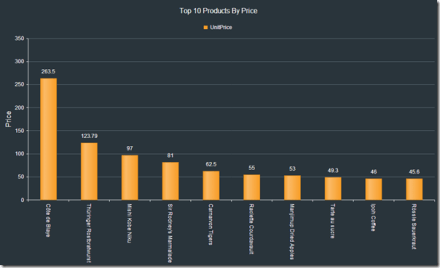
Here is the output of the chart:

image

Figure 10: RadHtmlChart Output

Summary:

In this post we looked at one more data binding technique with RadHtmlChart. We looked at EntityDataSource, how to configure entity data source and finally how to bind it with RadHtmlChart. With just 3 things to take care its very easy to bind the chart with entity data source. Hope this makes you excited to start working with RadHtmlChart. Do let us know your experience with the RadHtmlChart.

Till next time – Happy Coding !